

For engineersGuide
Connect Claude Code or Codex
Connect your coding agent when you want it to work with Emargen as you. It can leave you notes from its sessions and build an initiative’s tasks, or keep a long piece of work in a topic. You make a personal access token on your profile, with what the agent may do and for how long. The token comes with a line to run in your terminal. You do it once per computer and organisation.
Before you start
Section titled “Before you start”- Anyone in the organisation can connect their own agent. It works as you. It sees what you see, and what it writes is yours.
- You choose what your agent may use, within your organisation’s limits. An administrator sets those under Admin › People › Agent access. You can allow less, never more.
- You need Claude Code or Codex on your computer. Any other agent that speaks MCP works too, with the address and the token.
- The pictures show Security for Jonas Berg, an engineer at ACME.
-
Open your profile from your name at the bottom of the menu, and choose Security.
Open Security (opens Emargen in a new tab) -
Under Connect an agent, keep Claude Code or Codex chosen.
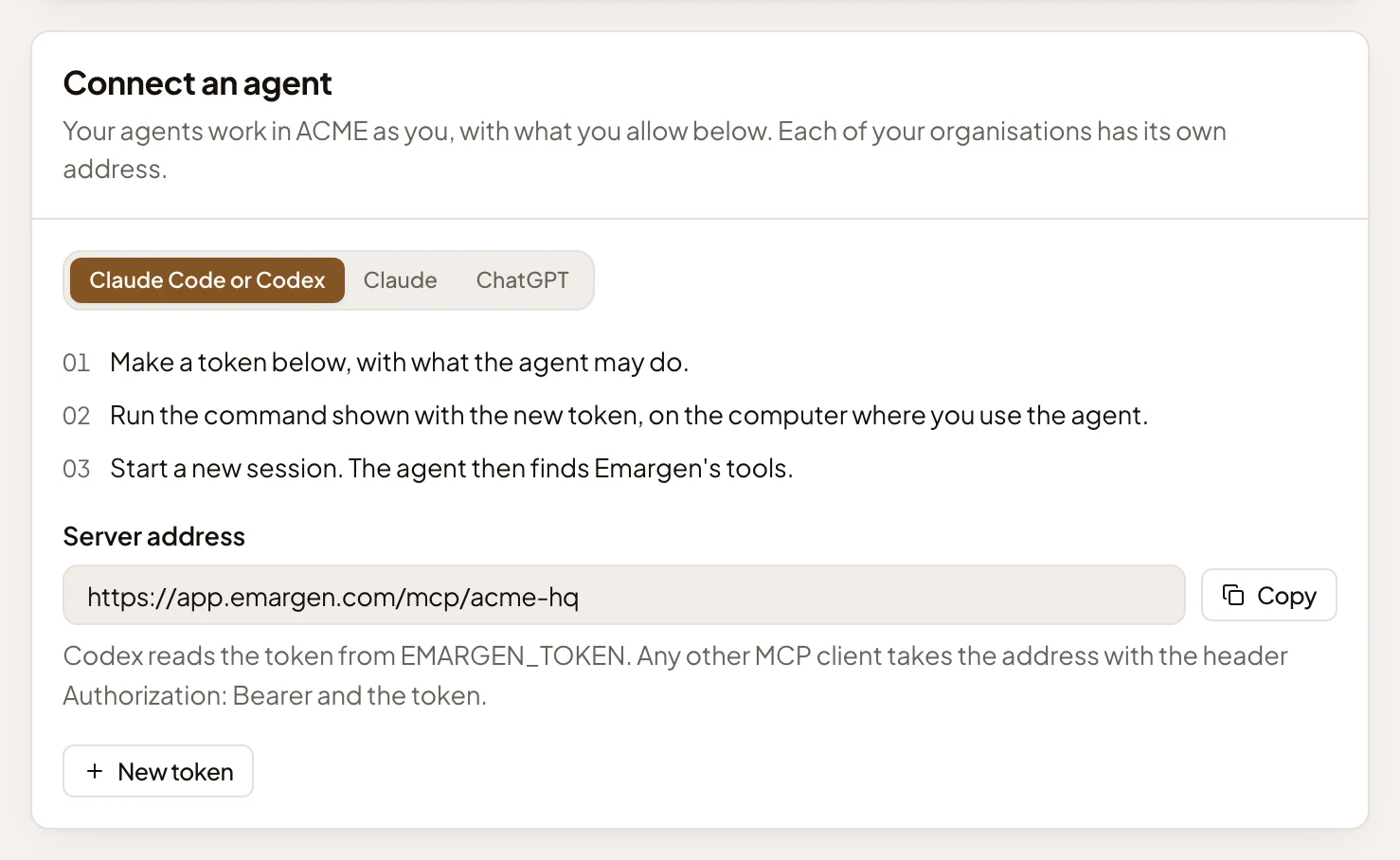
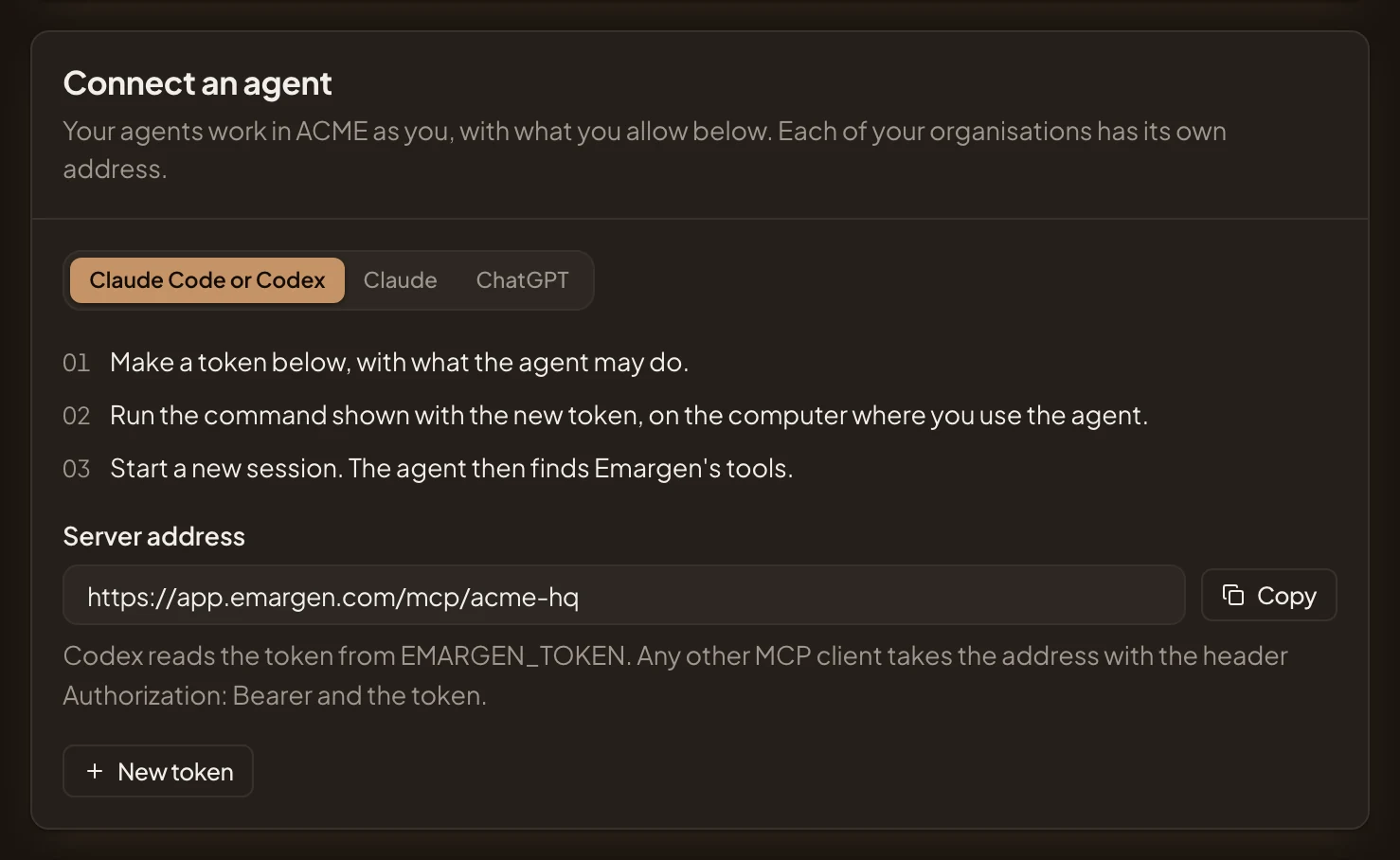
- Claude Code or Codex, Claude or ChatGPT. Claude and ChatGPT sign in instead of taking a token (see Claude and ChatGPT).
- The three steps.
- Server address, ending in /mcp/ and your organisation’s code.
- Copy: copies the address.
- New token: starts the token your agent will use.
- Click New token. New personal access token opens.
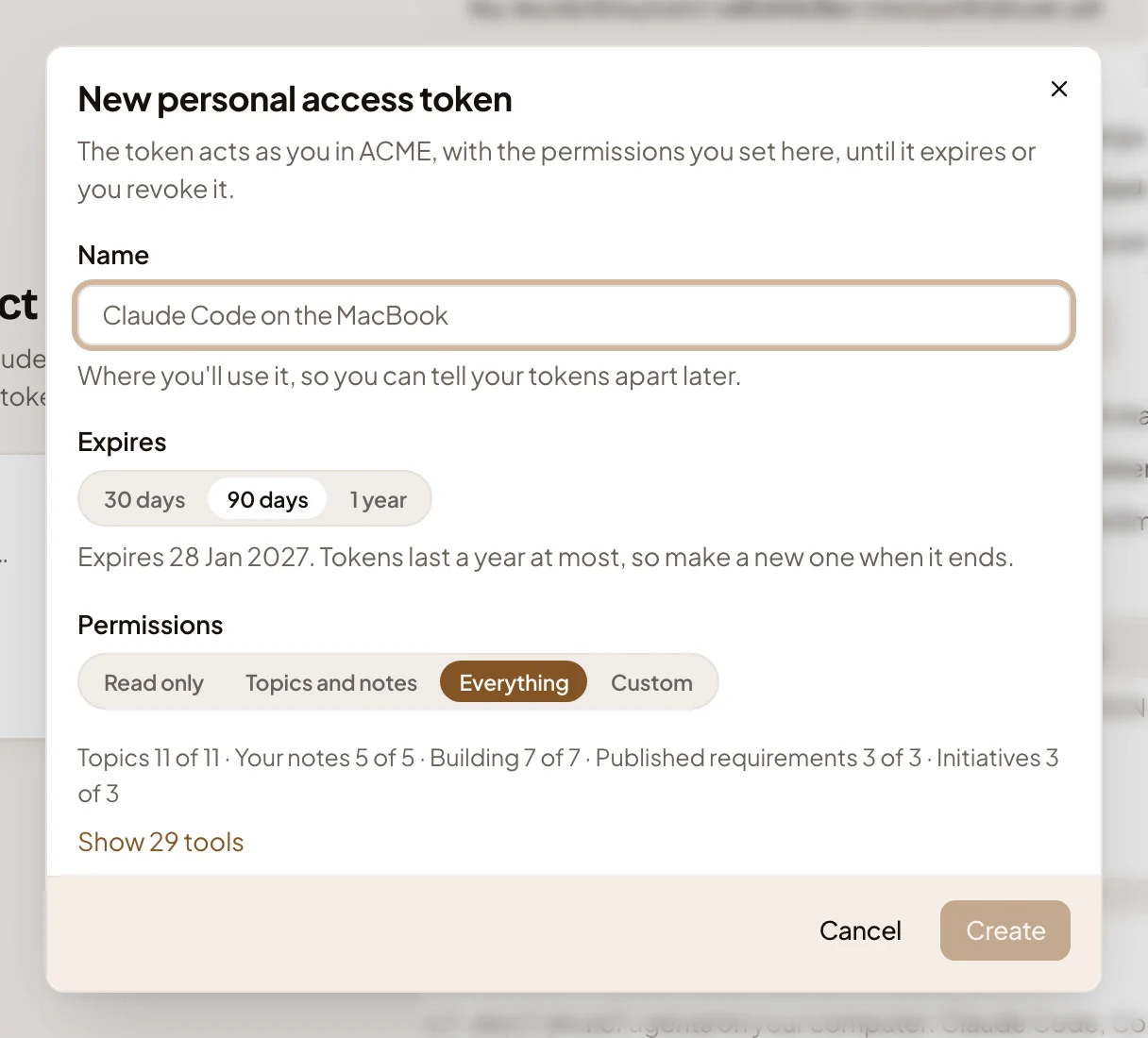
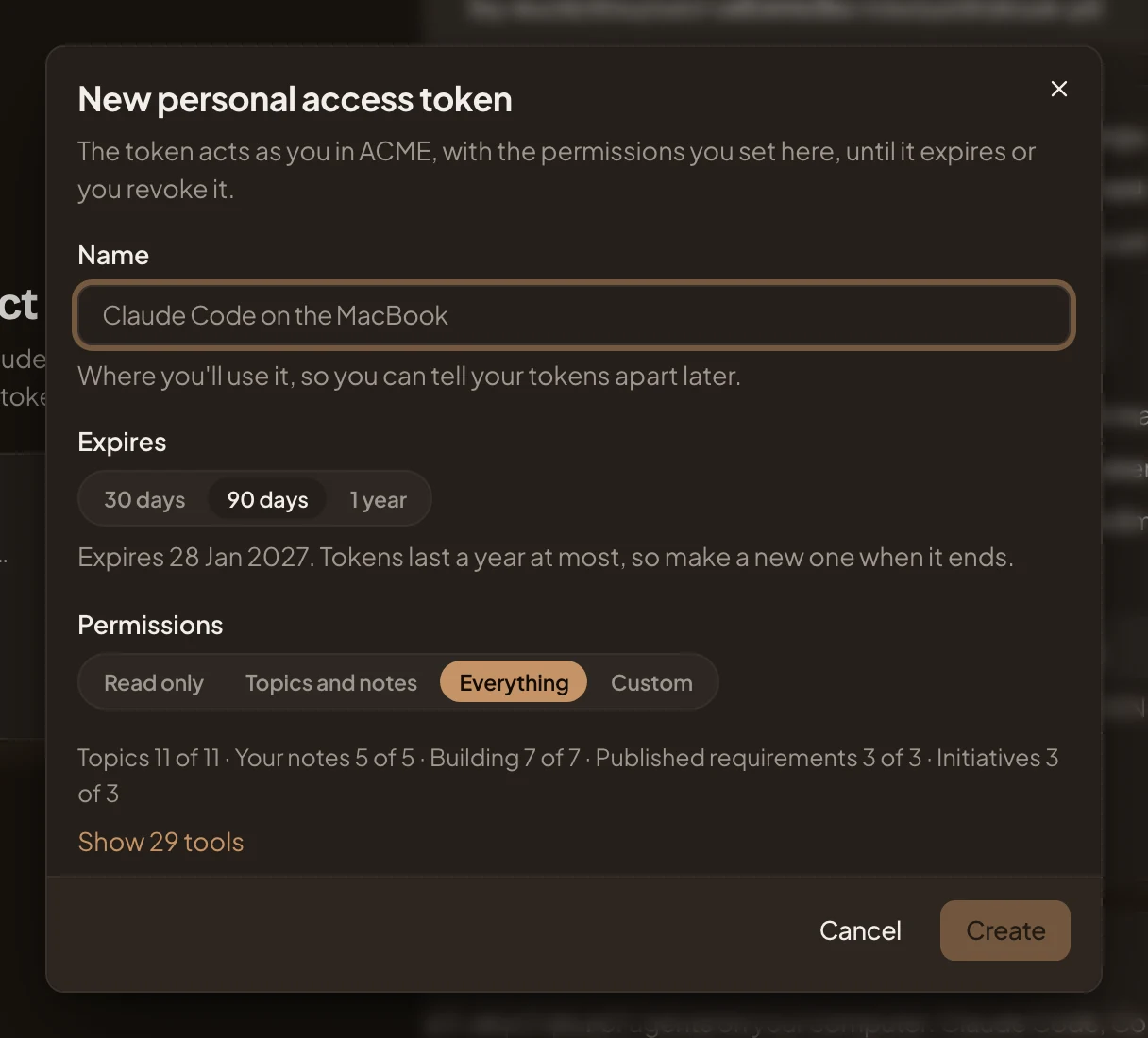
- Name: where you’ll use it, so you can tell your tokens apart later.
- Expires: 30 days, 90 days or 1 year. A token lasts a year at most. Make a new one when it ends.
- Permissions: Read only, Topics and notes, Everything or Custom, with the number of tools allowed in each area.
- Show 29 tools: every tool, ticked or not, to change one by one.
- Create: greyed out until the token has a name.
-
Give it a name, and choose how long it lasts.
-
Choose its permissions. To build an initiative’s slices, your agent needs Everything, or Custom with the Building tools ticked. Topics and notes gives none of them, and Read only only lets it read the slices. The tools has every tool.
-
Click Create. The dialog shows your new token, this once, with a copy button. Emargen keeps only a fingerprint of it, so it can’t show it to you again.
-
Under the token, choose your coding agent, Claude Code or Codex. The dialog shows the line that adds Emargen to it, with your token already in it.
For Claude Code, one line:
Terminal window claude mcp add --transport http emargen-ORG https://app.emargen.com/mcp/ORG --header "Authorization: Bearer TOKEN"For Codex, two lines. The first adds Emargen, the second puts the token where Codex reads it.
Terminal window codex mcp add emargen-ORG --url https://app.emargen.com/mcp/ORG --bearer-token-env-var EMARGEN_TOKENexport EMARGEN_TOKEN=TOKENThe dialog fills in ORG, your organisation’s code, and TOKEN. The name is emargen- plus your organisation’s code. Any other MCP client takes the address, with the header “Authorization: Bearer” and the token.
-
Run the line in your terminal. For Claude Code, add
--scope userafterclaude mcp addto connect every repository on this computer, not just the folder you’re in. For Codex, run both lines, and put the export in your shell’s profile, so every session has it.Claude Code keeps the token inside the connection, so connections to several organisations sit side by side. Codex reads the token from EMARGEN_TOKEN, so these lines give it one organisation’s token on this computer. For a second organisation, name its token differently in both lines, such as EMARGEN_TOKEN_2. Emargen refuses a token at another organisation’s address.
-
Optional: open “Start each session with your notes”, folded under the lines. Its script gives your agent your open notes for the repository at the start of each session. Copy the script and the setting that runs it, each to the place the dialog names. For Claude Code, also copy the line that puts your token in EMARGEN_TOKEN. Codex runs a new hook only once you’ve trusted it. Type
/hooksin your next Codex session, then review it and trust it. Notes says what the script hands over. -
Click Done. The token and its lines don’t show again. If you lose them, revoke the token and make a new one.
-
Start a new session in a repository. Your agent finds Emargen’s tools, and the few sentences that say when to use them. In Claude Code,
/mcpshows the connection as connected. In Codex,codex mcp listshows it. -
Ask it something small, like “list my recent topics in Emargen”. It answers with topics whose keys start with your organisation’s letters. If it’s refused, the refusal says what to fix, such as a token made for another organisation, or a tool you didn’t allow.
Once it’s connected
Section titled “Once it’s connected”- Your token is listed under Personal access tokens on Security, with what it may use, when it was last used, and when it expires.
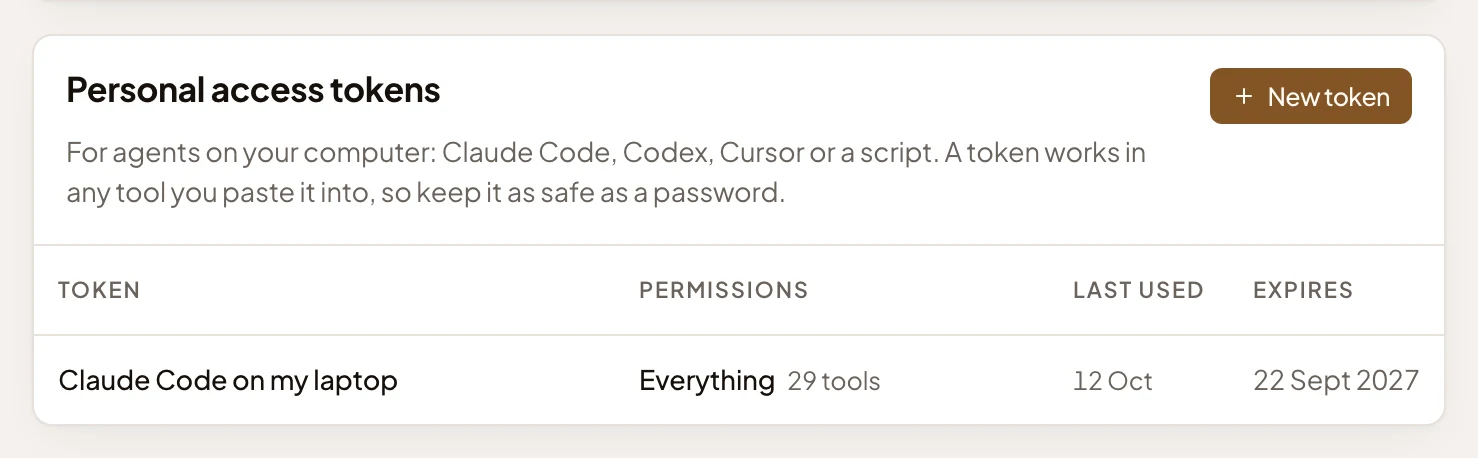
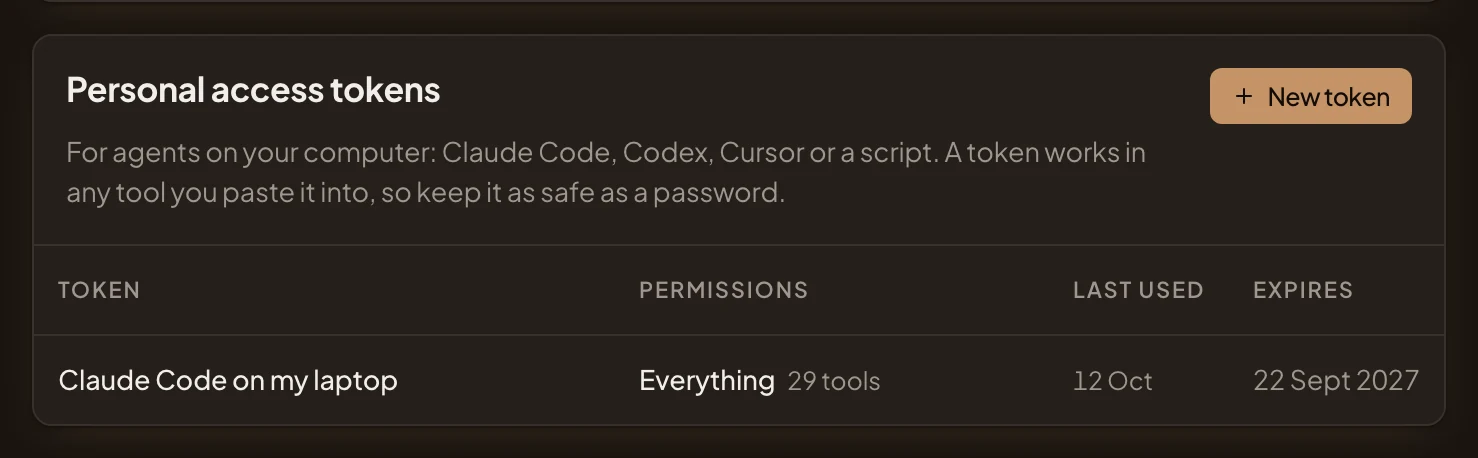
- The token’s name. Click its row for Permissions, to change what it may use, and Revoke, which stops it at once.
- What it may use: the choice, and how many tools that is.
- Your agent leaves you notes in Agent Notes, builds tasks for you, and writes topics as you. Tasks show your name and the agent’s. Topic versions show your name “with Claude Code”.
- Your organisation’s administrators see under Admin › People › Agent access that you have a token, its name and when it was last used. They can revoke it. They never see your notes.
- If your agent calls a tool you didn’t allow, Emargen refuses, and says you can allow it on Security. A change to Permissions applies from the agent’s next call. A tool you add shows in its list when it next reads Emargen’s tools, at the latest in a new session.
Claude and ChatGPT
Section titled “Claude and ChatGPT”Claude and ChatGPT, on the web, the desktop or a phone, can’t take a pasted token. They sign in to Emargen themselves. Choose Claude or ChatGPT under Connect an agent for their steps.
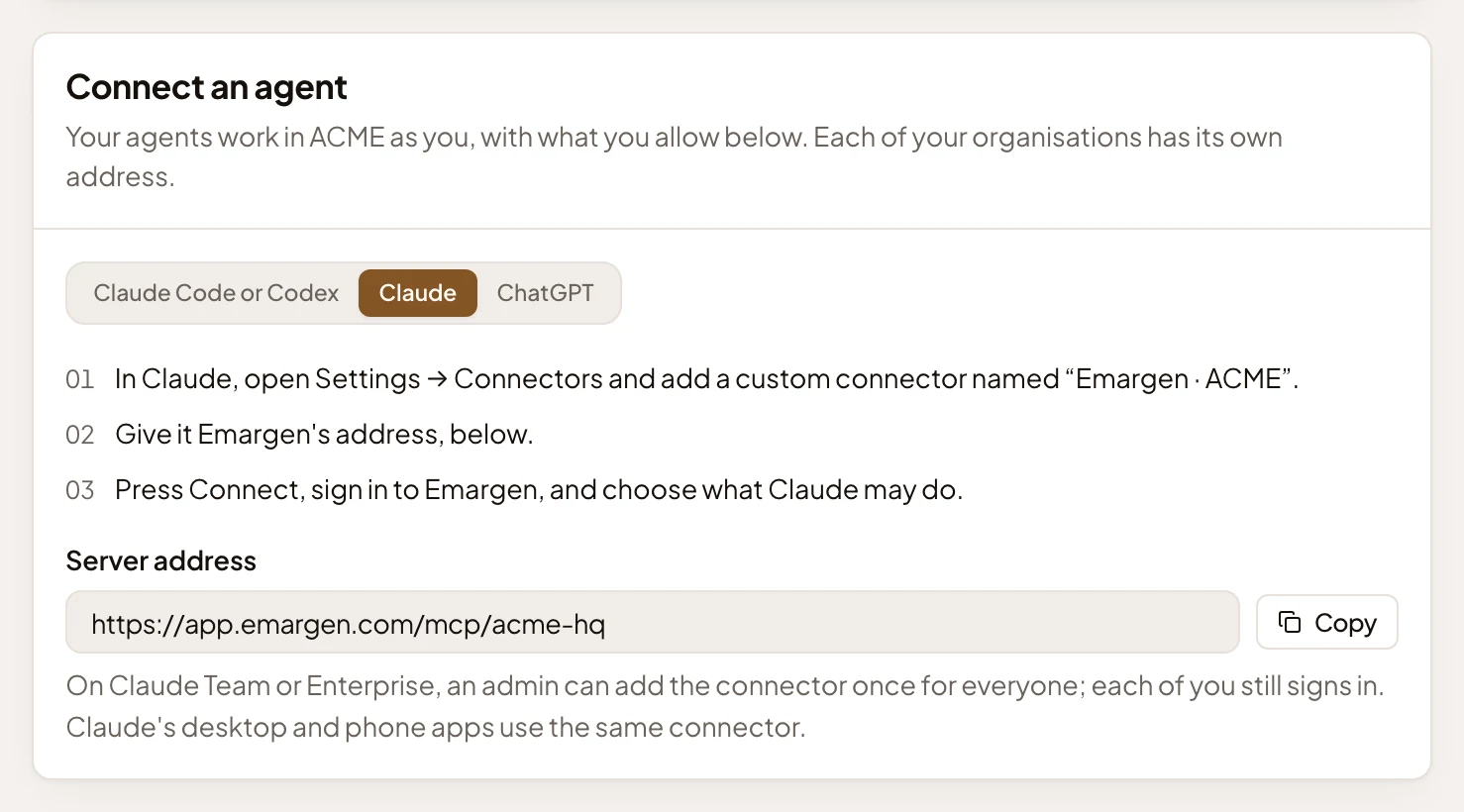
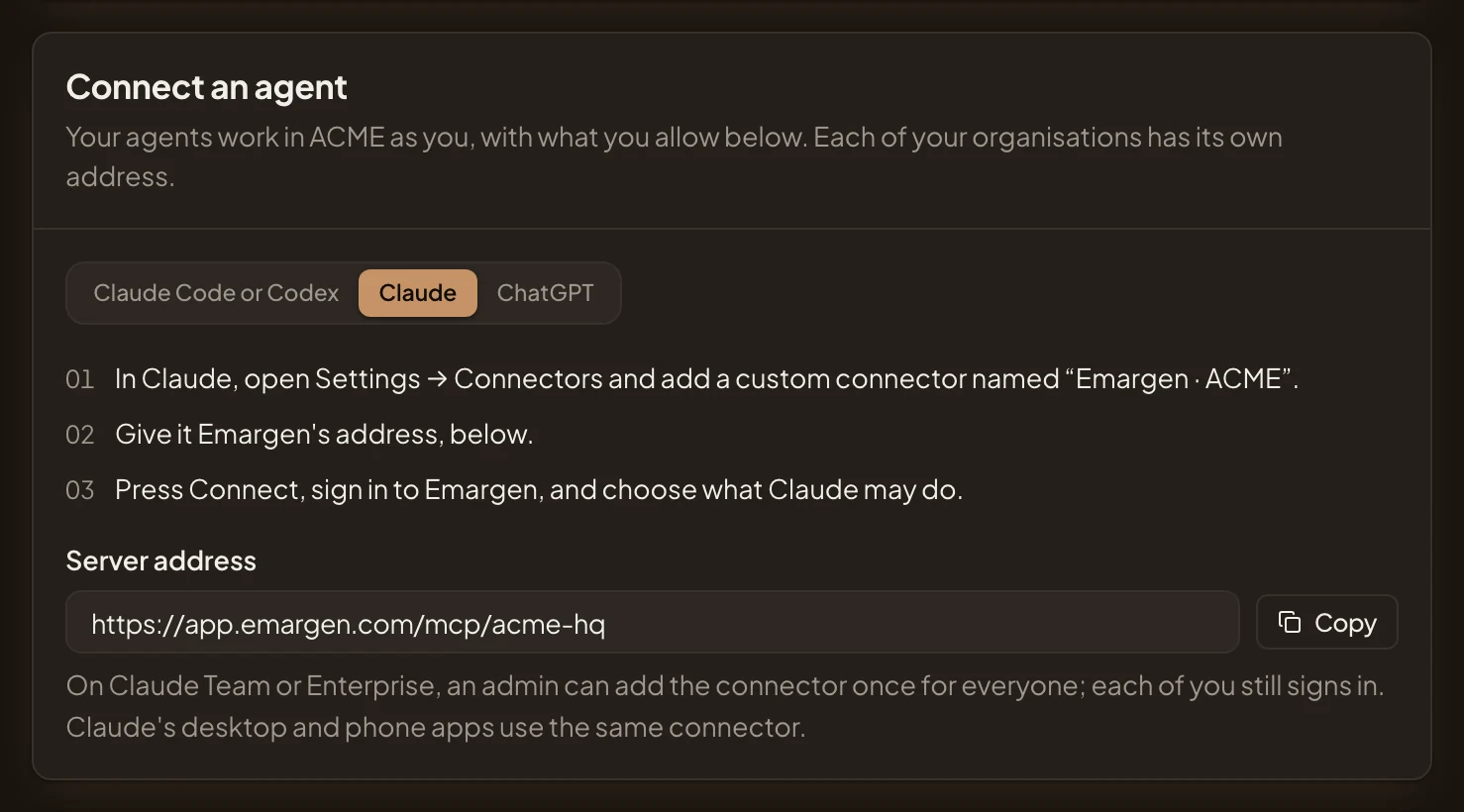
- Claude, chosen. ChatGPT has its own steps.
- The steps in Claude.
- Server address, to give the connector.
When you press Connect in Claude or ChatGPT, it sends you to Emargen’s connect page, where you choose what it may do. Once allowed, it shows under Connected assistants on Security.