

AcademyPage by page
Tracks
Tracks is where your tracks are listed, and where new ones start. Open it with Tracks under Academy in the menu. See tracks and spots for what a track is.
Open Tracks (opens Emargen in a new tab)In the picture, someone in customer success at ACME has two tracks, and one more suggested from their Explore chats.
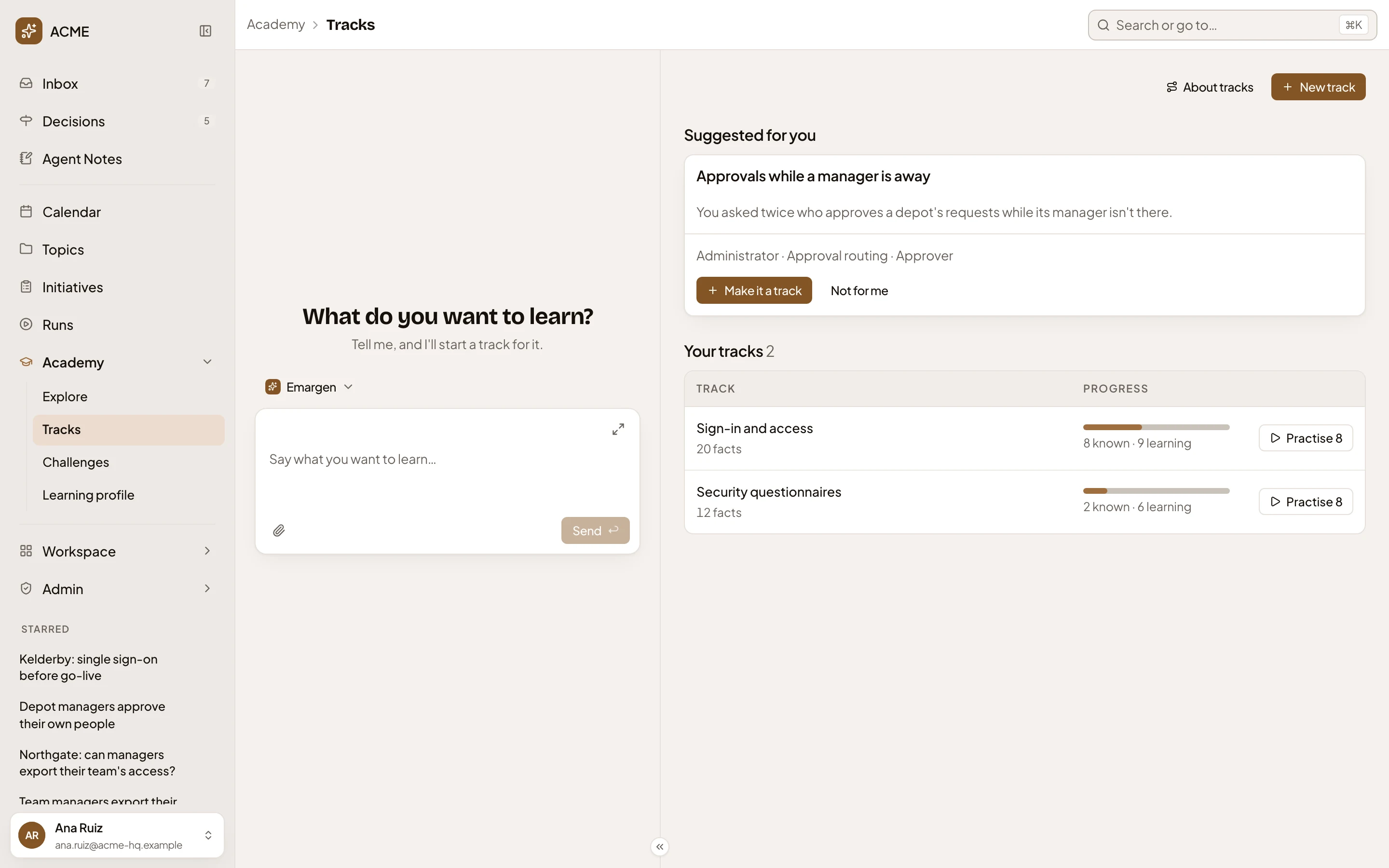
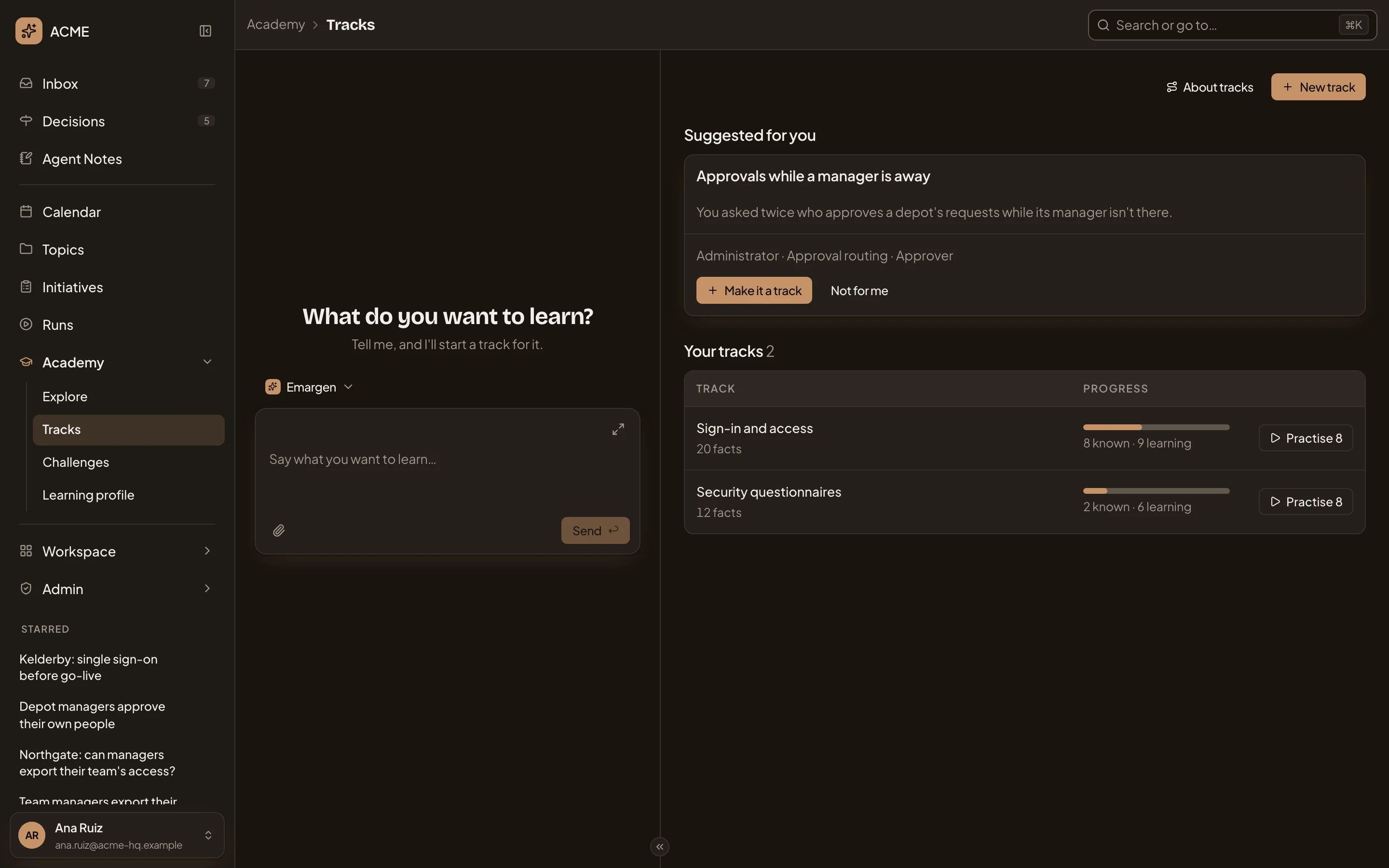
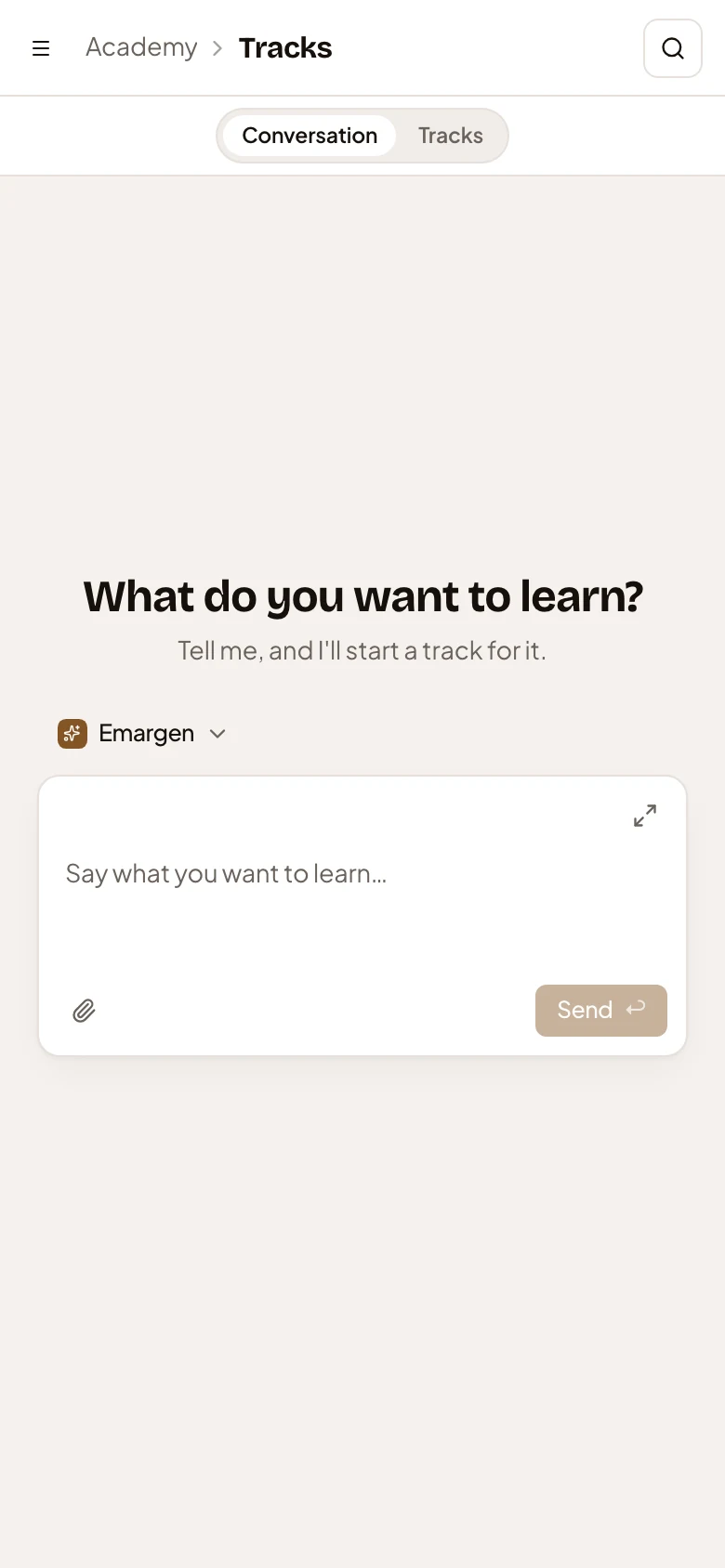
- Your Academy chat, which asks what you want to learn. It’s the same chat you have beside a track and a spot. Tell it what you want to learn, and it starts a track and opens it, with your words as its first message.
- Message the Academy agent.
- About tracks. Five steps, from saying what you want to a few minutes a day.
- New track. Opens a new track, where you tell the agent what you want to learn (see While a track is framed).
- Suggested for you. A track your learning profile suggests, with why and the Landscape entries it would cover.
- Make it a track. Builds the suggested track at once and opens it.
- Not for me. Sets the suggestion aside.
- A track of yours, with how many facts it has. Click it to open the track.
- Progress: how many of its facts you know, and how many you’re still learning.
- Practise 8. Practises the cards of this track that are due today.
You see up to three suggestions. A track you started and never built waits under Not finished, with Continue and Delete.
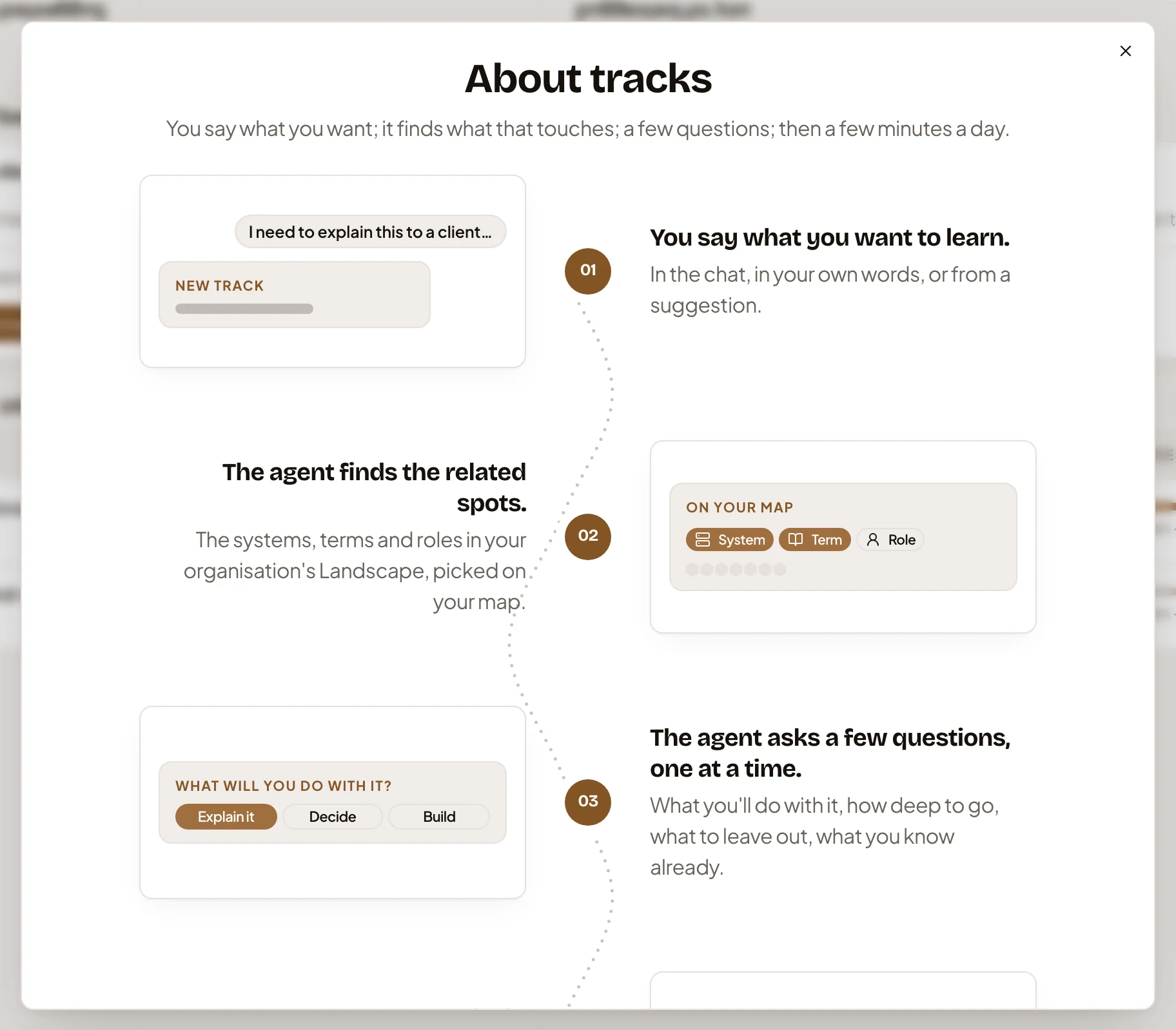
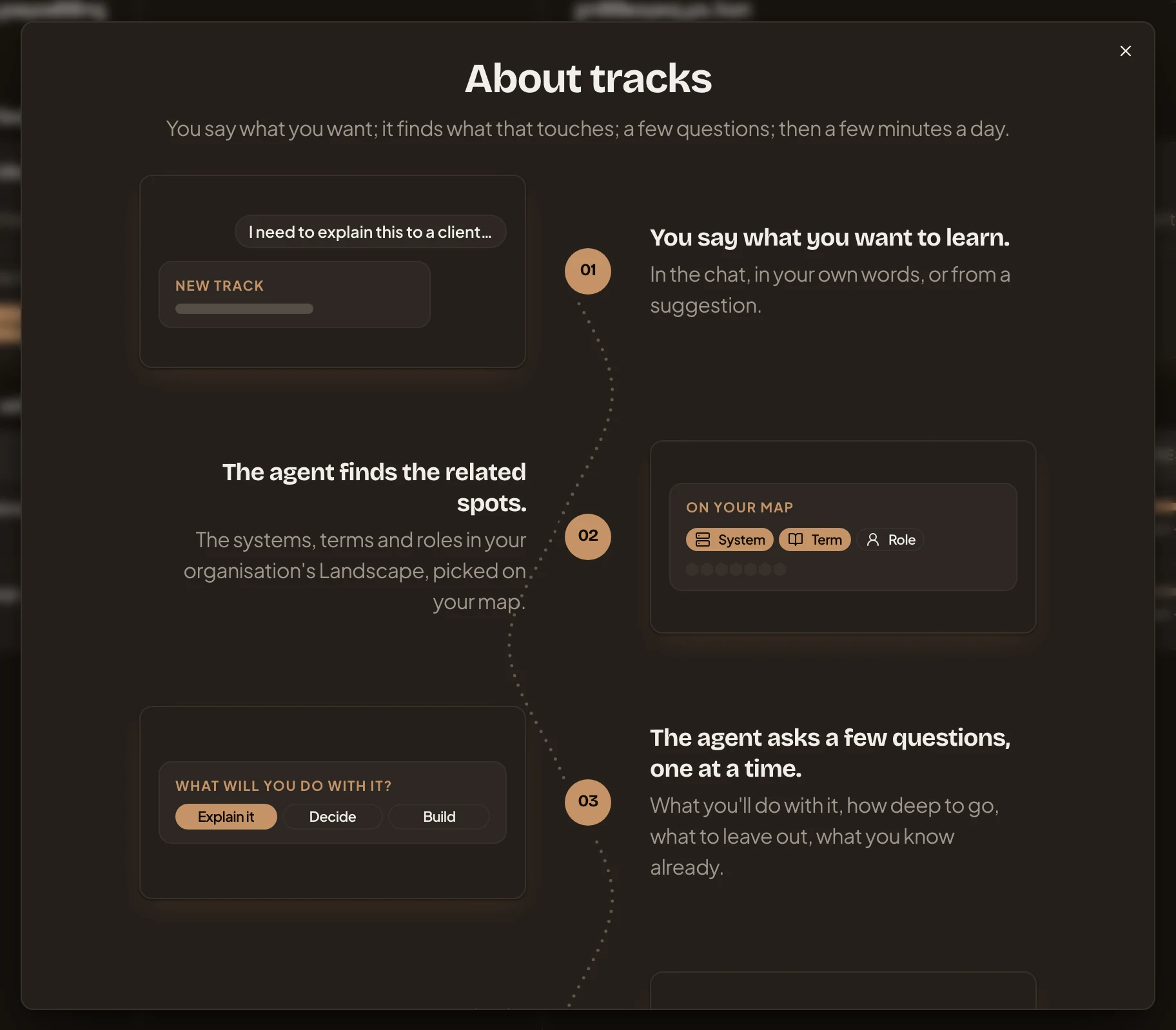
With no tracks yet, the page opens on a banner, “No tracks yet.”, with New track. Under Ready to start you’ll find How Emargen works, Emargen’s own ideas to practise from today. Then come the five steps of About tracks.
On a phone
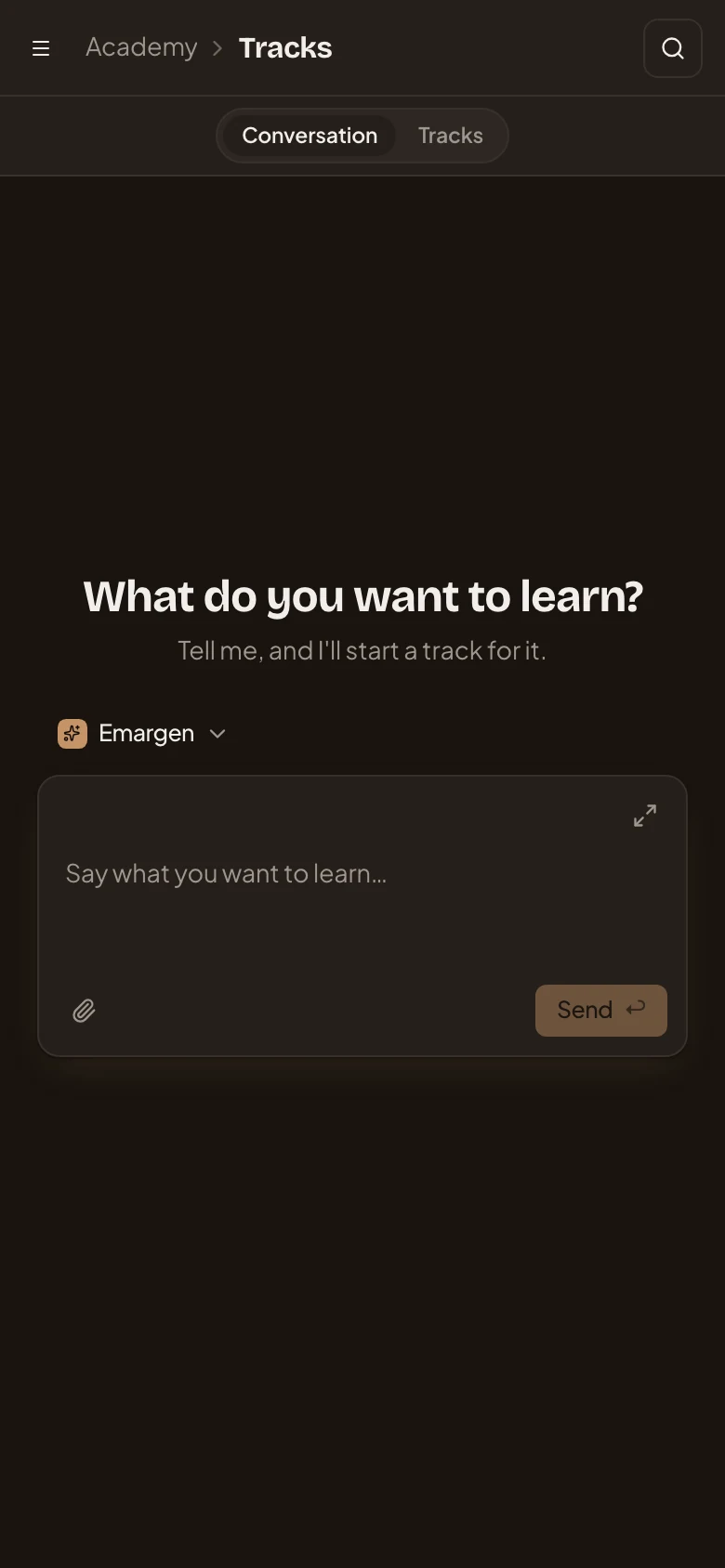
Section titled “On a phone”On a phone, the chat and your tracks take turns. Switch between Conversation and Tracks at the top.
Access
Section titled “Access”Only you can see your tracks and their suggestions.