

AgentsPage by page
Flows
This page lists the flows you can see. A flow sets out how a kind of work goes, step by step. Each run takes one case through. Open the page from Flows under Workspace in the menu.
Open Flows (opens Emargen in a new tab)An organisation with three flows of its own, written with the personas agent.
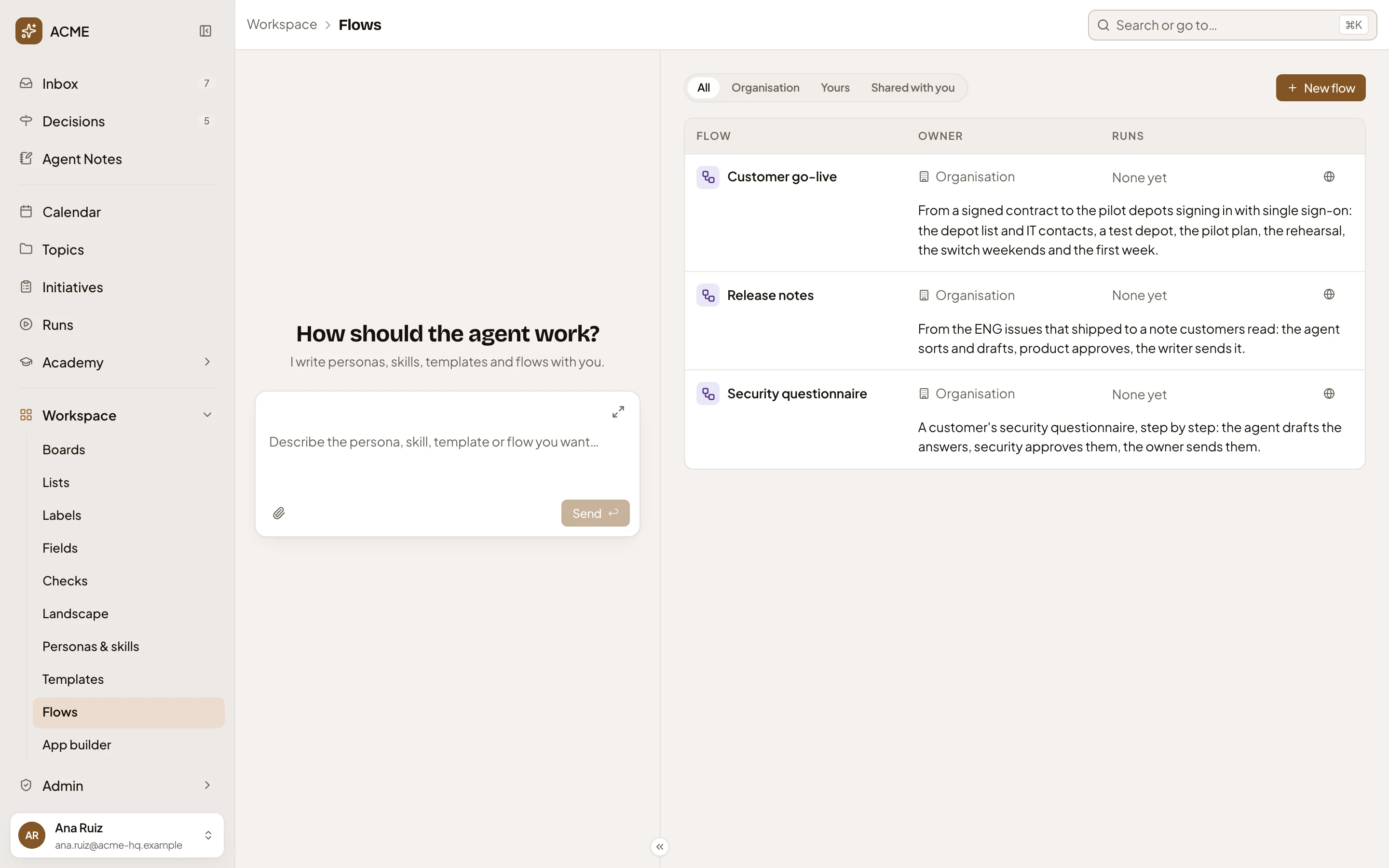
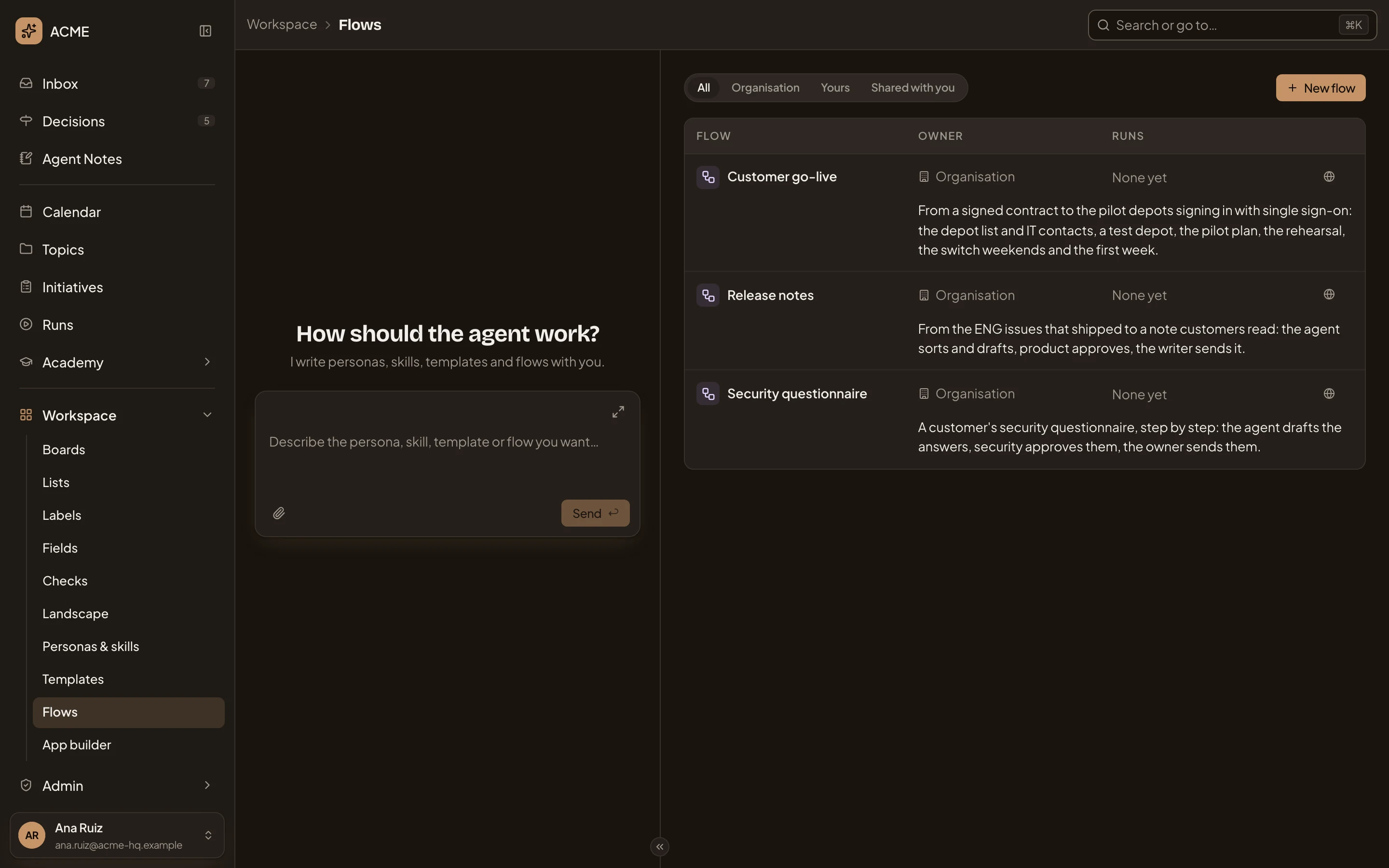
- Workspace, then Flows. Where you are.
- Show. Narrows the list to All, Organisation, Yours or Shared with you.
- New flow. Opens a new flow’s page.
- A flow’s name. Click it to open the flow.
- Owner. Organisation, You, or the colleague who shares it with you.
- Runs. How many of its runs are going and how many have ended (“2 running · 5 ended”), or None yet. The count opens Runs with only this flow’s runs. A flow with lines Emargen can’t read shows how many there are to fix (“1 line to fix”). One that can’t run for another reason shows “Not ready to run”.
- Its description. The line New run shows when people pick a flow.
The last column has a globe for a flow everyone sees, two people for one shared with some people, or a lock for one only its owner sees.
The personas agent’s chat sits on the left. Ask it for a flow in your own words, or point it at the page where your team wrote the procedure down. It writes the flow with you on a new flow’s page.
A selected flow
Section titled “A selected flow”Click a flow’s row, anywhere but its name or its count of runs, to select it.
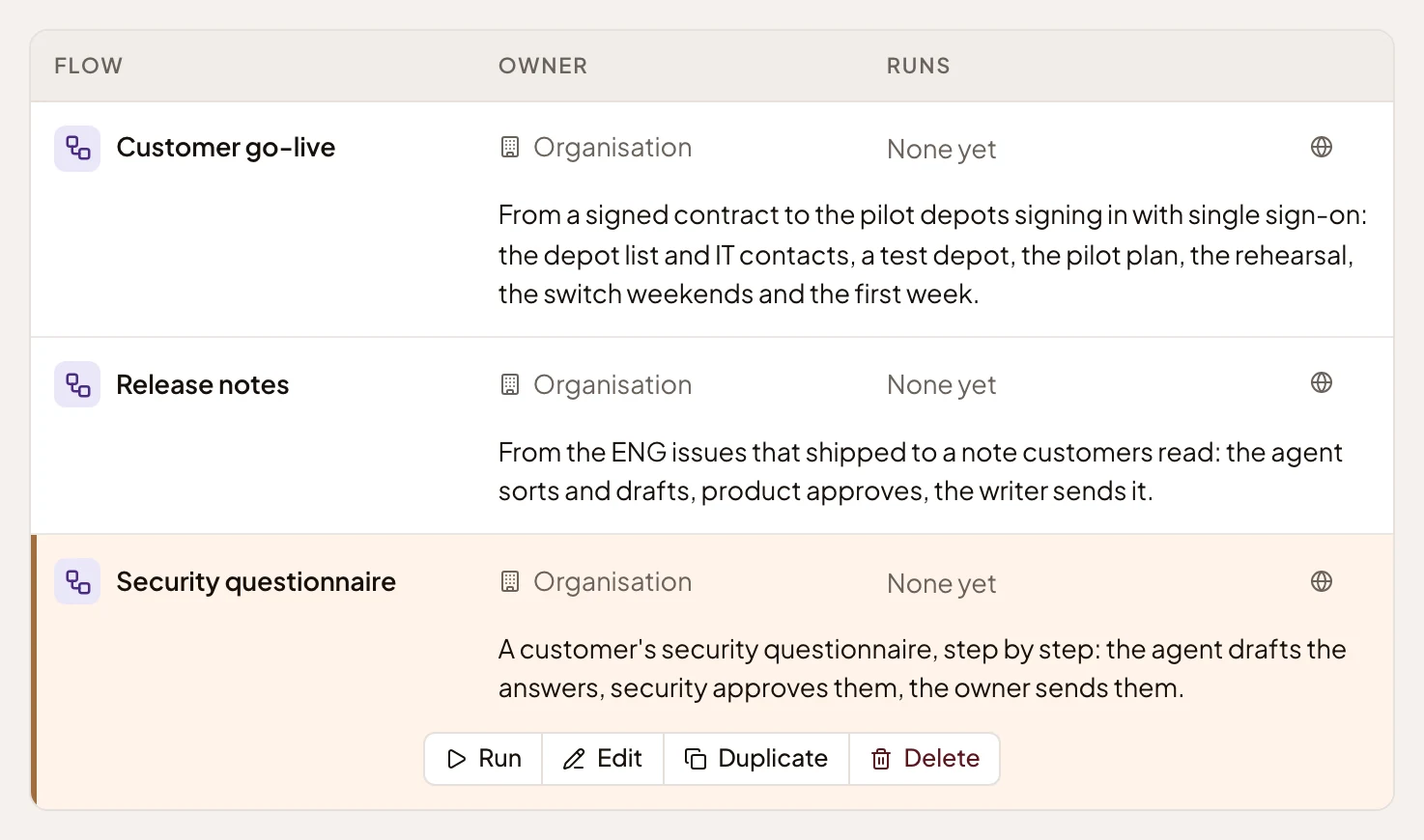
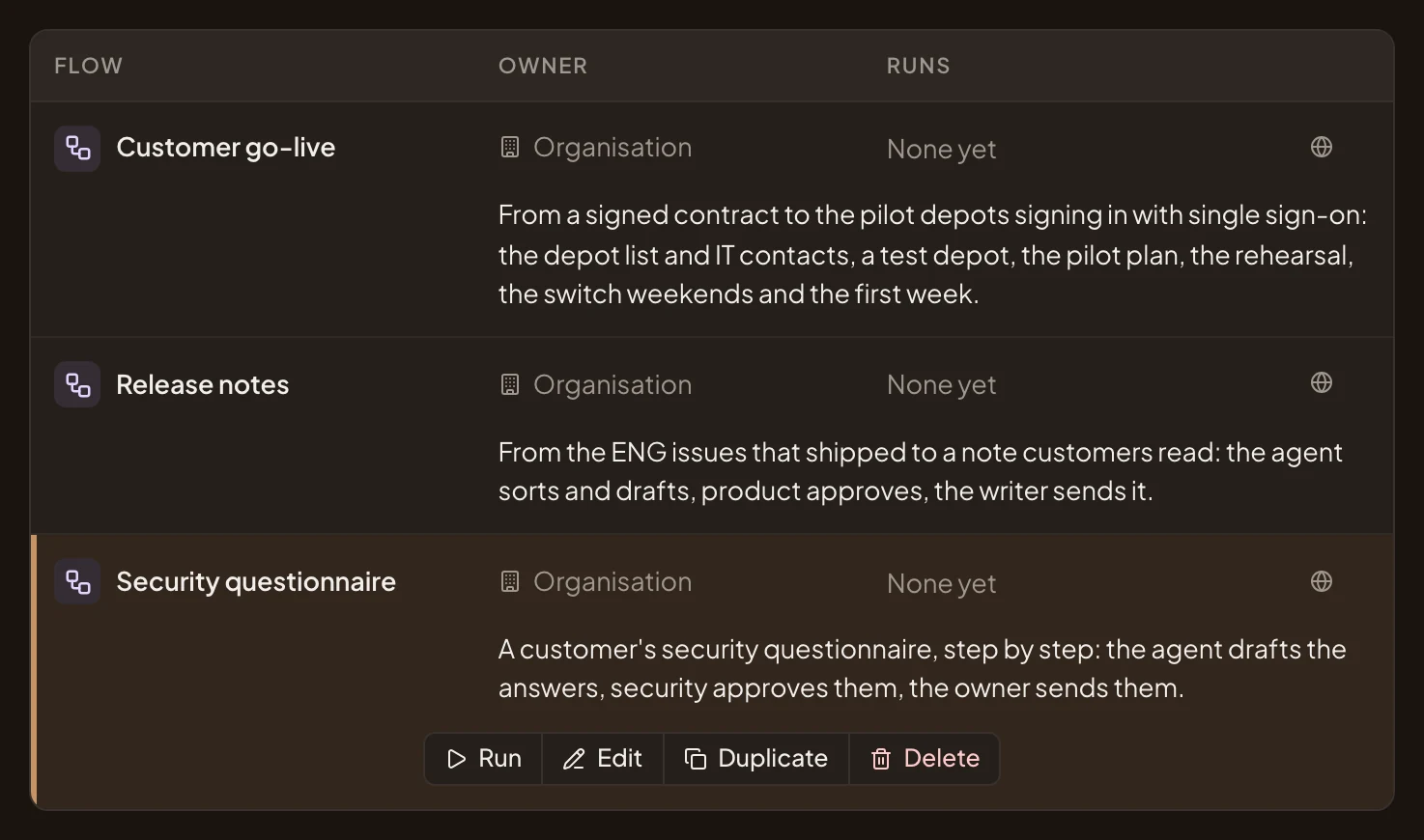
- Run. Opens New run with the flow picked. Only for a flow you may run.
- Edit. Opens the flow to change it. A flow you can only read says Open instead.
- Duplicate. Makes your own copy and opens it.
- Delete. Deletes the flow once you confirm. Its runs go on with the version they started with.
With no flows yet, the page says “No flows yet”. Emargen has no built-in flows, so click New flow, or ask the personas agent for one.
Access
Section titled “Access”Everyone in the organisation sees the flows shared with them. People whose role lets them manage templates make and change the organisation’s flows, and everyone can make their own. Seeing a flow lets you read it. To start runs of it, its owner gives you Runs (see a flow’s page).