

TopicsPage by page
The topics list
The topics list shows your topics and the ones shared with you, one row each. Open it from Topics in the menu on the left.
Open the topics list (opens Emargen in a new tab)The picture shows Everything for someone in customer success at ACME, with their lists.
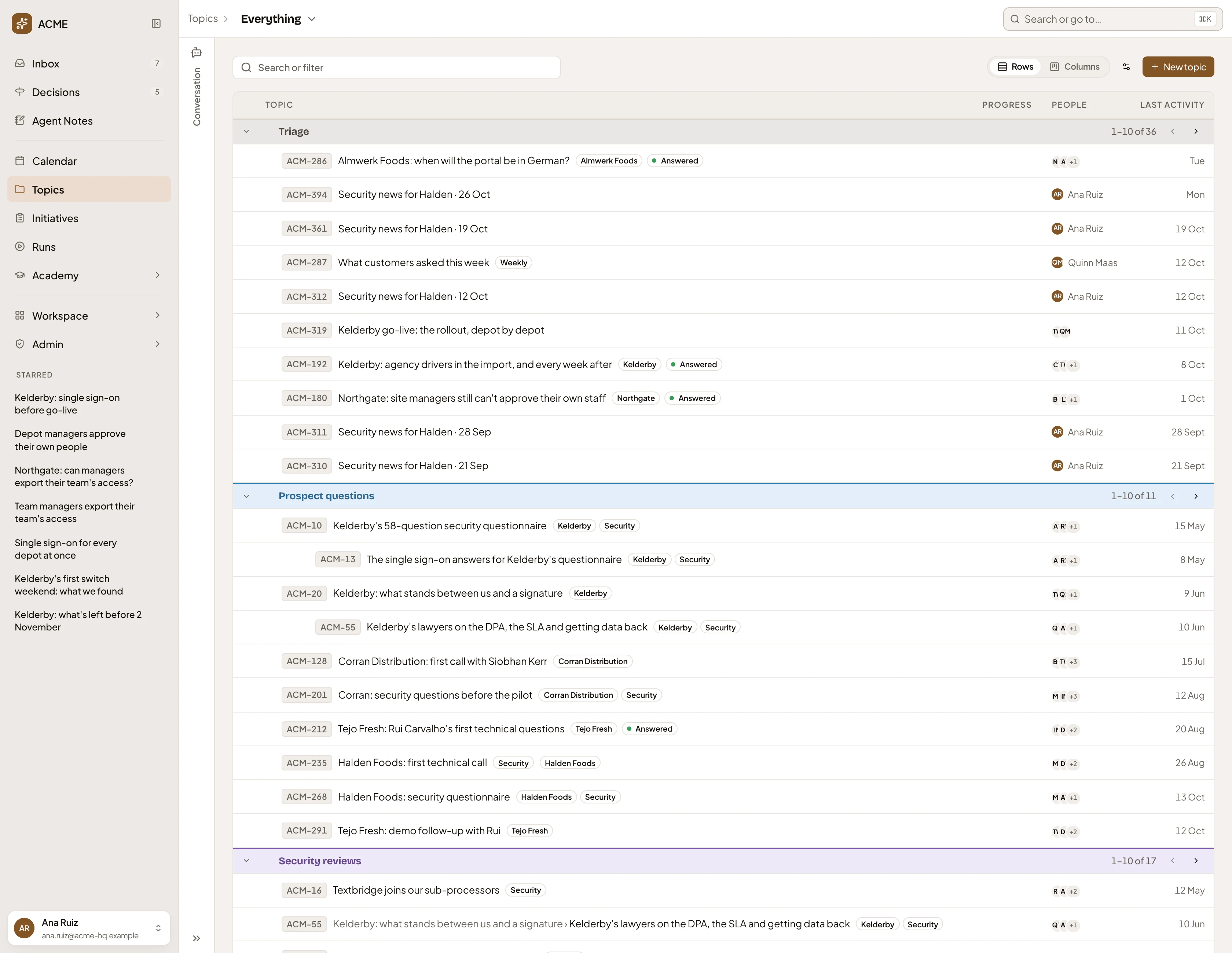
- Everything. The board you’re looking at: all your topics and the ones shared with you. Click it to switch board (see Boards).
- Conversation. The chat with the workspace agent, folded to the side (see The conversation).
- Search or filter. Type words to find topics, or pick a filter (see Searching and filtering).
- Rows and Columns. Rows is the table you see here. Columns puts the groups side by side (see Columns).
- View options. How the topics are grouped and in what order (see View options).
- New topic. Opens New topic.
- Triage. A group. Triage holds your own topics that are on none of the lists you see. The arrow beside the name (Toggle group) folds the group. Click the name to see that group alone, as a filter in the search box.
- Where you are in the group. A group shows ten rows at a time, with arrows to page through a longer one.
- A topic’s key, title, labels, and up to three of its fields when it follows a template. Click the title to open the topic, or elsewhere on the row to pick it (see Picking a topic). ACM-312 is one of a weekly series an agent task makes.
- People. Who the topic is shared with, apart from its owner. If it isn’t shared, it shows the owner.
- Last activity. When the topic last changed.
- Prospect questions. A list you see, in its colour. Each list you see that holds your topics gets a group between Triage and Shared with you.
- A subtopic, set in under the topic it belongs to.
Progress stays empty for topics. It fills only for initiatives. A list only you see, like This week, has a lock beside its name. An agent task fills Support questions. With Sort set to List order, drag the Move handle at the start of a row to reorder one of your lists. You in People means something on the topic waits on you, like a colleague’s question in a comment. Last comes Shared with you: other people’s topics that name you and are on none of the lists you see.
A topic can be in more than one group: one of the support questions is in Support questions and in This week. A topic shared with everyone that doesn’t name you isn’t on your list. Find it with search.
Columns
Section titled “Columns”Click Columns to see the groups side by side. Each topic is a card with its key, title, sentence, labels and fields, its people, and when it last changed. A number on a card counts its open questions.
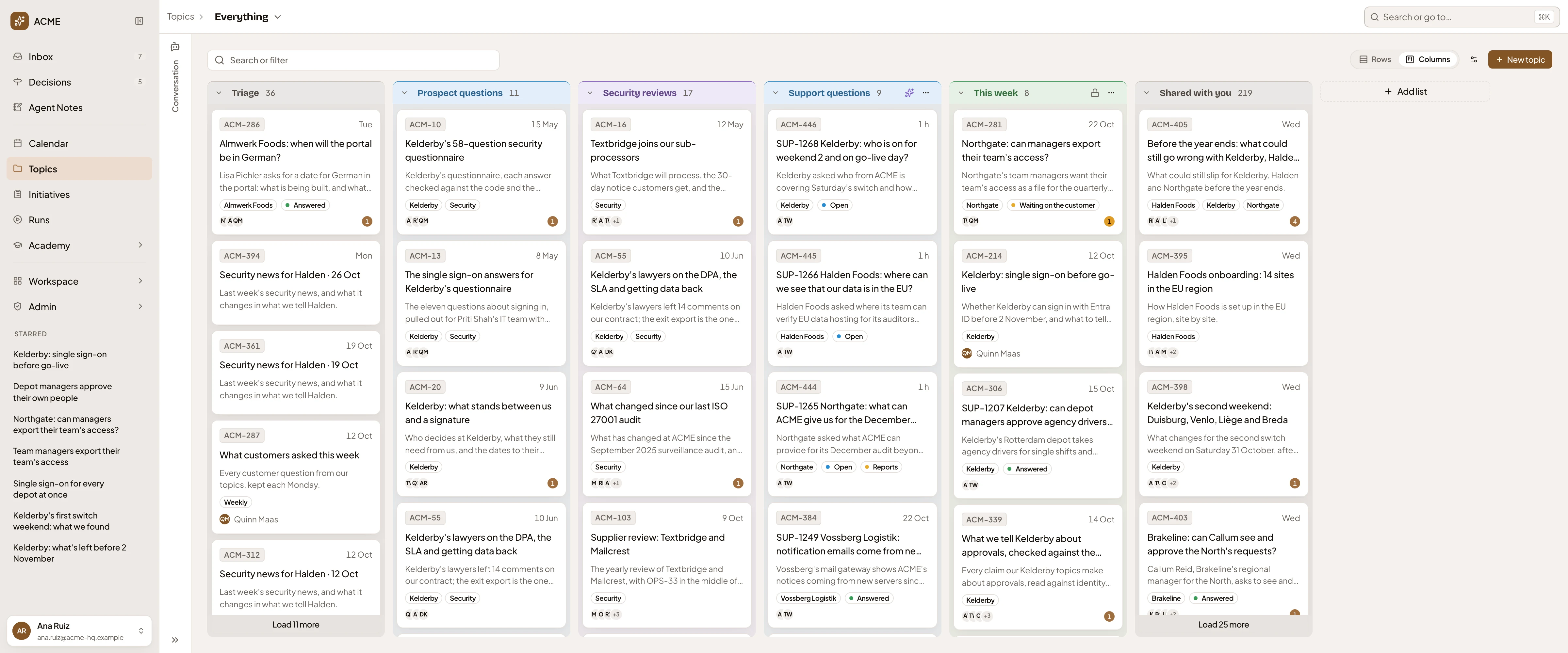
- Columns, picked. Rows goes back to the table.
- Support questions. A list’s column, with how many topics it holds, and an arrow that folds it.
- The list’s menu: “Colour”, “Edit list” and “Delete list…”. Your lists have one. Triage and Shared with you don’t.
- Add list. Makes a list of your own, kept by hand and seen only by you. Type its name and press Enter. “Sharing, colour and agent options…” opens the whole form instead.
Drag a card between lists you keep by hand to move it. Triage, Shared with you, and lists that fill themselves or that an agent fills don’t take cards by dragging. Grouped by a field such as Status, dragging a card to another column gives the topic that value.
Picking a topic
Section titled “Picking a topic”Click a row anywhere but its title, and the row is picked. It’s highlighted, shows a few buttons, and the topic’s details open on the right.
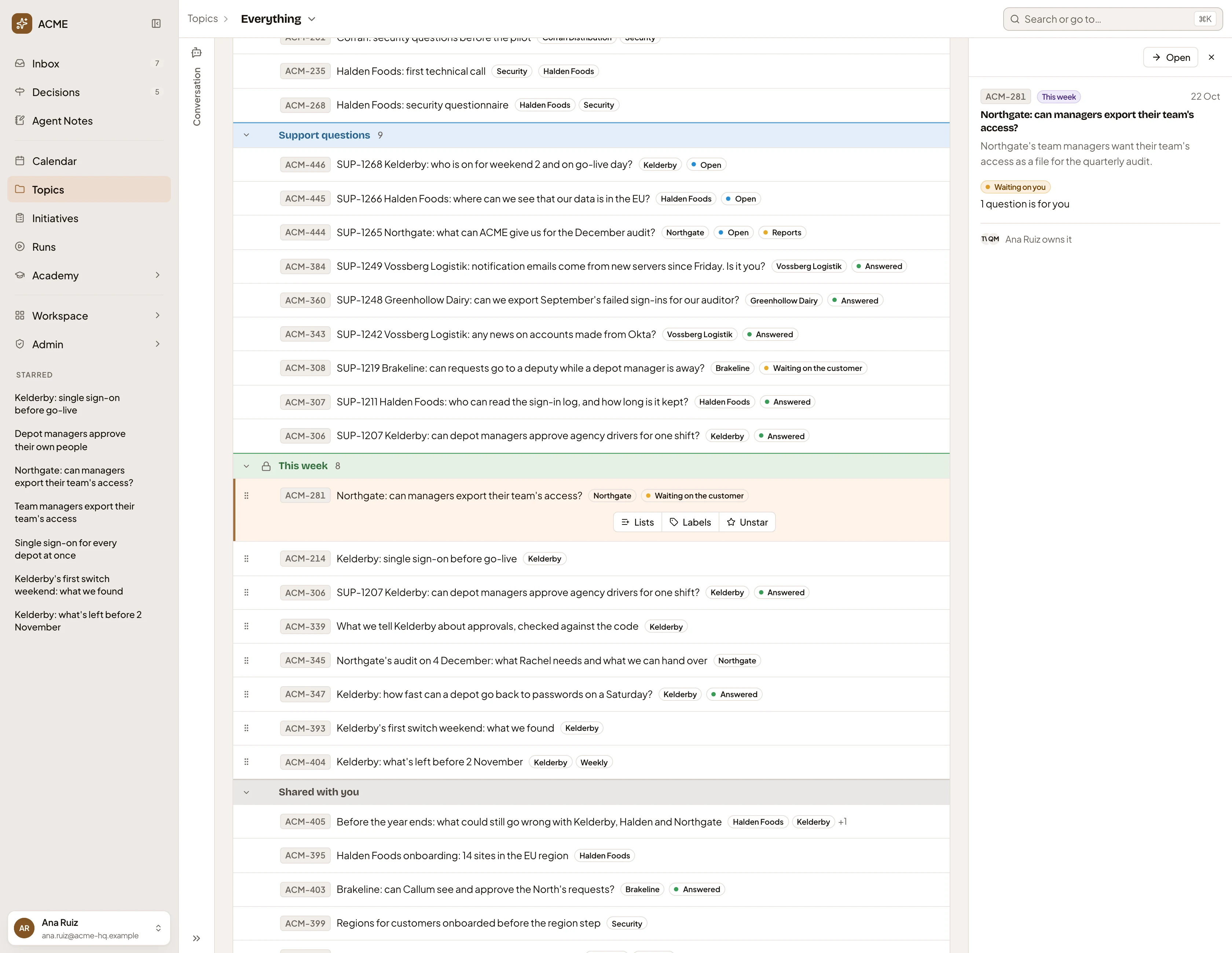
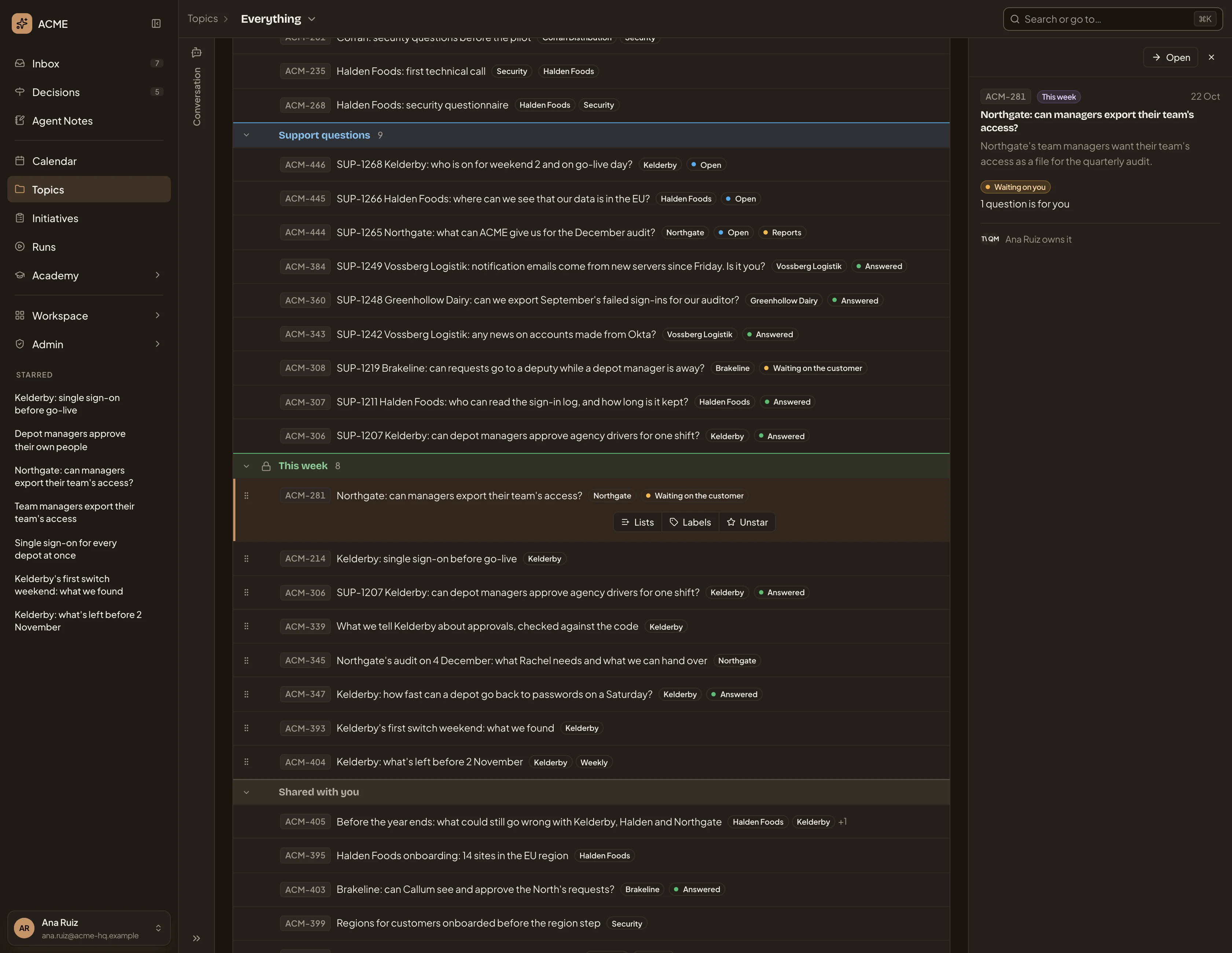
- Lists. Put the topic on your lists, or take it off.
- Labels. Change the topic’s labels.
- Unstar. Takes your star off. On an unstarred topic it says Star. Starred topics show under Starred in the menu, for you alone.
- The details: the key, lists and labels, when it last changed, the title and the sentence.
- Waiting on you. What on the topic waits on you, then its people and who owns it.
- Open. Opens the topic’s page.
- Close. Closes the details.
Searching and filtering
Section titled “Searching and filtering”Click Search or filter, and a list of filters opens. Type words to narrow the topics, or pick a filter.
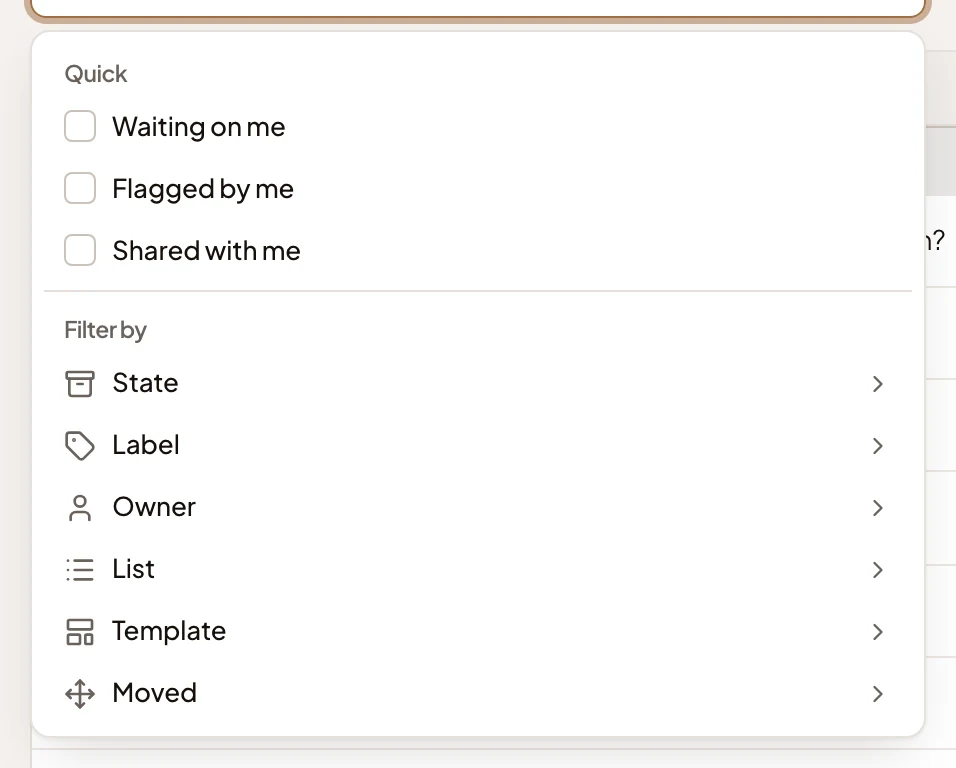
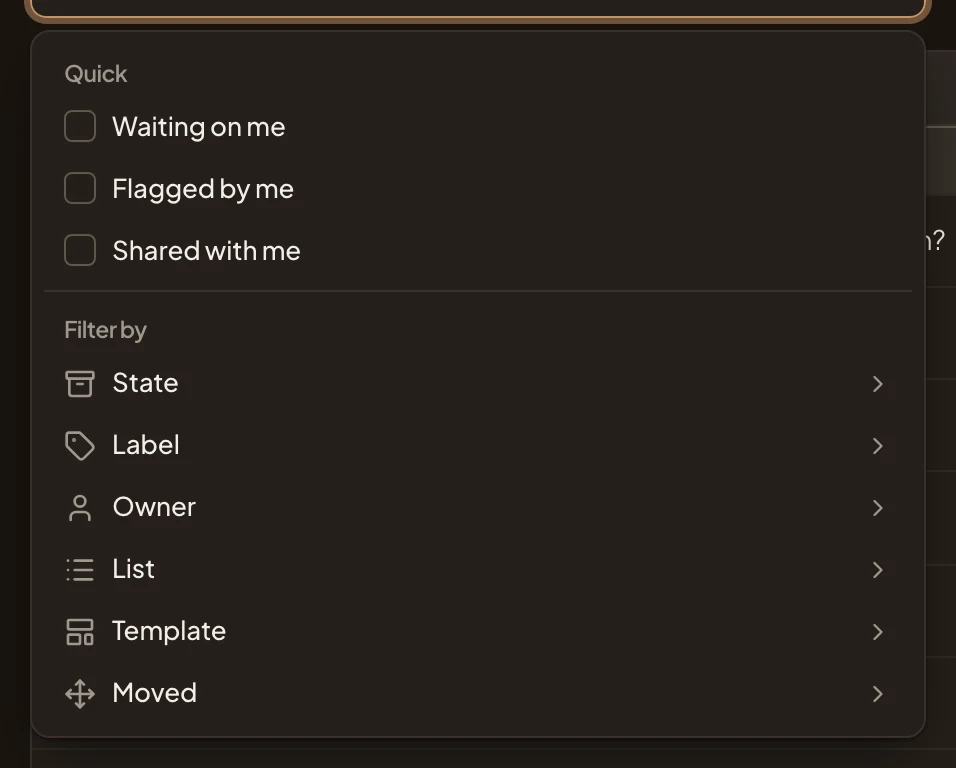
- Quick. Waiting on me, Flagged by me and Shared with me.
- Filter by. State, Label, Owner, List, Template or Moved, with Created below.
Further down, Fields narrows by your organisation’s fields, such as Customer or Status. Each filter you pick shows in the box, with × to take it off.
View options
Section titled “View options”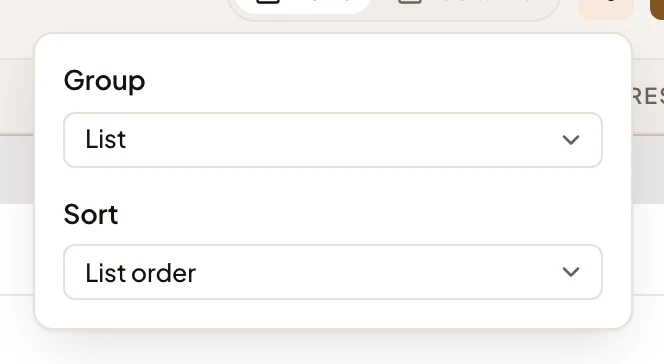
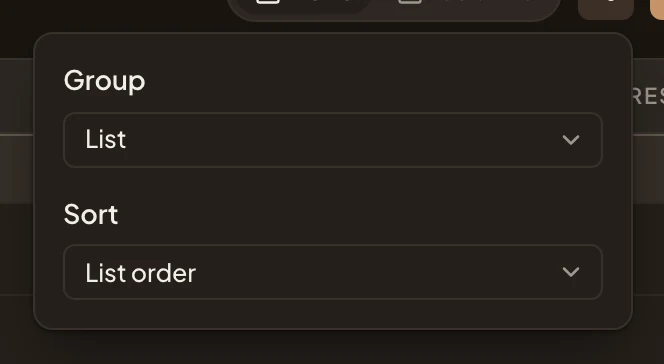
- Group. List (Triage, the lists you see, and Shared with you), Owner, None, or one of your organisation’s fields.
- Sort. List order, Last moved, or Title.
Boards
Section titled “Boards”A board is a way of looking at topics. It sets a few lists, or a field’s values, side by side. Click the board’s name to switch.
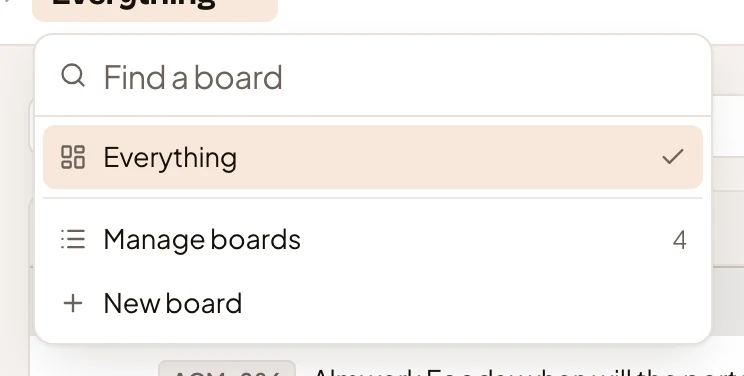
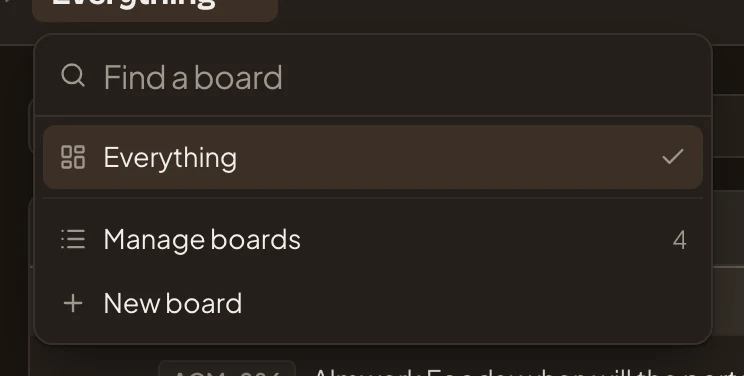
- Everything. Every topic of yours and every one shared with you. The tick shows it’s open.
- Manage boards. Your workspace’s boards, with how many there are.
- New board. Makes a board of your own.
Type in the box to find a board by name. The boards you opened last are listed under Everything. The list opens on the board you used last, or always on Everything if you set that in your preferences.
A board’s view of topics
Section titled “A board’s view of topics”Each board has an address of its own under Topics, and works like Everything with the board’s own groups. In the picture, the Support board shows its lists.
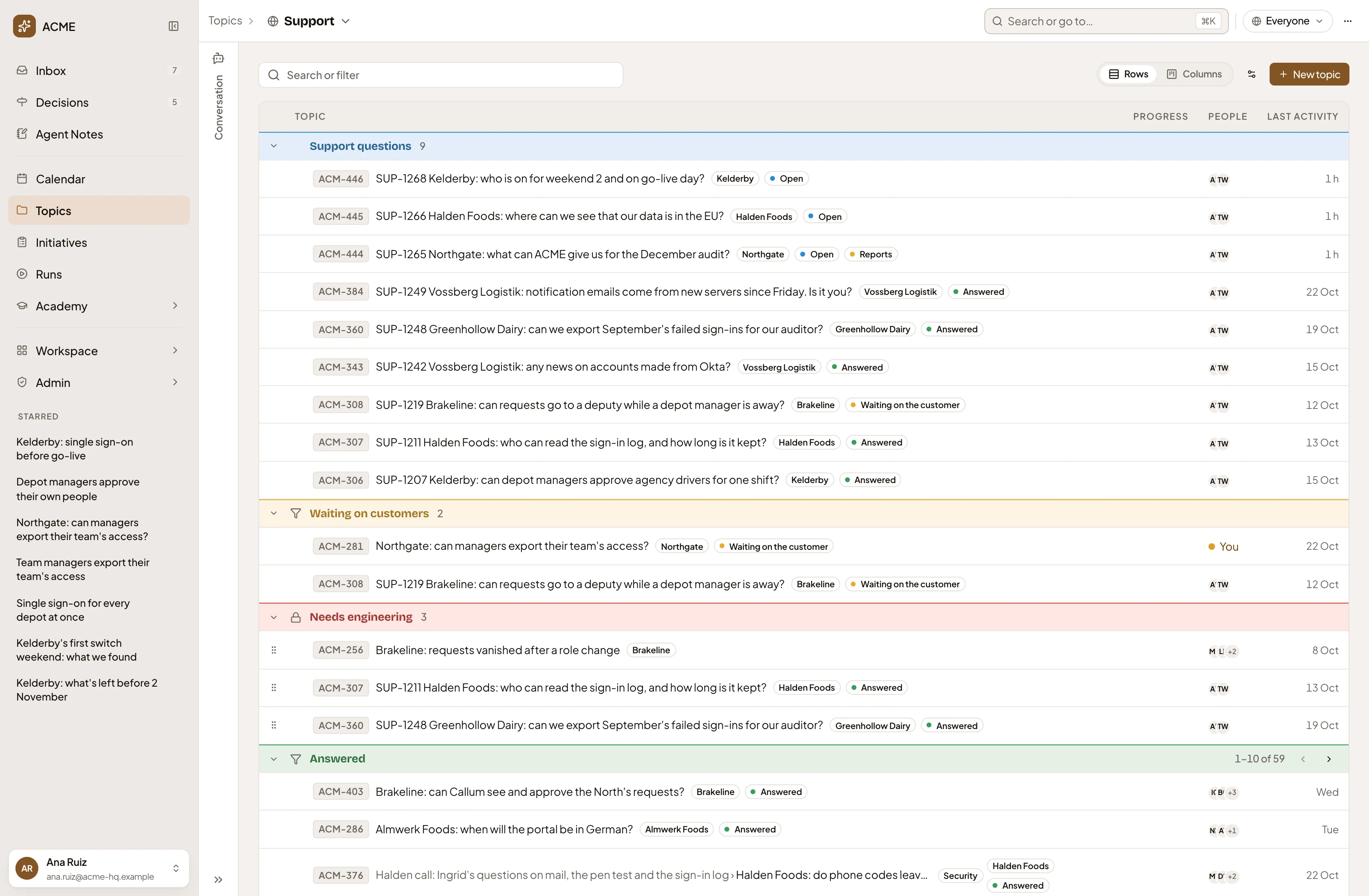
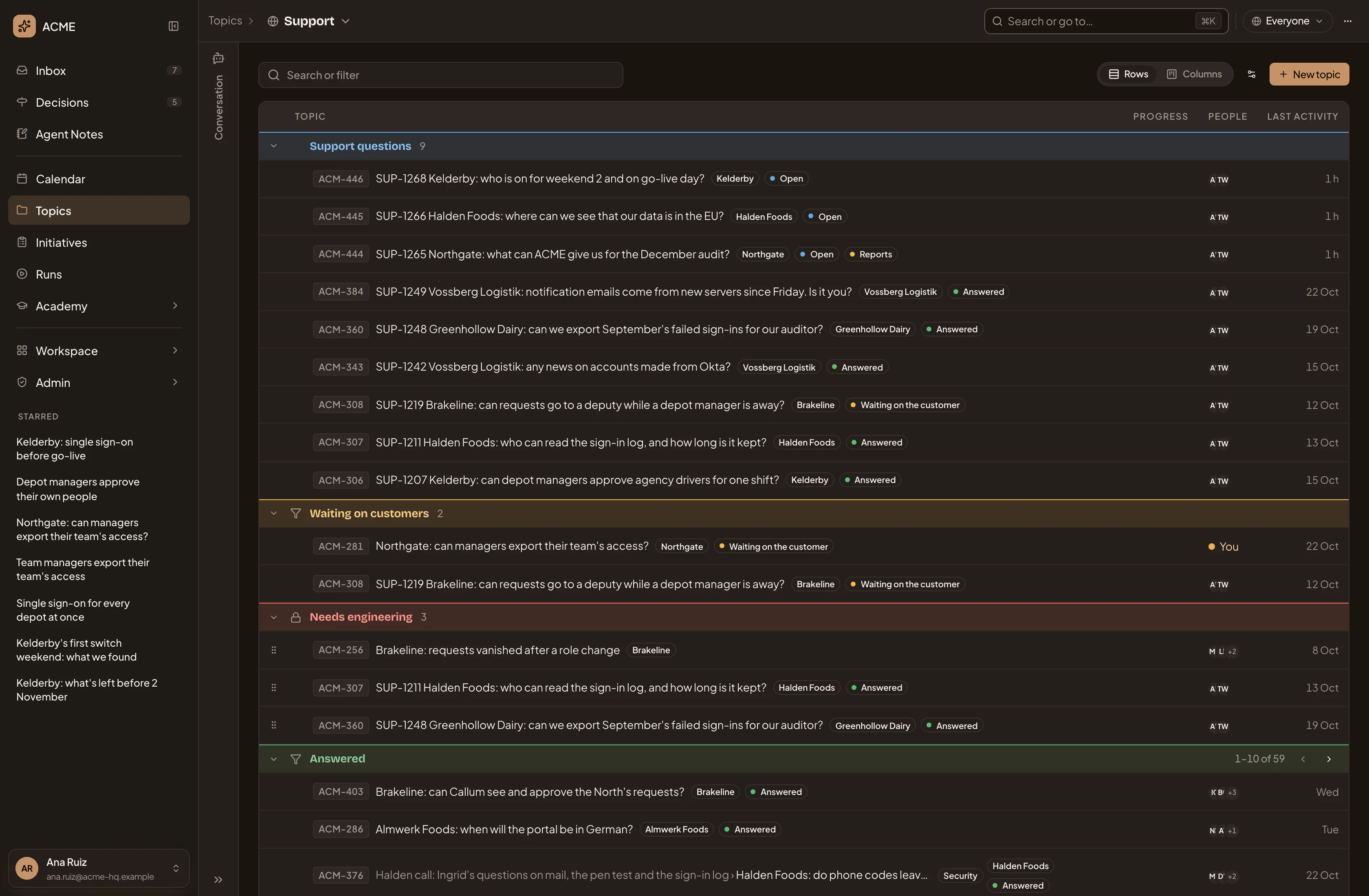
- Support. The board you’re on. Click it to switch.
- Sharing. Who sees the board. It’s the board’s sharing, not its topics’.
- More actions for Support. The board’s ⋯ menu.
- Support questions. A list the board shows.
- Waiting on customers. A list that fills itself from a filter, marked with a funnel. Its topics can’t be dragged.
- Needs engineering. A list of the board’s own, with a lock beside its name. Everyone who sees the board sees this list.
See a board for making a board and choosing its lists, and for its Sharing and ⋯ menu.
The conversation
Section titled “The conversation”Click Conversation to open a chat with the workspace agent beside the list. It makes and changes boards, lists and fields with you. It shows each step on the page as it goes, and asks before anything is saved.
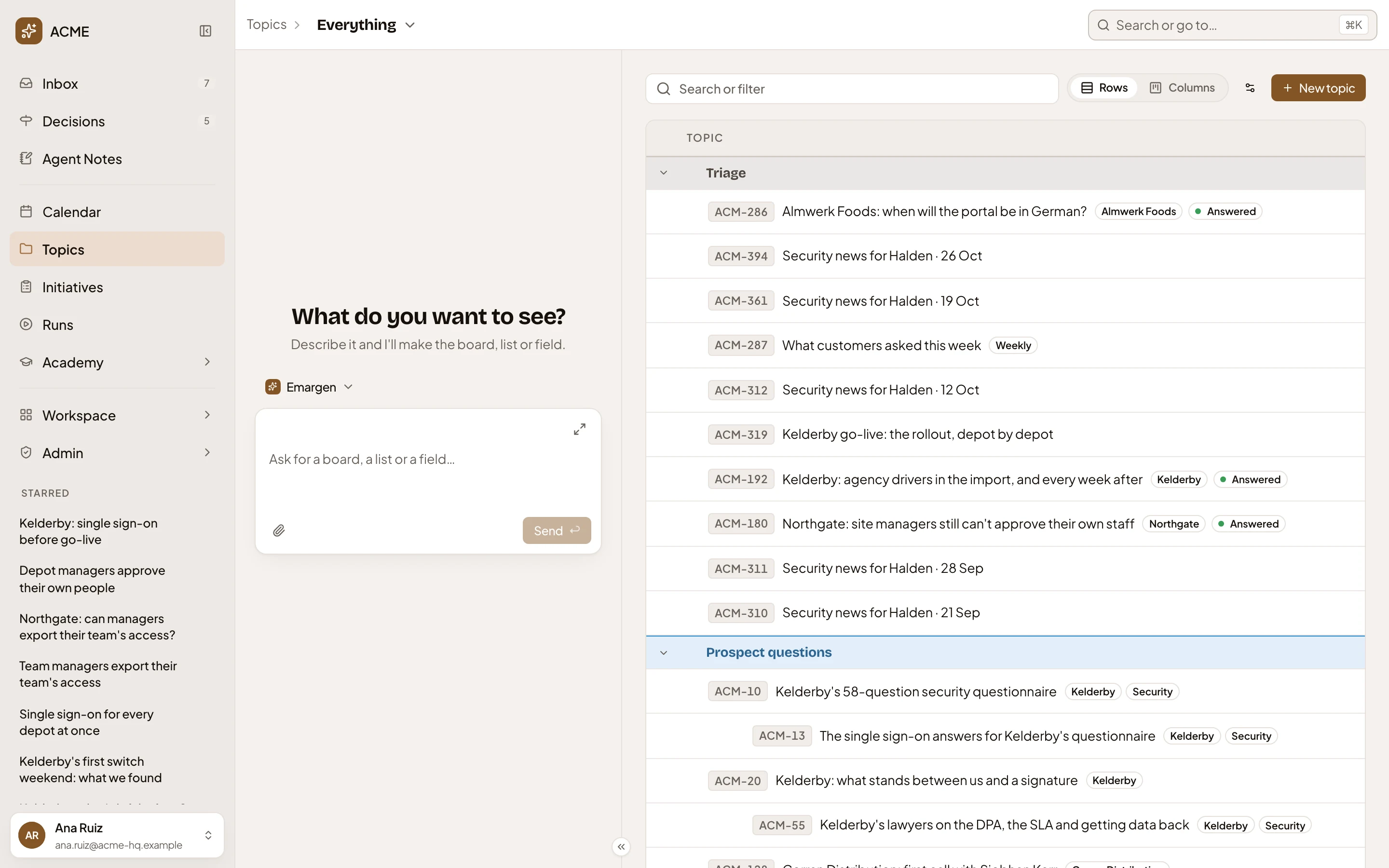
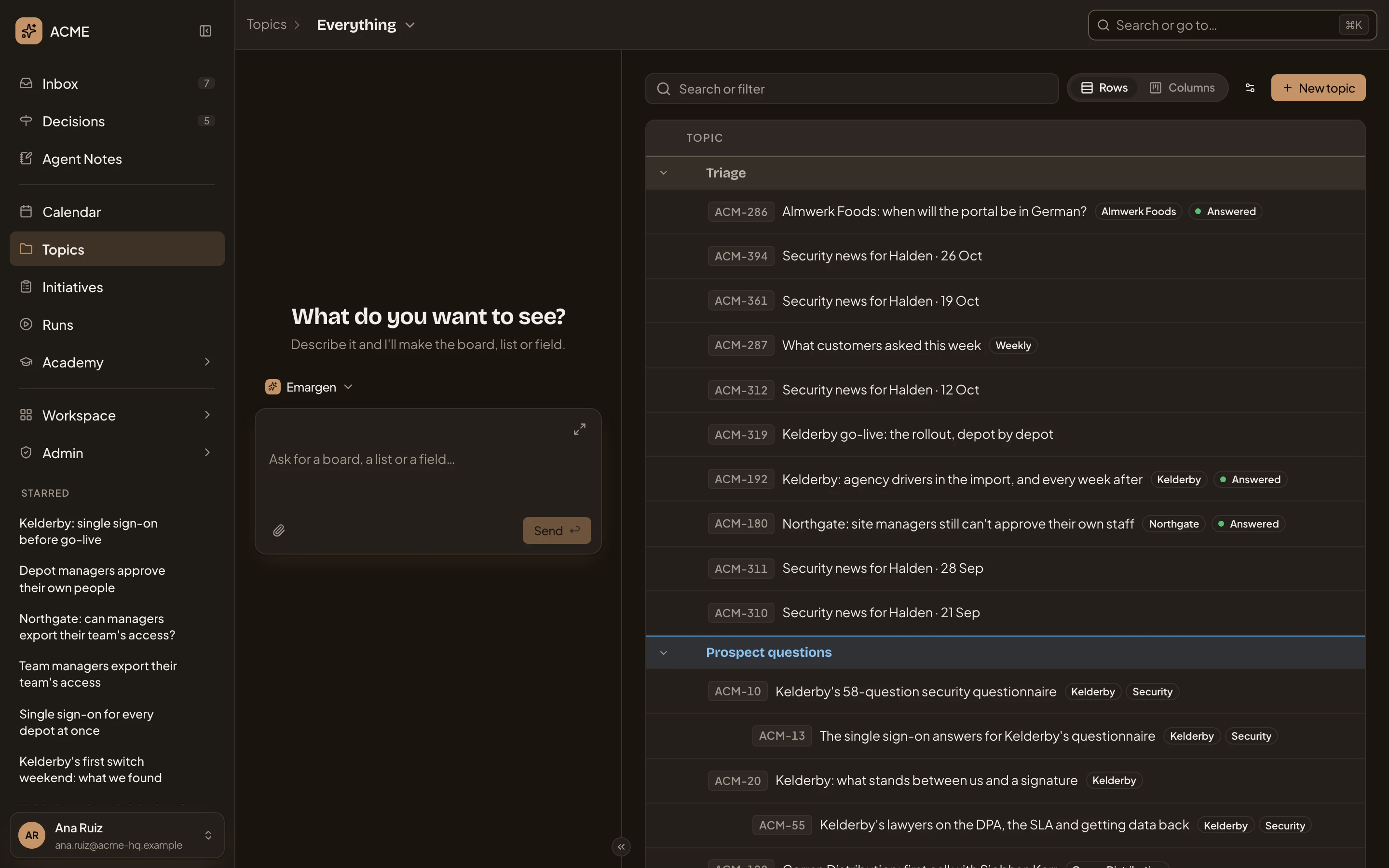
- The persona is who answers. Click it to pick another.
- The message box. Ask for a board, a list or a field in your own words.
- The divider. Drag it to make the chat or the list wider.
- Hide the chat. Folds the chat away. ⌘J does the same.
On a phone
Section titled “On a phone”The list and the chat take turns, and each topic is a card.
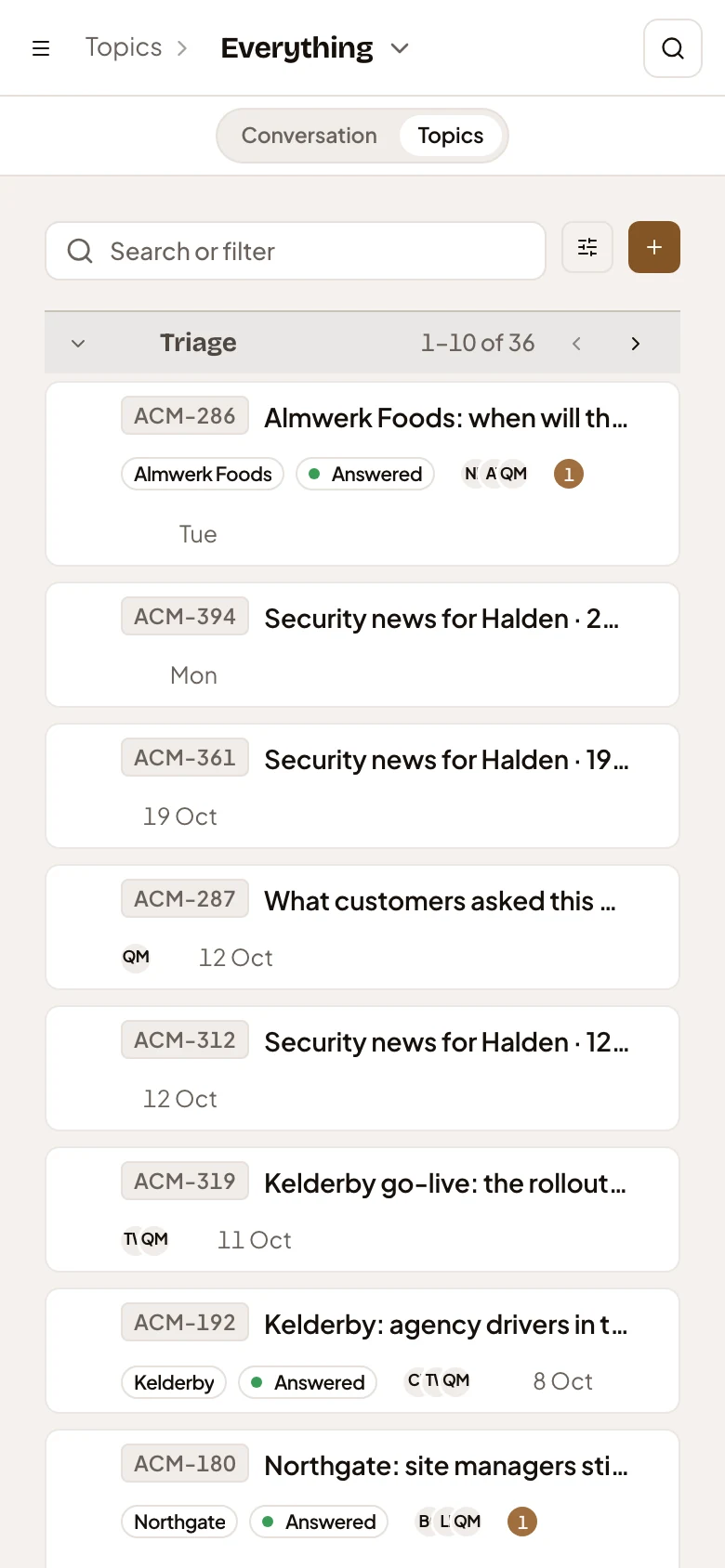
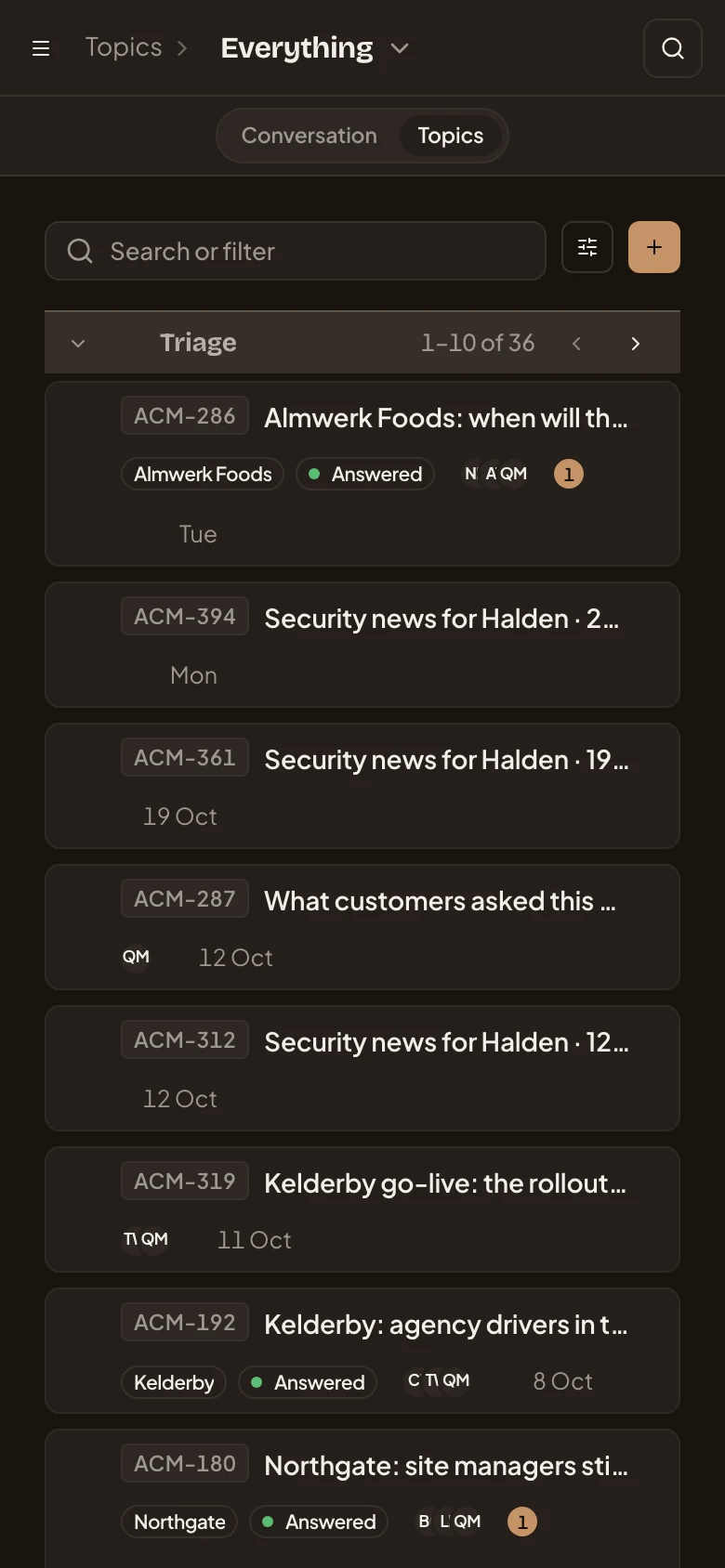
- Open the menu.
- Conversation and Topics. Switch between the chat and the list.
- View. How the topics are grouped and sorted.
- New topic. Starts a topic.
- Search. Searches all of Emargen.
Access
Section titled “Access”Everyone in the organisation has a topics list. Each person’s holds their own topics, the lists they see, and what’s shared with them by name. See Sharing.