

AdminHow to
Connect Jira or Confluence
Connect Jira or Confluence when the answers your colleagues need are already written there, in support tickets, a rollout plan or a runbook. Once it’s connected, the agent searches it while people work in topics, and an initiative’s sources list what it found. Connections and knowledge explains the idea behind it.
Before you start
Section titled “Before you start”- Anyone in the organisation can connect a system. Usually an administrator does, since the connection serves everyone.
- For a Jira or Confluence Cloud site, you need:
- The site’s name, the part before .atlassian.net in its address. For yourcompany.atlassian.net, it’s yourcompany.
- An Atlassian account that sees only what the whole team may read, and an API token made by that account. Keep one for Emargen, like emargen@yourcompany.com. Emargen connects as this one account for everyone. Whatever it can see, anyone in the organisation may find through the agent.
- The keys of the Jira projects, like SUP, or the Confluence spaces, like CS, to search. Without them, every project or space the account can see is searched.
- The pictures show ACME’s Jira tickets, from the projects SUP, ENG and OPS, connected as Jira Cloud. For Confluence, the steps are the same with Confluence Cloud (API), and spaces instead of projects.
- If the system is connected already, connecting it again adds a second connection beside the first. To change which projects the first one searches, make content searchable instead.
-
Open Admin in the menu (it opens on Models), then Connections under it.
Open Connections (opens Emargen in a new tab) -
Under Tickets and work, find Jira Cloud (API) and click its Connect. (For Confluence, Confluence Cloud (API) is under Documents and wikis.)
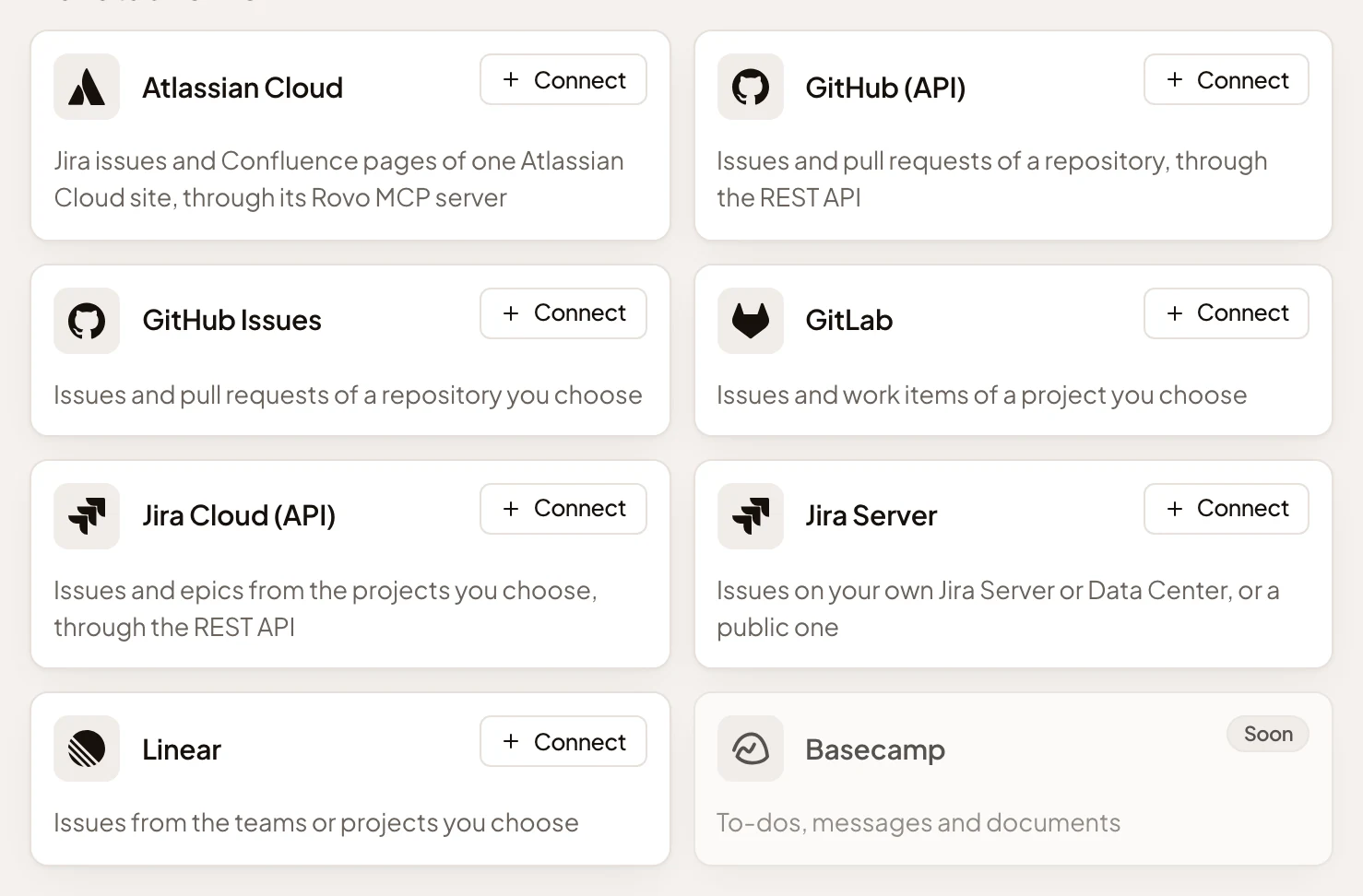
- Connect on Jira Cloud (API).
The page Connect Jira Cloud (API) opens.
-
Fill in the sign-in.
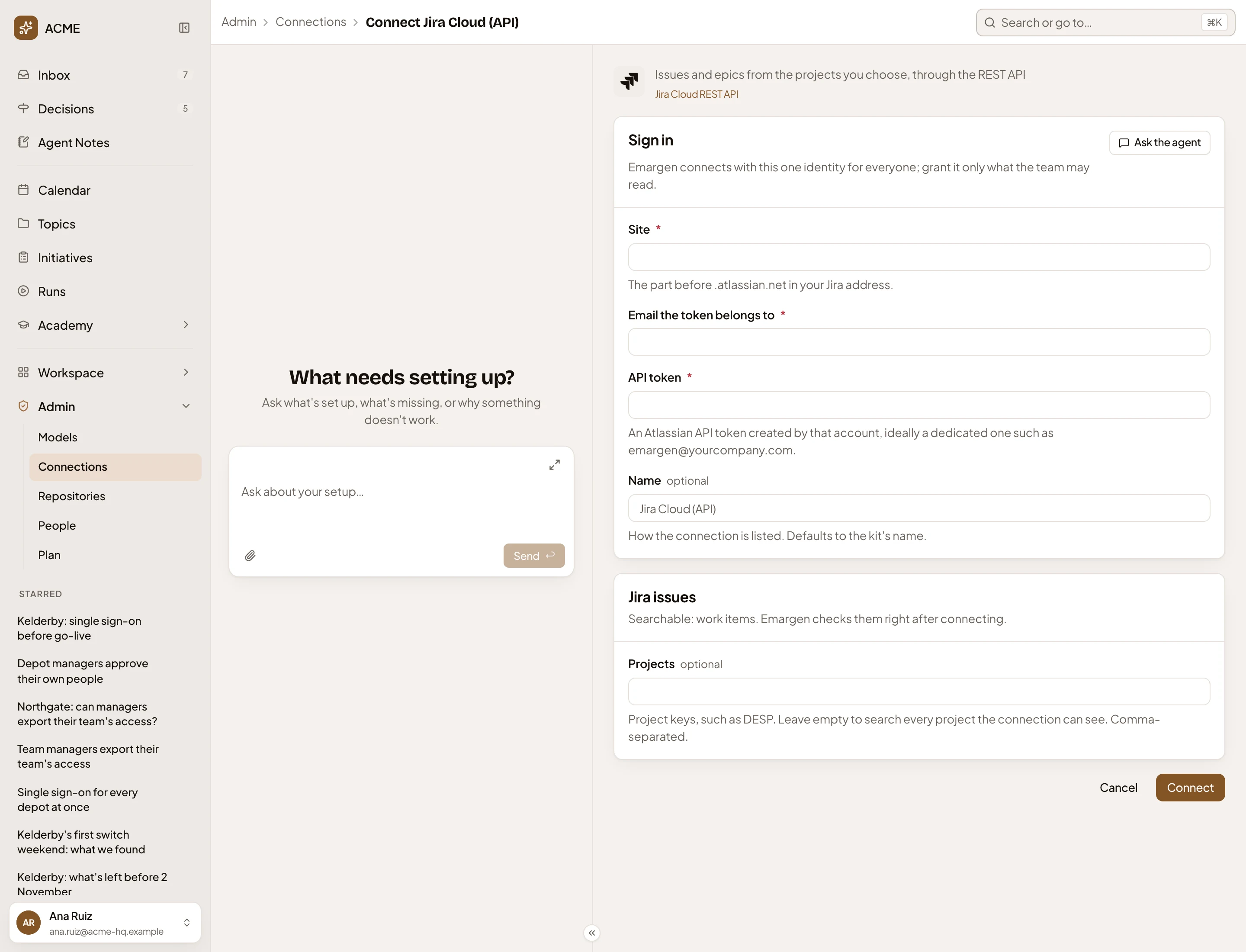
- Site: the part before .atlassian.net, such as yourcompany.
- Email the token belongs to: the account’s email address.
- API token: the token. It is stored and never shown again.
- Name: how the connection is listed, such as Jira Cloud. Left empty, it is called Jira Cloud (API).
- Projects: the project keys, separated by commas, such as SUP.
- Connect.
-
Click Connect. Emargen signs in, finds Jira’s tools and switches on the ones it needs. Emargen adds your projects’ tickets as searchable content called Jira issues. For Confluence, it’s Confluence pages. A message confirms the connection. The content’s page opens, and Emargen checks it at once. The check runs three searches: login, onboarding and invitation. The check takes a few seconds.
-
Read the Check card. When the check passes, Search and Rows for live parts say Passed. Read does too, if the searches found something to read. The content is Active, and its status shows when initiatives began searching it.
The picture shows ACME’s content, named Tickets (SUP, ENG, OPS) and checked with its own searches. You change both on the content’s Edit page, as Make content searchable shows.
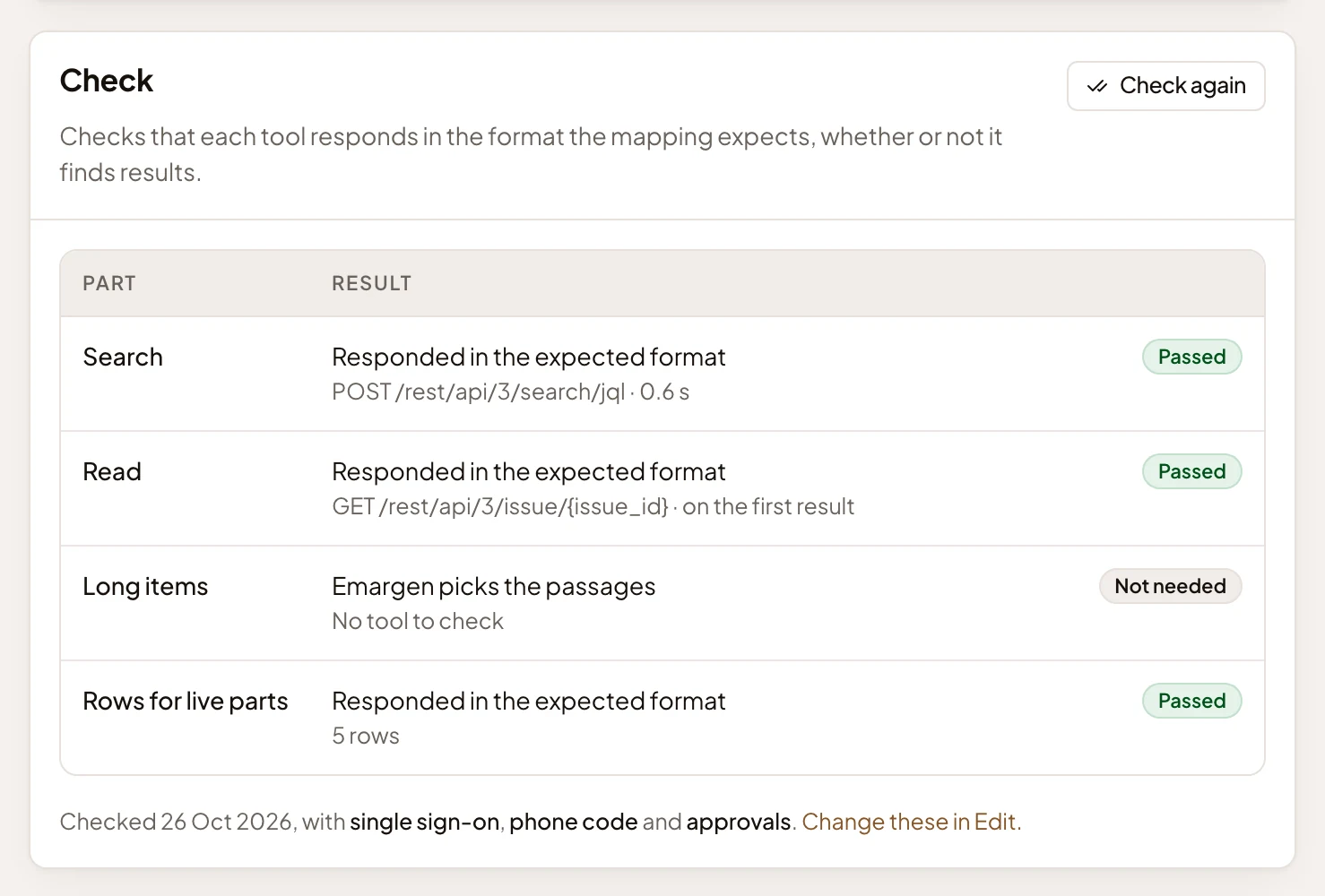
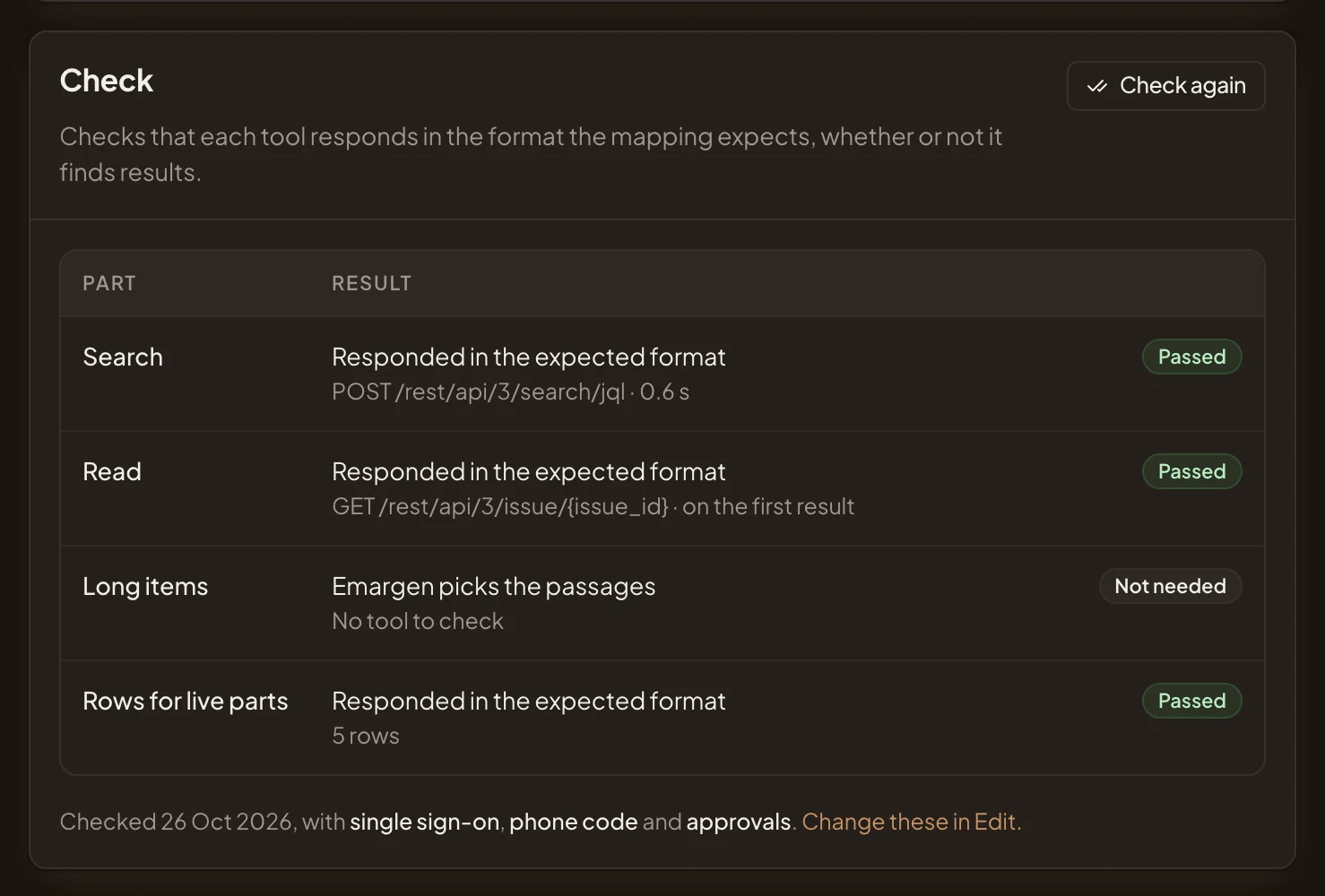
Read says “Not tried: the searches found nothing to read” when the searches found nothing in your projects. That isn’t a failure, but the check couldn’t try reading. Search for something you know is there.
If Search or Read says Failed, the content isn’t searched until a check passes. The part that failed says why:
- “The service answered with an error”, and the connection says Needs reconnect: Jira refused the email or the token. Since you’ve only just connected it, delete the connection at the foot of its Edit page and connect again with the right email and token.
- “The service answered with an error” while the connection stays Active: Jira turned the search down. Often it’s a project key Jira doesn’t know, or one the account can’t see. Correct the projects on the content’s Edit page.
- “Couldn’t reach the service”: check the site’s name. It’s in the connection’s address, which you correct on its Edit page.
If Rows for live parts alone fails, the content is still searched, but live tables in topics stay empty until a check reads its rows.
See A searchable content.
What you get
Section titled “What you get”- The connection is listed under Connected on Connections, with 1 active searchable content once its check has passed. Until then, 1 draft. The green dot beside it shows the connection is active.
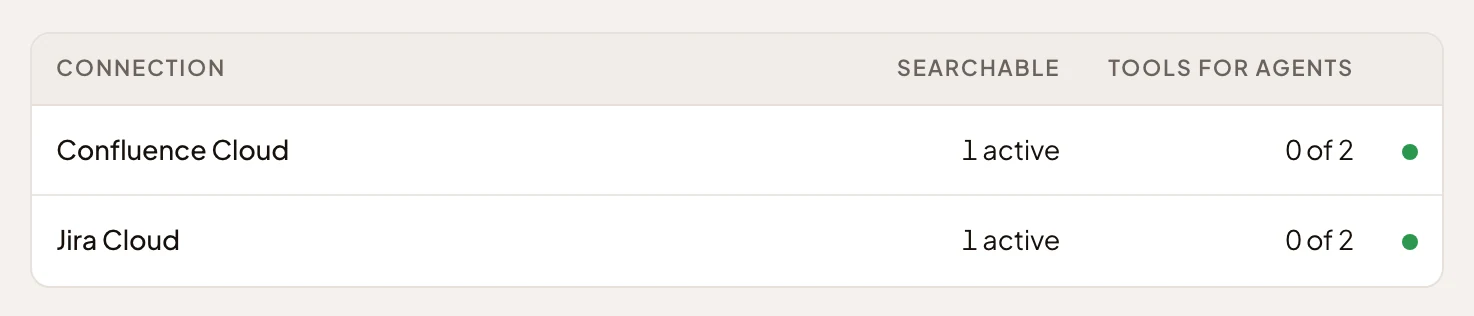
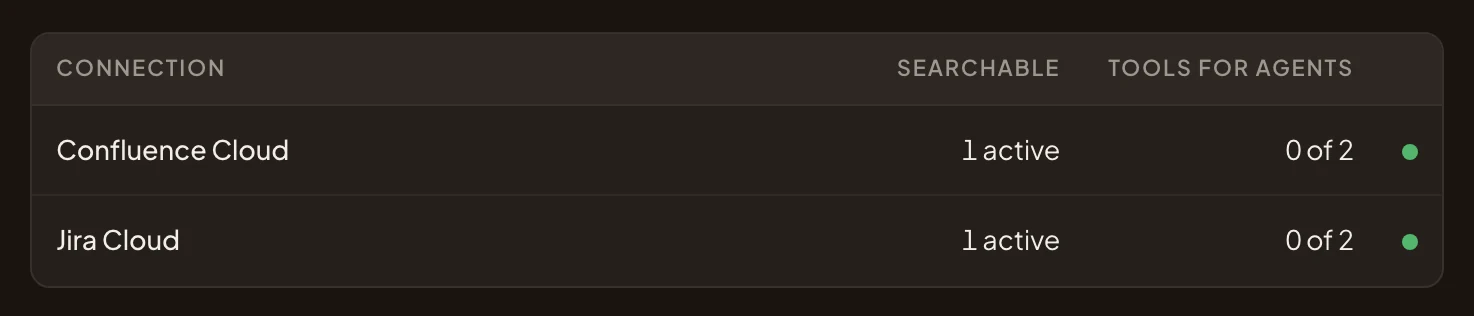
- When someone works with the agent in a topic, it can search the tickets and cite them. Initiatives search them too when they gather sources, and list what they found under Sources.
- The tickets are searched as the account you connected sees them, for everyone in the organisation.
Another way: Atlassian Cloud
Section titled “Another way: Atlassian Cloud”Atlassian Cloud connects one site’s Jira and Confluence at once. Instead of a token, you sign in to Atlassian in the browser and come back to Emargen. Whoever signs in lends their own access to the whole organisation, so sign in with an account that sees only what the team may read. See A new connection.