

AdminPage by page
People
Members lists everyone in your organisation and the invitations nobody has answered yet. Open People under Admin in the menu. People and roles has the idea behind it.
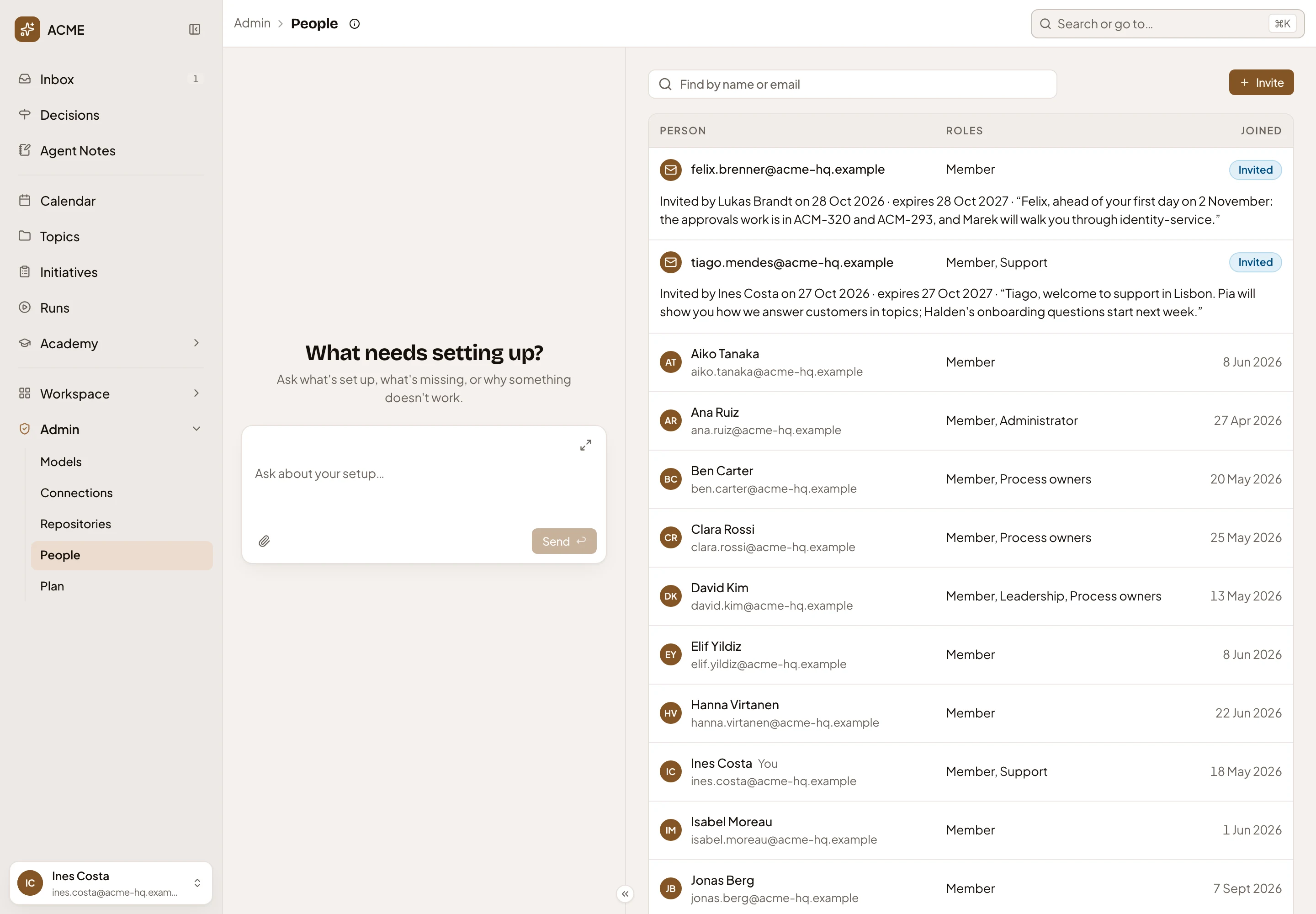
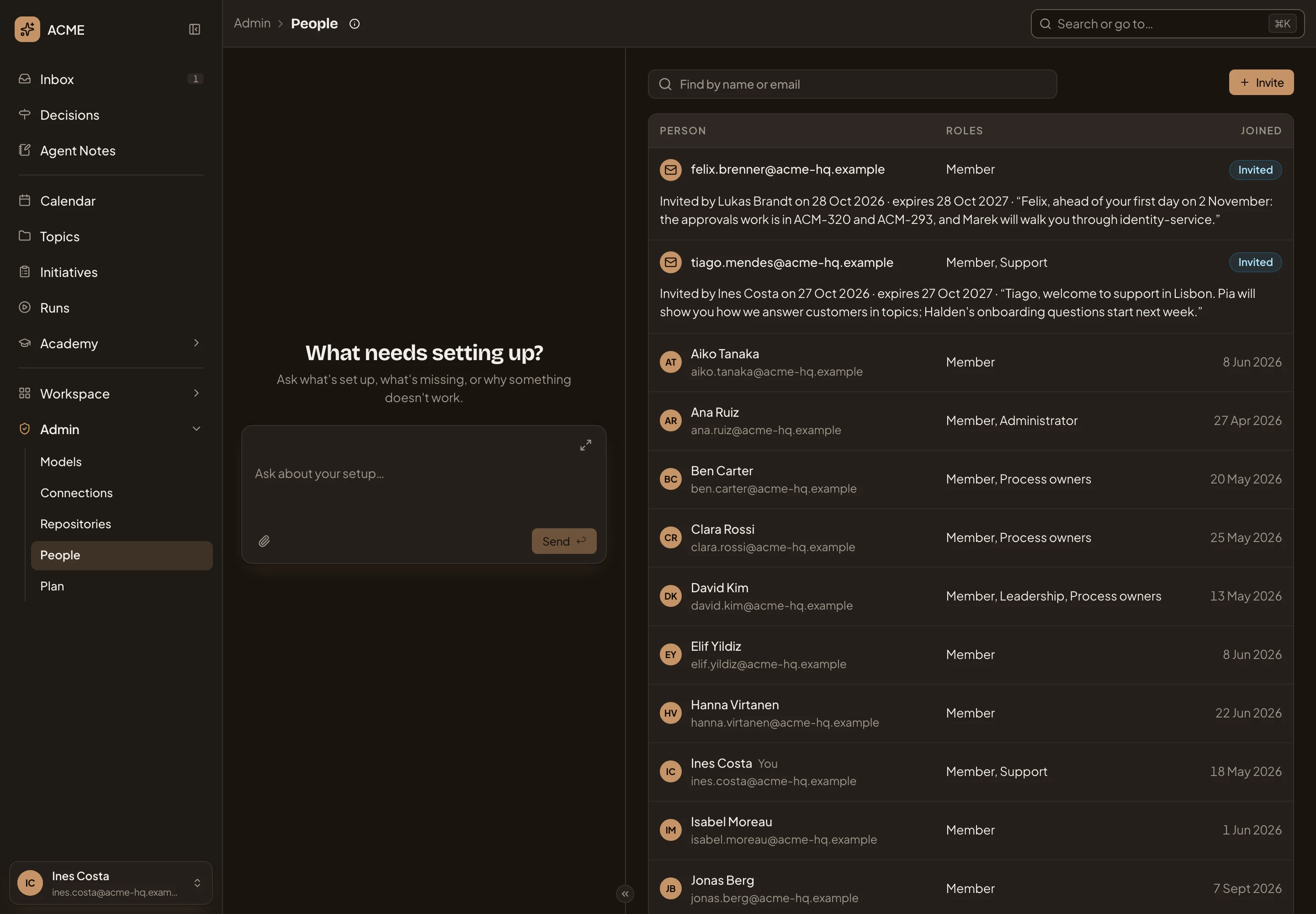
Open People (opens Emargen in a new tab)ACME’s Members, as its administrator sees them. Two invitations are open, one sent ahead of a new joiner’s first day and one the support lead sent to a new colleague. Everyone who has joined follows them.
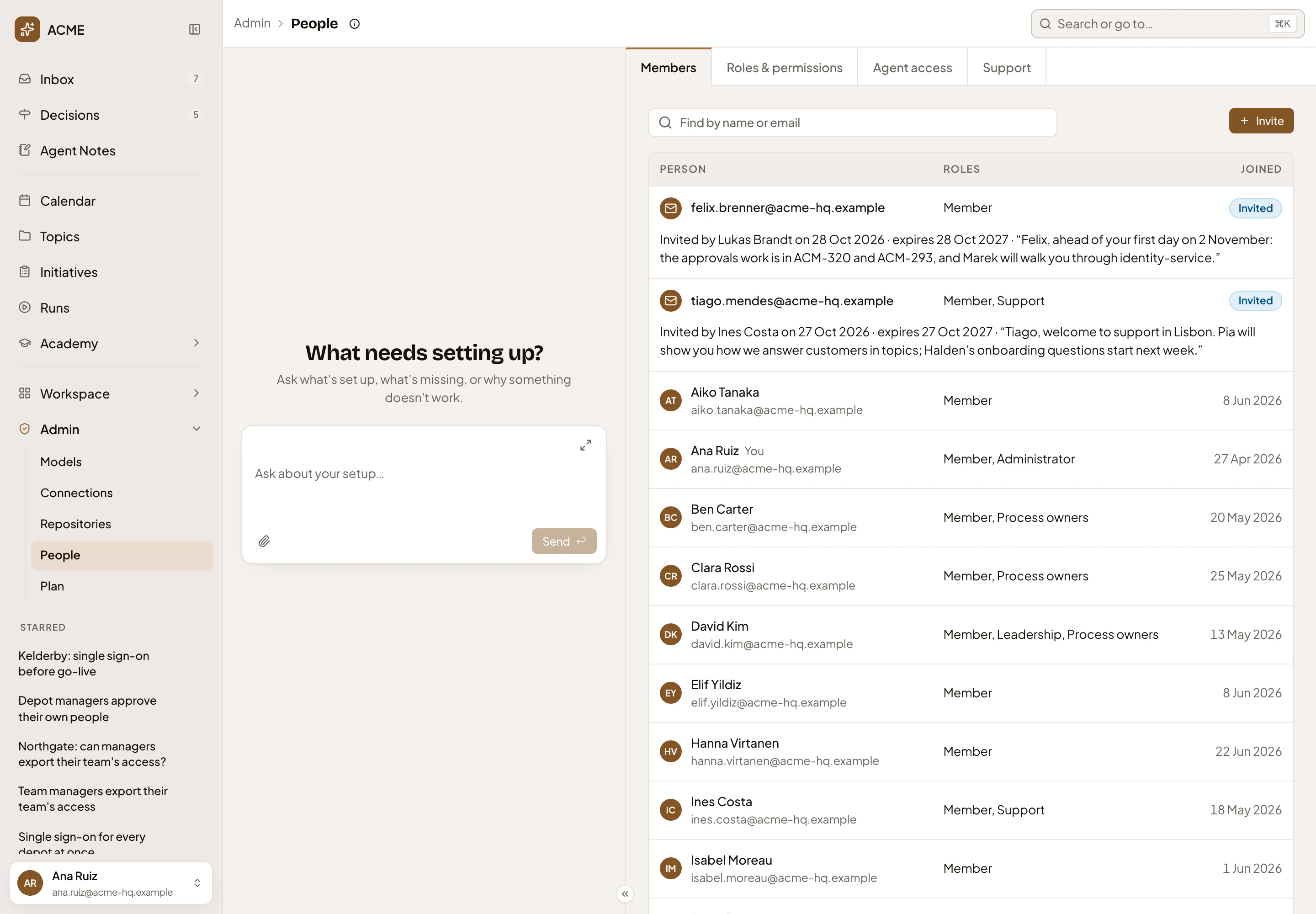
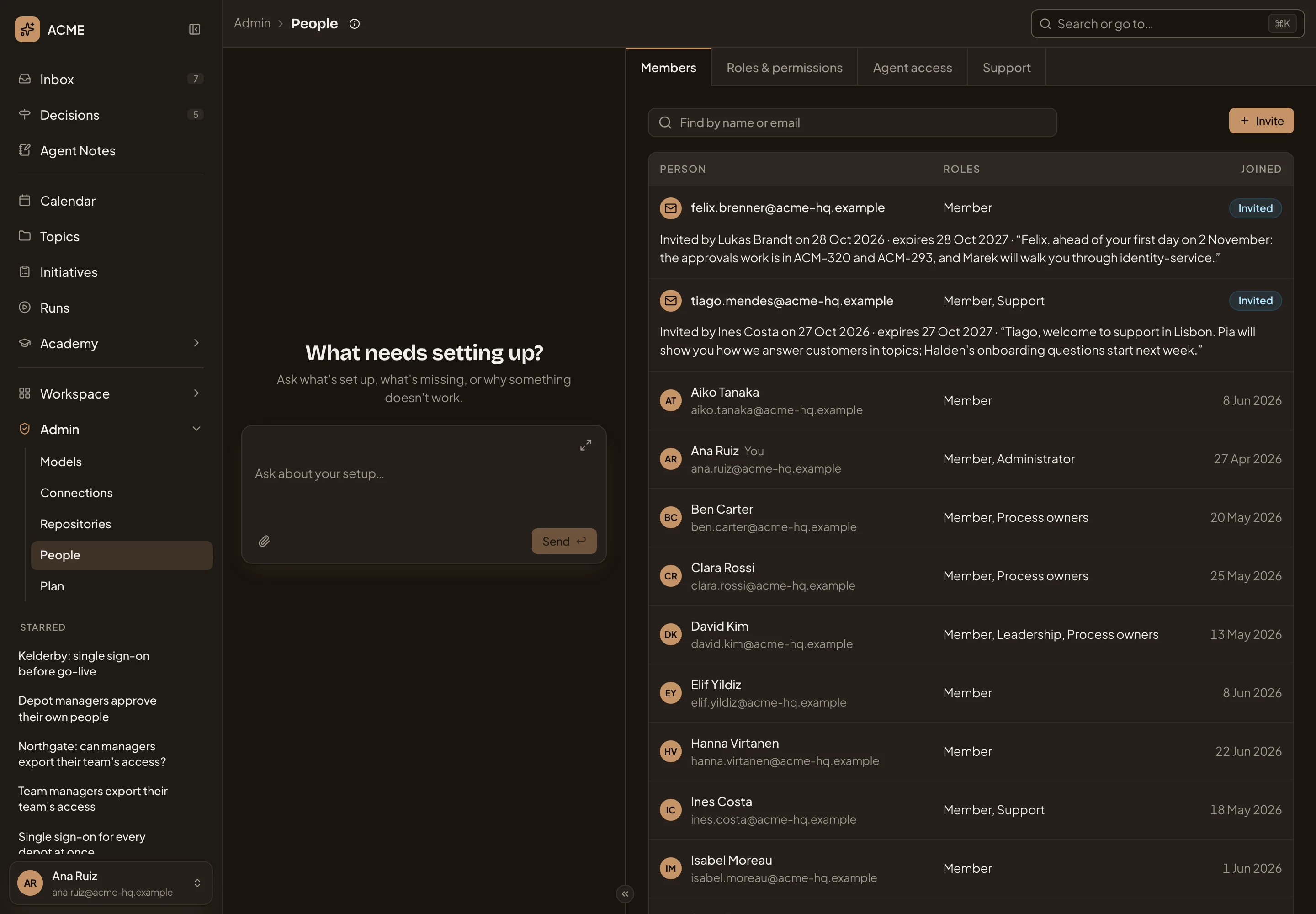
- People’s pages: Members, Roles & permissions, Agent access and Support.
- Find by name or email. Narrows the list as you type.
- Invite. Invites someone by email.
- An open invitation: the address, the roles it offers, and Invited. One past its date says Expired.
- Who sent it and when, when its link stops working, and the note that went with it.
- A person, with You beside your own name. Their name opens their own page.
- Joined. The day they joined.
Roles shows every role a person holds. Everyone holds Member, and every other role adds to it. Invitations come first, newest first. Then people by name, 25 to a page. Arrows under the list turn the page.
People guide, beside the page’s name, explains what each of the four pages does and what to watch for. Click Find by name or email for the quick filter Invited, which shows only the open invitations.
An invitation
Section titled “An invitation”Click an invitation to select it.
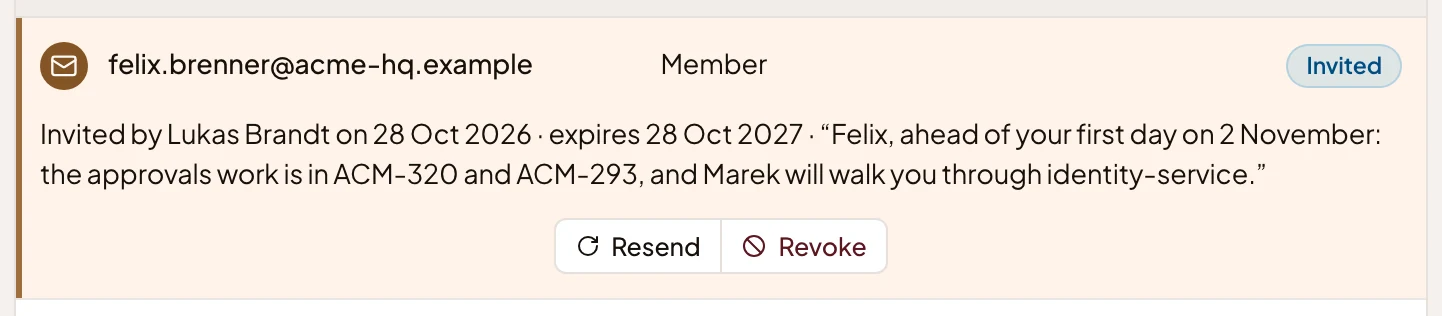
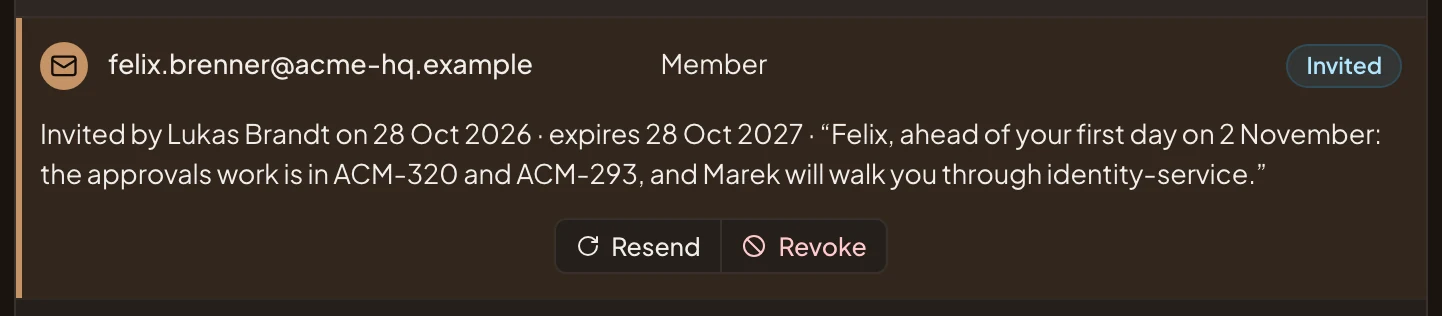
- Resend. Sends it again with the same roles and a link that works for another 7 days. It’s greyed out when the invitation offers a role you may not give.
- Revoke. Stops the link working, once you confirm.
The two invitations in these pictures run for a year. They were made that way for the pictures. Yours run for 7 days.
A person’s roles
Section titled “A person’s roles”Click a person’s row, away from their name, to select them. Then click Roles below the row.
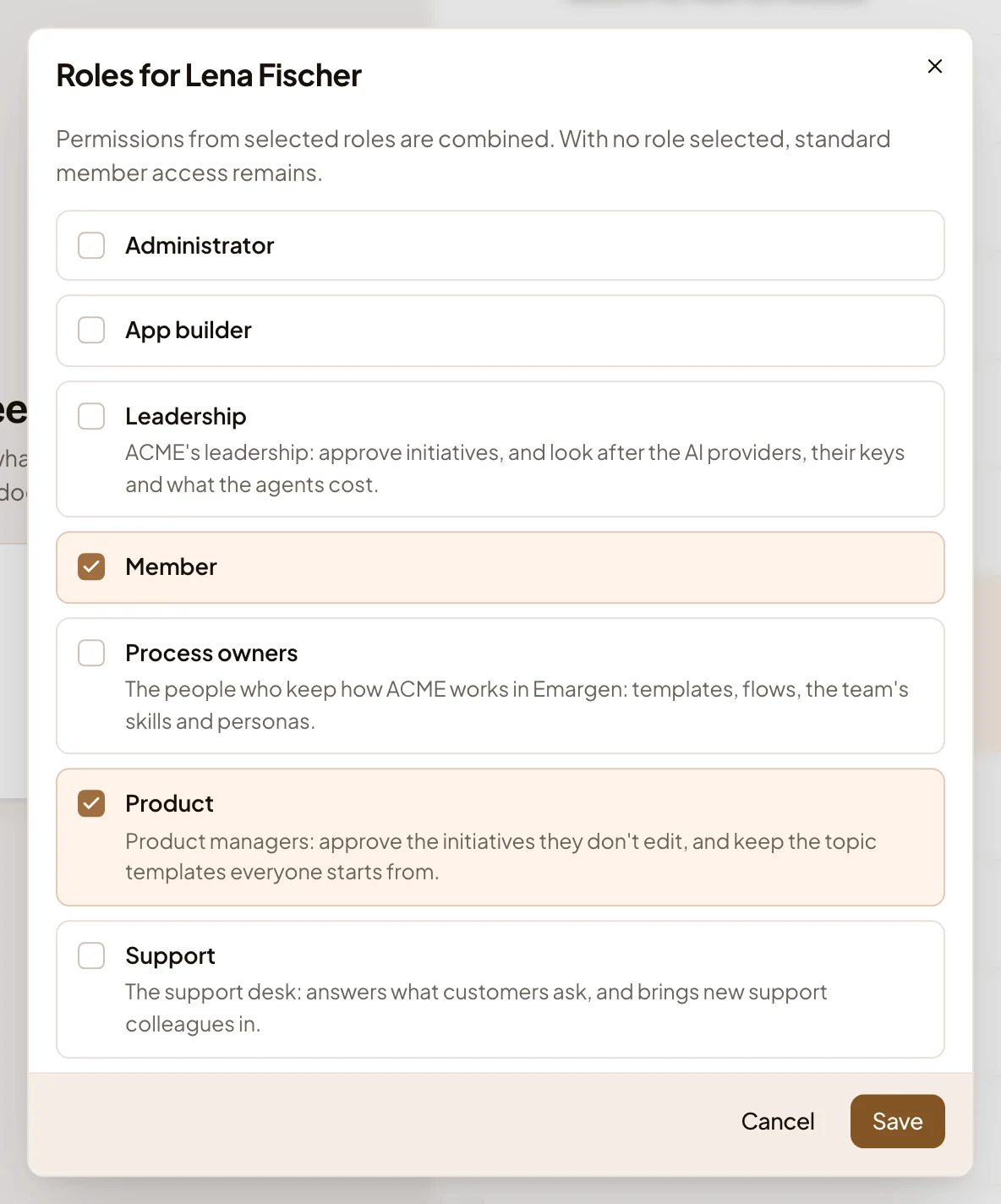
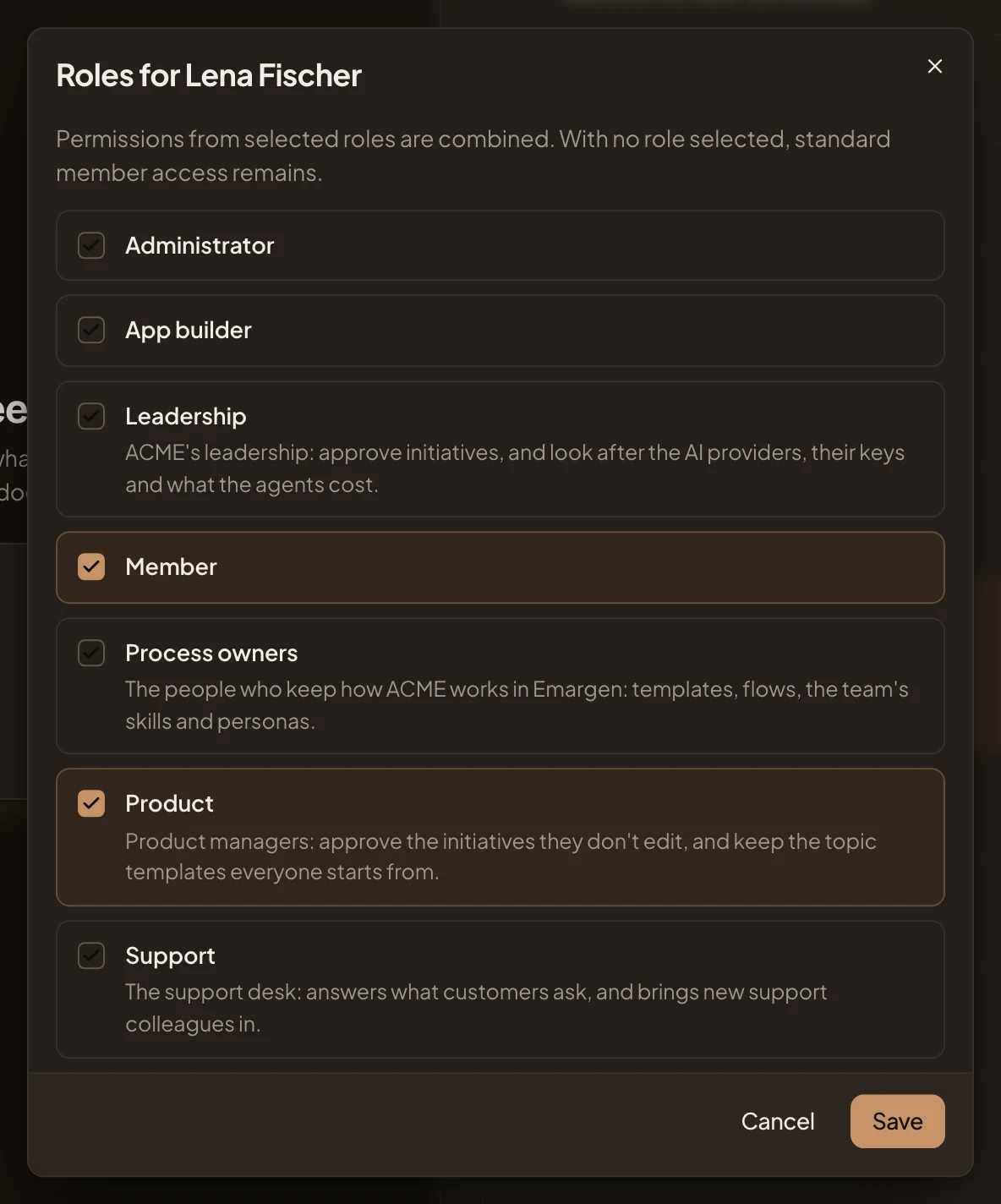
- Member. The role everyone starts with.
- Product. A role the organisation made, with its description.
- Save, which gives the person the roles ticked and takes away the rest.
Someone can do everything their roles allow. Untick every role and they still work as a member. Emargen won’t take the last administrator’s role away: “Someone must stay an admin. Make another person an admin first.” Roles that come from your organisation’s single sign-on stay, and the dialog names them. To give one role to several people, use the role’s page.
Invite
Section titled “Invite”Invite opens Invite a person.
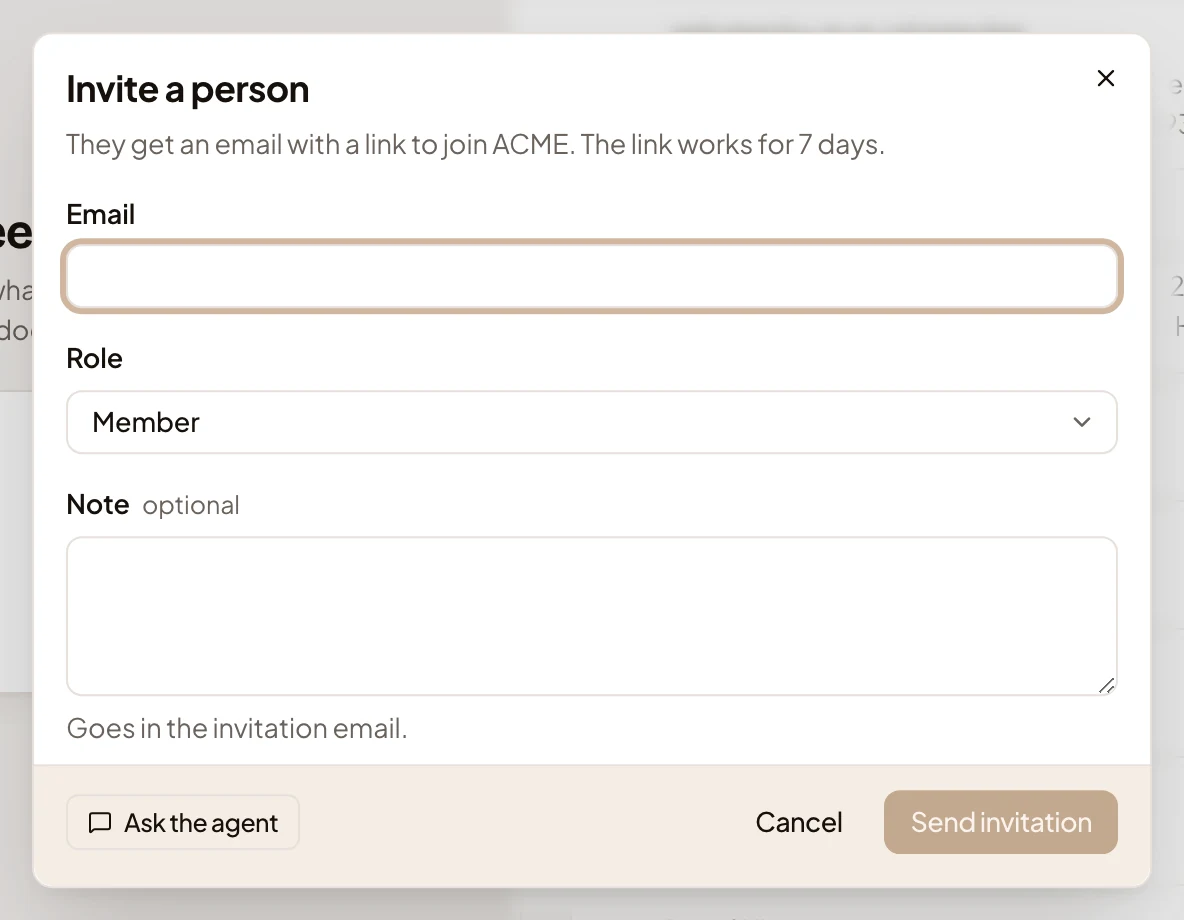
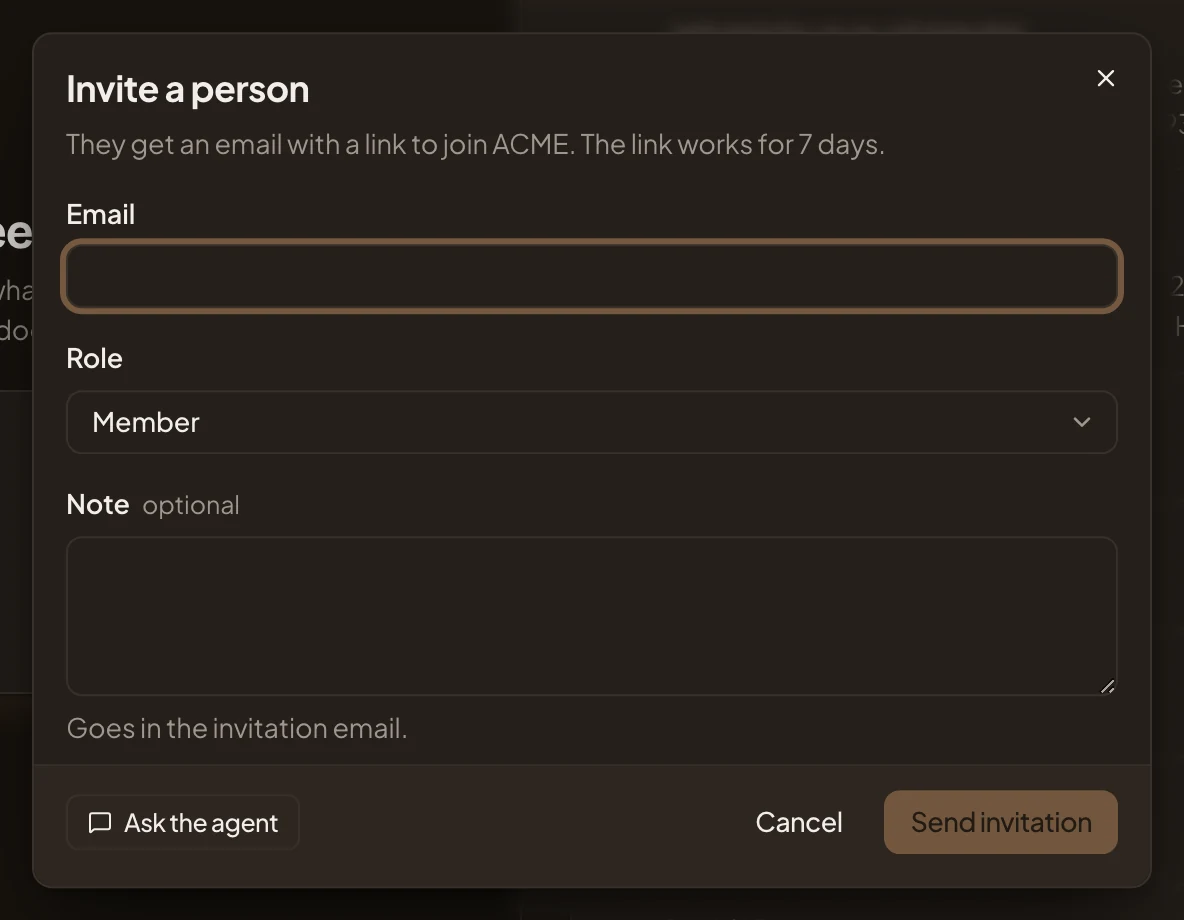
- Role. The role they join with. Unless you manage roles, you can pick only roles whose permissions you hold.
- Ask the agent. Hands the invitation to the admin agent, which asks what it needs and puts it on a card for you to confirm.
- Send invitation. Sends the email. The invitation then tops the list.
Type their Email, and add a Note of your own if you like. While the organisation is still being set up, the dialog also asks which steps they help with, and they land on those steps when they join. See Invite people.
An organisation always has its first administrator. A search that finds nobody says “Nobody matches”. Invited with nothing open says “No open invitations”.
On a phone
Section titled “On a phone”The page and the admin agent’s chat take turns, under Conversation and Admin. People’s pages scroll sideways.
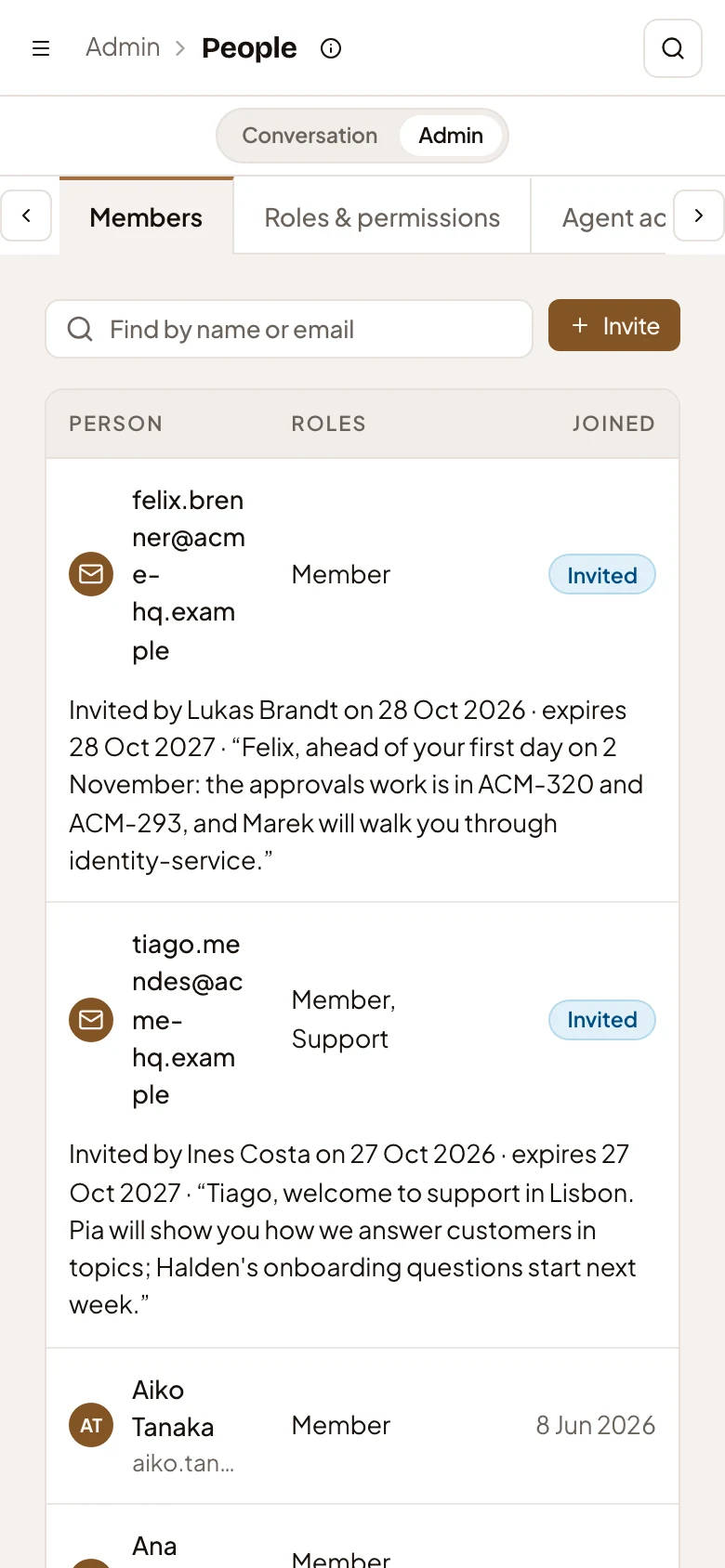
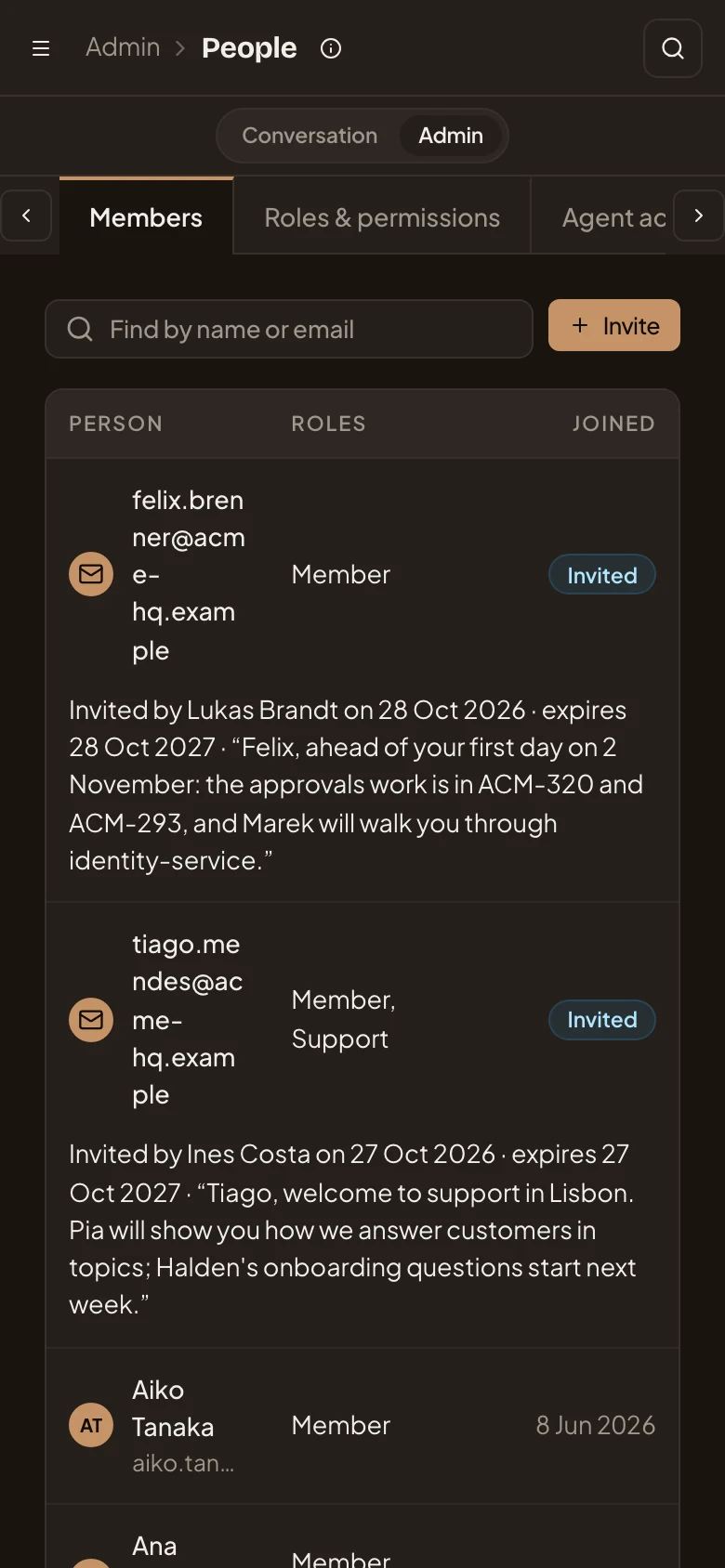
- Conversation and Admin. Switch between the chat and the page.
- People’s pages. Scroll them sideways, or use the arrows at each end.
Access
Section titled “Access”Everyone sees People under Admin in the menu. What it shows depends on their roles.
-
With Manage roles, they see all four pages and Roles on a person.
-
With Invite people alone, Members with no tabs above it. They invite, resend and revoke, and only offer roles whose permissions they hold. ACME’s support lead sees this view, because their Support role holds Invite people.
-
With neither, the page says “You need permission to manage roles or invite people to see everyone in the organisation.”
Roles and permissions says what each permission allows.