

Getting aroundPage by page
Preferences
Preferences is how Emargen works for you alone. Nobody else sees your choices. Open it from the Preferences tab of Your profile. Every choice saves as you make it, so there’s no Save button.
Open Preferences (opens Emargen in a new tab)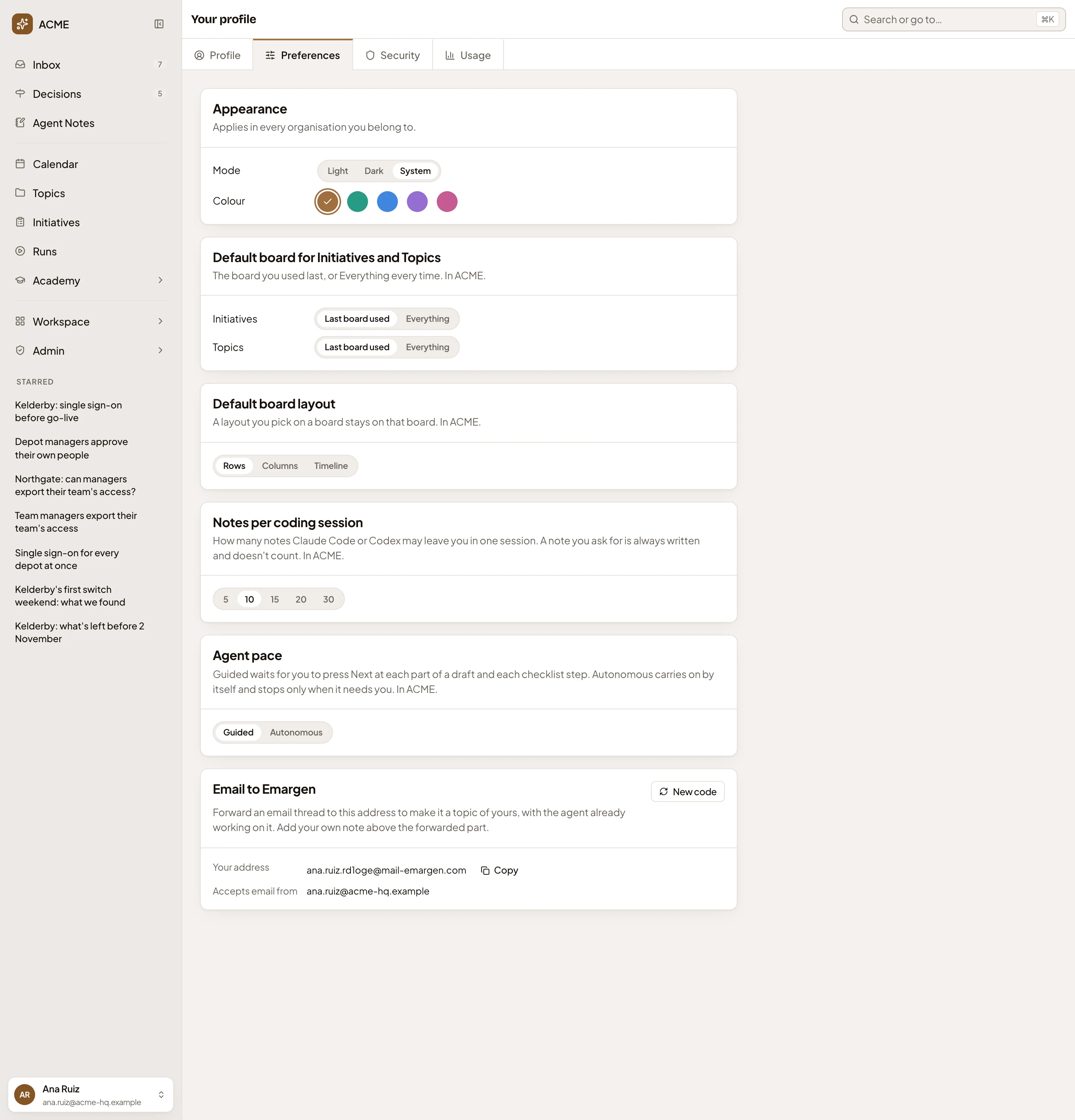
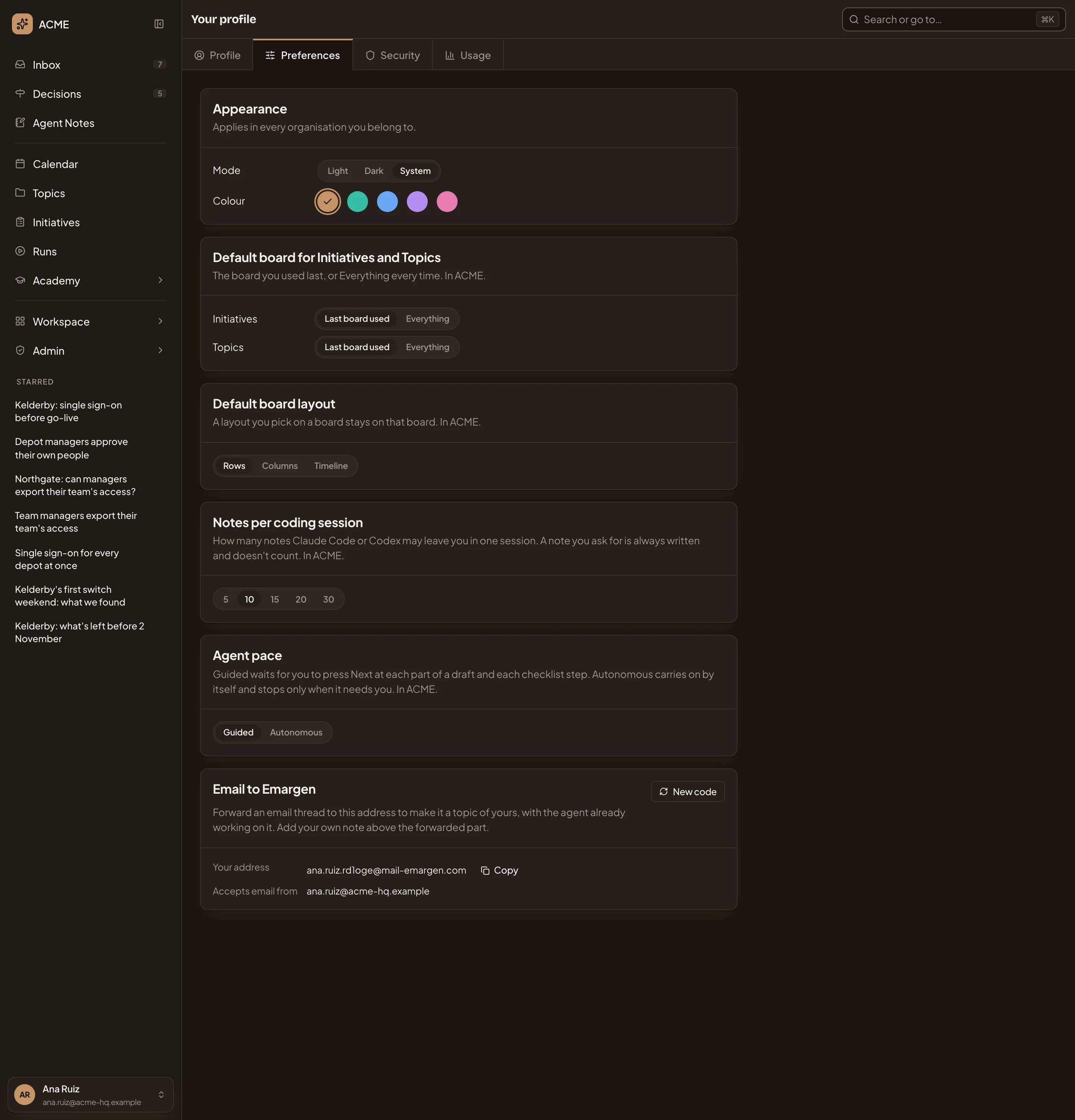
- Mode. Light, Dark, or System to follow your computer’s setting.
- Colour. The colour of buttons, links and highlights. You start with Bronze, and can pick Teal, Blue, Violet or Pink.
- Default board for Initiatives and Topics. For each of the two lists, Last board used, or Everything every time.
- Default board layout. Rows, Columns or Timeline, until you choose another on a board. That board then keeps your choice.
- Notes per coding session. How many notes Claude Code or Codex may leave you in one session, from 5 to 30. A note you ask for is always written and doesn’t count.
- Agent pace. Guided waits for your Next at each part of a draft and each step of a checklist, so you can read why. Autonomous goes through on its own and stops only for what only you can do.
- Email to Emargen. Your own address for turning emails into topics (see Your forwarding address).
- New code. Gives your address a new code. The old one stops working.
- Copy. Puts your address on the clipboard.
- Accepts email from. Takes mail only from the address you sign in with.
Appearance is the same in every organisation you belong to. Everything under it is for this organisation alone, and each section is labelled that way. The steps for appearance are in Change how Emargen looks.
When someone writes about a topic or an initiative, its key shows without the title, like ACM-281. Point at it to see the title. On a touch screen, the title shows beside the key.
Your forwarding address
Section titled “Your forwarding address”Forward an email thread to the address under Email to Emargen, and it becomes a topic of yours, with the agent already working on it. Write what you want above the forwarded part. Only mail from the address under Accepts email from gets in. See Email a topic in.
Under your address, you see the emails it refused in the last 30 days, and why.
When your organisation has switched forwarding off, the section says “Your organisation has switched forwarding off, so this address takes no email for now.” Administrators switch it on the Workspace page.
New code asks first.
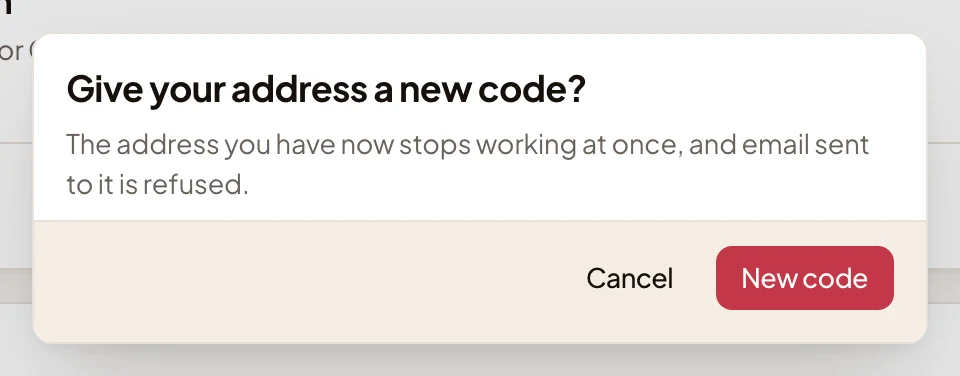
Use it if your address has reached people it shouldn’t. Your old address stops working at once, and email sent to it is refused. Give the new one to whoever forwards to it.
Access
Section titled “Access”Everyone, for their own preferences.