

WorkspacePage by page
Labels
This page lists your organisation’s labels, so you can see what’s in use and keep them tidy. Open it from Labels under Workspace in the menu.
Open Labels (opens Emargen in a new tab)Most of ACME’s labels are its customers’ names. The others say what the work is about, like Escalation, Research or Security.
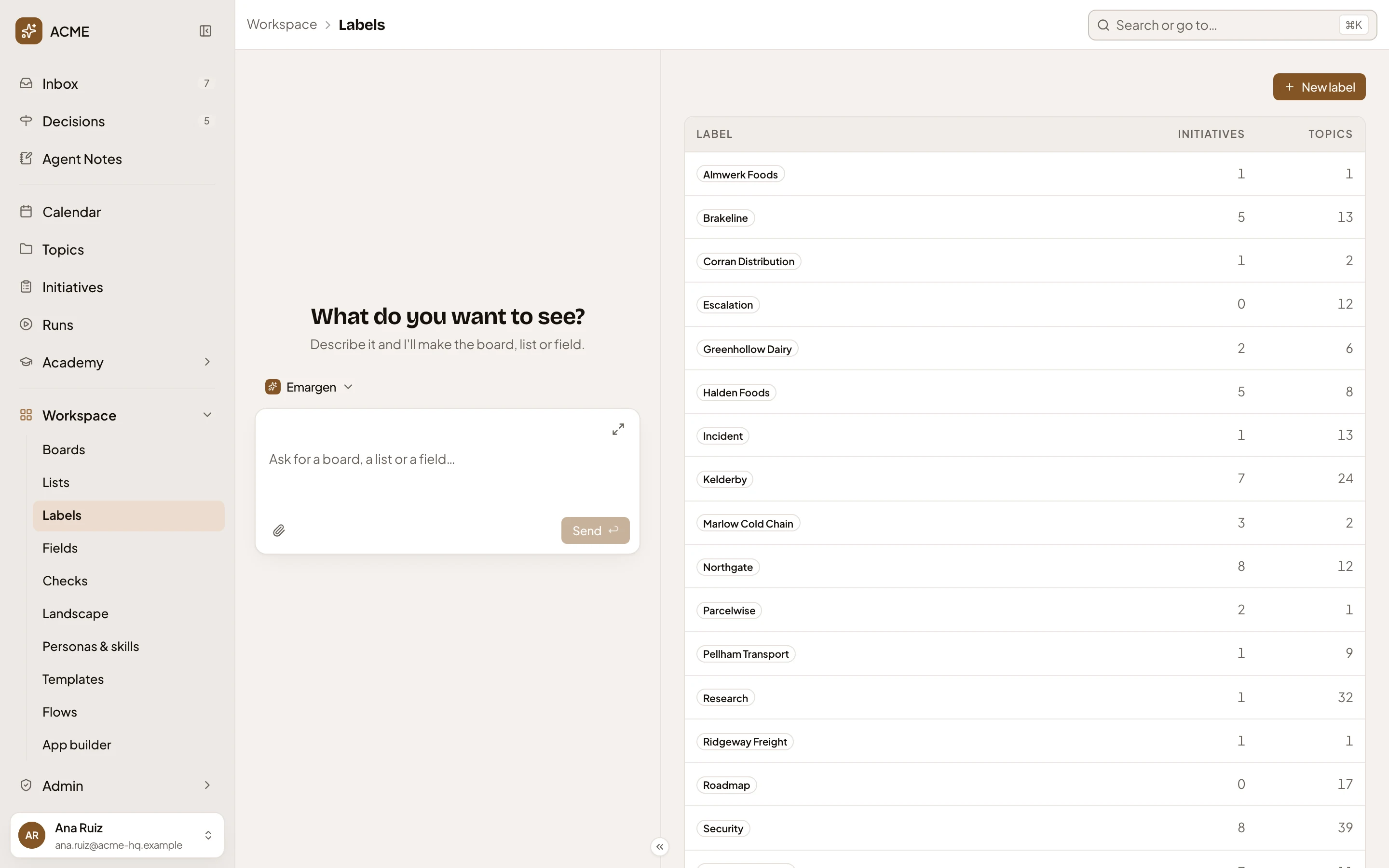
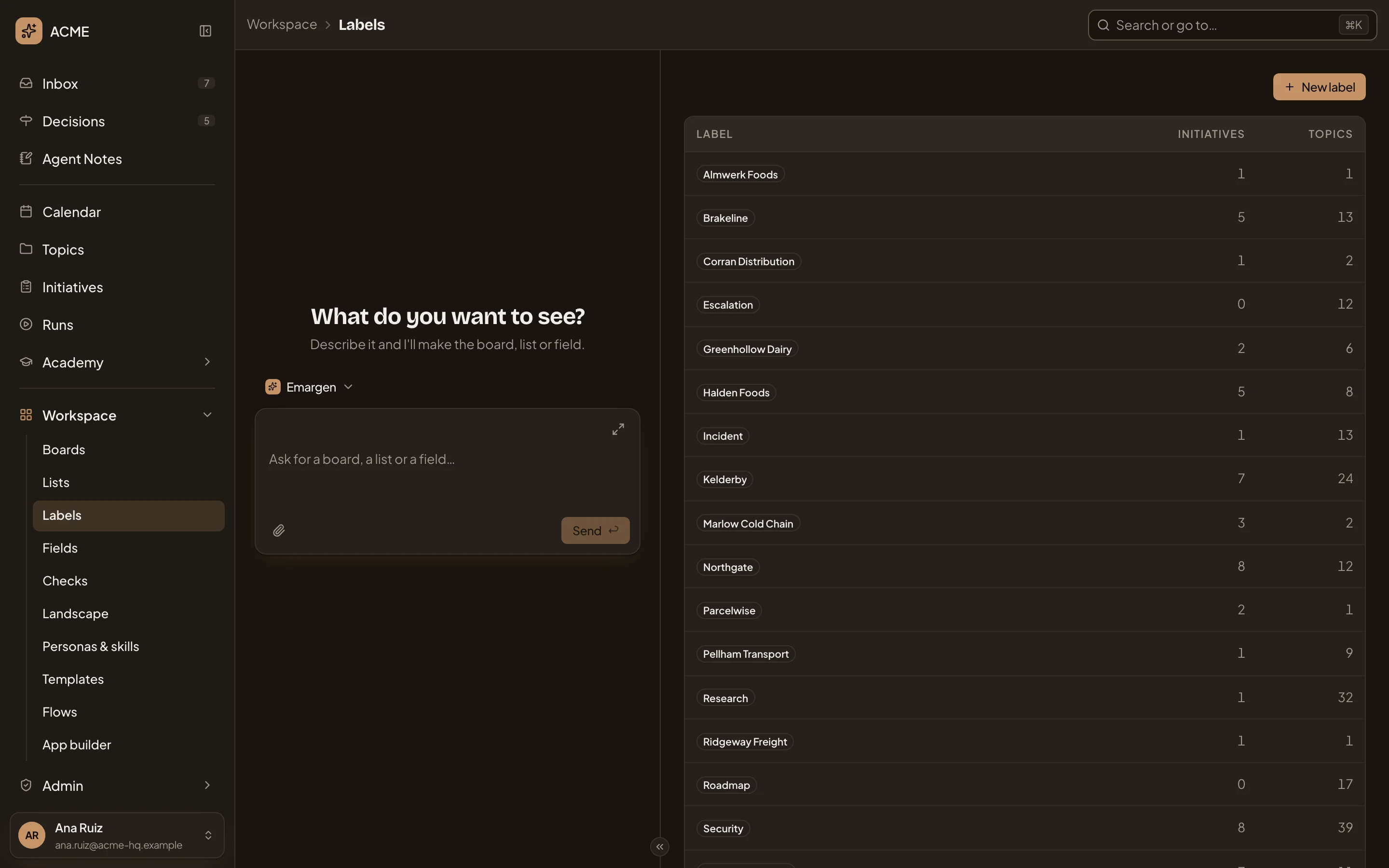
- New label. Opens the box for making one (see A new label).
- Kelderby. A label. Click its row to see what you can do with it.
- Initiatives. How many initiatives carry the label.
- Topics. How many topics carry it.
Add labels with Change labels on a topic, or from a row on the topics or initiatives list.
Changing a label
Section titled “Changing a label”Administrators click a label’s row to see what they can do with it.
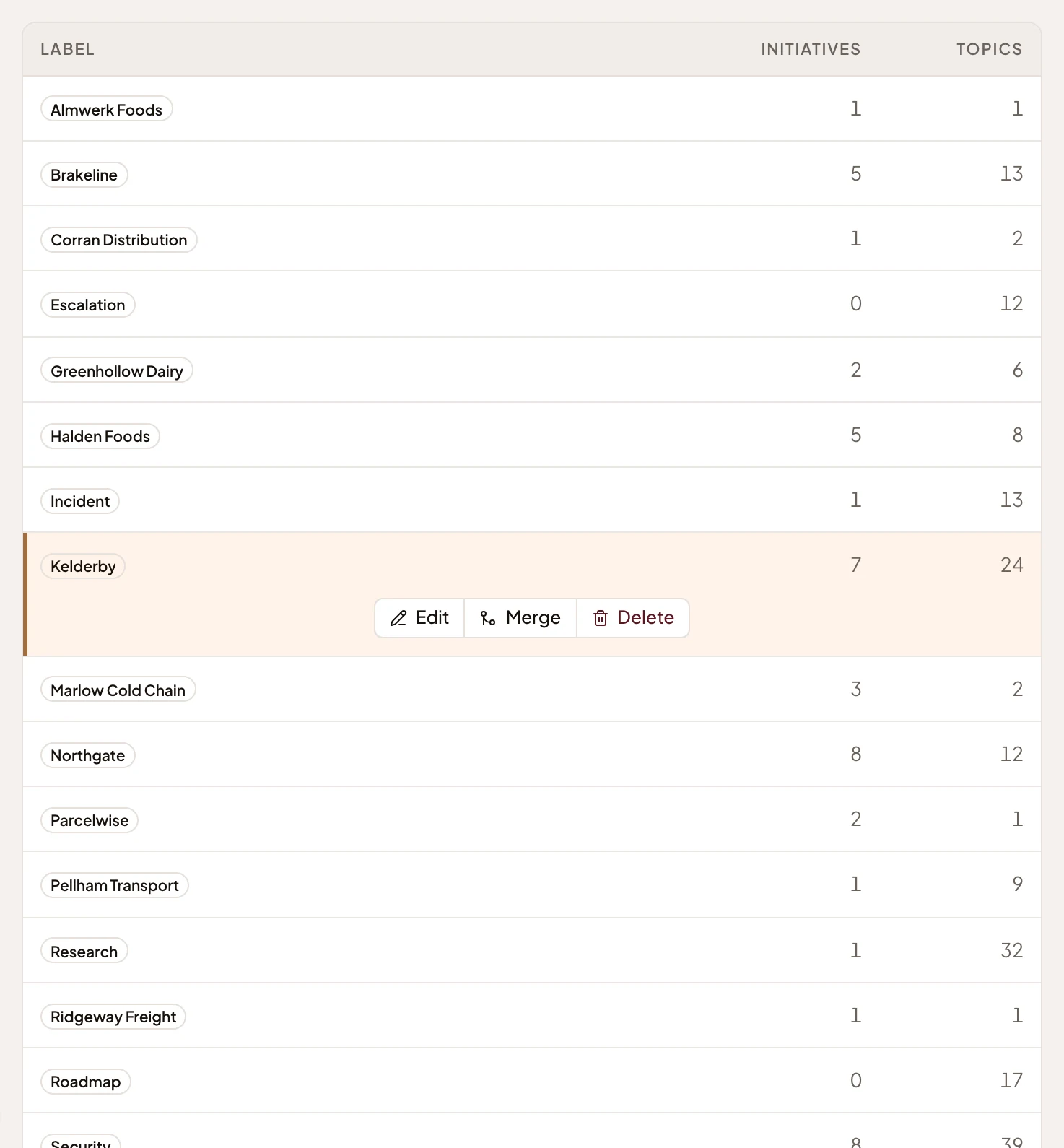
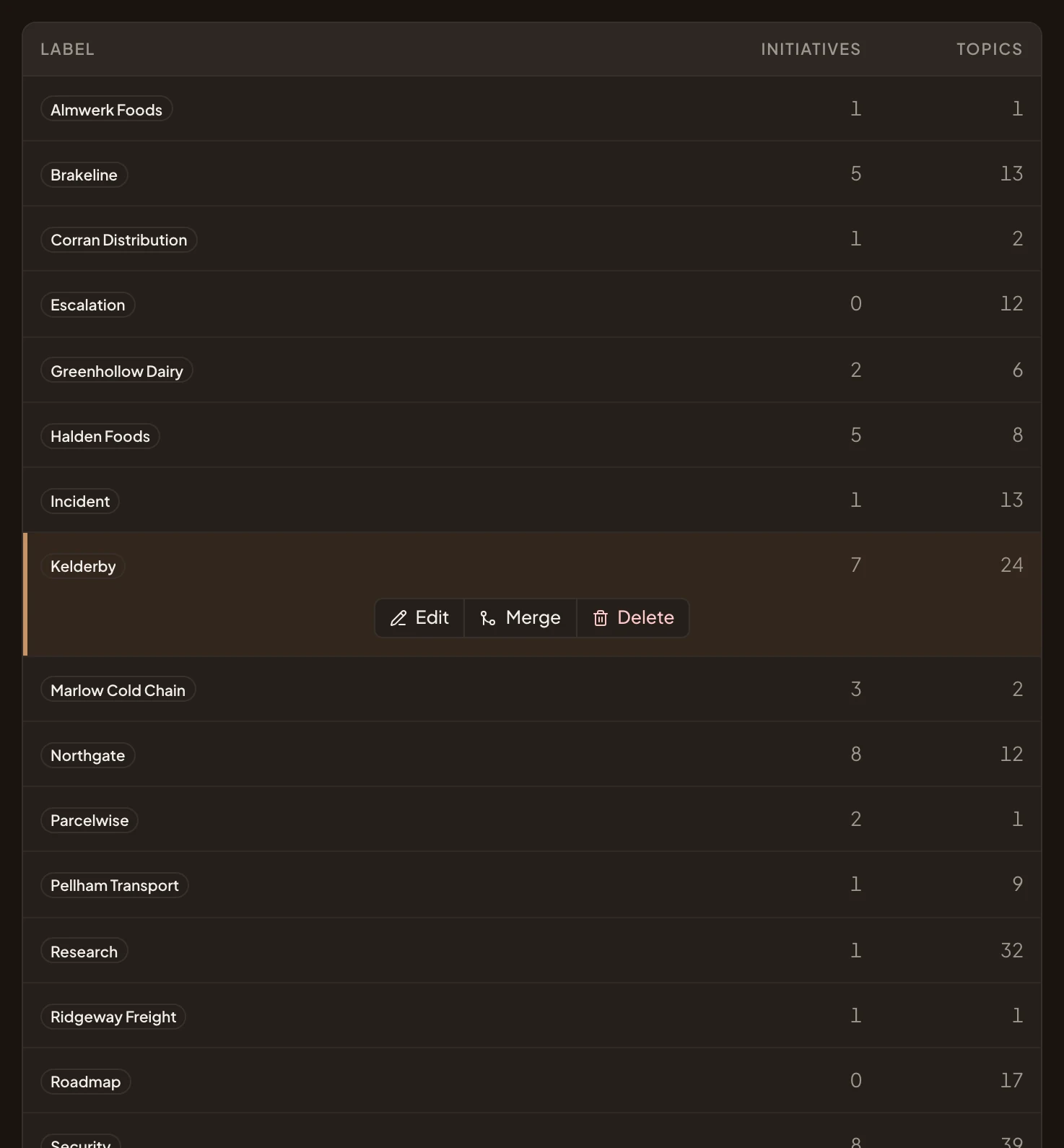
- Edit. Renames the label or changes its colour, in the same box as New label. The change shows everywhere the label is.
- Merge. Moves everything the label is on to another label, and this one goes.
- Delete. Takes the label off every initiative and topic it is on, after asking: “It is removed from every initiative and topic that has it.”
Merge asks which label to keep:
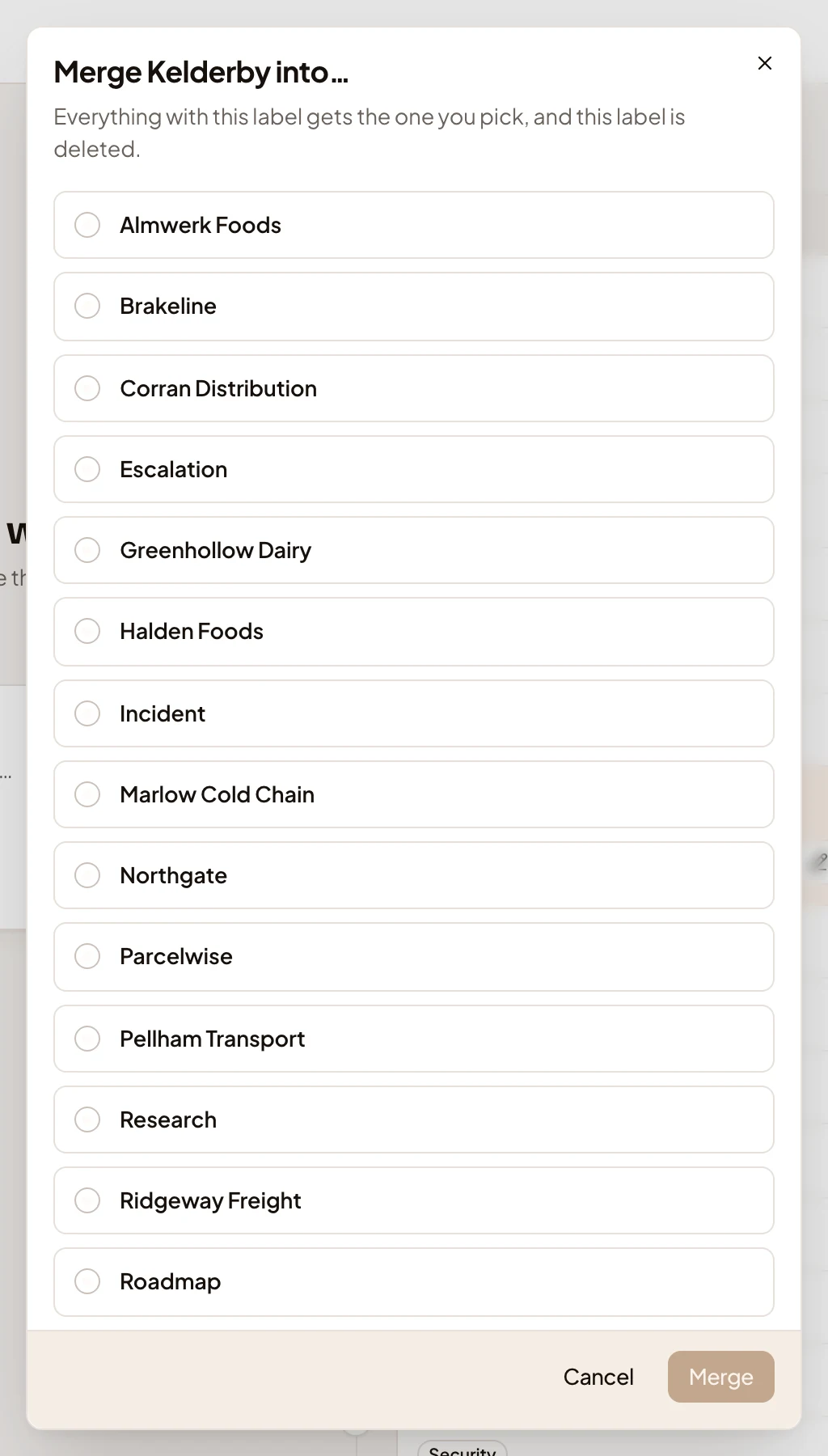
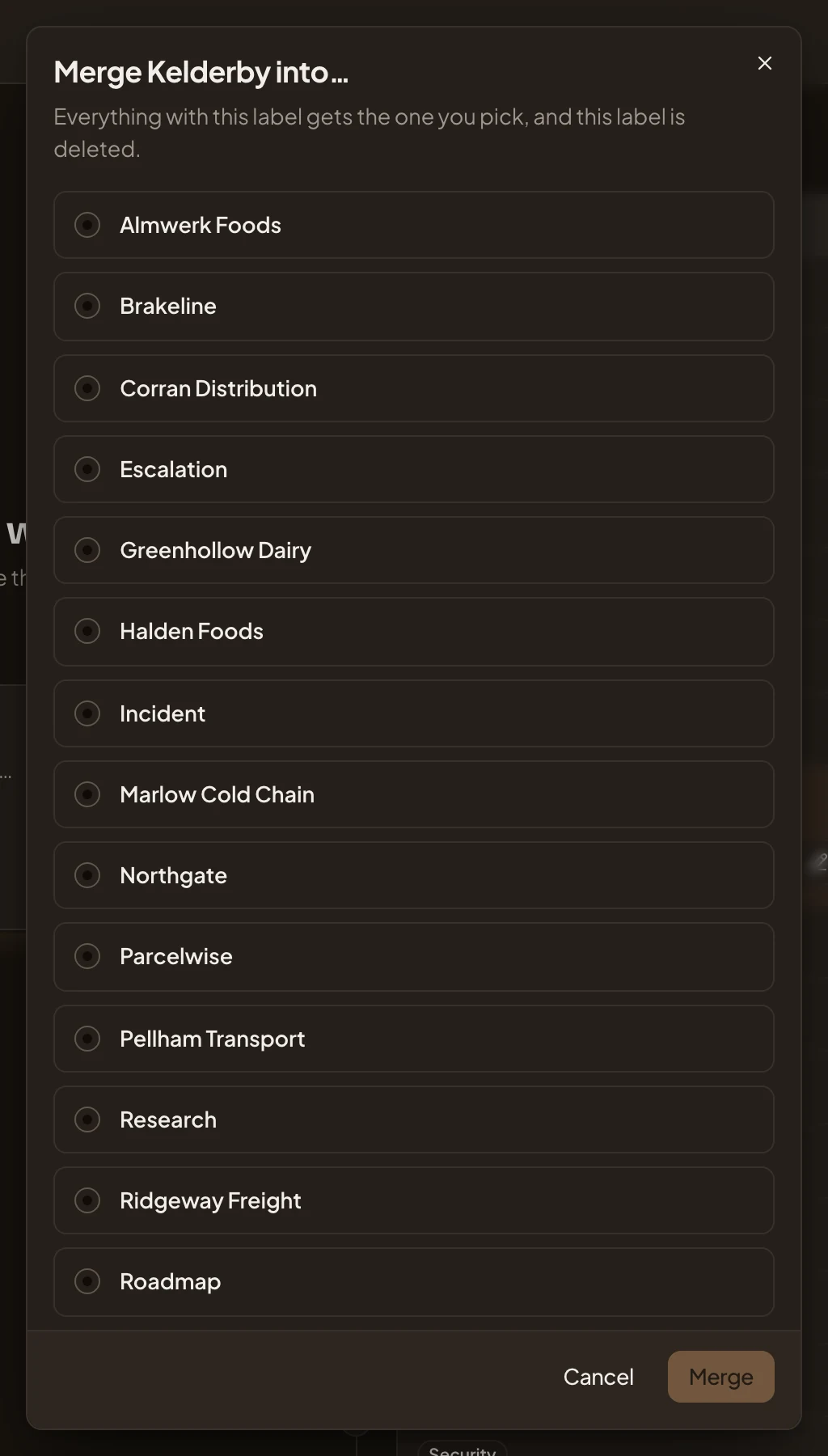
Pick one and press Merge. Two labels that mean the same thing, like a customer’s name spelt two ways, become one this way.
A new label
Section titled “A new label”New label opens a small box.
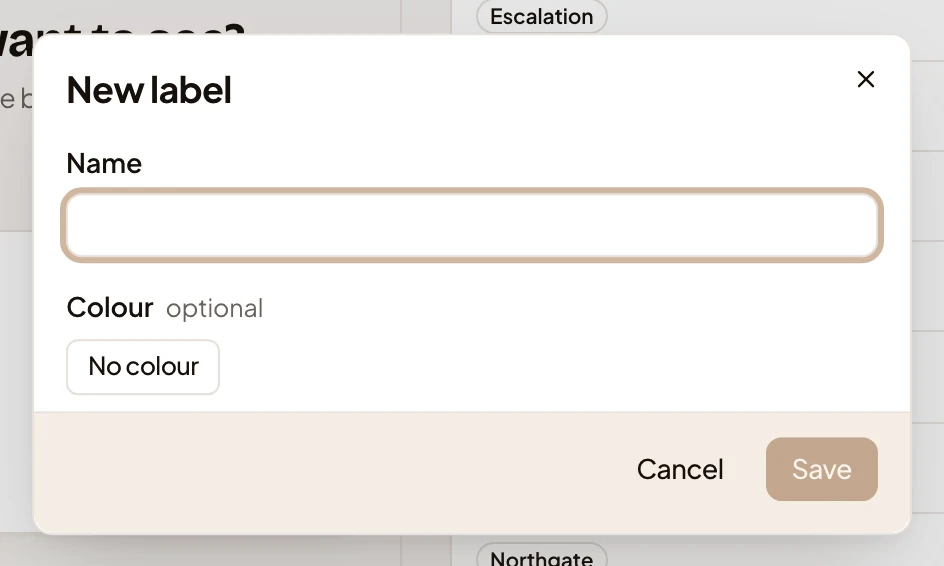
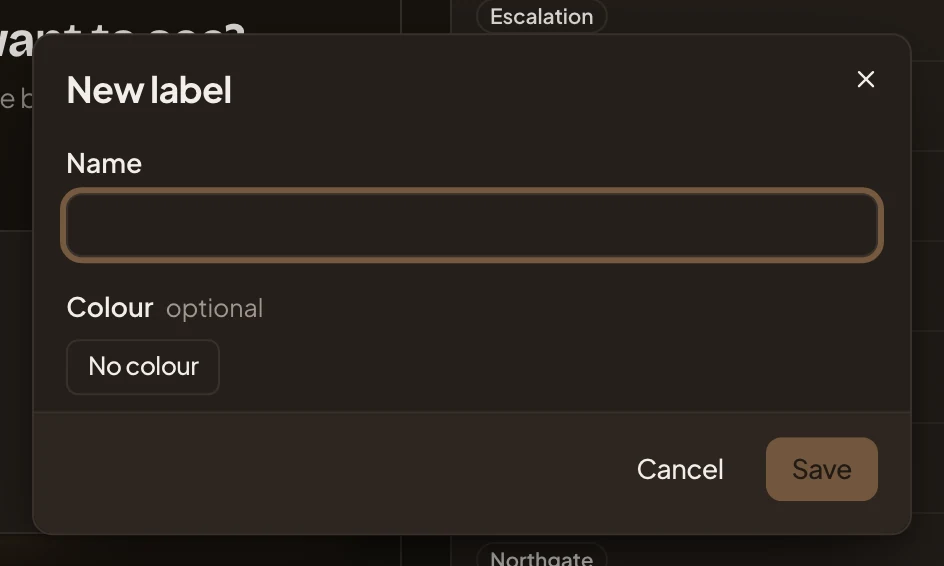
- Name. What it’s called.
- Colour. No colour to start with. Click it to pick red, amber, green, blue or violet, or no colour.
- Save. Makes the label.
You can also make a label where you put it on a topic. Under Change labels, type a new name and press Enter.
With no labels yet, the page says “No labels yet” and “Labels on initiatives and topics appear here. Use New label to make the first.”
Access
Section titled “Access”Everyone in the organisation sees every label. Anyone can make one and put it on what they can see. Only administrators see a label’s Edit, Merge and Delete. For anyone else, clicking a row opens nothing under it.