

WorkspacePage by page
A list
A list’s own page has its settings, and the agent task that fills it. Open it by clicking a list on Lists, or with Open list on a board’s page. New list on Lists opens it empty.
Open Lists (opens Emargen in a new tab)What’s on a list kept by hand isn’t shown here. You see it on its boards, and as a group on the topics or initiatives list. A list that fills itself shows today’s matches here, and elsewhere only on its boards.
A list that fills itself
Section titled “A list that fills itself”Waiting on customers at ACME holds every customer question whose Status is Waiting on the customer.
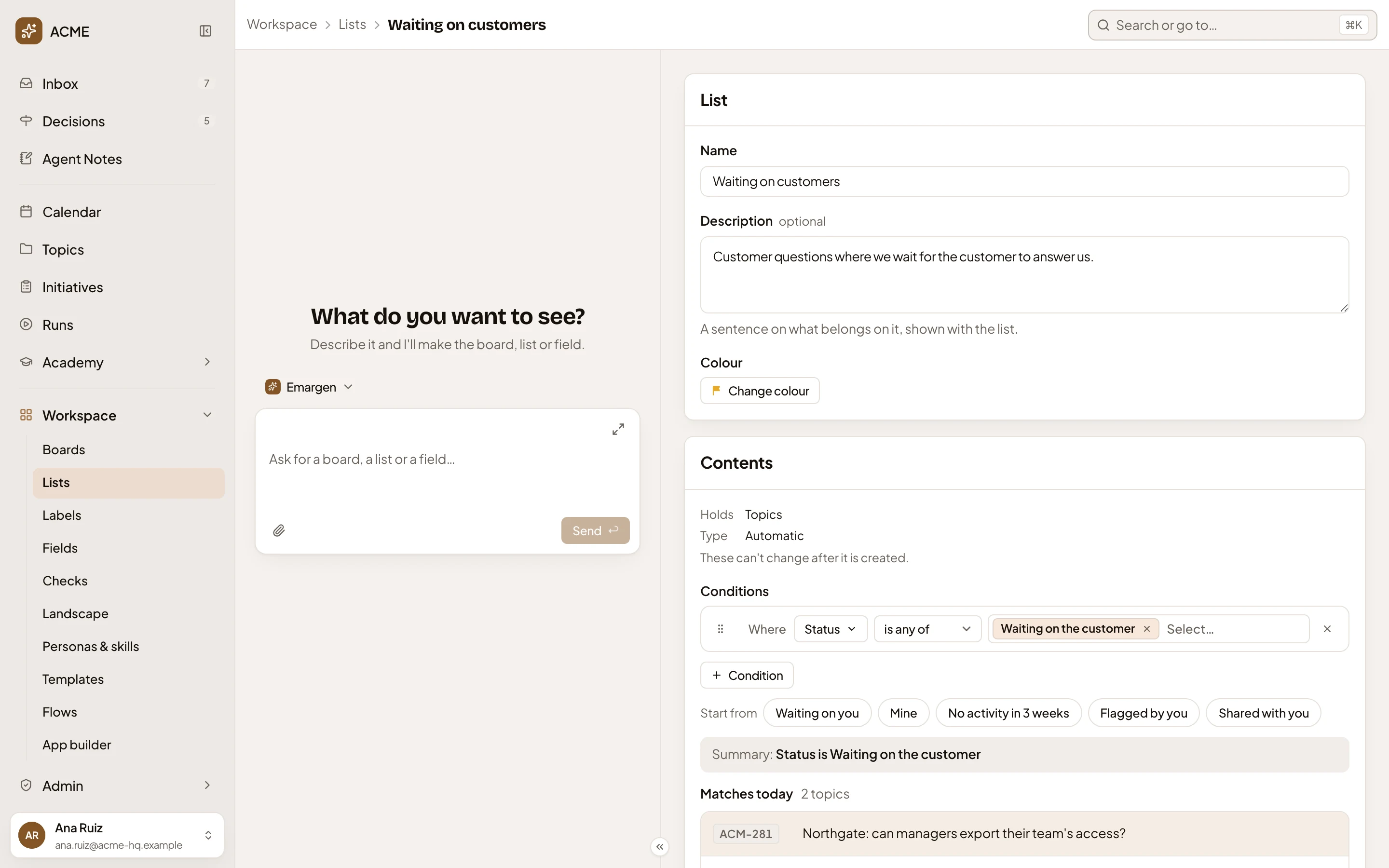
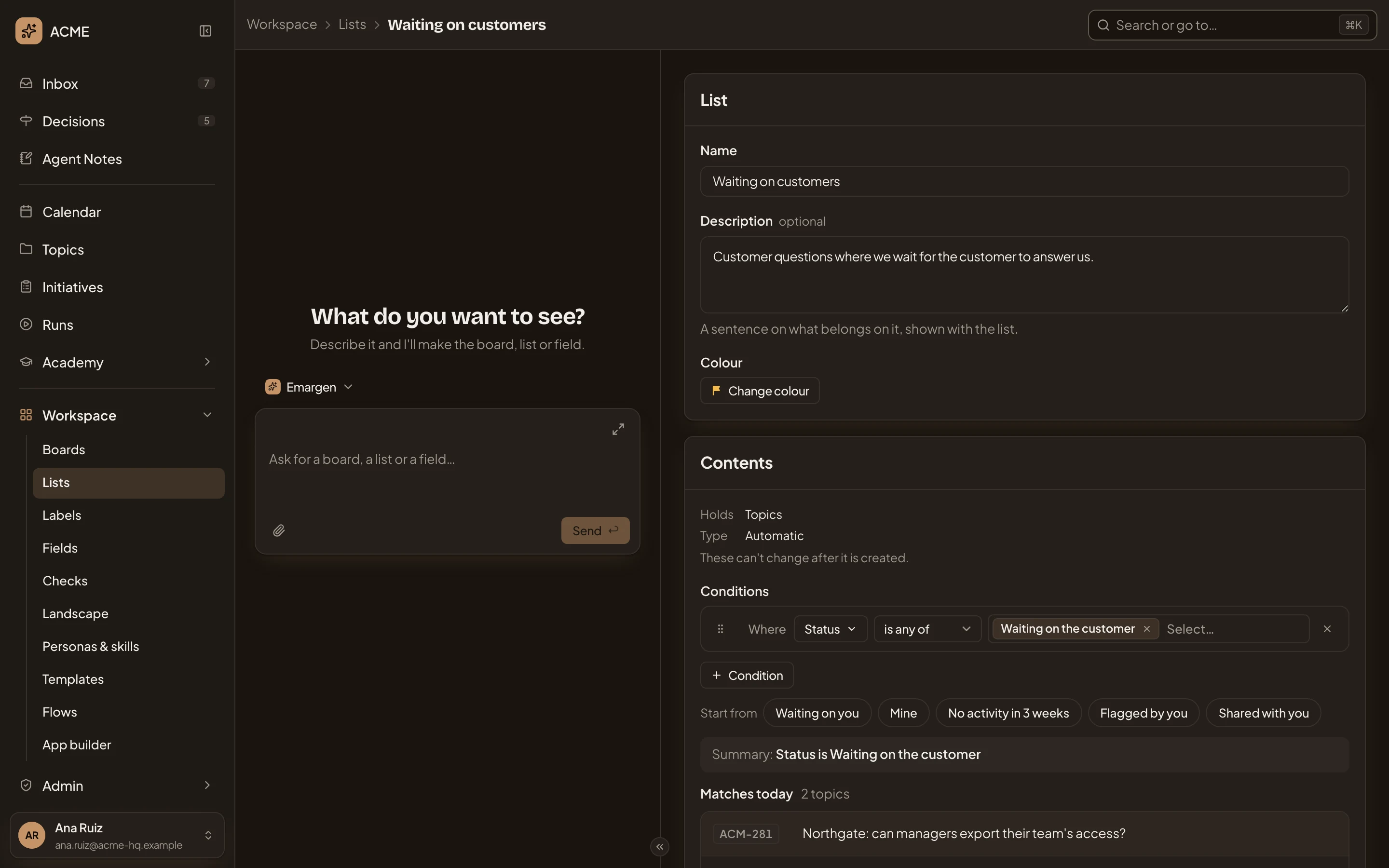
- Name. What the list is called.
- Description. A sentence on what belongs on it, shown with the list. You can leave it empty.
- Change colour. The list’s colour, which its column and group take on every board.
- Holds and Type. Topics or initiatives, kept by hand (Manual) or filling itself (Automatic). “These can’t change after it is created.”
- Conditions. What the list holds. They work as on a board.
- Summary. The conditions as one phrase. Under it, Matches today lists what is on the list now.
Changes save as you make them. A list that exists has no Save button. Further down:
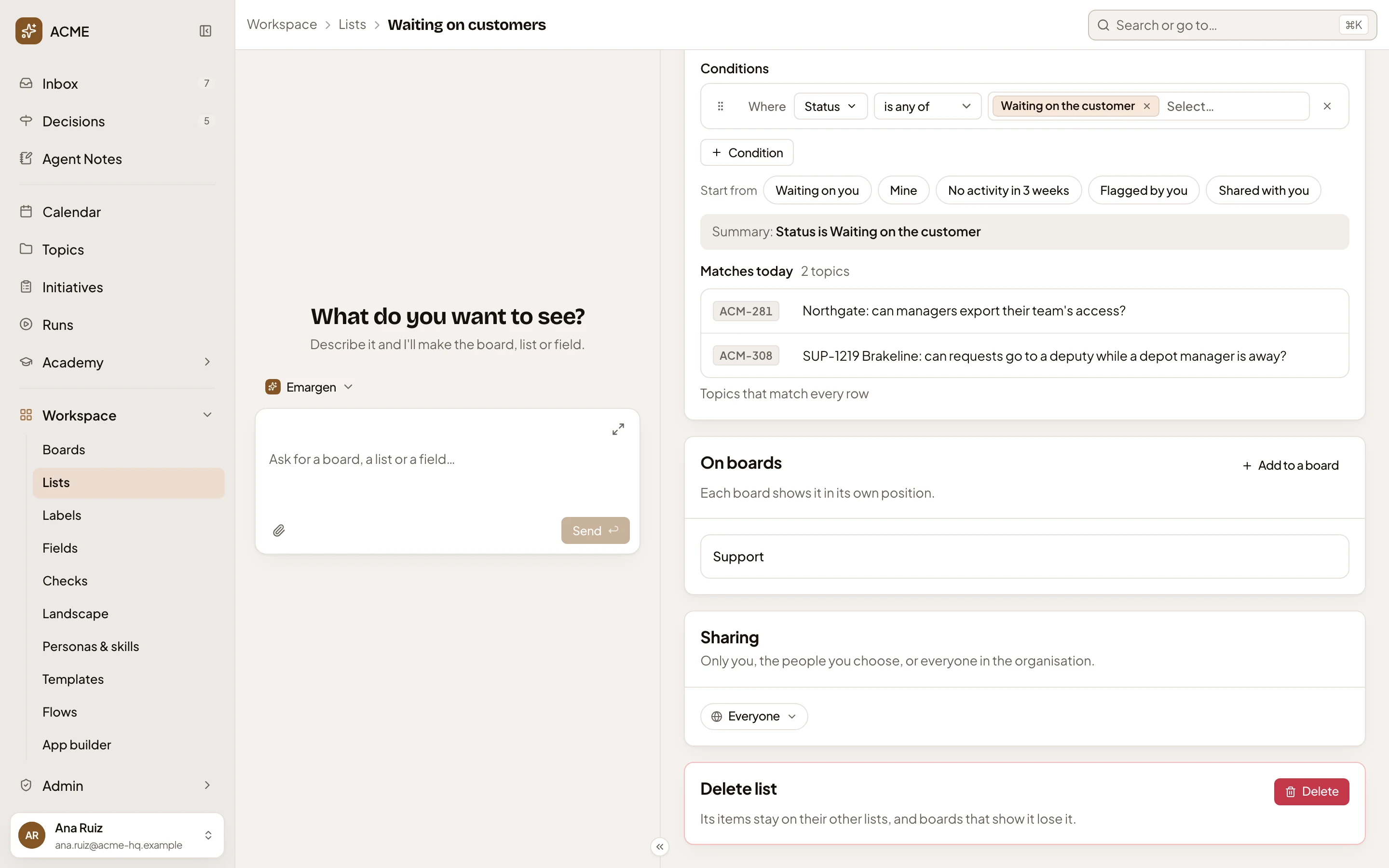
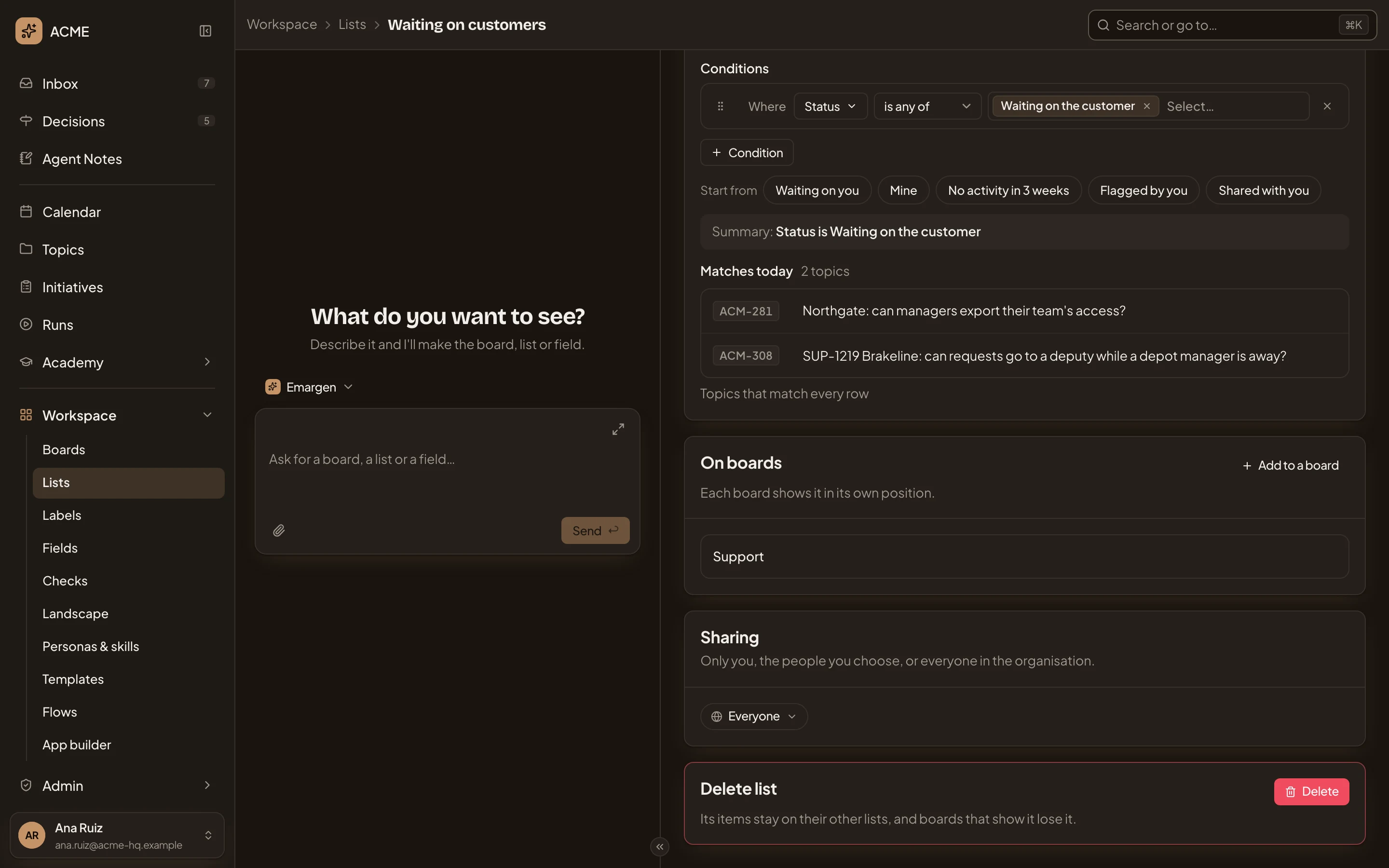
- On boards. The boards that show the list. Click one to open the board.
- Sharing. Who sees the list, and what they may do (see Sharing the list).
- Delete. Deletes the list, after asking (see Deleting a list).
A list on no board shows “On no board yet. It still groups items when a board is grouped by list.”
A list kept by hand
Section titled “A list kept by hand”This week holds the topics its owner answers this week. Its owner puts each one on it from the topic’s ⋯ menu, with Lists…. An agent task can also fill a list of topics kept by hand.
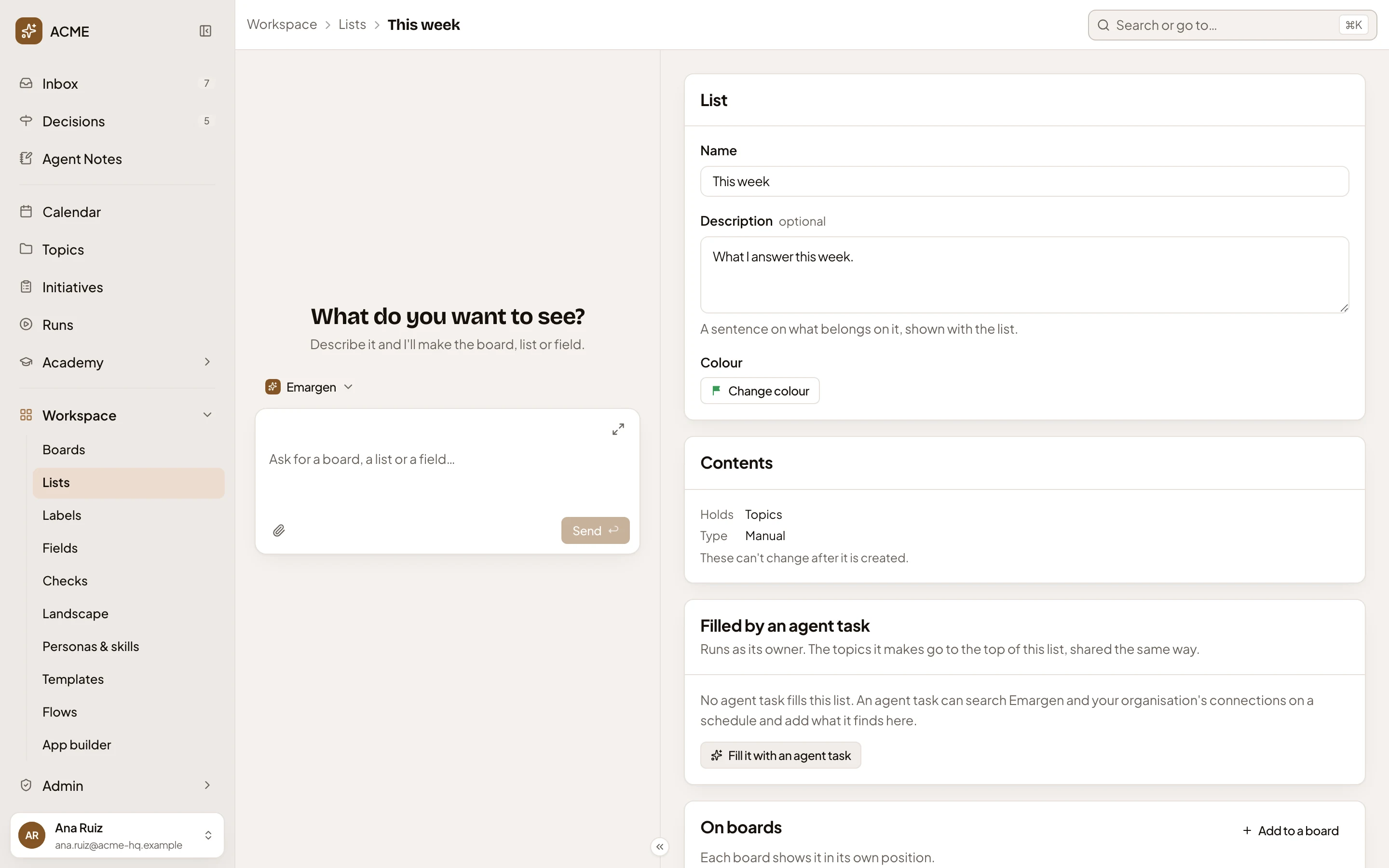
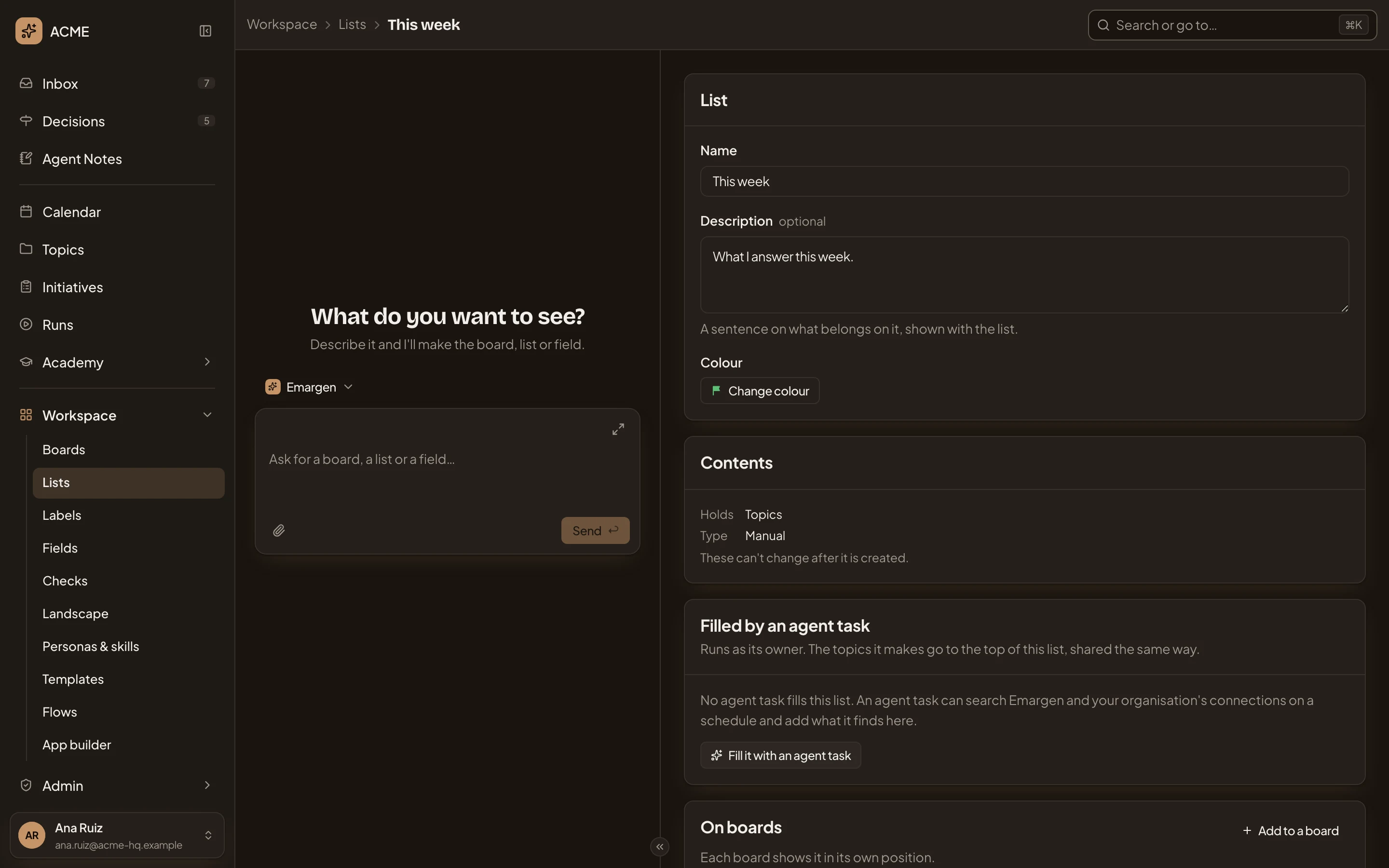
- Fill it with an agent task. Sets up an agent task that fills the list on a schedule (see Filled by an agent task).
- Add to a board. Shows the list on a board too.
Add to a board shows the manual boards of the same kind you edit that don’t show the list yet:
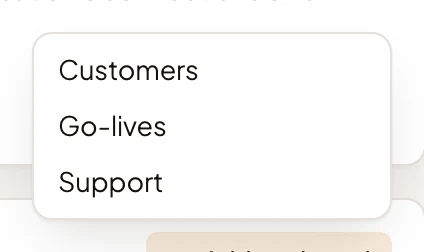
Pick one, and the list becomes one of its columns. To take it off again, use Remove from board on the board’s page.
A list that comes with Emargen
Section titled “A list that comes with Emargen”Triage, Shared with you and Archived come with Emargen. Their page reads the same, with everything greyed out and a note at the top: “Built in. It fills automatically and can’t be changed.”
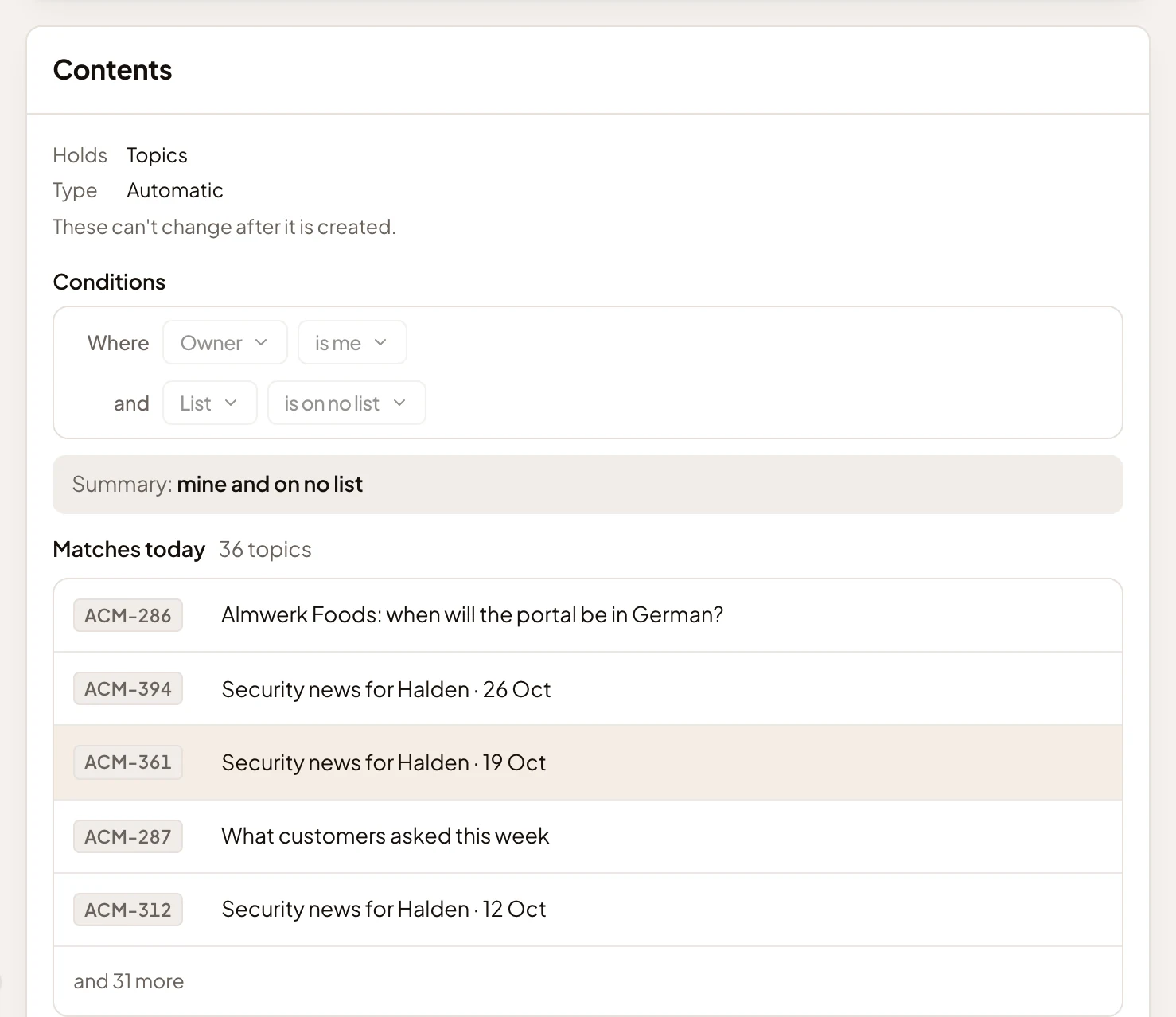
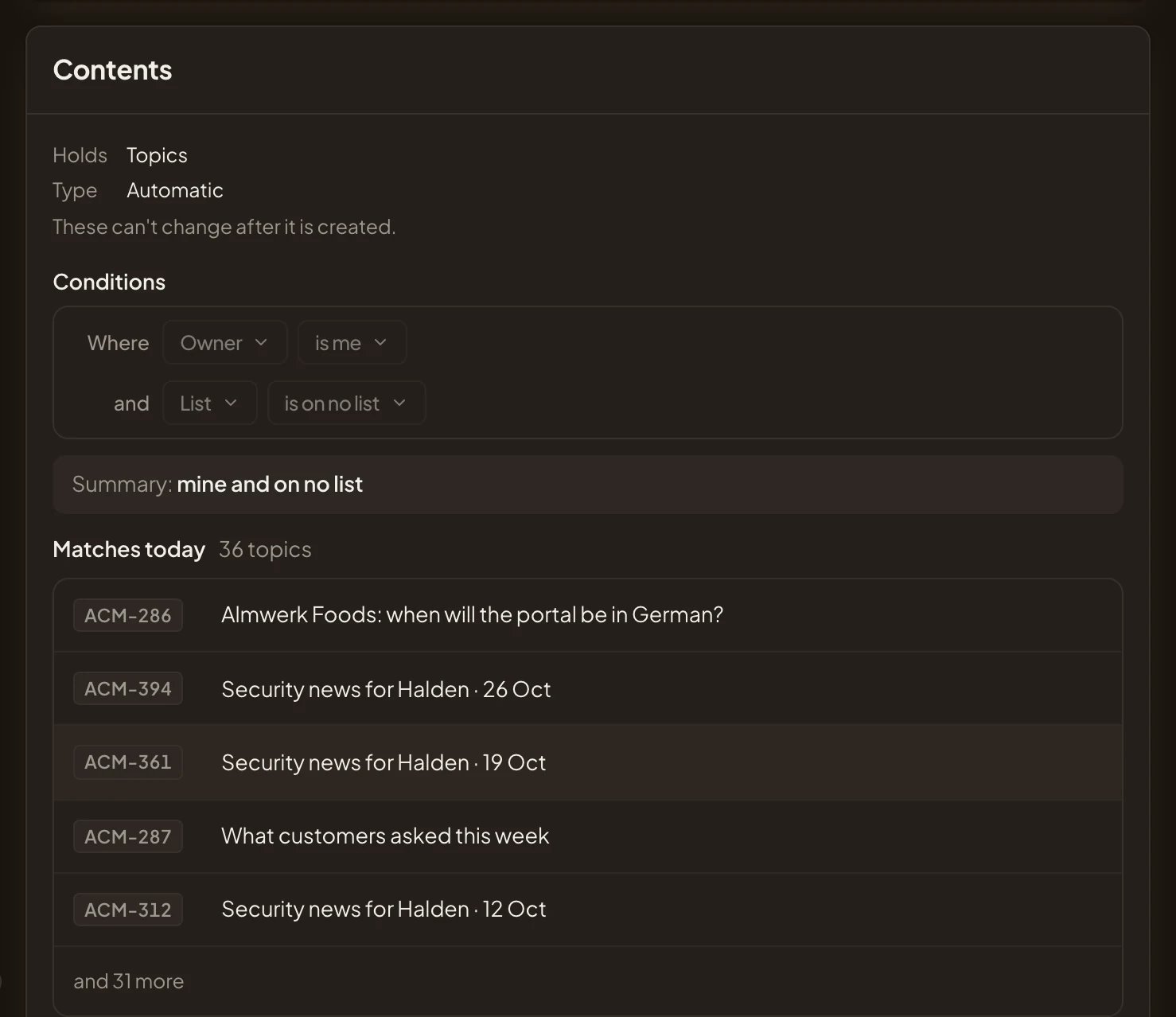
- Owner is me, your own topics. “Me” is whoever looks, so Triage shows each person their own.
- List is on no list, on no manual workspace list.
Filled by an agent task
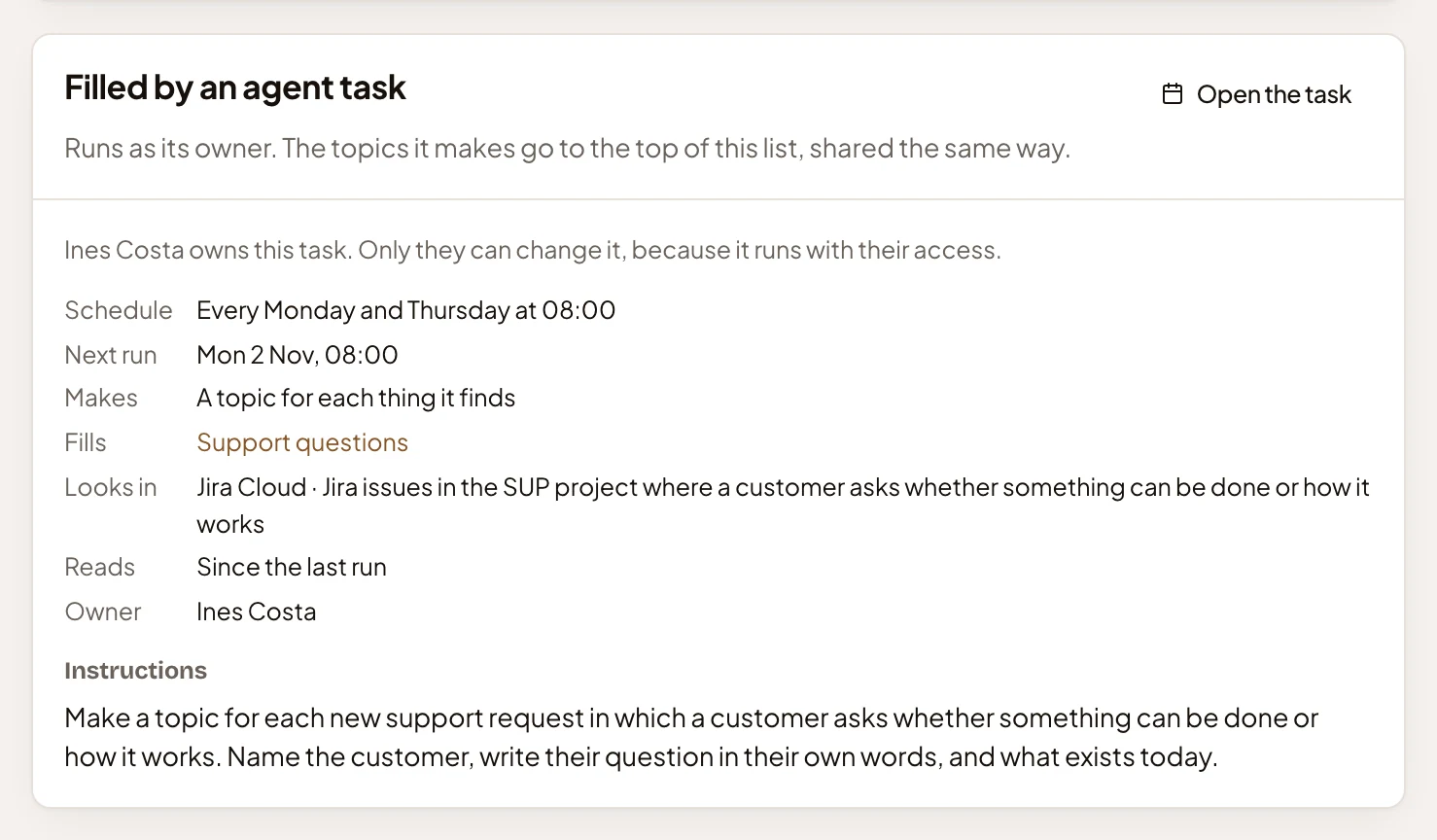
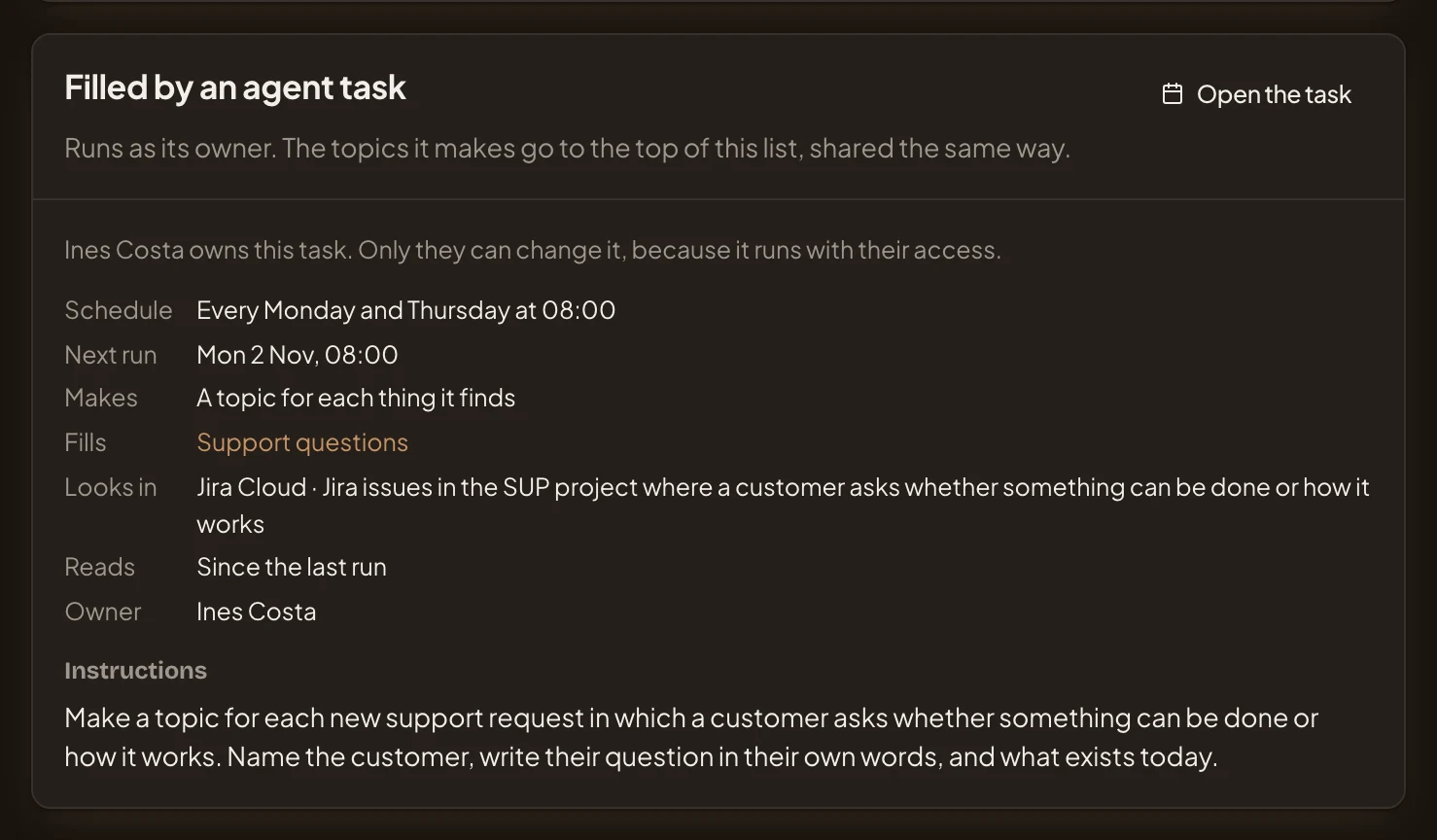
Section titled “Filled by an agent task”In the pictures, an agent task fills Support questions at ACME. On Mondays and Thursdays it looks in Jira for new support requests in which a customer asks if something can be done, and makes a topic for each. Everyone who sees the list sees its task. Only its owner changes it, since it runs with their access.
If you see the list but don’t own its task, you see this:
- Open the task. Opens the task’s own page, with its runs (see agent tasks).
- Who owns it: “Ines Costa owns this task. Only they can change it, because it runs with their access.”
- Schedule. When it runs.
- Next run. When it runs next.
- Makes. A topic for each thing it finds, or One topic each run about everything it found.
- Looks in. Where the agent looks, and what for, here Jira Cloud’s SUP project.
- Reads. How far back each run reads, here since the last run.
- Instructions. What the agent does, in its owner’s words.
The task’s topics go at the top of the list and are shared the way the list is.
As the task’s owner
Section titled “As the task’s owner”The task’s owner sees the same section as a form they can change, with the task’s buttons at its top.
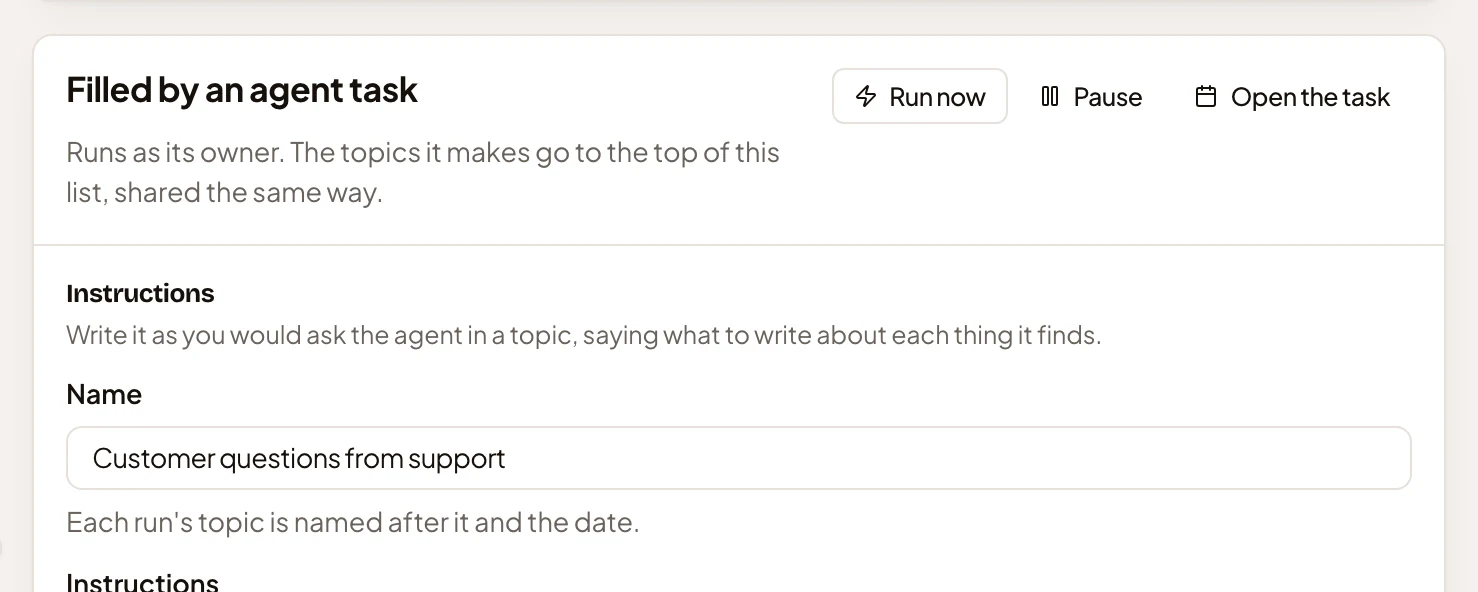
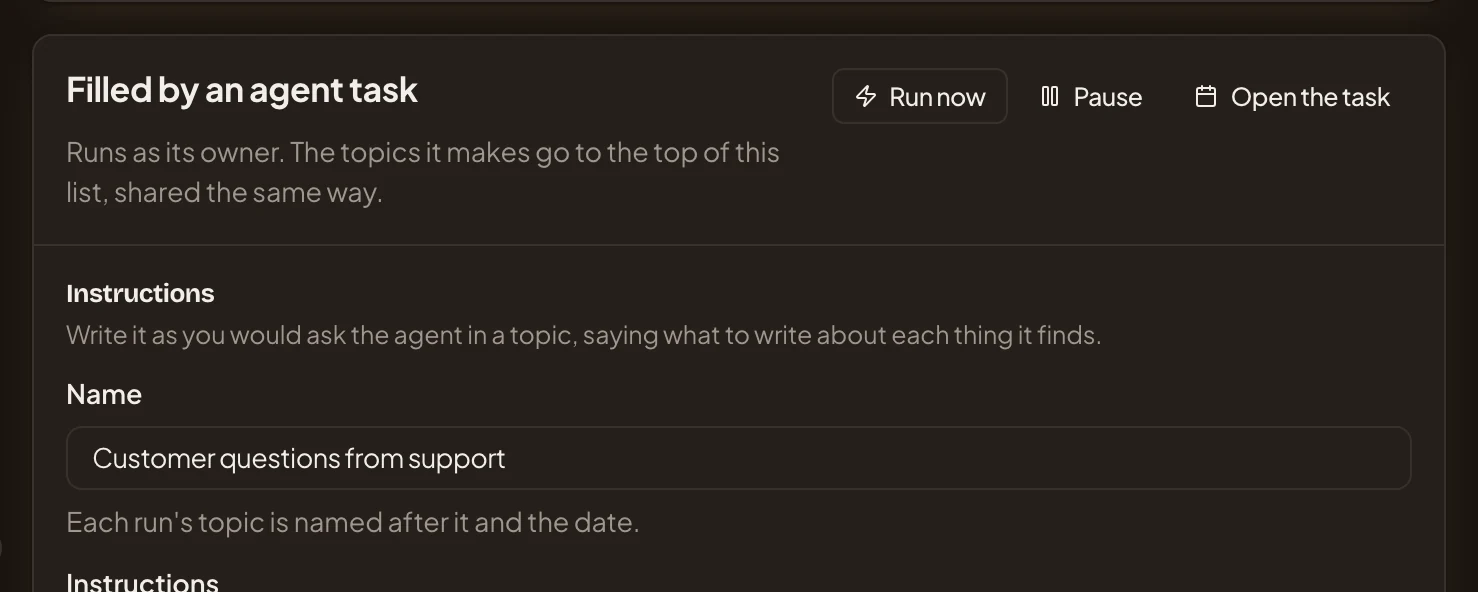
- Run now. Runs the task once, now. Its topics land at the top of the list. Only the owner has it.
- Pause. Stops it running until Resume. It keeps its runs. The owner and the people who may change the list have it.
- Open the task. The task’s own page.
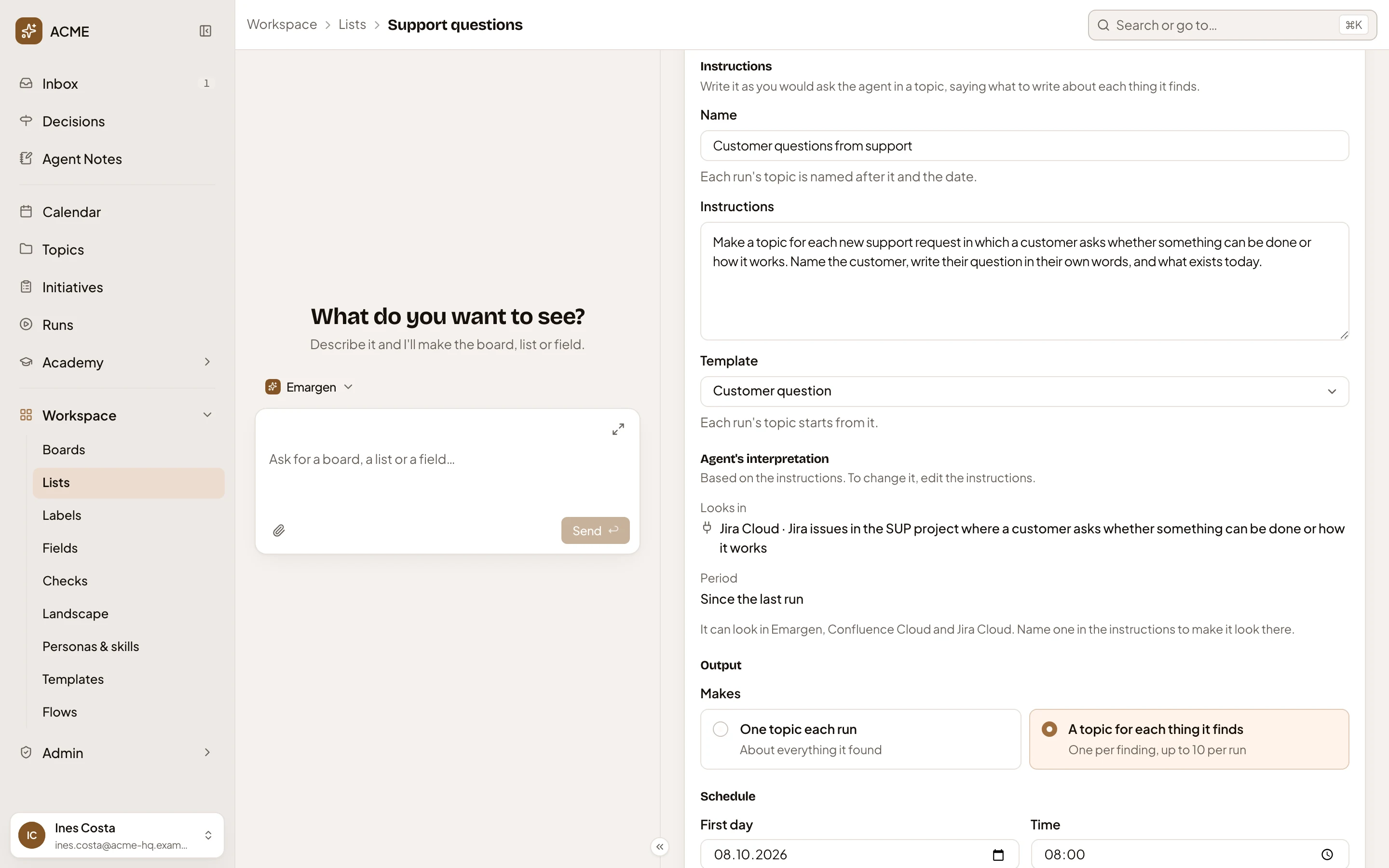
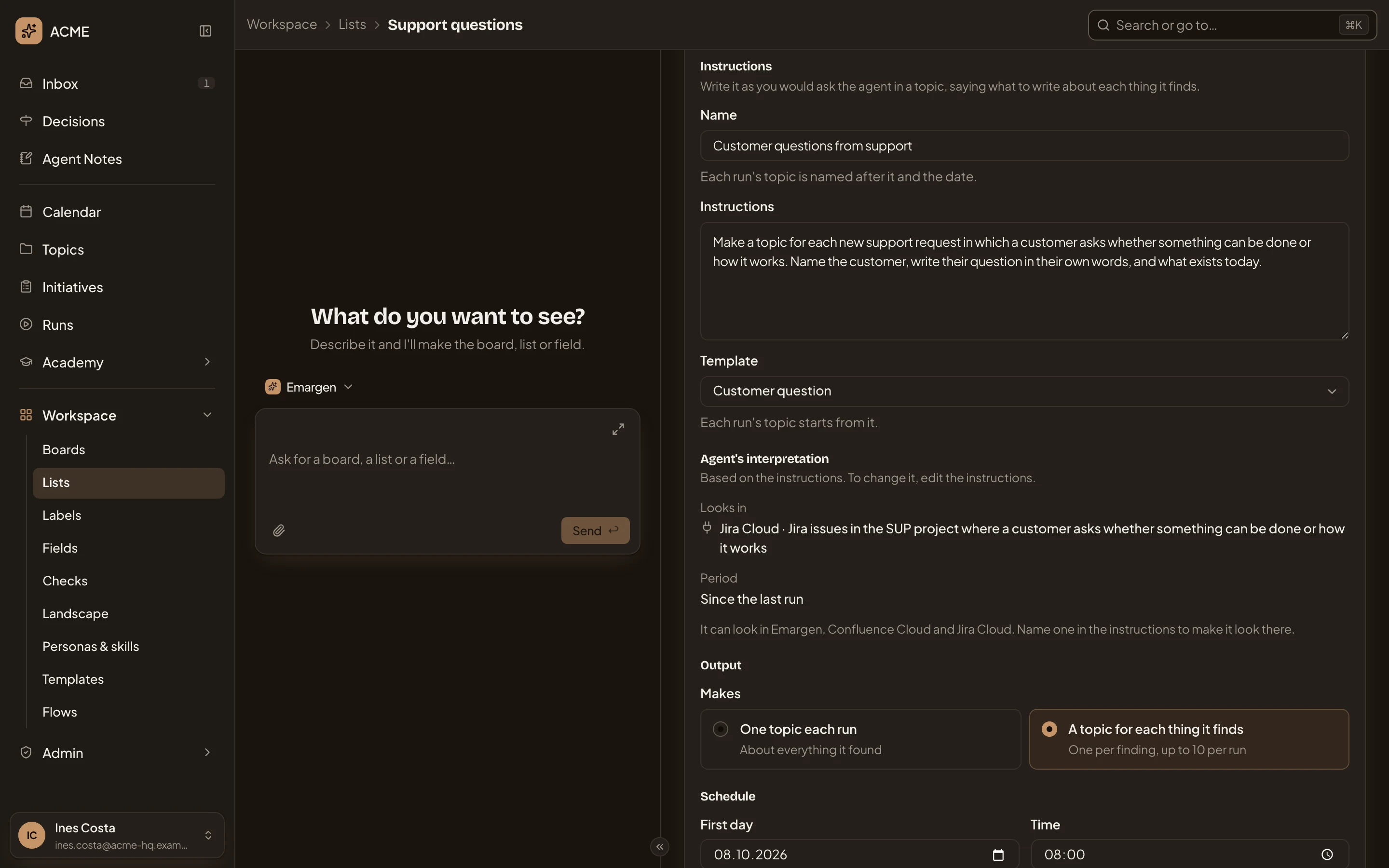
- Name. The task’s name. When a run makes one topic, the topic is named after the task and the run’s date.
- Instructions. Tell the agent, in your words, what to write about each thing it finds.
- Template. The template each run’s topic starts from. Here it’s Customer question, so the agent fills in Customer and the other fields.
- Looks in. Under Agent’s interpretation, where the agent will look, as it read your words. You don’t set it. To change it, change the instructions.
- Period. How far back each run reads.
- The places it can look: “It can look in Emargen, Confluence Cloud and Jira Cloud. Name one in the instructions to make it look there.”
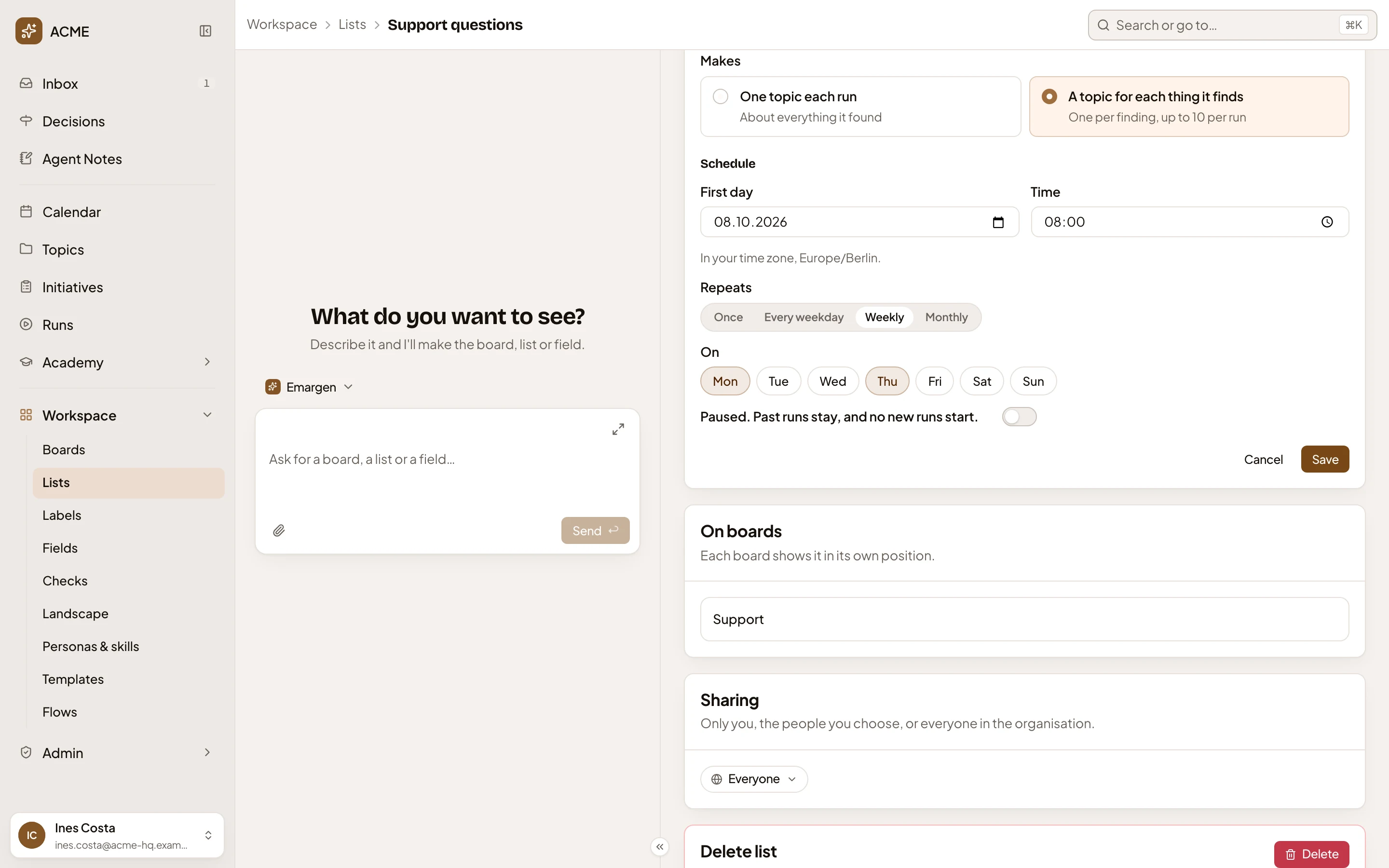
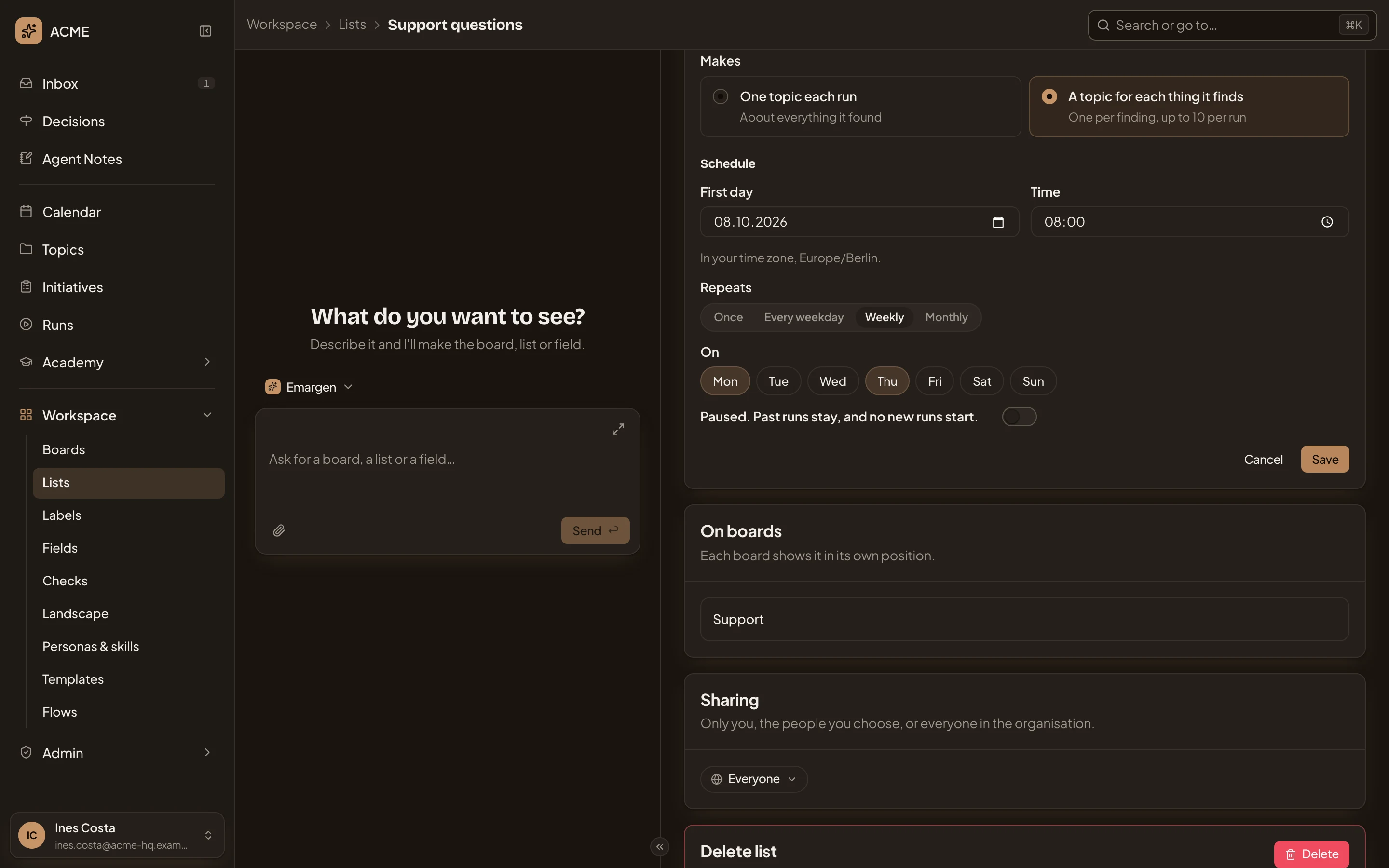
- Makes. One topic each run, about everything it found, or A topic for each thing it finds, one per finding and at most ten a run.
- First day. The day it first runs.
- Time. When it runs, in your time zone.
- Repeats. Once, Every weekday, Weekly or Monthly.
- On. For Weekly, the days, here Mon and Thu.
- Paused. Past runs stay, and no new runs start. The same as Pause.
- Save. Saves the task. Cancel puts it back as it was.
See Fill a list with an agent task for how to set one up, and what a run does.
Sharing the list
Section titled “Sharing the list”Sharing shows who sees it. Only its owner can change it.
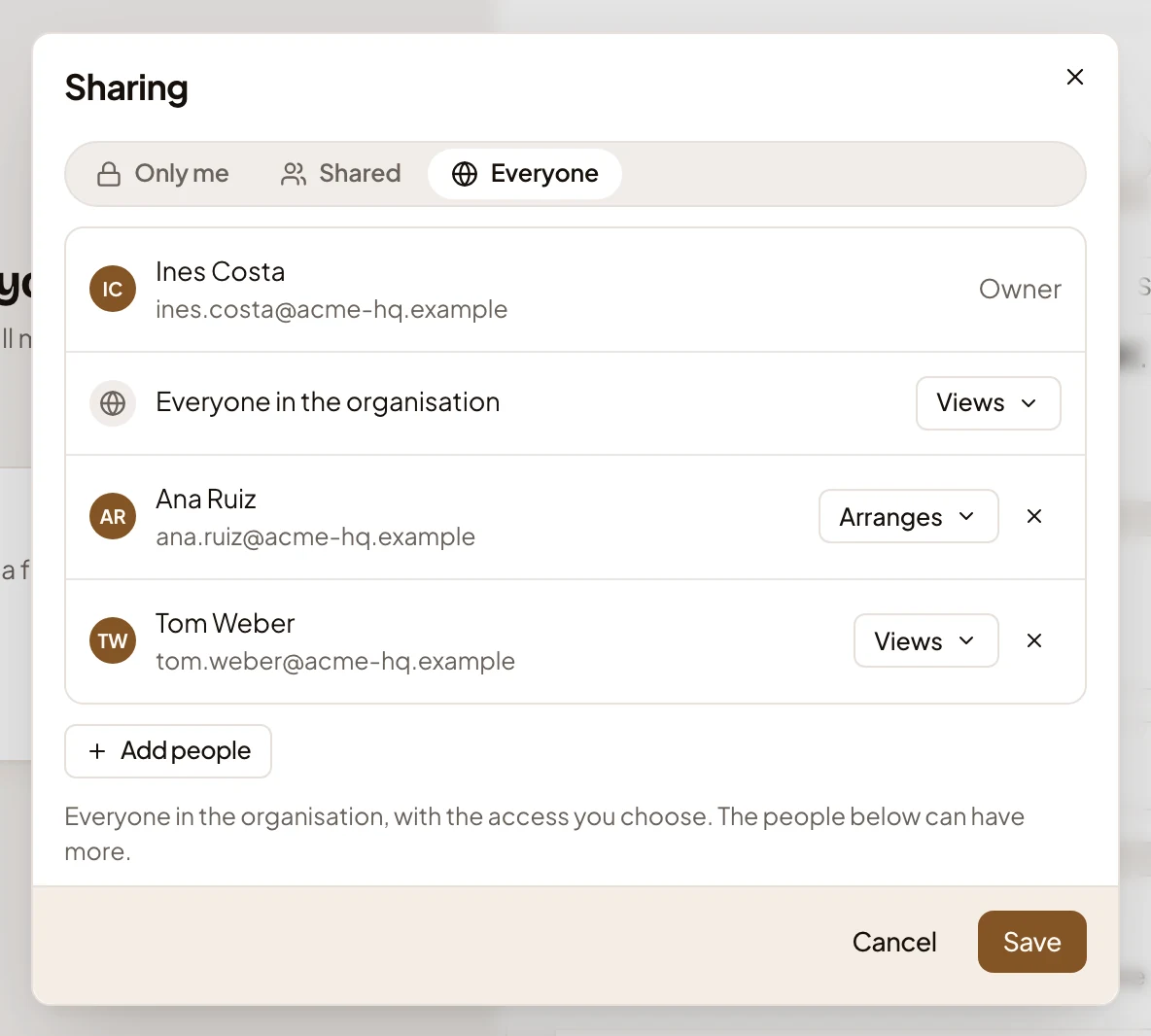
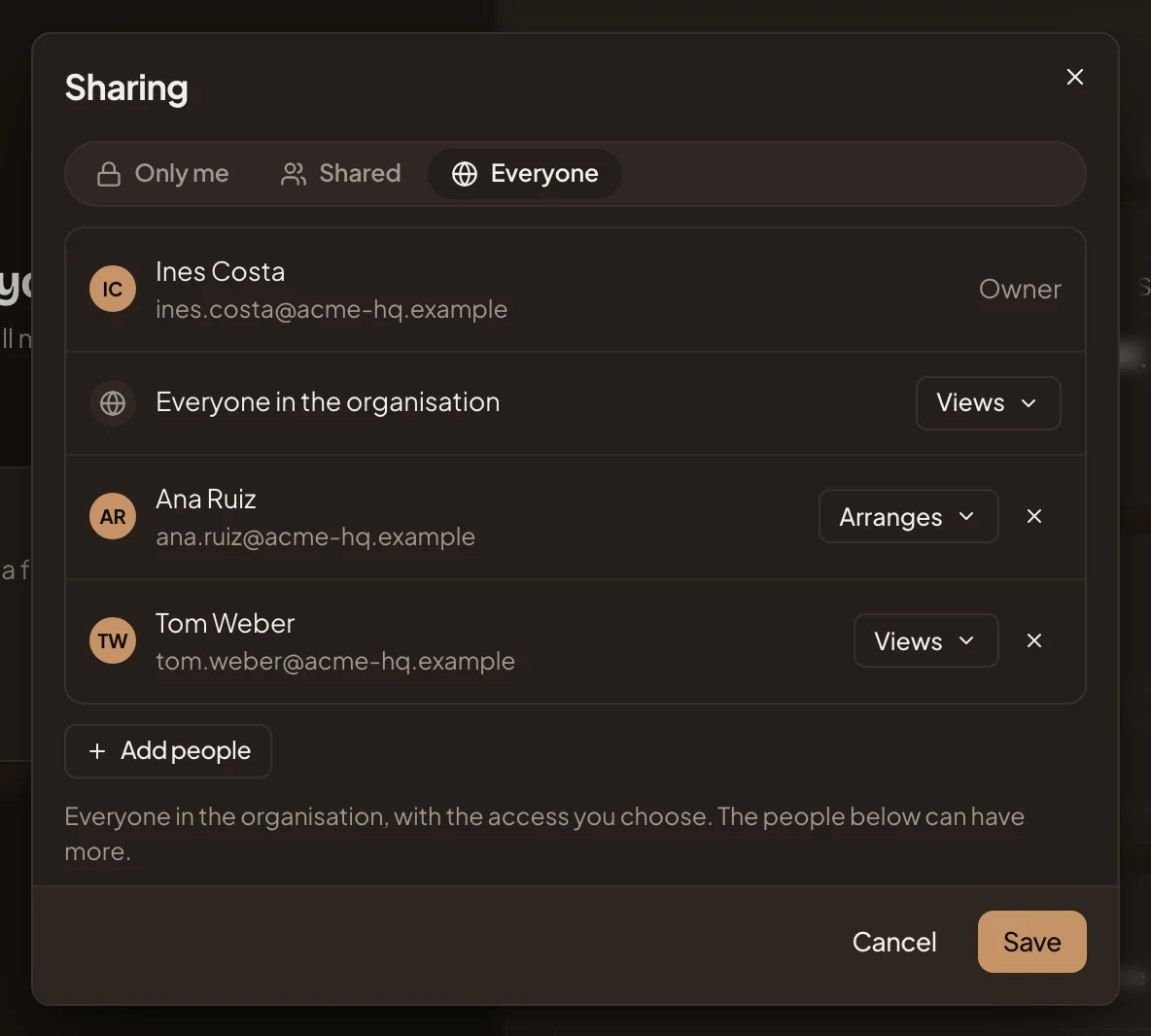
- Access for everyone. With Everyone, pick what the whole organisation may do with the list.
- Access for Ana Ruiz. One person’s access, more than everyone’s if you like.
A list kept by hand offers Views, Arranges and Edits. Arranges lets someone put topics on the list, take them off and order them. An automatic list offers Views and Edits. People who edit a list change its name, description, colour and conditions. Only its owner shares it and deletes it. Someone who may only see a list reads the same page with nothing to change, and a note at the top that names who can.
A board’s own list has no sharing of its own. Whoever sees its board sees it, and the board’s editors change and delete it. Its page says which board it belongs to, with Make it a workspace list.
Deleting a list
Section titled “Deleting a list”Delete, under Delete list, asks first. The dialog names the boards that lose the list, and the agent task that goes with it.
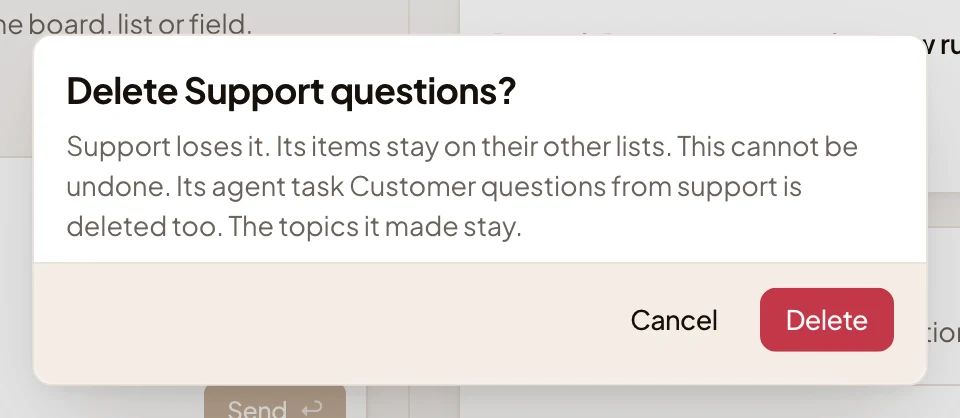
What was on the list stays on its other lists, and the topics an agent task made stay too.
A new list
Section titled “A new list”New list opens the same page, empty. Here it is with Topics picked:
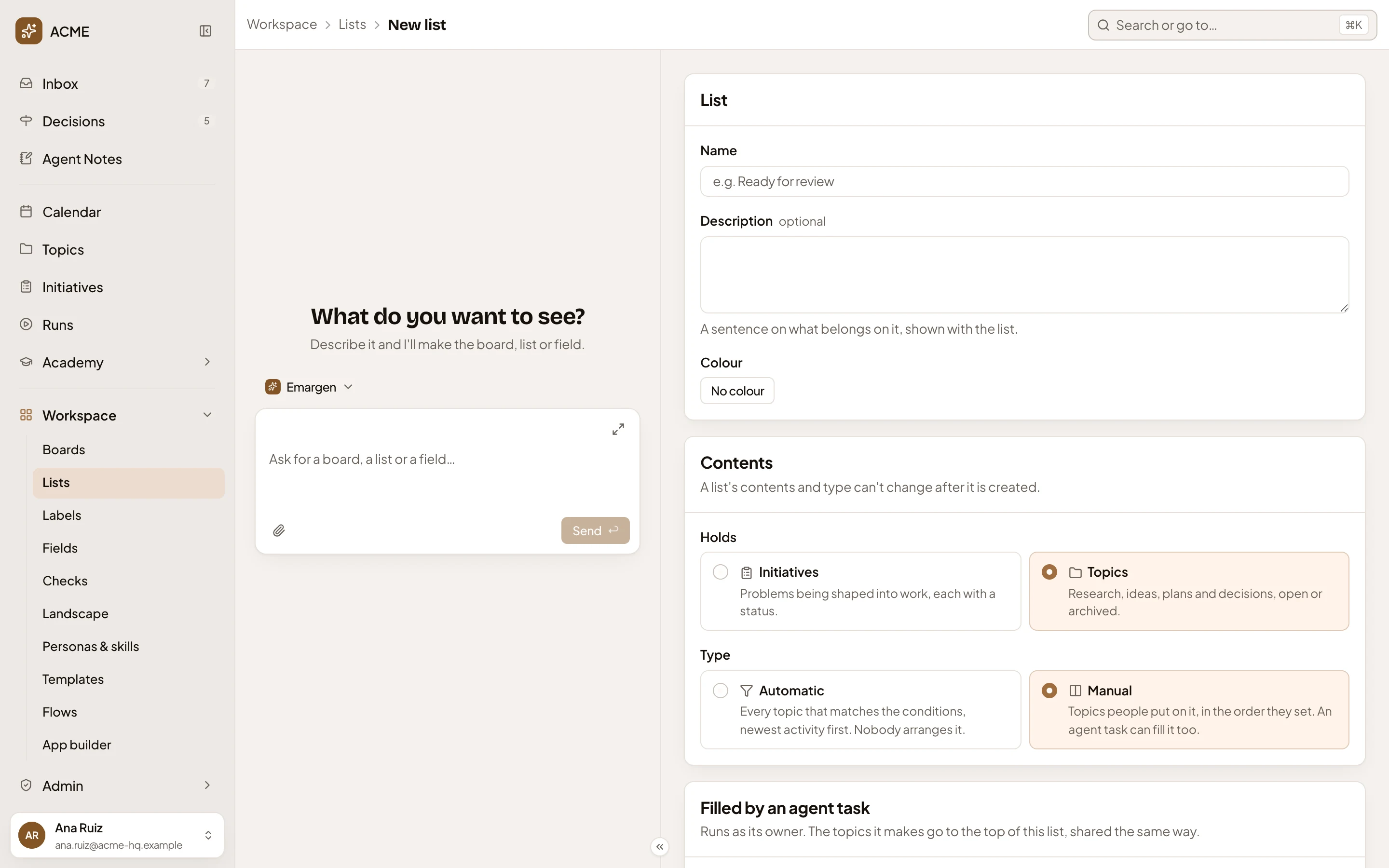
- Name. What belongs on it.
- Description. A sentence on what belongs on it.
- Colour. No colour to start with. Click it to pick one.
- Holds. Initiatives or Topics. It can’t change later.
- Type. Automatic holds whatever matches the conditions, newest activity first. Nobody arranges it. With Manual, people put items on it in the order they set, and an agent task can fill a list of topics too. You can’t change the type later.
An automatic list then has its Conditions, with Matches today under them. A list of topics kept by hand offers an agent task:
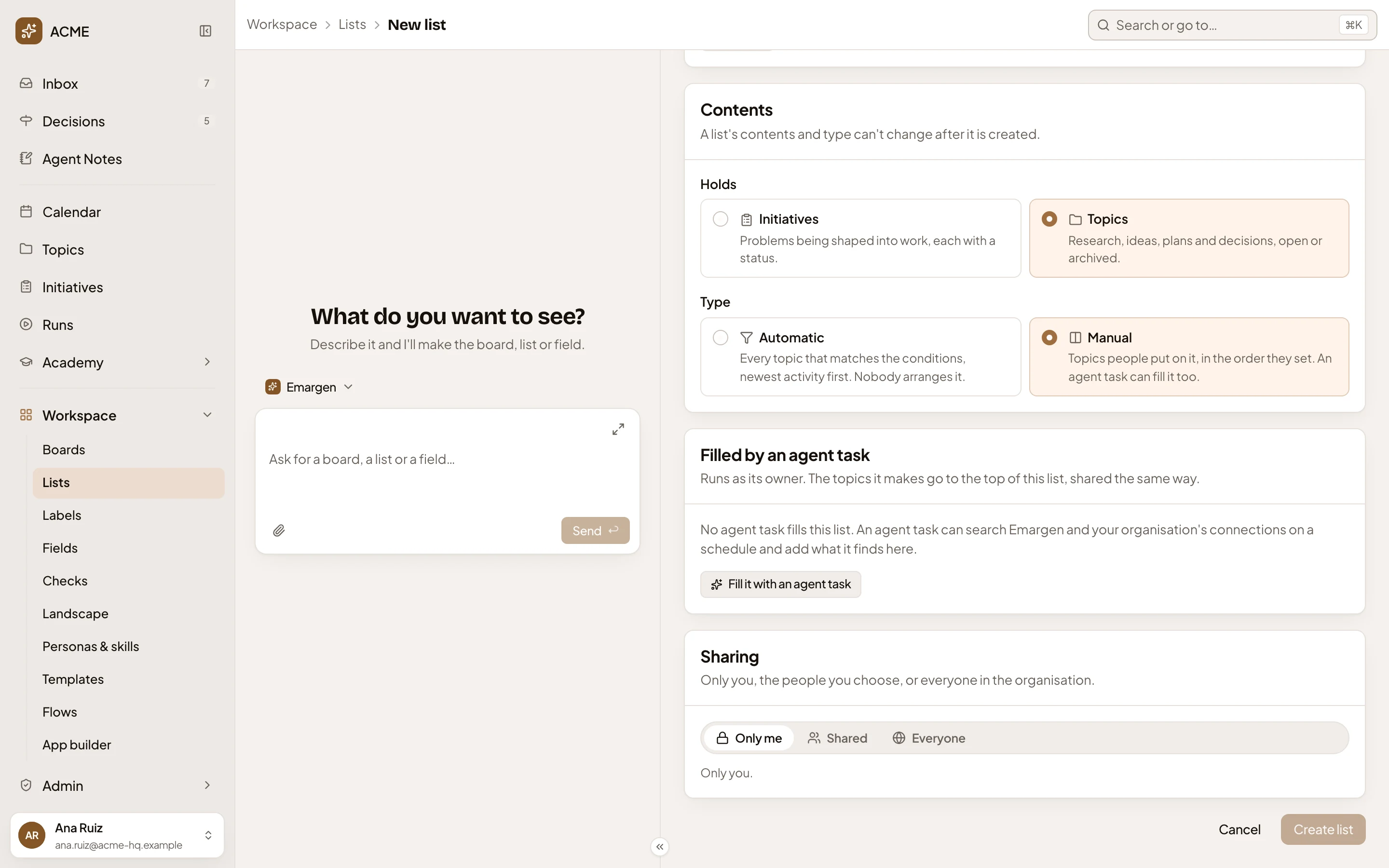
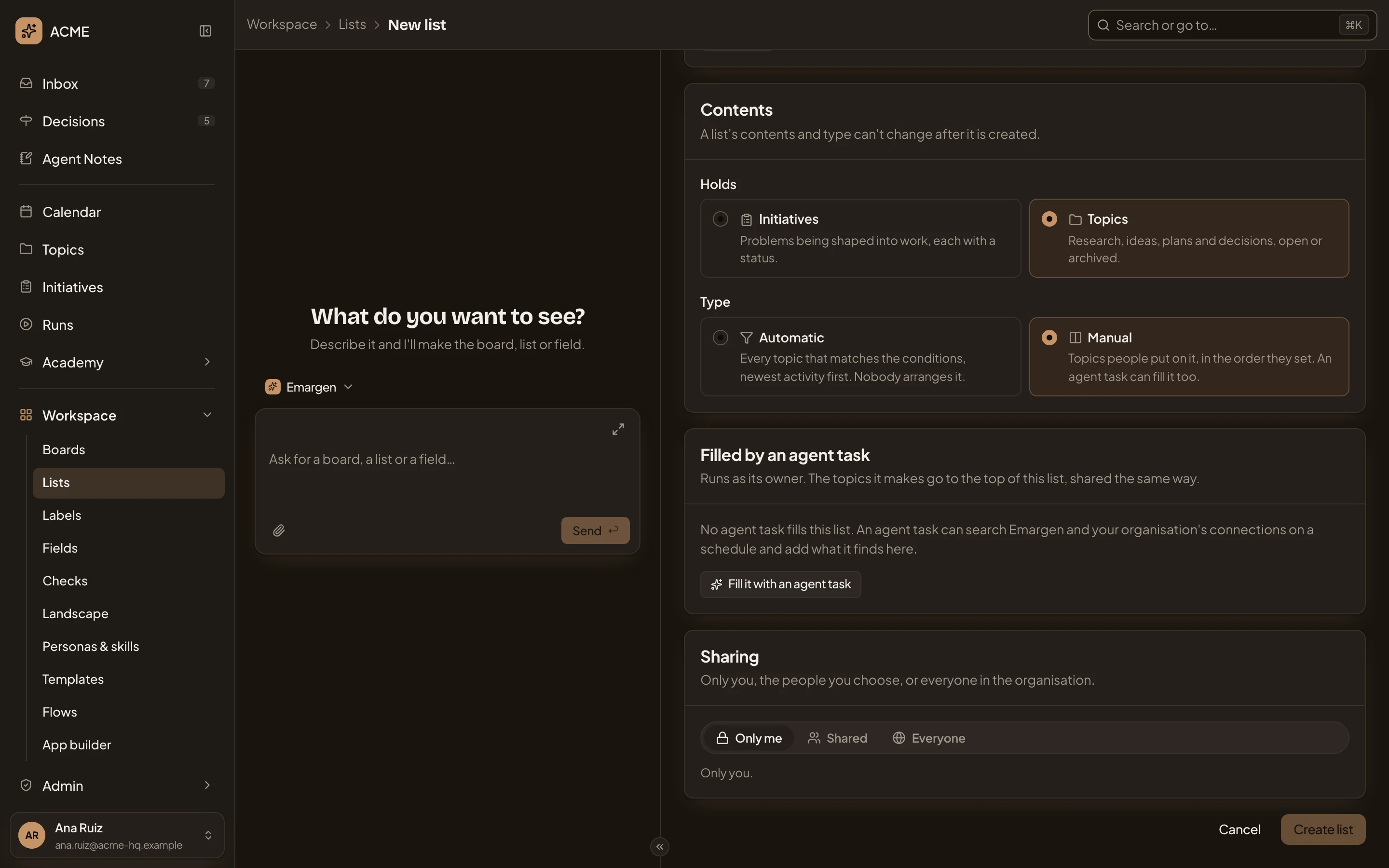
- Fill it with an agent task. Opens the fields of a task that’s made with the list (see below).
- Sharing. Only me to start with, Shared or Everyone.
- Cancel. Leaves without making the list.
- Create list. Makes the list. You can press it once the list has a name, and its conditions or its task are finished.
Don’t fill it closes the task’s fields.
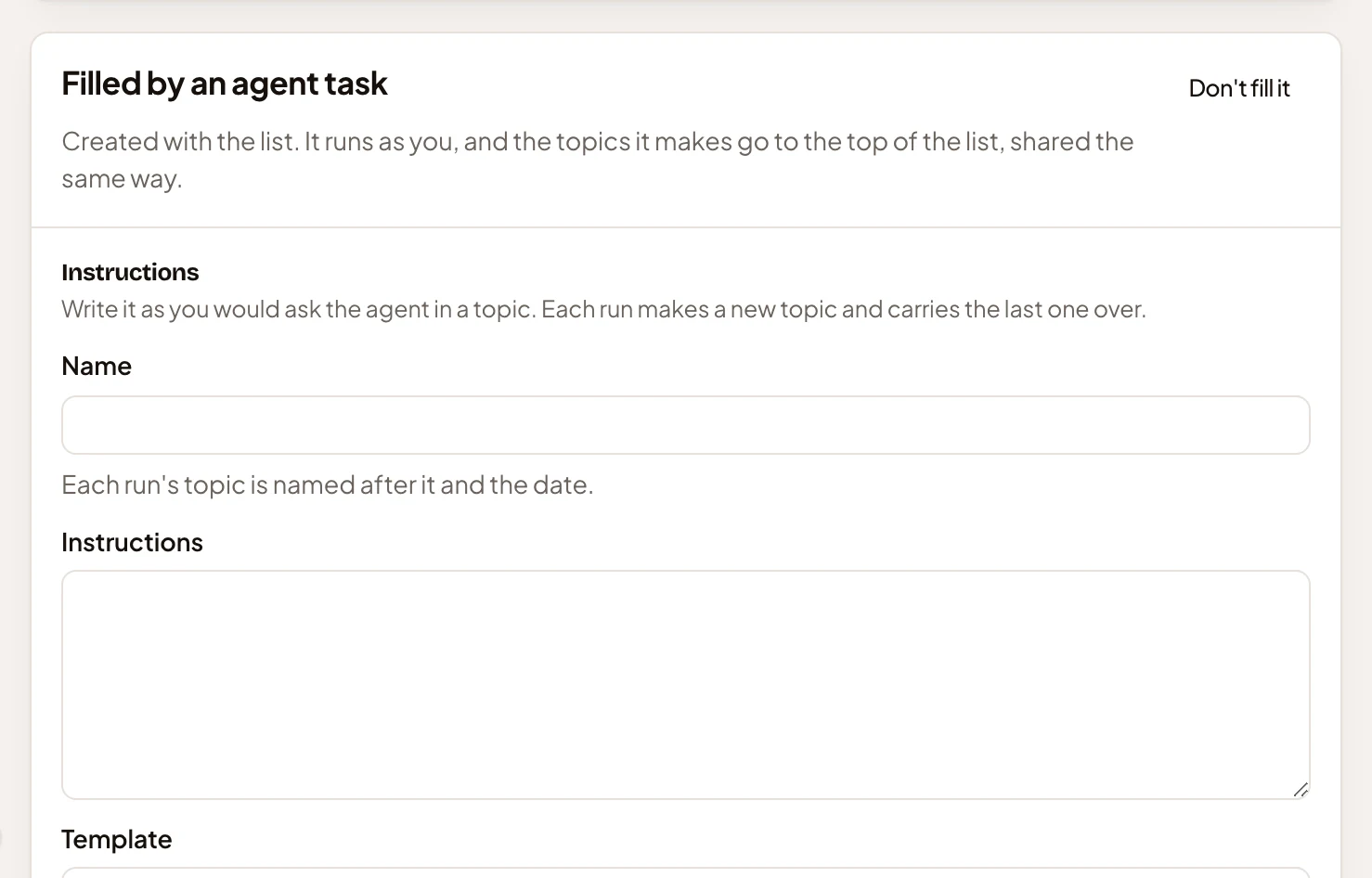
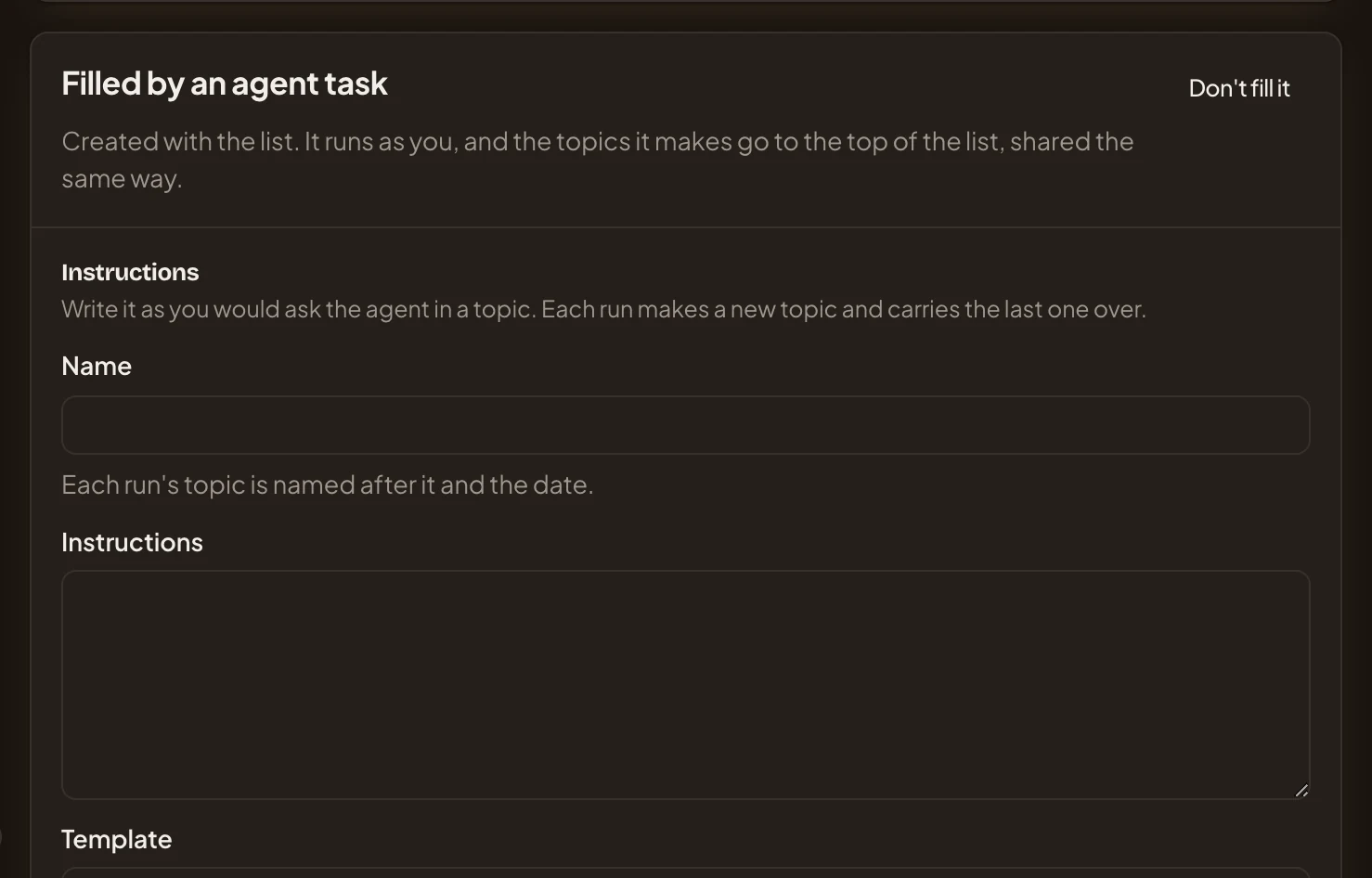
- Don’t fill it. Closes the task’s fields, so the list is made without one.
- Name. The task’s name. Left empty, it takes the list’s.
- Instructions. What the agent does, in your words. The other fields are the ones above.
Create list makes the list, then its task, and opens the list’s page, Run now on it. A list without a task goes back to Lists, where its row flashes. If the task can’t be made, the list’s page opens with what you wrote and why it failed, so you can try again.
Ask the workspace agent instead, and it fills this page in for you. Nothing is made until you press Create list, or the button on the card the agent puts in the chat. See Keep a list and Make a list that fills itself.
Access
Section titled “Access”Anyone in the organisation makes a list. Whoever sees the list can open its page.