

AcademyHow to
Challenge a colleague
Challenge a colleague when you’d both like to check what you know, like before a customer call. You each answer the same cards alone, then see each other’s answers. See challenges for the idea.
Before you start
Section titled “Before you start”- Who can
- Anyone can challenge anyone else in the organisation.
- You need
- Nothing new. A challenge uses cards that already exist, from your tracks, regions of the Landscape or single spots.
- The pictures
- Ana Ruiz at ACME, the company in the docs’ pictures, challenging Tom Weber, a sales engineer, on the spot Approver.
-
Open what you want to challenge on. For one spot, click List on the Academy, then the spot’s page. That’s Approver. You can also start from a track’s page, a region on the map, or Challenges in the menu.
Open the Academy’s List (opens Emargen in a new tab) -
Click Challenge.
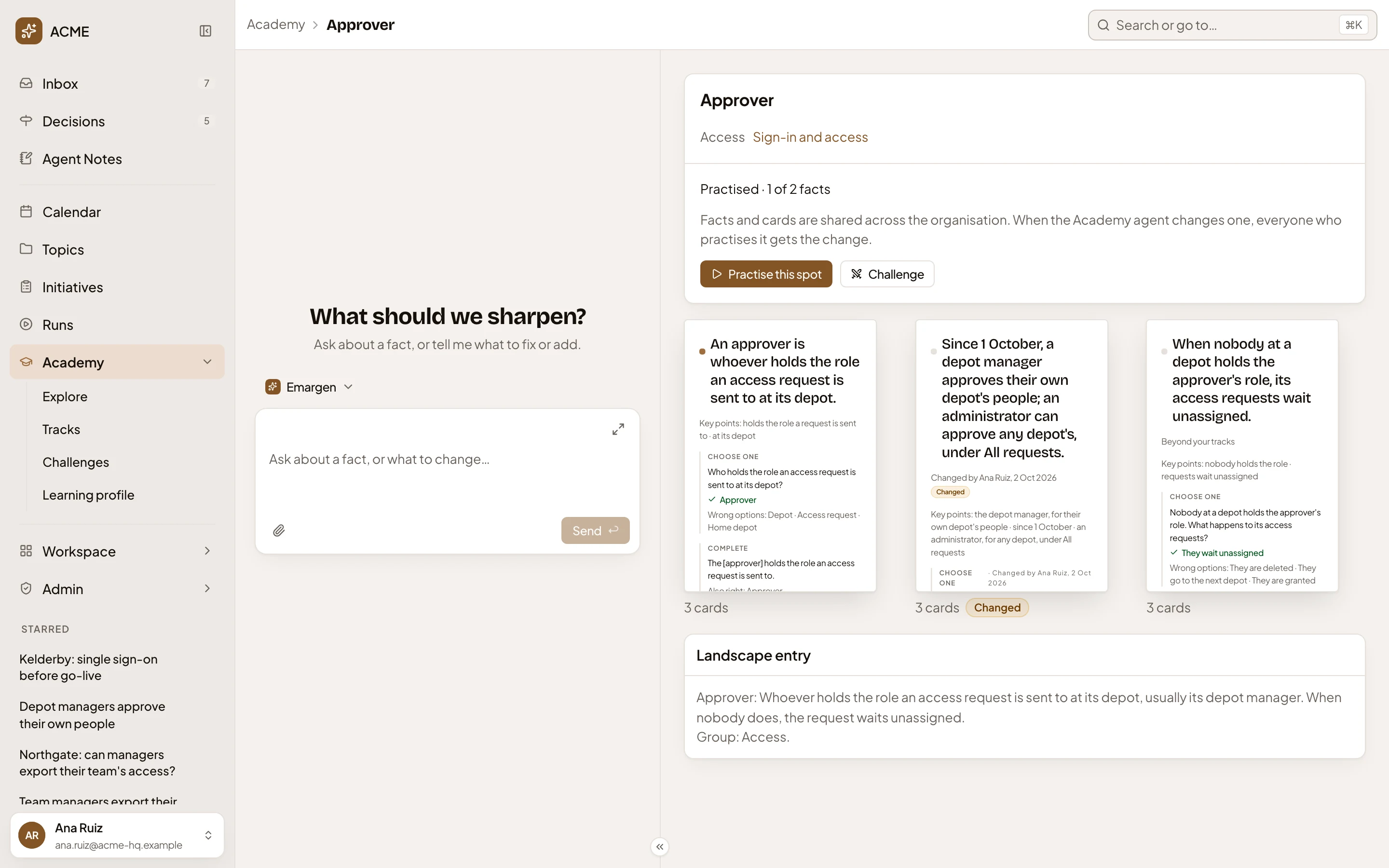
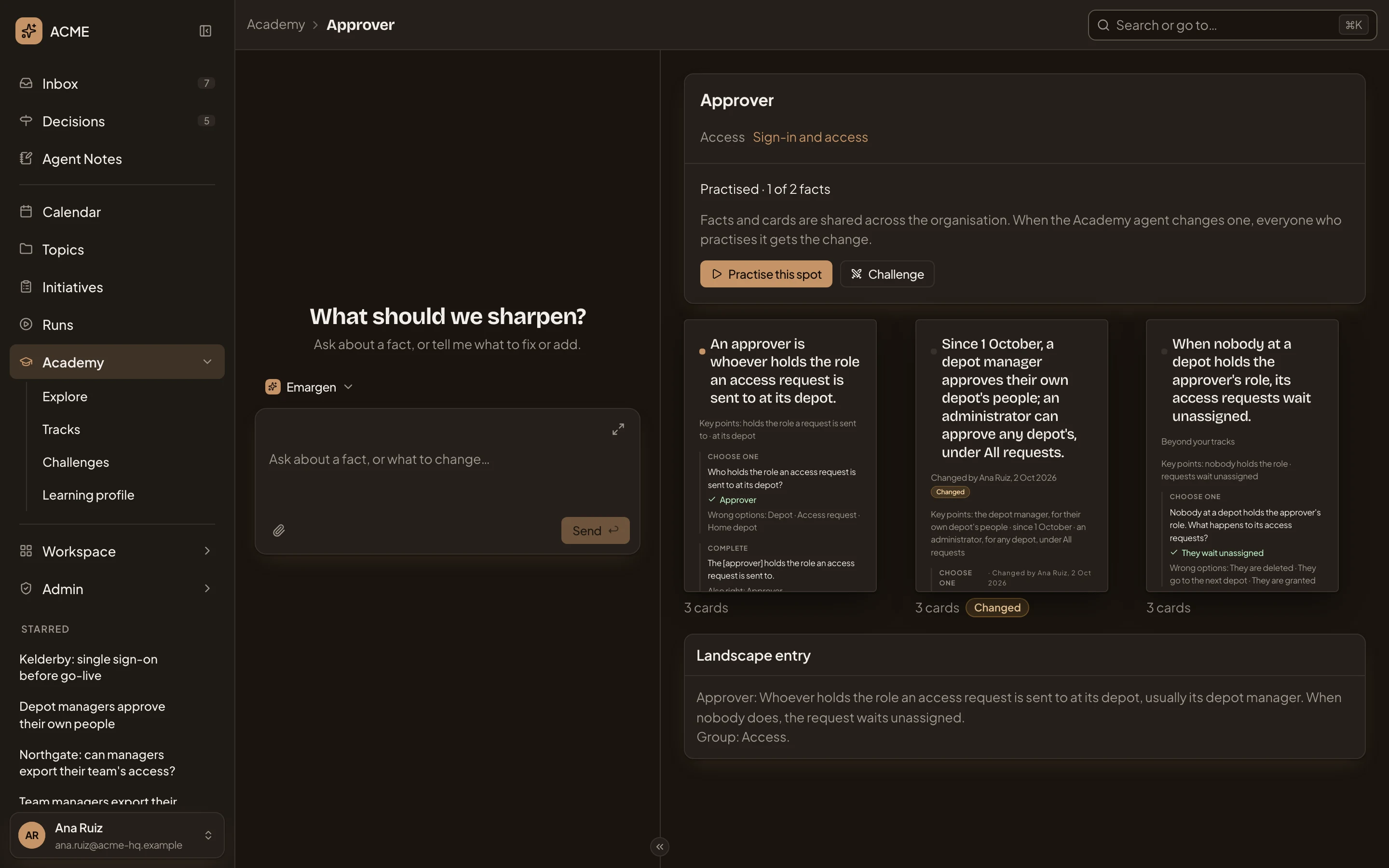
- Challenge.
-
Challenge someone opens, with the spot already under Subject. Under Person, click a name beside Recent or Find a person. In the picture, Tom Weber is picked. Send challenge stays greyed until you’ve picked someone.
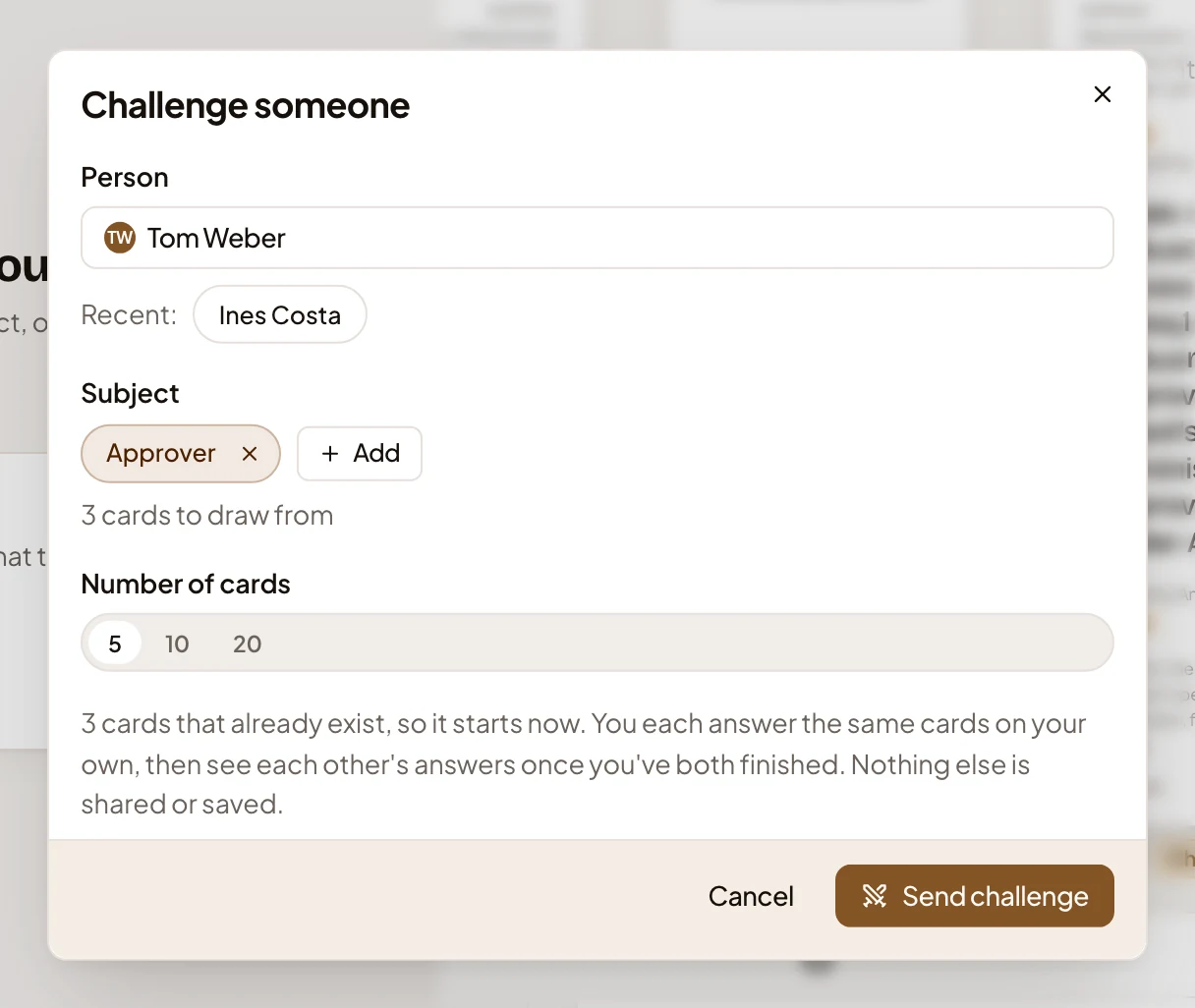
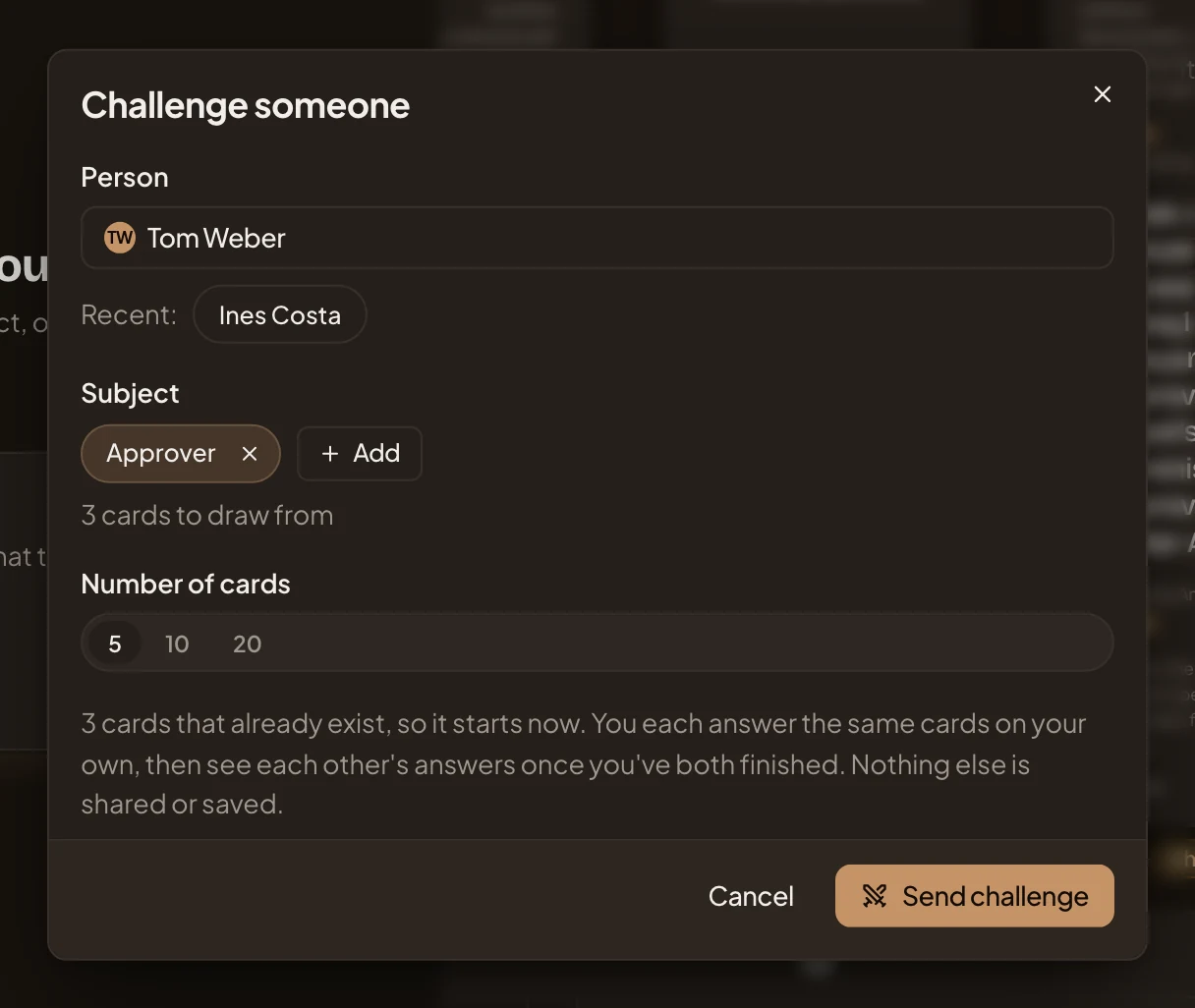
- Who you challenge.
- What it’s on. The × on the chip takes it off.
- Add, for more.
- Number of cards.
- Send challenge.
-
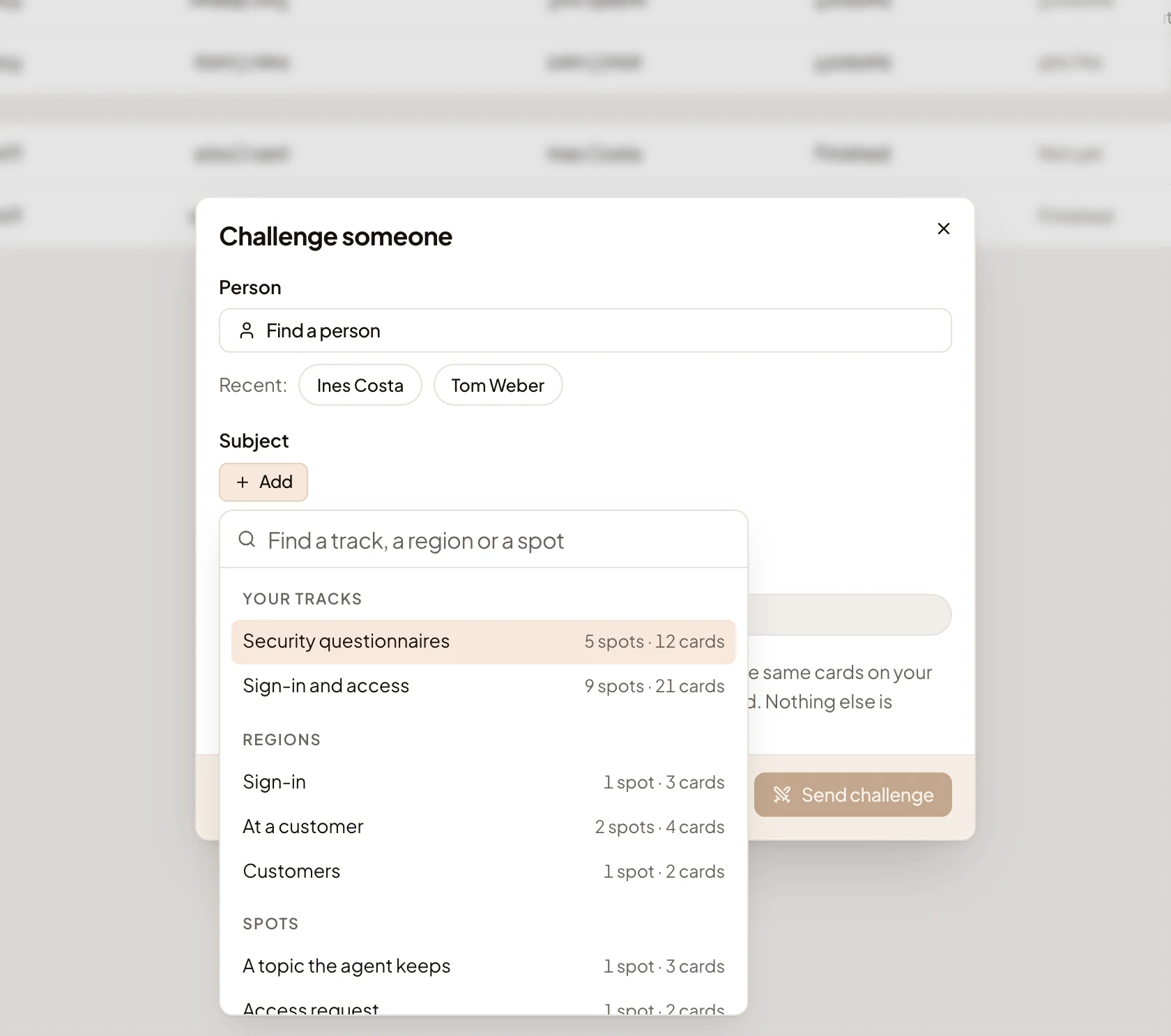
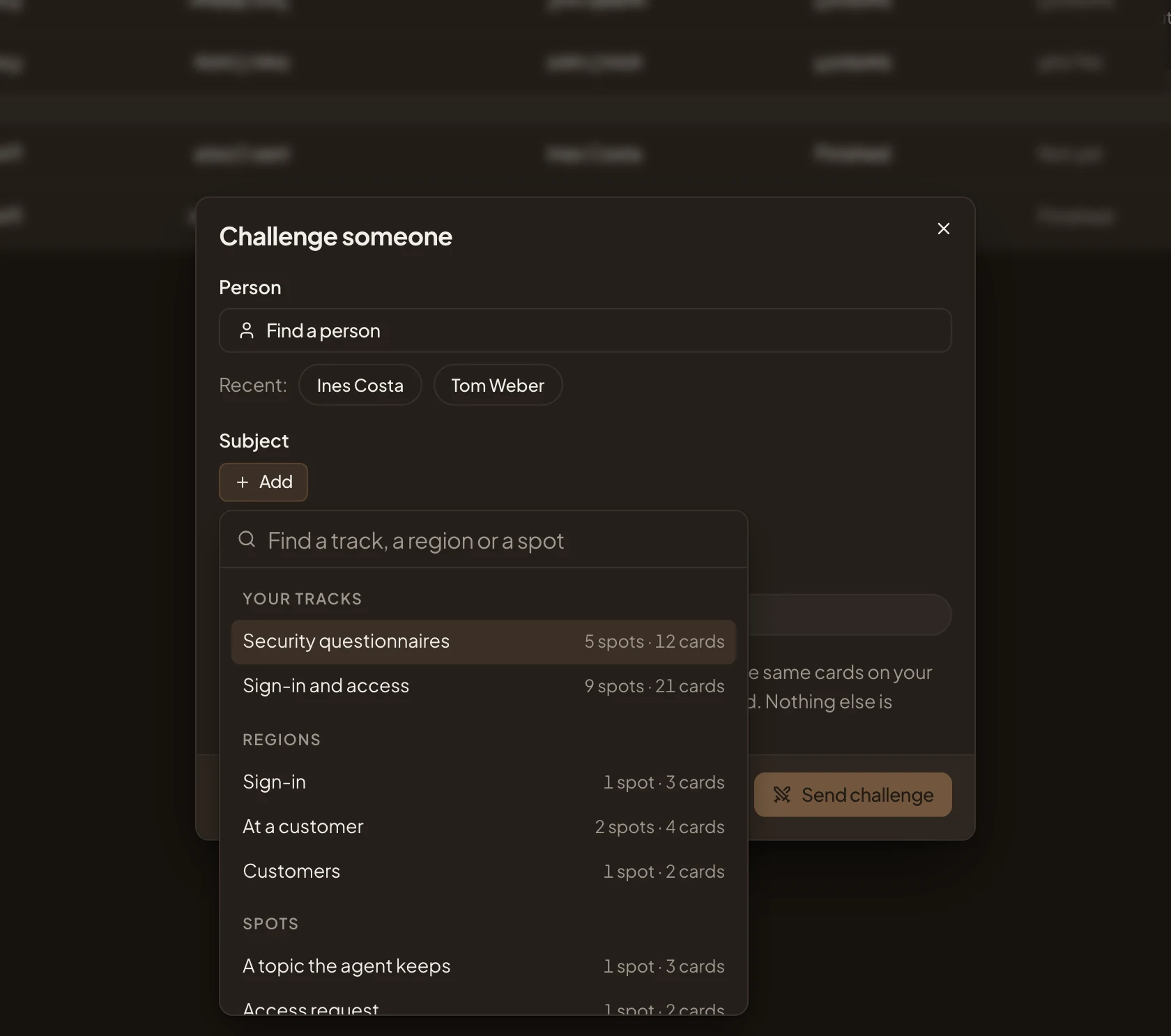
To challenge on more, click Add and type a few words, or choose from Your tracks, Regions and Spots. Each shows how many spots and cards it holds.
-
Under Number of cards, choose 5, 10 or 20. When what you picked holds fewer cards, the challenge has fewer: Approver alone gives three.
-
Click Send challenge. The challenge opens, with its first card for you.
-
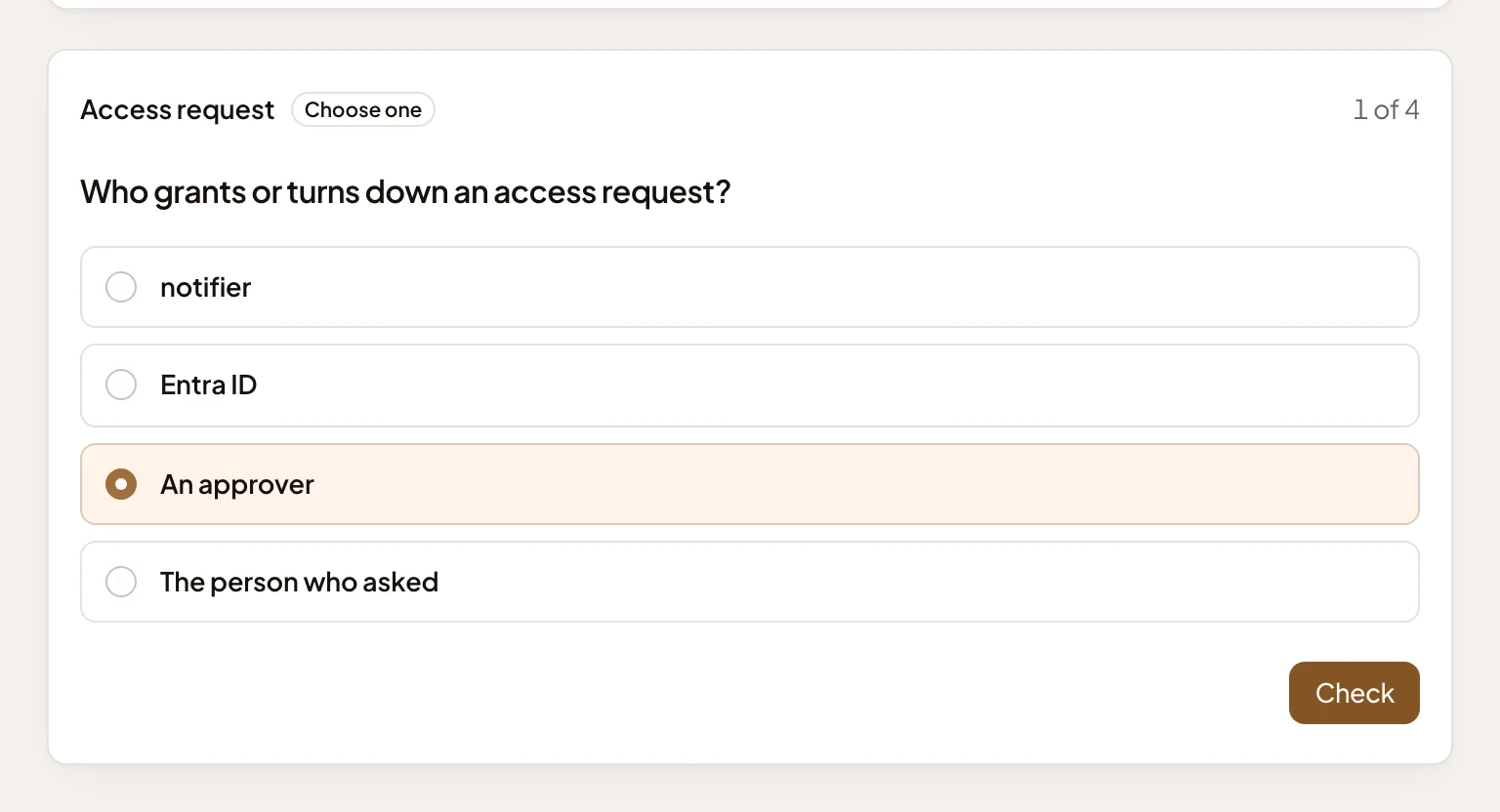
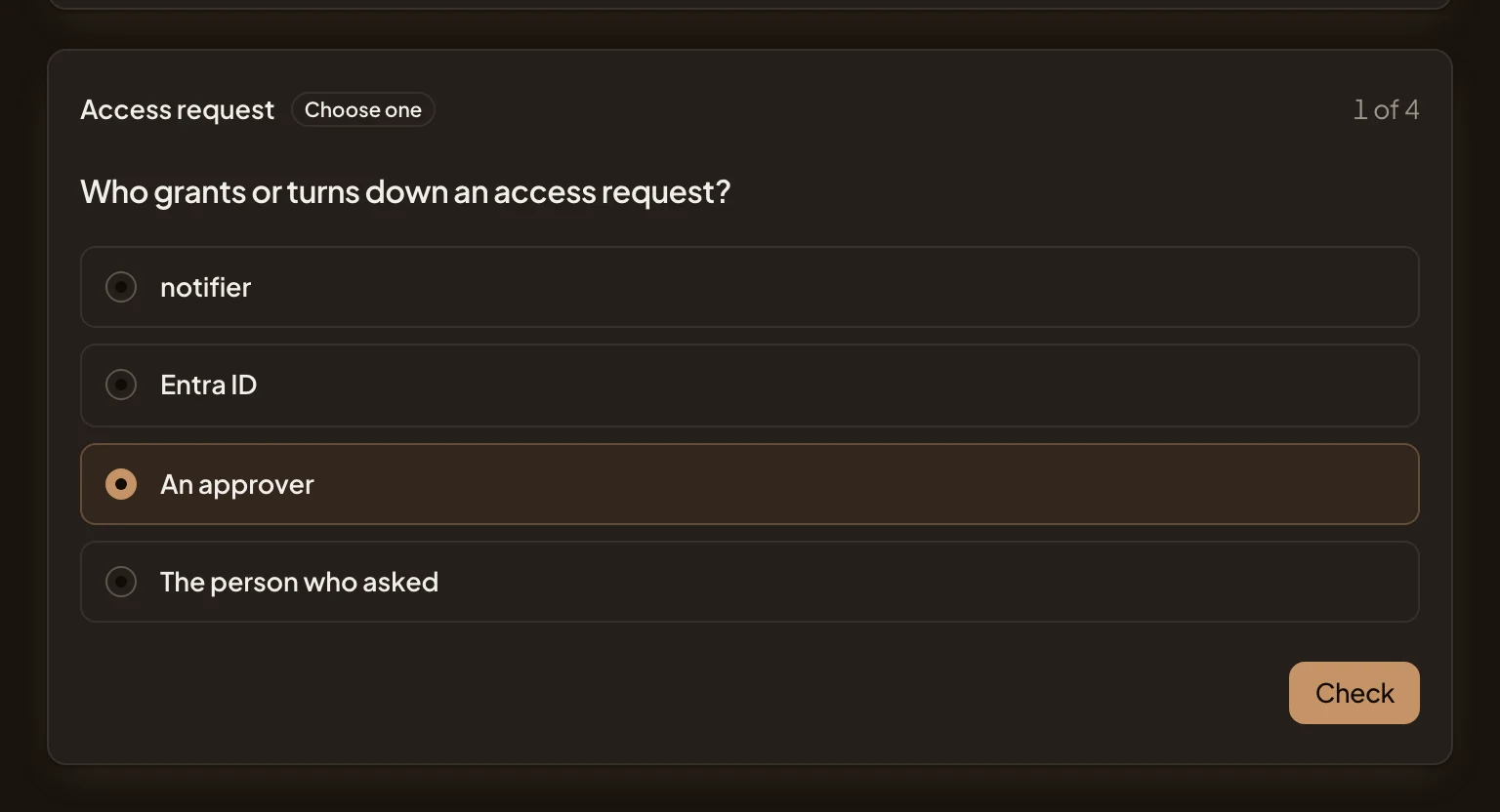
Answer each card. Choose or type your answer, then click Check. You see Right, Partly right or Not quite, and what the Landscape says about the spot. A written answer also shows how many of its points you made. Click Next for the next card, and Finish on the last. A challenge doesn’t ask how sure you are, and doesn’t change your practice.
What you get
Section titled “What you get”- Your colleague gets a task in their Inbox. Click Take to open their challenges, with yours first. In the picture, someone in support at ACME has a challenge a colleague sent them. They’ve answered none of its four cards, and the sender has finished.


- They answer on their own, a card at a time.
- Their answer.
- Check.
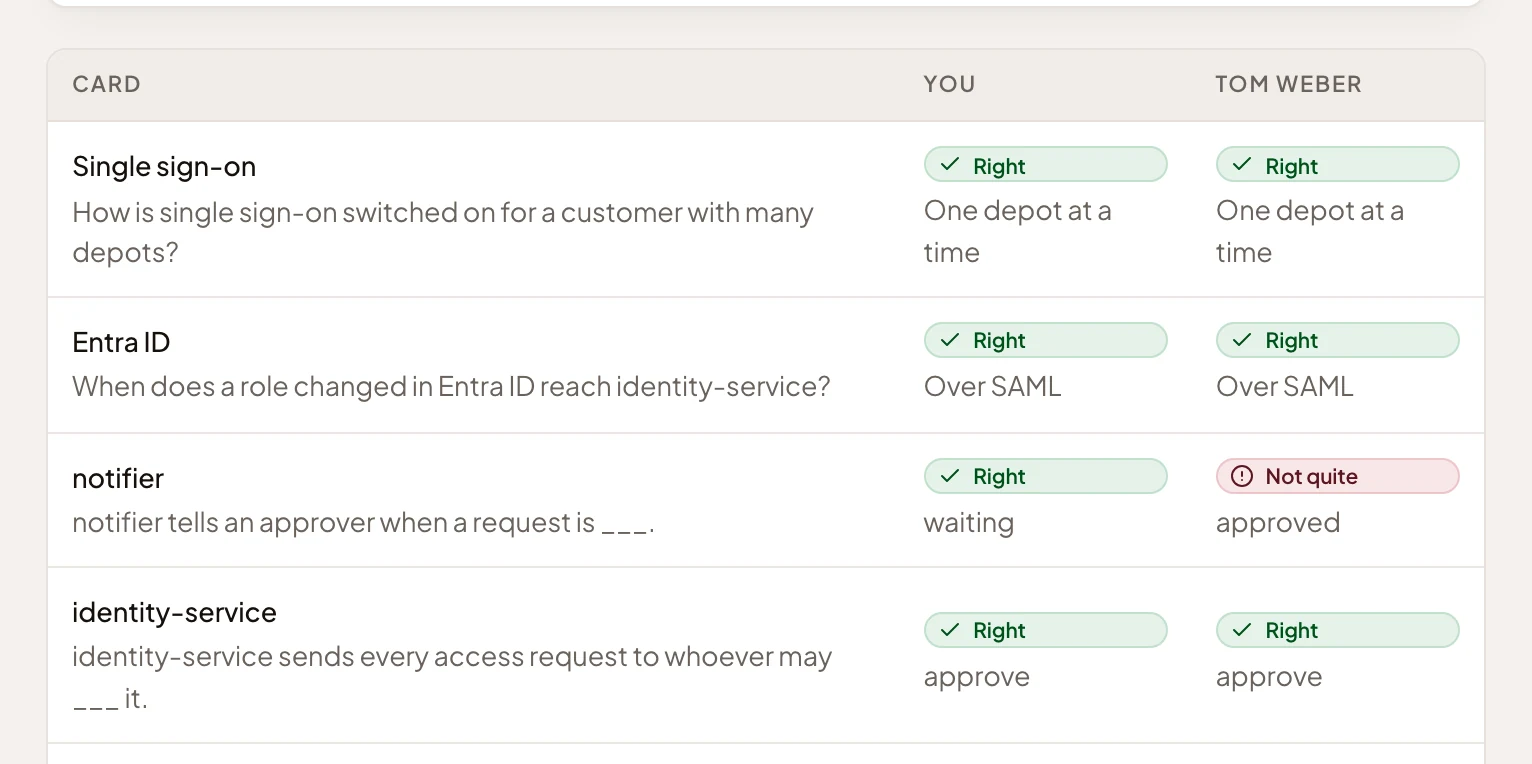
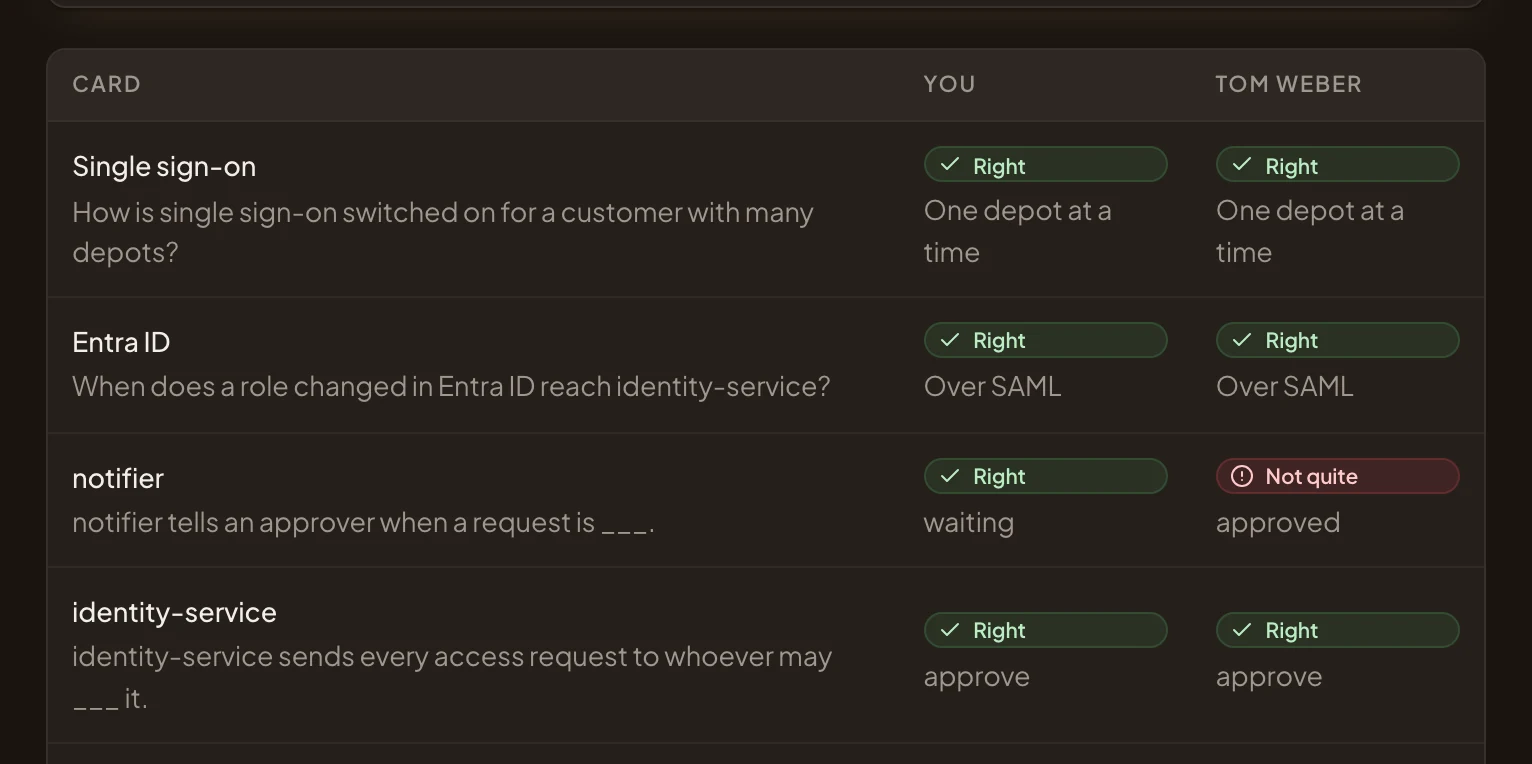
- Whoever finishes first hears in their Inbox when the other finishes. Then each of you sees, on the challenge, every card with both answers. In the picture, a sales engineer’s challenge to a colleague, with both their answers.
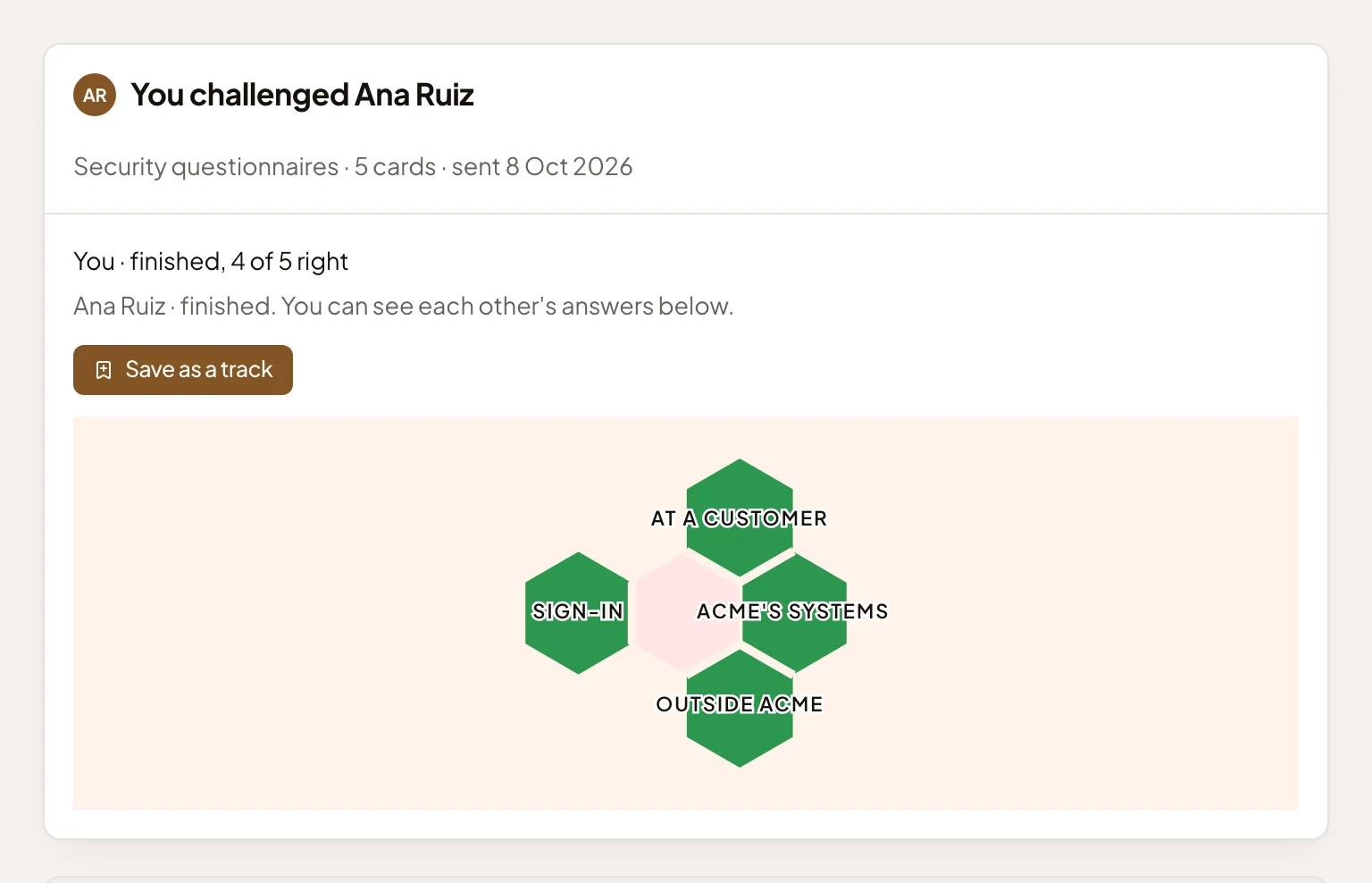
- Once you’ve finished, click Save as a track to make a track of the challenge’s spots. It opens. On a challenge you have kept, the button reads Open the track instead. In the picture, the sender can still save the track. Their colleague has kept it already.
- Save as a track.