

TopicsPage by page
A topic's page
A topic’s page is where you work something out with the agent. Your chat is on one side, and the topic’s document, which the agent writes as you talk, is on the other. Open a topic by clicking its title on the topics list, or go to its key’s address, such as /topics/ACM-281.
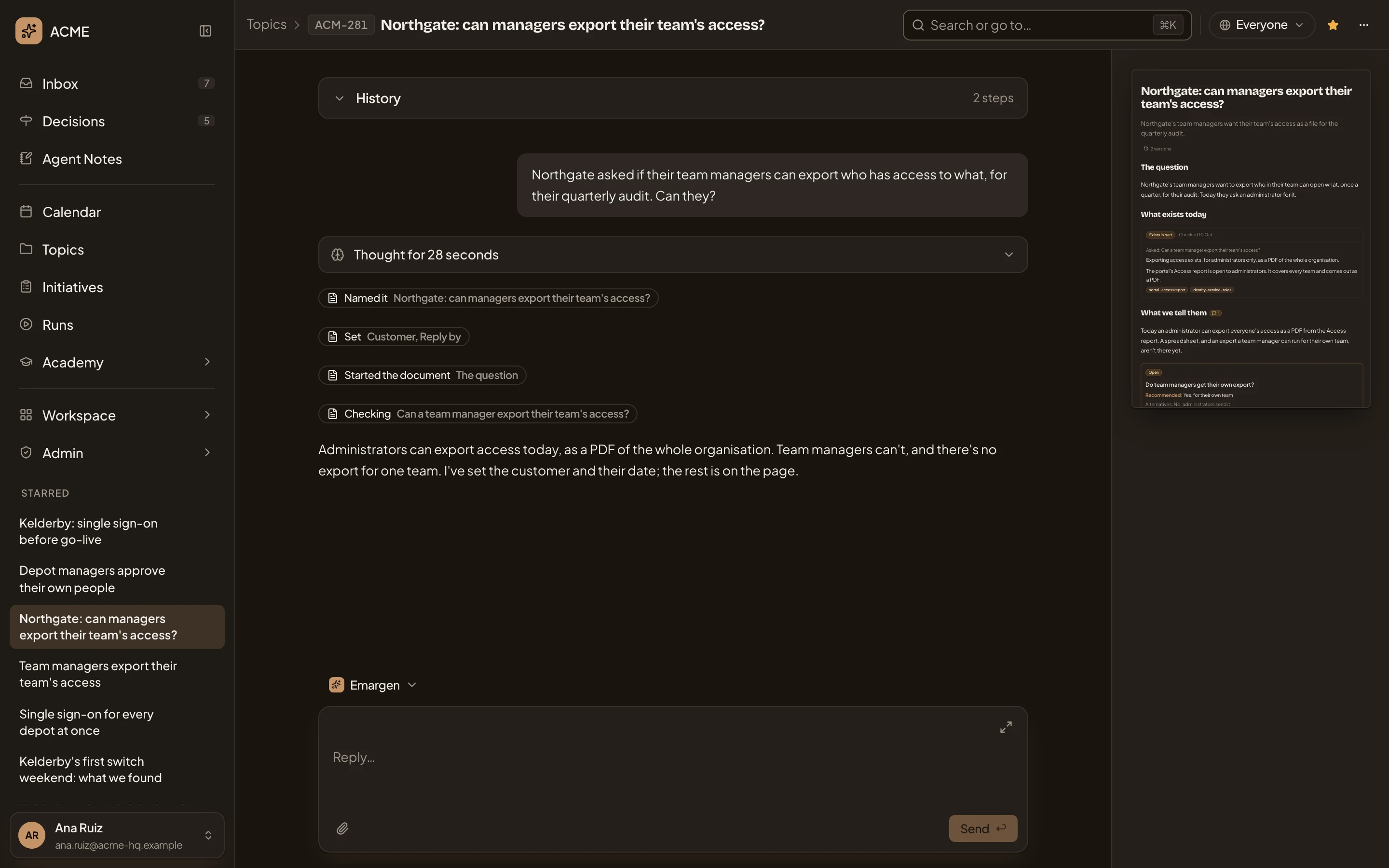
Open the topics list (opens Emargen in a new tab)In the pictures, someone in customer success at ACME, the company in the docs’ pictures, has asked if a customer’s team managers can export their team’s access. In this picture, the document is folded to a small picture on the right.
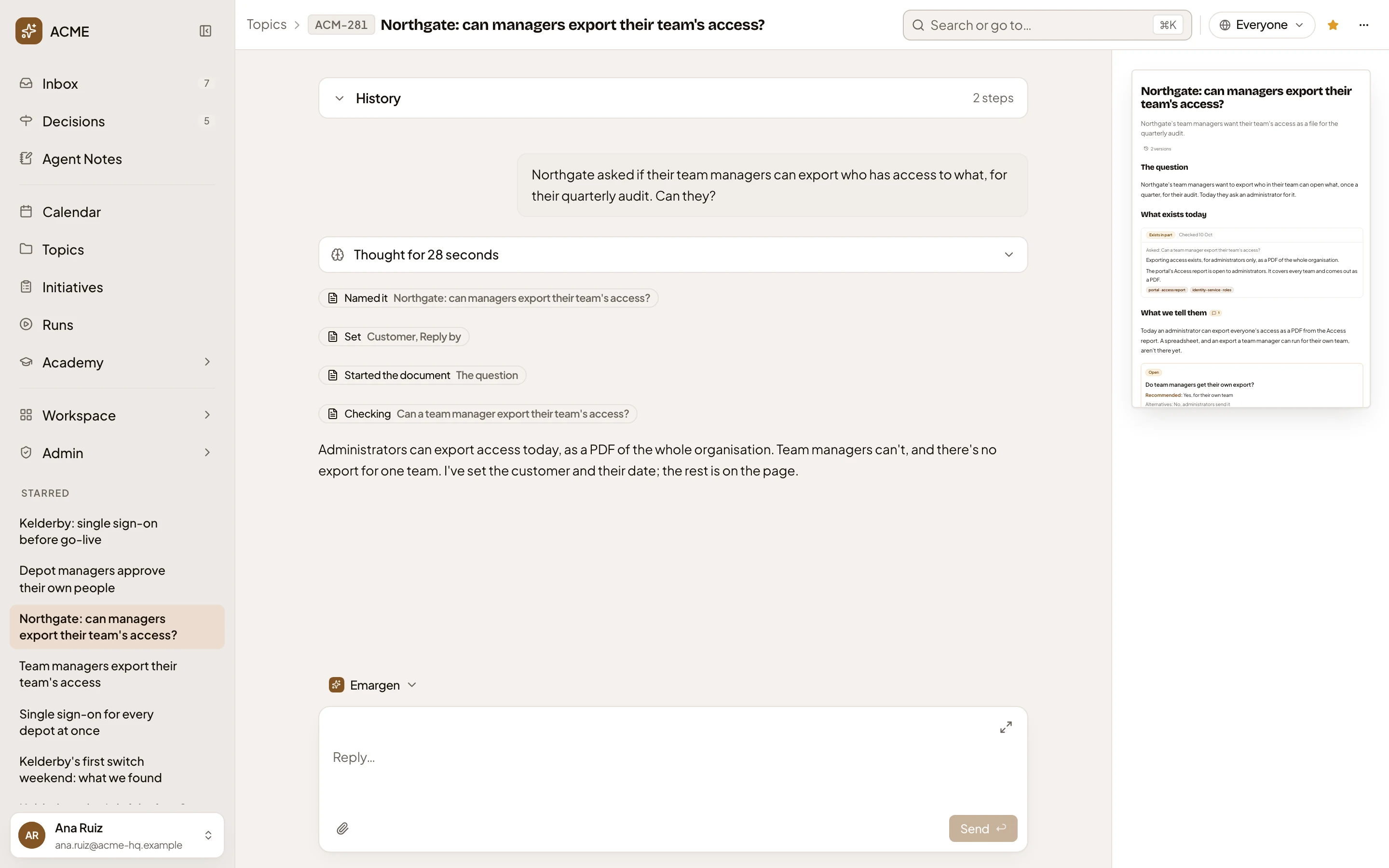
- Where you are. Topics, then the topic’s key and title. Click Topics to go back to the list.
- Sharing. Who can open the topic now. Click it to change that (see Sharing).
- The star. Stars the topic for you alone, under Starred in the menu. On a starred topic it says Unstar, and on any other Star.
- The ⋯ menu. Everything else you can do with the topic (see The ⋯ menu).
- History. What has happened to the topic, folded to one line once your chat has started. Click it to open it (see History).
- Your message. Copy message copies it, and Edit message lets you change what you asked.
- Thought for 28 seconds. Click it to read how the agent went about your message.
- What the agent did, a line for each thing in order, such as Named it, Set, Started the document and Checking. Click a line to open the document where it changed.
- The agent’s answer, with Copy message under it.
- Emargen. The persona that answers you (see The persona).
- The message box. Reply, ask for more, or tell the agent what to change.
- The document, folded. Click it, or its Open button, to open it beside the chat (see The document).
The chat
Section titled “The chat”Your chat with the agent is your own. Everyone who can open the topic has their own chat on it. If you take part, the agent in your chat writes into the one document everyone shares.
Under the message box, Attach files adds a file for the agent to read, and Send sends your message. Expand the message box makes the box bigger, with formatting, as on New topic. Type / at the start of a message for the commands and skills you can call. “/clear” empties the chat. The agent keeps a short summary of what came before, and “Show earlier” brings the old messages back into view.
When the agent wants to change something you have to agree to, like shaping the topic as a template, it puts the change on a card with its own button and Cancel. Nothing changes until you press the button. Under its latest answer, the agent may offer one or two next steps as buttons, like a question you’d likely ask next. It offers none while a question, a card or unfinished work is pending.
When an answer can’t finish, the agent shows a line that says what happened, such as the AI service not answering. “Send again” beside it sends your message once more. What the agent did before it stopped stays on the topic. If the line says no model is set for chats, the people who manage models in your organisation can set one.
History
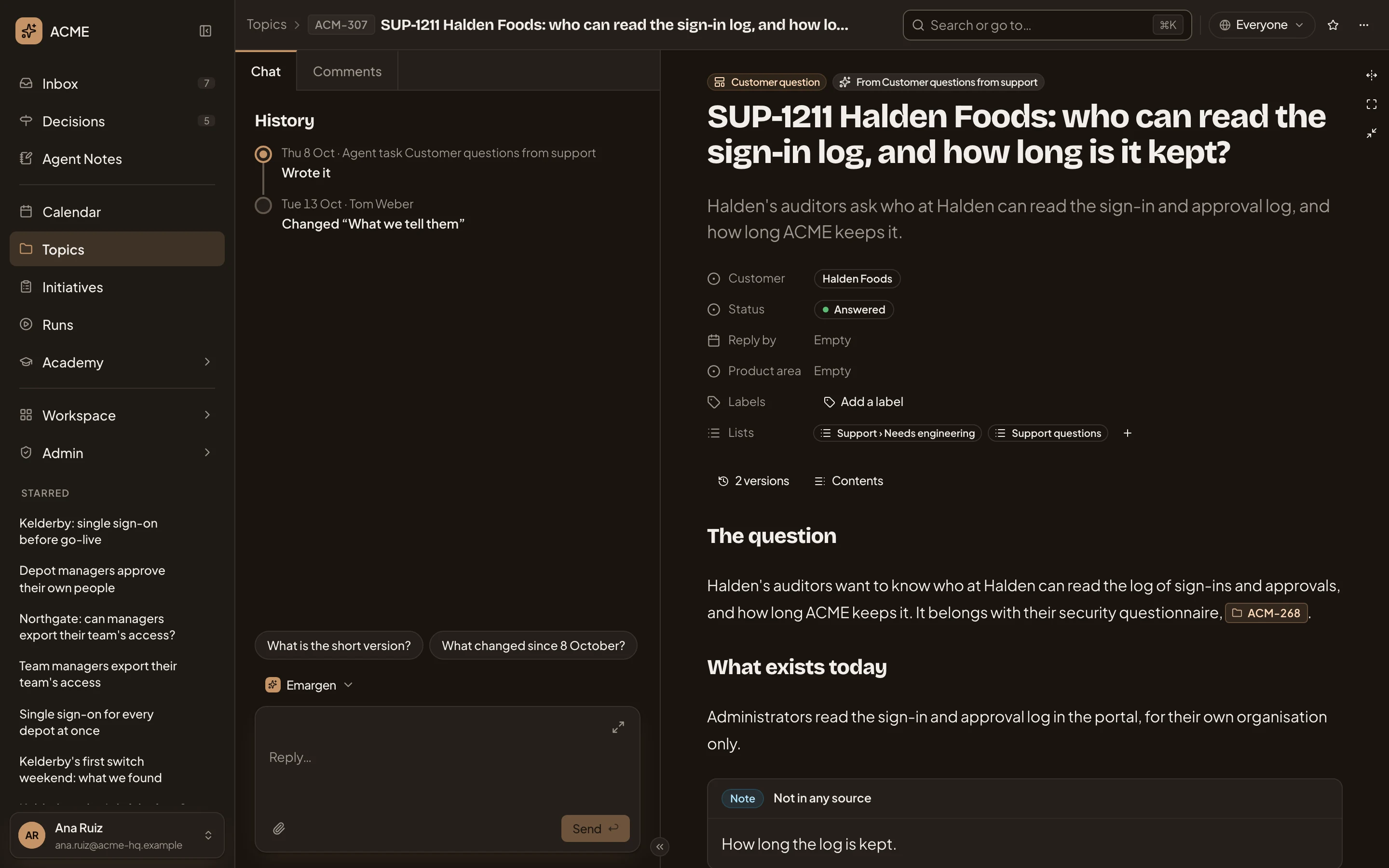
Section titled “History”History lists what happened to the topic, read from its versions. Each line says who did what, such as who wrote it, set a field or changed a section. When there are many, the middle ones fold into one line. A topic someone else started, or an agent task made, opens on its document when you’ve never talked in it. Your empty chat shows its History in full. Under it are a few questions to start with, like What is the short version? Click one to ask it. Once you send a message, the History folds to one line above your chat.
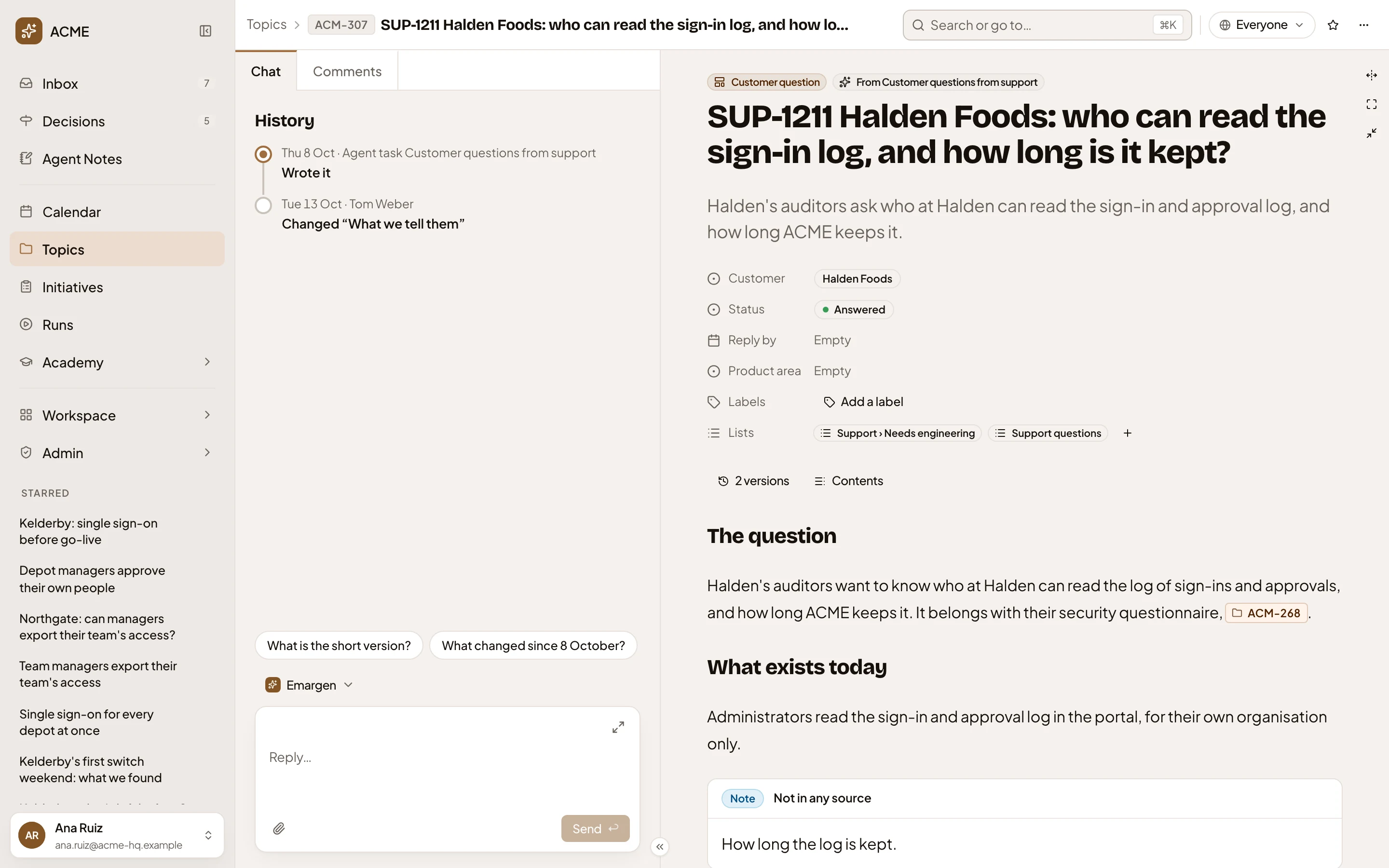
- History. Each line says when, who, and what they did.
- Questions to ask. Click one, and it’s sent to the agent.
- From Customer questions from support. The agent task that made the topic. Point at it to read what the task does. Click it to open the list it fills.
- Add a label. Beside Labels, on a topic with none yet.
An agent task that fills a list makes a topic for each thing it finds, and keeps it up to date. The task owner’s chat on such a topic holds what their task asked the agent, in their name, and the agent’s answer.
The persona
Section titled “The persona”A persona is how the agent works for you: what it knows and how it answers. Click the persona’s name above the message box to pick another. See Personas and skills.
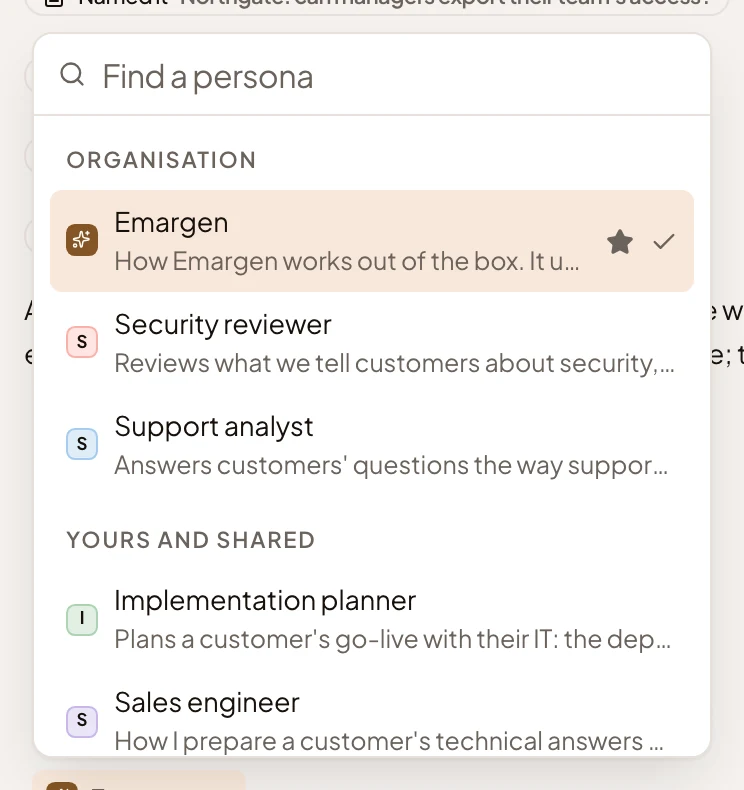
- Emargen. A persona, with a line on what it is. The star marks your default, and the tick the one answering now.
- Organisation. The organisation’s personas.
- Yours and shared. Your own personas and those shared with you.
At the foot of the list, Manage personas opens the personas in your workspace.
The document
Section titled “The document”Click the document’s small picture to open it beside the chat.
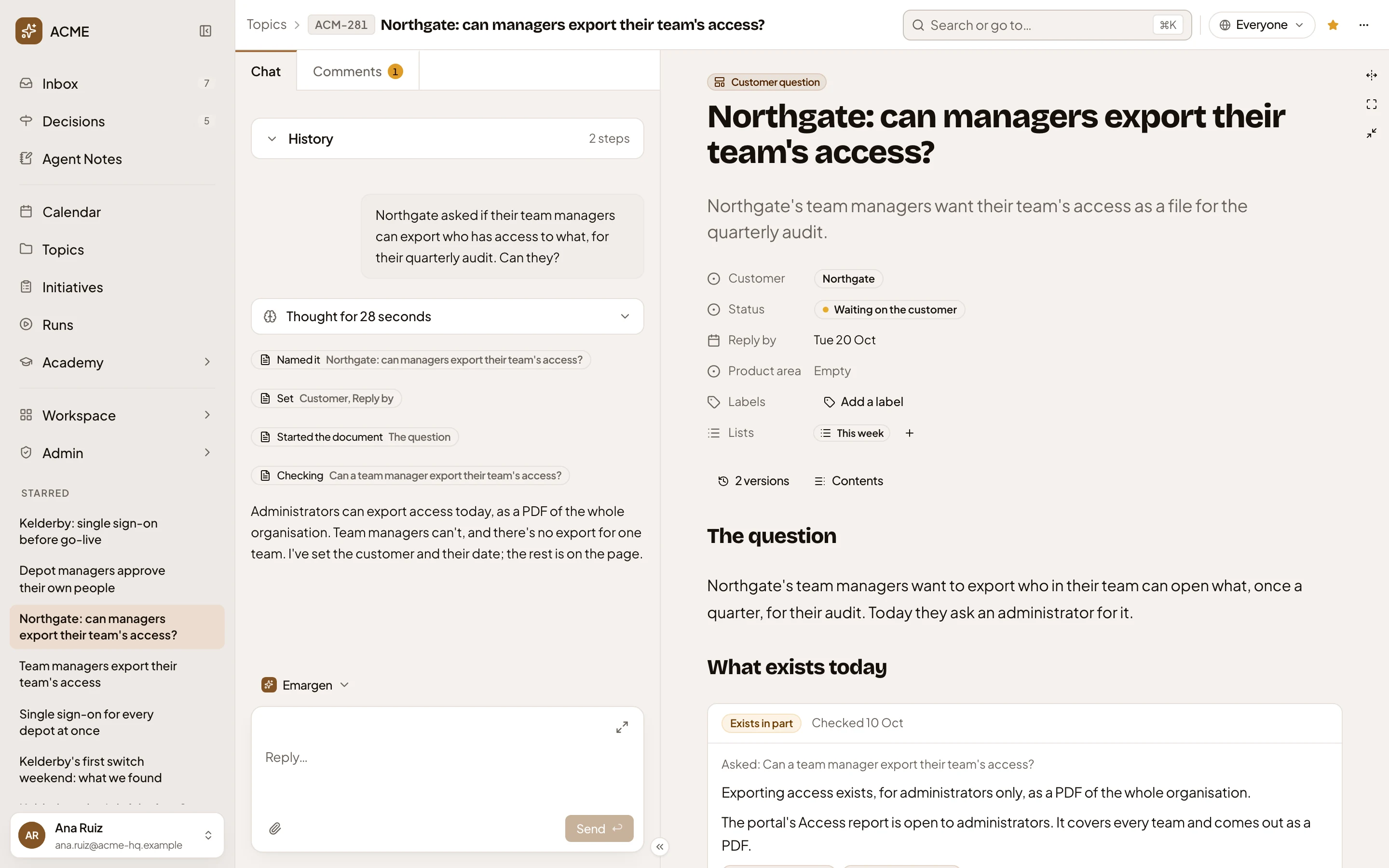
- Chat and Comments. Switch the left side between your chat and the topic’s comments. The number counts the open ones (see Comments).
- The divider. Drag it to make the chat or the document wider.
- Hide the chat. Folds the chat away, so the document has the page. ⌘J does the same.
- Full width, Full screen and Minimise. Widen the document, show it on the whole screen, or fold it back to its small picture.
- The document, with the topic’s fields, labels and lists at the top.
The agent writes the document. You don’t type into it. To change the document, ask the agent in the chat.
The top of the document
Section titled “The top of the document”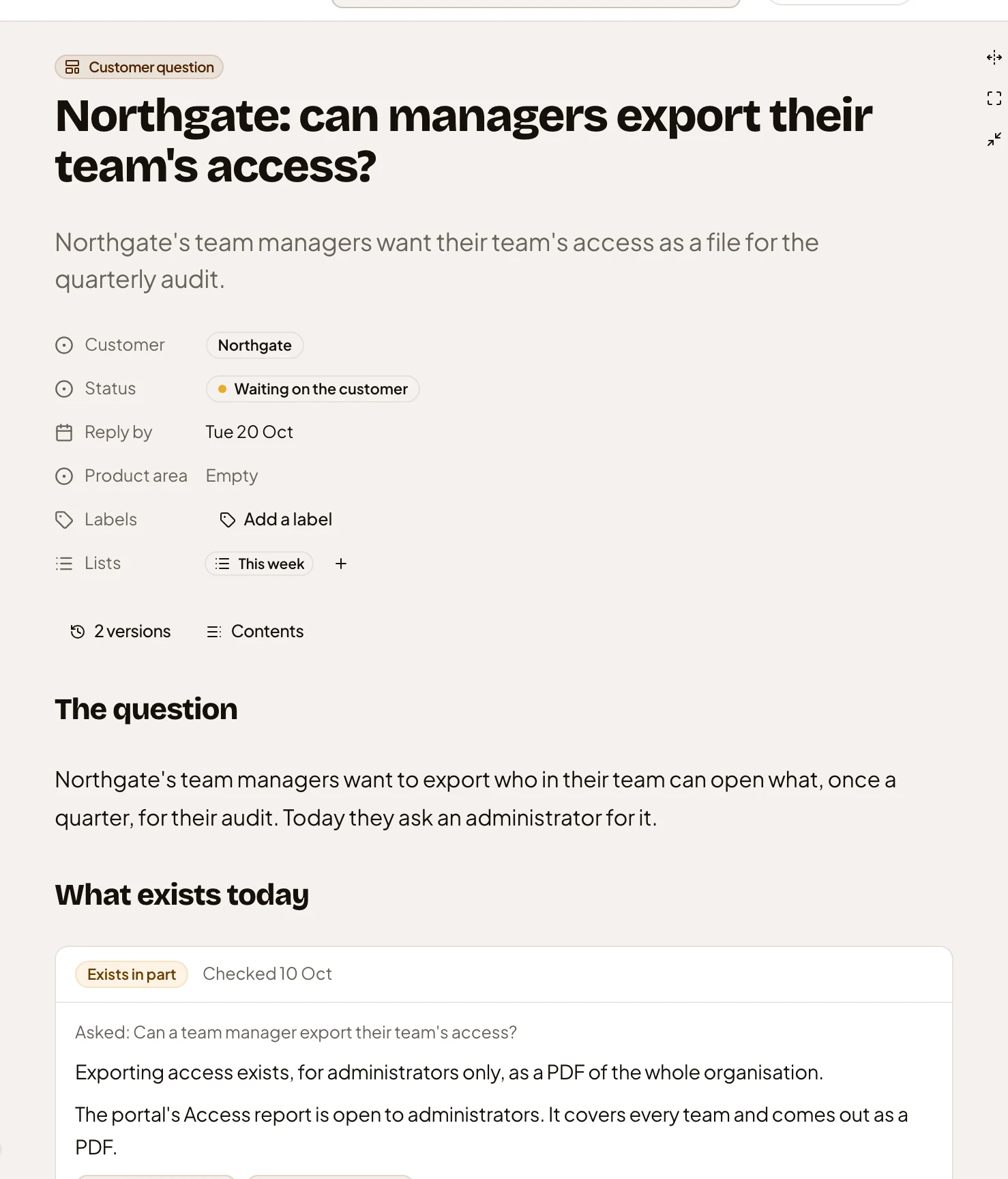
- Customer question. The template the topic follows. Click it to open the template.
- The title, and the sentence under it on what the topic is about. The agent writes both.
- Customer. A field from the template. Click its value to change it.
- Status. Another field (see Changing a field).
- Reply by. A date field. Click it to choose another day.
- Add a label. The topic has no labels yet (see Labels and lists).
- Change lists. The button beside the lists the topic is on.
- 2 versions. How many versions the topic has (see Versions and contents).
- Contents. The document’s sections. Click one to go to it.
Beside the versions count, a topic counts its files and its sources once it has some. A topic with no fields shows only its labels and lists.
Changing a field
Section titled “Changing a field”Click a field’s value and pick another. Each field says what it’s for at the top of its list.
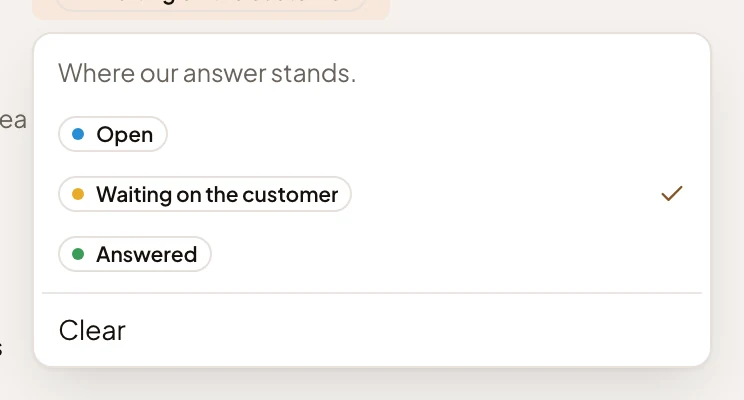
Clear empties a field that holds a value, and an empty field says Empty. A date field like Reply by opens a calendar. The agent changes fields too, and you’ll see Set in the chat when it does. Only people who take part change fields. Someone who reads it sees the values.
Labels and lists
Section titled “Labels and lists”The button beside the labels opens the organisation’s labels, each with a tick box. On a topic with labels it reads Change labels, and on one with none, Add a label.
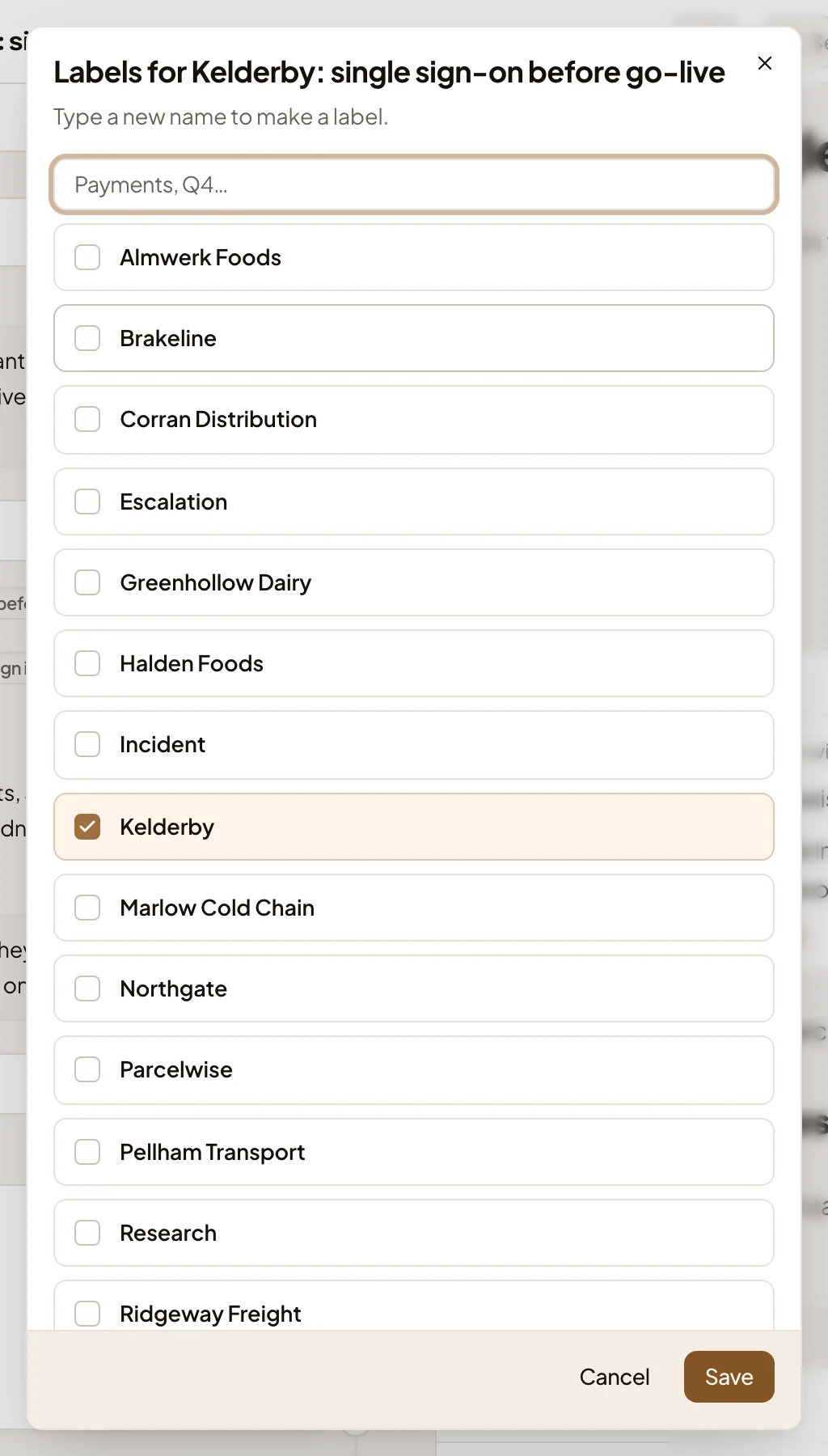
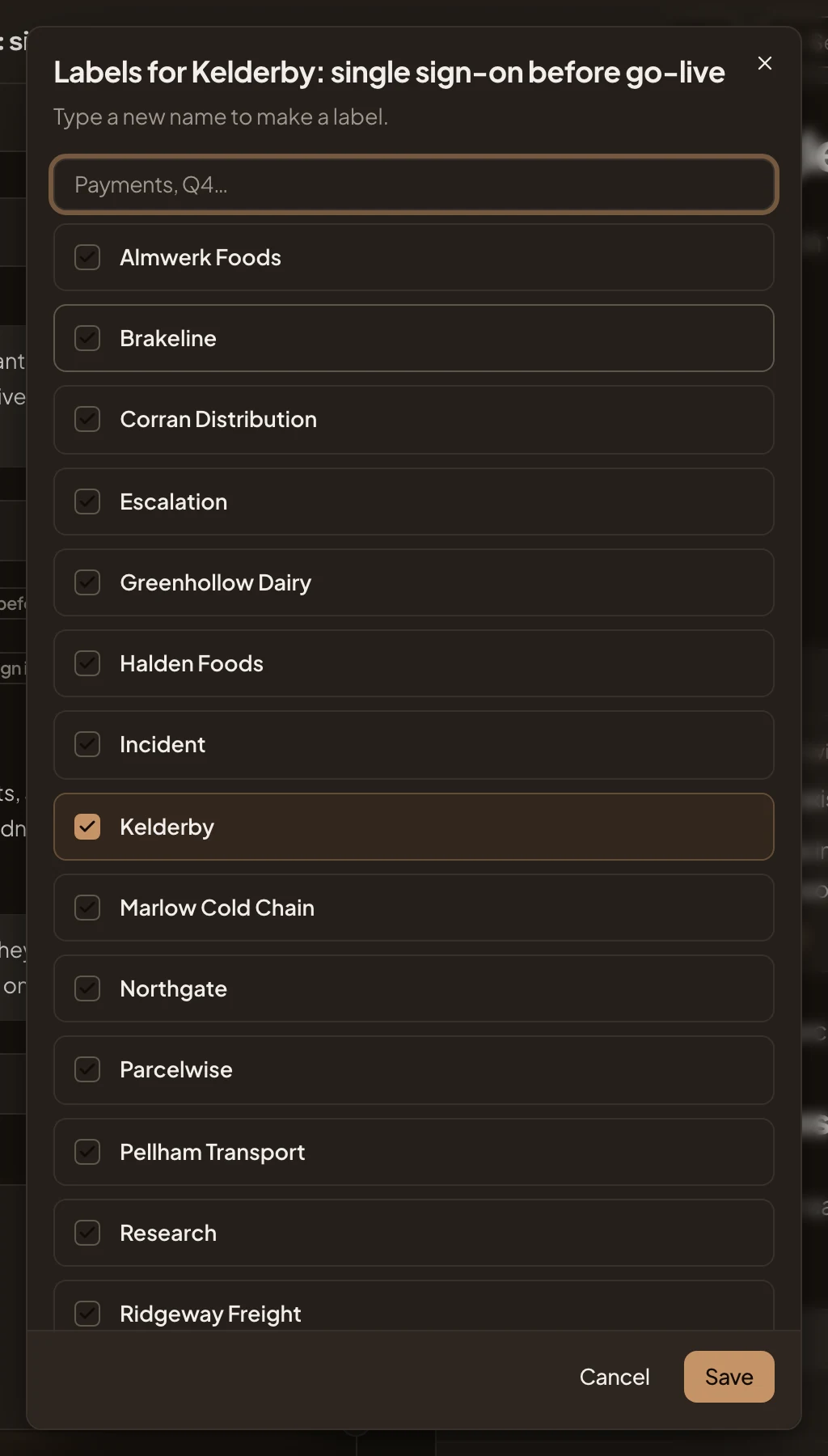
- Find or make a label. Type to find a label, or a new name to make one.
- A label, ticked when the topic has it.
- Save. Keeps the change. Cancel leaves without it.
Labels belong to the organisation, so everyone who sees the topic sees the change, and anyone who can open the topic can change them.
Change lists opens the lists you can put the topic on. A tick puts it on a list or takes it off, at once.
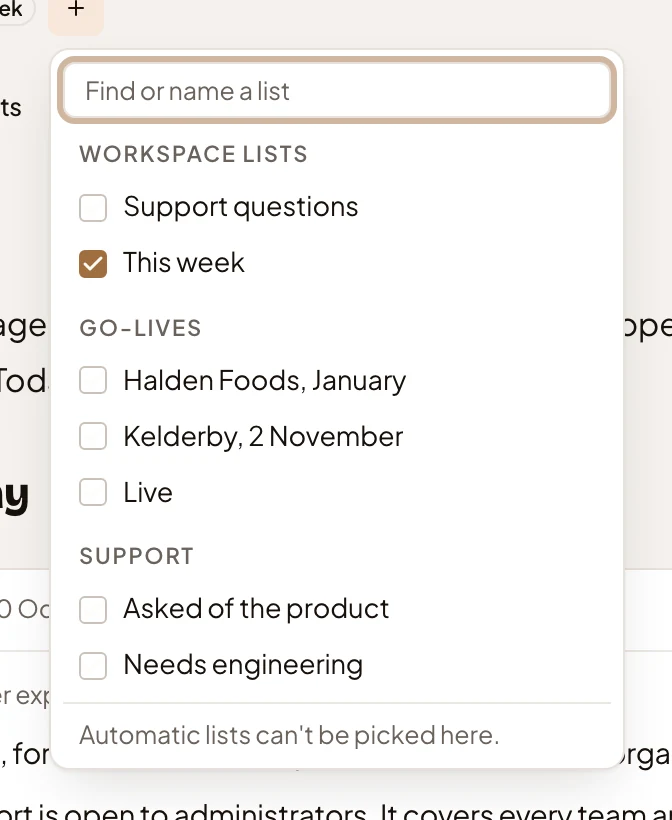
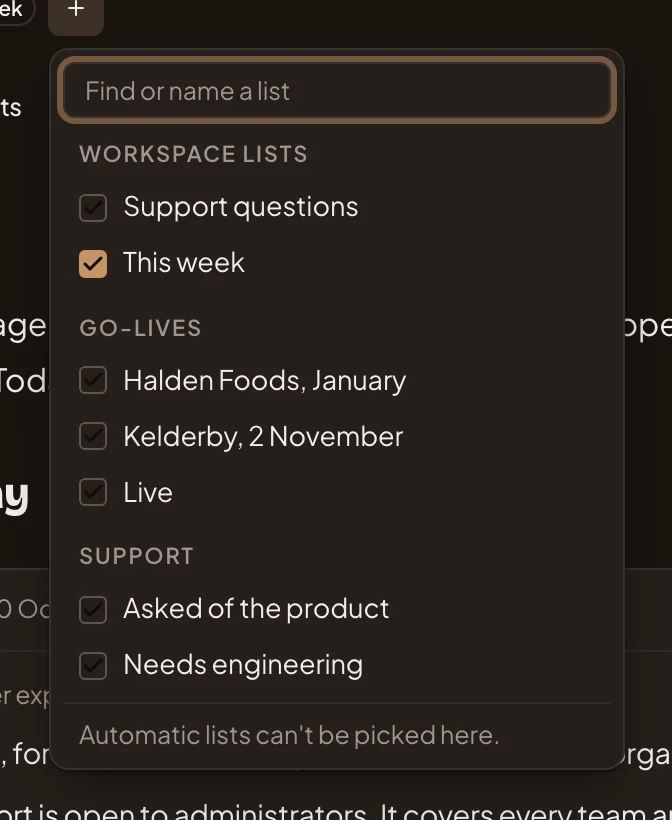
- Find or name a list. Type to find a list, or a new name to make one.
- Workspace lists. The lists you see in your workspace.
- Go-lives. A board’s own lists, under the board’s name.
Lists that fill themselves aren’t picked by hand, and the picker says so. On a topic on no list, the button reads Add to a list.
Versions and contents
Section titled “Versions and contents”2 versions opens the topic’s versions, newest first, each with who made it, what changed and when.
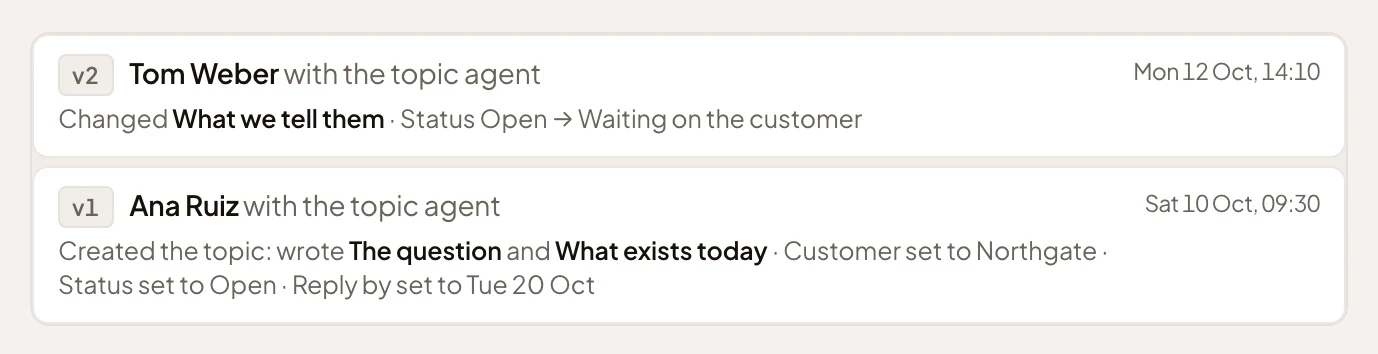
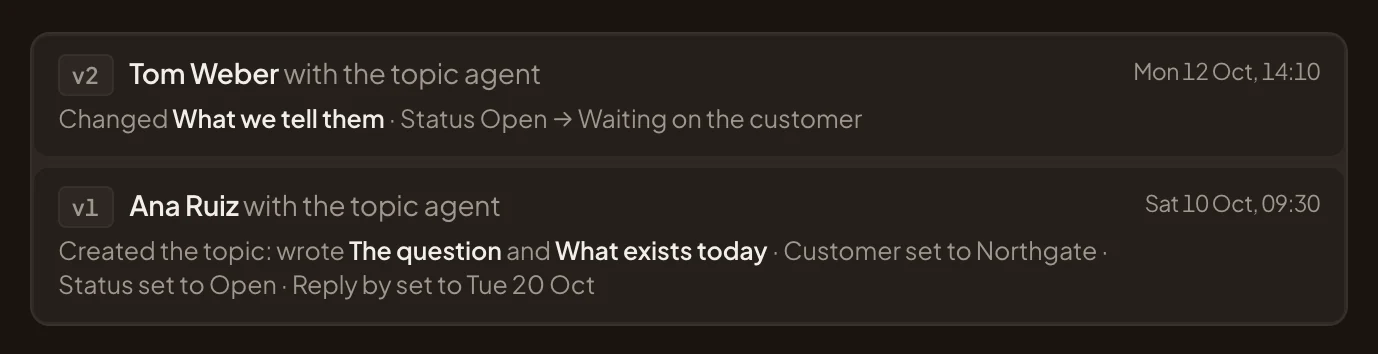
- v2. The newest version.
- v1. The first version, which created the topic.
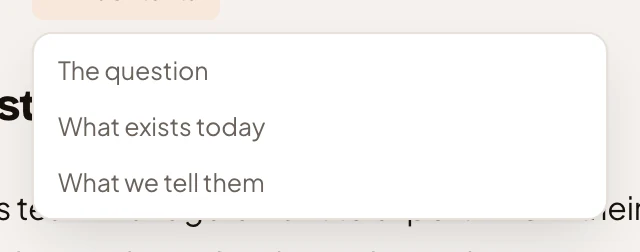
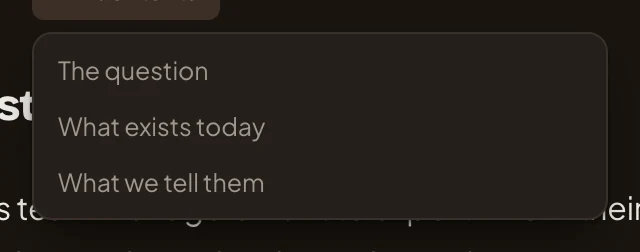
Click a version to read the topic as it was then: see A version of a topic. Contents lists the document’s sections. On a topic with tabs, it lists each tab’s sections under its name.
Sections
Section titled “Sections”The document is made of sections, each with a heading. Point at a heading to see its ⋯ button. A section nobody has written yet shows, in grey, what the template says goes there.
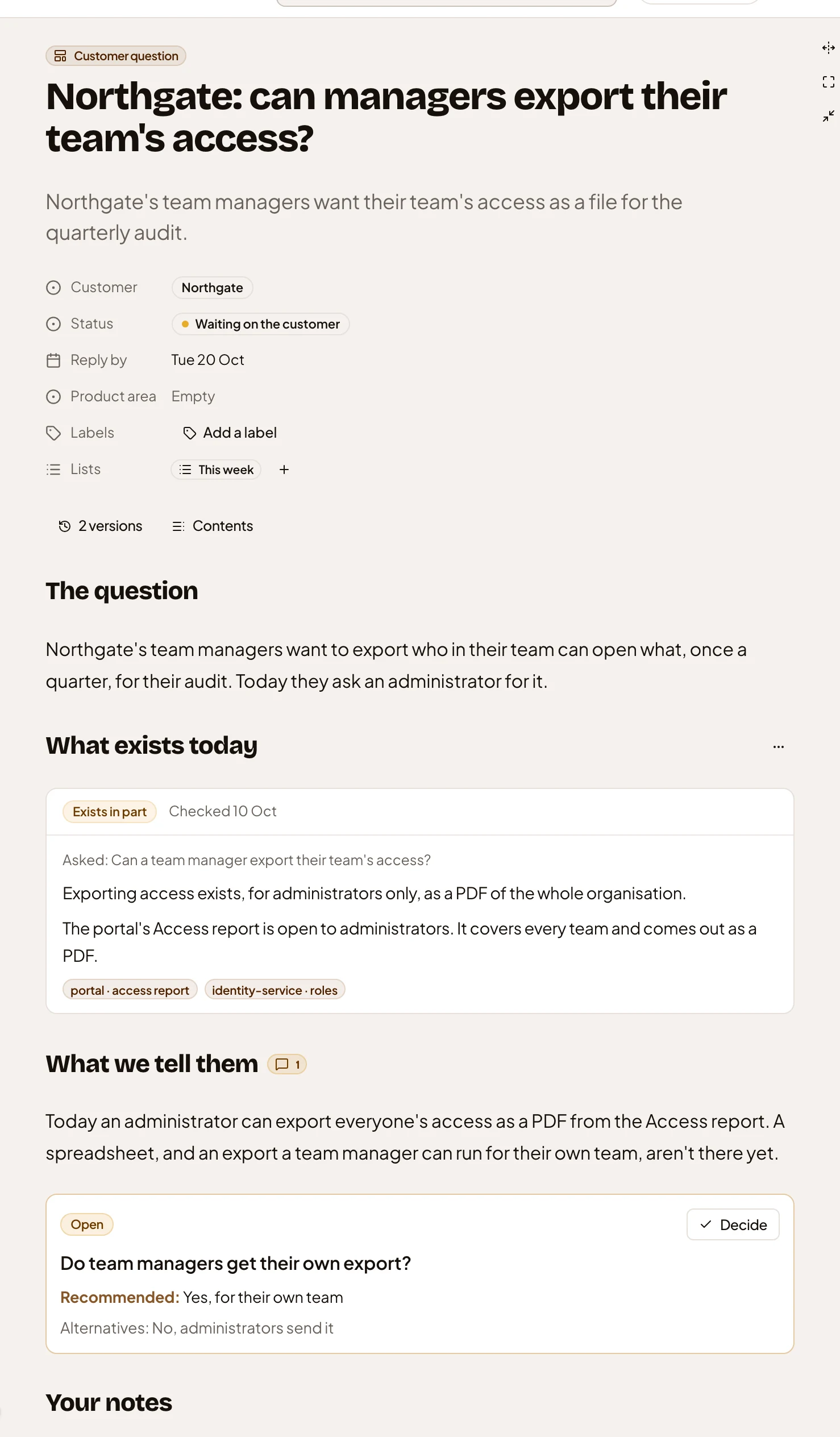
- More actions for What exists today. The section’s ⋯ menu (see below).
- Exists in part. What the agent found when it checked a question against your organisation’s sources. It can also say Exists, Missing or Unclear.
- Checked 10 Oct. When it checked. Under it, what it asked and what it found.
- portal · access report. Where it looked.
- 1 open comment. Comments on this section still open (see Comments).
- An open decision: the question, the option the agent recommends, and the alternatives.
- Decide. Decides it (see Deciding an open question).
A section’s ⋯ menu:
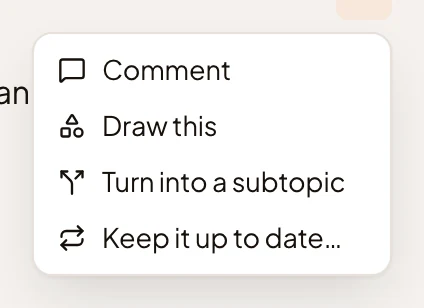
- Comment opens the Comments tab, with your comment set to be about that section.
- Draw this asks the agent to add the one picture that shows the section best, such as a diagram, a map or a chart. It changes nothing else in the section.
- Turn into a subtopic moves what the section holds, with its comments, into a new subtopic under this topic, and leaves a link in its place. It happens at once, and a message names the new key. People who take part see it on a section that has something written in it.
- Keep it up to date… sets up an agent task that keeps this section (see Setting up an agent task). On a topic that already has a task, only the task’s owner has the item. It opens the task’s form with this section picked. Saving changes the task.
A topic can have tabs, each with its own sections. The tabs sit under the versions count and stay at the top as you scroll. Everything above them, from the title to the counts, is the same on every tab. In the picture, a rollout plan with two tabs and a timeline.
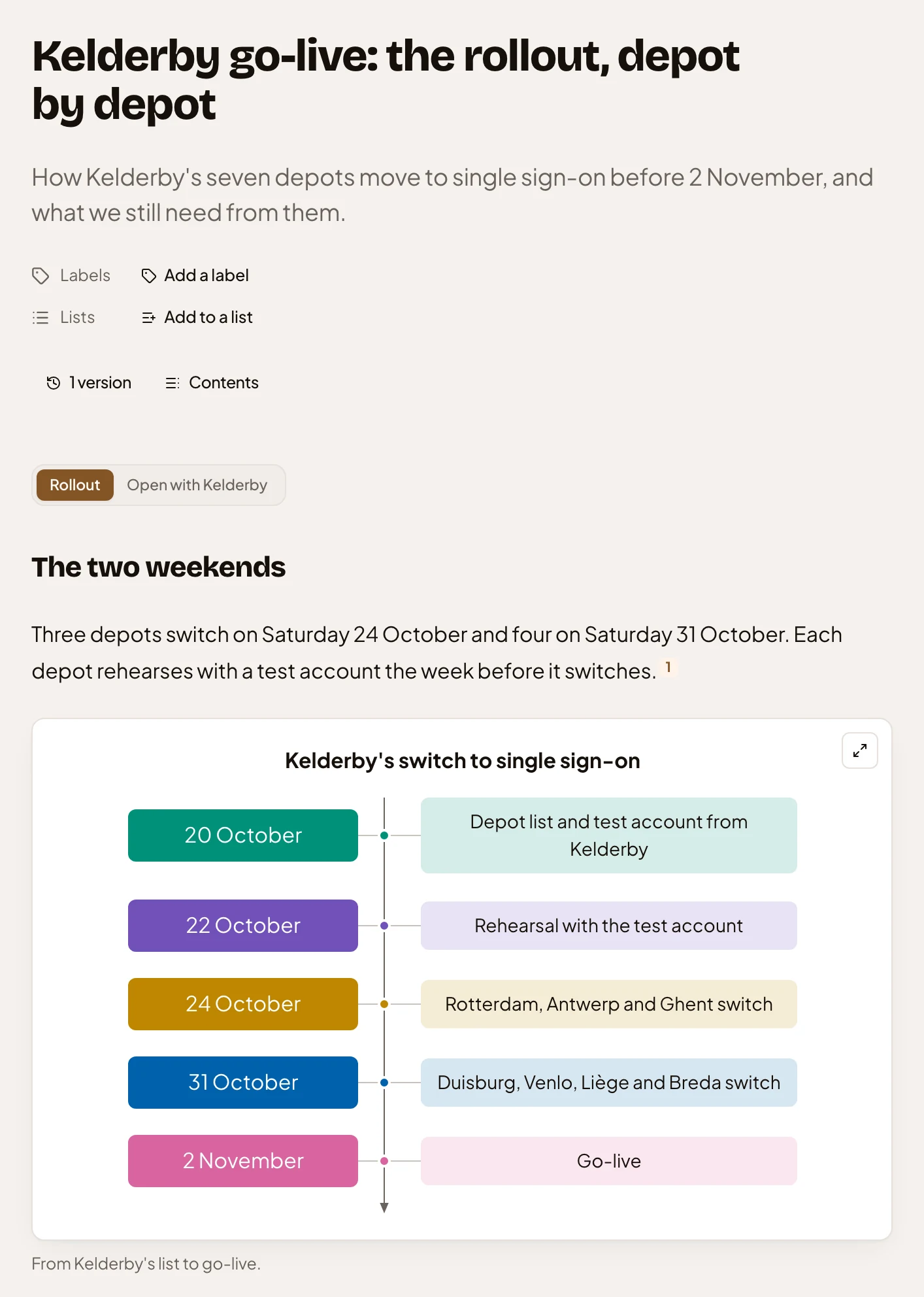
- The tabs. Click one to read its sections.
- “Open the diagram”. Shows the diagram on the whole screen.
The address keeps the tab you’re on, so a link opens the same tab. A link to a section opens its tab. The agent never switches tabs under you. When it writes in another tab, a dot marks that tab.
A map shows who does what, or how things connect, and you can ask about it. Above it are its pills: “Everything”, then the views the agent gave it. Picking a pill lights that part of the map. Click a shape to see what’s known about it, and what you can ask.
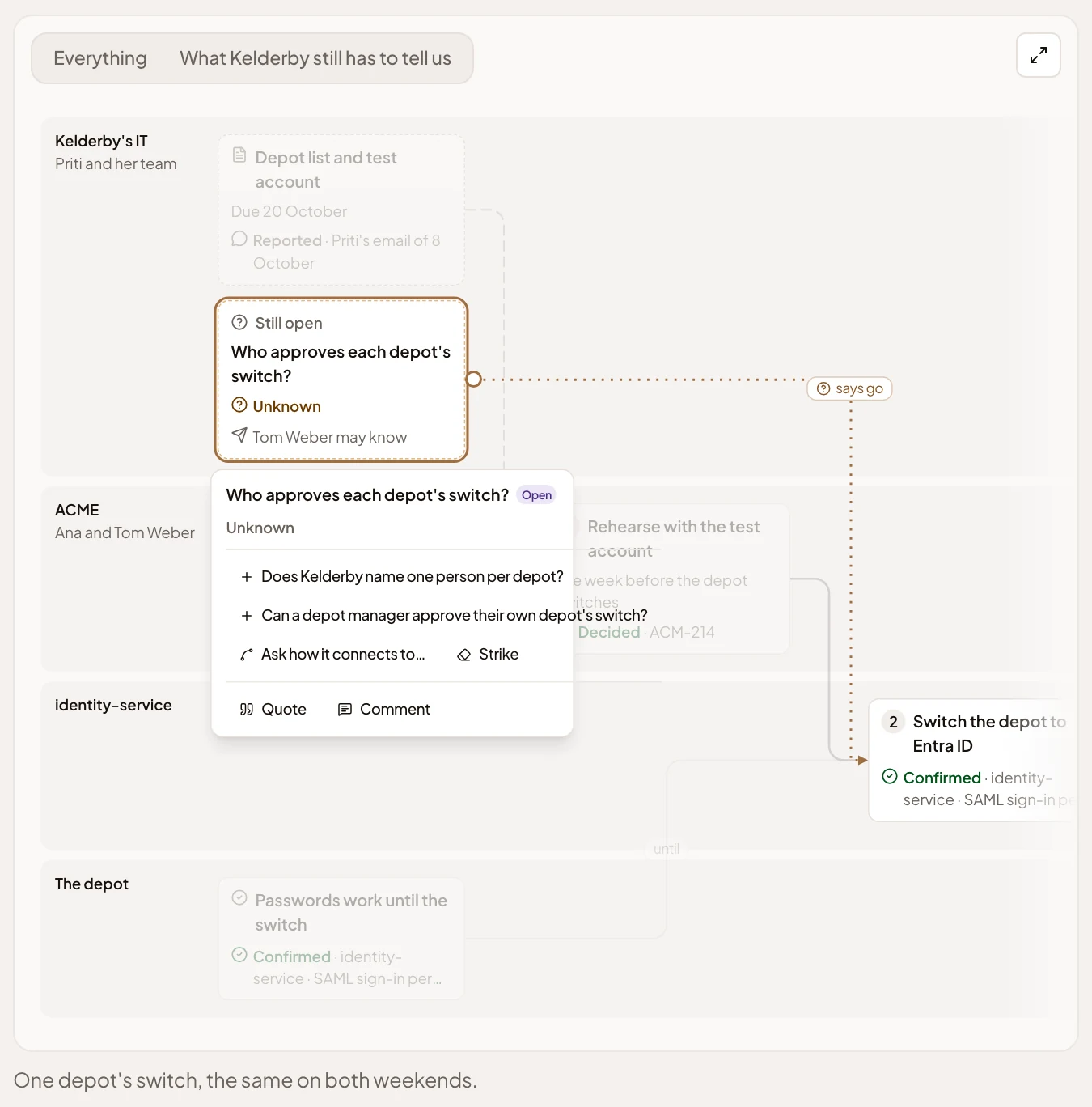
- The pills: “Everything”, and a view the agent made.
- “Open the map”. Shows the map on the whole screen, where you can zoom and pan.
- A picked shape, with how sure anyone is of it and who might know more.
- A next question. Click it, and the agent looks in your sources and adds what it found to the map, each part marked with how it’s known.
- “Ask how it connects to…”. Pick another shape, and the agent checks how the two connect.
- “Strike”. Asks the agent if the shape still holds.
- “Quote” puts the shape into your chat, and “Comment” opens a comment on it.
When you ask how two shapes connect, or strike one, the agent draws the change it proposes on the map, with a card in the chat. “Keep” on the card writes it. When your sources don’t support it, the agent says why. A map that tells how something happened has a pill to replay it, event by event. You can present a map with a path. “Present” shows one step at a time on the whole screen, and others on the topic can follow along.
Deciding an open question
Section titled “Deciding an open question”Decide on an open decision opens the options.
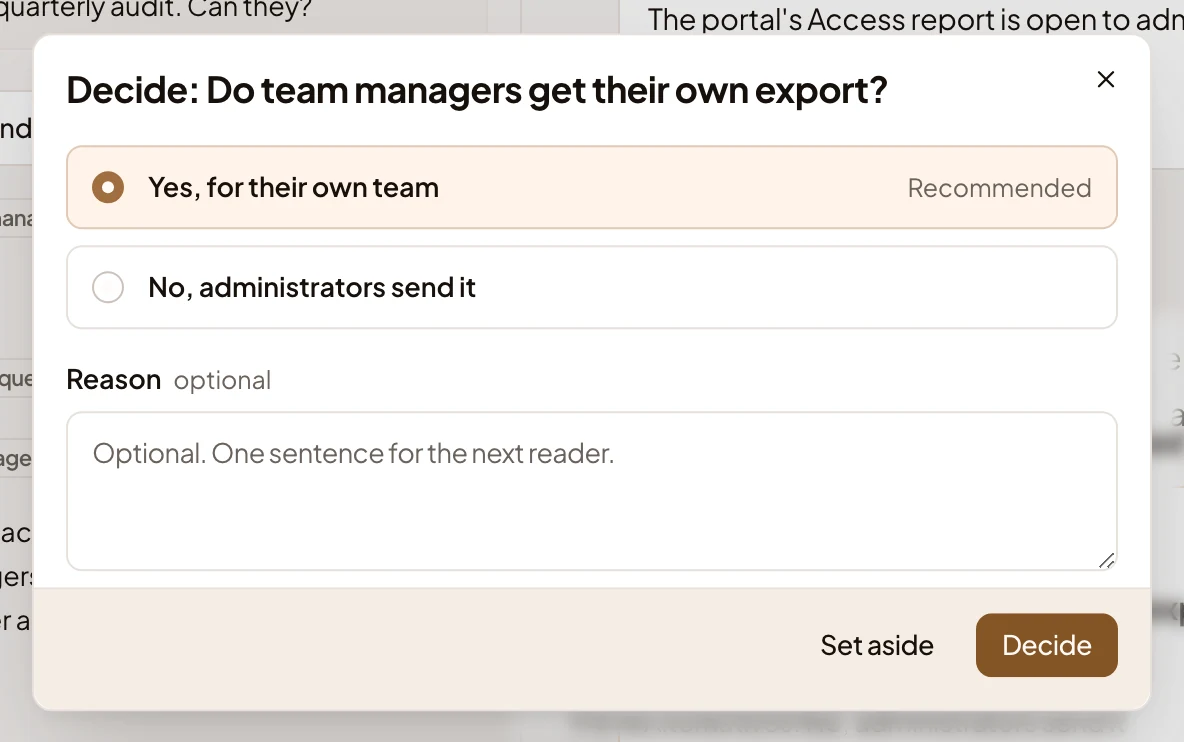
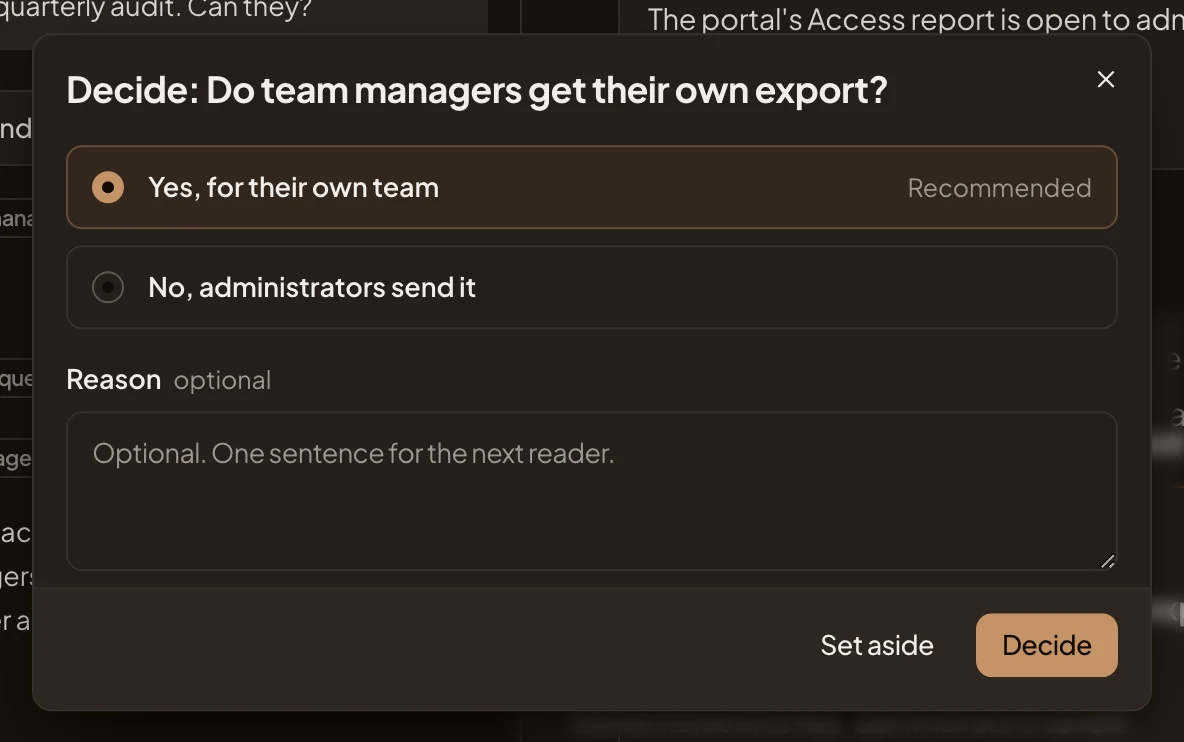
- The options. Pick one. The agent’s recommendation is marked and picked to start with.
- Reason. A sentence on why, for the next reader. You can leave it empty.
- Set aside. Puts the decision away without choosing. It stays on the topic, marked Set aside.
- Decide. Decides it with the option you picked.
Decide is there for the owner and everyone who takes part. The decision goes into the topic’s current version, and leaves Decisions. See Decide an open question.
Your notes
Section titled “Your notes”Your notes, at the end of the document, lists notes the agent or your coding agent left you about this topic. It also lists notes you turned into this topic. Only you see them. With none, the part doesn’t show.
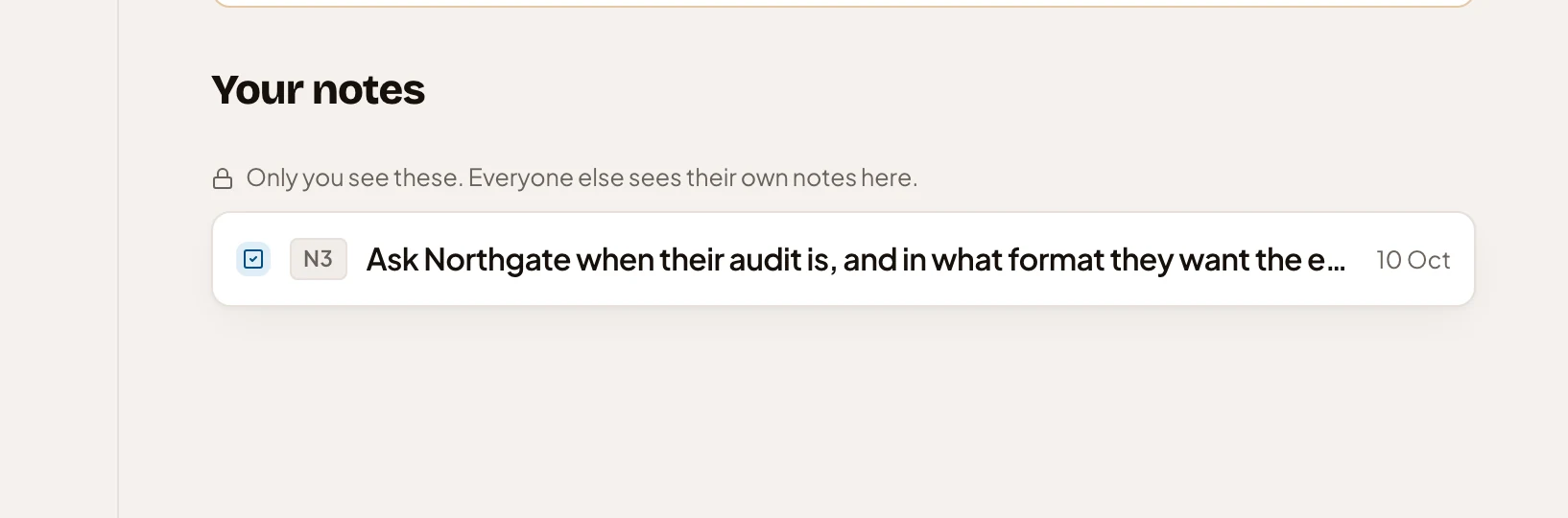
- A note: its kind, its key, its title and when it was left. Click it to open the note.
See Notes from coding agents and a note.
Comments
Section titled “Comments”The Comments tab holds the topic’s comments, where people talk to each other rather than to the agent. In the picture, a colleague in sales has asked the owner about What we tell them.
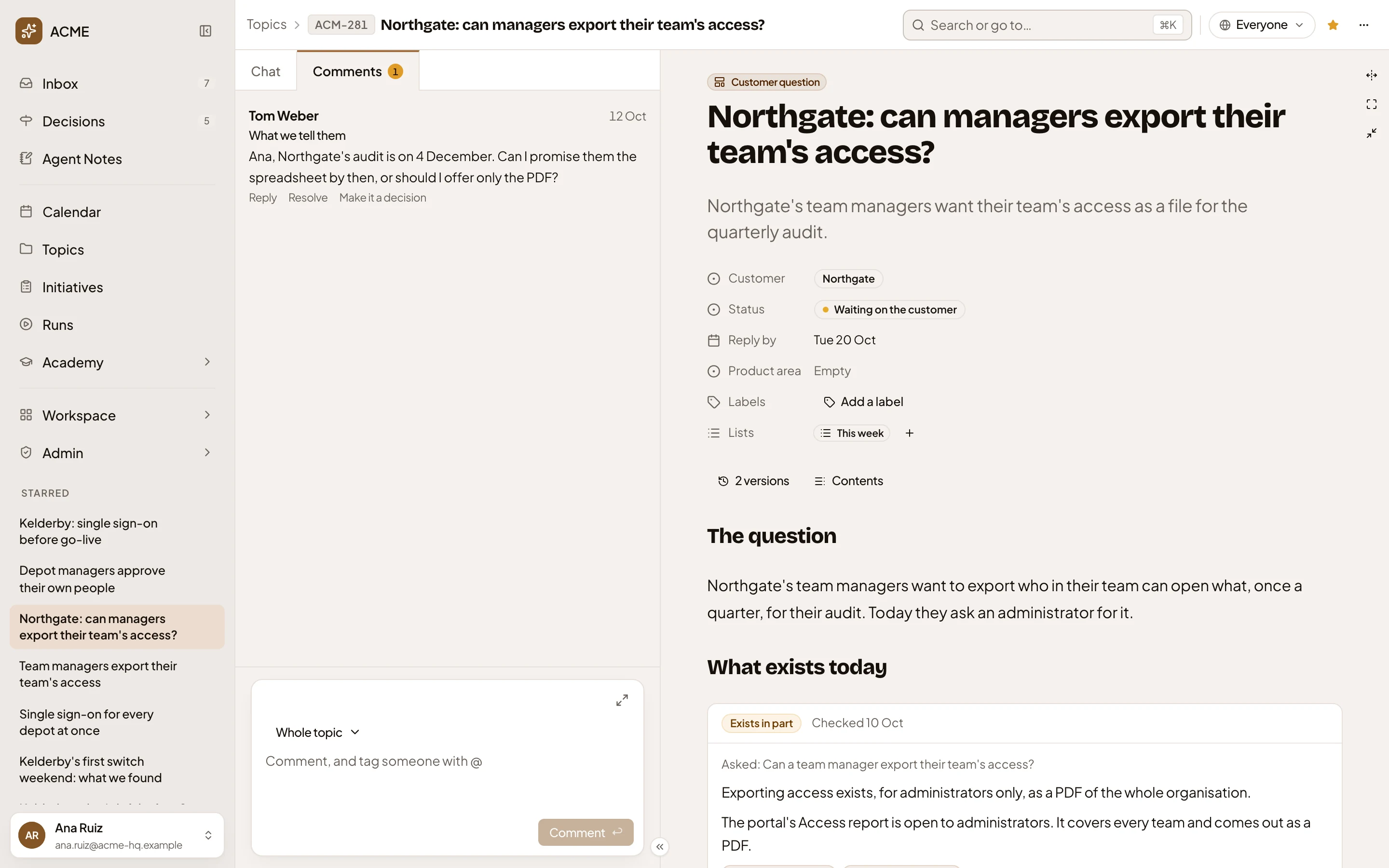
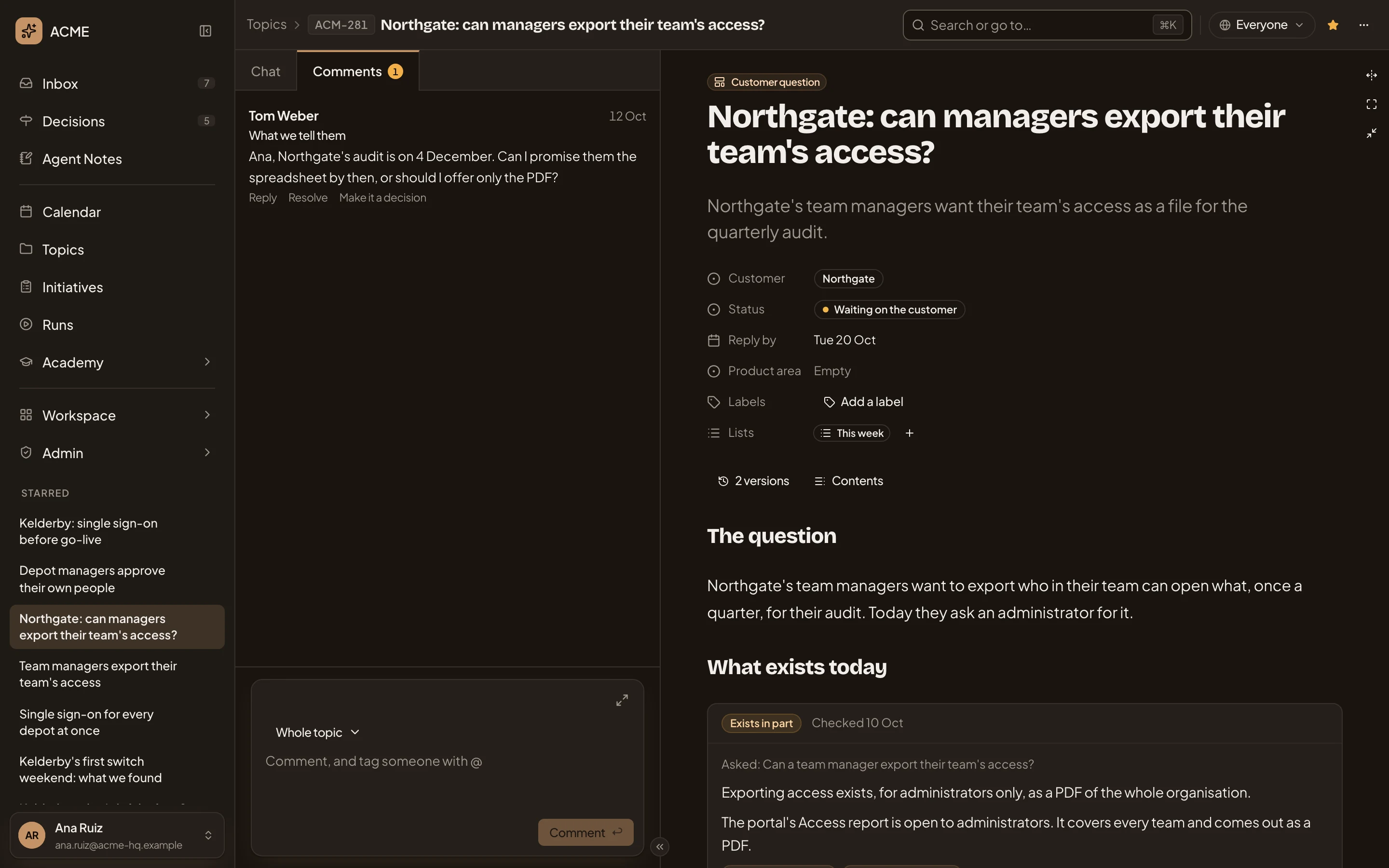
- Comments. The tab, with how many comments are open.
- What we tell them. The section the comment is about. Click it to go there.
- Reply. Answers in the same thread.
- Resolve. Closes the thread, for the topic’s owner and whoever started it. Resolved threads fold away under the open ones, and Reopen opens one again.
- Make it a decision. The agent drafts the comment’s choice as a decision, with its options and the one it recommends. You check the draft and open it, and it waits on the topic and in Decisions.
- Comment on. What your comment is about: Whole topic, or one section.
- The comment box. Type @ to tag someone.
- Comment. Posts it.
Tag someone with @, and the comment waits for them in their Inbox until they reply or the thread is resolved. Their topics list shows You on the topic meanwhile. You can delete a comment you wrote while its thread is open, and its replies go with it.
The ⋯ menu
Section titled “The ⋯ menu”The ⋯ at the top right holds everything else you can do with the topic.
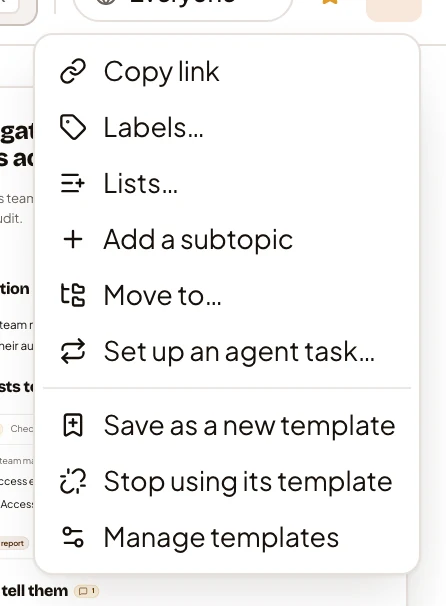
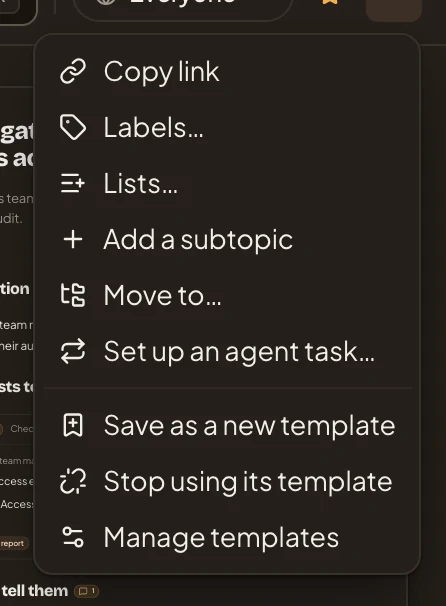
- Copy link copies the topic’s address.
- Labels… and Lists… open the same pickers as the buttons beside the labels and the lists in the document.
- Add a subtopic opens New topic for a topic under this one.
- Move to… puts the topic under another topic, or back on its own. Only the owner has it.
- Set up an agent task… sets up a task the agent runs on a schedule. Once the topic has one, it reads “Agent task:” and the task’s name.
- Save as a new template makes a template from this topic.
- Stop using its template takes the template off.
- Manage templates opens the templates in your workspace.
The menu has no item for an initiative. To start one that draws on the topic, see Start an initiative from a topic.
Move to… asks where the topic goes.
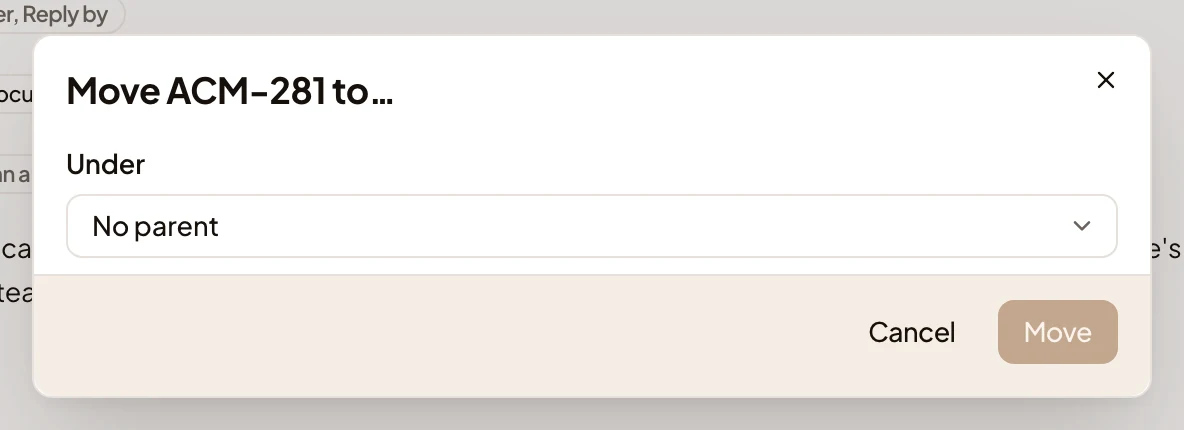
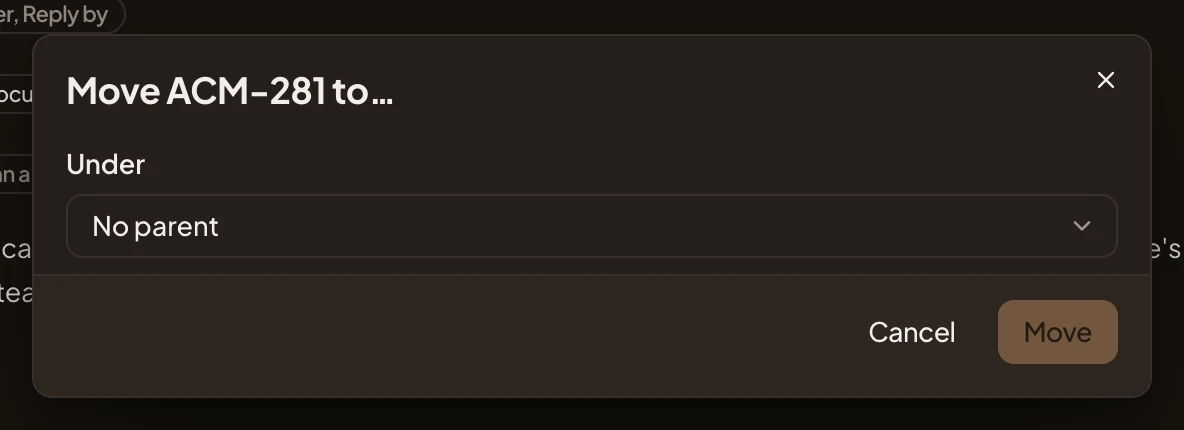
Pick a topic in Under, or No parent for a topic of its own, then Move. Type in Under to find a topic. If the topic can’t go under one, like one of its own subtopics, the list says why. When the move changes who sees the topic, the dialog says who will see it and who won’t any more.
Stop using its template asks first when the template’s fields hold values.
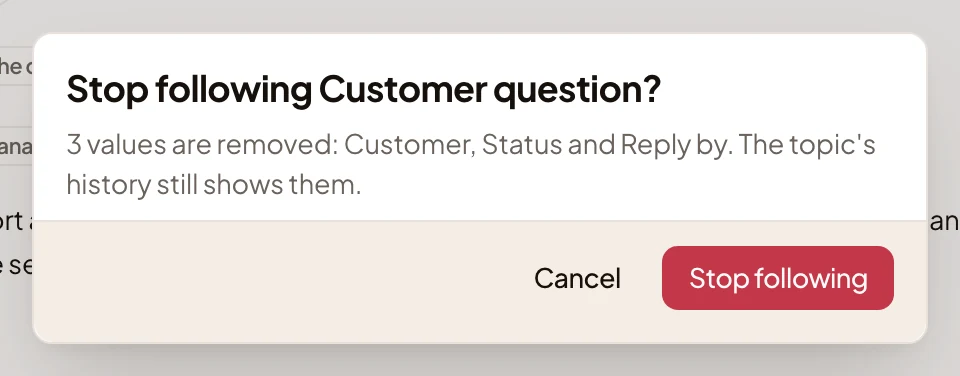
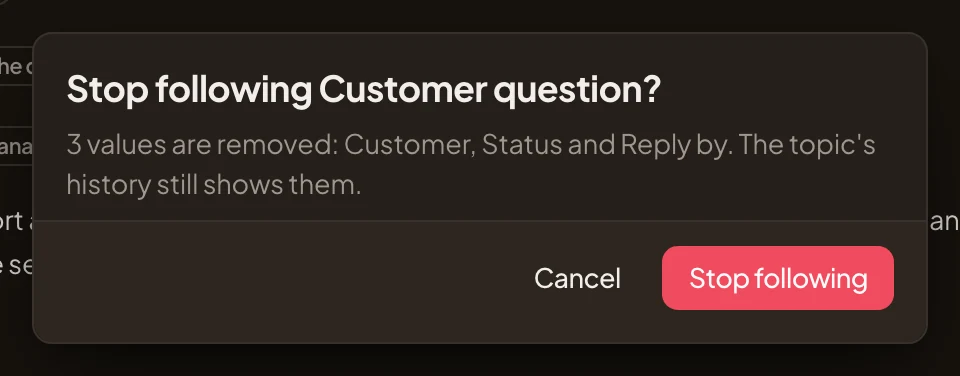
Stop following takes the template and its fields off. The sections stay, and the versions keep the values the fields had.
Setting up an agent task
Section titled “Setting up an agent task”Set up an agent task… opens a new agent task for this topic, so the agent does the work again on a schedule and keeps the topic up to date. See A topic the agent keeps and Have the agent keep a topic up to date.
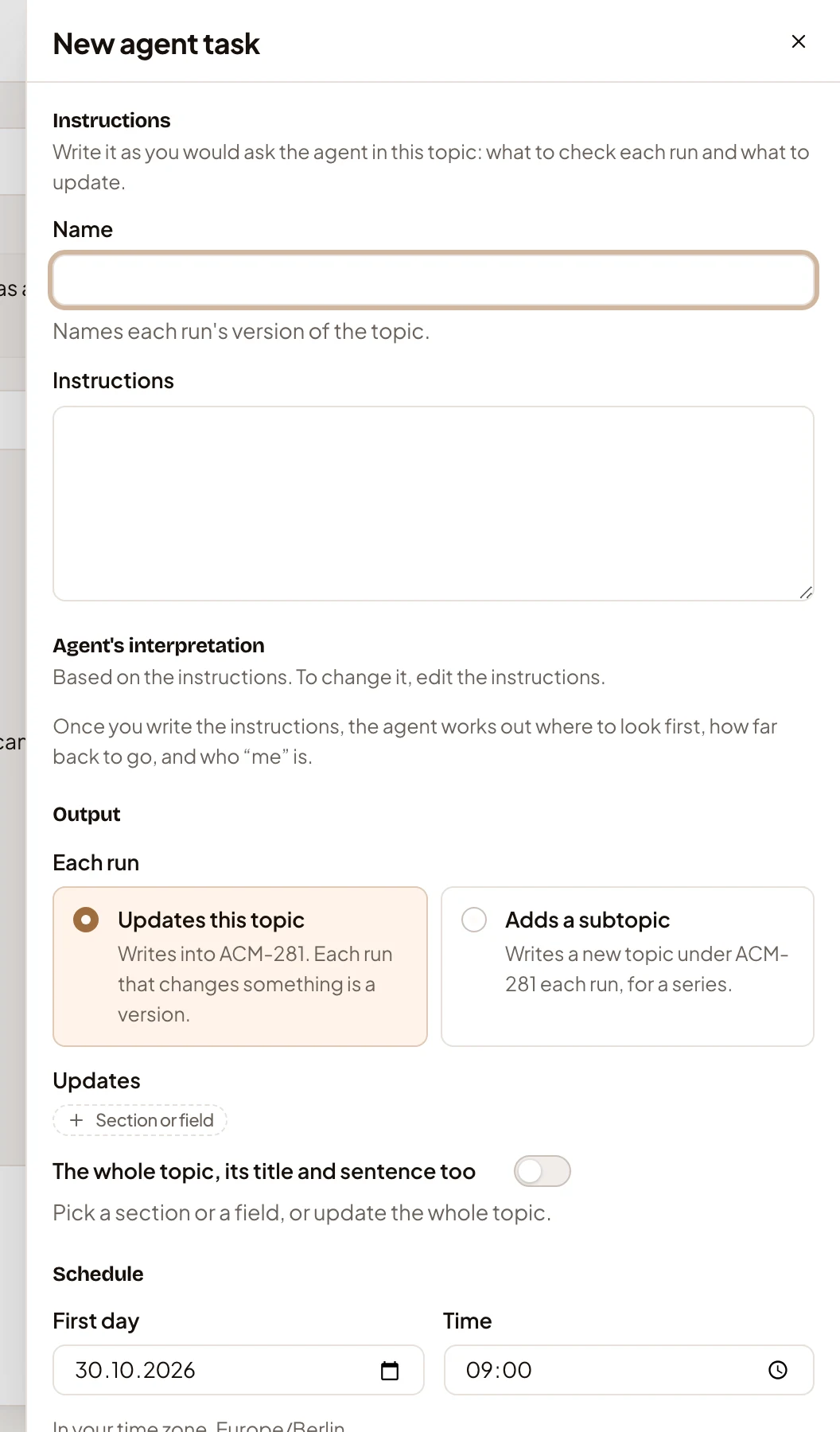
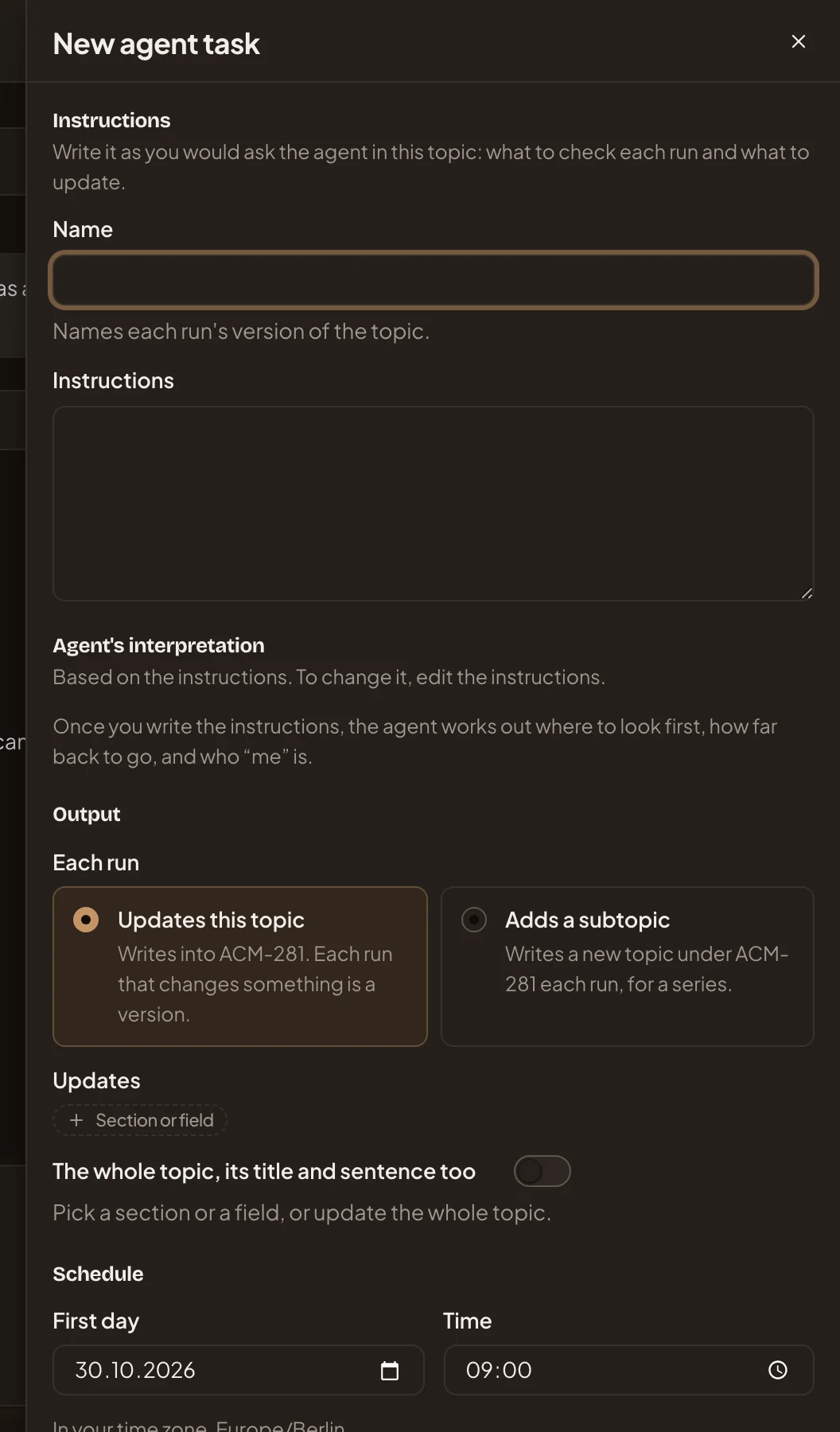
- Name: how the topic’s versions name the task’s runs.
- Instructions: in your words, as you’d ask the agent in this topic. Under Agent’s interpretation, the agent shows where it looks first, how far back it reads, and who “me” is.
- Each run: Updates this topic or Adds a subtopic, a new topic under this one each run.
- Updates: a Section or field, or The whole topic, its title and sentence too. A run changes these and nothing else.
- Schedule: First day and Time, in your time zone. Repeats is Once, Every weekday, Weekly or Monthly.
Then Create, and the task opens in the panel (see A topic kept by an agent task).
Sharing
Section titled “Sharing”Click Sharing to choose who can open the topic and what they may do. See Sharing and Share a topic.
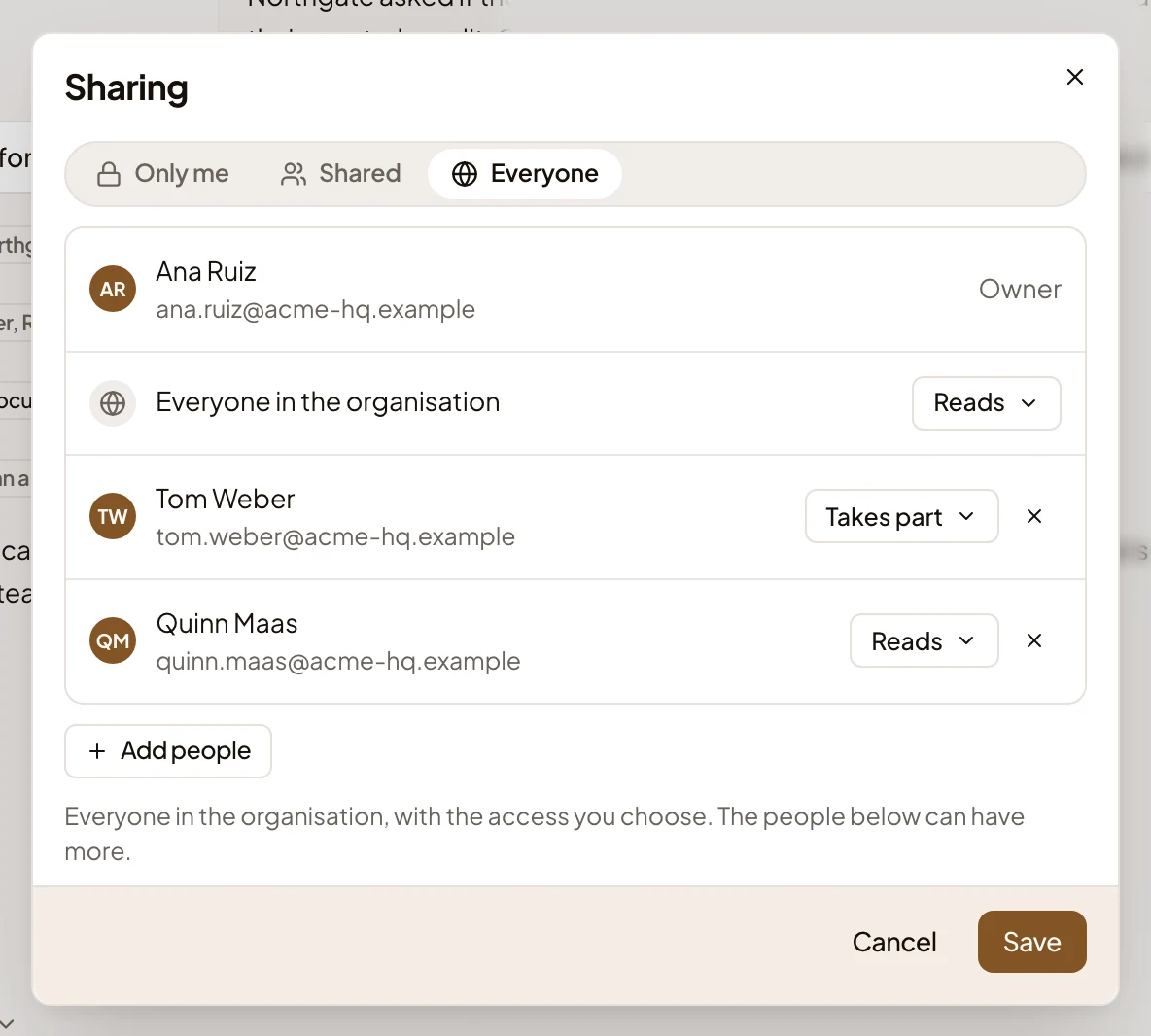
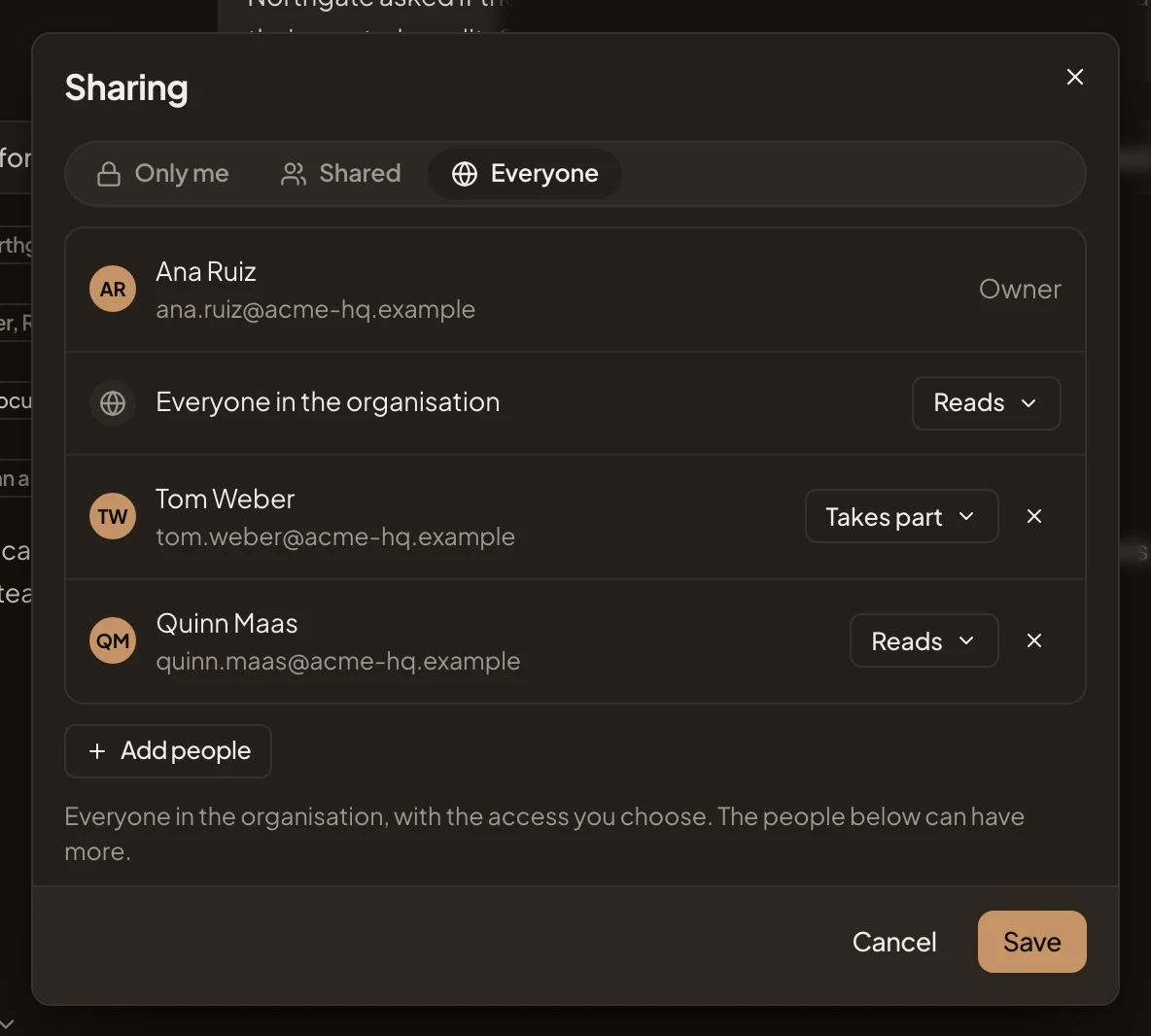
- Only me, Shared and Everyone. Only you, the people you add, or everyone in the organisation as well. A topic a flow guides is also read by the people the flow names.
- Owner. The person the topic belongs to.
- Access for everyone. With Everyone, what everyone in the organisation may do: Reads or Takes part.
- Access for Tom Weber. The same for one person.
- Stop sharing with Tom Weber. Takes that person off.
- Add people. Pick someone from the organisation. People already on the topic are greyed out.
- Save. Keeps your changes. Cancel leaves without them.
Everyone lets anyone in the organisation open the topic, but it shows on the topics list only of the people named here.
A topic kept by an agent task
Section titled “A topic kept by an agent task”In the pictures, an agent task keeps a topic every Monday. A section the task keeps has a mark beside its heading.
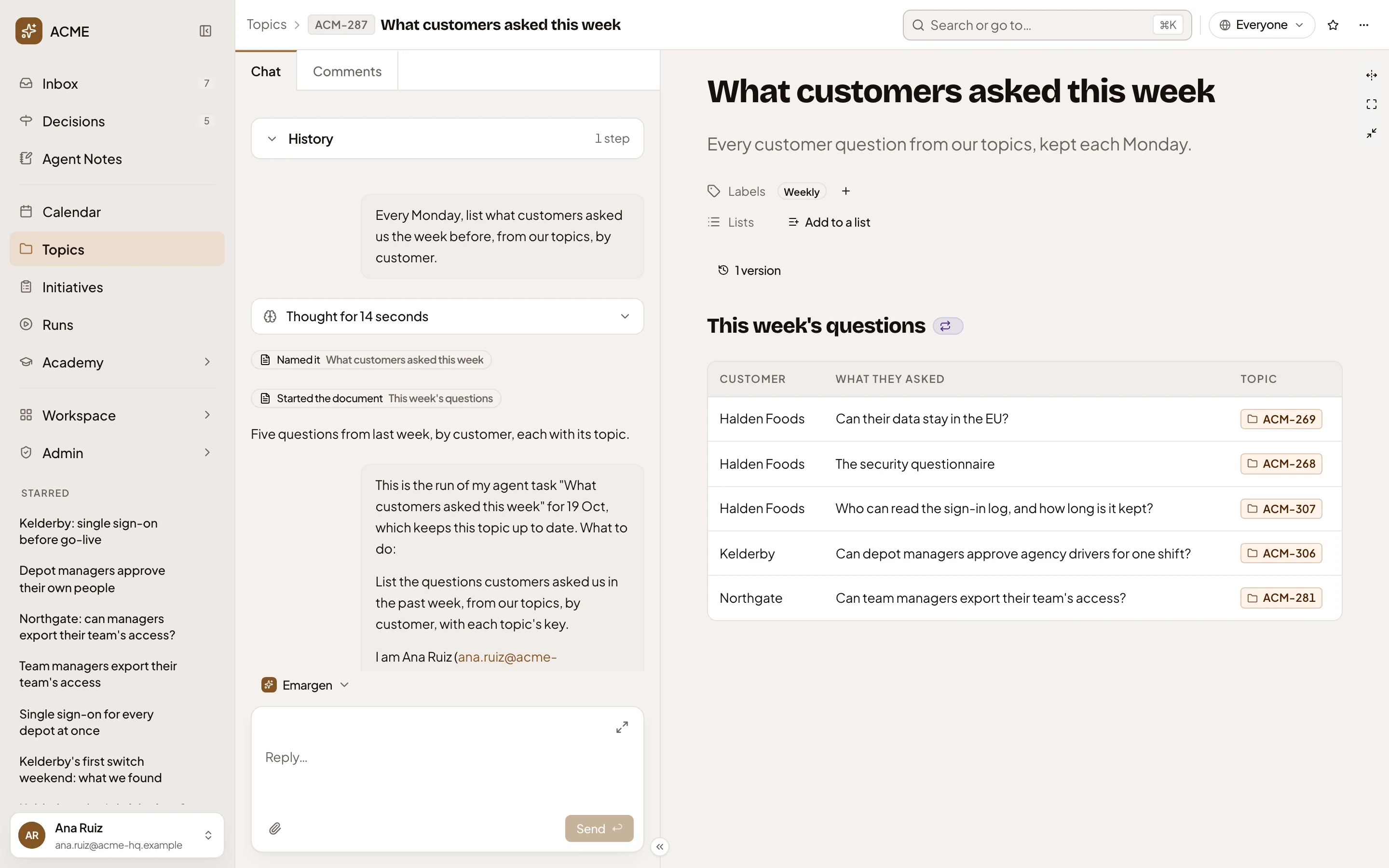
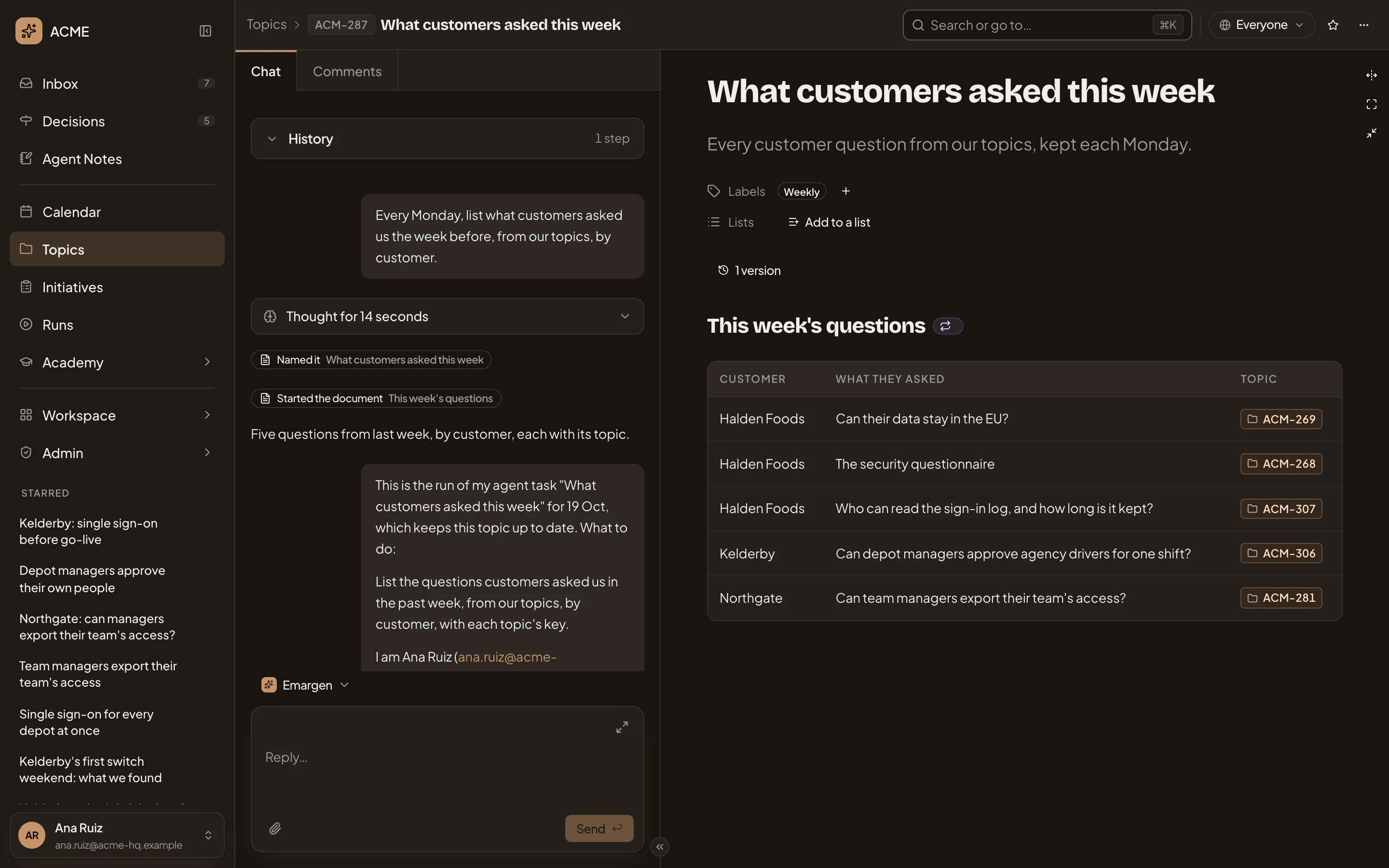
- Updated by What customers asked this week. The task keeps this section. Click the mark to see the task.
- 1 version. Each run that changes something adds one.
- The kept section.
Clicking the mark opens the task:
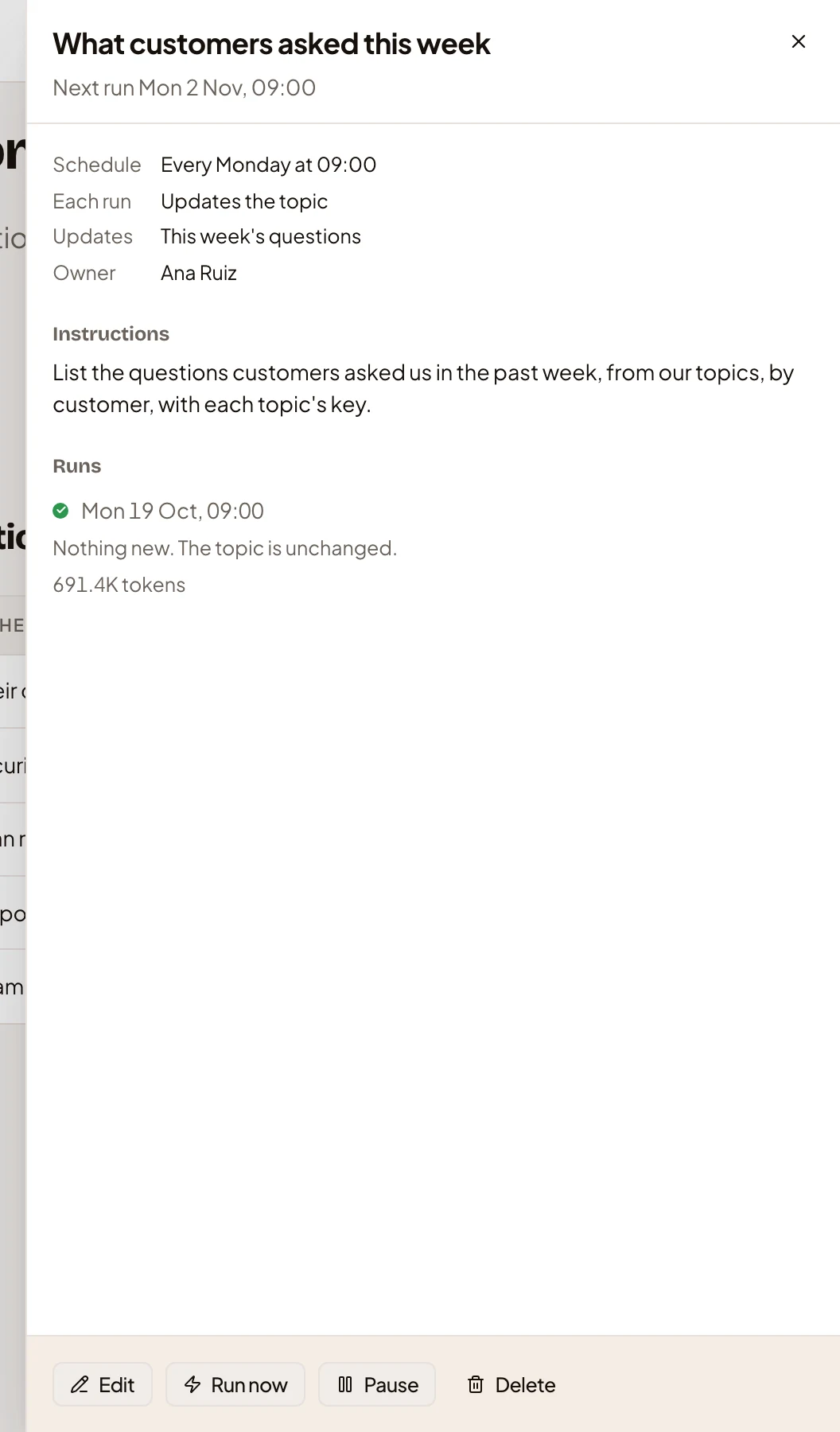
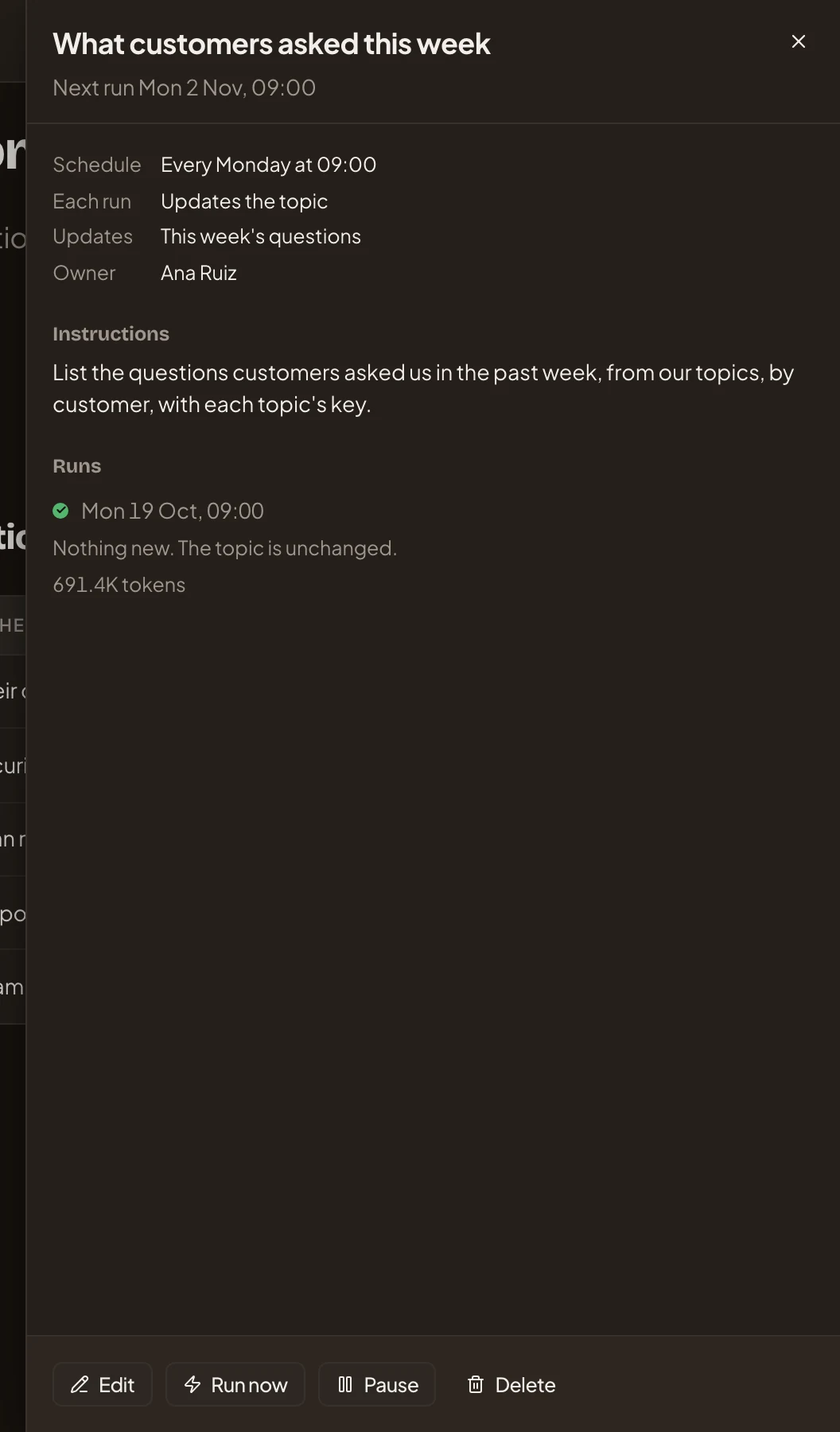
- When it runs next. Under it: its Schedule, what Each run does, what it Updates, and its Owner.
- Instructions. The task’s instructions, in the owner’s words.
- Runs. Each run: when, the version it made, what it changed and the tokens it used.
- Edit. Changes the task.
- Run now. Runs it once now.
- Pause. Stops it running until you start it again.
- Delete. Deletes the task.
A subtopic
Section titled “A subtopic”A subtopic sits under another topic. In the pictures, a sales engineer’s single sign-on answers sit under a customer’s security questionnaire.
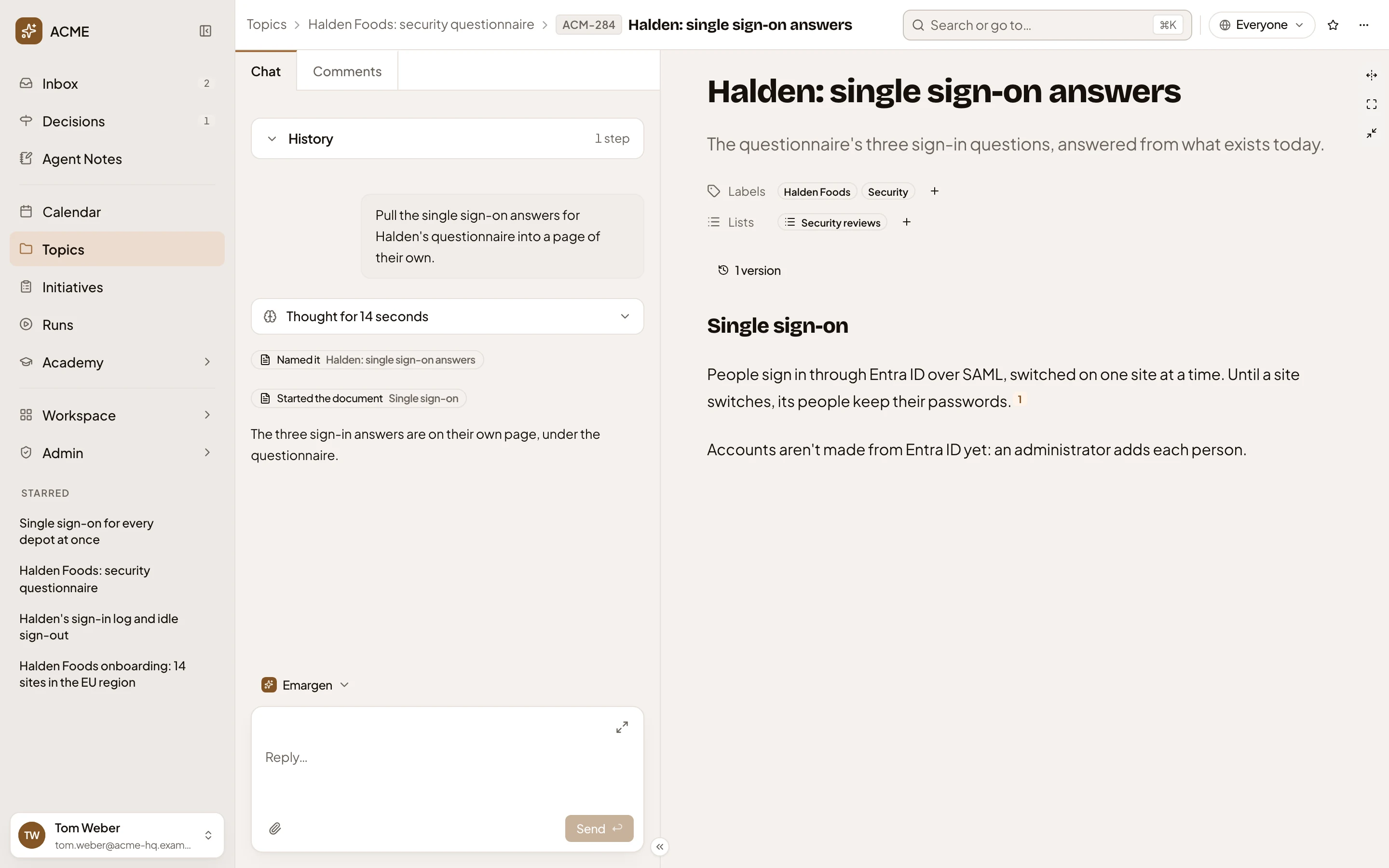
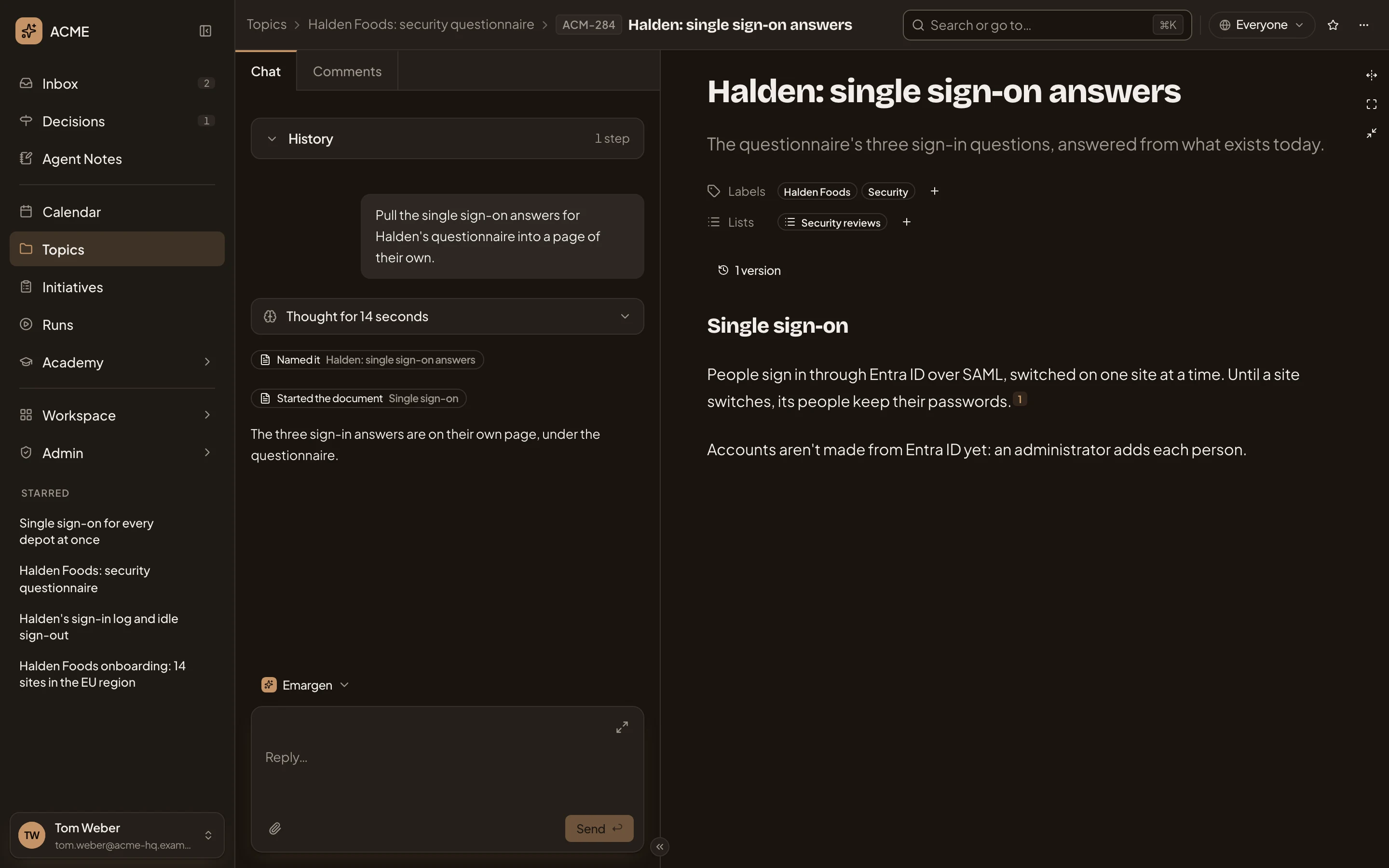
- Halden Foods: security questionnaire. The topic it sits under, in the path at the top.
- Halden: single sign-on answers. The subtopic’s own document.
Sharing on a subtopic has one more switch.
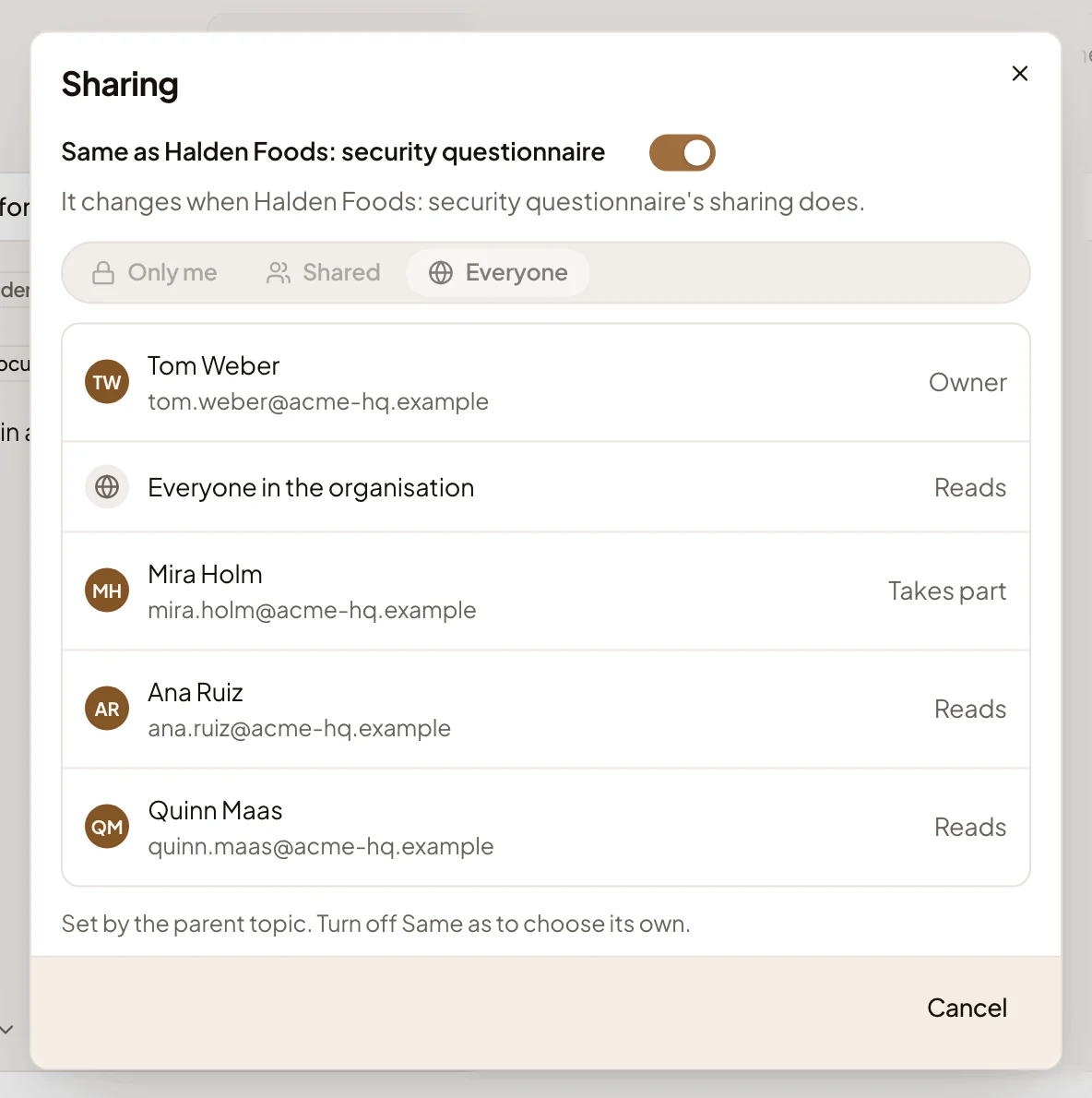
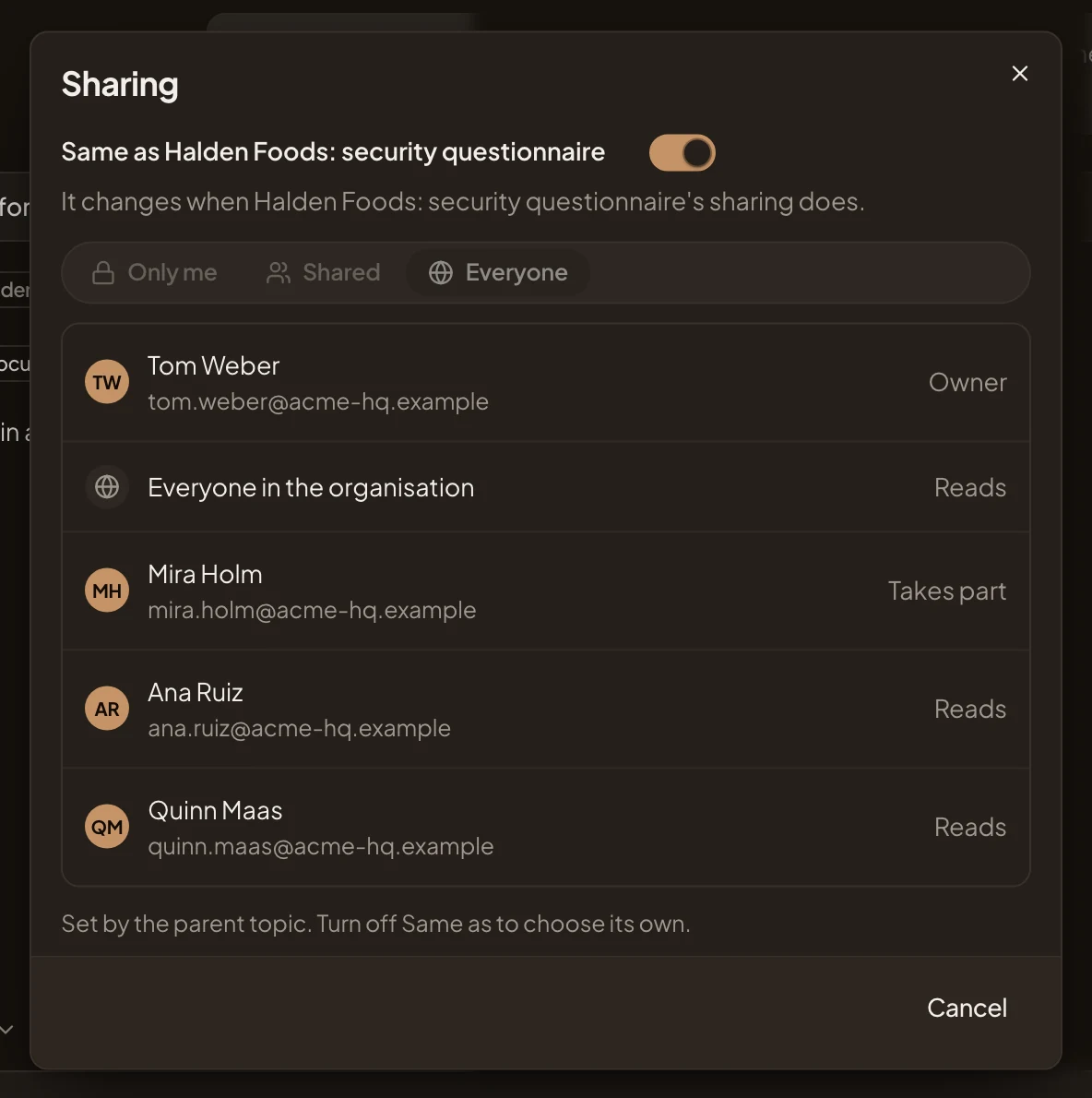
- Same as Halden Foods: security questionnaire. Switched on, the subtopic is shared the way the topic above is, and changes when that topic’s sharing does. The choices under it are greyed. Switched off, it has its own. Only the subtopic’s owner switches it.
A topic you only read
Section titled “A topic you only read”When a topic is shared with you to read, you see its document and have a chat of your own. Its agent answers about the topic and changes nothing. When you want something changed, it drafts a comment for you. The draft comes on a card that says who it mentions, and you can choose whom before you post it. In the picture, a sales engineer opens a colleague’s topic for the first time.
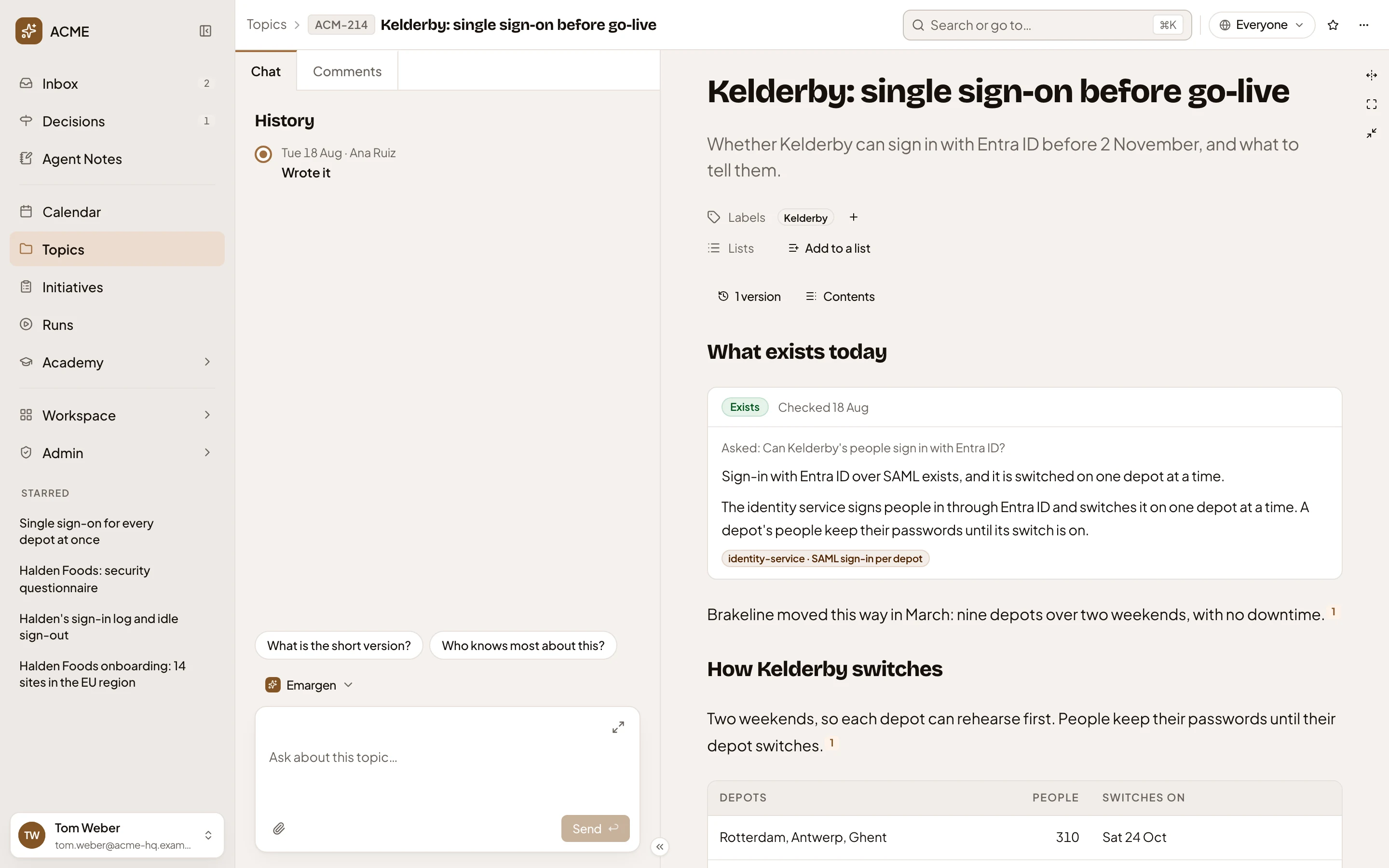
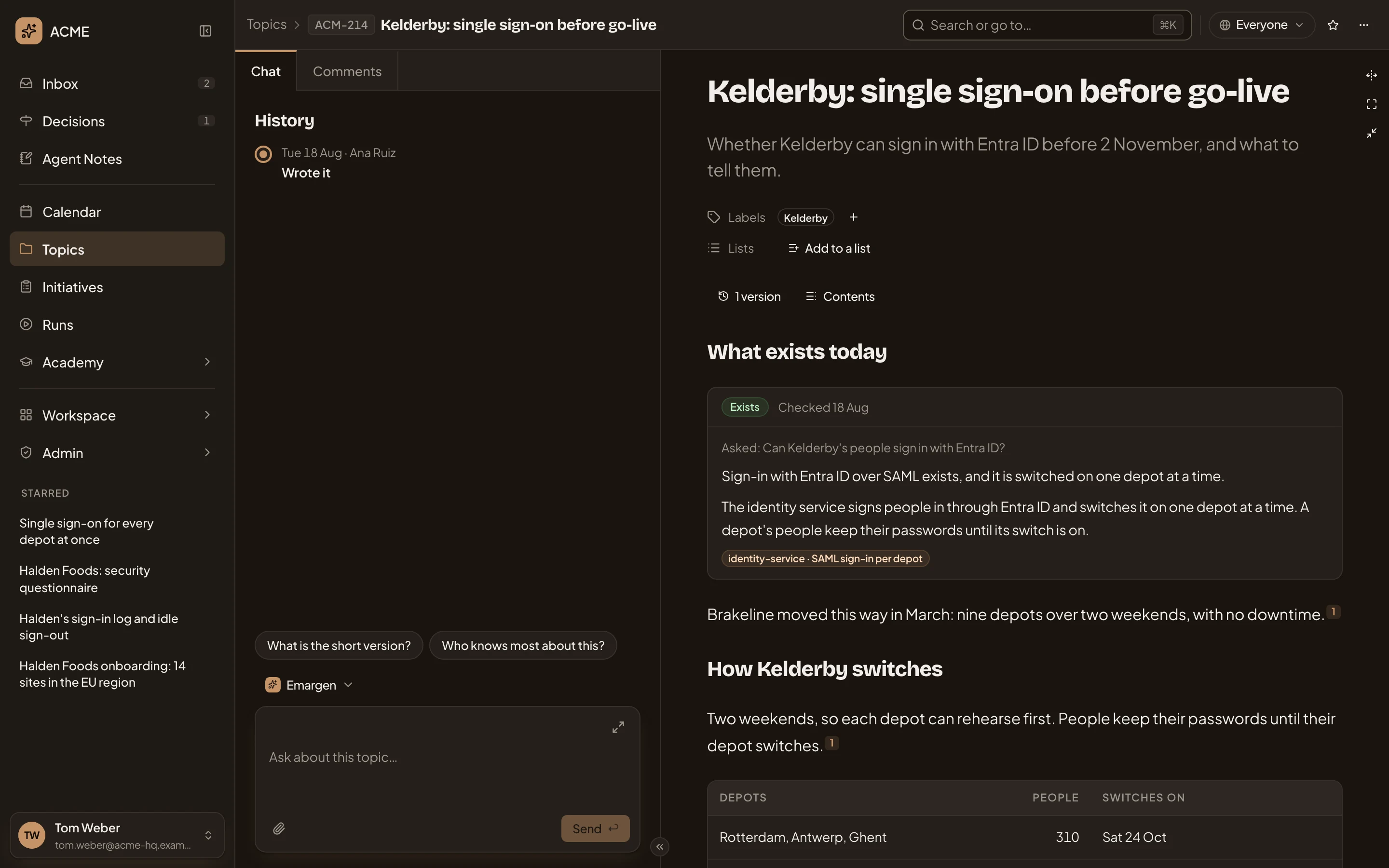
- History. What happened to the topic so far.
- Your chat as a reader. Its message box says Ask about this topic.
- Sharing. Shows who sees the topic. Only its owner changes it.
- The ⋯ menu, with Copy link, Labels…, Lists… and Manage templates.
- The document. A section’s ⋯ menu has only Comment.
A reader still changes labels and lists. Labels belong to the organisation, so a label they add shows for everyone. A list of their own changes nothing for anyone else. Open decisions show without Decide, and fields can’t be changed.
On a phone
Section titled “On a phone”The chat, the document and the comments take turns.
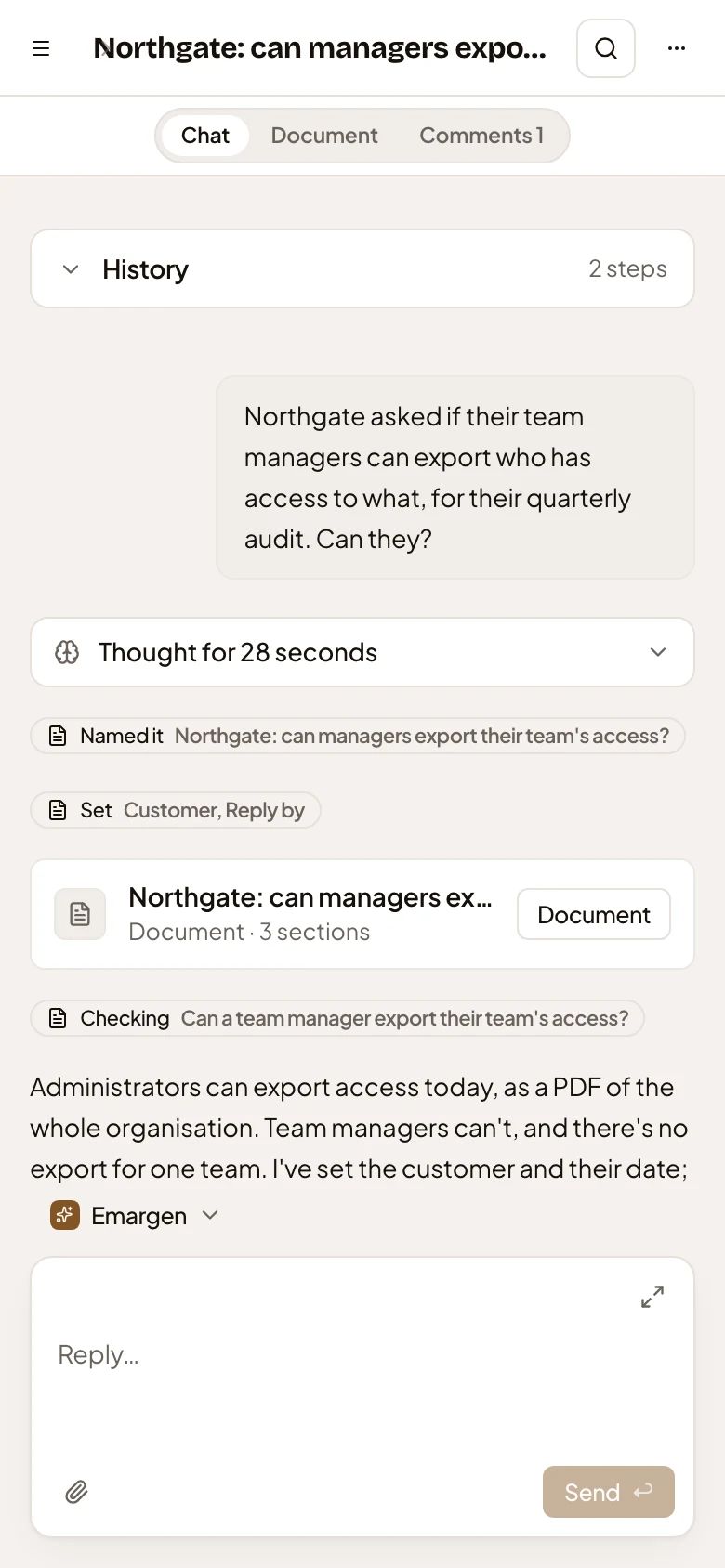
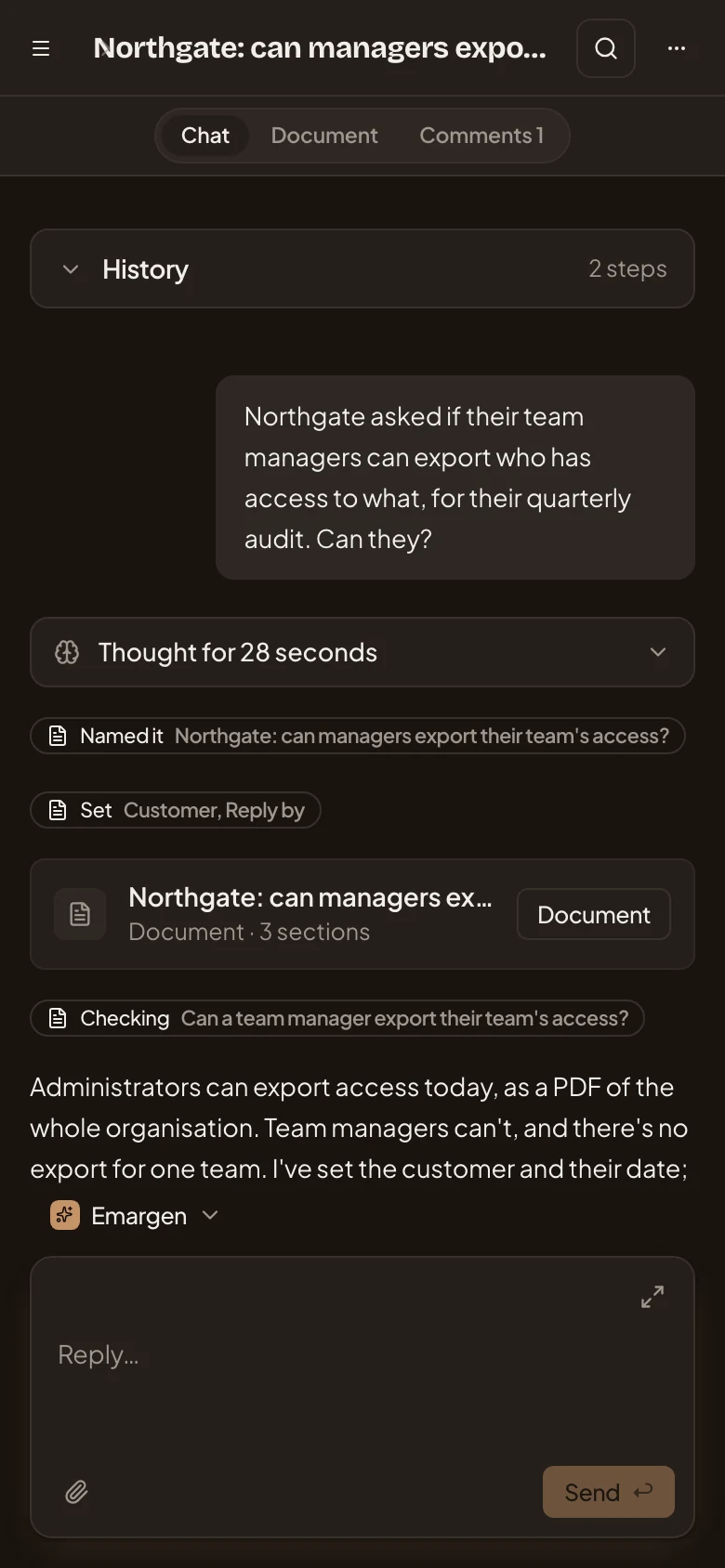
- Open the menu.
- The ⋯ menu. On a phone it also holds Sharing and the star.
- Chat, Document and Comments. Switch between the three.
- Document. The card for the document in the chat. Click it to read the document.
- The message box.
Access
Section titled “Access”Anyone who can open the topic sees this page. What you can do depends on how it’s shared with you:
- The owner changes fields, decides, chooses who sees the topic, and has the whole ⋯ menu.
- People who take part have their own chat whose agent writes for them. They change fields, decide, turn sections into subtopics and set up the topic’s agent task. Their ⋯ menu has everything but Move to…, and Sharing shows who sees the topic without letting them change it.
- People who read see the document and comments, comment, change labels and put the topic on their own lists. Their chat’s agent answers about the topic and drafts comments for them.
See Sharing.