

DecisionsPage by page
Decision Map
The Decision Map shows the decisions people took on everything you can open, over the days you choose, beside what’s still open. Open it with Map at the top of Decisions. See The Decision Map.
The picture shows the last quarter on ACME’s map, as its customer success lead sees it, with a lane for each initiative and topic where something was decided.
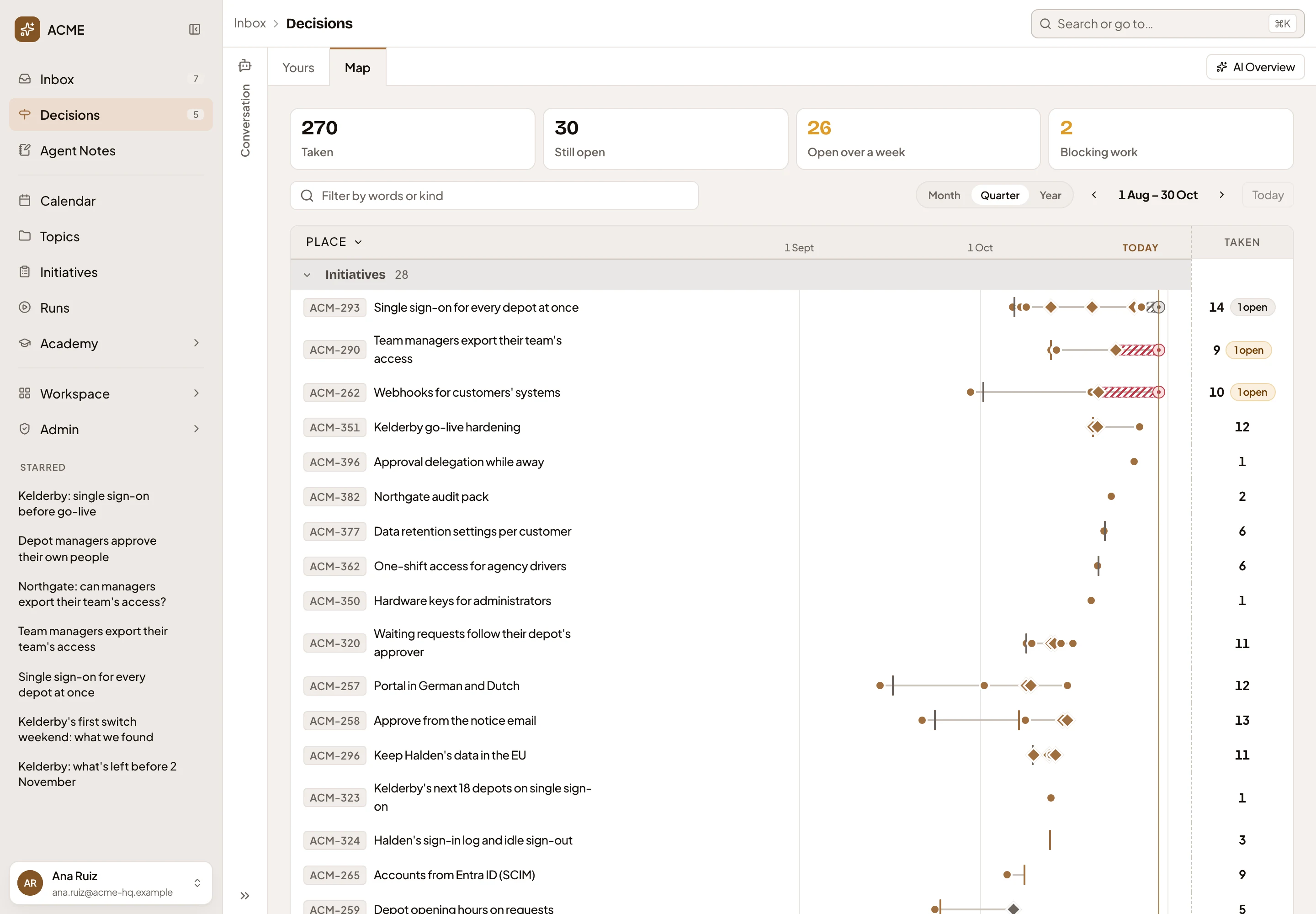
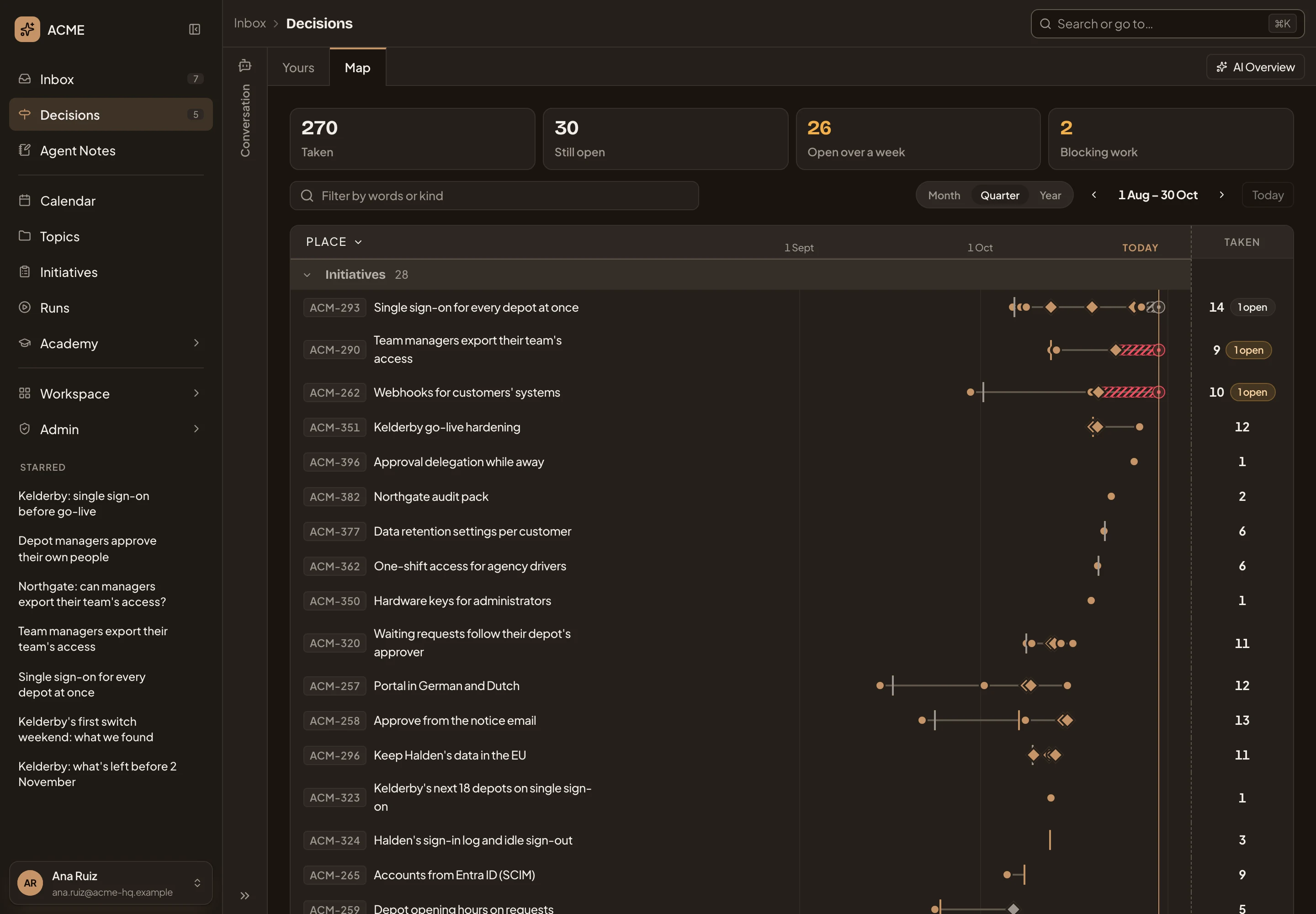
- Map. The map. Yours holds what waits on you.
- AI Overview. Opens the agent’s reading of what the map shows.
- Conversation. Your chat with the agent, the same one as in the Inbox.
- The figures. Taken counts the decisions in these days. Still open counts what’s open now. Open over a week counts what has waited more than seven days. Blocking work counts what other work waits on. Click one to show only those, and again to show everything.
- Filter the map. Words, kinds, or Involving me (see Narrowing the map).
- Month, Quarter and Year. How many days the map shows (see The year).
- Previous, Next and Today. Move a month, a quarter or a year at a time. Today returns to the current one.
- Place. What the lanes are: by place, by person or by kind.
- A place’s name. Opens its page in Decisions: what’s to decide there, what was decided, and its AI Overview.
- A decision, on its day. Point at it to read it. Click it to open its own page.
- Something still open: a ring on today, with how long it has waited drawn behind it. Click it to open it in Decisions.
- The lane’s totals: how many were taken, and how many are still open. The open count turns amber when one of them holds work up or has waited over a week.
Click the arrow beside a group’s name to fold or open it. The map remembers the days and lanes you chose.
The marks
Section titled “The marks”The key under the lanes says what each mark means.


A diamond is a big call, like a kickoff. A dot is a decision. A short line is a small one, like a requirement’s level. Grey was declined or set aside. A red ring is blocking work.
Lanes by person or by kind
Section titled “Lanes by person or by kind”Click Place above the lanes to choose what the lanes are.
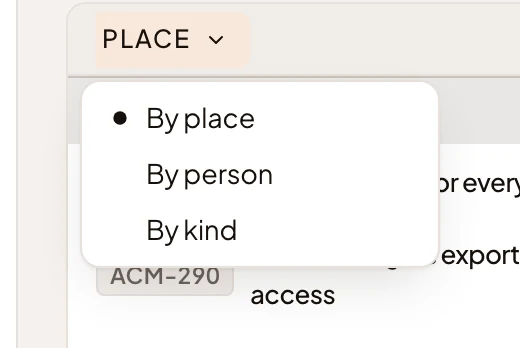
By person gives a lane to each person who decided, or whose turn it is. On the right, under Waiting, it counts only what waits on them, never how many they took. By kind gives a lane to each kind of decision. A person’s or a kind’s name opens AI Overview for that lane alone.
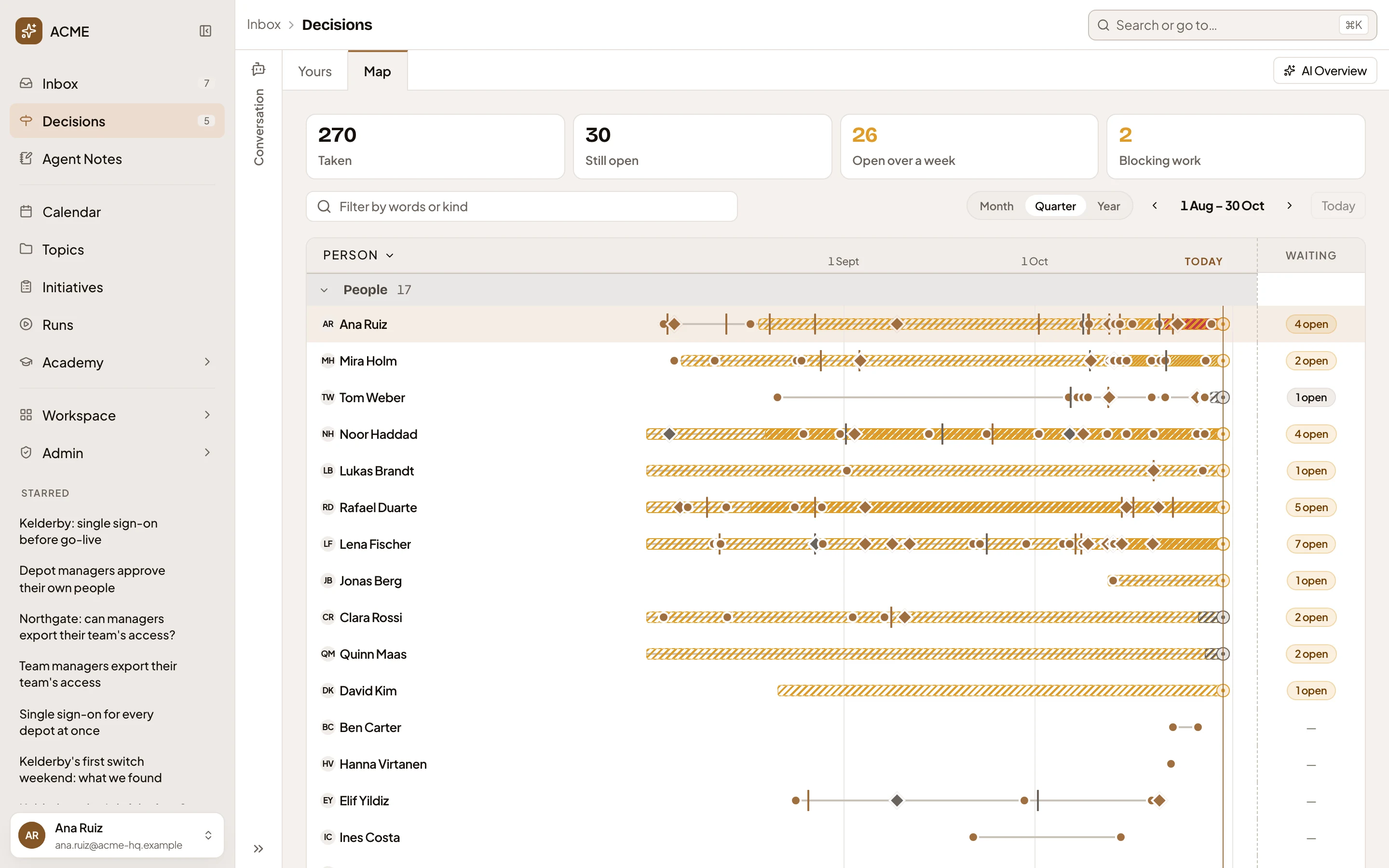
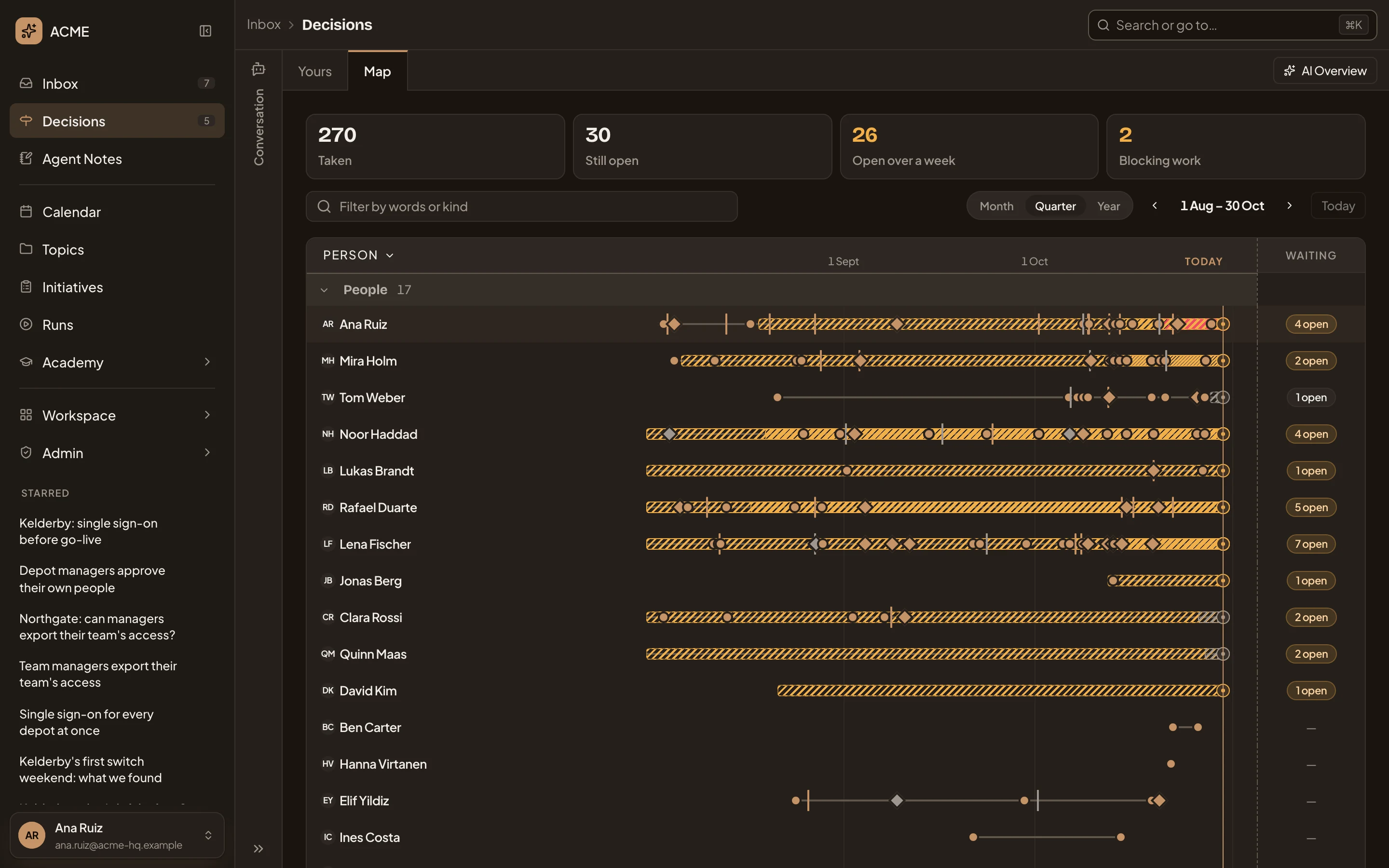
- Click a name to open AI Overview for that person’s lane.
- Waiting. What waits on each person now.
Narrowing the map
Section titled “Narrowing the map”Type in Filter the map to keep only decisions whose words match, or click it to choose from its menu.
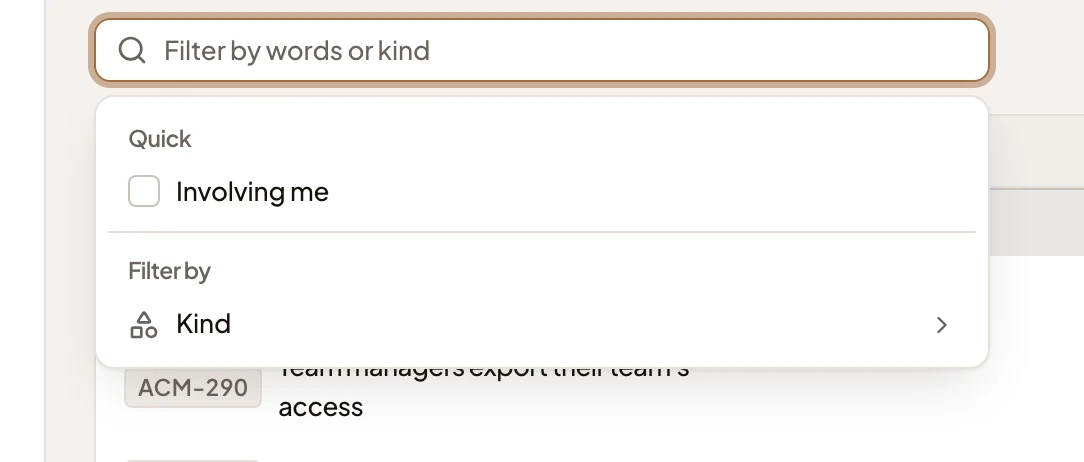
- Involving me keeps the places you own or take part in.
- Kind keeps one or more kinds. The kinds are change request, kickoff, version published, approach chosen, unknown decided, question answered, decision in a topic, requirement level, Landscape change and flow’s question.
Each choice appears in the box. Click its × to take it off. When the days hold more decisions than the map can draw, it draws the latest and tells you more aren’t shown.
The year
Section titled “The year”Year shows a month’s first four weeks as squares, grouped by quarter. The darker a square, the more was decided that week. A dot marks a week in which something was raised that’s still open. Click a week to see its month in lanes.
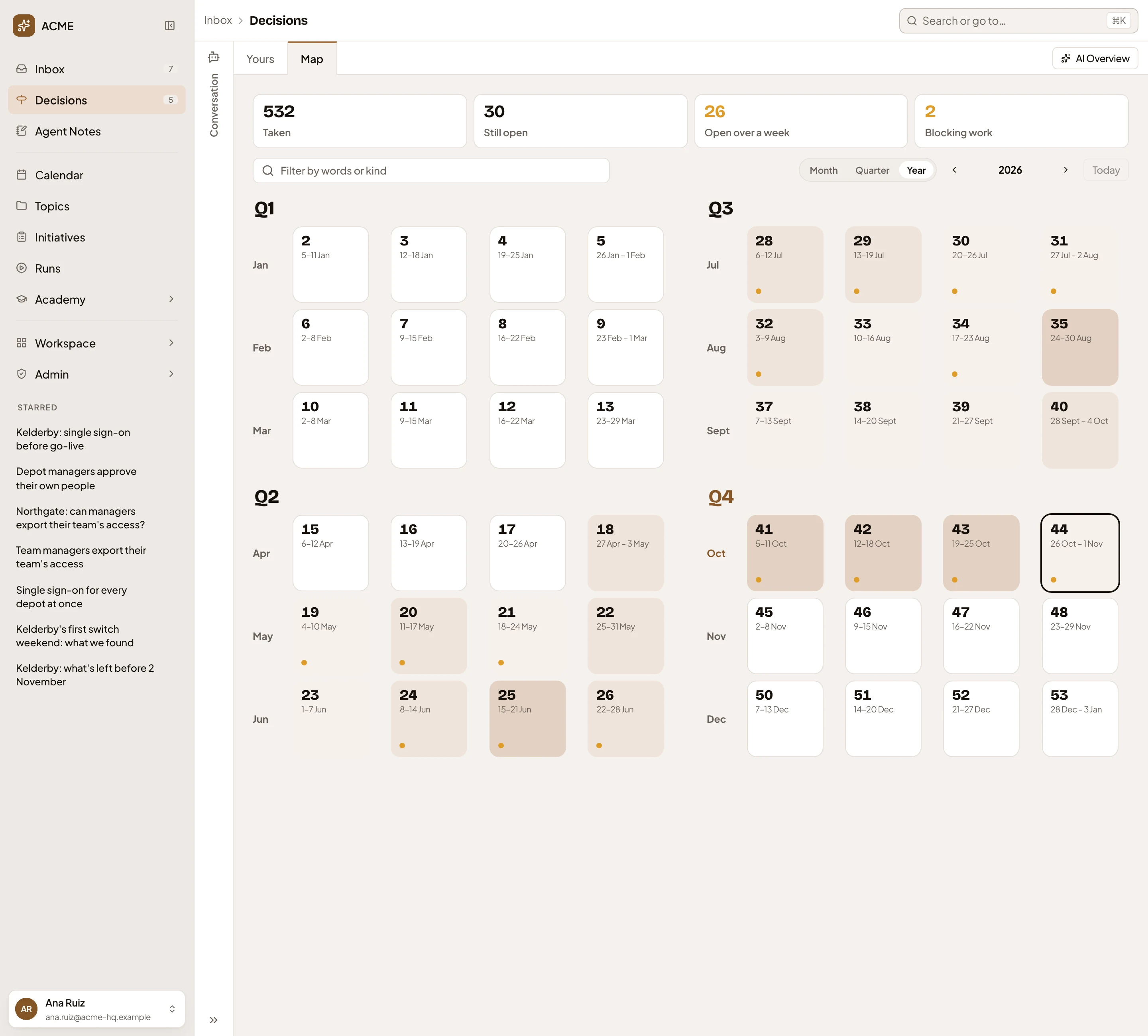
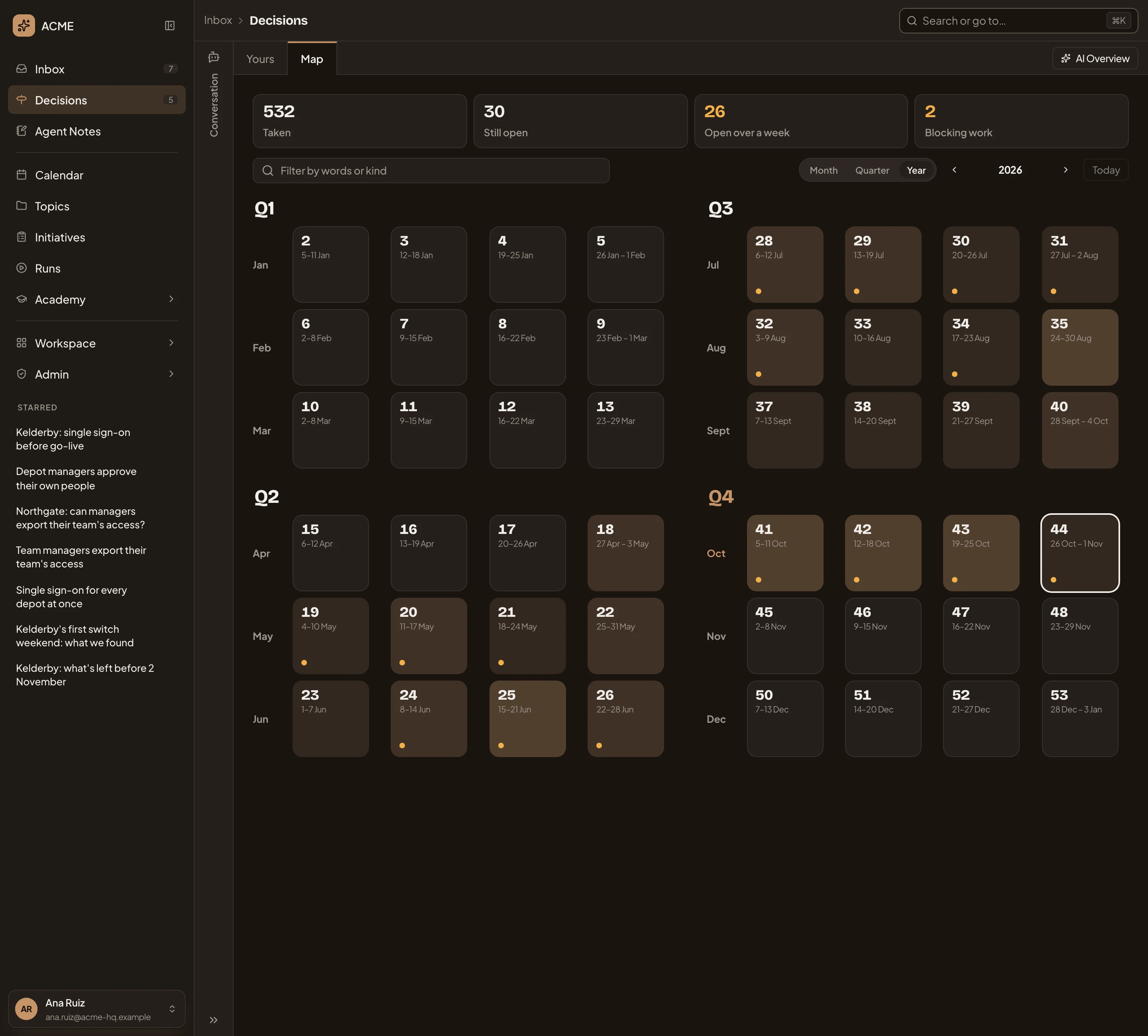
- A week with something raised in it that’s still open.
- A busy week. The shade says how much was decided.
When nothing was decided in the days shown and nothing is open, the map says “No decisions in this period, and none open.” When nothing matches the figure or the filter you picked, it says “Nothing on the map matches these filters.”
On a phone
Section titled “On a phone”Switch between your chat and the map. Each lane shows its marks under its name.
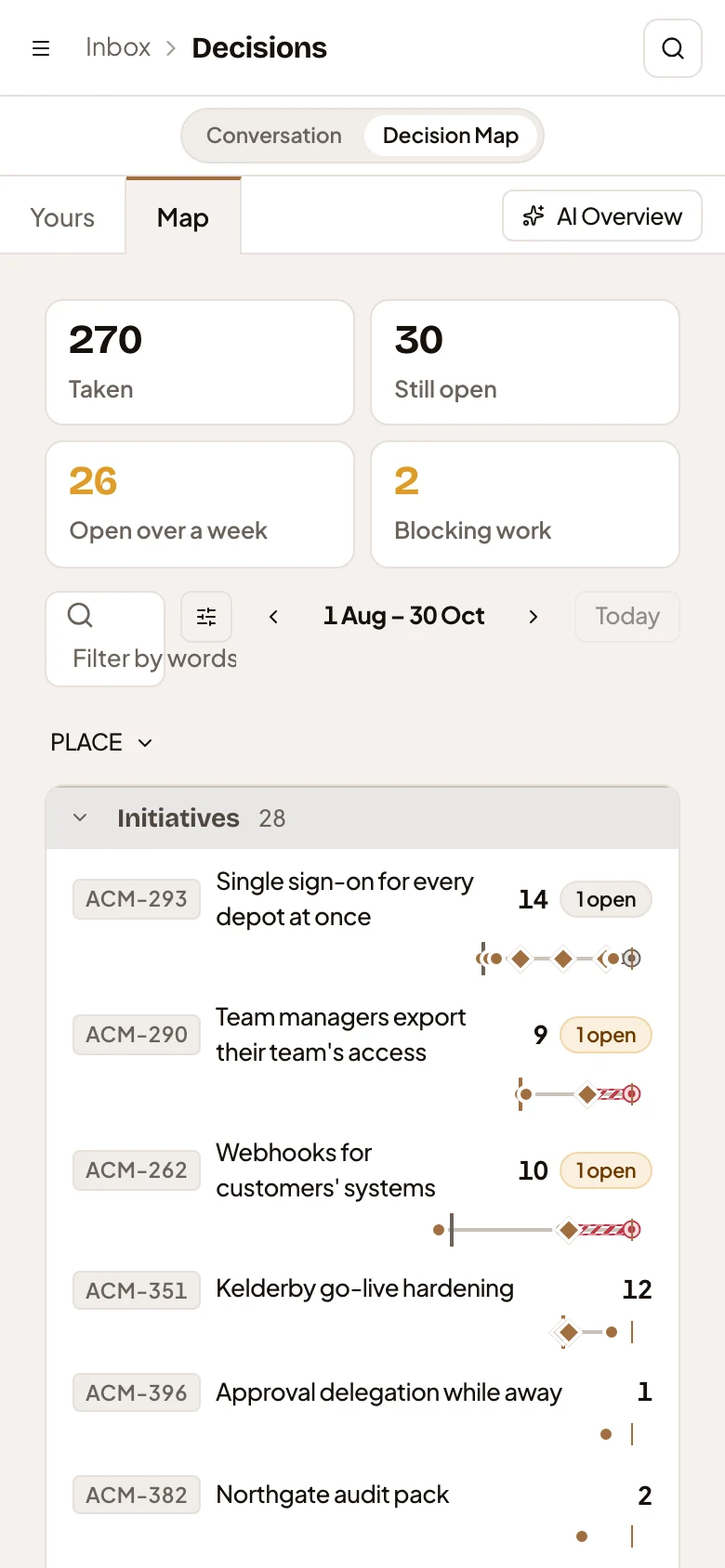
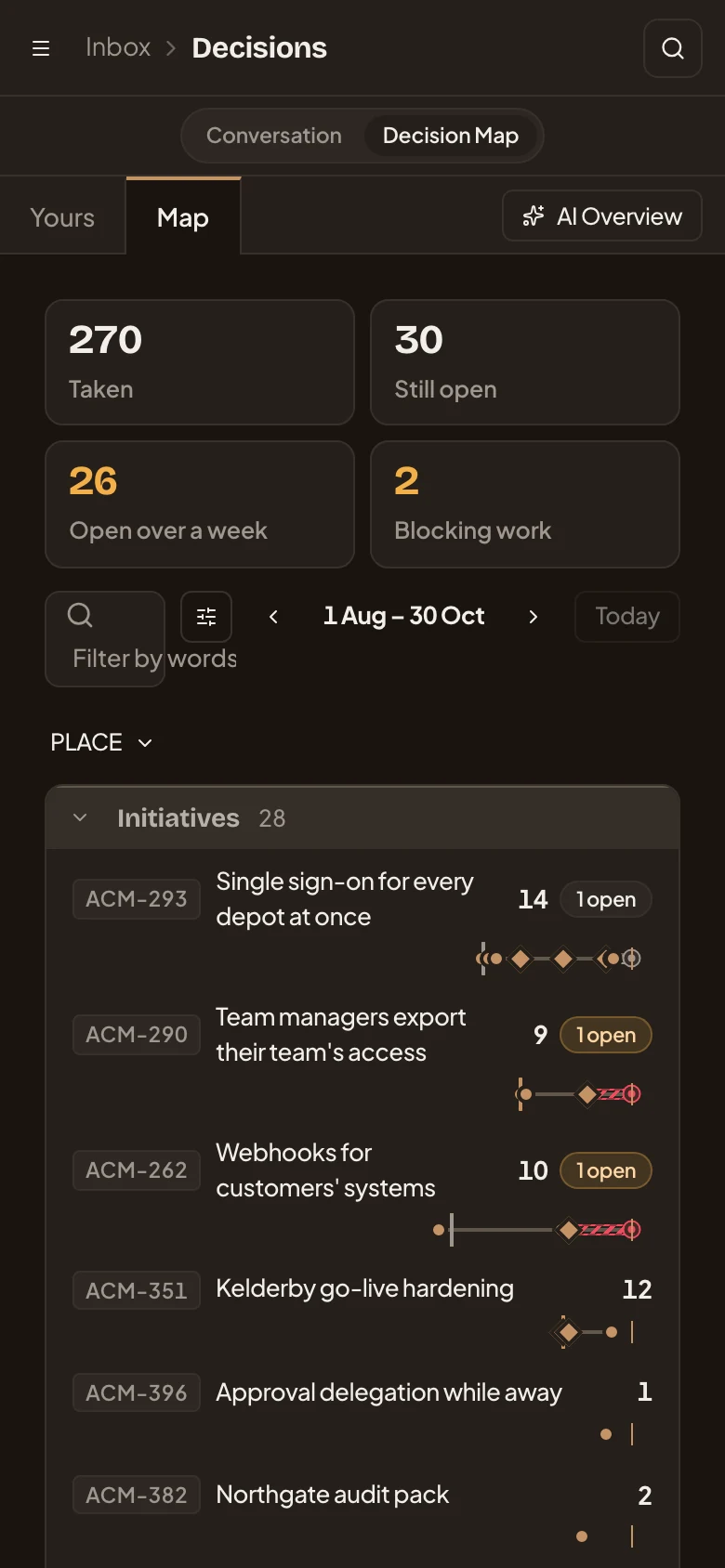
- AI Overview.
- Conversation and Decision Map. Switch between your chat and the map.
- View. Holds Month, Quarter and Year.
Access
Section titled “Access”Everyone in the organisation has the map. It shows only decisions on what you can open. That means the topics and initiatives you see, and the Landscape. A decision on a topic nobody shared with you is never on your map, nor in what the agent reads for you.