

AgentsHow to
Start a run of a flow
Start a run when there’s a flow for work that follows the same steps every time and passes between people. A customer’s security questionnaire that security approves before it goes out is one.
Before you start
Section titled “Before you start”- Who can
- Anyone the flow’s owner gives Runs. New run shows only the flows you may run, and a flow with a line Emargen can’t read can’t be picked until someone fixes it. See Let others run your flow.
- You need
- What the case is about: the ticket, the email or a few lines of your own.
- The pictures
- Ana Ruiz at ACME, the company in the docs’ pictures, about to start a run of its Security questionnaire flow for a customer’s questionnaire. ACME has no runs yet, so the pictures stop before Start run.
-
Open Runs in the menu and click New run. On a flow’s own page, Run opens the same page with the flow already picked.
Open New run (opens Emargen in a new tab) -
Under Flow, click Pick a flow and choose the flow. Its line on when to use it shows above, and the page asks for its Context and its Inputs.
-
Under Context, paste what you have, and click Fill in the form. The agent fills in the inputs from it and from your organisation’s knowledge, and says how many it filled. Each one it drafted says what it was drafted from.
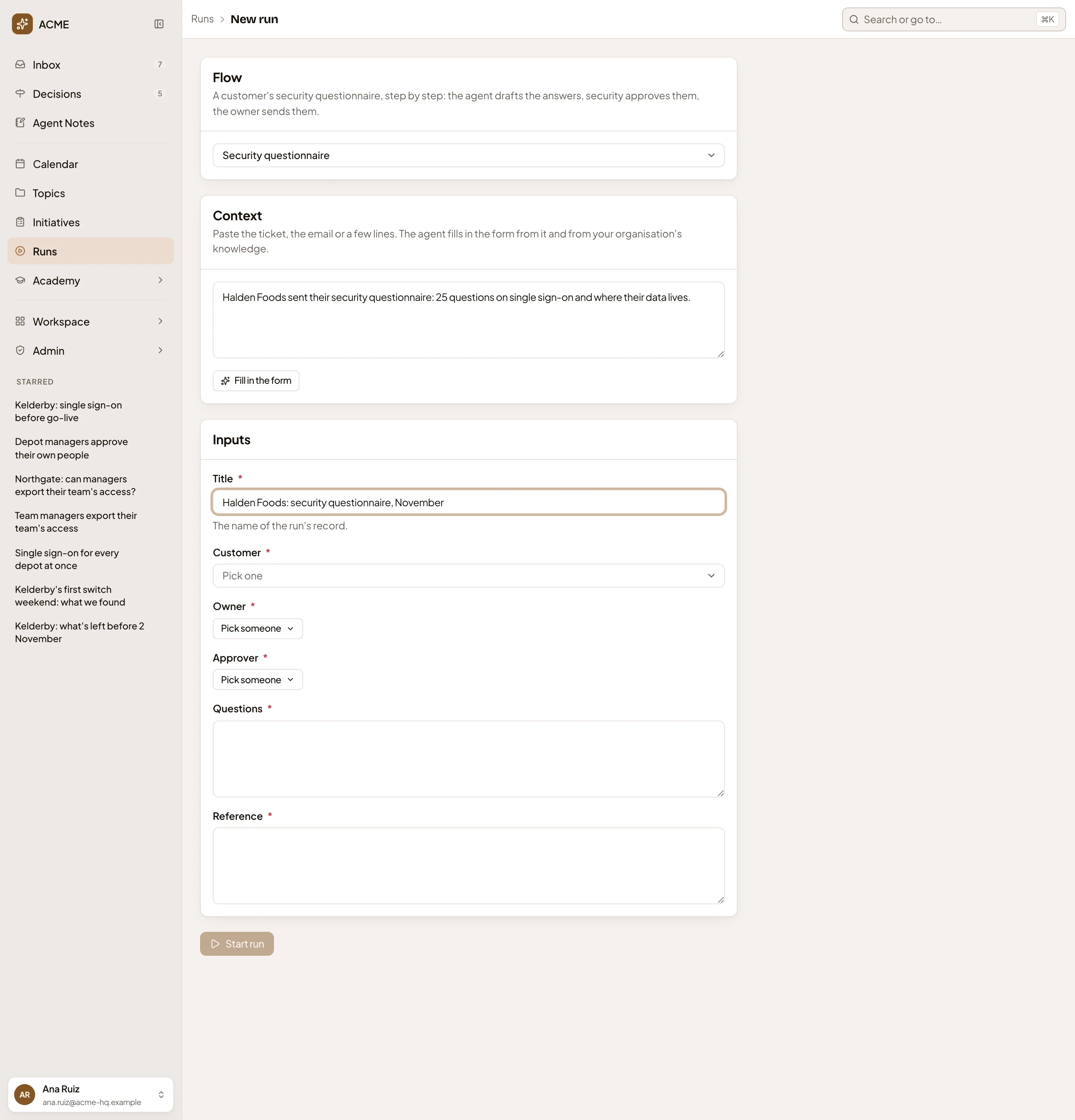
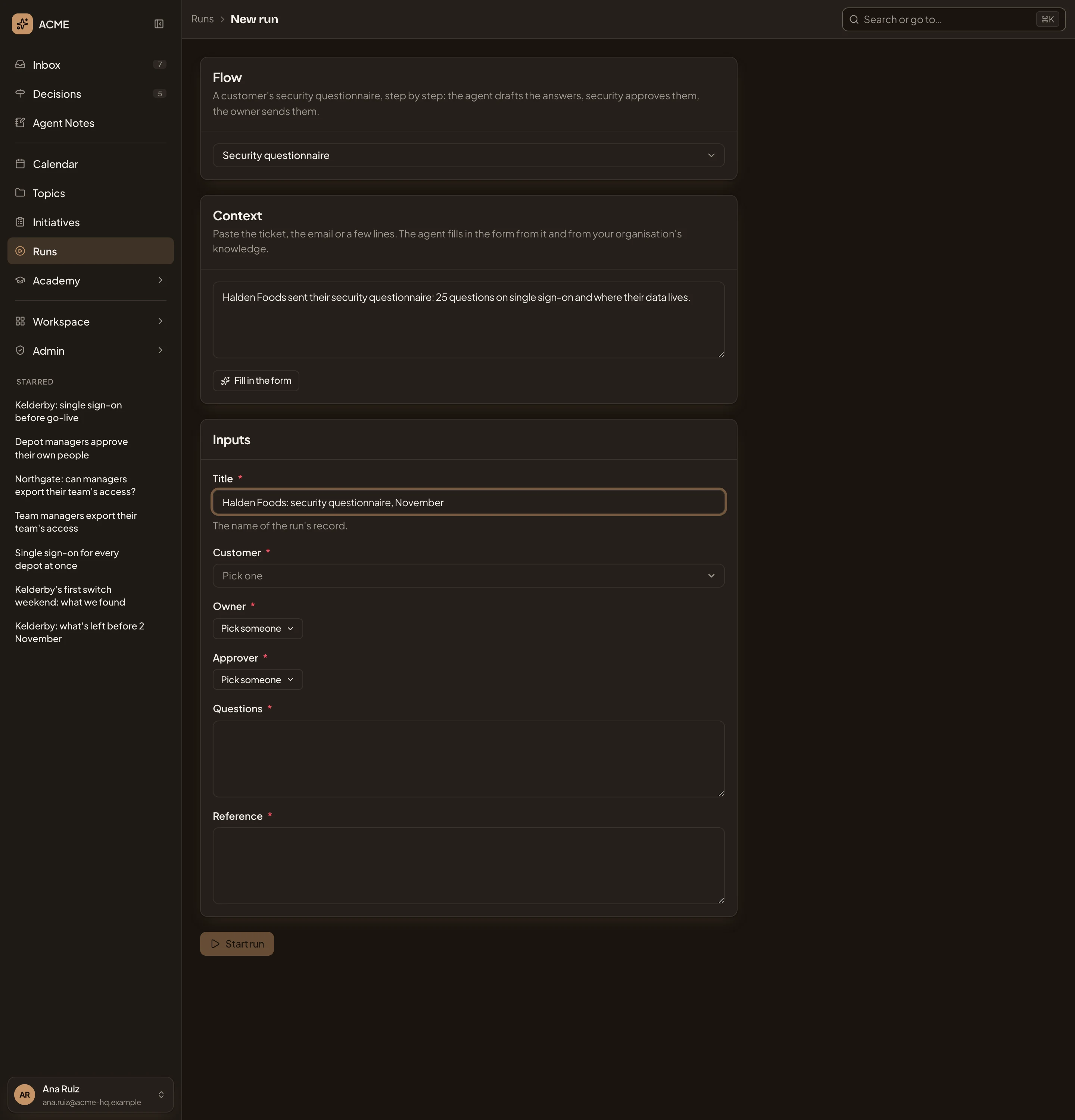
- Flow. The flow this run follows. Pick another one here.
- Context. What you have about the case.
- Fill in the form. The agent fills in the inputs from your context.
- Title. The name of the run’s record, the topic it writes.
- Inputs. What the flow needs to start, in the order it asks for them.
- Start run. Starts once the run has a title and every input that isn’t optional.
-
Check the Title and each input, and change what isn’t right. For a person, click Pick someone. With nothing to paste, skip Fill in the form and fill the inputs in yourself.
-
Click Start run. Emargen first checks the inputs against the flow’s rules. If one breaks a rule, it says which, so you can fix the input or give a reason and click Start anyway. The reason is saved with the run. Then the run’s page opens.
What you get
Section titled “What you get”- A run with its own key, listed in Runs. Its page shows where it stands and what waits on whom.
- The run’s record, a topic with your title. People answer what the run asks them there, and each request also reaches their Inbox.
- The flow’s first steps under way. The agent drafts the steps the flow gives it, and Emargen tells the people the flow names.
The run stays on the version of the flow it started with. You, or the flow’s owner, can stop it with Stop run on its page. It keeps its work but can’t be started again.
Let others run your flow
Section titled “Let others run your flow”On a flow you own, give Runs to the people who should start runs of it.
-
In the menu, click Expand Workspace, then Flows, and click the flow’s name.
-
Under Sharing, choose Everyone if the flow isn’t shared that way yet.
-
In the row Everyone in the organisation, click Views and choose Runs, so everyone can start runs of it. To give Runs to one person instead, choose Shared or keep Everyone, click Add people and pick them. Then choose Runs in their row.
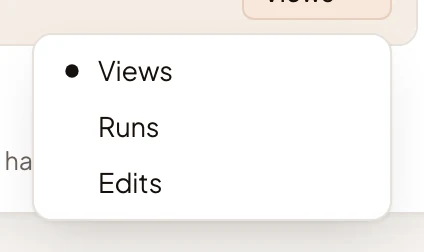
The change is kept as soon as you make it. From then on, the flow shows on their New run.