

TopicsHow to
Start a topic
Start a topic whenever you have something to work through with the agent. It might be research, an idea you want to test, or a customer’s question. The agent reads what your organisation has connected to Emargen, and tells you what it found and where it looked.
Before you start
Section titled “Before you start”- Who can
- Anyone in the organisation can start a topic. It’s yours alone until you share it.
- You need
- What you want to work through, in your own words. Notes, an email or a file help. Paste them into the message, or attach them.
- The agent reads
- What your organisation has connected to Emargen: documents, tools like Jira and Confluence, and your code. When the agent can’t look somewhere, it says so.
- The pictures
- ACM-281 at ACME, the company in the docs’ pictures: a customer question the agent has already worked through. Yours will look different.
-
Open New topic. It’s also above the list in Topics. The page asks What do you want to think through? and has one message box.
Open New topic (opens Emargen in a new tab) -
Write what you want to work through, the way you’d tell a colleague. Say who it’s for and why it matters. The picture has a customer’s question: “Can a depot manager see who approved a request for someone in their depot?”
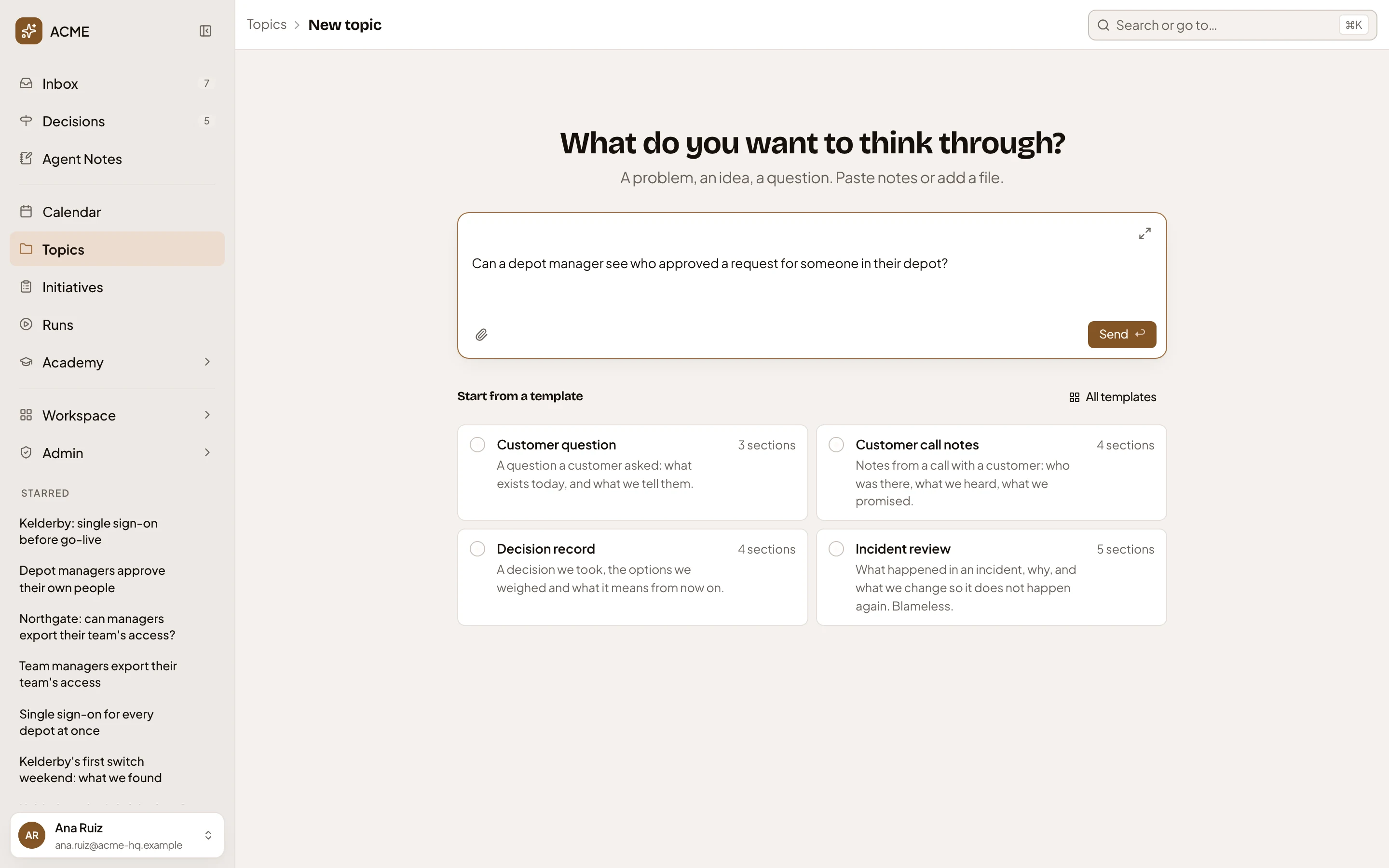
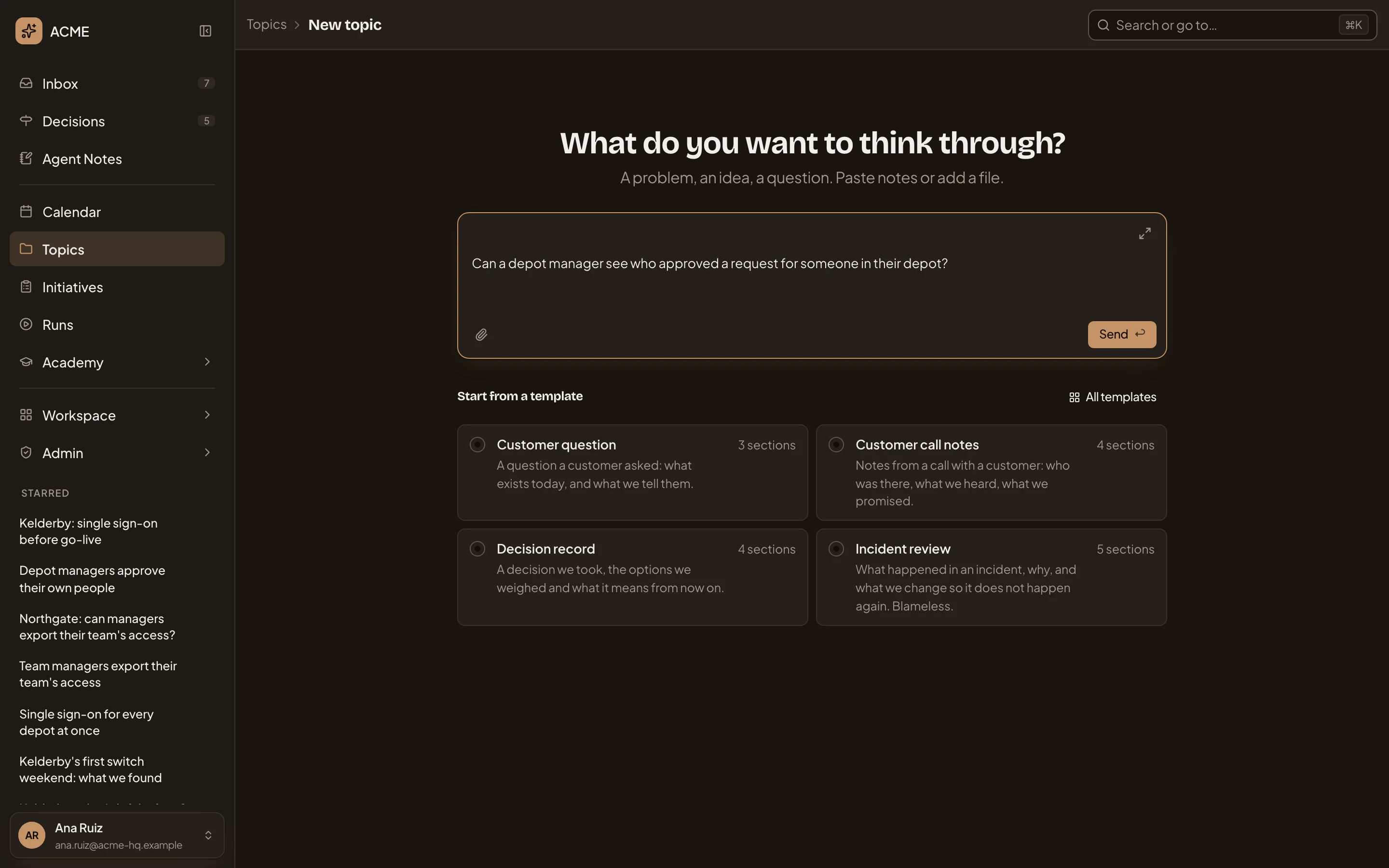
- The message box. The arrows at its top right make it bigger.
- The paper clip, to attach files.
- Send, which starts the topic.
-
Click Send. The topic’s page opens, with your message at the top of the chat. It already has a key, like ACM-281, and reads “Untitled topic” until the agent names it. The first time you start a topic, the agent also says a few words on what topics are for.
The chat shows what the agent is doing as it works. Started the document marks its first write. Then it answers in a few lines.
The small document appears beside the chat once there’s something in it. A check can take a minute. Its result lands in the document when it’s done.
If the agent can’t finish, one line takes the place of its answer and says why, often that the AI service didn’t answer. What it already wrote stays. “Send again” beside the line tries once more. If the line says no model is set for chats, ask whoever manages models in your organisation.
Here’s ACM-281 after the agent’s first answer. It follows a template, Customer question, so its chat also has a Set line for the fields the agent filled in.
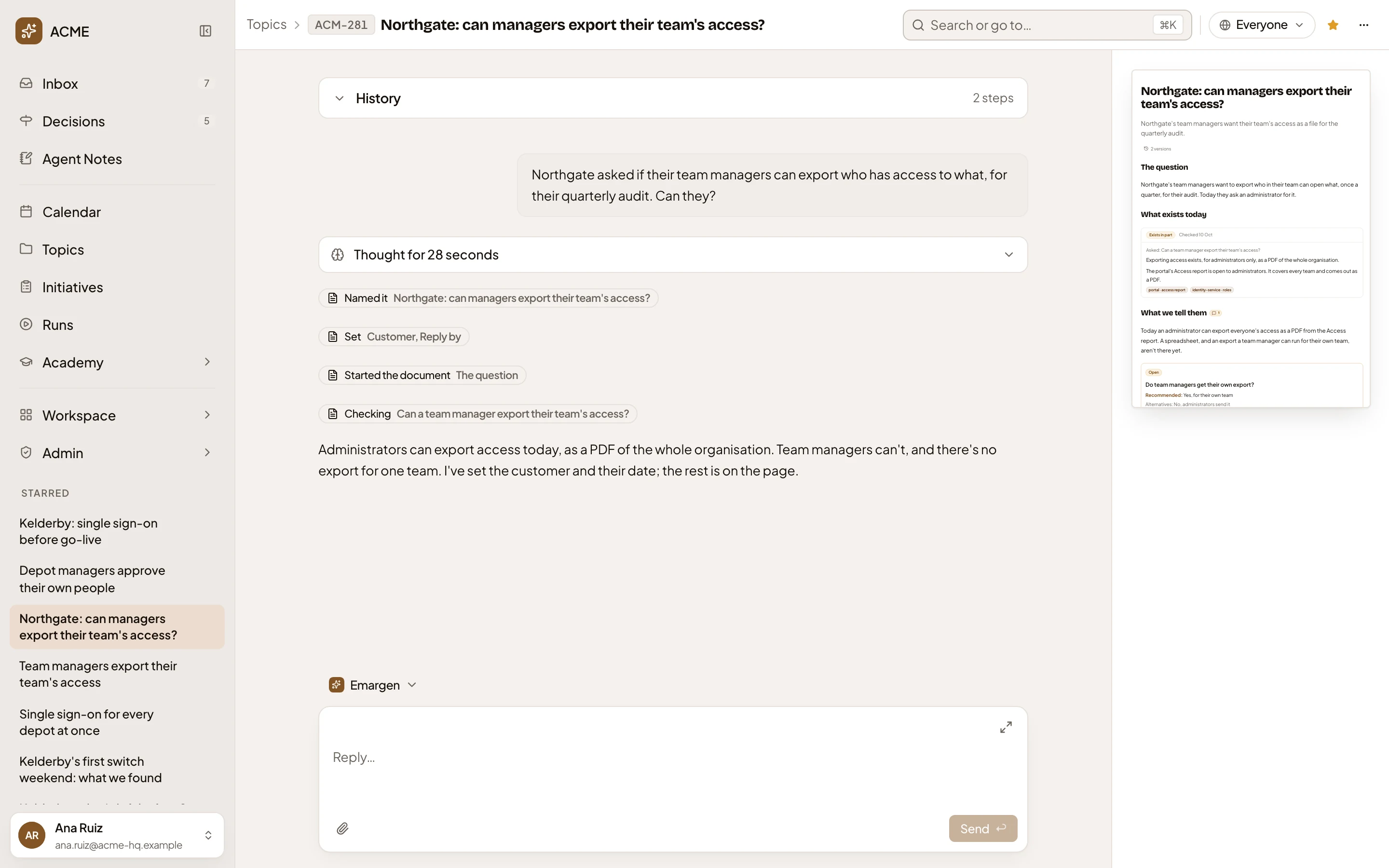
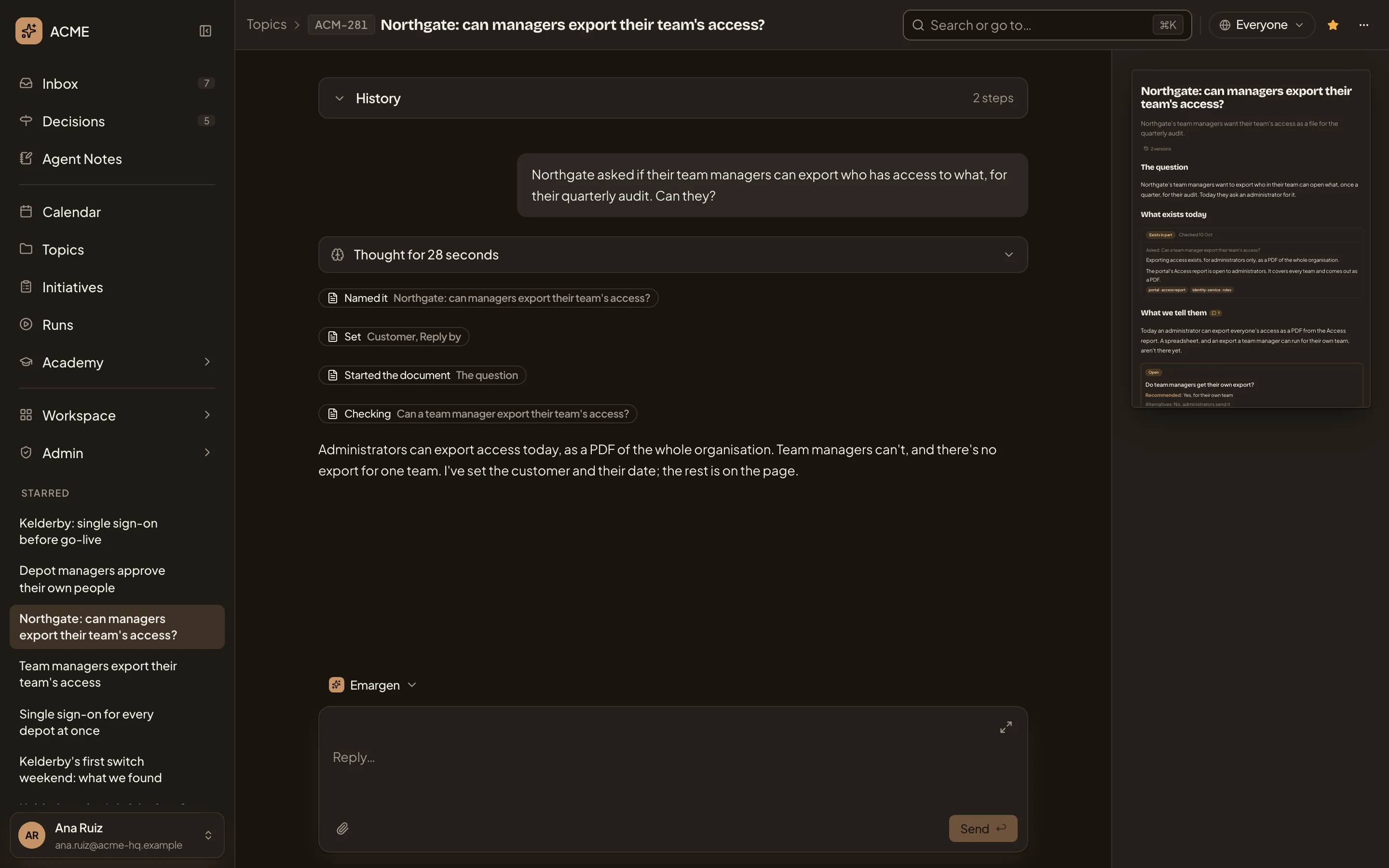
- Named it: the title the agent gave the topic. It’s also in the bar at the top, after the key.
- Checking: something the agent is checking in your organisation’s sources.
- The topic’s document, small. Click it to open it beside the chat.
- The message box, to say more or steer the agent.
-
Click the small document, or its Open button. The document opens beside the chat, and the chat moves left under Chat and Comments. Under the title are its labels, lists and fields, then the sections written so far.
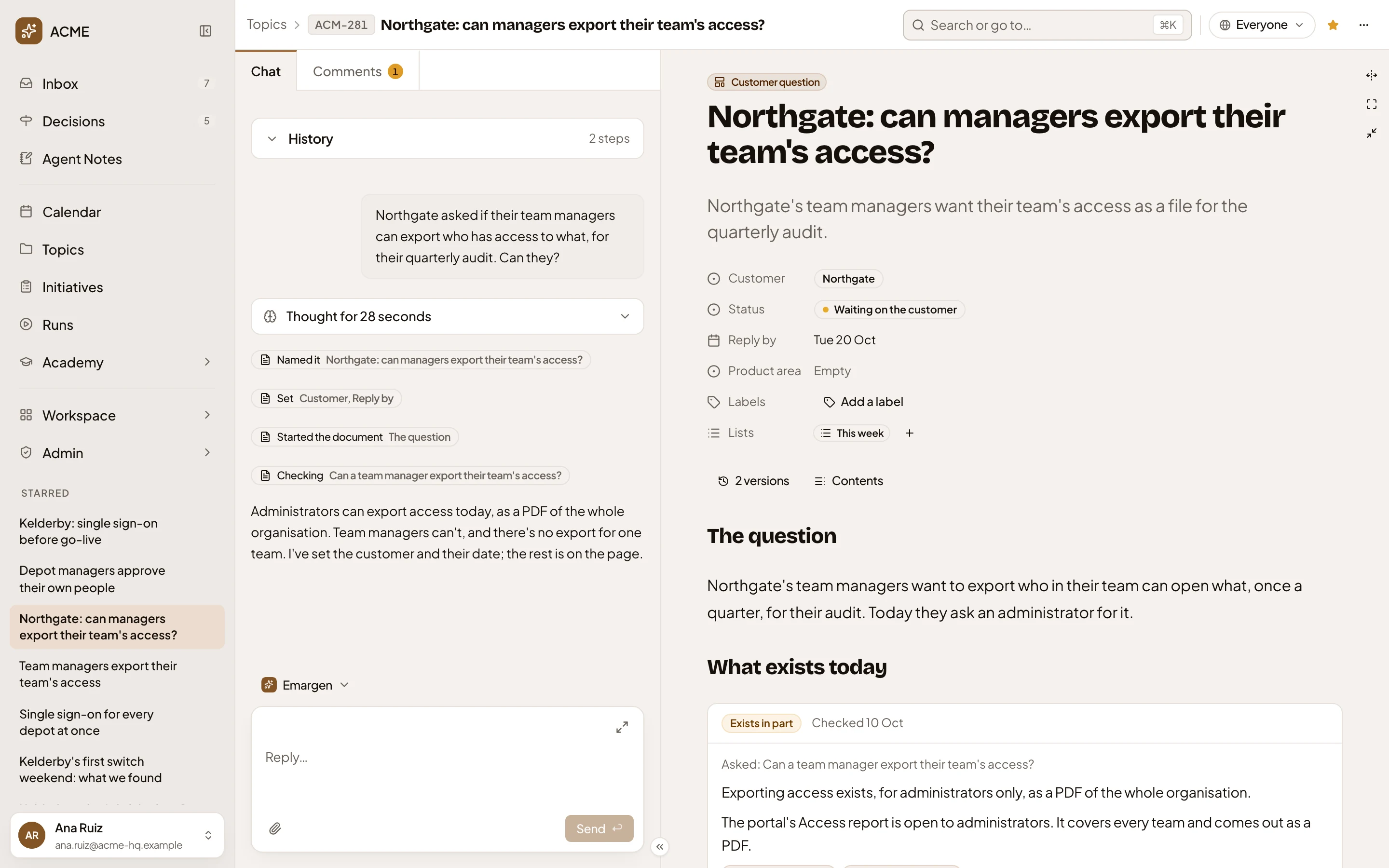
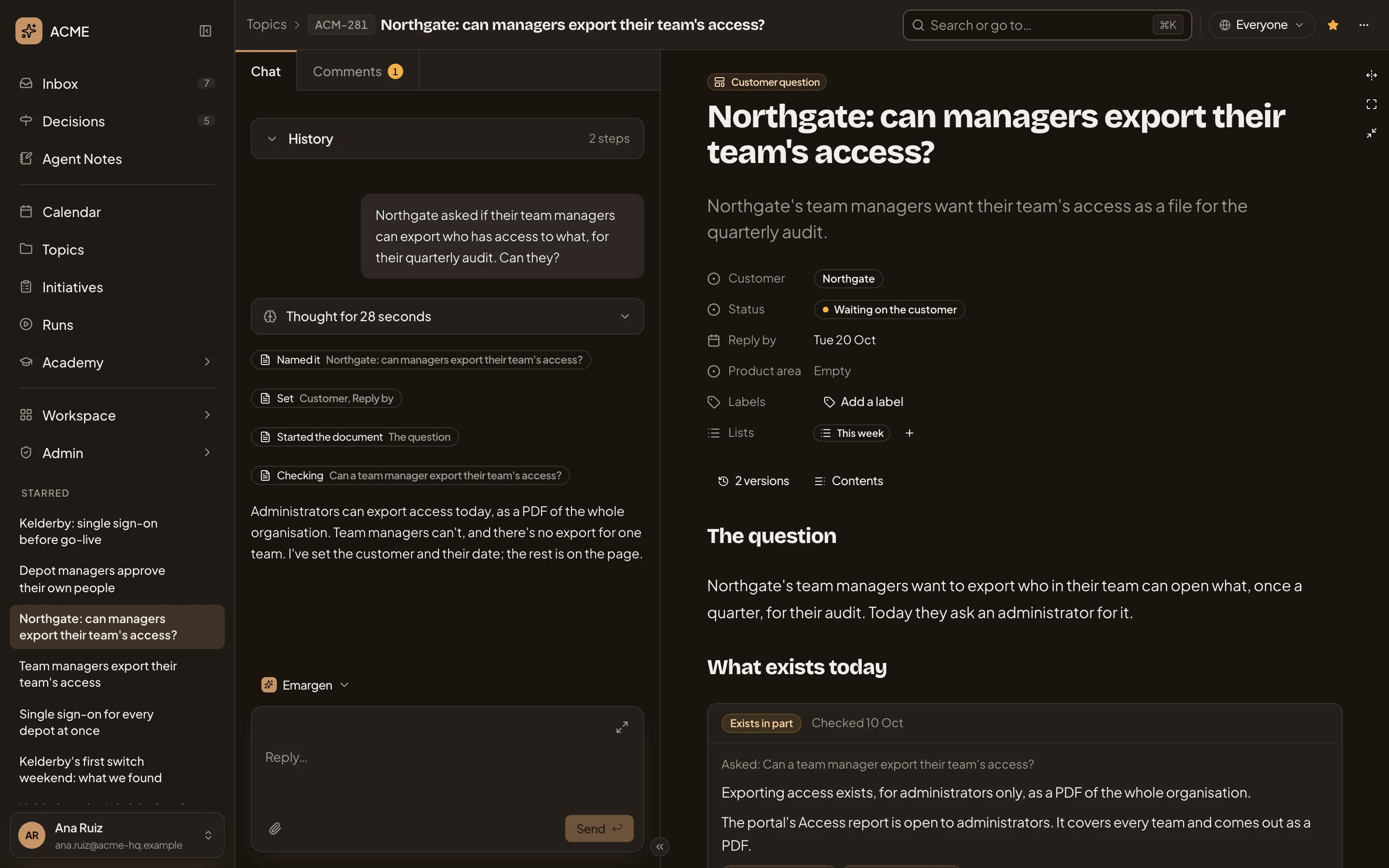
- Chat: your conversation with the agent on this topic.
- The title, and the one sentence that says what the topic is about.
- What a check found. Here it’s Exists in part. It can also say Exists, Missing or Unclear. The box says when it checked, and the places it looked show as tags at its foot. Anything it couldn’t look at is listed under the box, after “Not seen:”. With nothing connected, a check can’t tell, and says Unclear.
-
Keep going in the chat. Ask for more, correct it, or add what you know that isn’t in its sources. The agent writes into the document. The chat shows a Started line for a new section and a Wrote line for one it rewrote. It may also hold back, say from drafting a reply to a customer before a check has finished, and tell you why.
It may offer to shape the topic as a template, on a card like “Shape this topic as Customer question?”. Nothing changes unless you press the button named after the template. See Start a topic from a template.
What you get
Section titled “What you get”- A topic with its own key and title, under Triage in Topics until you put it on a list.
- A document with what the agent found, what it checked and where it looked. Only you can read it until you share it.
- Your own chat with the agent on the topic. Nobody else reads it.