

WorkspaceHow to
Approve a Landscape proposal
Approve a Landscape proposal when a colleague or an agent has proposed a new name, a change or a removal. Until someone decides, the agents don’t use it.
Before you start
Section titled “Before you start”- Who can
- You need a role that lets you approve Landscape changes. Administrators have that permission, and an administrator can give it to any role (see roles and permissions).
- Other ways in
- Each proposal also waits in your Decisions, under Landscape. You can decide it there too.
- The pictures
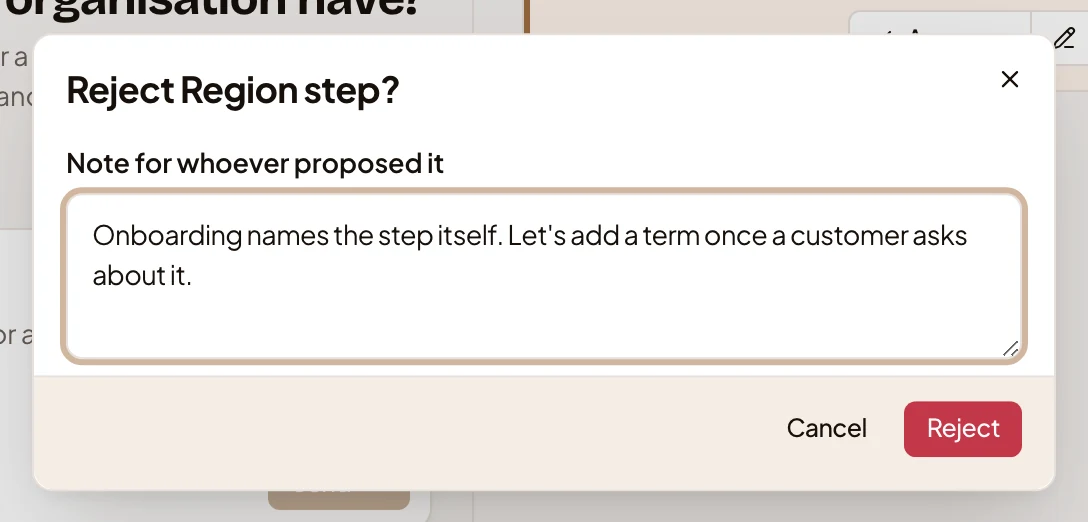
- Ana Ruiz, an administrator at ACME, decides Region step. The security lead proposed the term for a step in onboarding that the Landscape had no word for.
-
In the menu, open Workspace and click Landscape. Click the search box at the top of the table, which on Systems reads Find a system, and pick Waiting for approval, which says how many wait.
Open what waits for approval (opens Emargen in a new tab)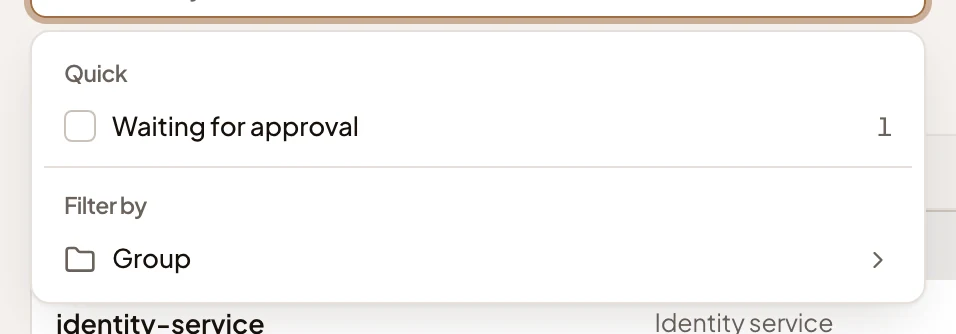
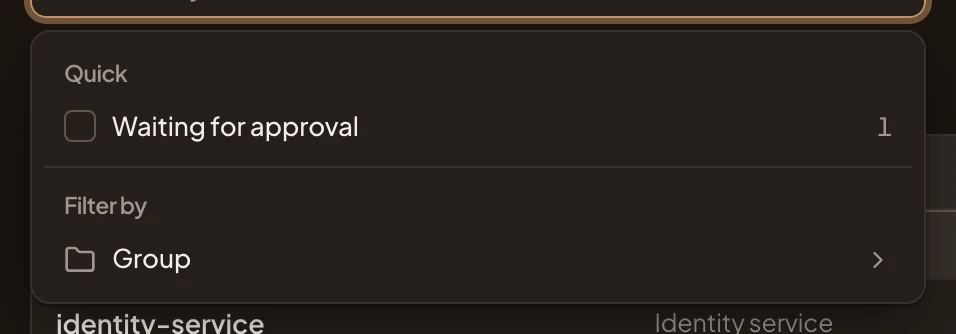
- Waiting for approval.
-
You see proposals of every kind, who proposed each one and where the name came from. Click one to see your choices under it.
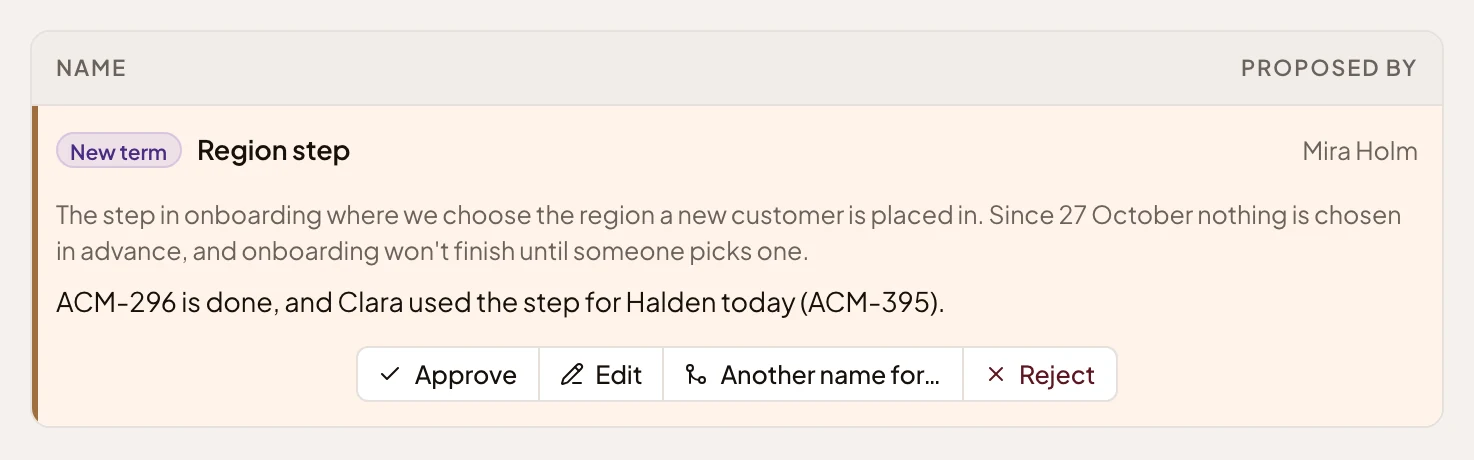
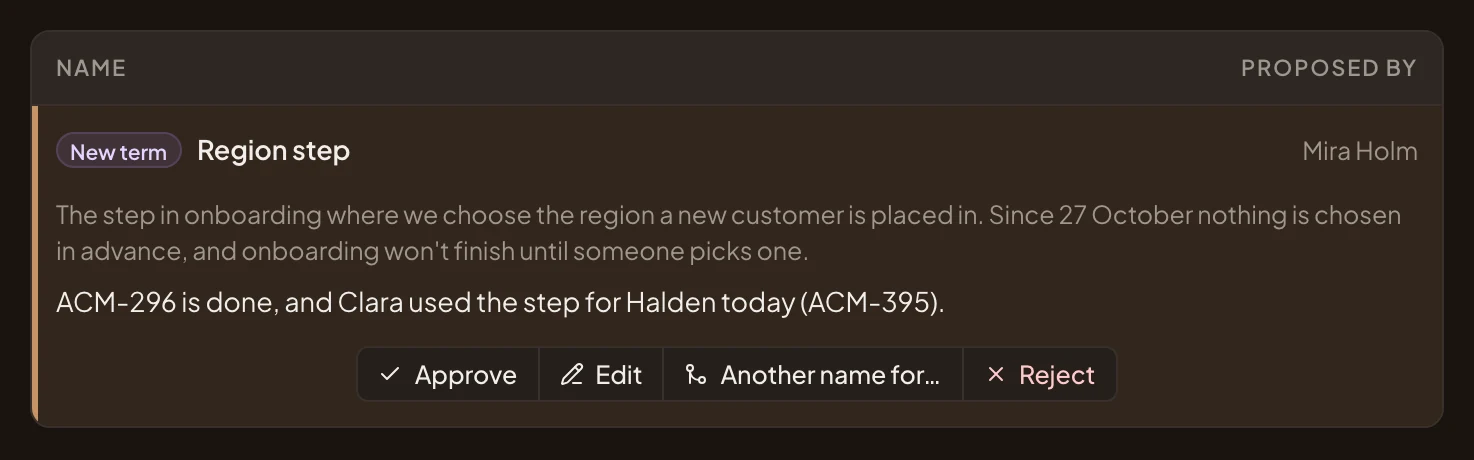
- What it would do (New term) and the name.
- Approve. Takes it as it is.
- Edit. Opens it, to change it before you approve.
- Another name for…. Adds its names to an entry you already have.
- Reject. Turns it down, with a note.
-
Then decide.
- If it’s right as it is, click Approve. It leaves the list, and the entry is on the Landscape.
- If something needs changing, click Edit. Review proposal opens, filled in as proposed. Change the name, the definition, its other names or what it’s under, then click Approve. Cancel takes you back to Waiting for approval.
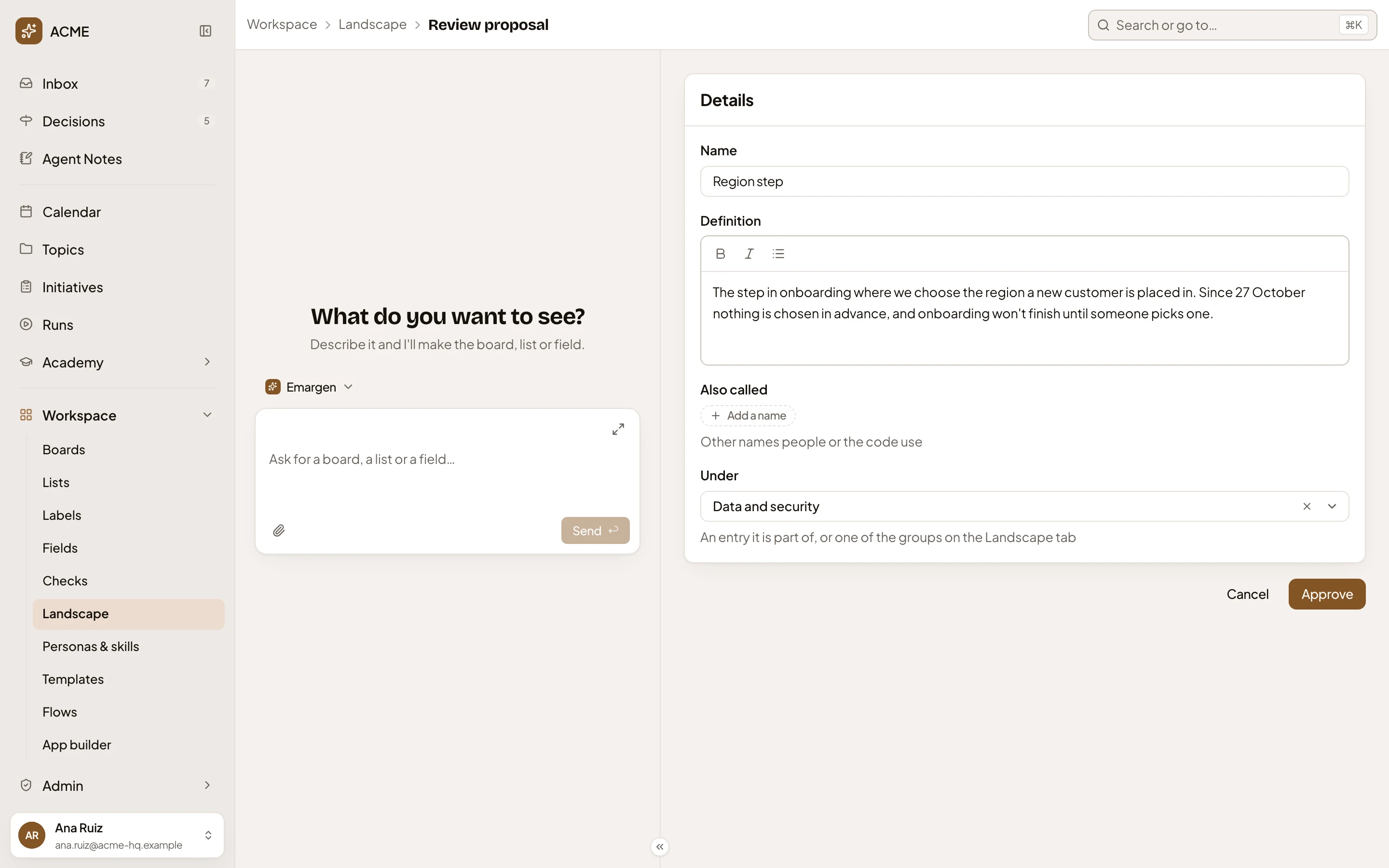
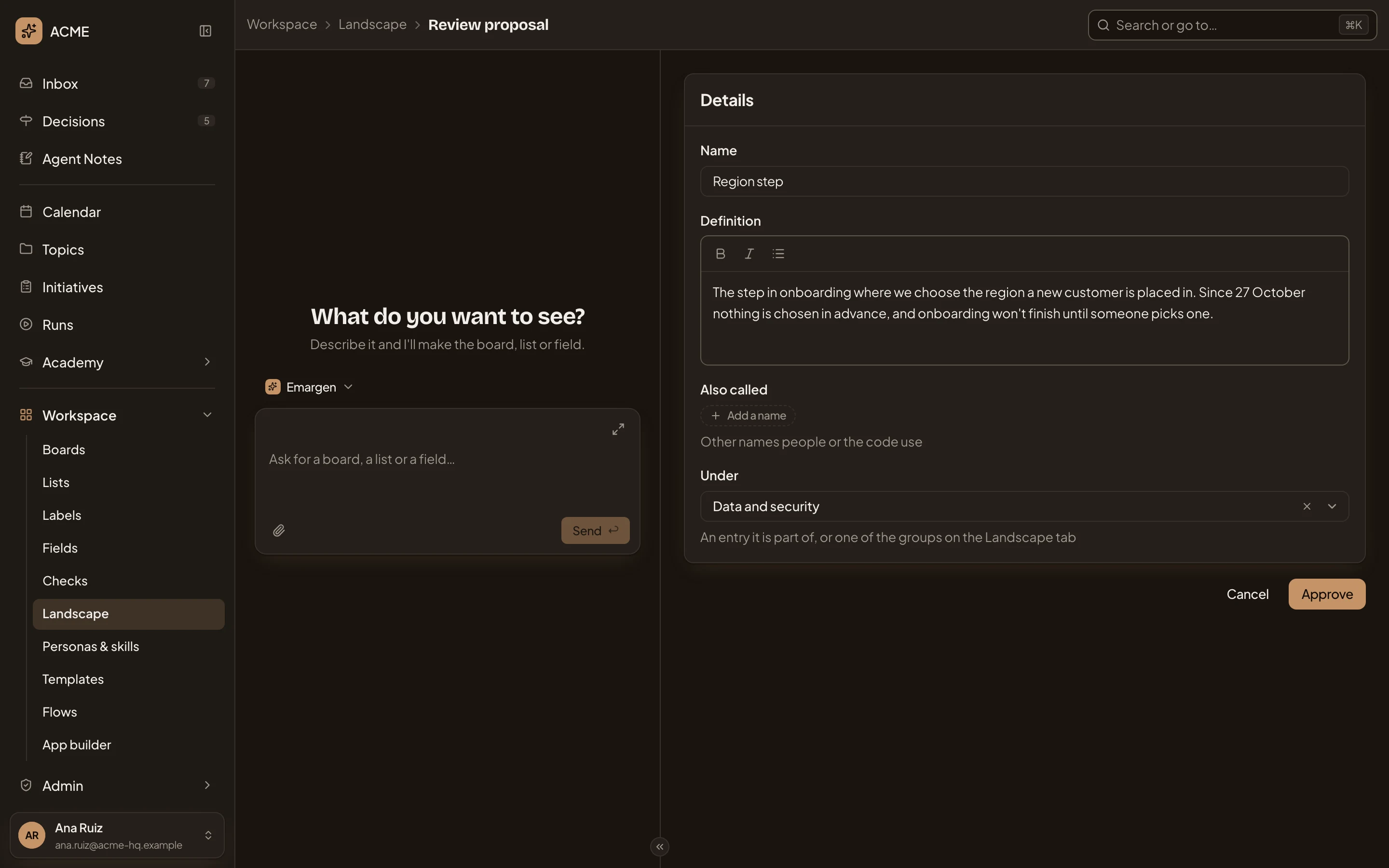
- Definition. Change anything the next reader would misread.
- Approve. Applies the proposal with your changes.
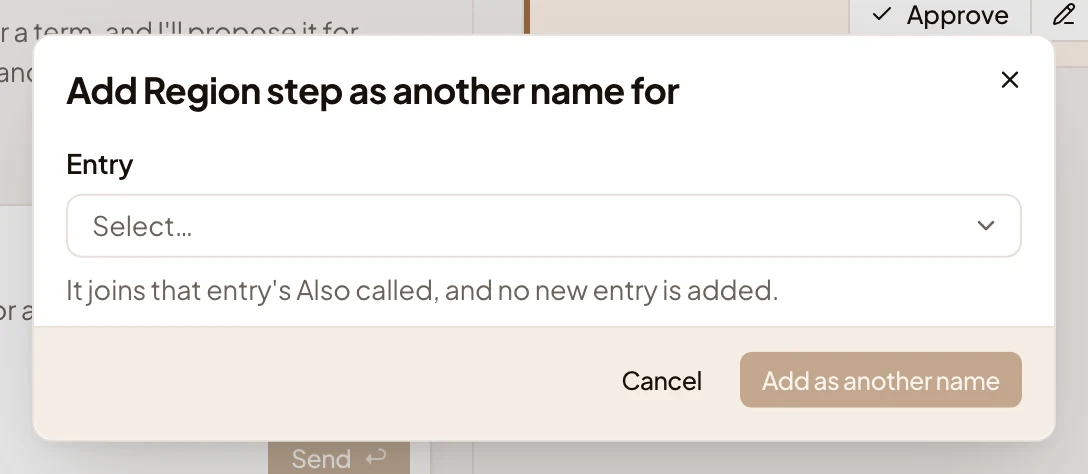
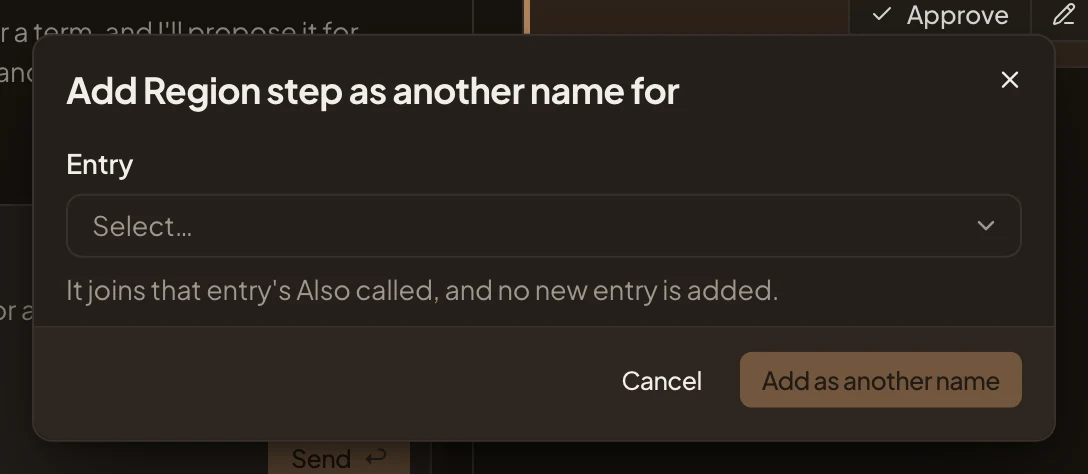
- If the Landscape already has it under another name, click Another name for…. Pick the entry under Entry, then click Add as another name, which stays greyed until you pick one. Its names join that entry’s Also called, and no new entry is added.
- If it doesn’t belong, click Reject. Write a note for whoever proposed it if you like, and click Reject.
What you get
Section titled “What you get”- An approved entry is on the Landscape. Its History shows Added by, with your name and the day. The agents write its name from then on and recognise its other names. Approve an entry with another name beside it, and an agent writes the entry’s name wherever the other appears.
- Your decision counts for every approver, and it clears the proposal from Waiting for approval and their Decisions. With nothing left, Waiting for approval says “Nothing is waiting for approval.”
- Whoever proposed it isn’t told. They find an approved entry on the Landscape. A rejected change or removal shows in the entry’s History as Rejected by and your name. Every proposal you decide, with your note, is on the Decision Map, which everyone reads.
- A removal you approve takes the entry out, and the agents stop using it. Text they already wrote keeps the name.