

AgentsHow to
Pick a persona
Pick another persona when you want the agent to work differently in a chat. Before an answer about customer data goes out, for example, you might want a security reviewer to write it. See Personas and skills for the idea.
Before you start
Section titled “Before you start”- You need
- Open a chat that has a persona above its message box, like a topic’s. You also need a second persona to pick, one of the organisation’s or one of your own (Make a persona).
- The pictures
- ACM-281 at ACME, the company in the docs’ pictures, holds a topic on whether a customer’s team managers can export their team’s access. Any topic of your own will do.
-
Open a topic of yours. Above the message box is the persona the chat runs as. It starts as Emargen, unless you or your organisation chose another default.
Open the topics list (opens Emargen in a new tab)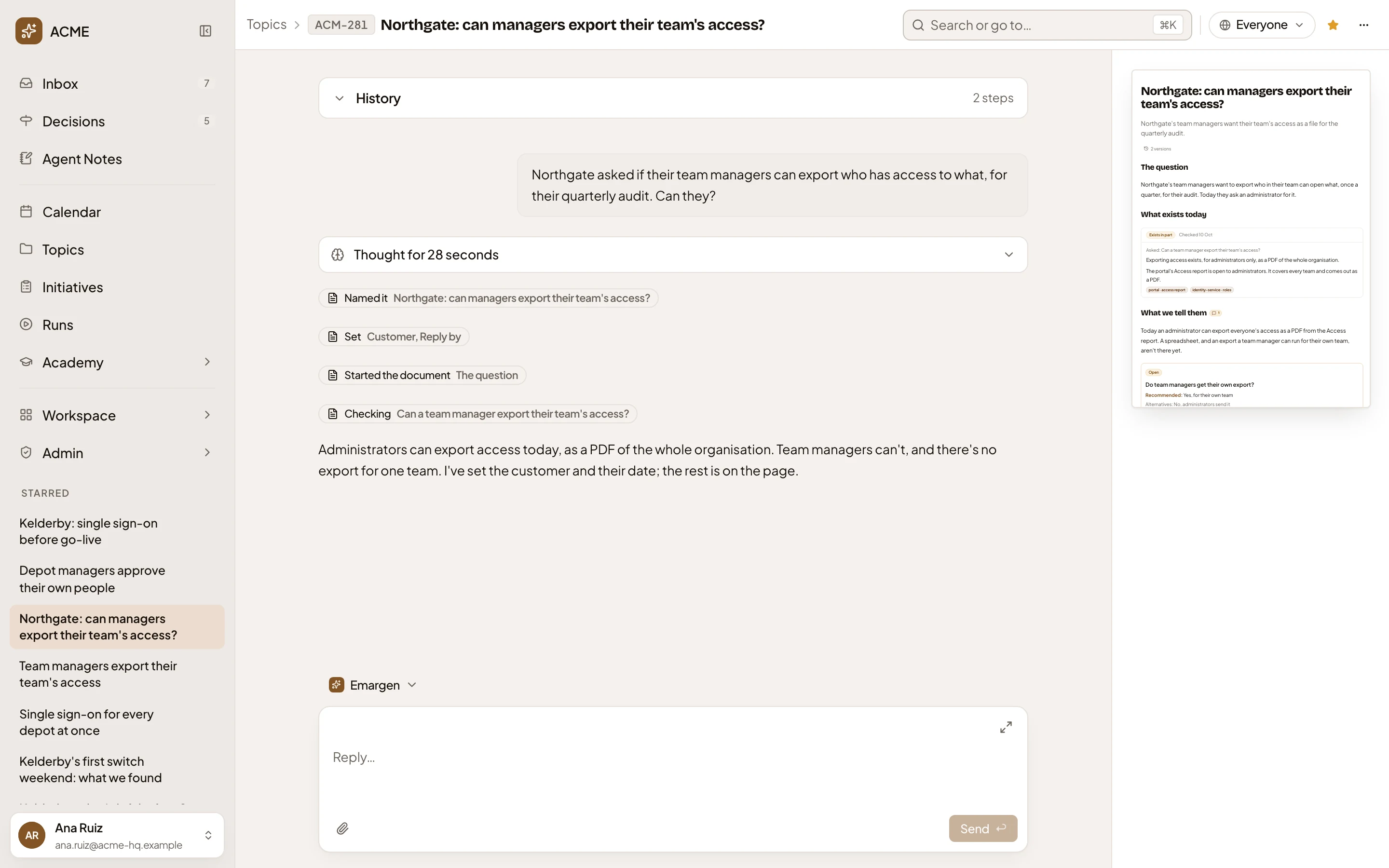
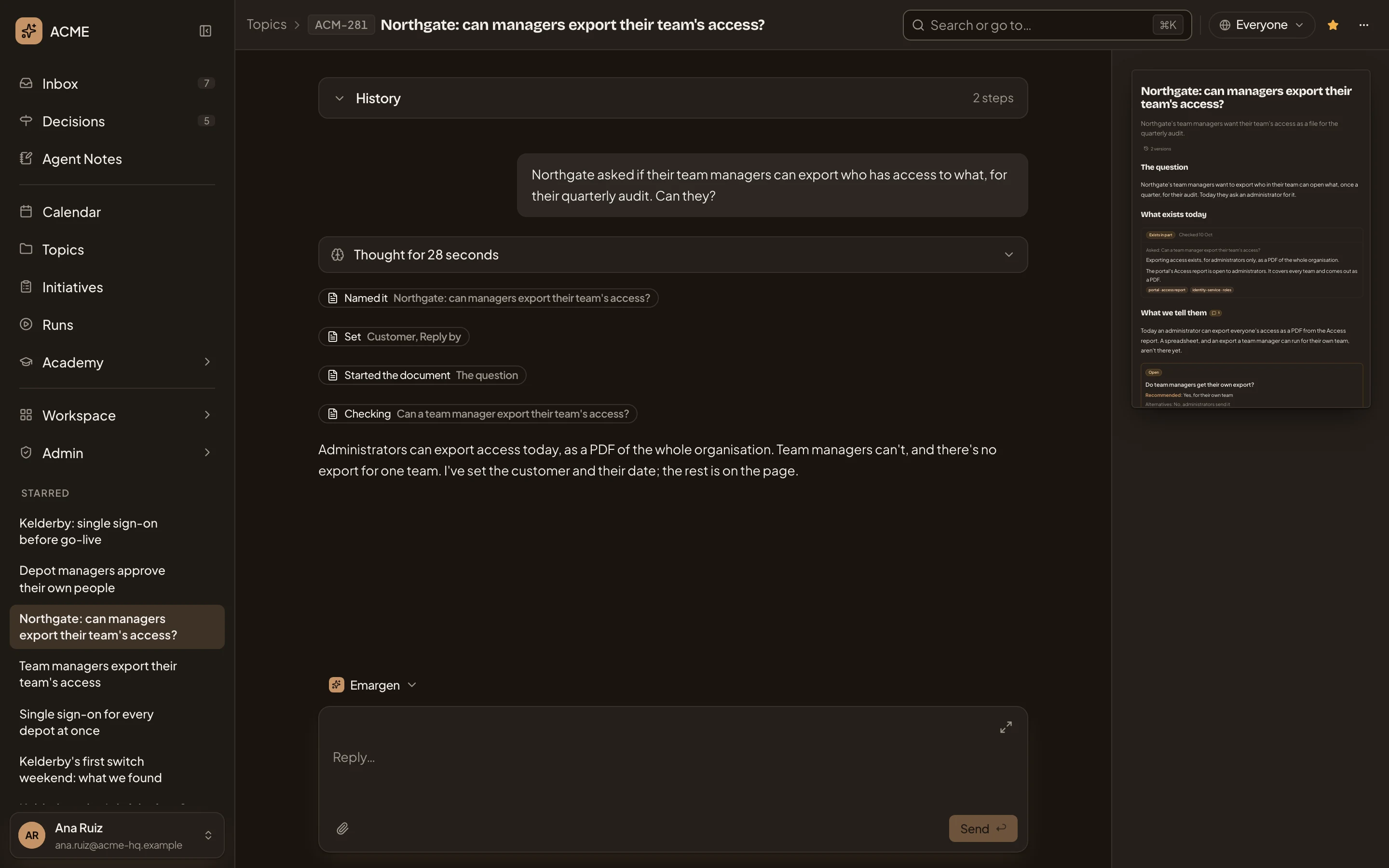
- Emargen. The persona this chat runs as.
-
Click it. The personas you can use open. The organisation’s are under Organisation, then your own and those shared with you under Yours and shared.
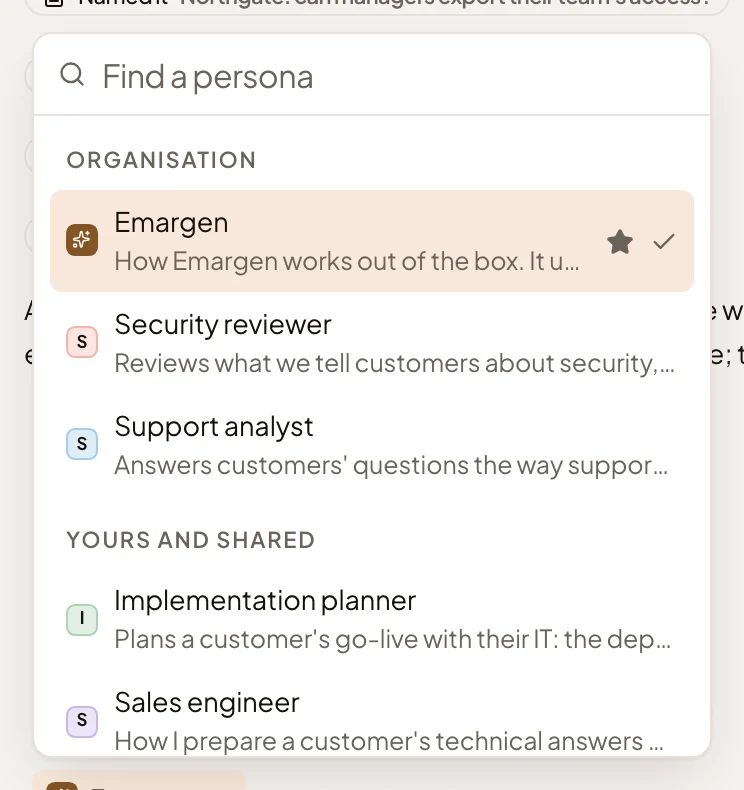
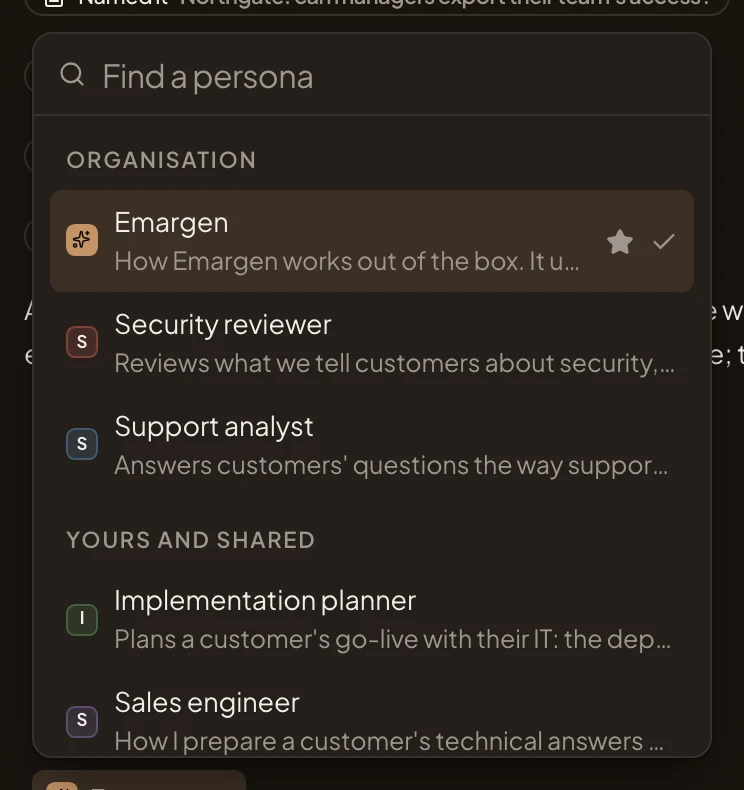
- The search box. Type to find a persona by name.
- Your default. The star marks your default persona. The tick marks the one this chat uses now.
- Security reviewer. Each persona with its line on when to use it.
- Manage personas. Opens Personas & skills.
-
Click the persona you want. In the pictures, that’s Security reviewer. The list closes, and the name above the message box changes to it.
-
Write your message and send it. On a topic with a reply drafted for a customer, you might write “Check what this reply tells the customer before it goes out.”. The persona answers with its own model, thinking, instructions and skills. Its name heads the answer.
If the answer shows you a part of the topic, a bar at the foot of the window says Step 1 of 1. Send reads Stop. Press Next on the bar before you send another message.
If an answer doesn’t finish, one line under it says why, such as “This persona’s model was removed.”. If so, switch persona. Otherwise Send again often works.
What you get
Section titled “What you get”- The chat runs as the persona you picked from your next message on, until you pick another. Earlier answers keep the persona that wrote them.
- Only your chat changes. A colleague’s chat on the same topic keeps its own persona, and your other chats keep theirs.
- What the agent may do doesn’t change. On a topic it still writes the document, and on a Workspace page it still asks before saving.
- Point at the persona’s name on an answer to see the model, thinking and skills it ran with.
Ask another persona to review an answer
Section titled “Ask another persona to review an answer”For one message, you can have a second persona check the answer before it reaches you.
-
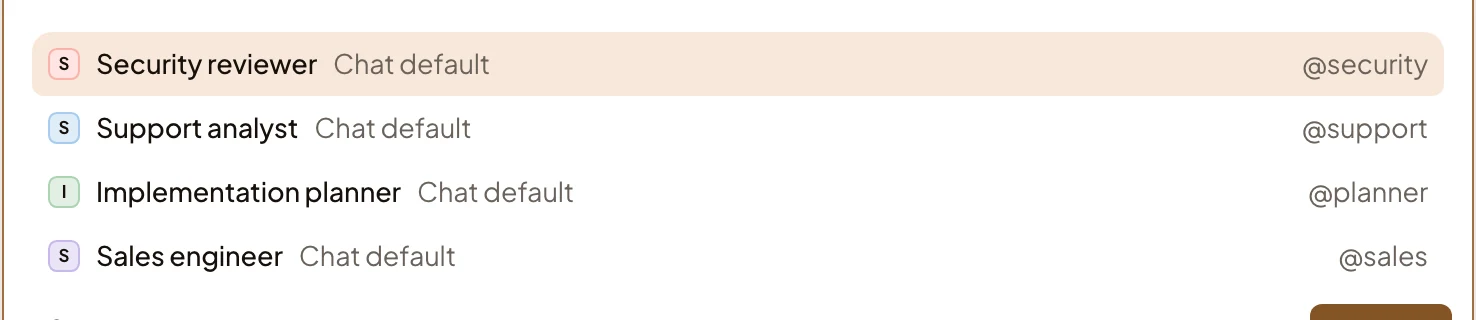
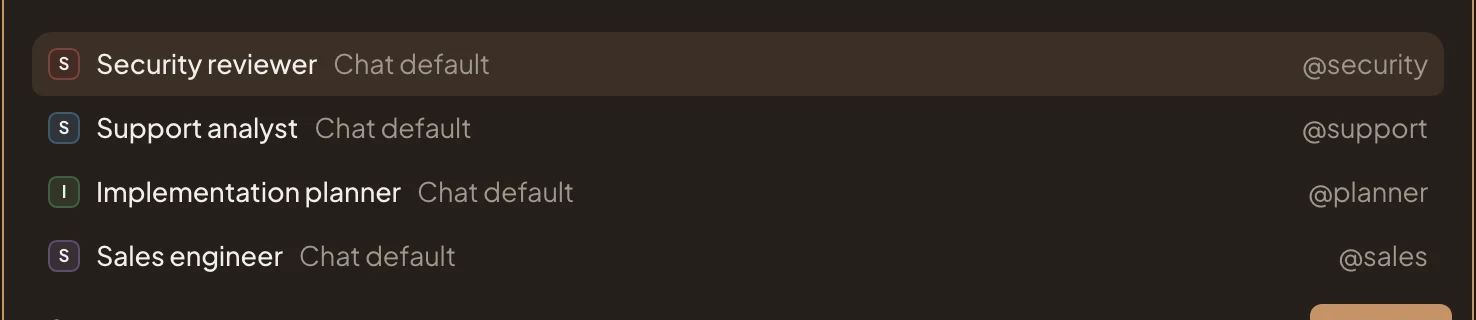
In the message box, type @. A list opens with the personas you can ask, each with its model and @ word. Chat default means it follows the organisation’s chat model. The persona the chat runs as isn’t in the list. The picture shows the list while the chat still runs as Emargen.
-
Pick one, or type its word as the list shows it. In the pictures, @support asks Support analyst. Its word goes at the start of the message box.
-
Write the rest of your message after it, such as “Is this reply safe to send to the customer?”, and send it.
The chat’s persona writes the answer. The persona you named checks it on its own model, without seeing how the first one got there. The first persona goes through the reviewer’s points, and adds a line saying what the review changed. Its name line says who reviewed it. One persona reviews each message.
Call a skill for one message
Section titled “Call a skill for one message”Type / in the message box to add a skill to that one message, even one the persona doesn’t have on.
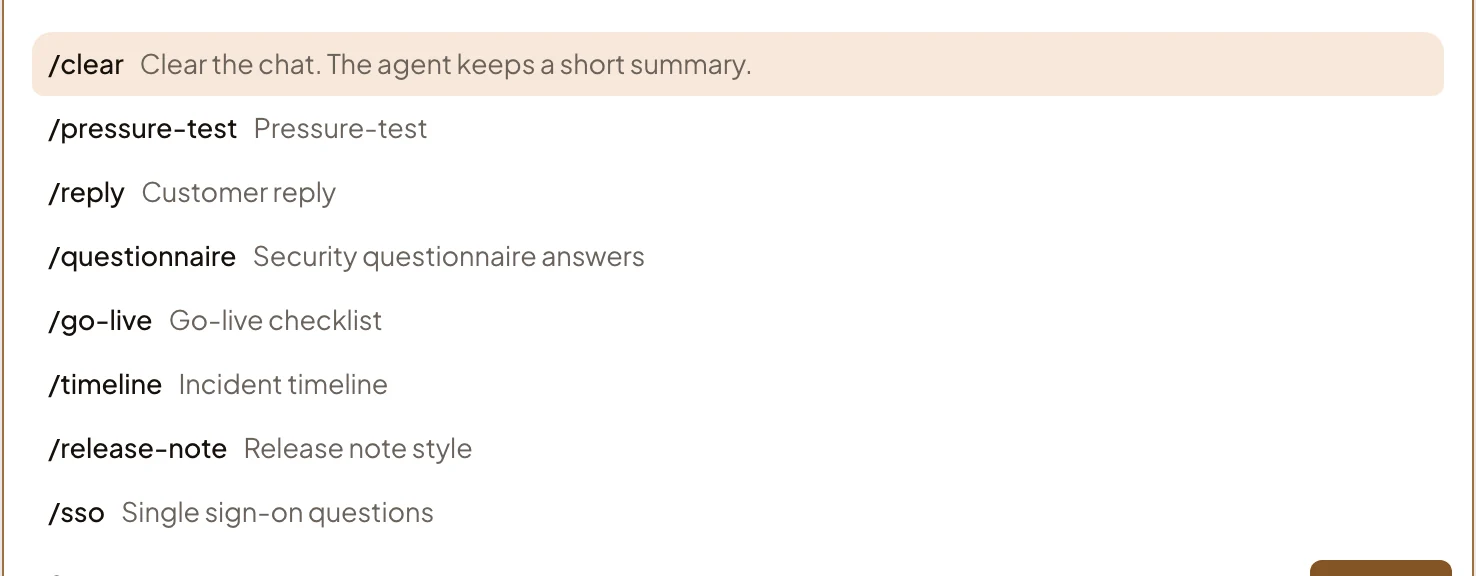
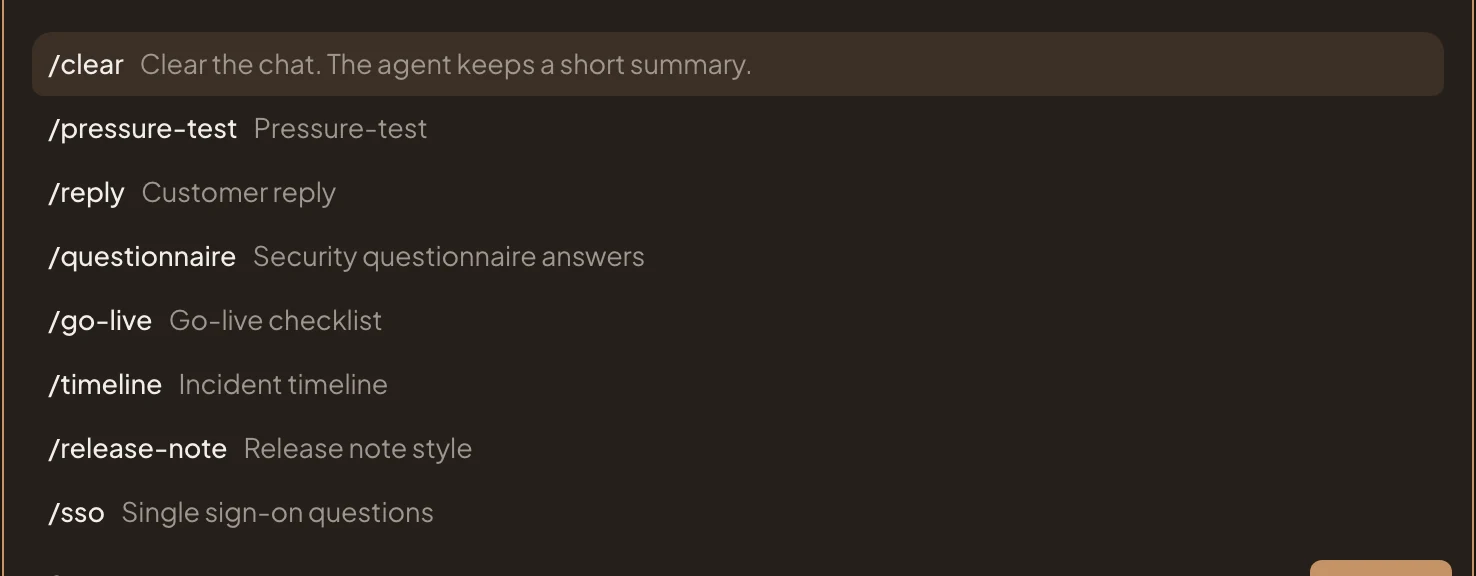
Pick a skill, or type its word, such as /reply for Customer reply. It goes at the start of the message box, and you write the rest after it. A tick marks the skills the chat’s persona already has on.
Make a persona your default
Section titled “Make a persona your default”Your default is the persona every new chat of yours starts with.
-
In the menu, click the chevron beside Workspace to unfold it, then click Personas & skills.
-
Click a persona’s row anywhere but its name, to select it. A row of buttons opens under it, with Default among them.
-
Click Default. It’s your default at once, and the row says Your default.
If you manage personas and skills, the organisation’s personas also have Default options beside Default, with two choices.
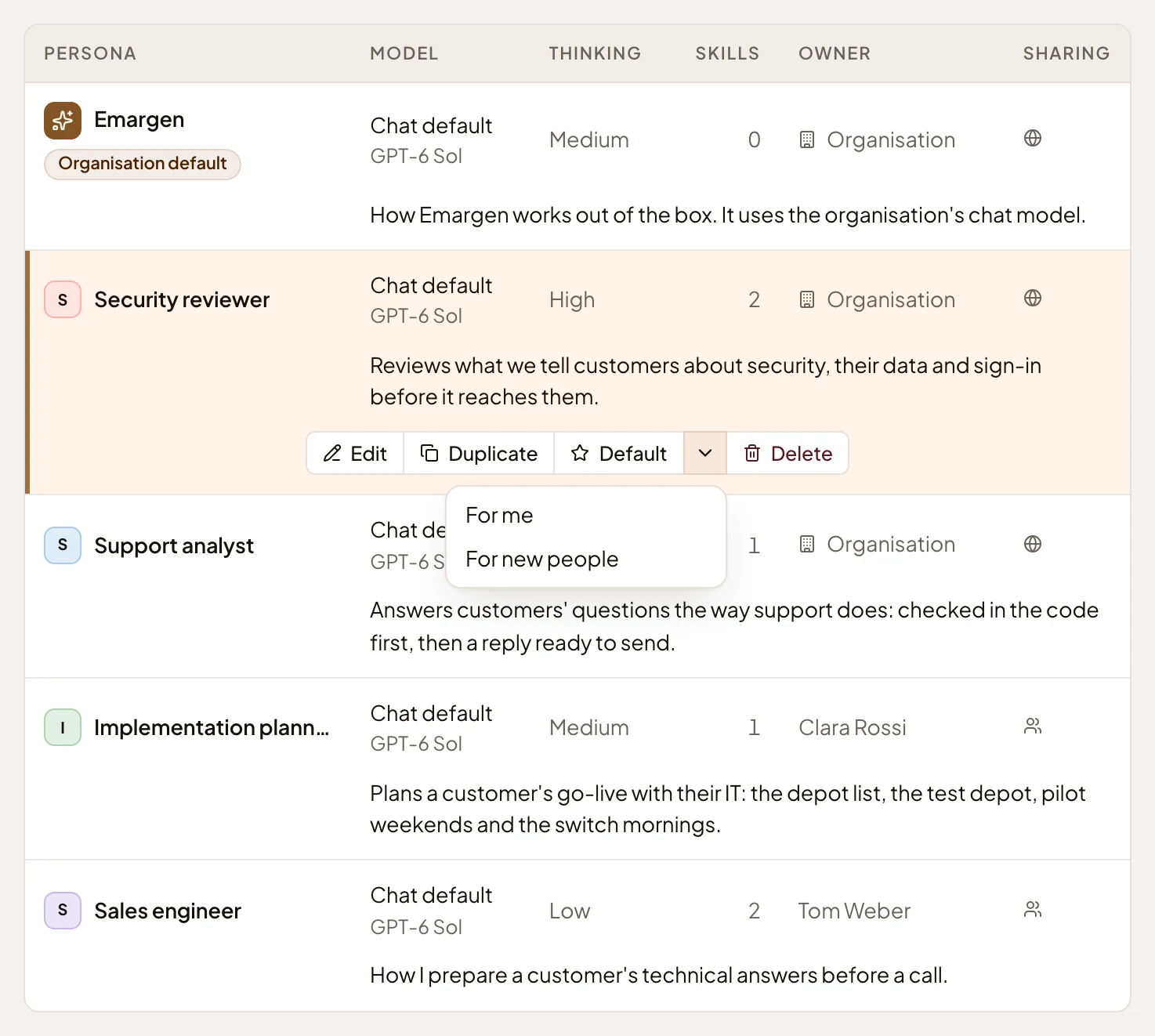
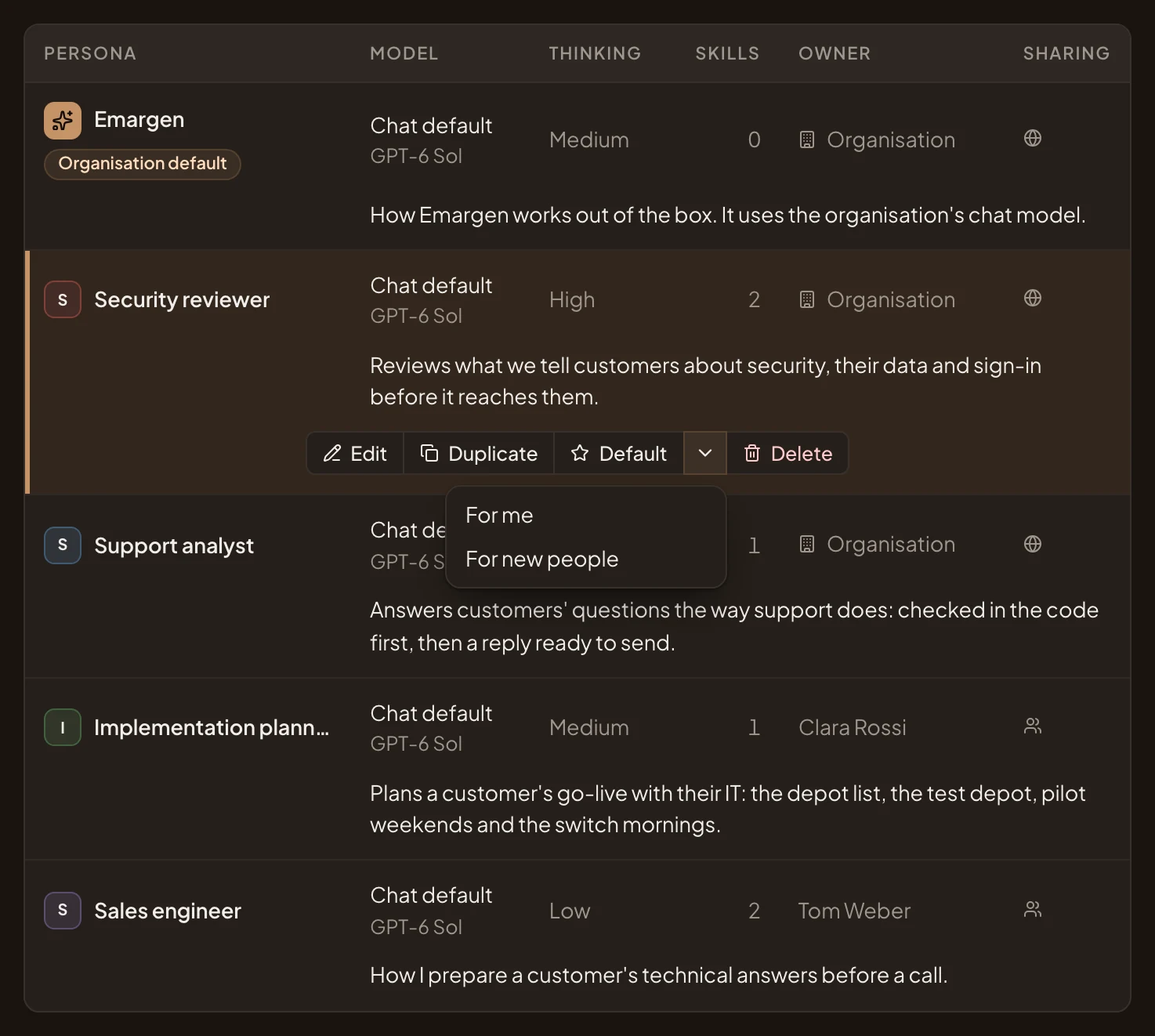
- Default. Makes it your default at once.
- For me. The same as Default.
- For new people. Makes it the persona new people start with.
A chat where you picked a persona keeps it. Your other chats, and every new one, run as your new default from their next message.