

AgentsPage by page
A persona's page
A persona’s page is where you read or change one persona: how the agent works when someone picks it in a chat. Open it by clicking a persona’s name on the Personas list, or make a new one with New persona there.
An administrator has opened Security reviewer, the organisation’s persona for checking what it tells customers about security before the answer goes out.
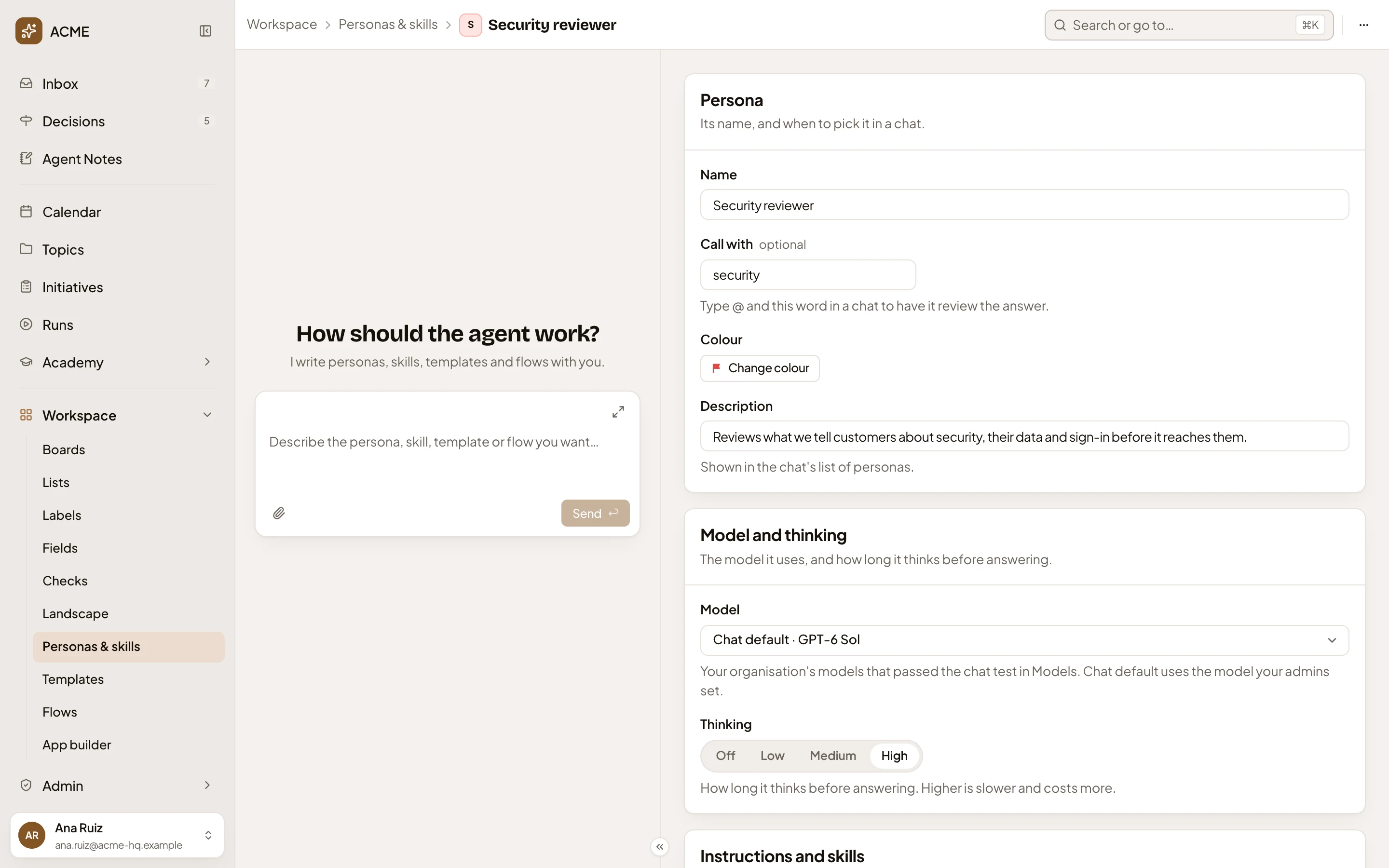
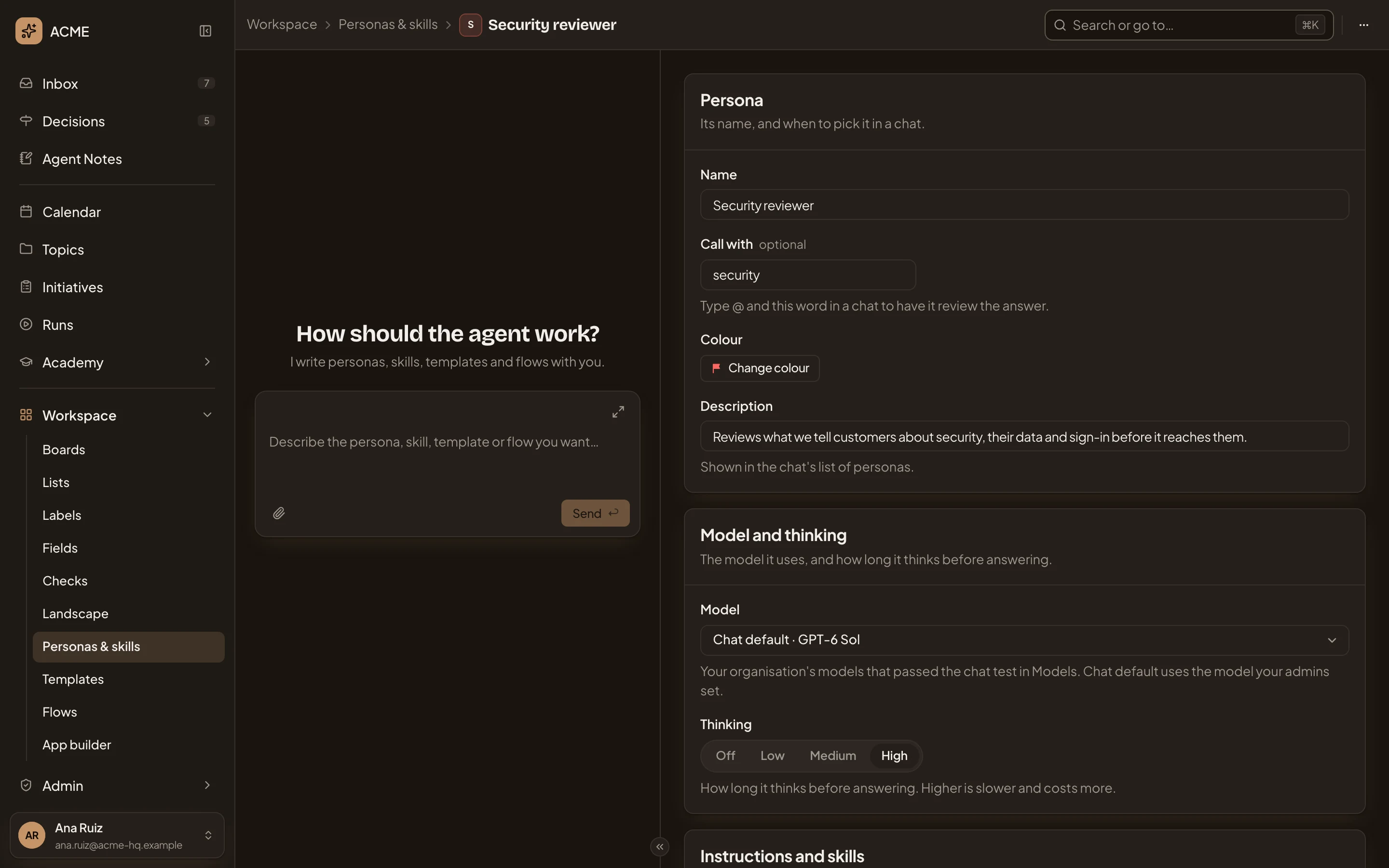
- Where you are: Workspace, Personas & skills, then the persona’s colour mark and name. Click Personas & skills to go back to the list.
- More actions for Security reviewer. Opens The ⋯ menu.
- The personas agent. Ask it to change the persona for you, and it fills the page as you watch (see The personas agent).
- Name. What people see in the persona picker, up to 60 characters.
- Call with. A word to ask this persona for a review, if you want one. Type @ and the word in any chat with a persona, and this persona checks the answer before it reaches you (see Pick a persona). Security reviewer’s is security.
- Colour. The colour of its mark in the picker and on the answers it writes.
- Description. One line on when to pick it, shown in the chat’s list of personas.
- Model. What it runs on (see Model and thinking).
- Thinking. How long it thinks before answering, from Off to High. Higher is slower and costs more.
Once a persona you may change has a name and a Description, Emargen keeps each change a moment after you make it. There’s no Save button on a persona’s page.
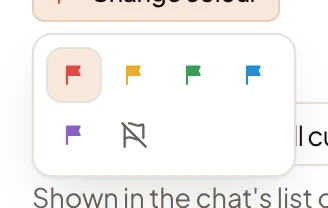
Change colour opens five colours, and no colour.
Model and thinking
Section titled “Model and thinking”Model lists your organisation’s models that passed their Try for chat (see Models). The first, Chat default, follows whichever chat model your administrators set, and names it (GPT-6 Sol in the picture).
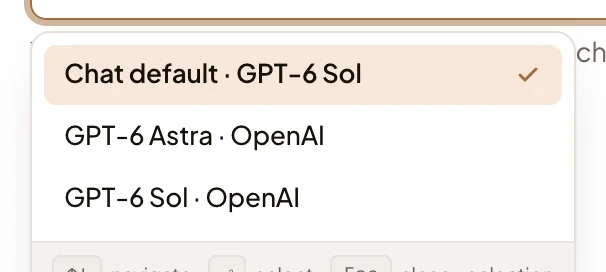
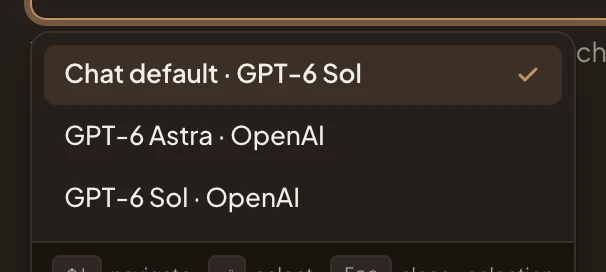
A persona on Chat default moves with the organisation when the administrators change their default. A persona with a model of its own keeps that model. If the model is later taken out of Models, the page asks you to choose another. Until someone does, chats with that persona stop.
Thinking greys out the levels the chosen model doesn’t take. A note under it says when the model can’t think on request, or that Emargen will check once you save.
Instructions and skills
Section titled “Instructions and skills”The Instructions and skills section holds the persona’s own instructions, and the skills it always has on.
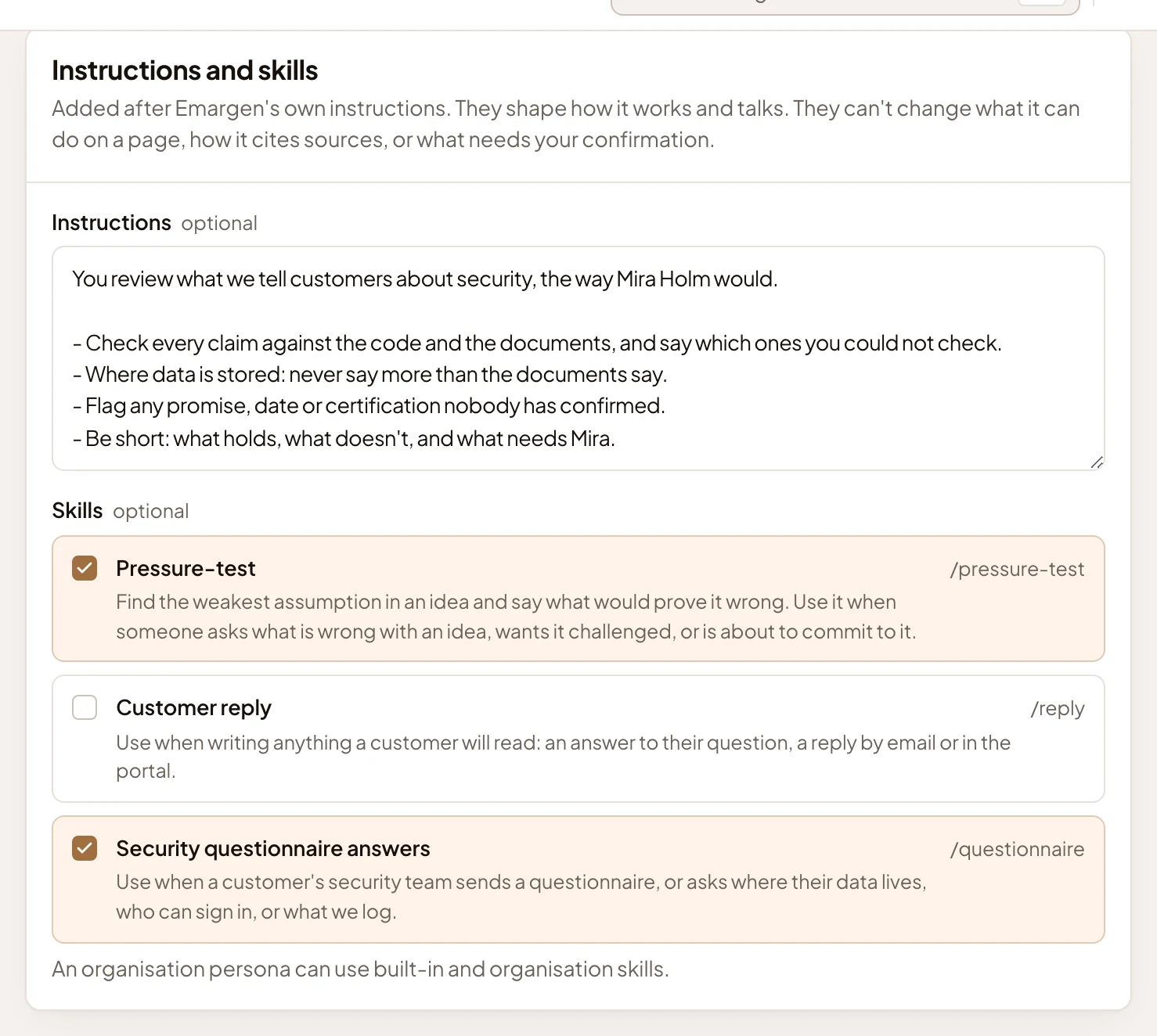
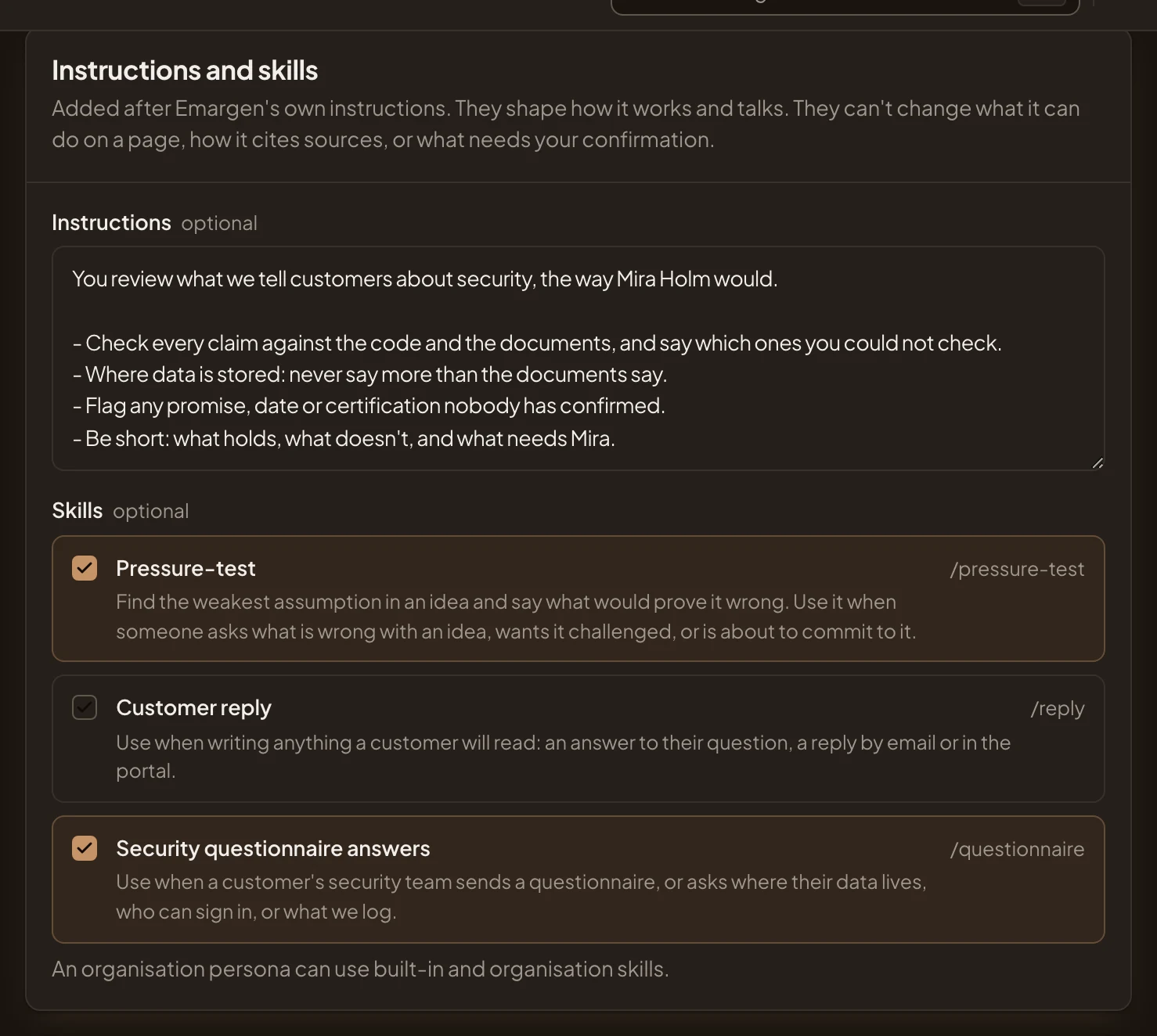
- Instructions. What this persona does differently, in your words, up to 4000 characters. They’re added after Emargen’s own and shape how it works and talks. They can’t change what the agent may do or how it cites. They can’t change what you must confirm.
- A skill that is on. Every chat with this persona has it: the agent loads the skill when the work calls for it.
- A skill that is off. Anyone can still add it to one message by typing / and its word in the message box.
The list holds the skills this persona may use. An organisation persona uses Emargen’s built-in skills and the organisation’s. Your own also uses yours and the ones shared with you. See the skills list.
Sharing a persona
Section titled “Sharing a persona”For the organisation’s personas, the Sharing section only says “Everyone in the organisation sees the organisation’s personas.”
On a persona of your own, it holds a Sharing button, which says who sees it now. The pictures show Sales engineer, a sales engineer’s own persona, shared with one person.
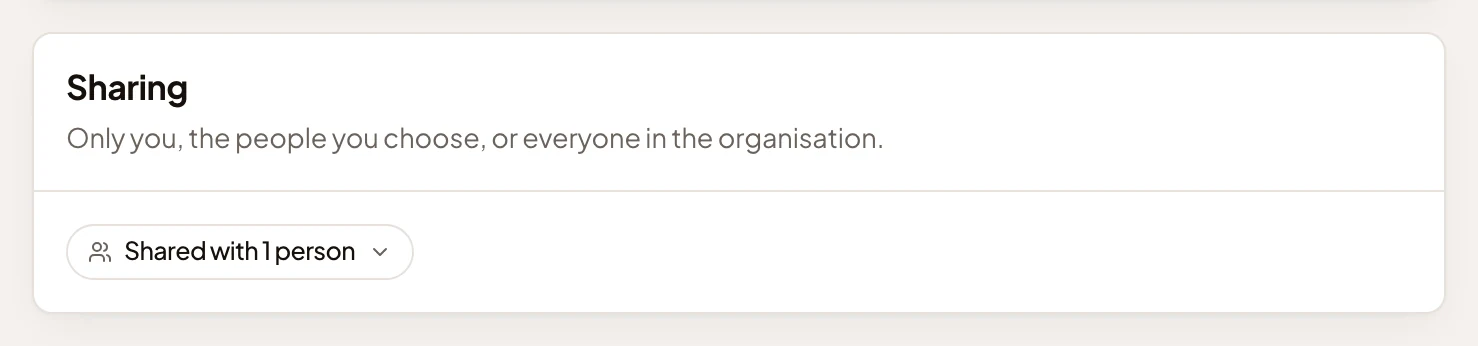
- Sharing. Opens the sharing dialog, as on a topic. See Sharing.
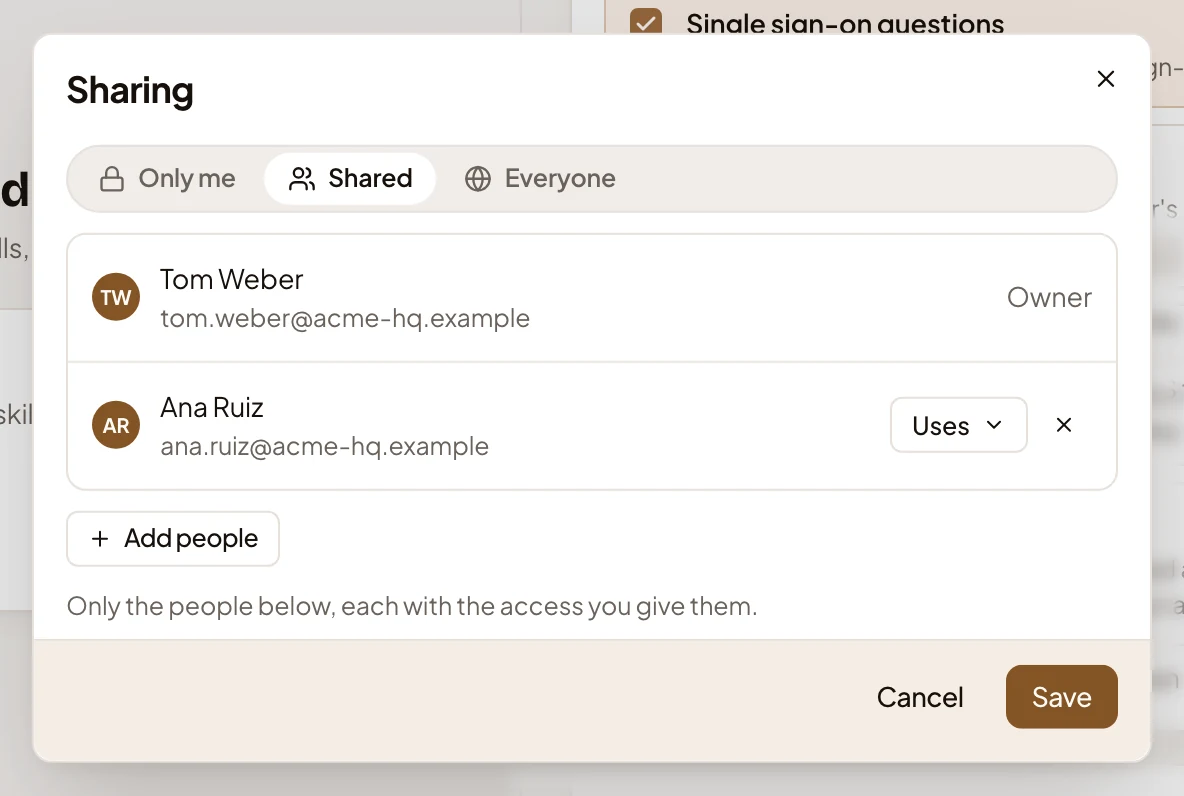
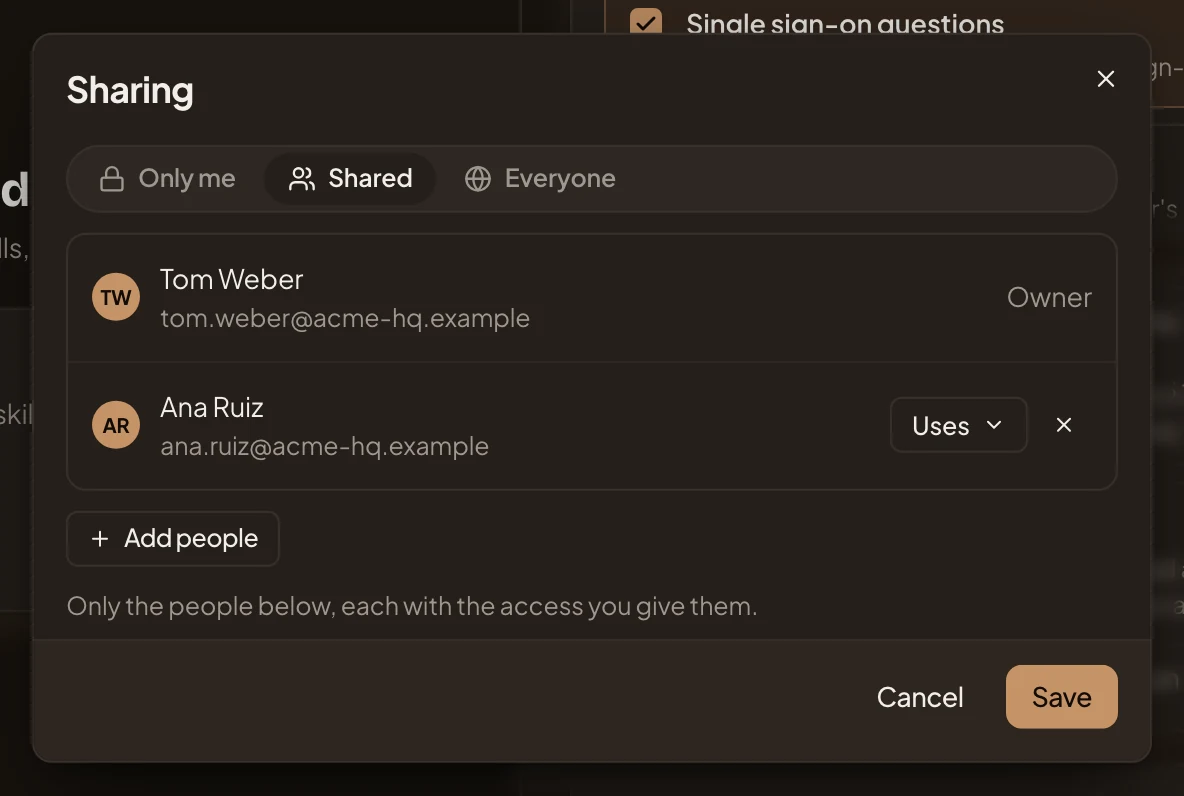
- Access for Ana Ruiz. Uses: she can pick the persona in her chats. Edits would let her change it too.
- Save. Keeps the change. Cancel leaves without it.
Delete persona
Section titled “Delete persona”

Delete asks first, then deletes the persona and goes back to the list. Answers it wrote keep its name. In a chat that used it, the person’s default persona answers the next message. The organisation’s default persona has no Delete section.
The ⋯ menu
Section titled “The ⋯ menu”The ⋯ at the top right of a persona that exists.
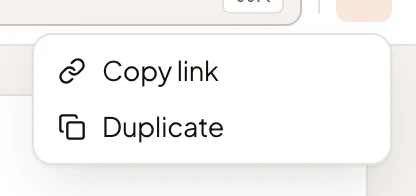
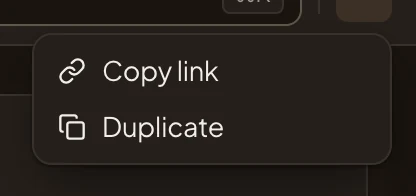
- Copy link copies the page’s address.
- Duplicate makes a copy of your own, named “(copy)” after the original, opens it, and keeps only the skills you may use.
A persona you can only use
Section titled “A persona you can only use”Someone who can’t change a persona sees the same page, greyed out, with a line at the top. In the picture, a member opens Security reviewer, one of the organisation’s.
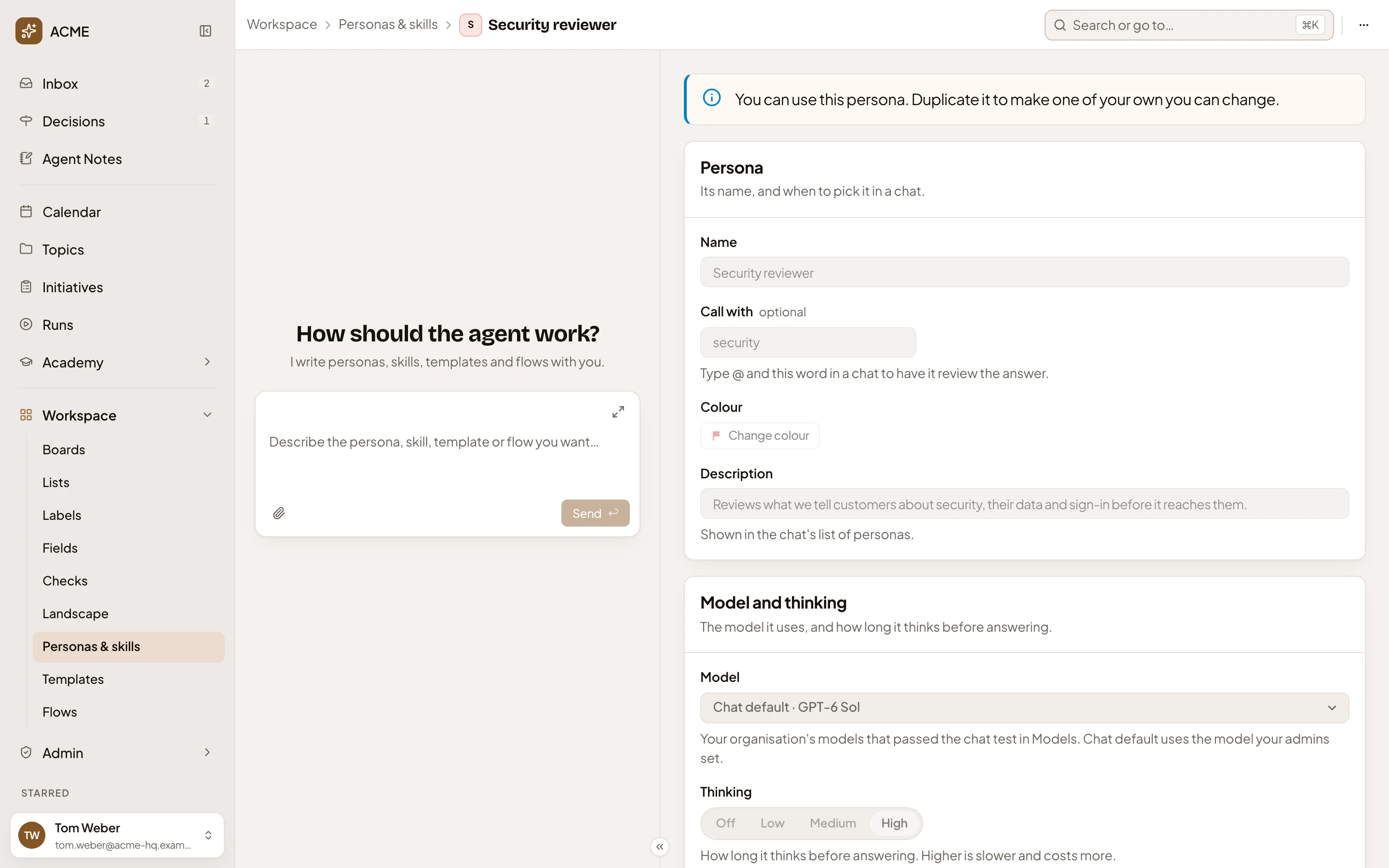
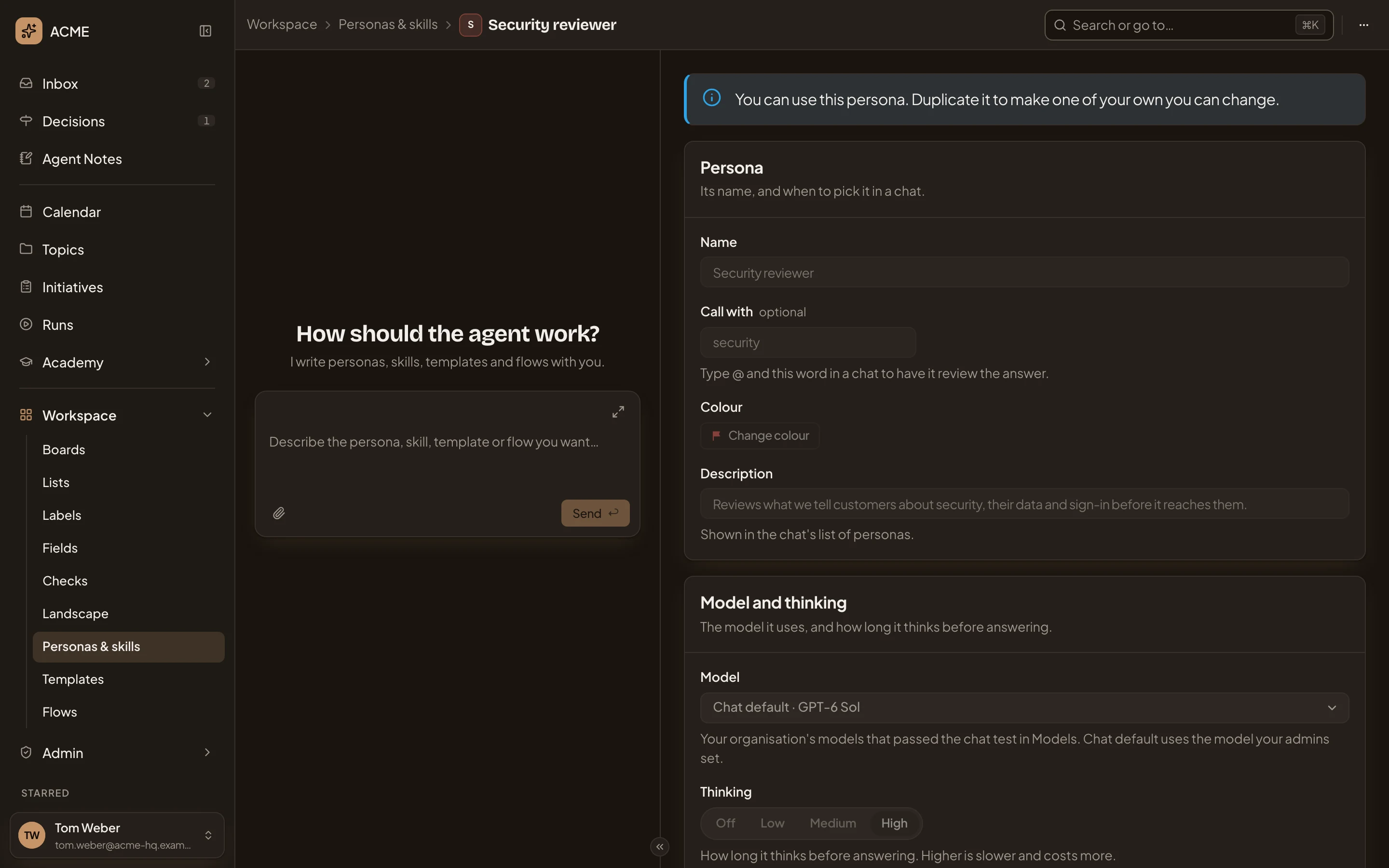
- “You can use this persona. Duplicate it to make one of your own you can change.”
- More actions for Security reviewer. Its Duplicate makes them a copy they can change.
A colleague’s persona shared with you as Uses is greyed out too.
New persona
Section titled “New persona”New persona on the list opens an empty page. Someone who manages personas sees one more choice than most people: Owner.
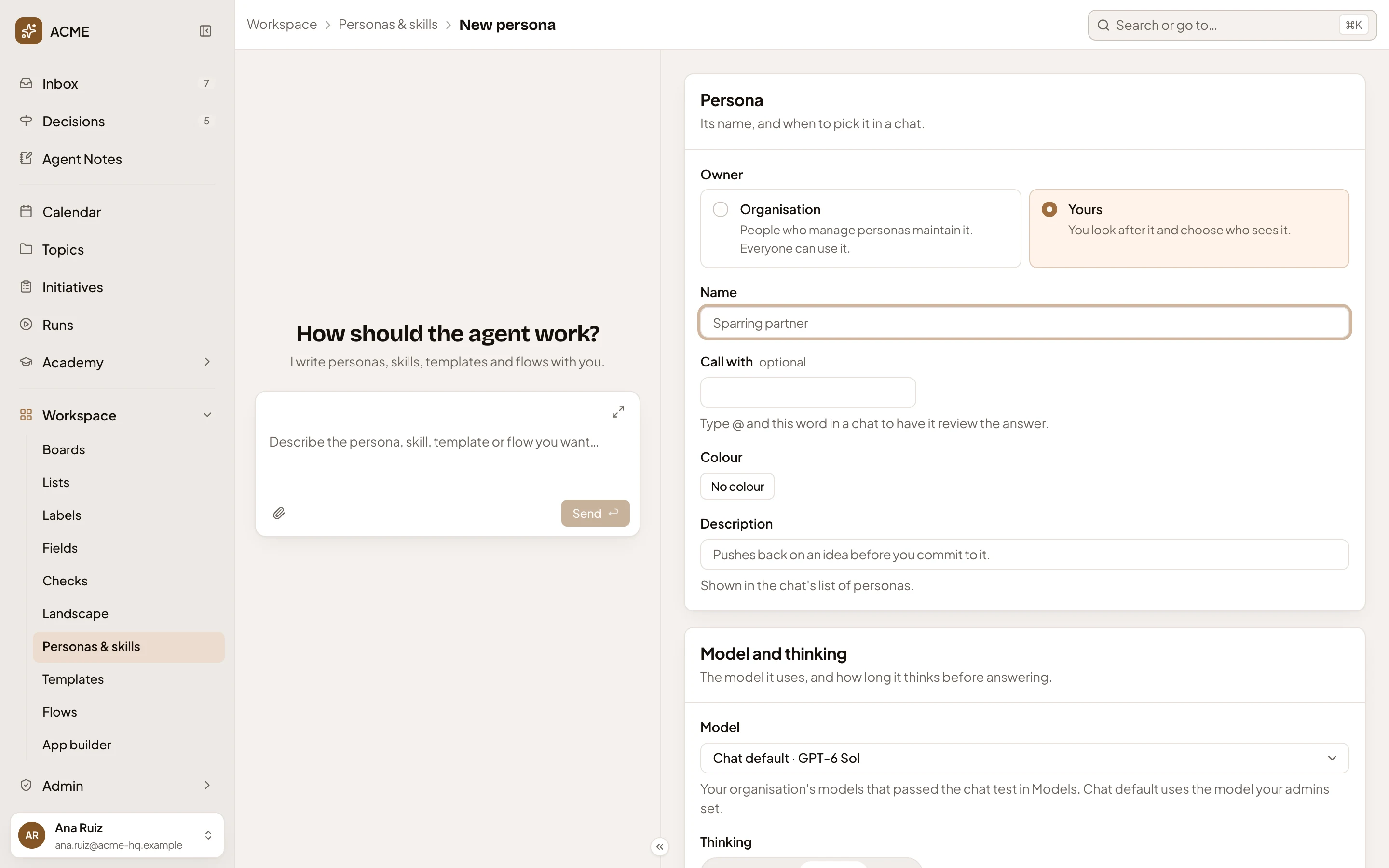
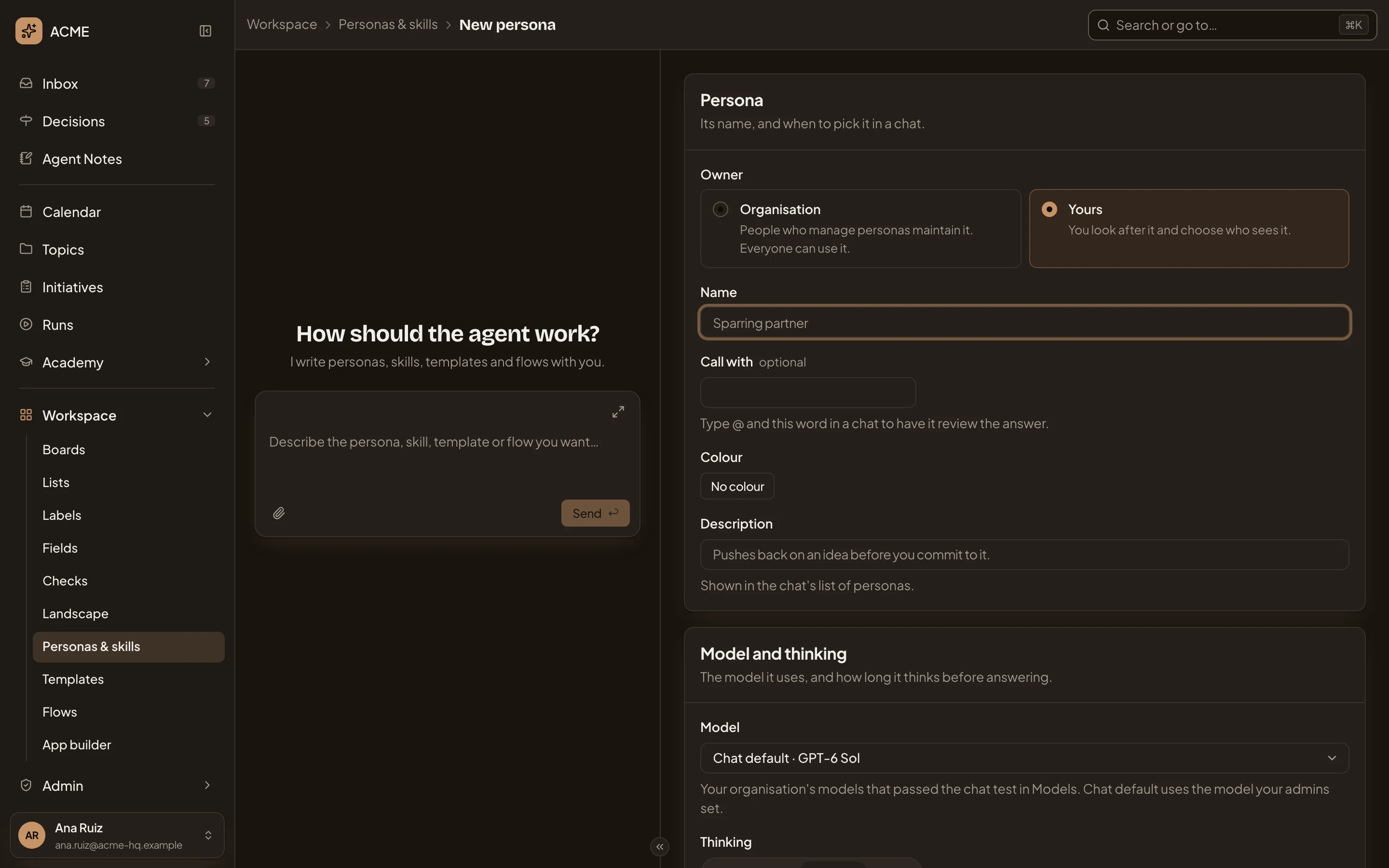
- Owner. Choose Organisation for a persona everyone can use, or Yours for one you look after and share. Only people who manage personas and skills see this choice. For everyone else a new persona is their own.
- Call with. Fills itself in from the name as you type it, until you write your own word.
A new persona starts on Chat default and Medium. Its skills list shows every skill you may use, none ticked.
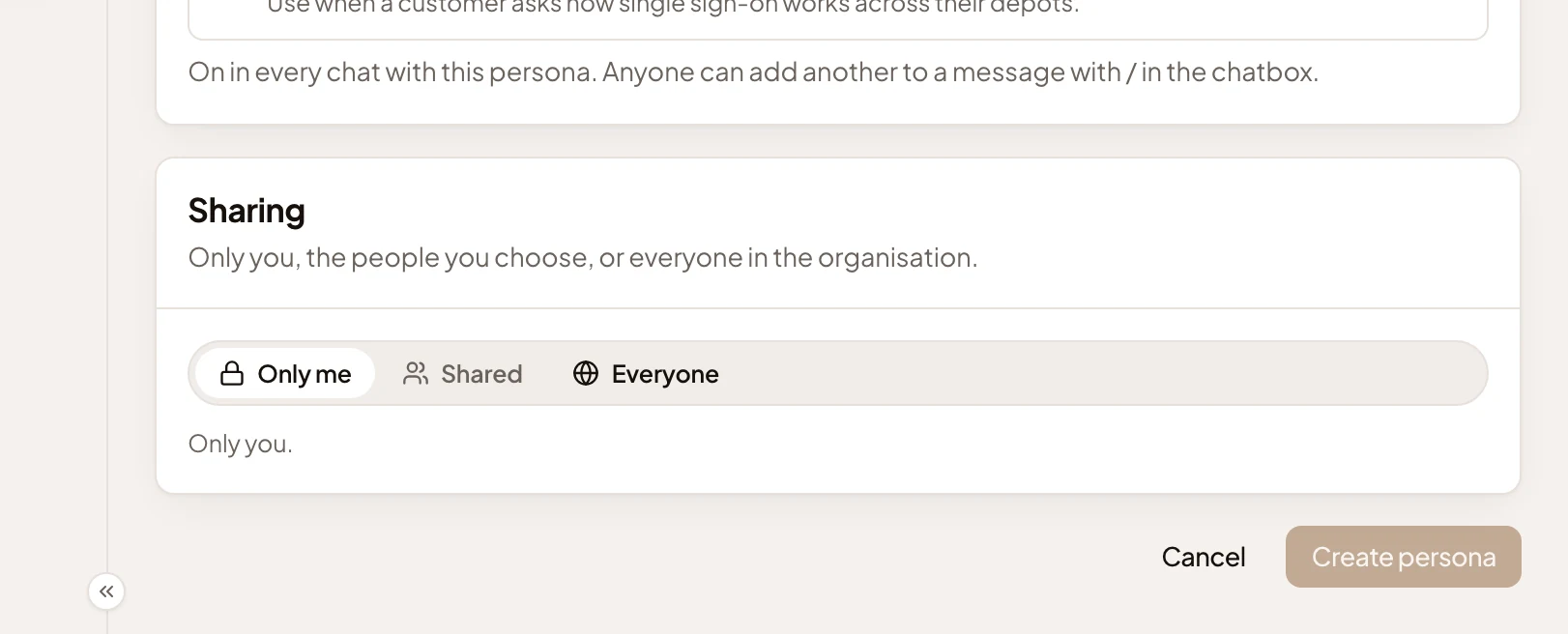
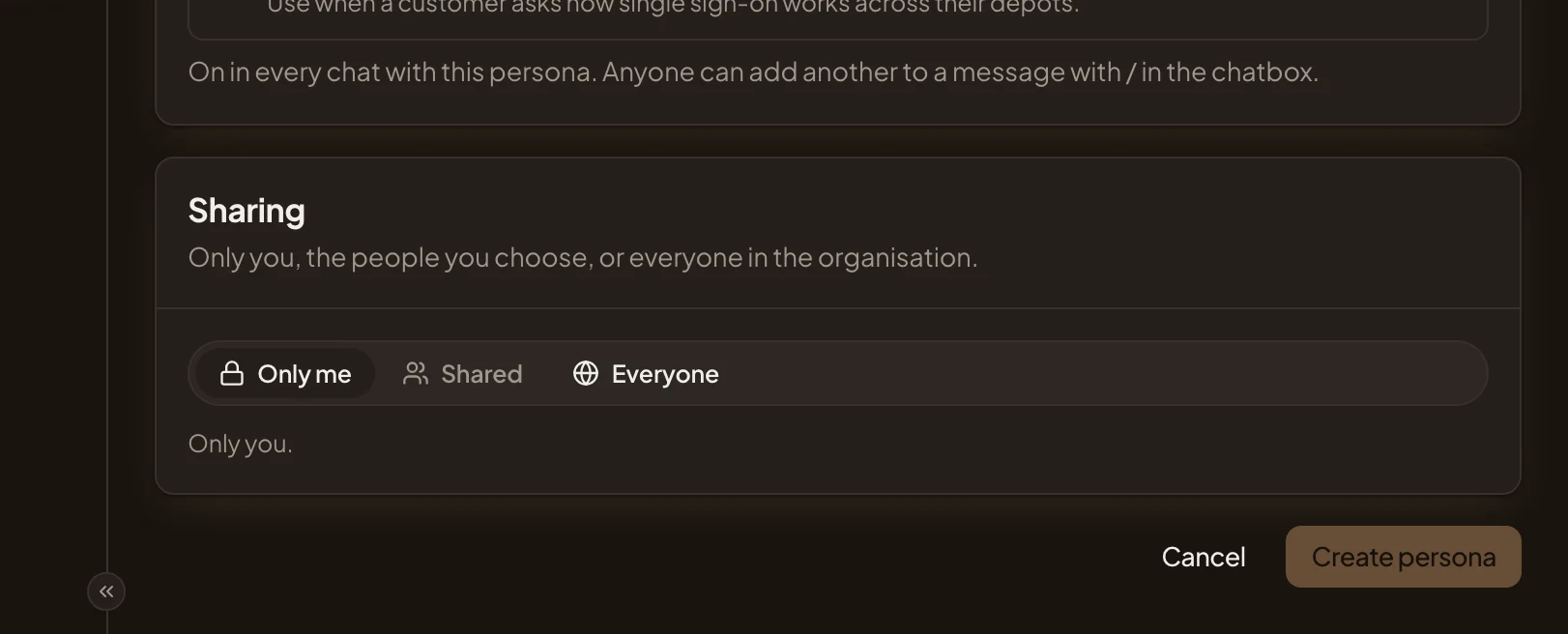
- Sharing. Only me, Shared (pick the people), or Everyone. A new persona of your own starts as Only me. An organisation persona is seen by everyone, so the section only says so.
- Cancel. Back to the list, without saving.
- Create persona. Saves it and opens its page. It stays greyed out until the persona has a name and a Description. If you chose Shared, it also needs at least one person.
Access
Section titled “Access”Everyone can open a persona they can use. People whose role lets them manage personas and skills change the organisation’s personas. You, and anyone you’ve given Edits, can change your own.
The Emargen persona, the one the organisation starts with, has no instructions of its own and keeps no colour. It can’t be deleted while it’s the organisation’s default.