

AdminPage by page
Setup: Welcome
Welcome is the first page a new organisation shows. Until it’s launched, Emargen is only its setup. There’s no menu, just the steps along the top, and any other address brings you back here. The person who signed the organisation up lands here first.
Open Welcome (opens Emargen in a new tab)ACME on its first day. Only the person who signed it up has joined.
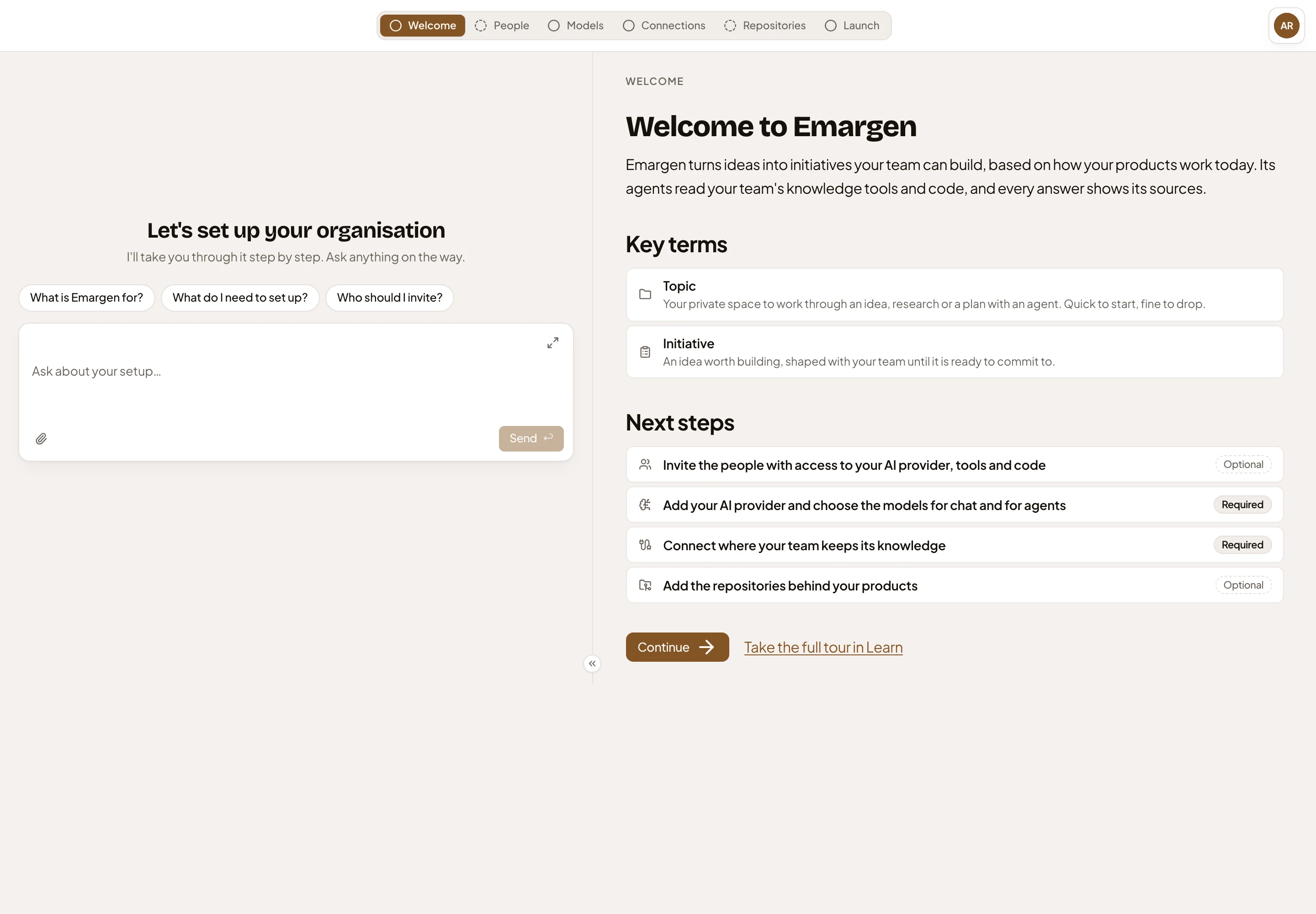
- Setup steps. Click one to go to it. The mark shows the step’s state. A tick means done, a dashed circle optional, and a plain circle still to do.
- Your initials. Your user card, as on every page.
- Questions to ask. Three questions to start the chat with. Click one to ask it.
- The message box. Ask the agent about setting up, or ask it to do a step with you. The agent opens the right step beside the chat.
- Hide the chat. Gives the step the whole width. ⌘J does the same.
- Key terms. A topic and an initiative, in a line each.
- Next steps. The four steps before the launch. Click one to open it.
- The mark shows Required, Optional or done.
- Continue. Opens the first step that isn’t done.
- Take the full tour in Learn. Learn is now Start here in the Academy, which opens once the organisation is launched. Until then the link brings you back to Welcome.
The chat is the admin agent, the same one that sits beside Admin’s pages after the launch. It runs on Emargen’s own model, so it works before your organisation has any models. You can do the whole setup with it.
The steps
Section titled “The steps”Each step between Welcome and Launch is the Admin page of the same name. A bar at the top says what the step needs. See Setup › Launch.
- People is optional. Invite the people who hold the keys to your AI provider, your tools and your code.
- Models is required. Add your AI provider and choose the models for chat and for agents.
- Connections is required. Connect where your team keeps its knowledge, or say it lives in your repositories or nowhere yet.
- Repositories is optional, unless your knowledge lives in your repositories.
Asked to help
Section titled “Asked to help”Whoever sets up can invite the people who hold the keys, and ask them to help with particular steps. When you join that way, the person who asked is named, with the step and their message. Continue takes you to the first of those steps that isn’t done.
On a phone
Section titled “On a phone”The chat and the step take turns on the screen, and the steps along the top scroll sideways.
Access
Section titled “Access”Everyone who joins before the launch sees Welcome. If your role lets you do any of the steps, you get Continue. Anyone else reads that the organisation is being set up, and that topics and initiatives open once it’s launched.
After the launch, Welcome sends you to the Inbox.