

InitiativesHow to
Publish and get approval
Publish an initiative once it’s shaped and someone has to say yes before it’s built. Publishing sends it for approval, and the yes is recorded on its Kickoff. Publishing starts at step 1, approving at step 6. Approval explains the idea.
Before you start
Section titled “Before you start”- Who can
- You publish an initiative you own, or one shared with you to edit. You approve one if your role allows approving initiatives and you only read it or take part in it. An owner approves their own when its approval gate is off. Administrators can approve, and can give your role that permission.
- You need
- To publish, the initiative needs a chosen approach, its decomposition and its slices. Shape an initiative gets it there.
- The pictures
- The pictures show initiatives at ACME, the docs’ example company. ACM-362 is still being shaped, as its owner in customer success sees it. ACM-290 is published, and a product manager who may approve it reads it. ACM-293 is approved and in delivery.
Publish
Section titled “Publish”-
Open the initiative from the initiatives list, then click Kickoff on the right. At the top, Ready to publish lists the checks: Emargen’s first, then your workspace’s own. A box under the heading says what Publish still waits for, or that everything is in place.
Open the initiatives list (opens Emargen in a new tab)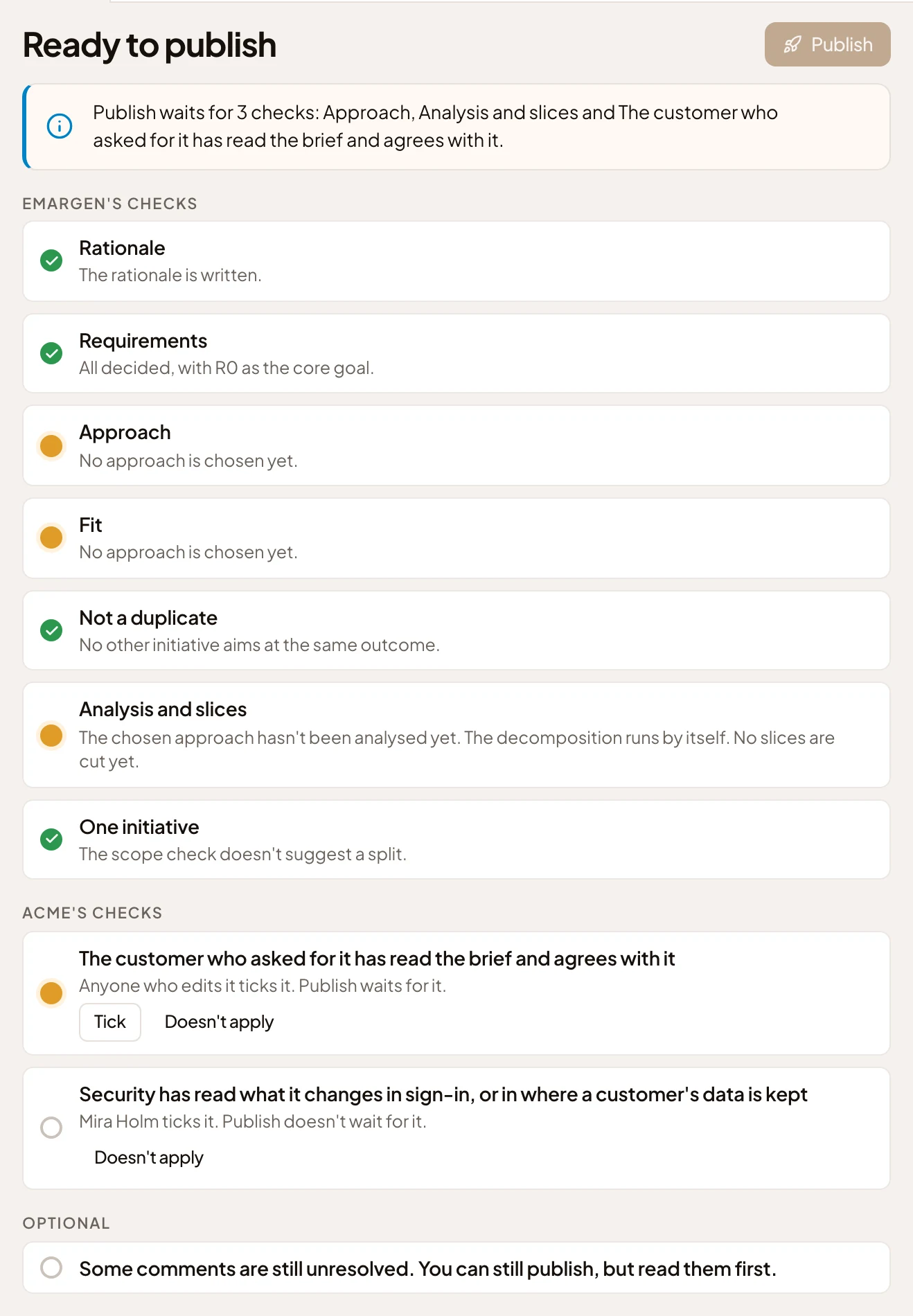
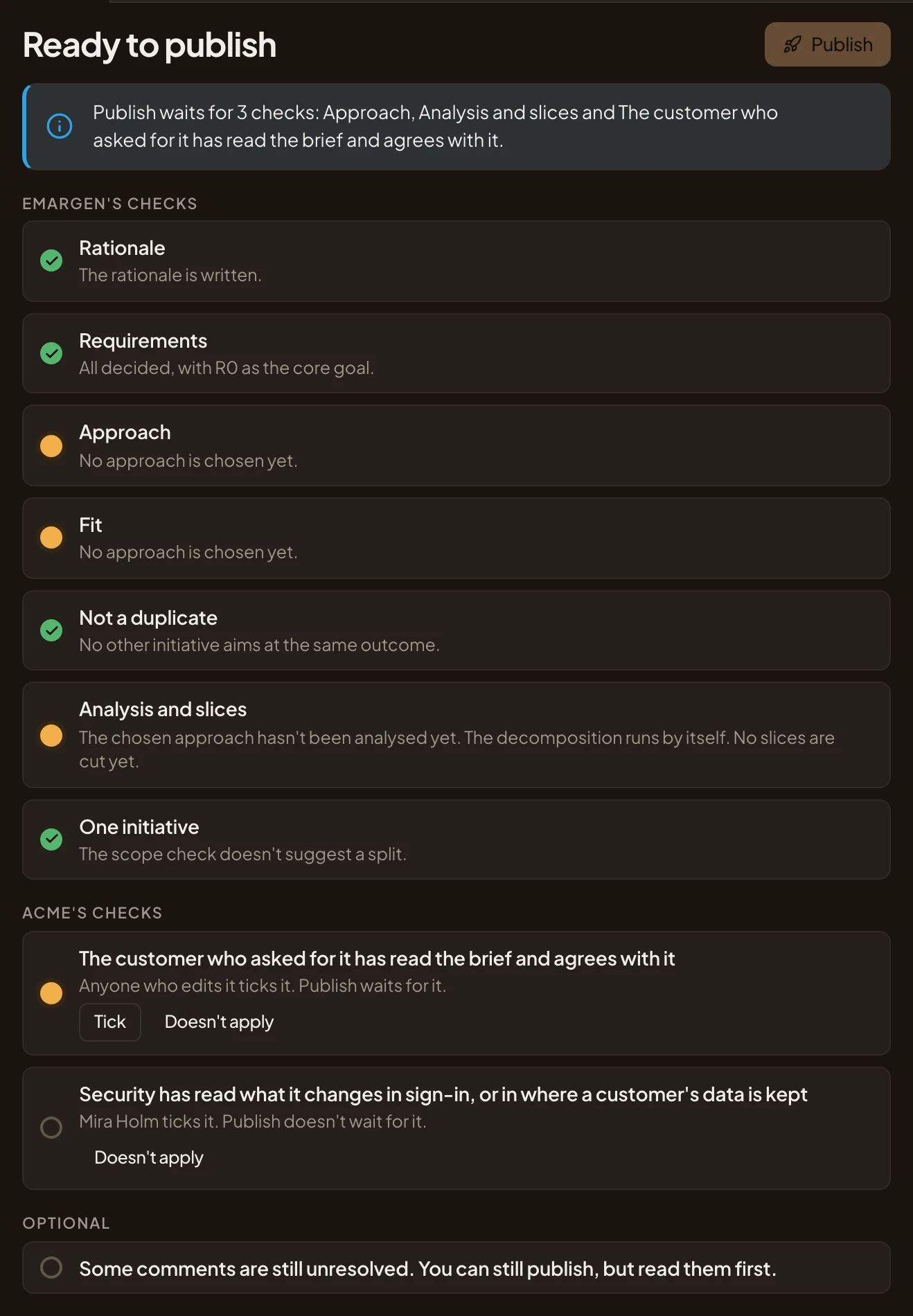
- Publish. It stays greyed until every check Publish waits for is done.
- Publish waits for these checks. When nothing holds it, the box says Everything Publish needs is in place.
- Emargen’s checks. The ones every initiative has.
- Your workspace’s own checks, under its name. Here, ACME’s checks.
- Tick. For a workspace check you’ve seen to.
- Doesn’t apply. Sets the check aside. You say why, and approvers read it.
-
Clear the checks Publish waits for. Each one that isn’t done shows what’s missing and how to fix it.
- No approach, analysis or slices yet: finish that part of the shaping first.
- When a must-have only partly fits the approach, have the agent adjust the approach so it fits, or accept the gap and say why. Your reason goes into In short and into what’s published, so approvers read it.
- The duplicate check runs by itself. If it finds an initiative that may aim at the same outcome, merge into that one, or say this one is different and why. See Merge or split an initiative.
- If the scope check flags the initiative as more than one, split it, or keep it as one and say why.
- Whoever the check names ticks it, or the agent reads it. When the agent says one isn’t met and you know it is, say what shows it.
Open questions and Optional show on the list too. Publish doesn’t wait for them.
-
Read In short, under the checks. The agent writes it once an approach is chosen, and again whenever the initiative changes. It’s the first thing an approver reads. If it says something you don’t want said, change the initiative in the chat, and In short follows.
-
Press Publish. The status becomes Decision, and In short is written once more from what you published. The Kickoff now says it’s waiting for approval. It shows when it was published and who can approve it. Your checks stay under it, headed Checks, for everyone who reads the Kickoff.
Publishing also saves the initiative as it stands, its published version. The approval is recorded against it, and coding agents read it as the published requirements. A change made later shows on the Kickoff, but not in that version, so finish shaping first.
-
Read who the Kickoff names after Can approve. If the person who should decide isn’t there, the owner shares the initiative with them to read or take part. Someone who edits an initiative can’t approve it. When nobody who can see it may approve it, the Kickoff asks you to share it with someone who may.
The people who may approve it find it in their Decisions. Emargen sends them nothing else. To ask someone in particular, tag them in a comment on the Kickoff.
Approve
Section titled “Approve”-
Open Decisions in the menu. An initiative waiting for your approval is under Initiative approvals, from its owner, with its key and title. Delivery can’t start without it. The hourglass marks the wait.
Open Decisions (opens Emargen in a new tab)

- An initiative that waits for you, and who owns it.
-
Click it. It opens beside the list.
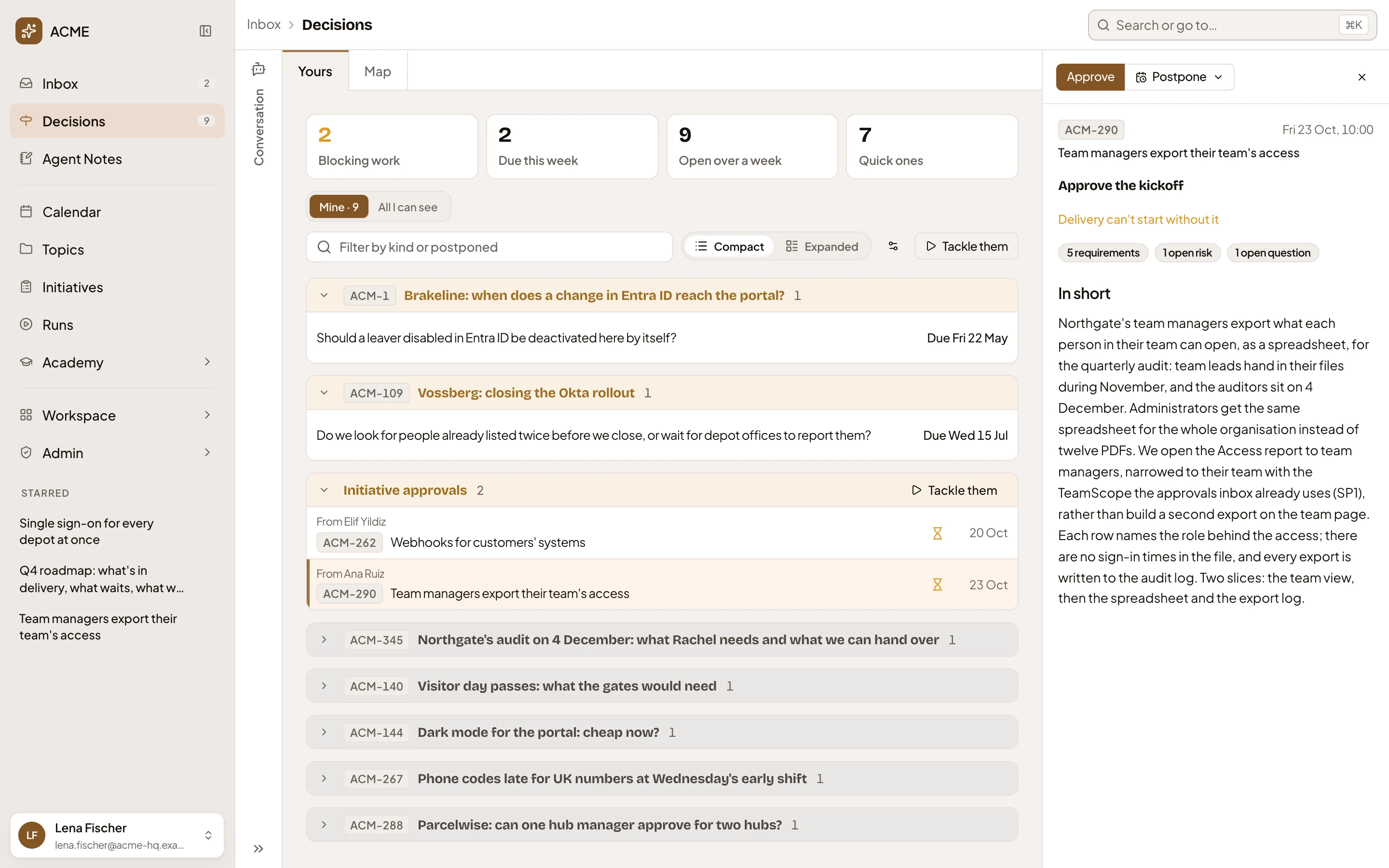
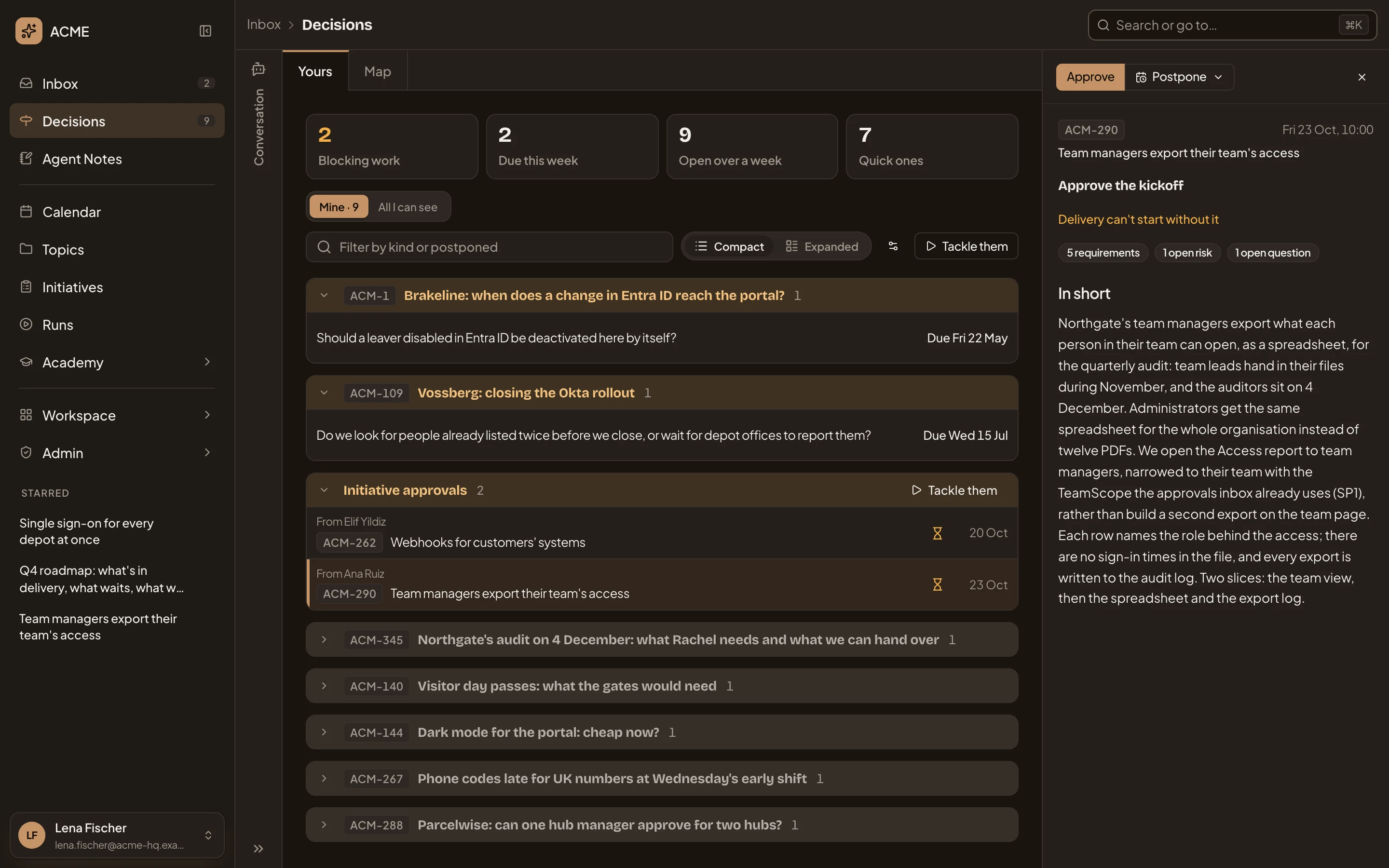
- Approve, and Postpone with a choice of when to come back to it.
- Approve the kickoff. What the approval needs from you, and what’s still open.
- In short. The Kickoff’s summary of the plan.
-
Click the initiative’s title in the panel. Its Kickoff opens. Read it before you approve. In short comes first, then the checks the owner cleared and what’s still open.
-
If something is unclear, ask in the Kickoff’s comments. Click Comments above the chat on the left. Type @, pick the owner, and write your question. Press Comment. Their answer comes back in the same place.
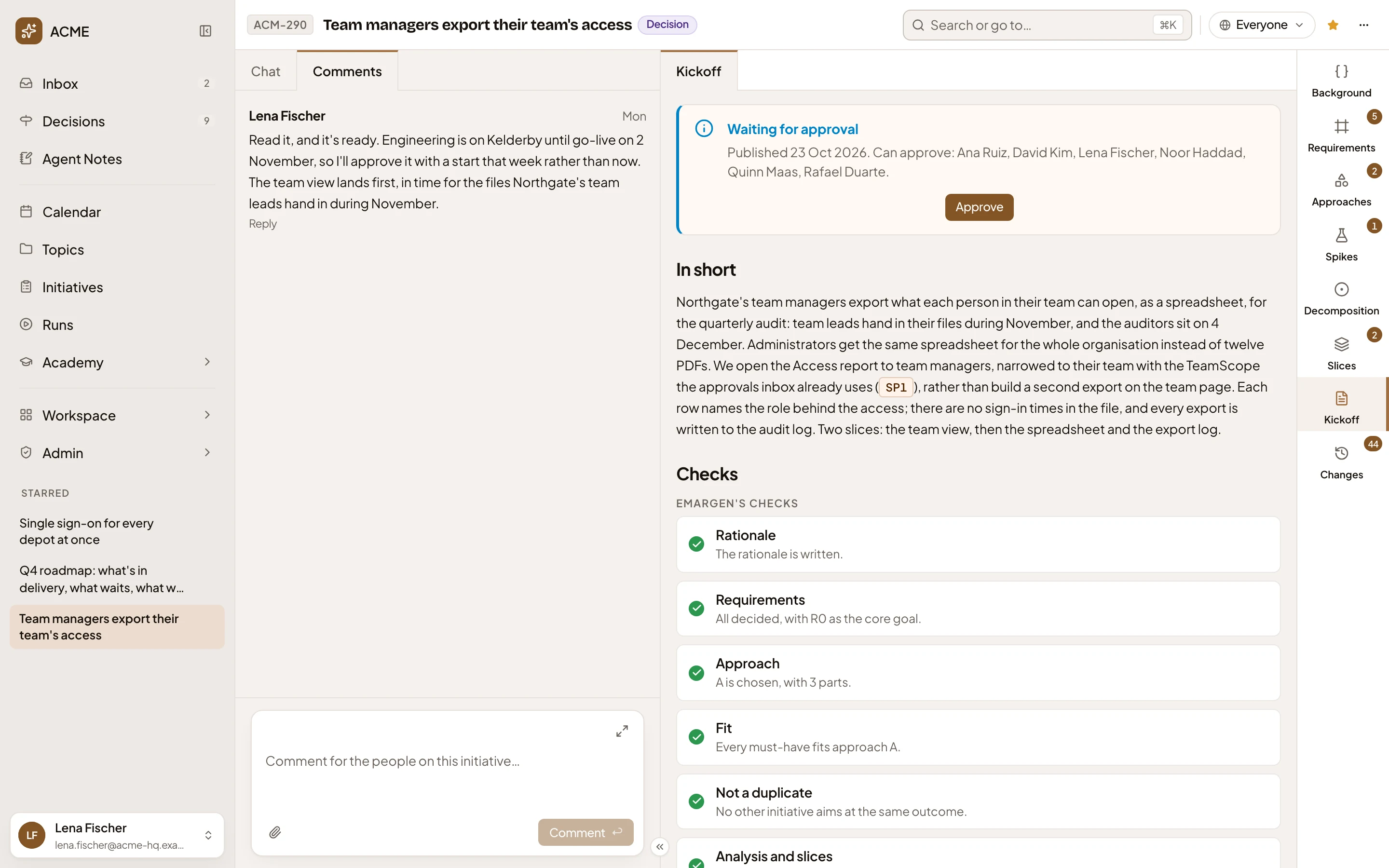
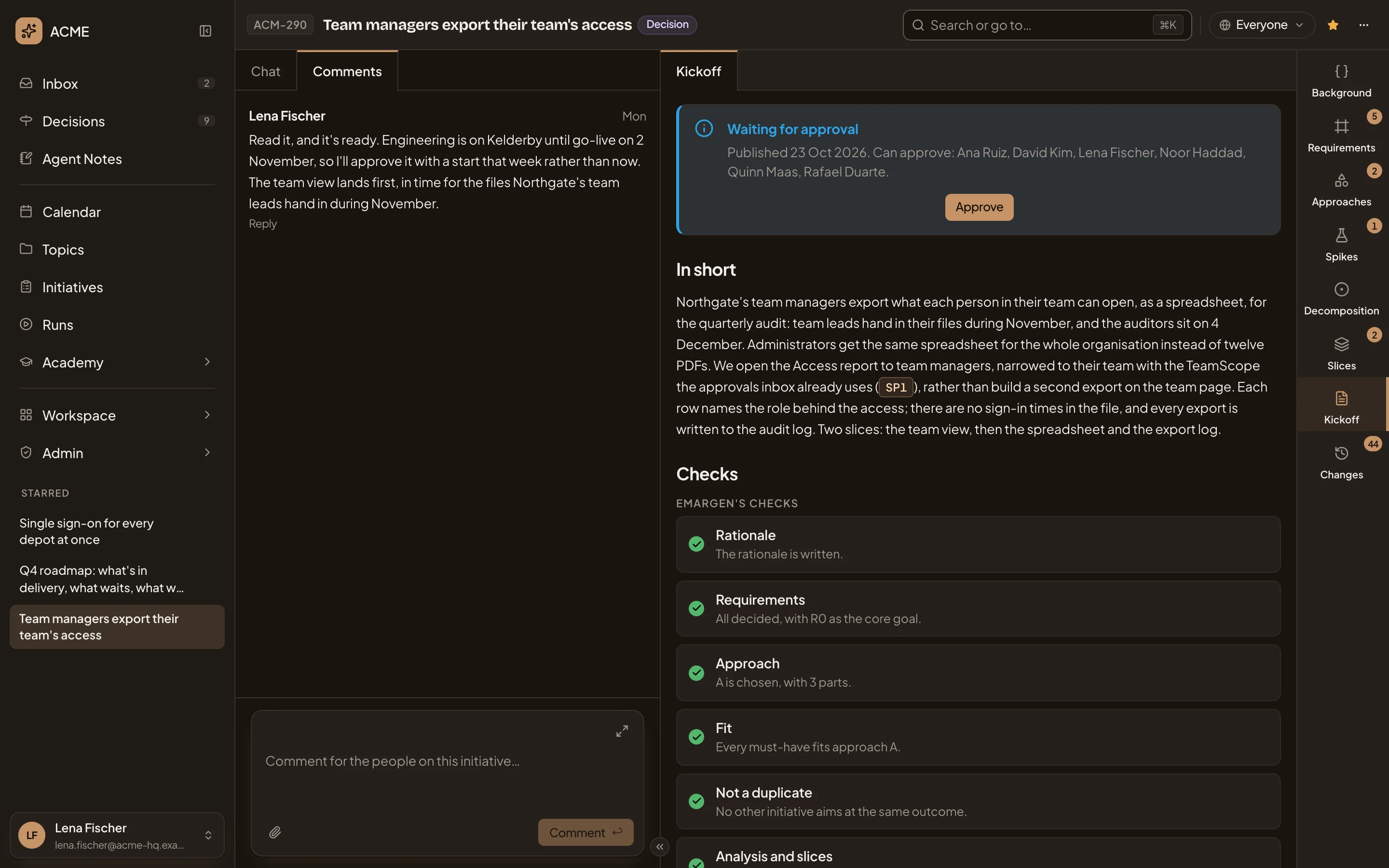
- Comments. The comments on the Kickoff.
- The comment box.
- Approve.
-
Press Approve at the top of the Kickoff, or in Decisions. There’s nothing to fill in. On the Kickoff it takes effect at once. In Decisions you can undo it for a moment.
What you get
Section titled “What you get”- The initiative is Approved, and its Kickoff says who approved it and when. It leaves the approvers’ Decisions, and Change requests joins the sections on the right.
- From now on, its requirements, approaches and plan change only through change requests.
- When the work starts, someone who edits the initiative chooses Start delivery from the status beside its title. In the picture, ACM-293 is approved and in delivery:
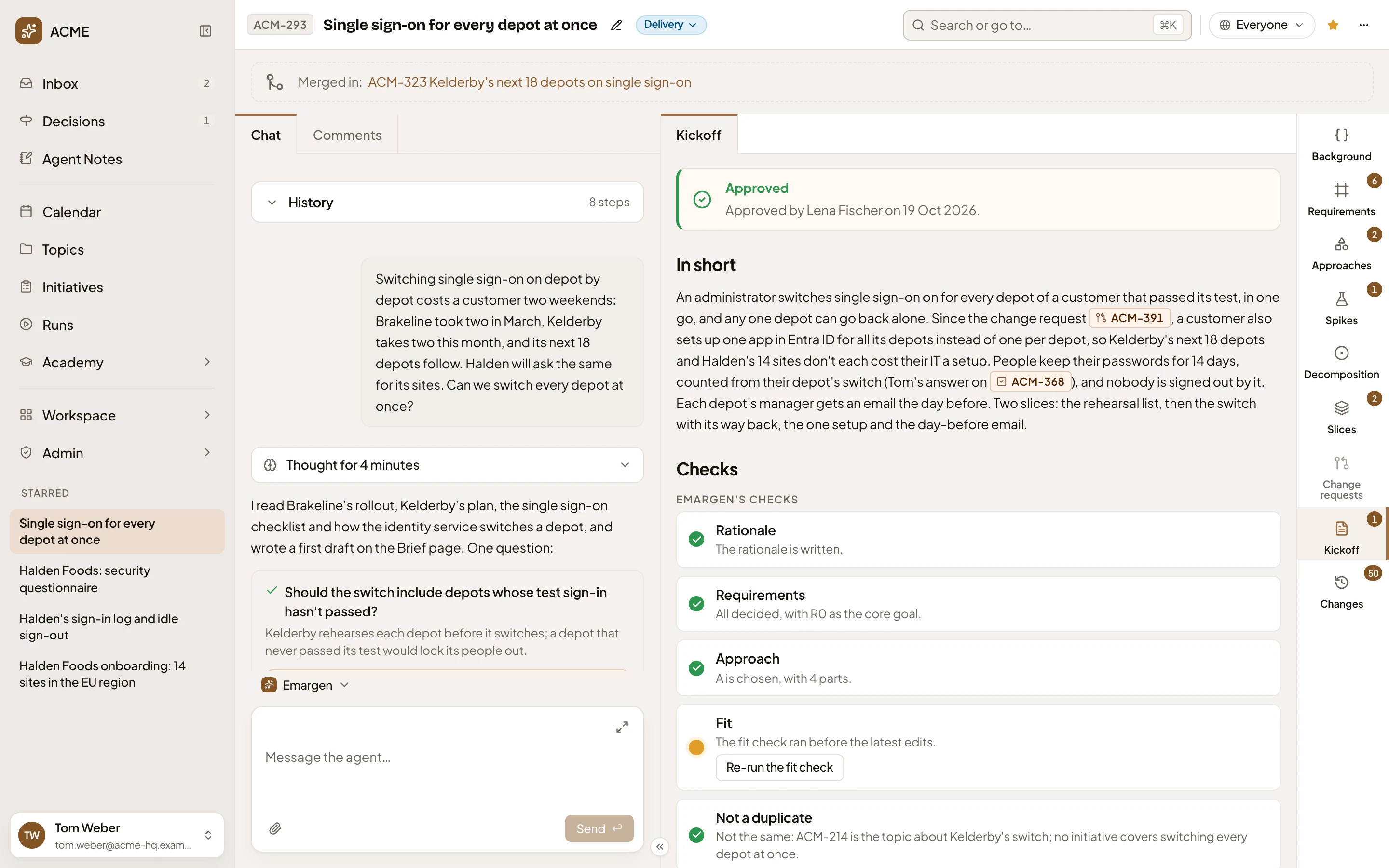
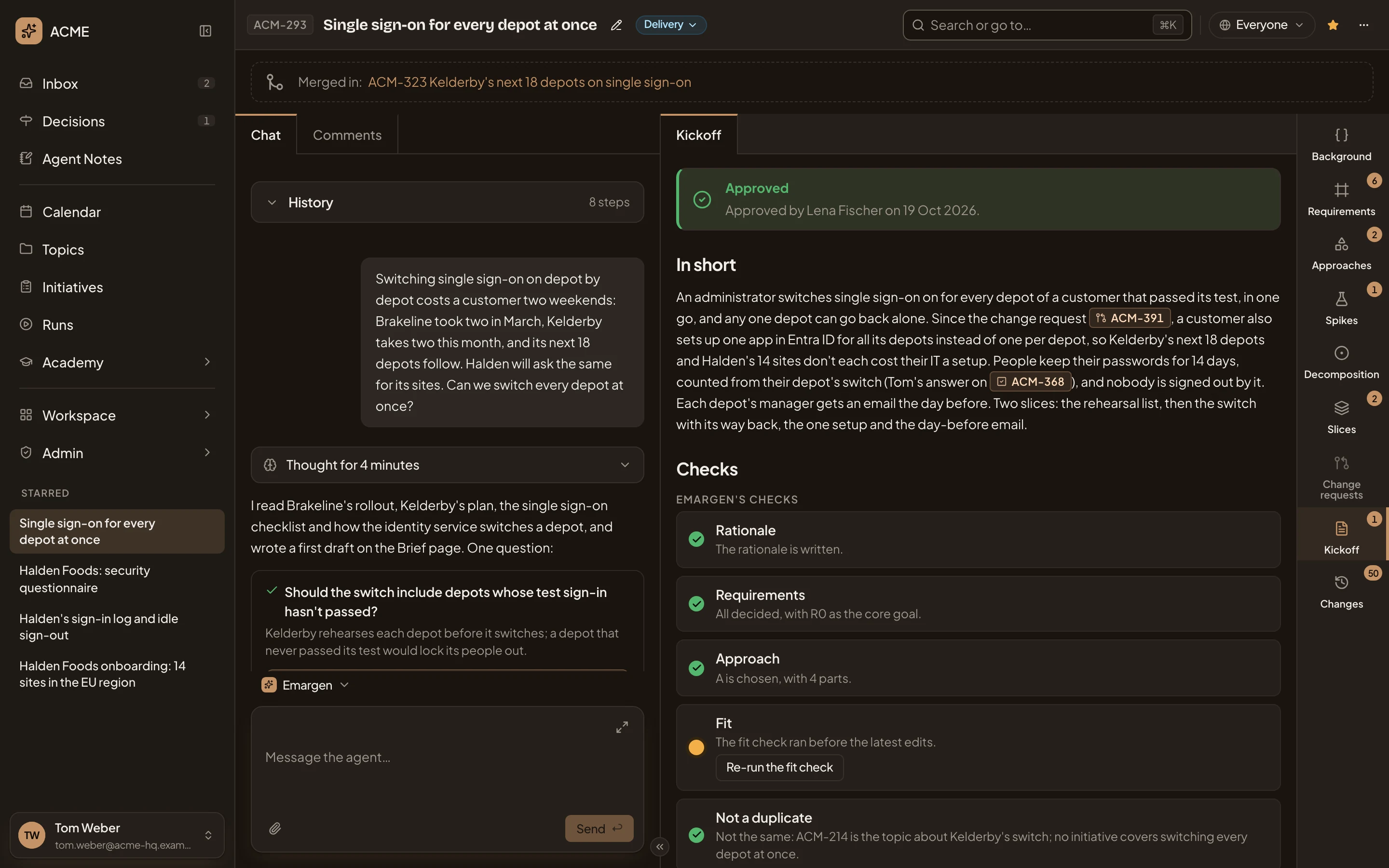
- Who approved it, and when.
- Status: Delivery.
While an initiative waits, the status menu of the people who edit it offers Approve, Reject and Postpone:
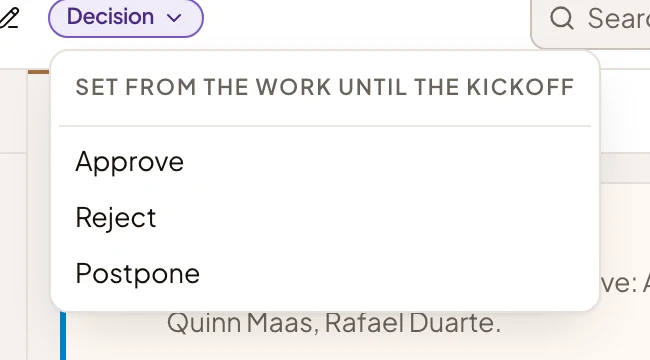
Approve from the Kickoff, which records who approved. Approve in this menu only sets the status by hand, and the Kickoff says nobody’s approval was recorded. With the approval gate on, it’s refused until someone other than the owner has approved. Reject ends the initiative there, and Postpone puts it aside. Emargen asks why either way. You can leave it empty. Agents read your reason beside the status when they find this initiative while shaping a later one.