

CalendarPage by page
An agent task's form
You make and change an agent task on a page of its own. New task on the Calendar opens it empty, at 09:00. A day’s + starts it on that day, and an hour’s + on a Day also sets the time. Edit on a task’s page opens it with the task’s values.
Open the Calendar (opens Emargen in a new tab)
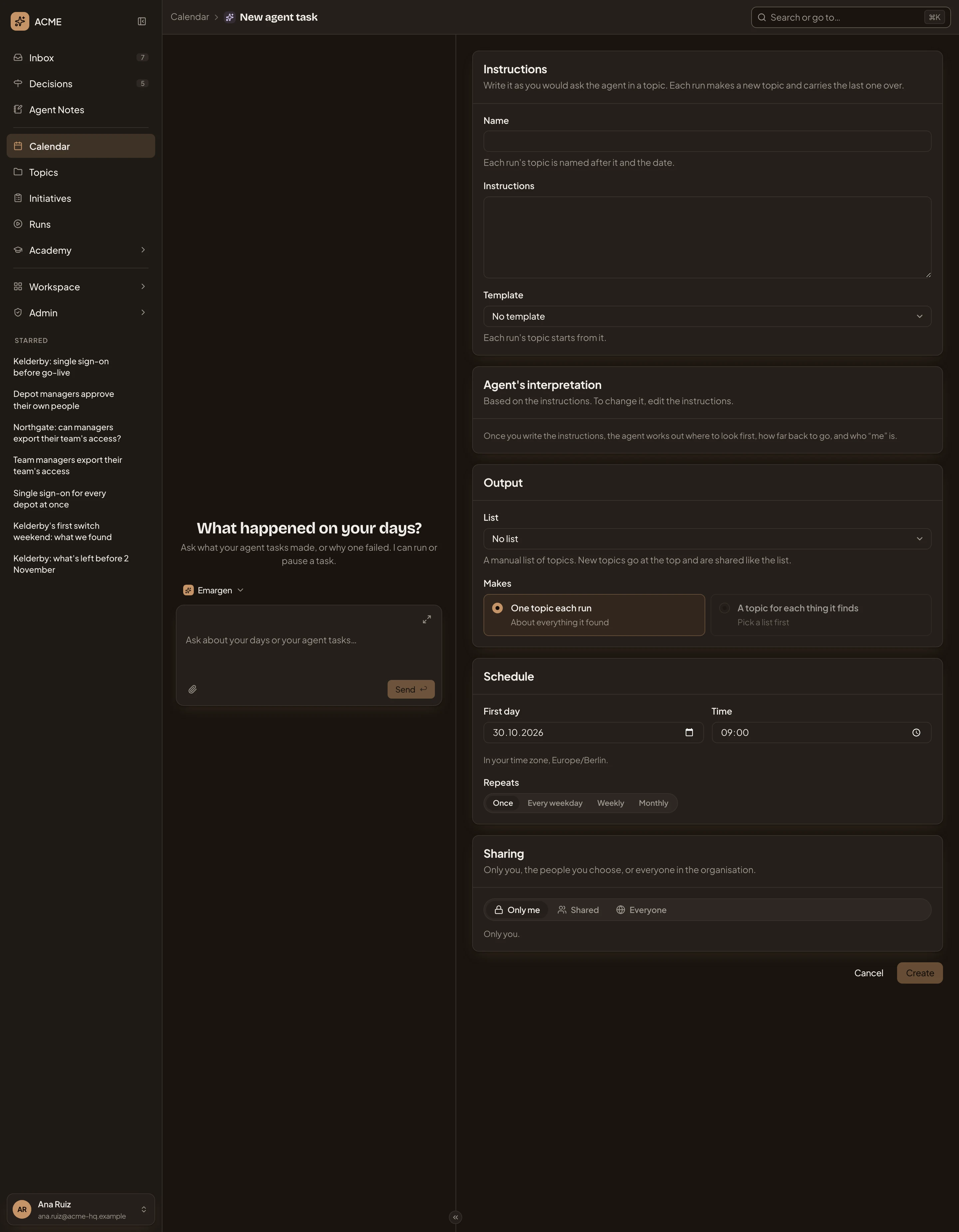
- Name. Runs name their topics after it and the date.
- Instructions. The job, in your words, as you’d ask the agent in a topic.
- Template. What each run’s topic starts from, or No template.
- Agent’s interpretation. Once you’ve written the instructions and moved on, the agent works out where to look first, how far back to read, and who “me” is. To change it, change the instructions.
- List. A list you keep by hand for the topics, or No list.
- Makes. One topic each run, about everything it found. With a list, A topic for each thing it finds, up to 10 a run.
- First day.
- Time. In your time zone.
- Repeats. Once, Every weekday, Weekly (then pick the days under On) or Monthly.
- Sharing. Only me, Shared with the people you add, or Everyone. A task that fills a list is shared like the list, so the sharing section goes.
- Create. Greyed out until the task has a name and instructions. A weekly task also needs a day. Create opens the new task’s page.
Cancel goes back to where you opened the form. The workspace agent on the left answers questions about your days and tasks. It doesn’t fill in the form for you.
The form opens with the task’s values and Save, which goes back to the task’s page. Under Schedule it adds Paused. Past runs stay, and no new runs start. For the task’s owner, the form ends on Delete this task. The support team’s task, below.
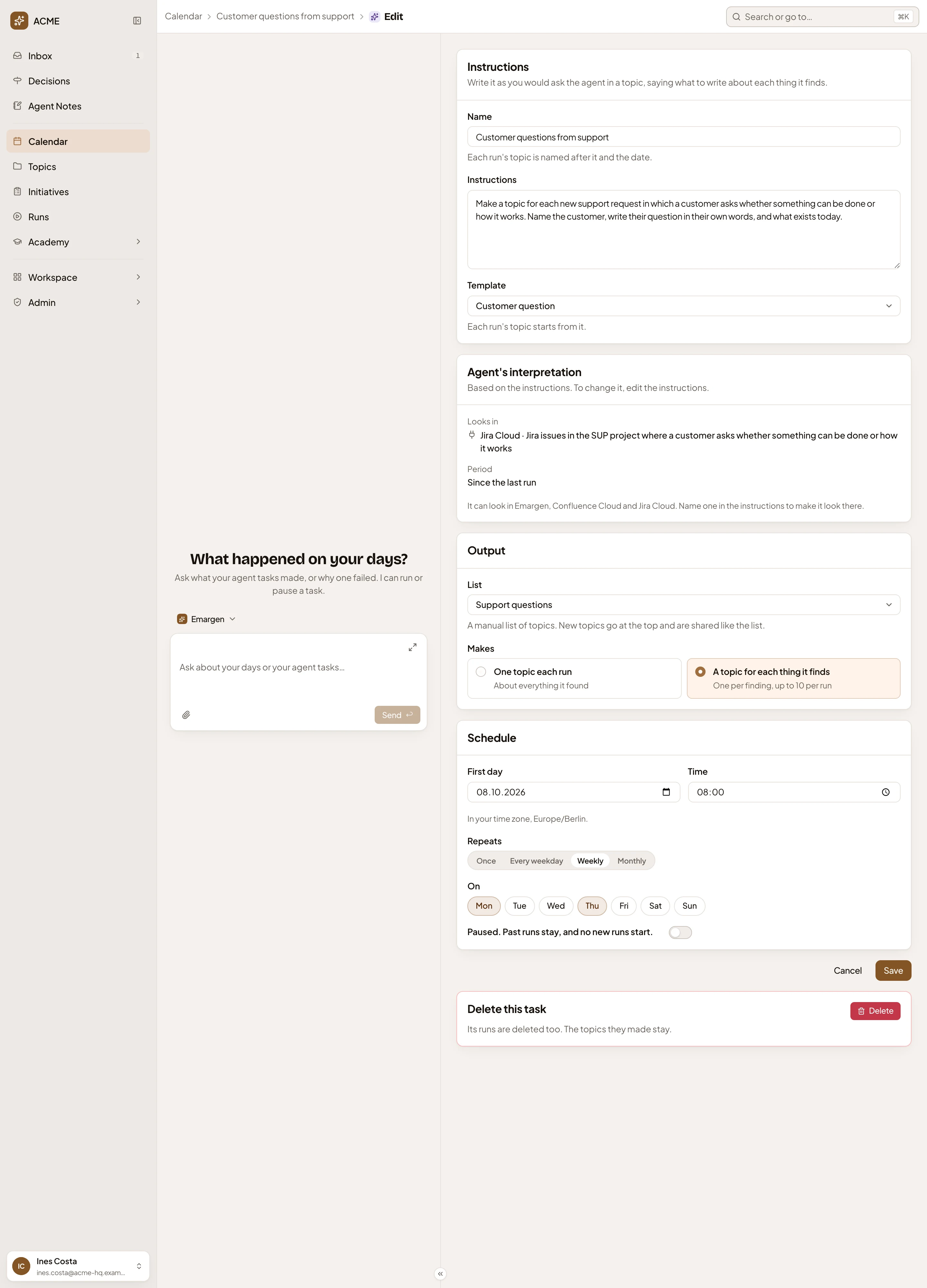
- Looks in What the agent read in the instructions.
- Where it could look: Emargen and the tools your organisation connected. Name one in the instructions to make it look there.
- On. The days a weekly task runs.
- Paused. Past runs stay, and no new runs start.
- Save.
- Delete this task. Asks first. Its runs go, and the topics they made stay.
Access
Section titled “Access”Anyone in the organisation can make a task. People who can edit a task open its form. Only its owner sees Delete this task.