

WorkspaceHow to
Add to the Landscape
Add to the Landscape when your work keeps naming something the agents don’t know. It might be a system your engineers built, a role at a customer, or a word your sales team uses. Once it’s in, the agents write its name and know its other names.
Before you start
Section titled “Before you start”- Who can
- Everyone in the organisation can add an entry. If your role lets you approve Landscape changes, as an administrator’s does, it goes in at once. For everyone else it waits for an approver. Yours is a proposal if the page has a Reason section and ends in Send.
- Look first
- Type the name in the search box on the Landscape. If it’s there under another name, add your name to that entry’s Also called instead.
- The pictures
- Tom Weber, a sales engineer at ACME and a member, adds Agency driver. A customer’s support question asks whether depot managers can approve agency drivers for one shift, and the Landscape has no word for them.
-
In the menu, open Workspace and click Landscape. Click the kind your entry is, here People and roles. Then click its New button, here New person or role.
Open the Landscape (opens Emargen in a new tab)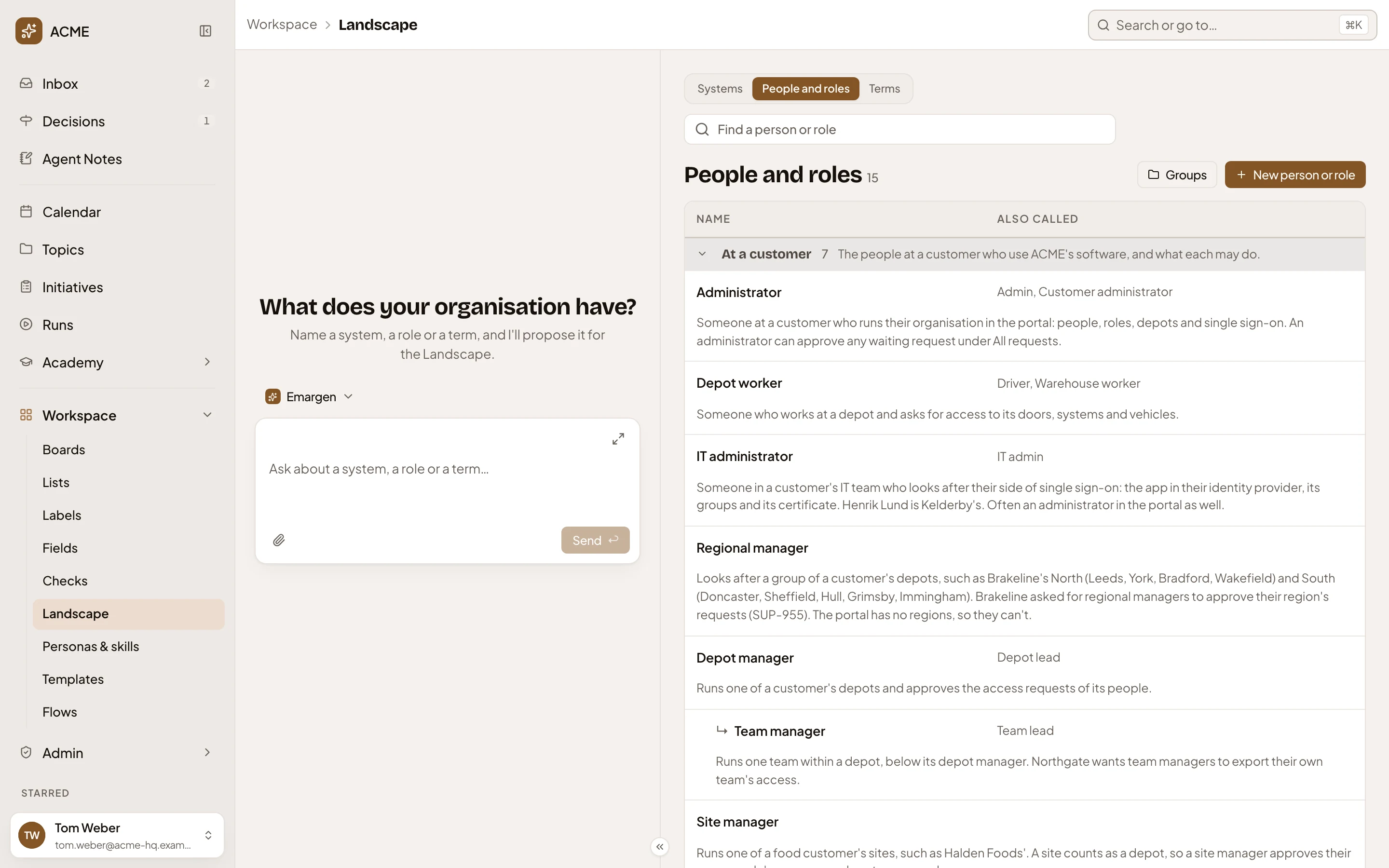
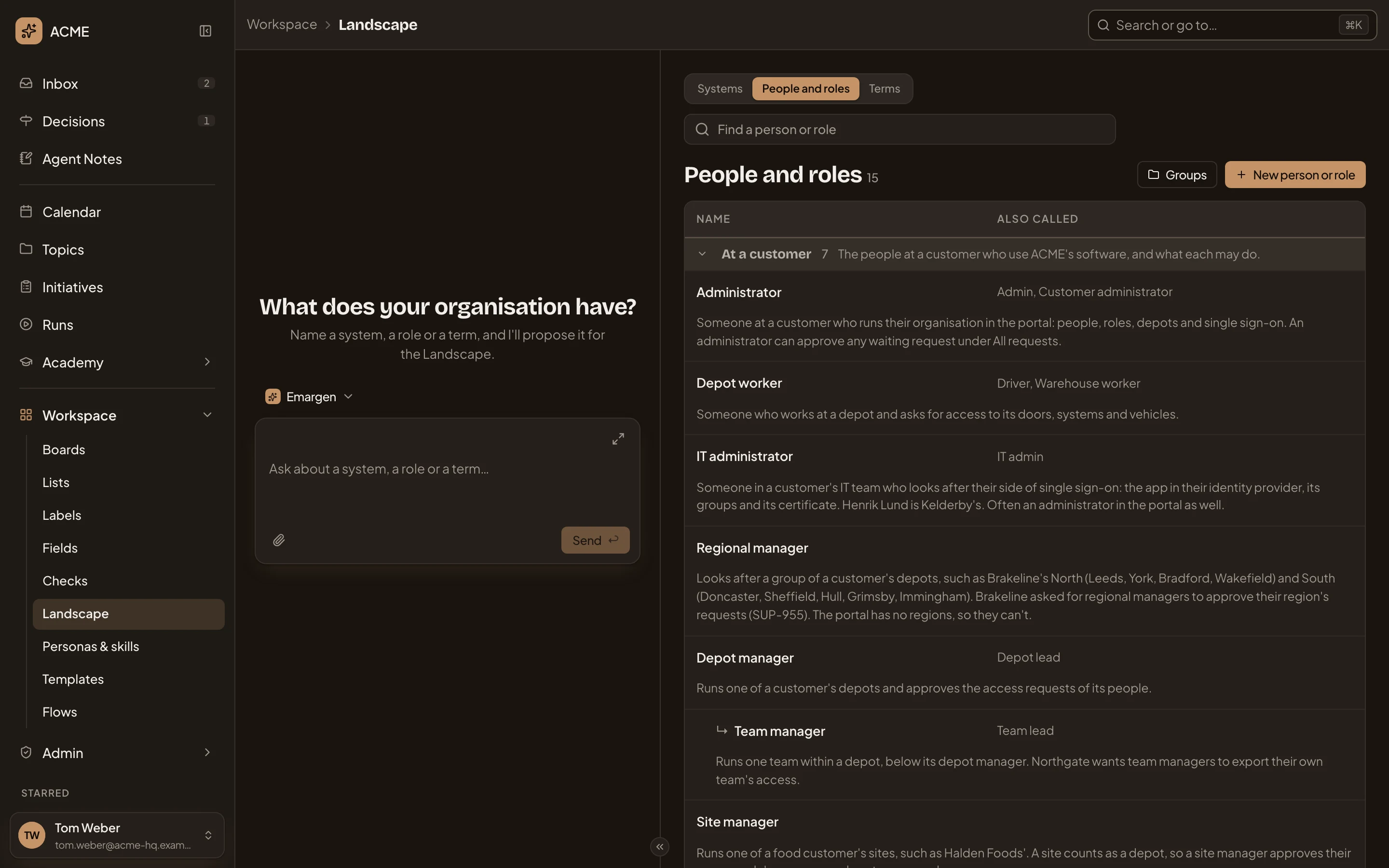
- People and roles.
- New person or role.
-
Fill in Details.
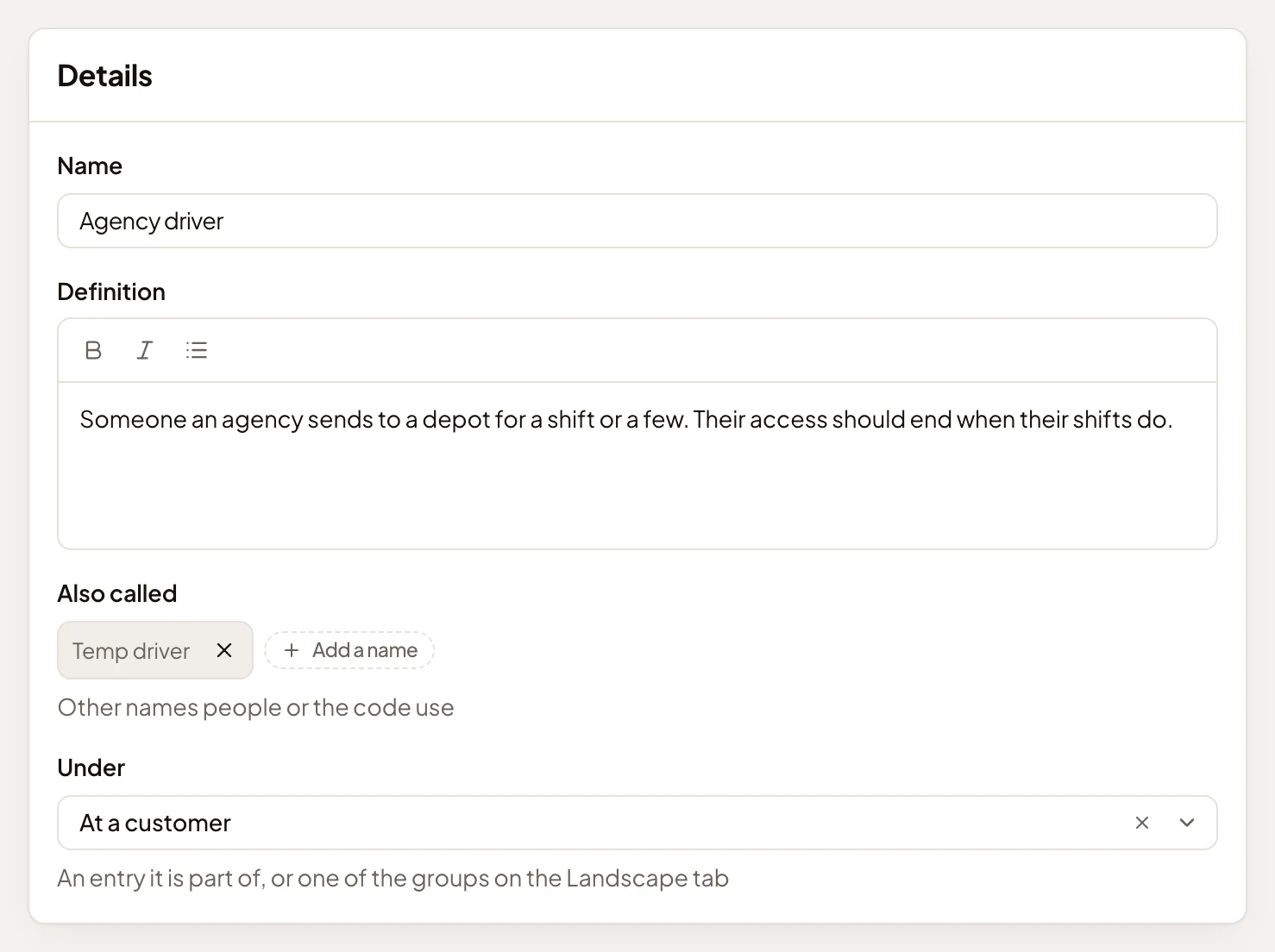
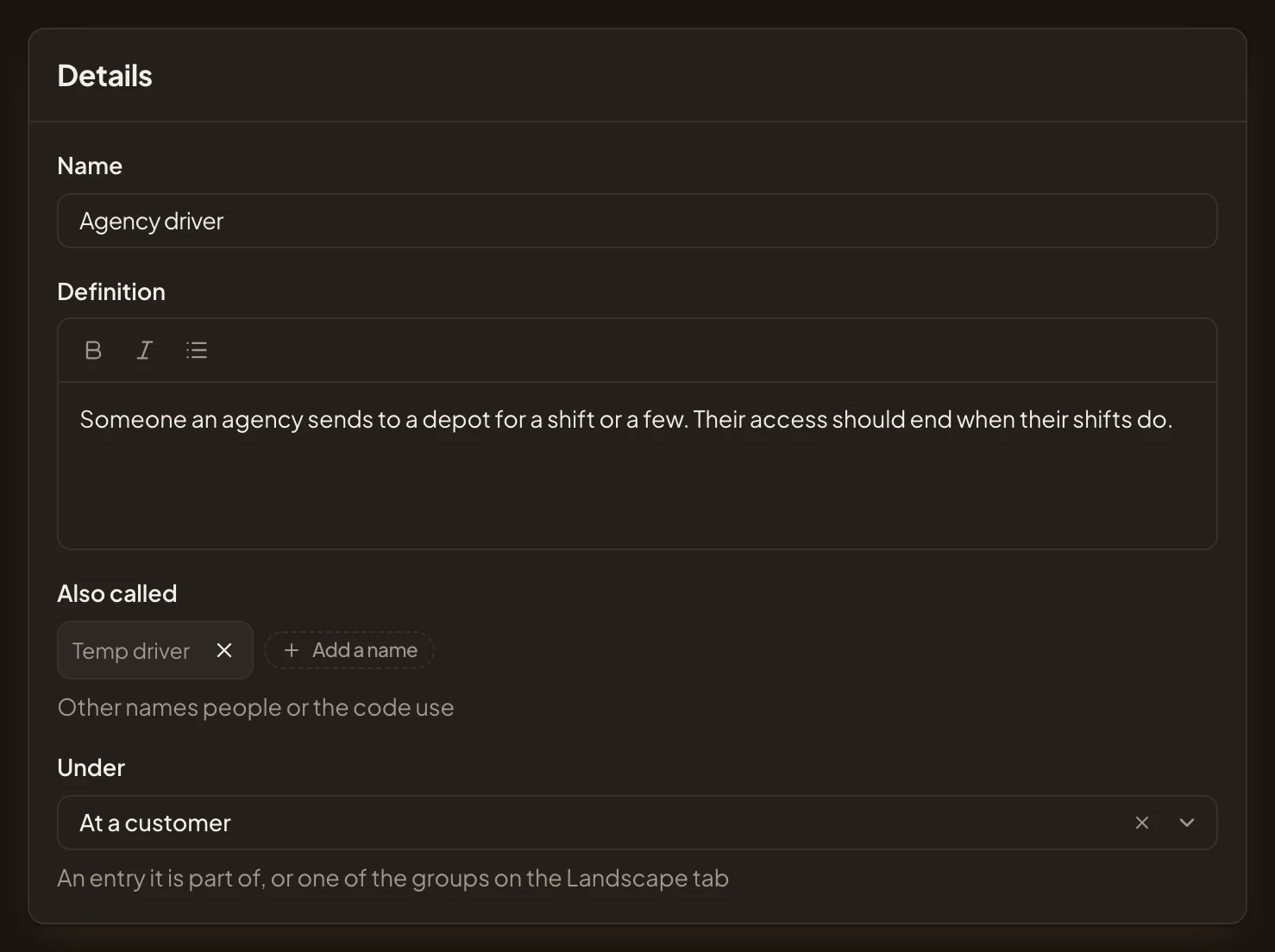
- Name. The name the agents should write.
- Definition. What it is, in one or two plain sentences.
- Also called. Other names people or the code use. Click Add a name, type one and press Enter. Leave it empty when there are none.
- Under. Where it belongs. Click it and pick a group, marked Group, or an entry it’s part of. The pictures pick the group At a customer. Left as Nothing, the entry is listed under Other.
-
If your page has a Reason section, say there why the entry belongs. Whoever approves it reads it. Then click Send. You can send it once it has a name and a definition. If your page ends in Save instead, click Save.
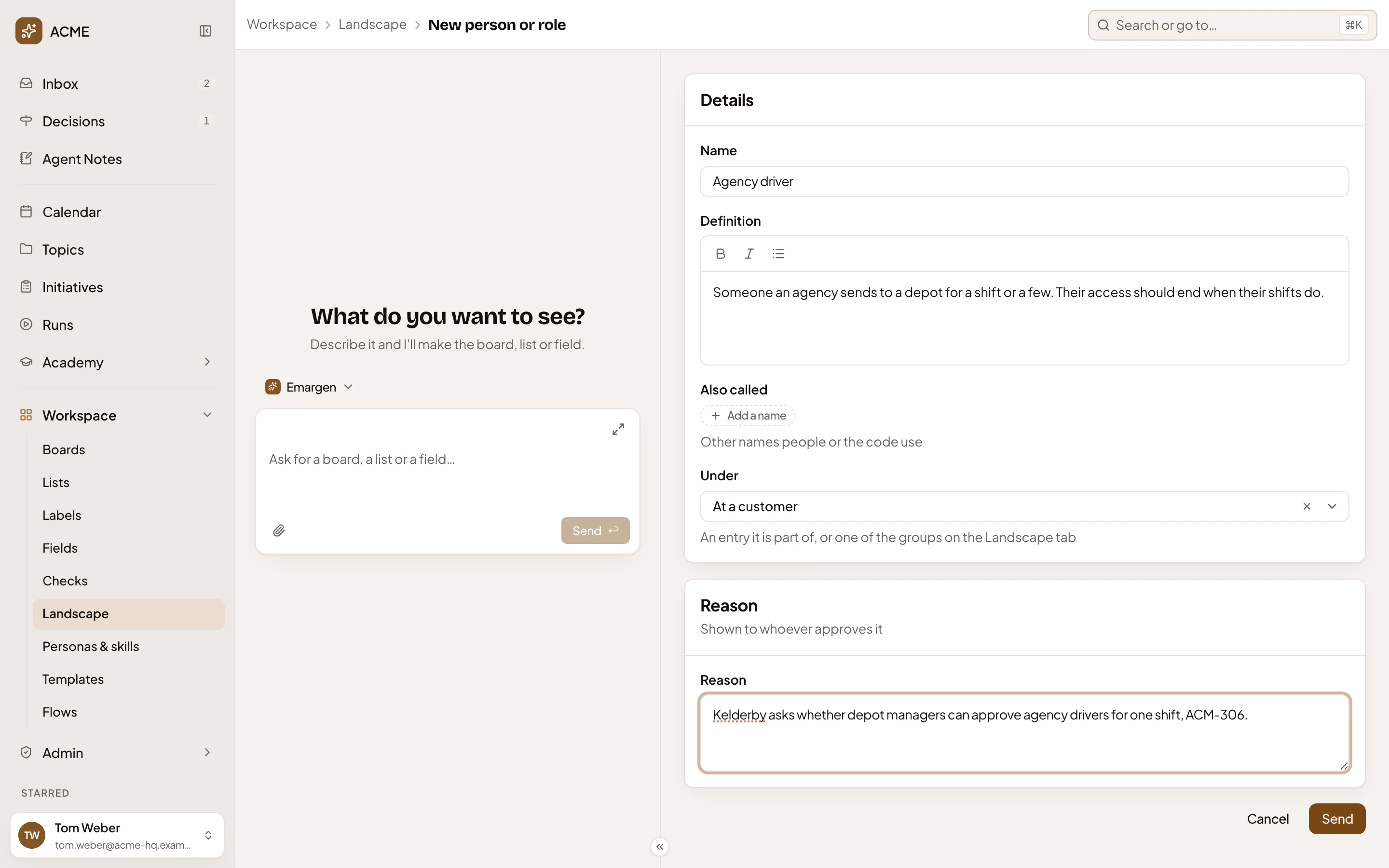
- Reason.
- Send.
What you get
Section titled “What you get”- With Send, a proposal waiting for approval. You’re back on the Landscape, and the entry isn’t there yet. The agents don’t use it until someone approves it, and nobody tells you when they decide.
- Everyone whose role lets them approve Landscape changes finds it in their Decisions, and on the Landscape. See Approve a Landscape proposal.
- Once approved, the entry is on the Landscape and the agents write it from then on. With Save, it’s there already, with your name in its History.
A system’s page also has Code, where you pick the repositories that hold its code.
Change or remove an entry
Section titled “Change or remove an entry”Click the entry’s row on the Landscape, then Edit under it: the same page, filled in. As a member, you propose taking it out with Remove. The agents keep using the entry until someone approves it.
Ask the agent instead
Section titled “Ask the agent instead”The workspace agent beside the page can draft the entry. Tell it what you want added, in your own words. It fills in the page, and nothing is sent until you press Send or the button on the card it puts in the chat.