

AdminHow to
Invite people
Invite someone when they should work in Emargen with you. They might be a new support colleague, or the engineer who knows the code behind a customer’s question. They get an email with a link to join.
Before you start
Section titled “Before you start”- You need a role that may invite people. Administrators can, and so can anyone whose role has that permission.
- Unless you manage roles, you can only invite someone with a role whose permissions you already have. If you manage roles, you can choose any role.
- You need their email address. If your organisation signs in through single sign-on, people at your own domain join by signing in, without an invitation. Their roles can come from single sign-on too. Invite people at other domains.
- The pictures show ACME’s administrator inviting Sara Lind, who runs operations at its depots, as a member. One shows the Role list as its support lead sees it. ACME’s two waiting invitations run for a year, not 7 days, because they were made that way for its demos.
-
Click Admin in the menu, then People under it. The page opens on Members, with Invite at the top right.
Open People (opens Emargen in a new tab)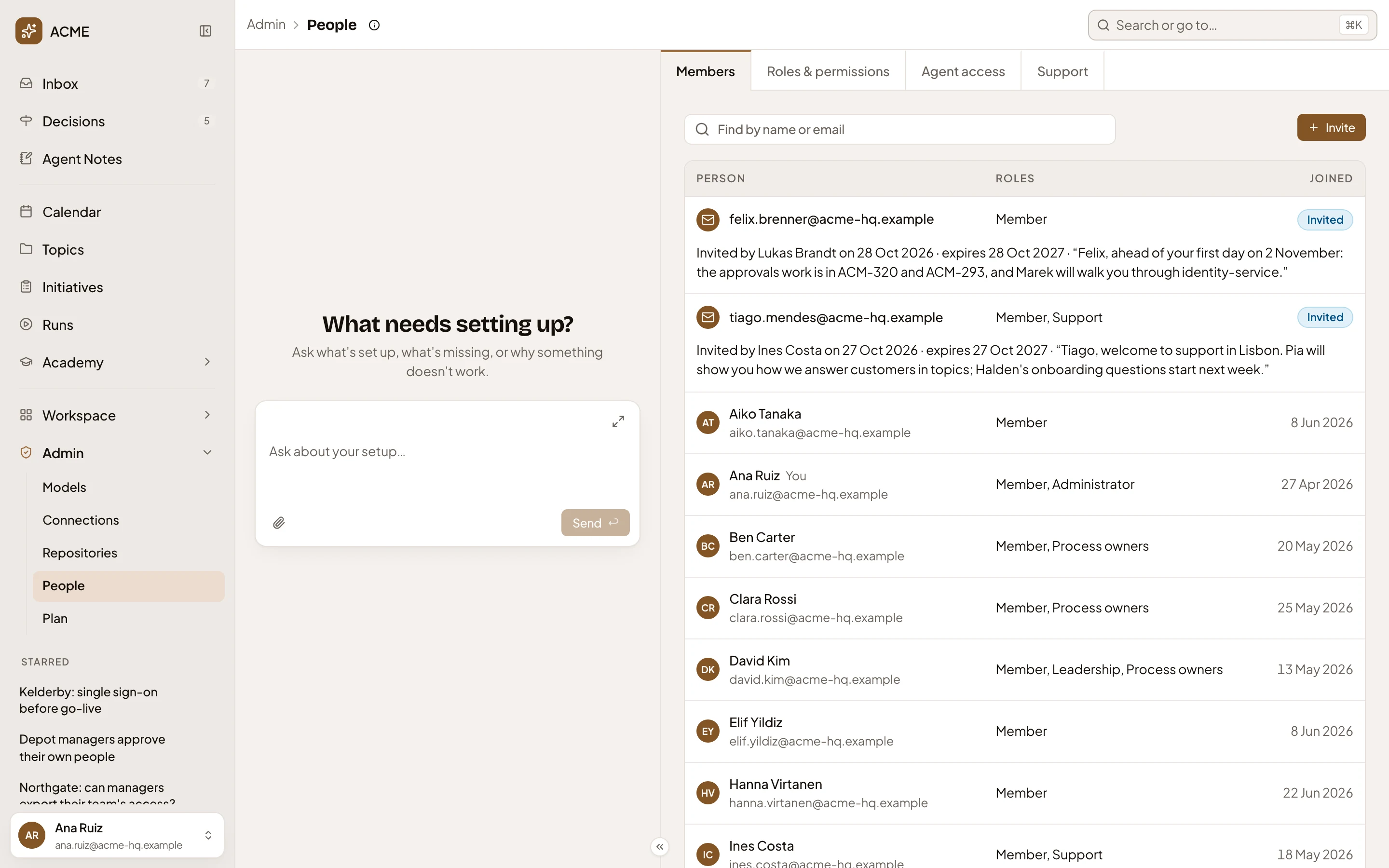
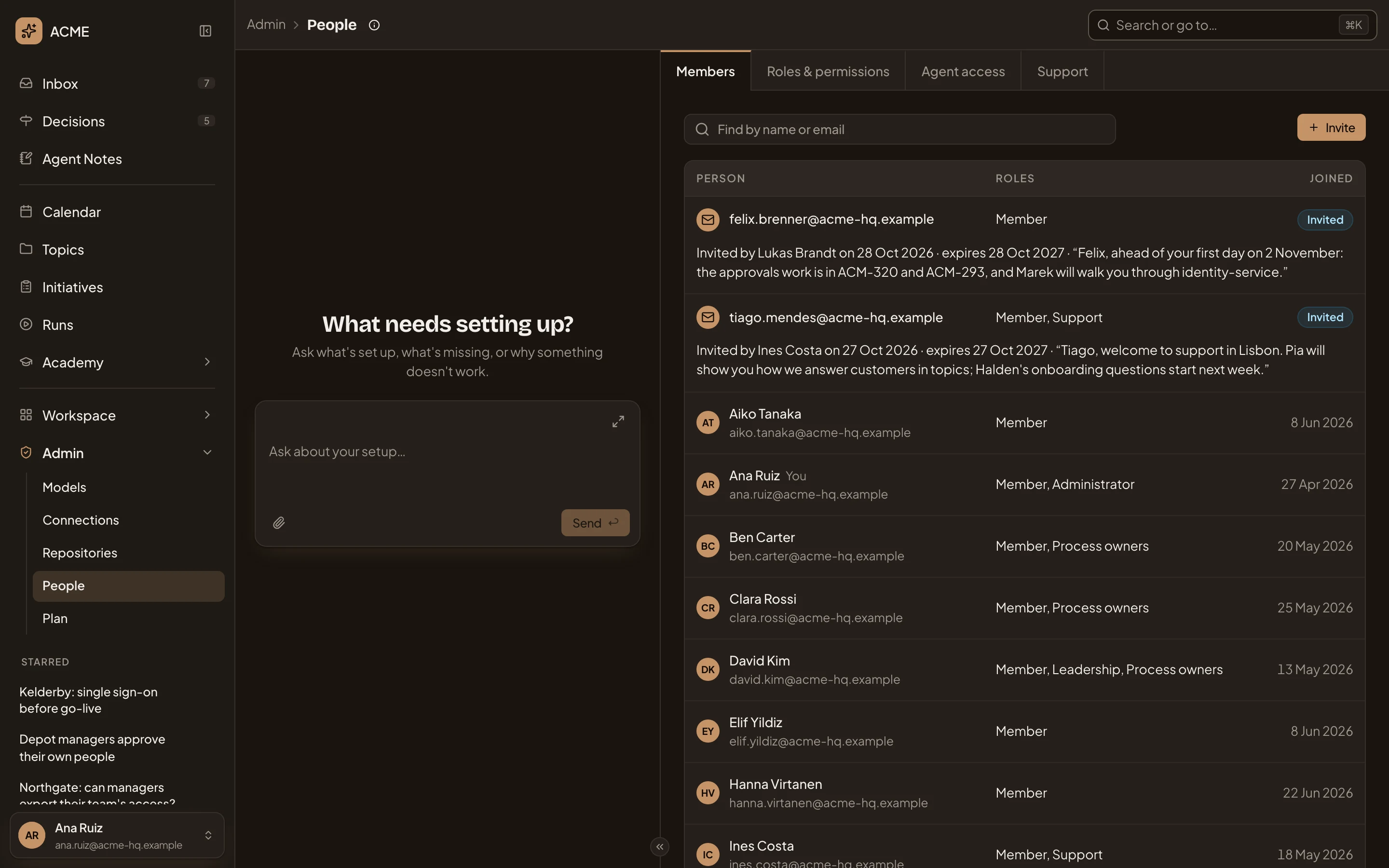
- Members, the page you are on.
- Invite.
-
Click Invite. Invite a person opens.
-
Type their address in Email.
-
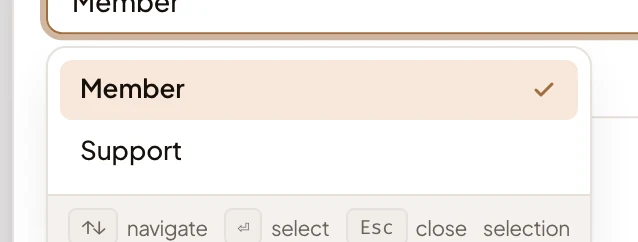
Choose their Role. It starts on the role that allows least, usually Member. A member works on their own topics and on what’s shared with them. Pick another role only if they need what it allows. Someone who manages roles can give them more later.
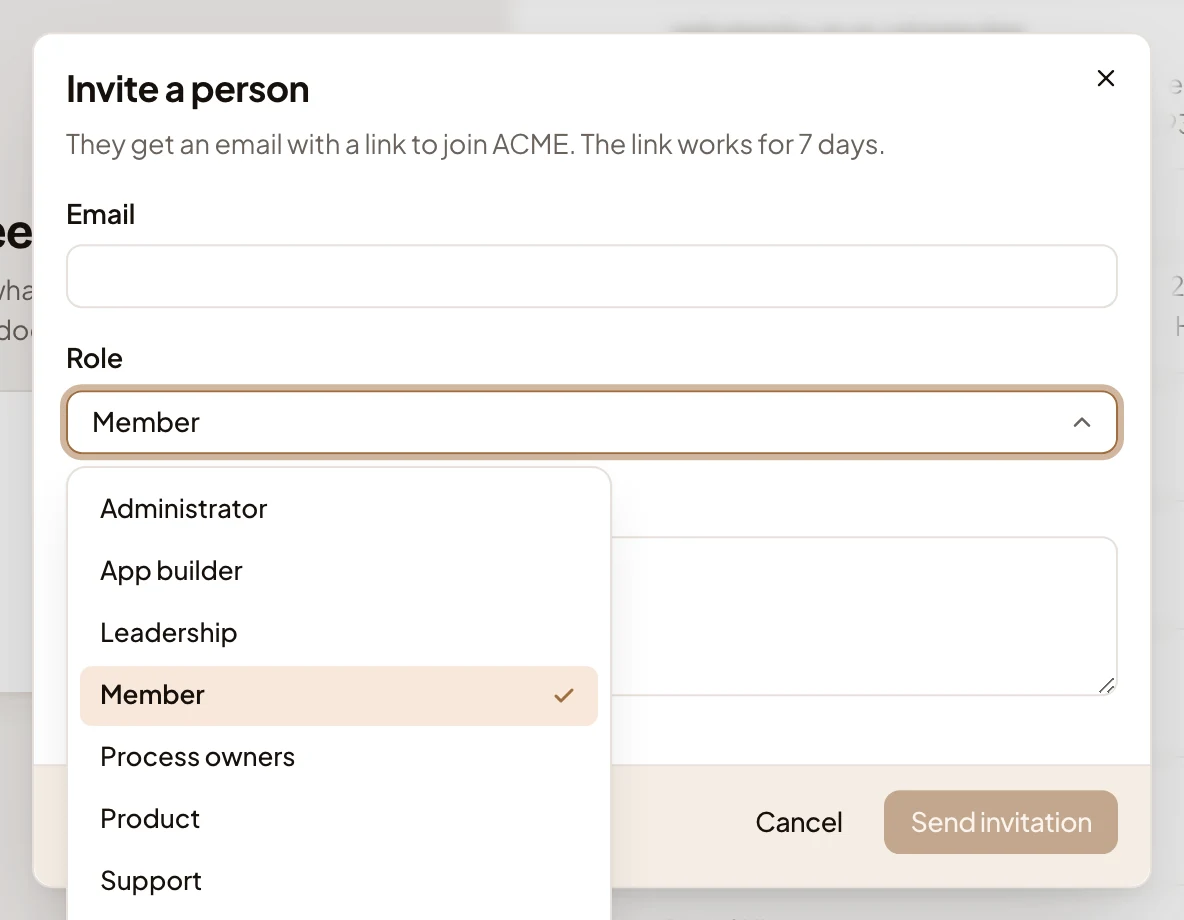
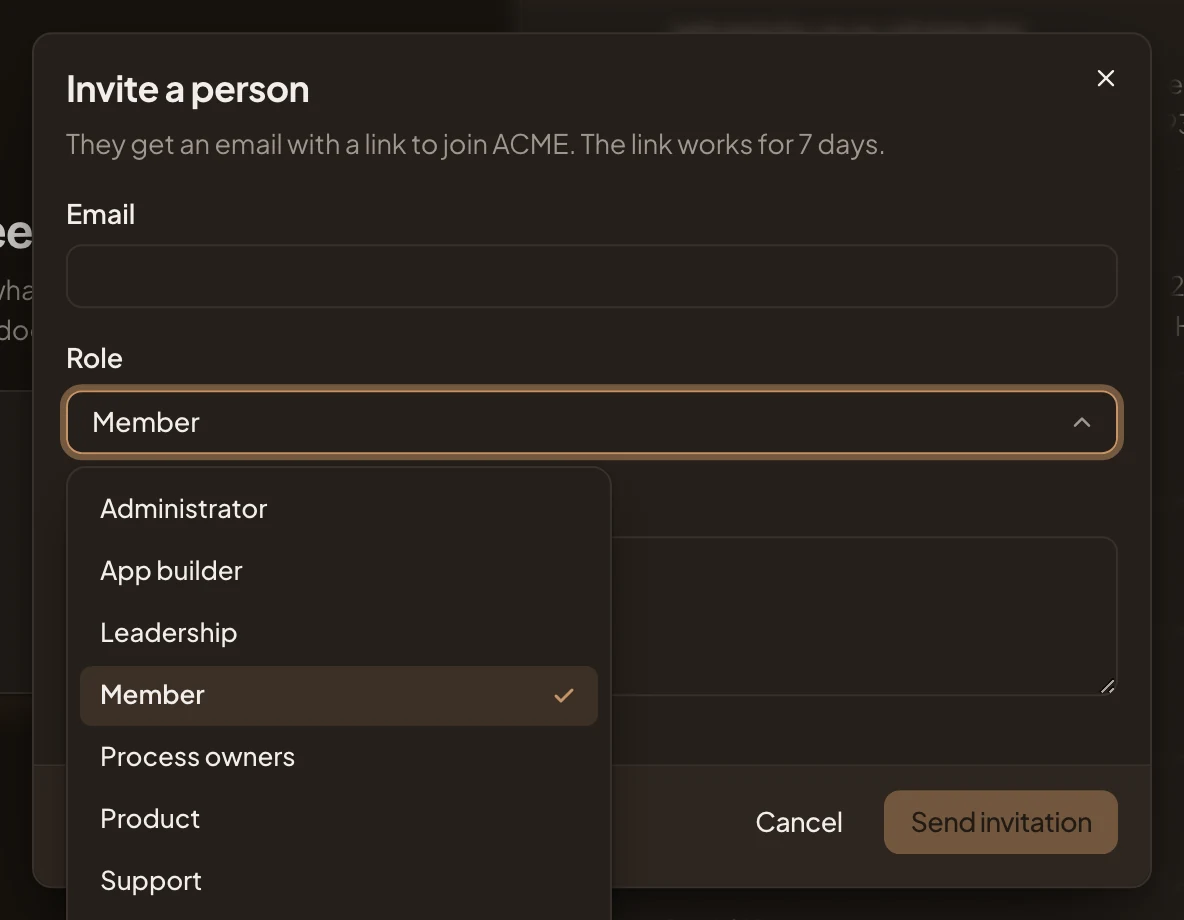
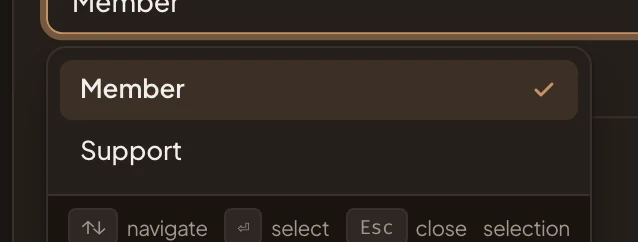
- The roles you may give. An administrator may give any of them.
Someone whose role holds only Invite people sees only the roles they may give. ACME’s support lead sees two.
-
Add a Note if you like. It goes in the invitation email, in your words.
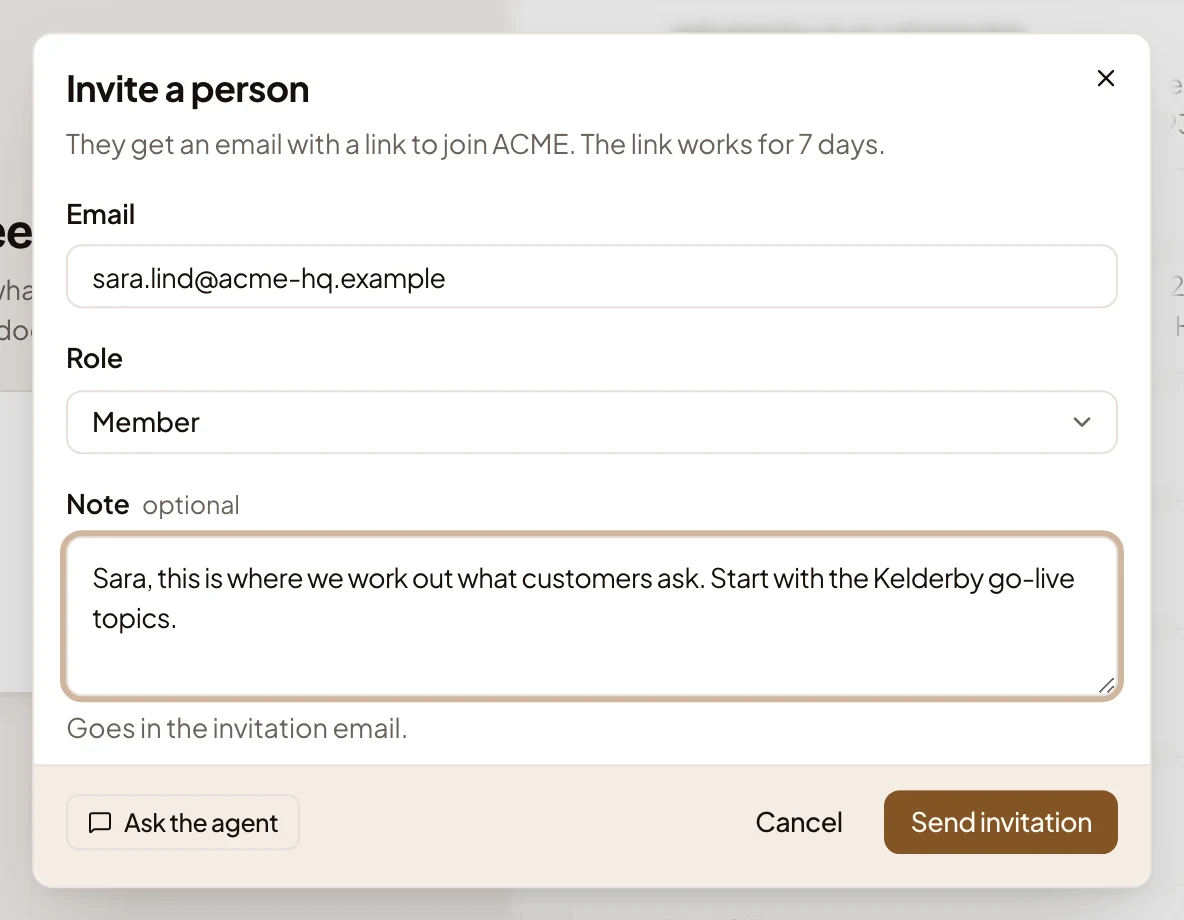
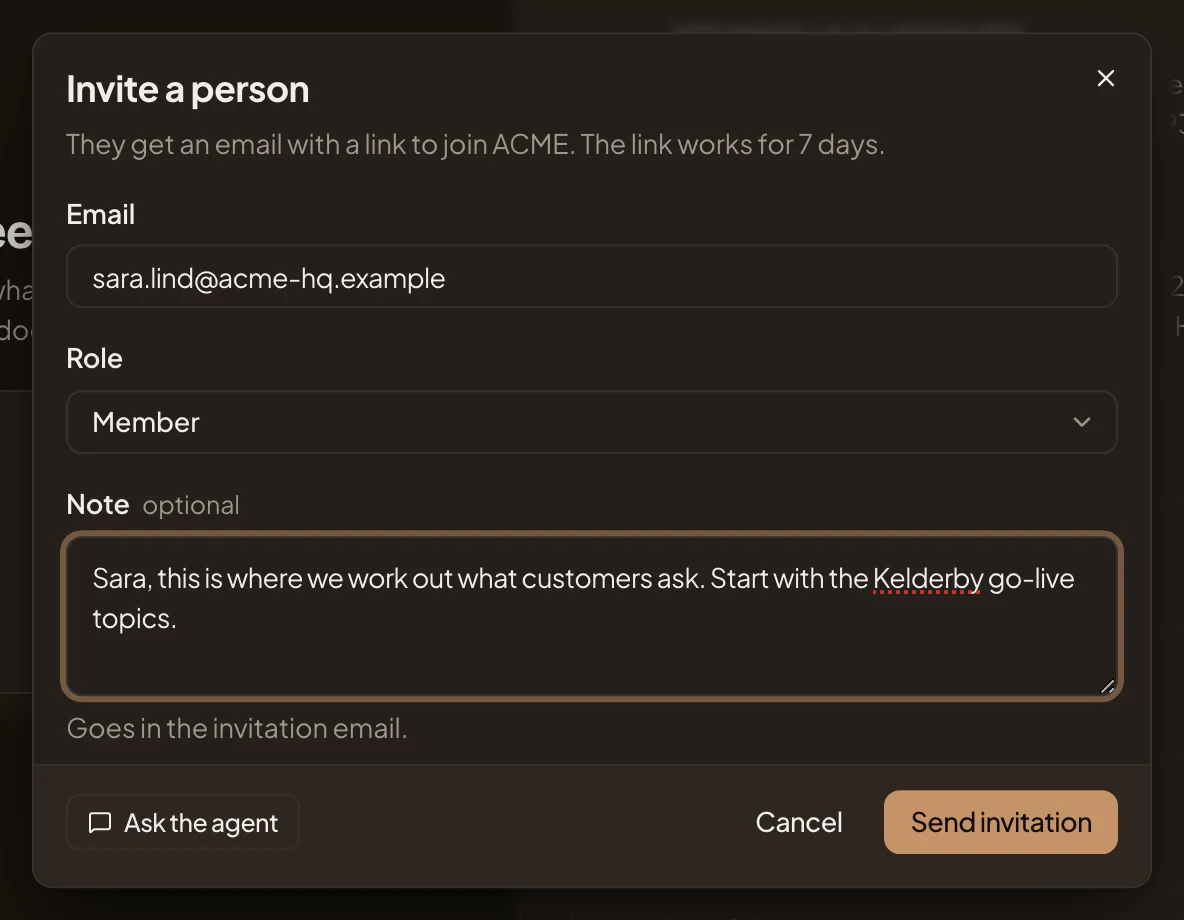
- Email.
- Role.
- Note.
- Send invitation.
-
Click Send invitation. The dialog closes, and a message confirms the invitation was sent. The invitation shows at the top of Members as Invited, with your name, your note and its dates. It expires in 7 days.
You can also ask the admin agent beside the page to invite the address as a member, with your note in the same message. It puts the invitation on a card in the chat, and nothing is sent until you press Invite on the card. Or click Ask the agent in the dialog to carry on in the chat, and give the details again there.
What you get
Section titled “What you get”- They get an email with a link to join your organisation. The link works for 7 days.
- When they accept, they appear in Members with their role and the day they joined.
- A member sees topics shared with everyone or with them, and starts their own.
If they don’t answer
Section titled “If they don’t answer”Click the invitation in Members to select it. Resend and Revoke open under its line.
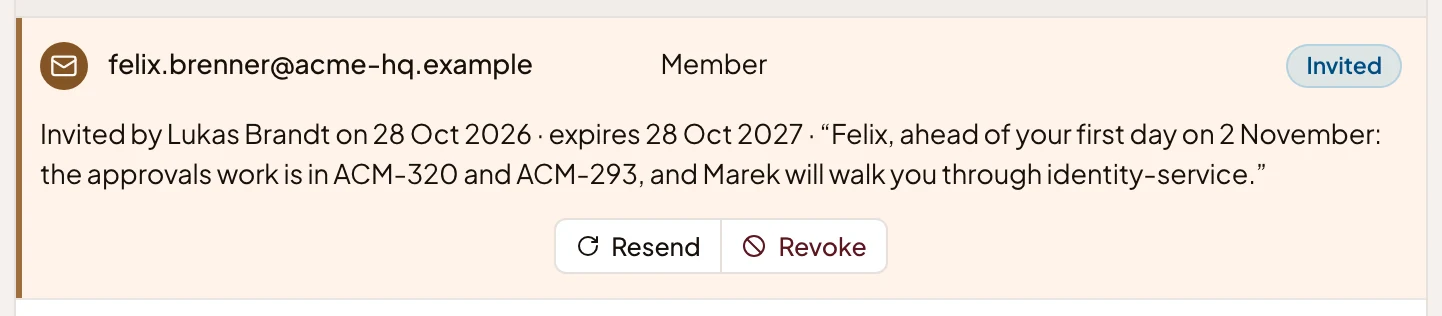
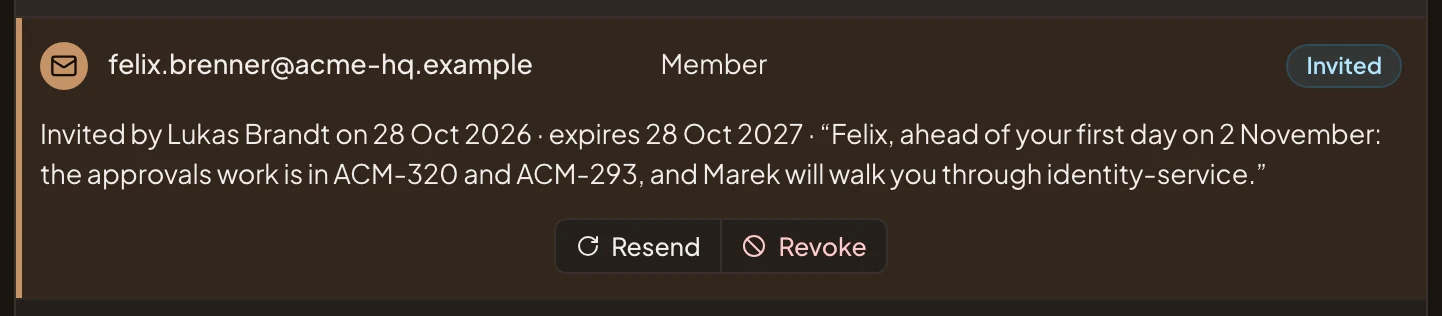
- Resend. Sends it again with a fresh link, which works for another 7 days. A message says “Invitation sent again to” the address.
Revoke, beside it, takes the invitation back. It asks first, “Revoke invitation?”. Click Revoke again to confirm. A message confirms it, the link stops working, and the invitation leaves the list. An invitation past its date says Expired until you resend or revoke it.