

TopicsHow to
Have the agent keep a topic up to date
Some topics should stay current without anyone remembering to update them, like a weekly round-up of what customers asked, or where a rollout stands. An agent task has the agent come back to the topic on a schedule, look again, and rewrite only the sections and fields you name.
Before you start
Section titled “Before you start”- Who can
- Anyone who takes part in the topic can set up its task while it has none, and owns the task they set up. Only the owner changes or deletes it. Anyone who takes part can pause it, and whoever sees the topic sees it.
- One task a topic
- A topic has one agent task. Its ⋯ menu shows the task’s name and “Agent task:” when it has one. A list’s task updates the topics it makes. You can still give one of them its own task, and the form warns that the list’s task will stop keeping it.
- The pictures
- Two topics at ACME, the company in the docs’ pictures. The steps set up a task on ACM-281, a customer question with none. ACM-287, “What customers asked this week”, already has one, kept every Monday.
-
Open the topic you want kept up to date.
Open the topics list (opens Emargen in a new tab) -
Click ⋯ at the top right of the page, beside the star. The topic’s menu opens.
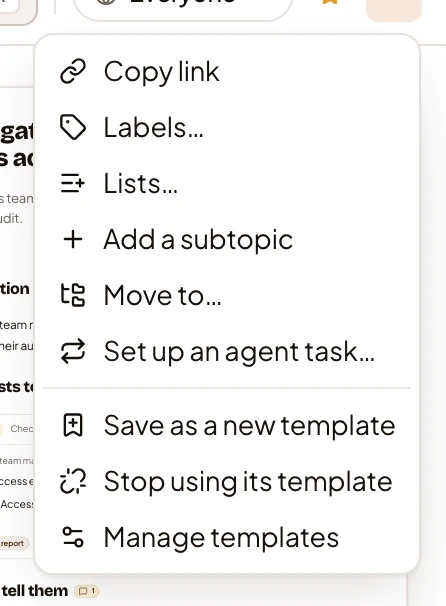
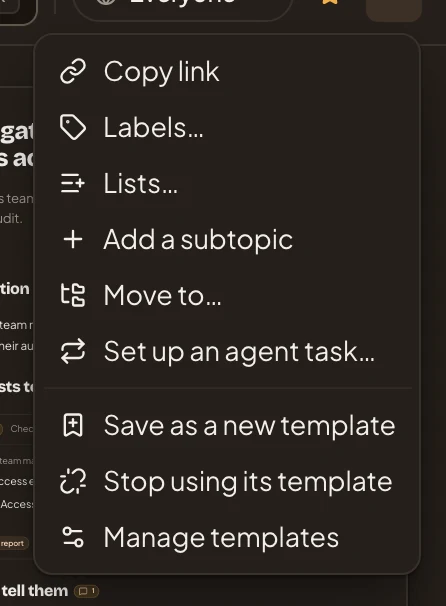
- Set up an agent task…
-
Click Set up an agent task…. “New agent task” opens on the right of the page. Scroll it down for “Schedule”.
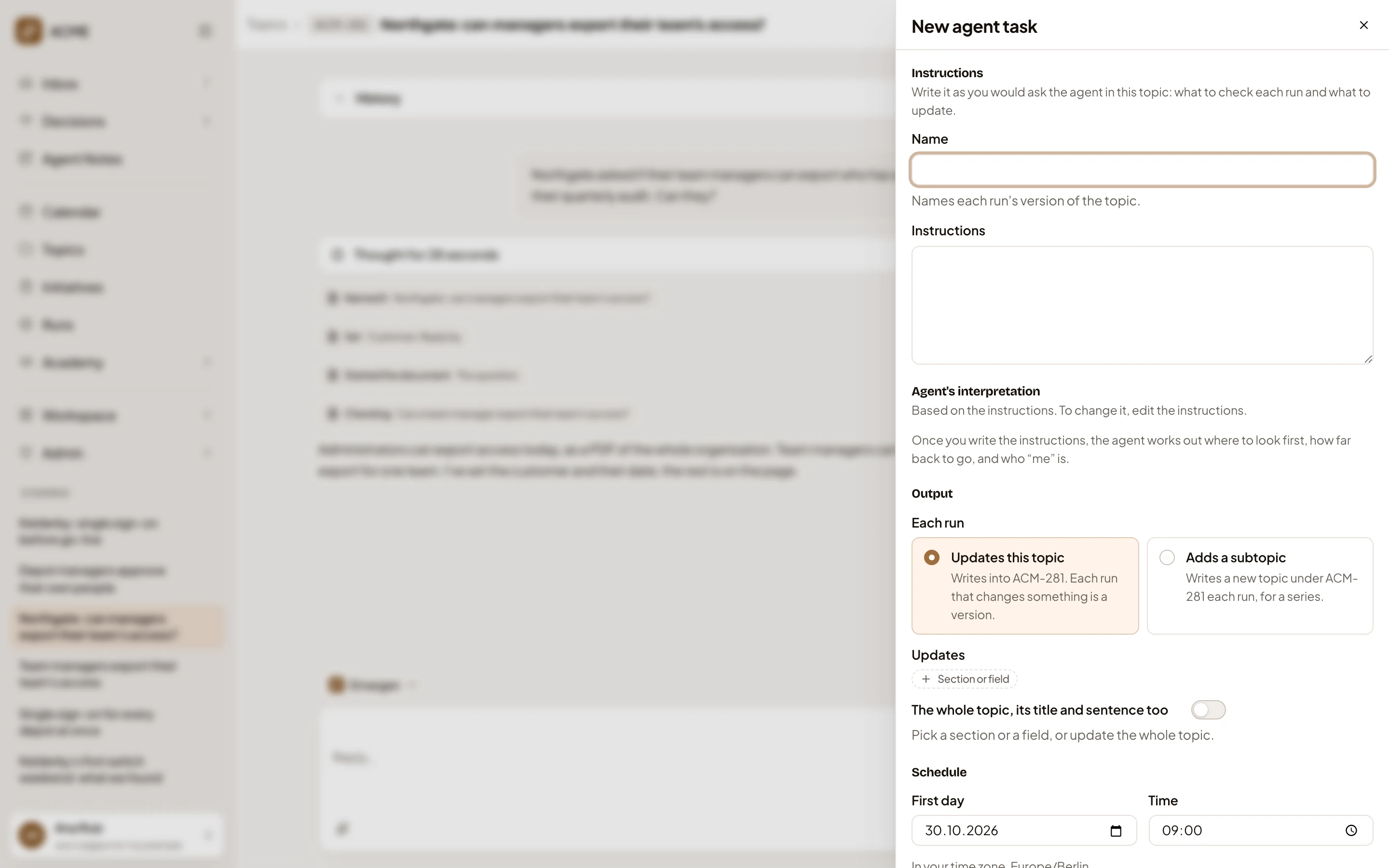
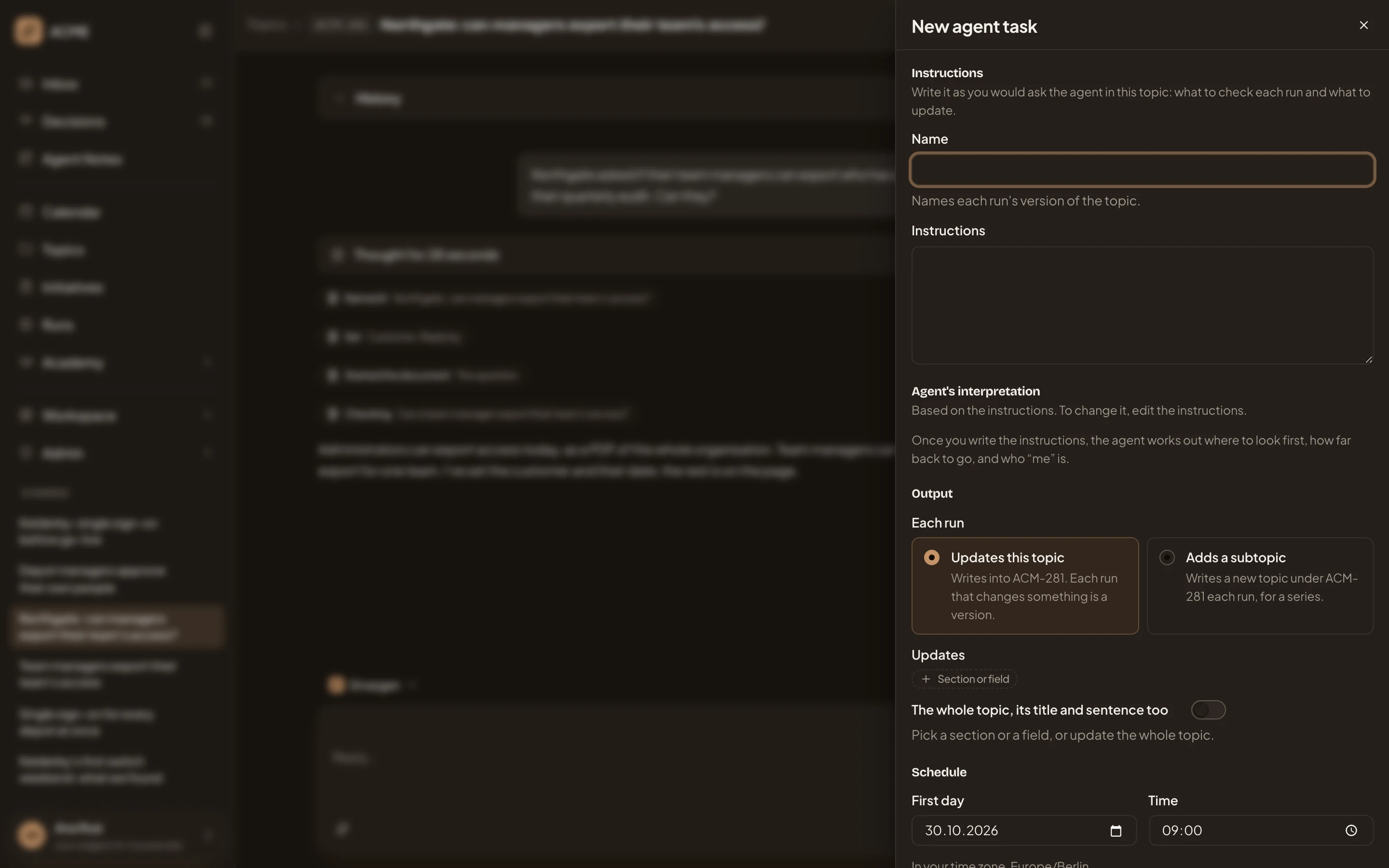
- “Name”: the task’s name. You’ll see it in the topic’s versions.
- “Instructions”: what the agent checks each run, and what it updates, in your words.
- “Updates this topic”: each run writes into this topic.
- “Adds a subtopic”: each run writes a new topic under this one instead, for a series.
- “Section or field”: what a run may change.
- The switch to update the whole topic, its title and sentence too.
-
Under “Name”, give the task a name, for example “Export check”.
-
Under “Instructions”, write what to check each run and what to update, as you’d ask the agent in the topic. For example: “Check again whether a team manager can export their team’s access, and update What exists today and Status.”
A few seconds after you write, “Agent’s interpretation” fills in. “Looks in” says where the agent looks first, with a line on why it picked that place. “Period” says how far back it reads, such as “Any time”. When your words say “me”, it says who that is. A line under it names the places it can look, such as Emargen, Confluence Cloud and Jira Cloud. Name one in your words to make it look there. To change how it read them, change your words.
-
Under “Each run”, leave “Updates this topic” picked. Pick “Adds a subtopic” when each run should be a topic of its own under this one, like a weekly report.
-
Under “Updates”, click “Section or field” and pick a section or a field. Each one you pick shows as a chip with × to take it off, and the list closes. Click “Section or field” again for each one you add. Or turn on “The whole topic, its title and sentence too”. A run changes these and nothing else.
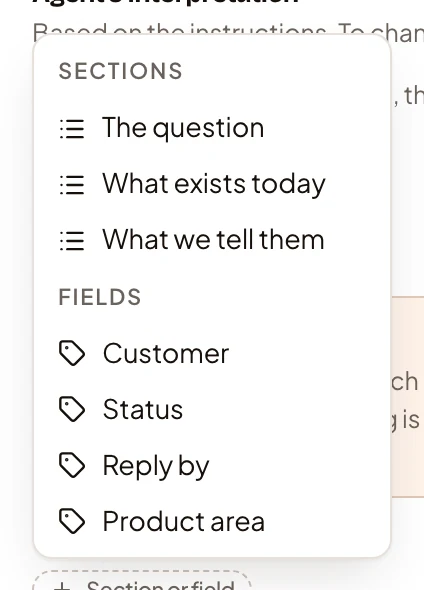
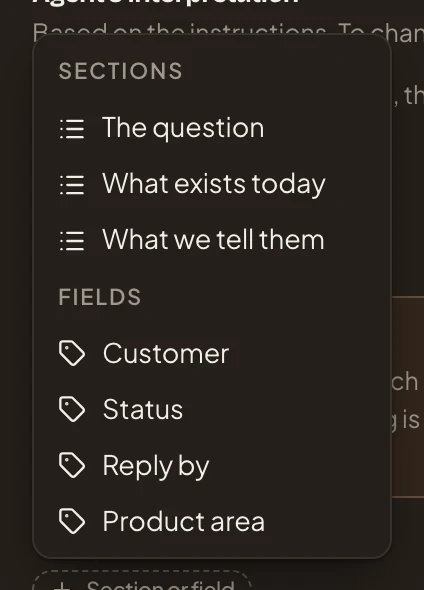
-
Under “Schedule”, “First day” and “Time” come filled in with today and 09:00, in your time zone, which the panel names. Change them if you need to. “Repeats” starts on “Once”. Choose “Once”, “Every weekday”, Weekly or “Monthly”. For Weekly, click the days under On, for example Mon. “Create” stays pale until you pick at least one day.
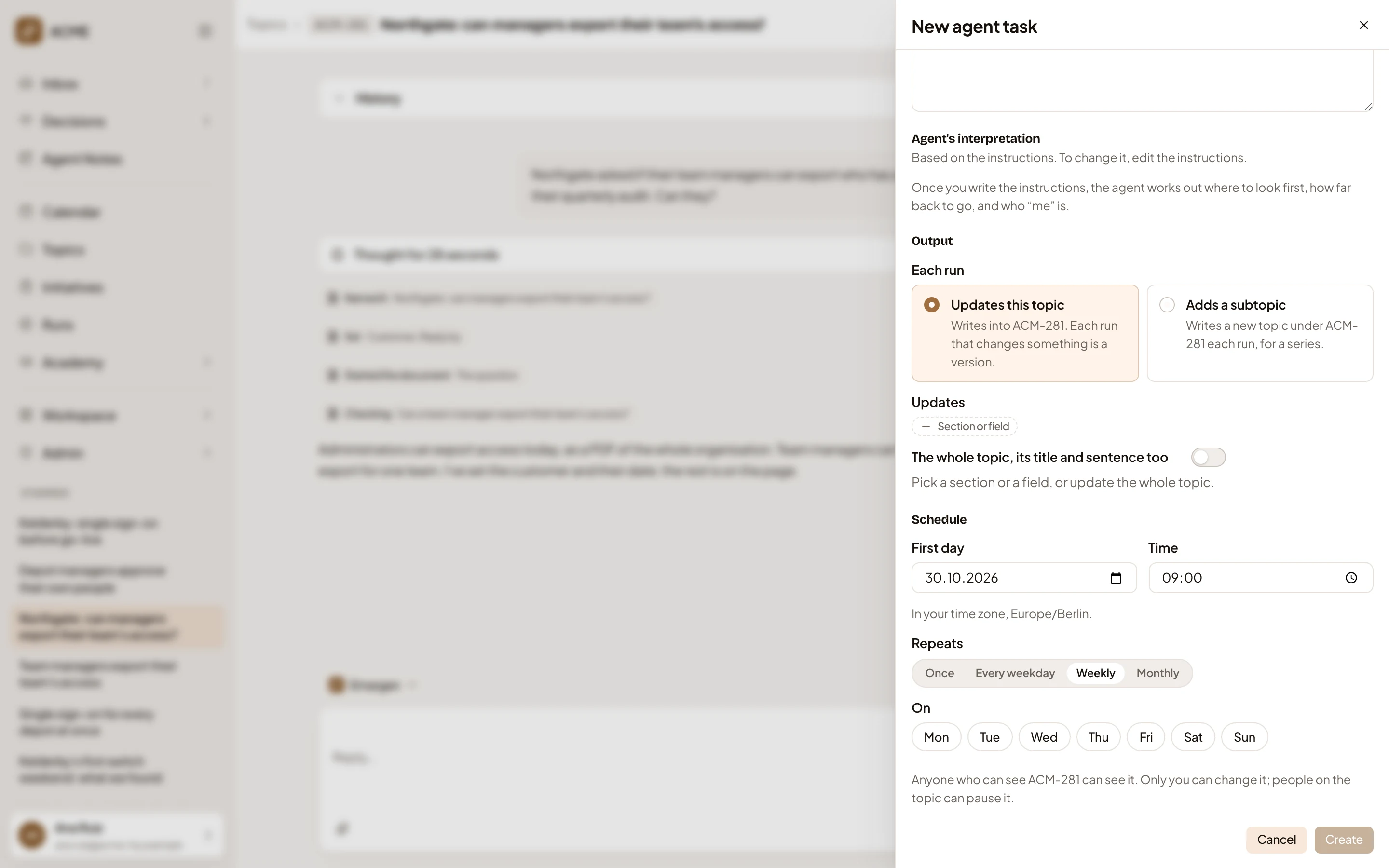
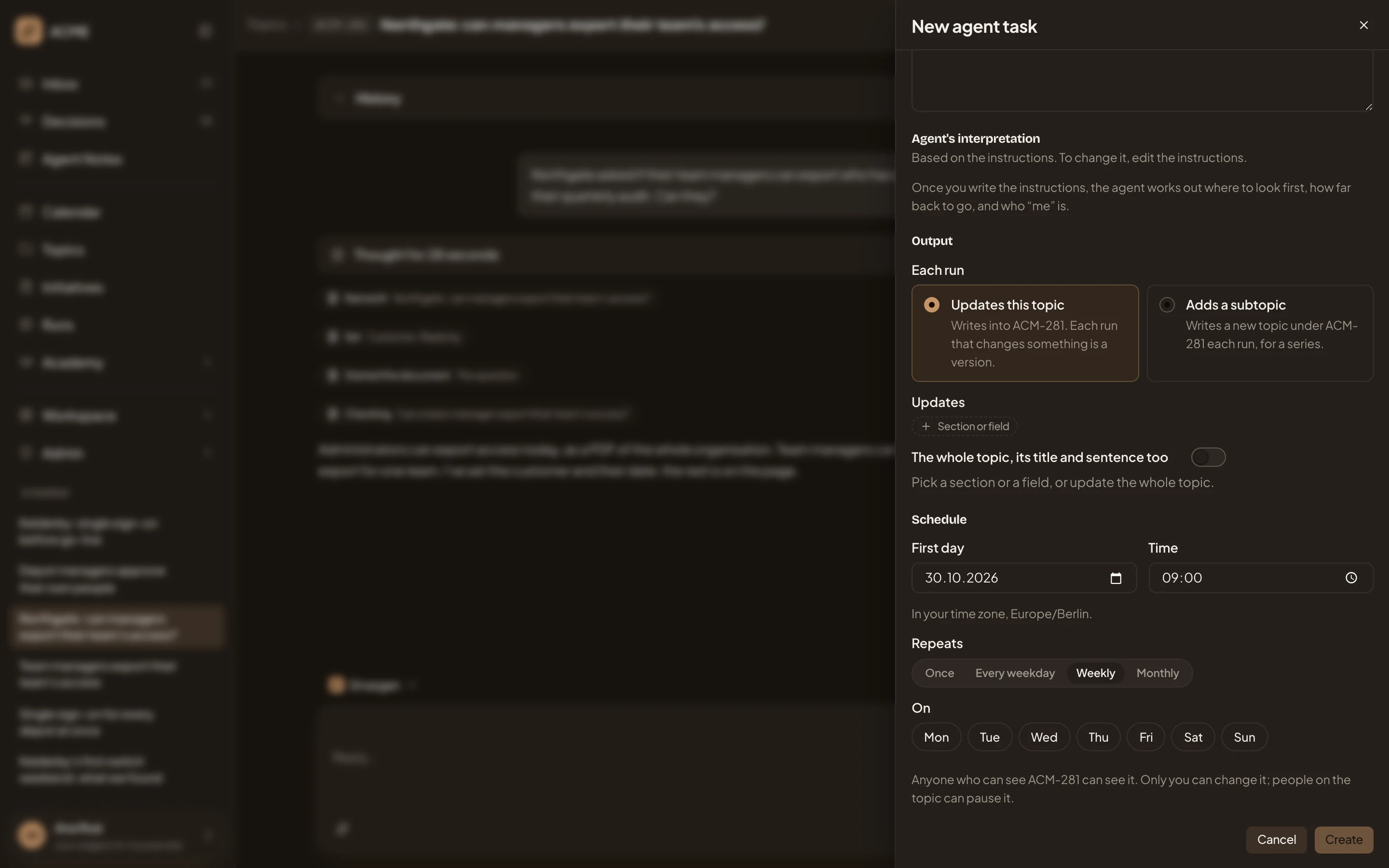
- “First day”: the first day it can run.
- “Time”: when it runs that day.
- Weekly, with the days under On.
- “Create”, pale until the form is complete. Here, until a day under On is picked.
-
Click “Create”. The task opens on the right, as in What you get. Close it with ×. The ⋯ menu now says “Agent task:” and the task’s name. Open the document: what the task updates has a small mark beside it.
From a section
Section titled “From a section”To keep one section up to date, open the document and click the ⋯ beside the section’s title. Choose Keep it up to date…. On a topic with no task, “New agent task” opens with that section already under “Updates”. On a topic that has one, the task opens to edit, with the section added. “Save” keeps the change, and “Cancel” leaves without it. Only the task’s owner can edit it. The edit form also has a “Paused” switch. A paused task starts no runs.
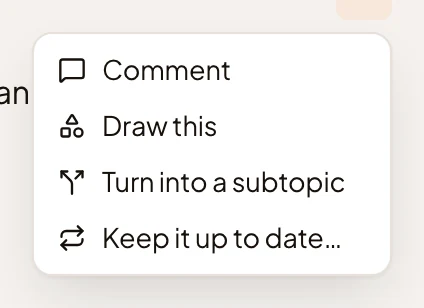
- Keep it up to date…
You can also ask the agent in the chat, for example “Keep What exists today up to date every Monday morning.” On a topic with no task, it offers one on a card, and nothing runs until you press it. On a topic that already has a task, it offers the change on a card when the task is yours. When it’s someone else’s, it can draft a comment to its owner.
What you get
Section titled “What you get”The pictures show ACM-287, which has its task.
- In the open document, each section or field the task updates has a small mark with two arrows beside its title or value. The small document beside the chat doesn’t show the marks, so open it first. A screen reader reads the mark as Updated by and the task’s name.
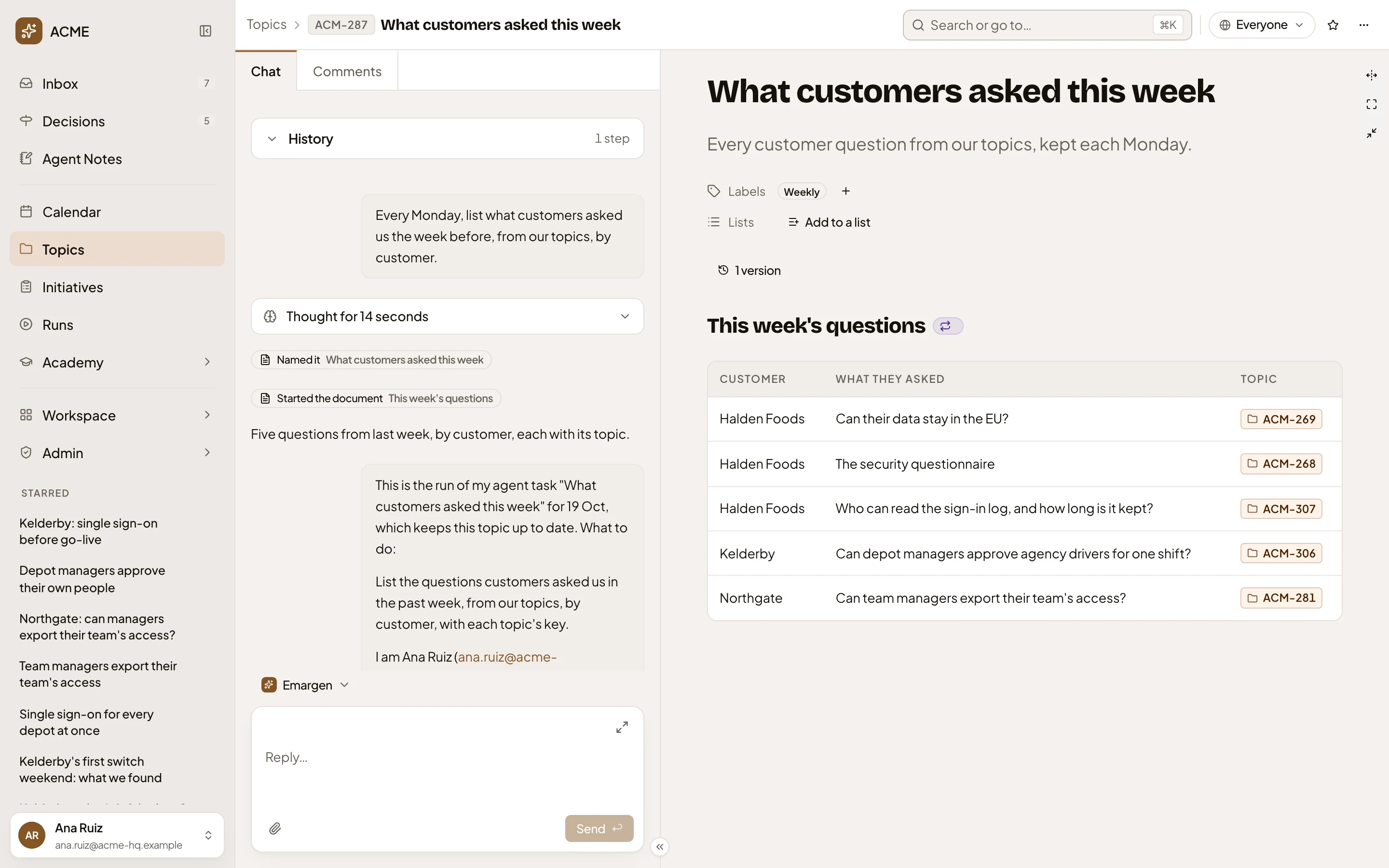
- The mark on a section the task updates. Click it to open the task.
- Click the mark, or “Agent task:” in the ⋯ menu, to see the task. It shows when the task runs next, its schedule, what it updates and who owns it, with its instructions and its runs.
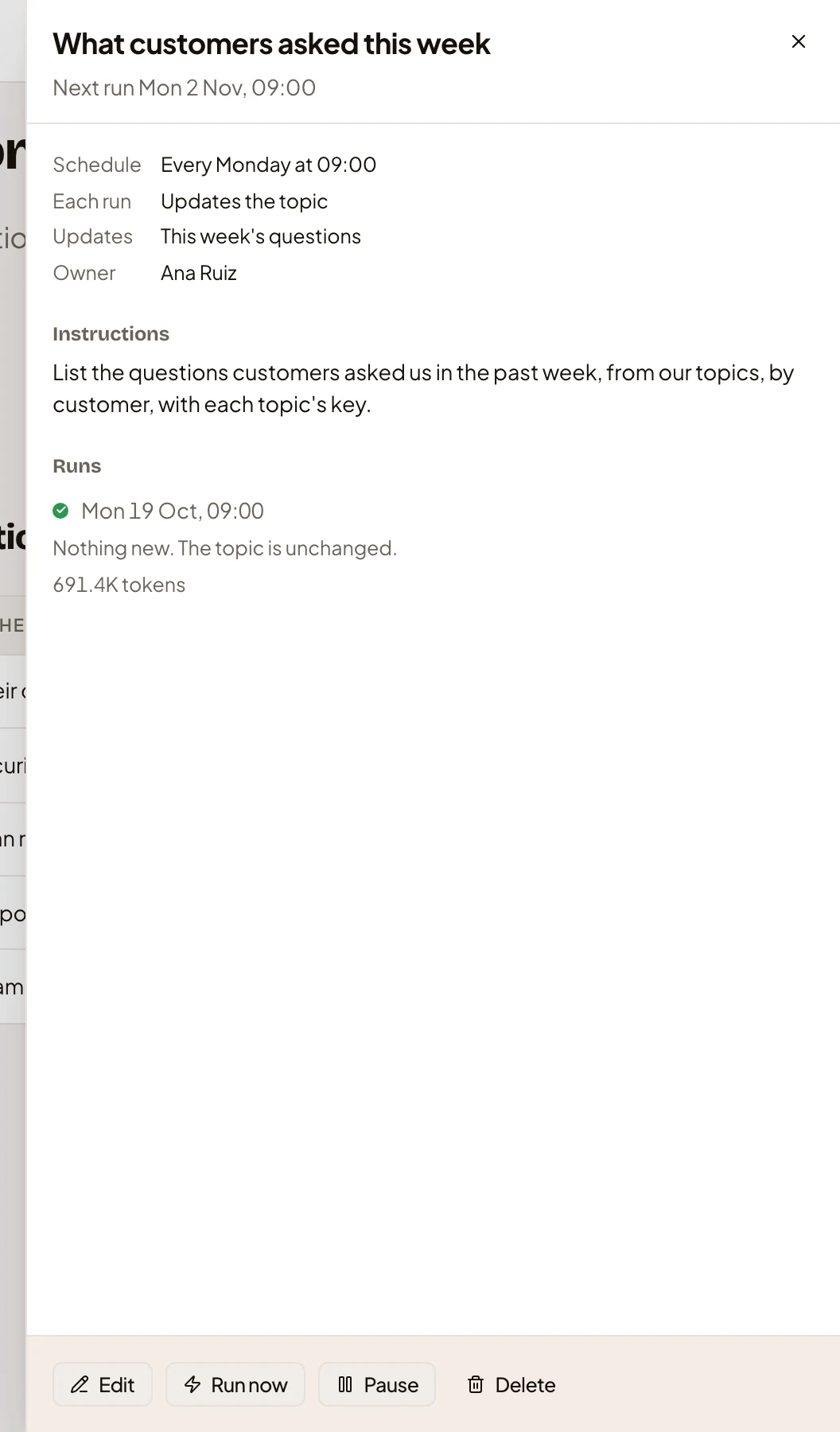
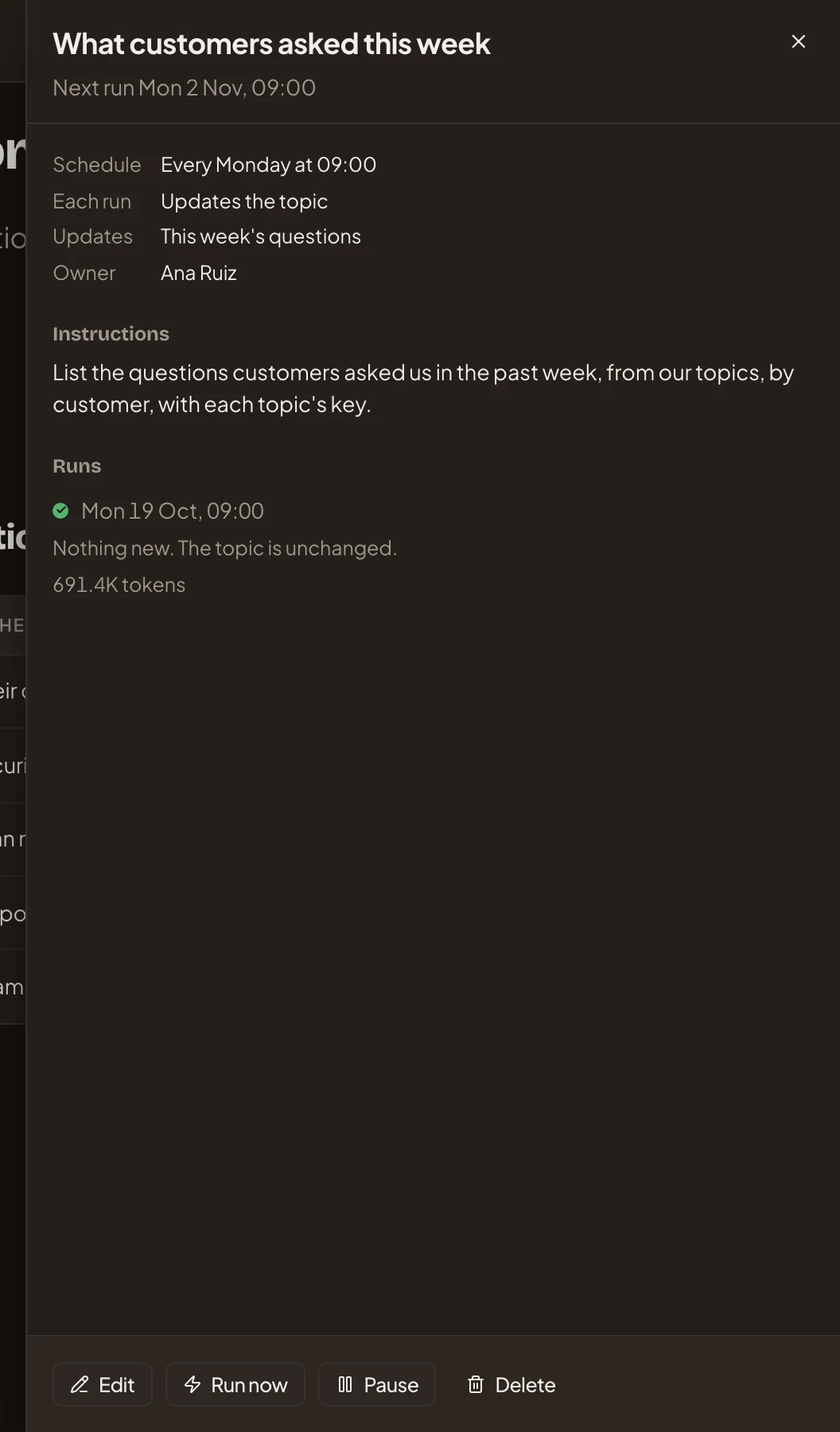
- When it runs next.
- Edit: change the task. Its owner only.
- Run now: run it once now, outside its schedule.
- Pause: no runs until you start it again. Anyone who takes part in the topic can pause it. Delete removes the task, and only its owner has it.
- Each run that changes something is a new version of the topic, named after the task. A run that finds nothing new leaves the topic as it was. See what changed on a topic.
- A run that works sends no message. Its version shows on the topic. Upcoming runs show on the Calendar of everyone who sees the topic, until the task is paused. When a run fails, the task’s owner gets one item in their Inbox that day, with “Run again”.