

TopicsHow to
See what changed on a topic
Look at a topic’s versions when it has moved on since you last read it. A colleague may have asked the agent to rewrite a reply to a customer, or an agent task rewrote part of it overnight. Each version shows who changed the topic, when and what, and you can read any of them as it was.
Before you start
Section titled “Before you start”- Who can
- Anyone who can open the topic can read its versions.
- The pictures
- ACM-281 at ACME, the company in the docs’ pictures, a customer question with two versions. Its owner made the topic with the agent, then a colleague who takes part changed it with the agent.
-
Open a topic with at least two versions. Its fields show a versions count of 2 or more.
Open the topics list (opens Emargen in a new tab) -
Click the small document on the right of the chat, or its Open button, to open it.
-
Under the fields, beside Contents, click the versions count, 2 versions in the pictures. You see the versions in place, newest first.
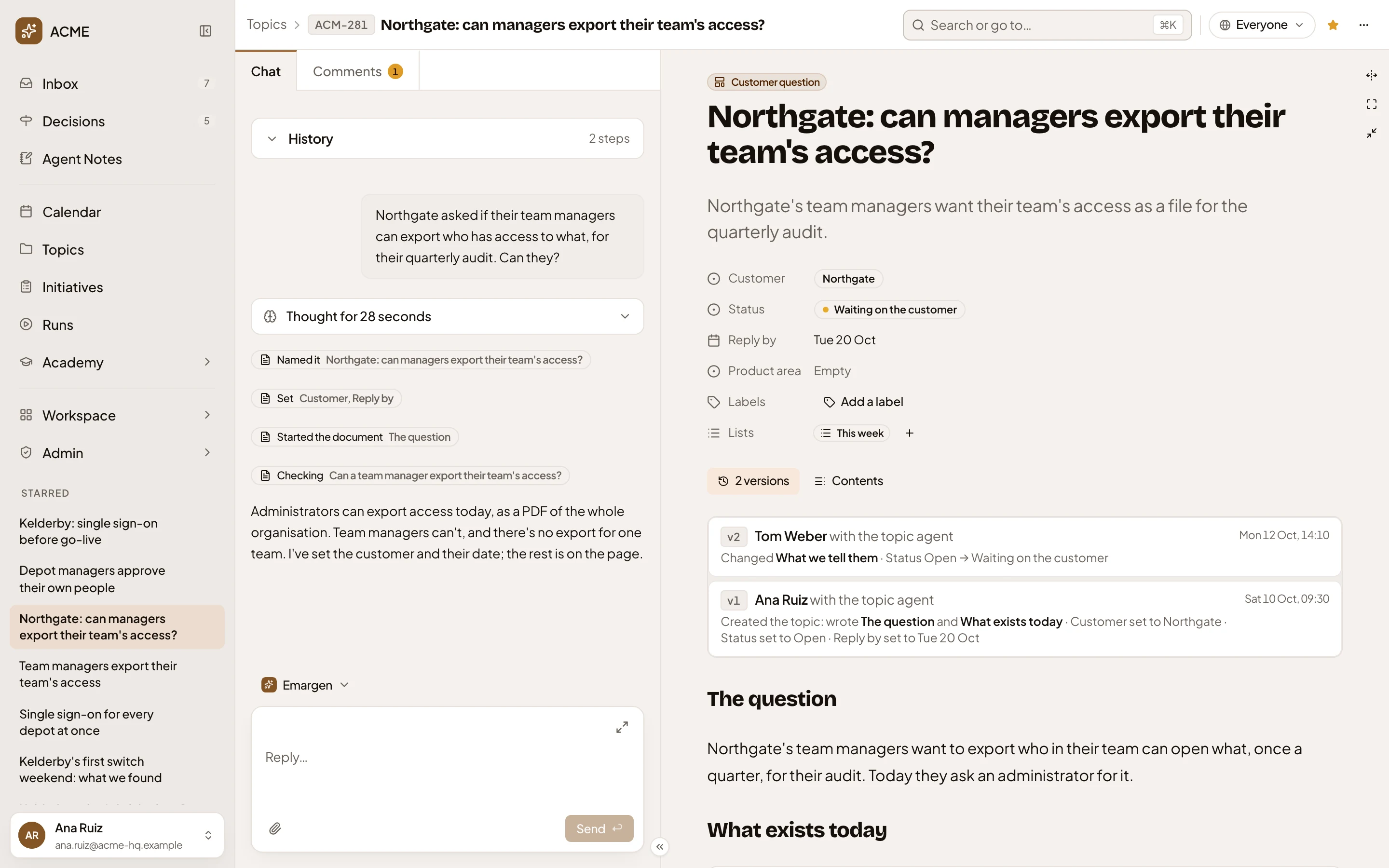
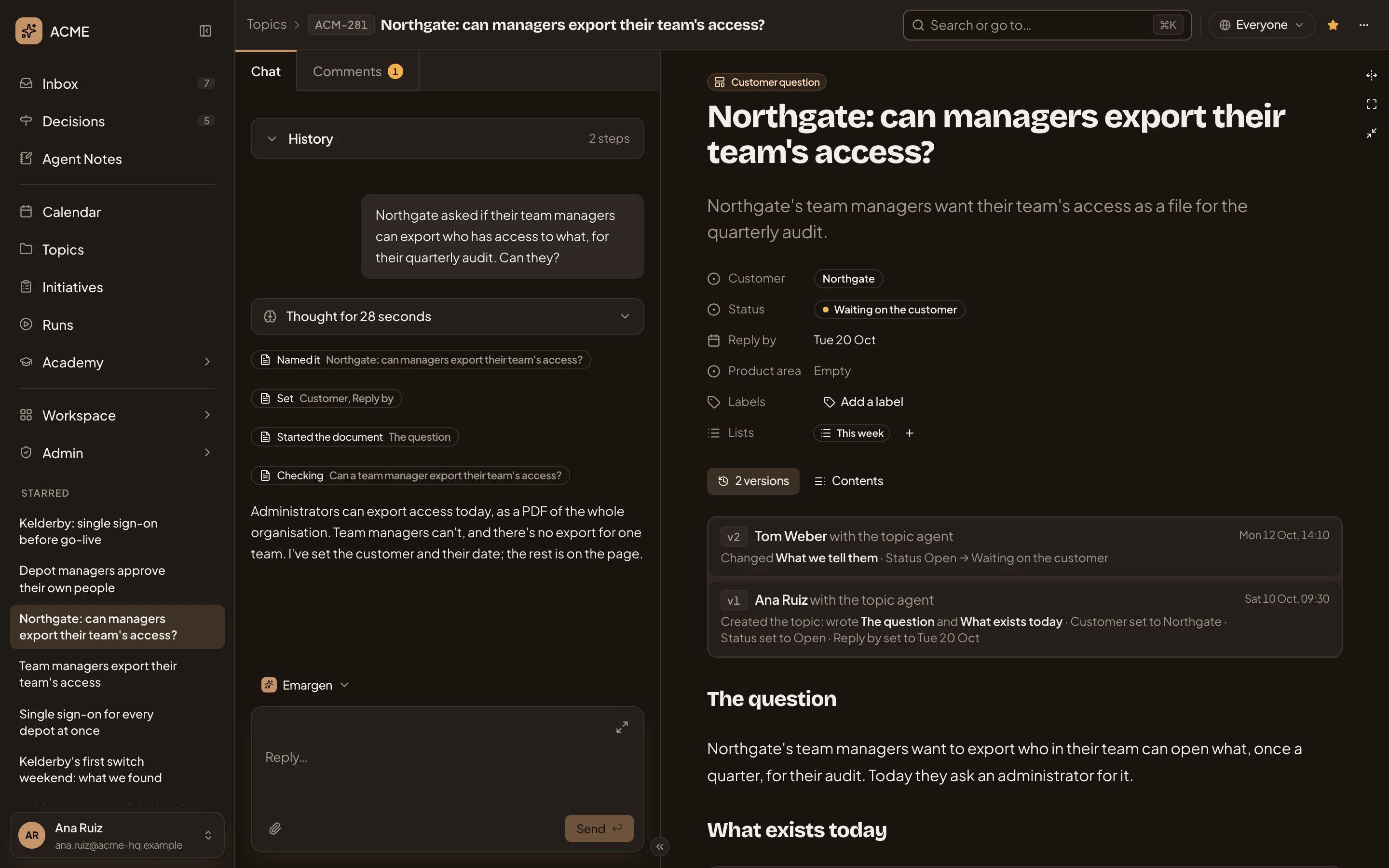
- 2 versions, under the fields. Click it again to close the list.
- The newest version, v2, by Tom Weber with the topic agent.
- The first version, v1, by Ana Ruiz with the topic agent.
Each line says who changed the topic, and “with the topic agent” when the agent wrote it for them. It shows when, which sections changed, and each field’s value before → after.
-
Click v1. The document shows the topic as it was then. The strip above it shows which version it is (Version 1 of 2 in the pictures), its date and who made it. You can read it but not change it. Fields show as plain text with the values they had then, and labels and lists aren’t shown. A section nobody had written yet says “Planned. Nothing written here yet.”
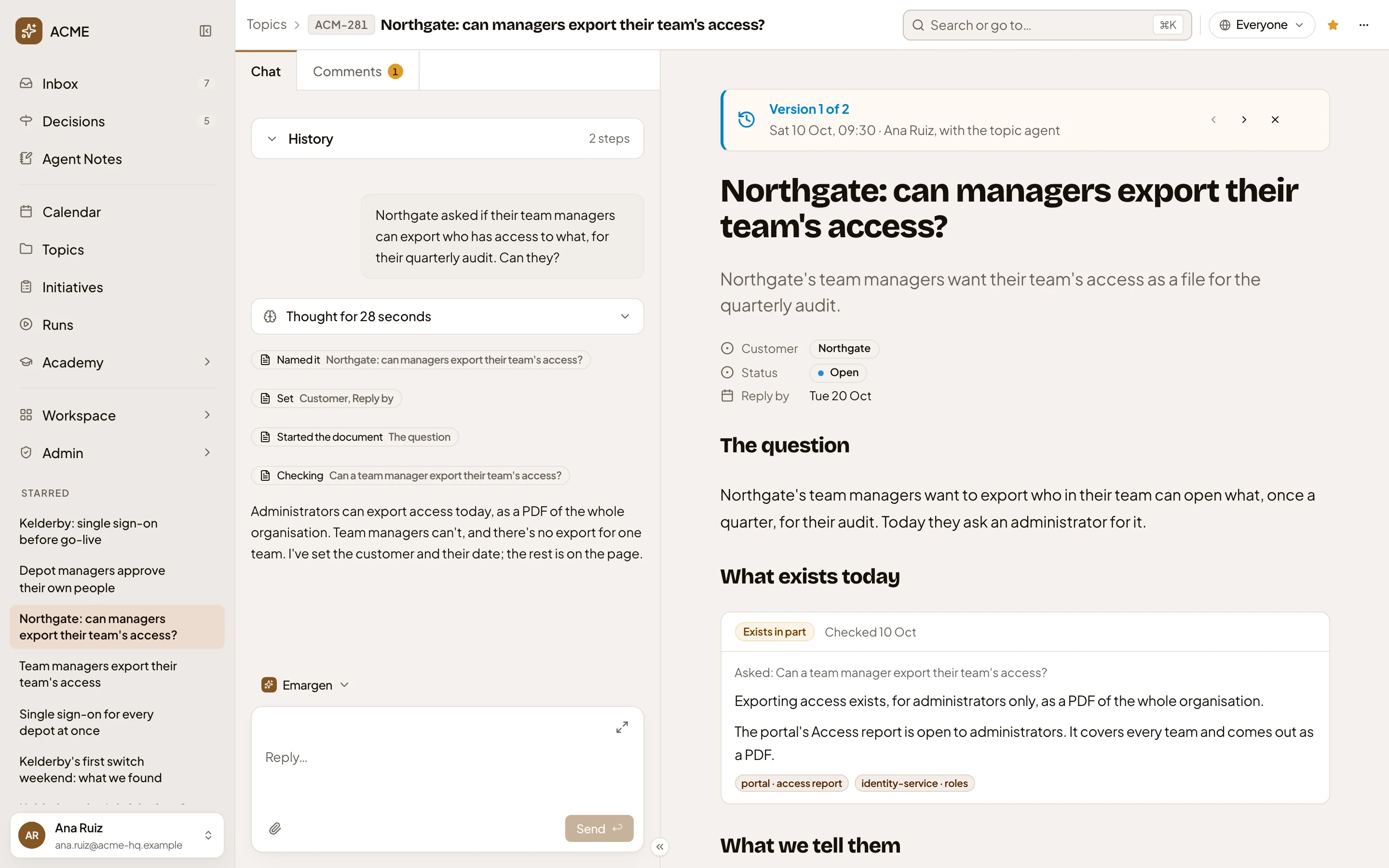
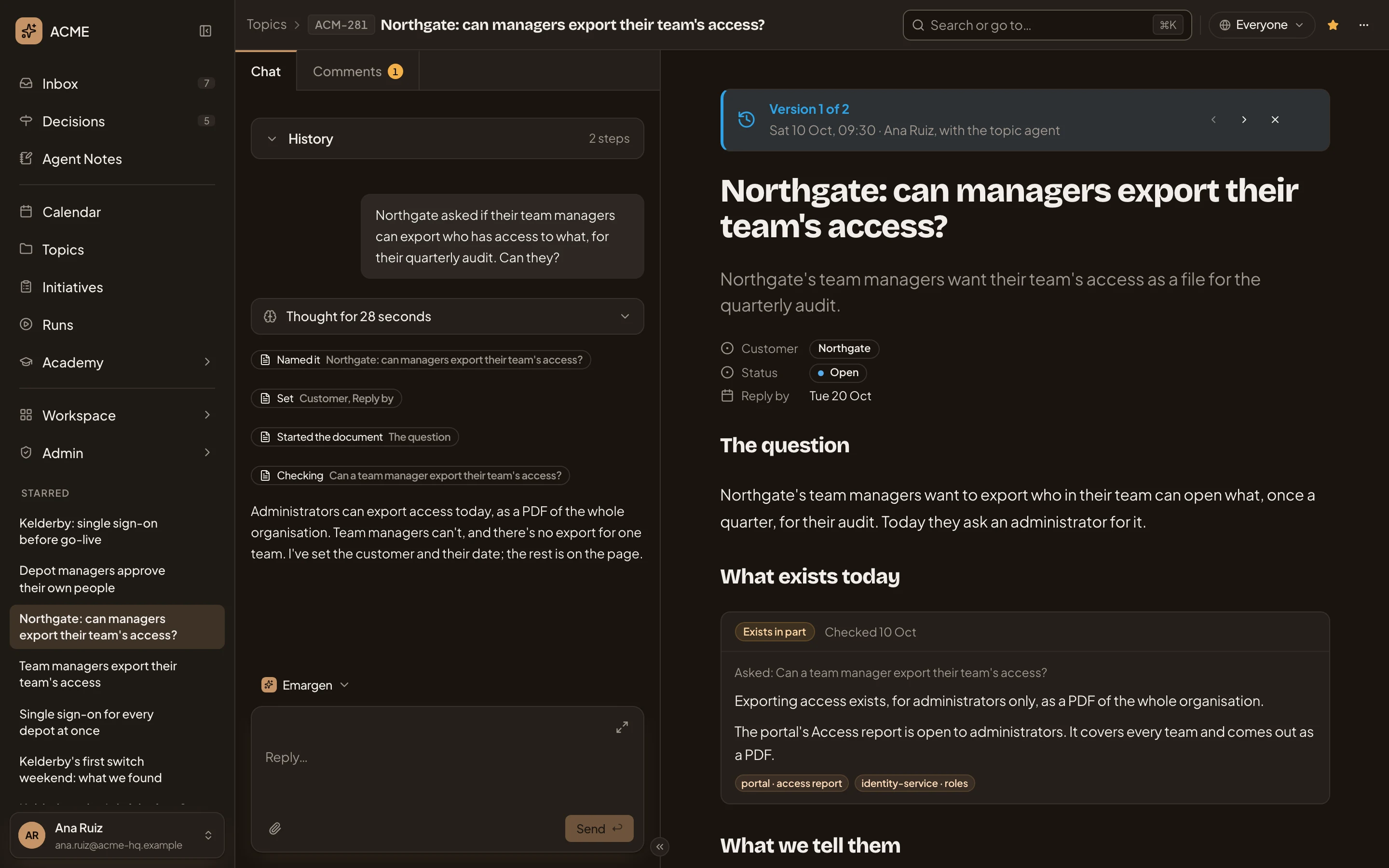
- The strip that says which version you’re reading.
- Newer version (›). Older version (‹) goes the other way, and is greyed on version 1.
- Back to the latest version (×).
-
Click Newer version to read version 2.
-
Turn on the Changes switch in the strip to compare this version with the one before. The strip then shows “against version 1”. A field that changed shows its old value → its new one, and a section that changed is marked “Changed”. Version 1 has no switch, since nothing comes before it.
-
Find what was added. Inside a section marked “Changed”, each block this version added has a green bar beside it, which a screen reader reads as “Added”. In the pictures, scroll down to What we tell them to see the bars beside its paragraph and the open decision. A version that changed only a field or the title has no bars.
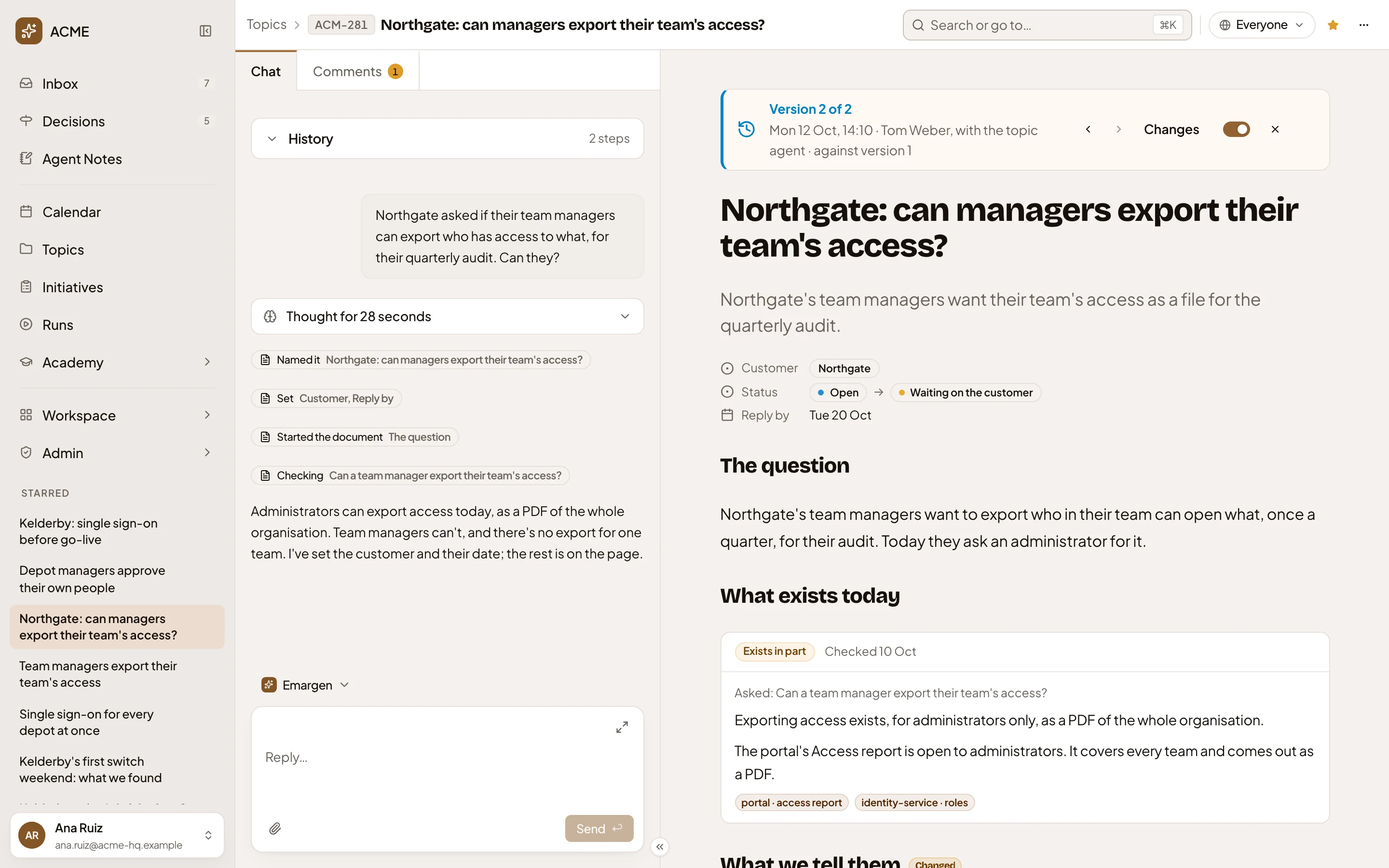
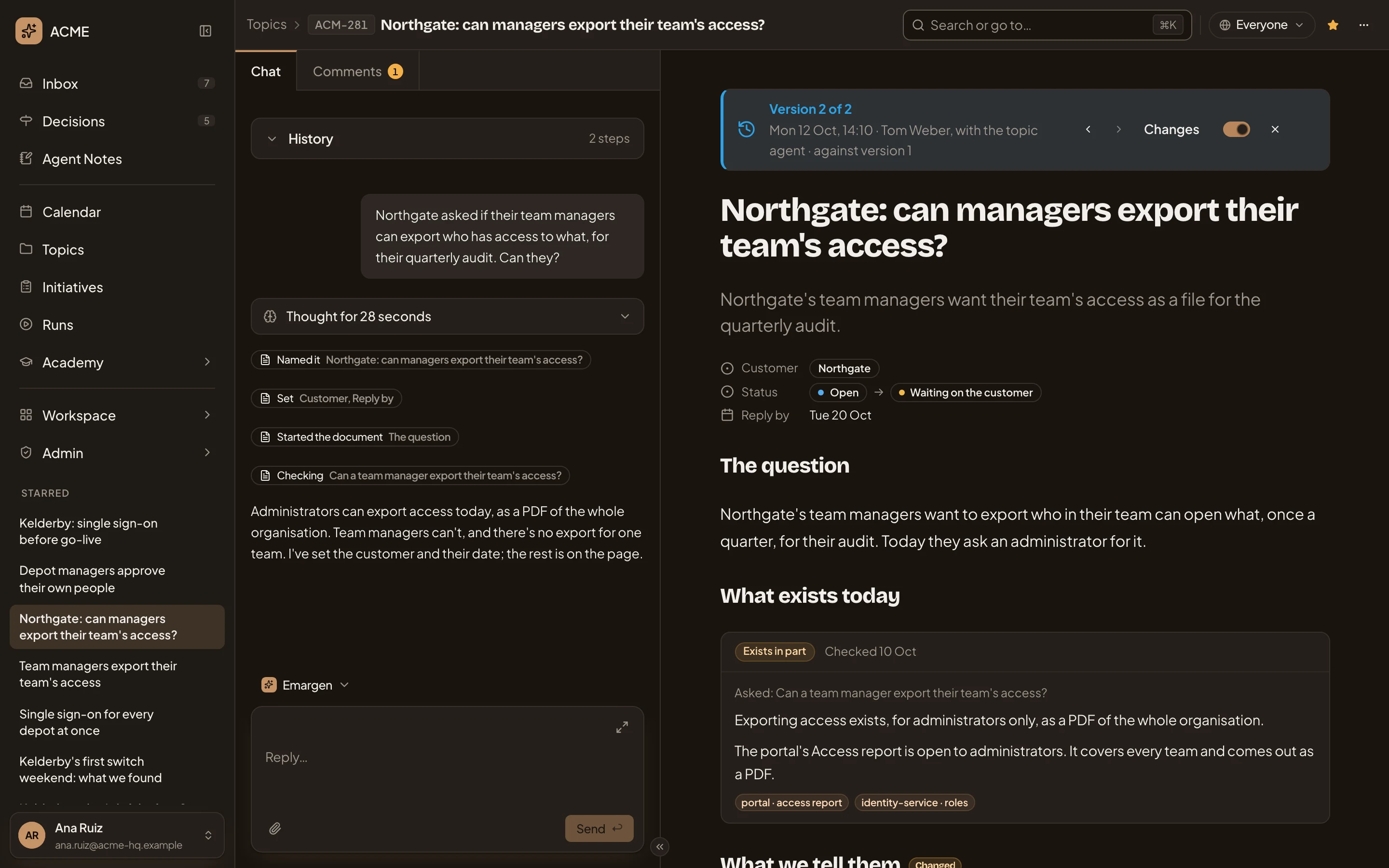
- “Changes”, switched on.
- What this version is compared with.
-
Click Back to the latest version (×) to return to the topic as it is. The versions list is still open under the count. Click the count to close it.
What you get
Section titled “What you get”- Who changed the topic, when and what. You get one version per sitting, rather than one for every edit. See Versions for what a sitting is.
- Any version to read as it was, with the topic’s title, sentence, sections and fields. Each version has its own address, so you can send a link to the topic as it was.
- No button puts an old version back. To bring something back, ask the agent in the chat when you take part in the topic: “Put What exists today back as it read in version 1.” It reads the old version and writes what you asked for as a new change.