

AcademyHow to
Make a track
Make a track when there’s a part of your organisation you want to know without looking it up, like the systems you’re about to work on. See tracks and spots for what a track is.
Before you start
Section titled “Before you start”- Who can
- Anyone in the organisation can make tracks. Each one is yours alone.
- You need
- What you want to practise should be in your organisation’s Landscape, its systems, roles and terms. When you name something the Landscape doesn’t hold, the agent says so instead of making it up. A track that covers nothing can’t be built.
- The pictures
- Ana Ruiz, in customer success at ACME, the company in the docs’ pictures, and her first track, Sign-in and access, framed before a customer’s go-live.
-
In the menu, click the chevron beside Academy to unfold it, then click Tracks. Your Academy chat is on the left, and your tracks on the right.
Open Tracks (opens Emargen in a new tab)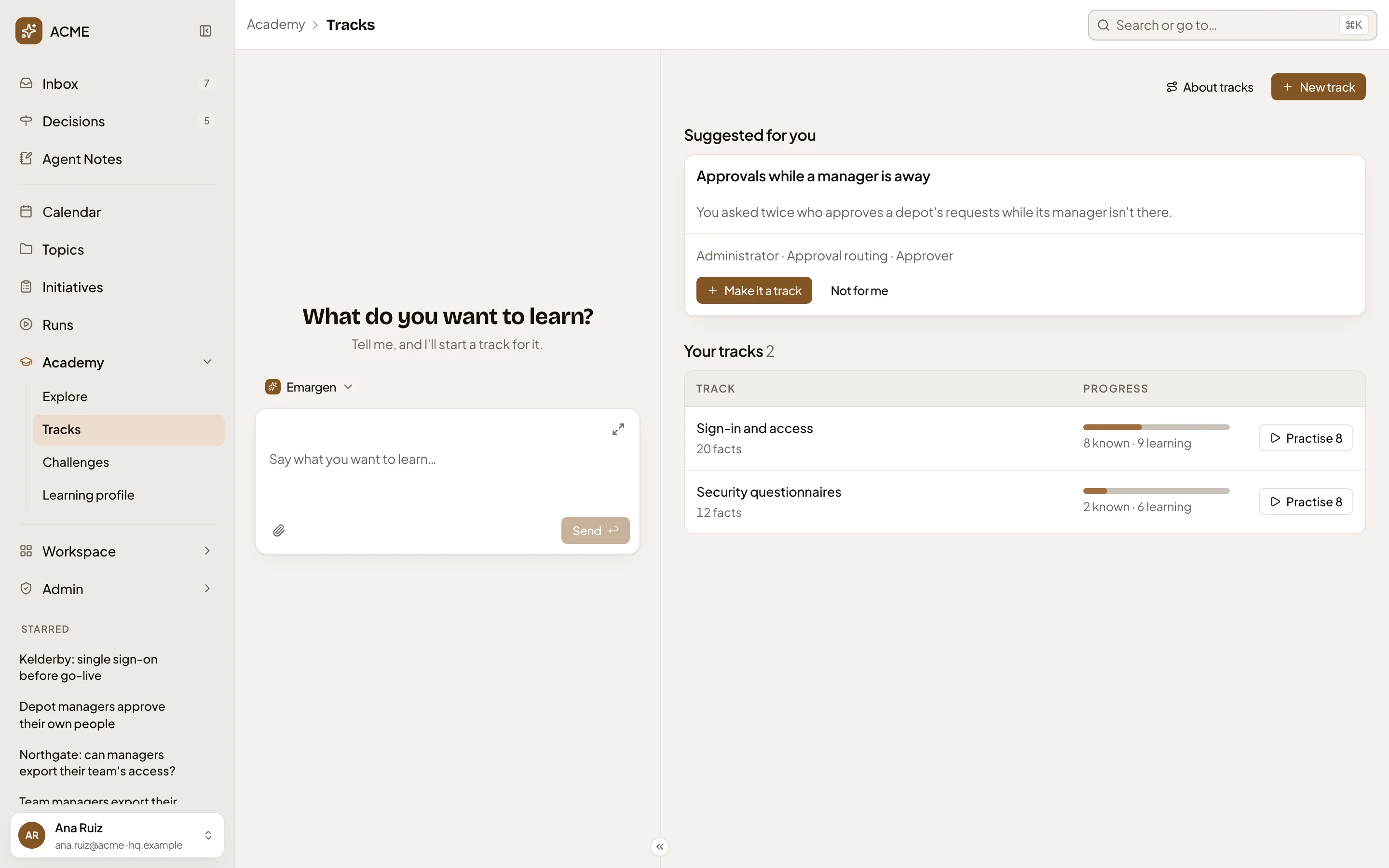
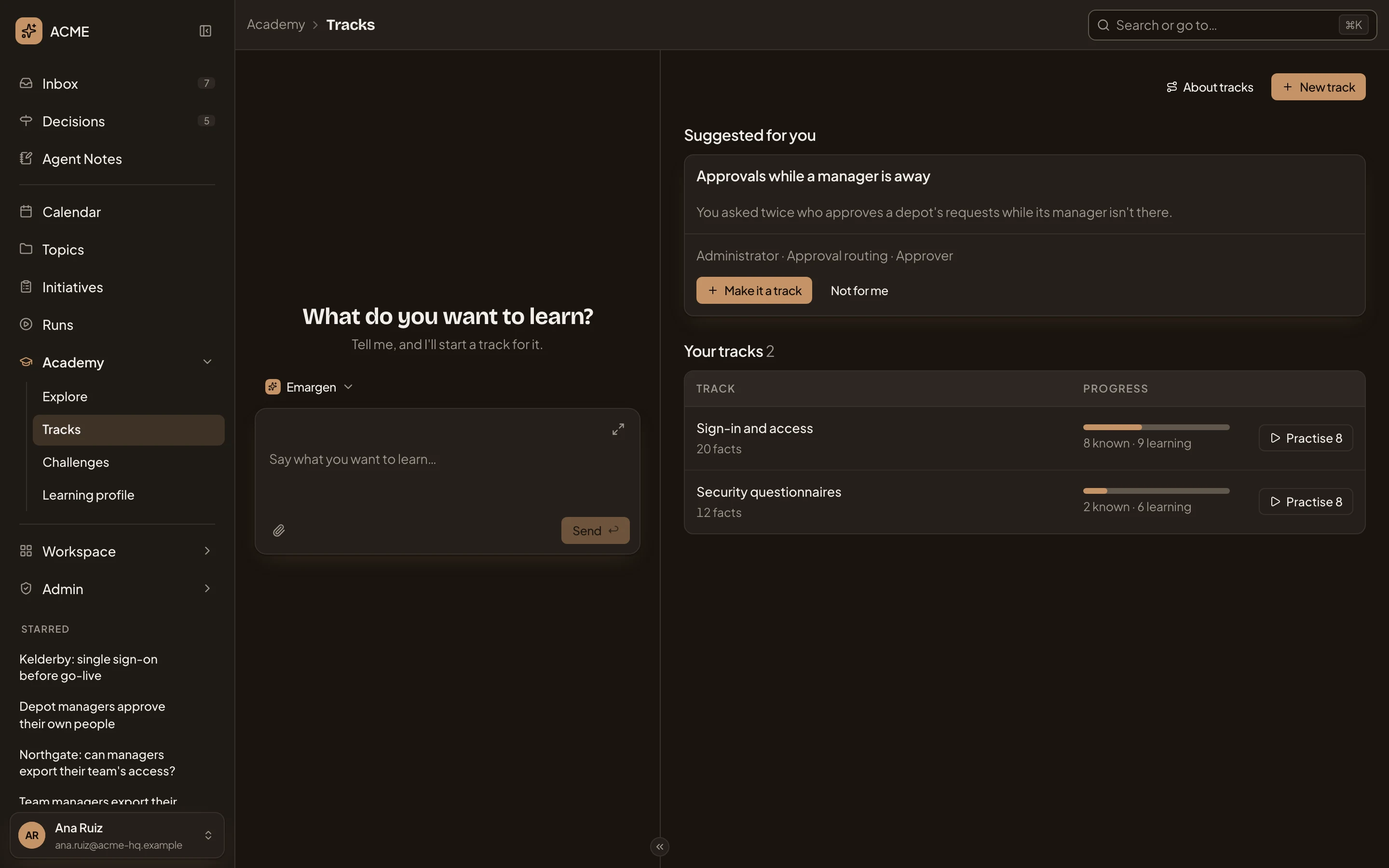
- The message box. Say what you want to learn here, and the agent starts a track for it.
- New track. Starts a track for you to describe.
-
Tell the agent in your own words what you want to know and why. For example: “A customer with 25 depots goes live in three weeks. I want to explain sign-in and approvals to their depot managers without looking things up.” Or click New track, and tell it on the track’s page.
-
The new track opens, with its framing chat on the left and your map on the right. The agent looks through the Landscape and picks the spots that match what you asked. It gives the track a title from what you asked, such as “Sign-in and approvals”. The spots it picked have dashed outlines on your map. The draft’s card over the map shows what you want to learn and how ready the track is to build.
-
Answer the agent’s questions, one card at a time. It skips any your first message already answered, and shows that answer on the draft’s card as decided.
- What you’ll do with it, such as Explain it to customers or support.
- How deep to go, such as How the parts work together.
- What to leave out. A card lists every spot it picked, all ticked. Untick the ones you don’t want, and answer.
- Which spots you already know well. Tick them, and they start later in your practice. You can leave this one unanswered and practise them all from the start.
What you decide shows on the draft’s card. You can also tell the agent in the chat to drop a spot or add another.
-
Once you’ve said what you’ll do with it, how deep to go and which spots stay, the card says “Ready to build”. Click Build the track. Only you can. The agent never builds it for you.
-
The framing chat closes, and the page shows the track’s spots as they’re drafted, a few at a time, with how far it got. A spot another track already drafted is used as it is, unless its Landscape entry changed since. For new spots, the agent writes the facts and cards from their Landscape entries, and checks them. You can start practising what’s ready straight away.
What you get
Section titled “What you get”- Your Inbox says when the whole track is ready.
- Your track, under Your tracks on Tracks. It shows your progress. Practise opens the cards due today. Its spots join your map, and its cards join your daily practice, at most ten new facts a day.
- The track’s page, where your Academy chat sits beside its spots. Ask the agent there to add a spot or take one out, or to sharpen a fact that reads wrong. A change to a fact reaches everyone who practises that spot.
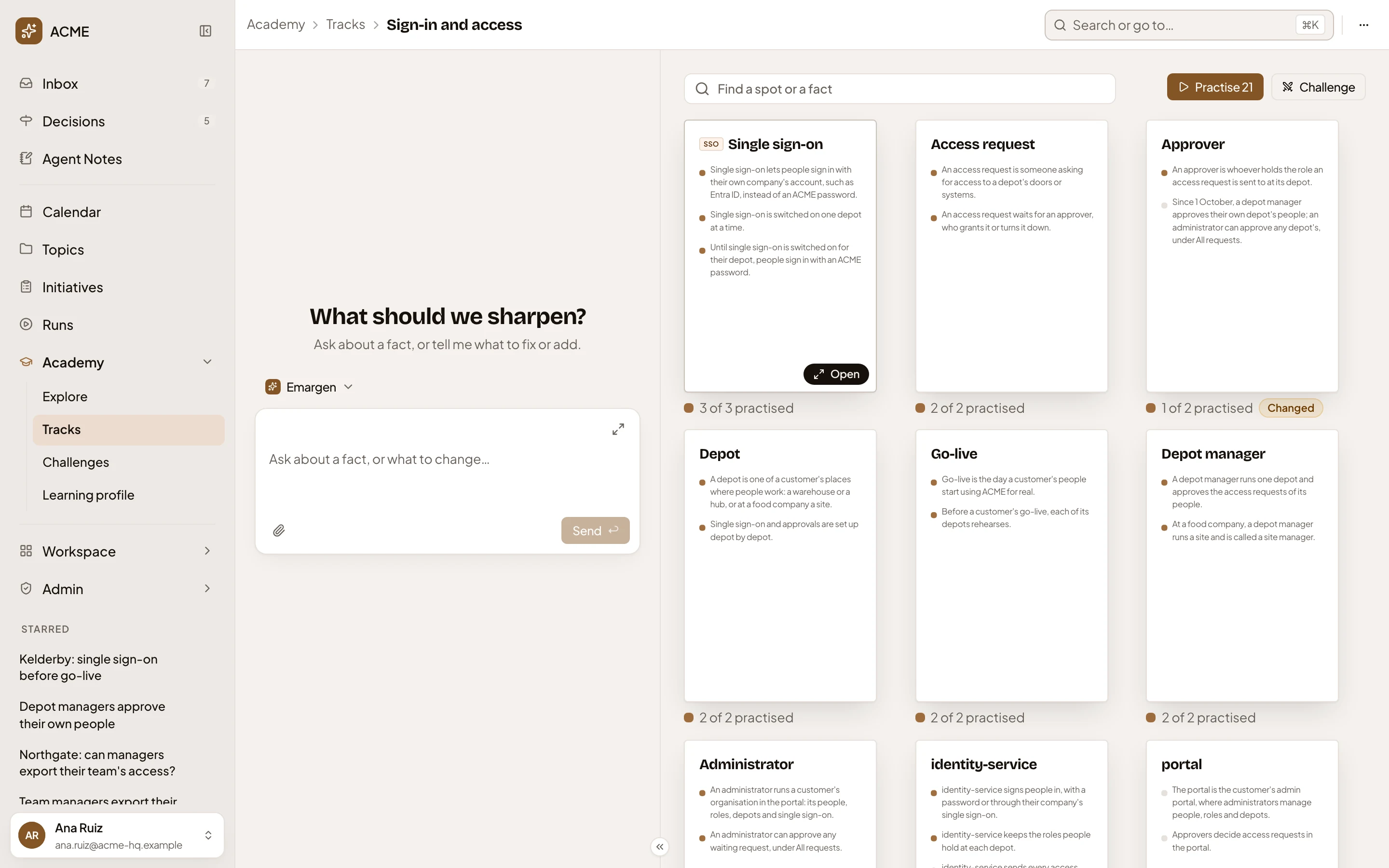
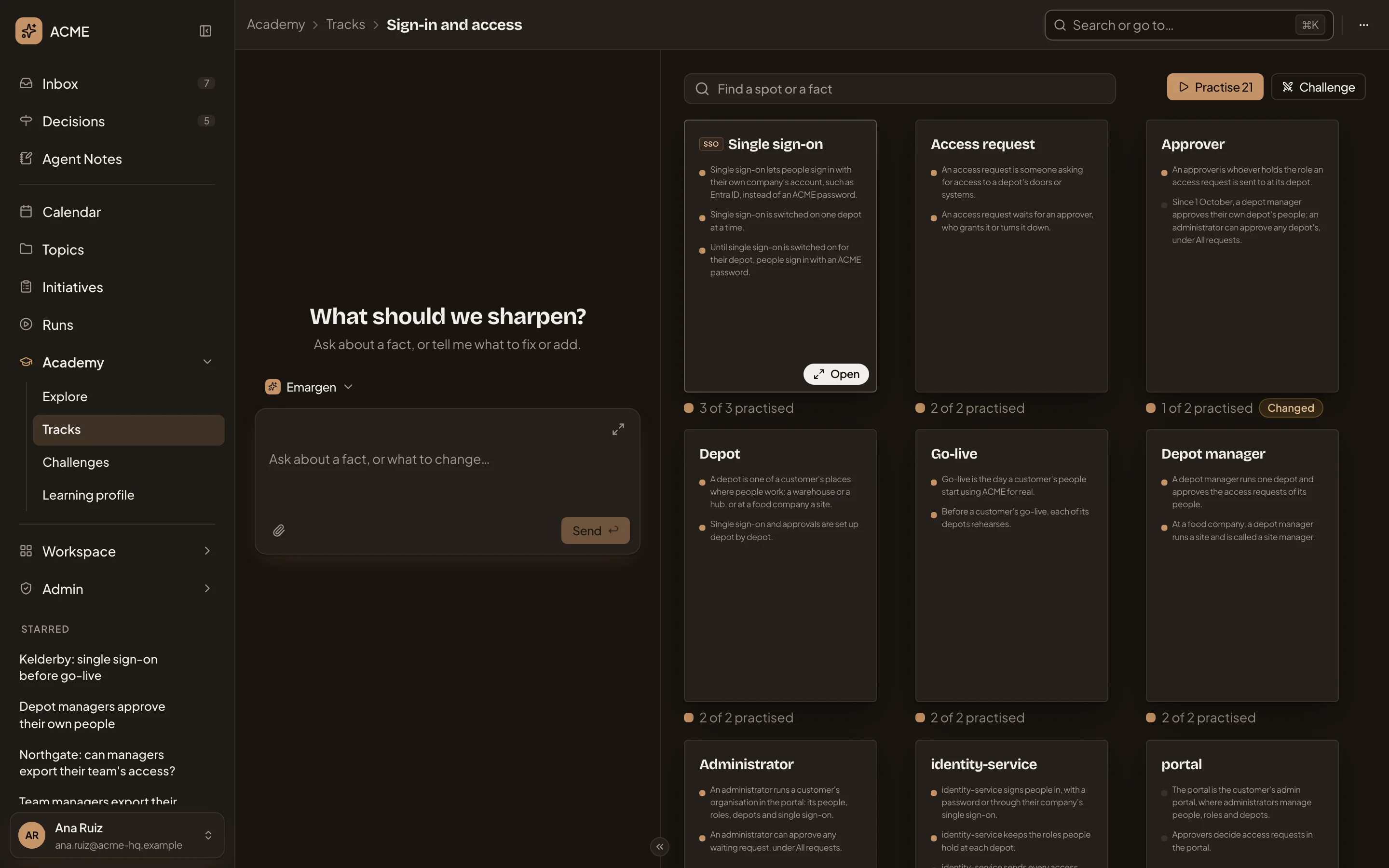
- Message the Academy agent. Ask for changes here.
- Practise 21. Practises this track.
- A spot you haven’t practised yet: portal.
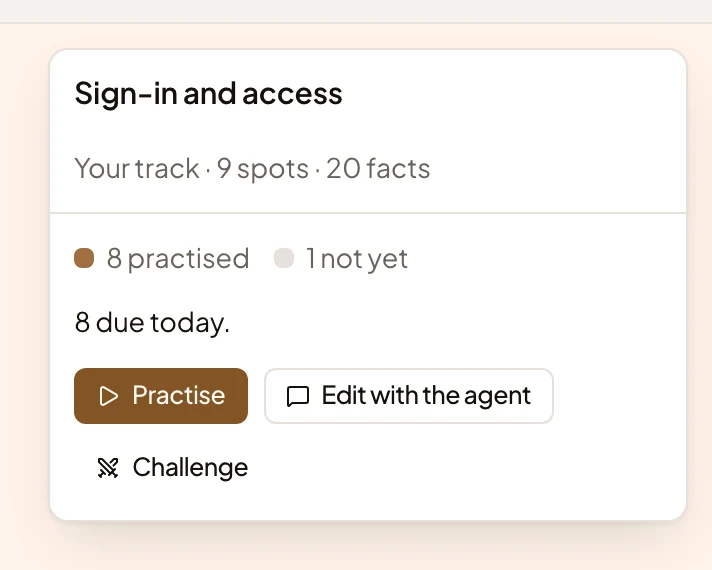
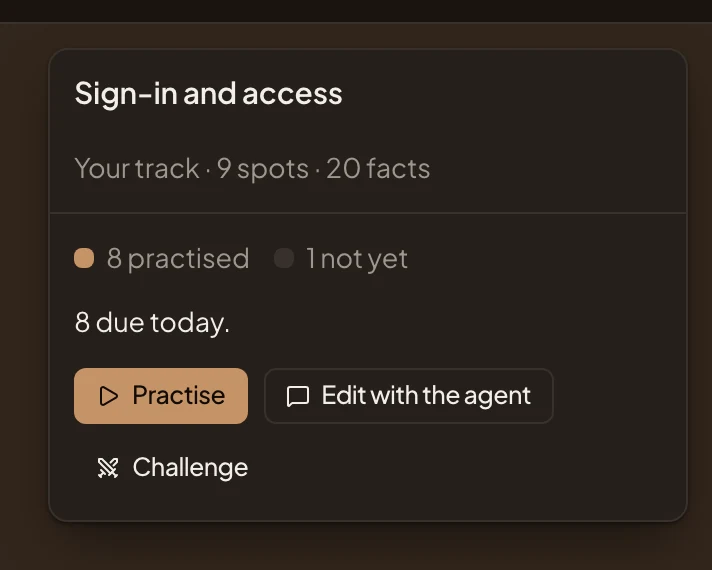
- To show your track on your map, click Find a spot or a fact on the Academy, choose Track, and tick your track. Its card has Practise, for this track only, and Edit with the agent, which opens the track.
A track can also come ready-made. On Tracks, Make it a track on a suggestion builds one at once from what you asked about in Explore. Save as a track on a finished challenge does the same (Challenge a colleague).