

TopicsHow to
Share a topic
Share a topic when someone else should read it, or work on it with you. Sharing explains how it works.
Before you start
Section titled “Before you start”- Who can
- Only the topic’s owner can share it. A new topic starts as Only me.
- Reads or takes part
- With Reads, someone can read the topic and ask the agent about it in their own chat. The agent changes nothing in the topic. When they want a change, it drafts a comment for them to post. With Takes part, the agent writes into the topic for them.
- The pictures
- The pictures follow ACM-281 at ACME, a customer question shared with everyone. A colleague in sales takes part.
Someone who only reads a topic opens it for the first time. It opens on the document, with their own chat beside it.
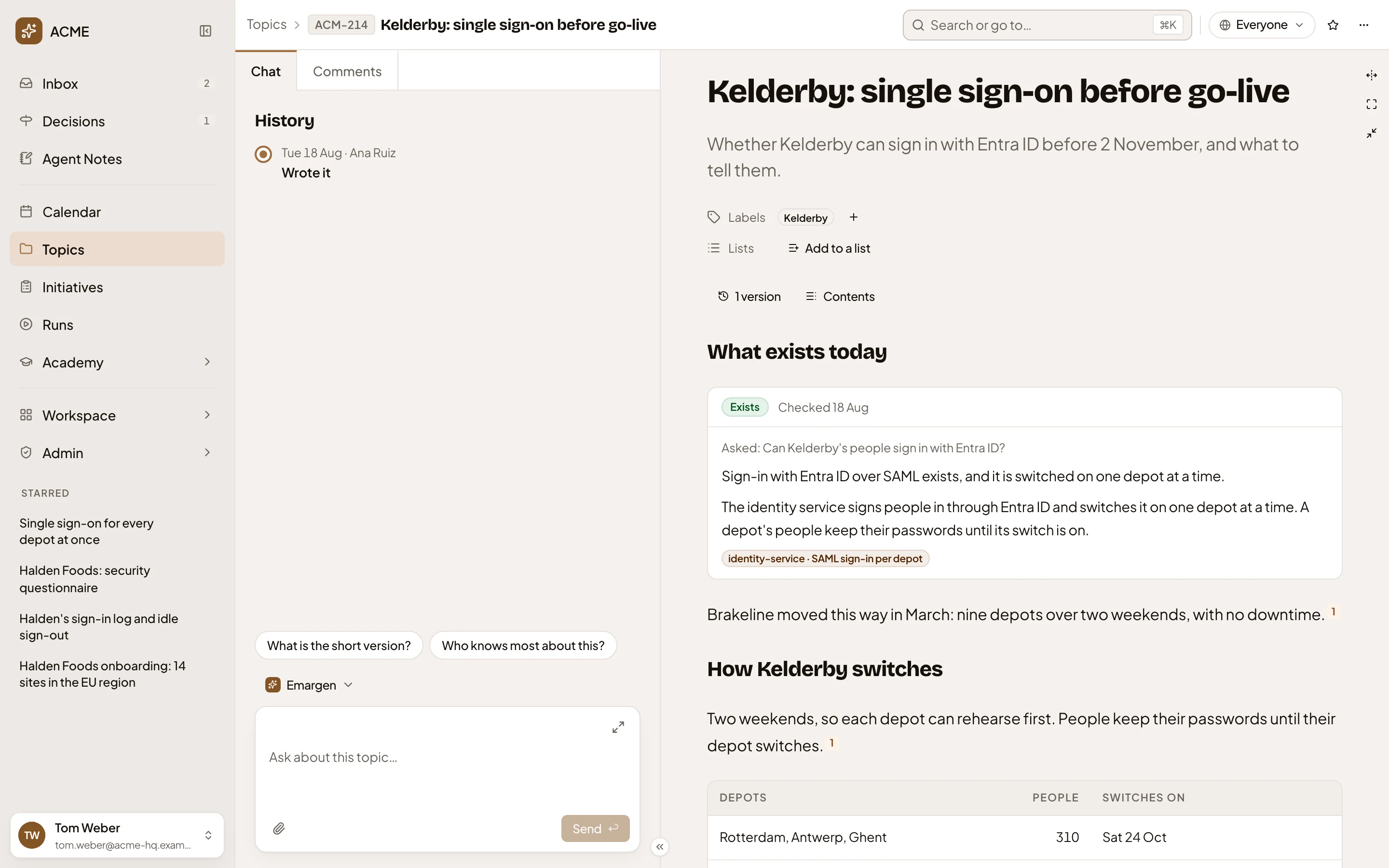
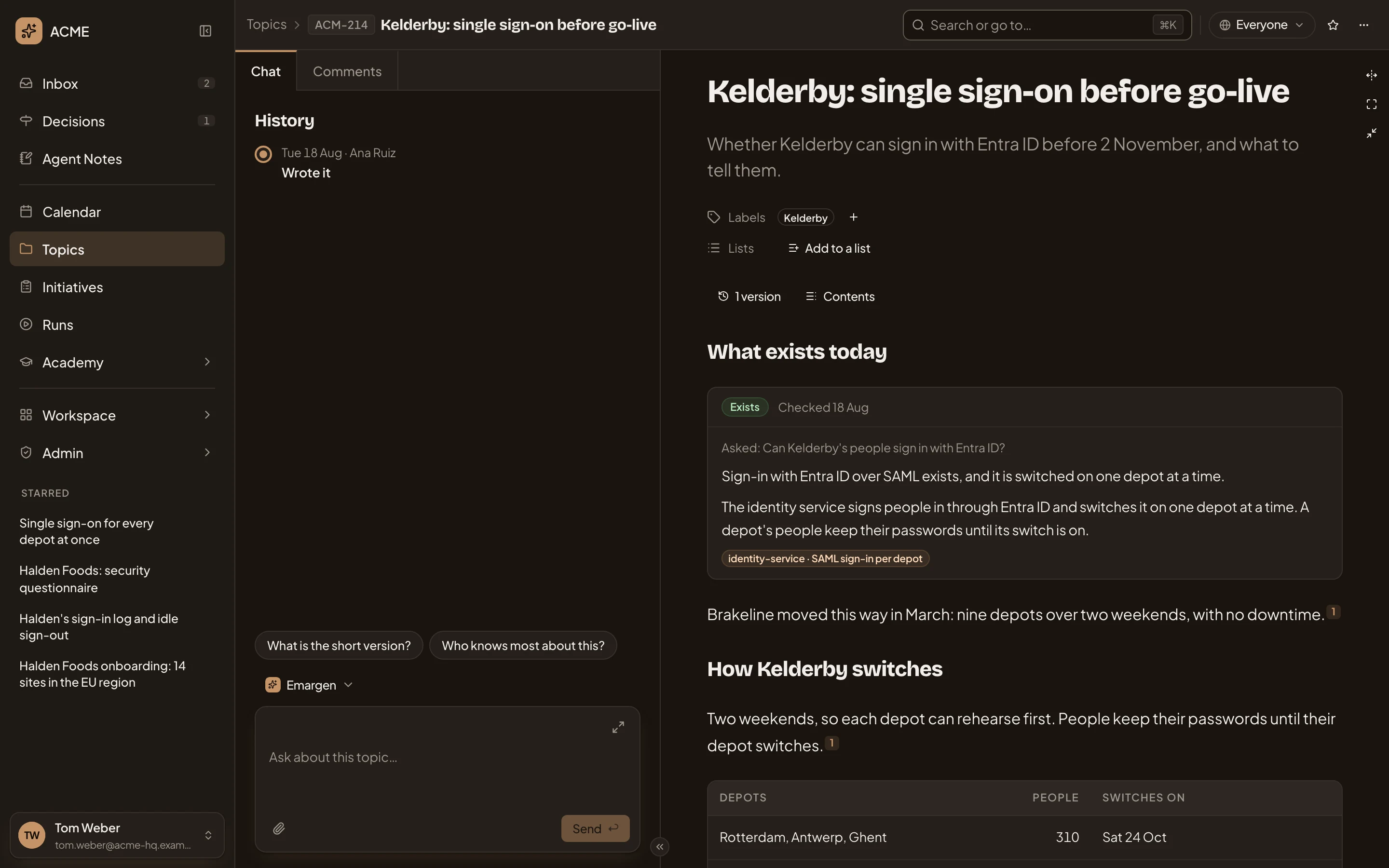
- A reader’s own chat. Its message box says Ask about this topic.
Here the owner adds a colleague in product, who can then take part.
-
Open a topic you own. At the top right, beside the star, Sharing shows who sees it now. In the pictures it says Everyone.
Open the topics list (opens Emargen in a new tab)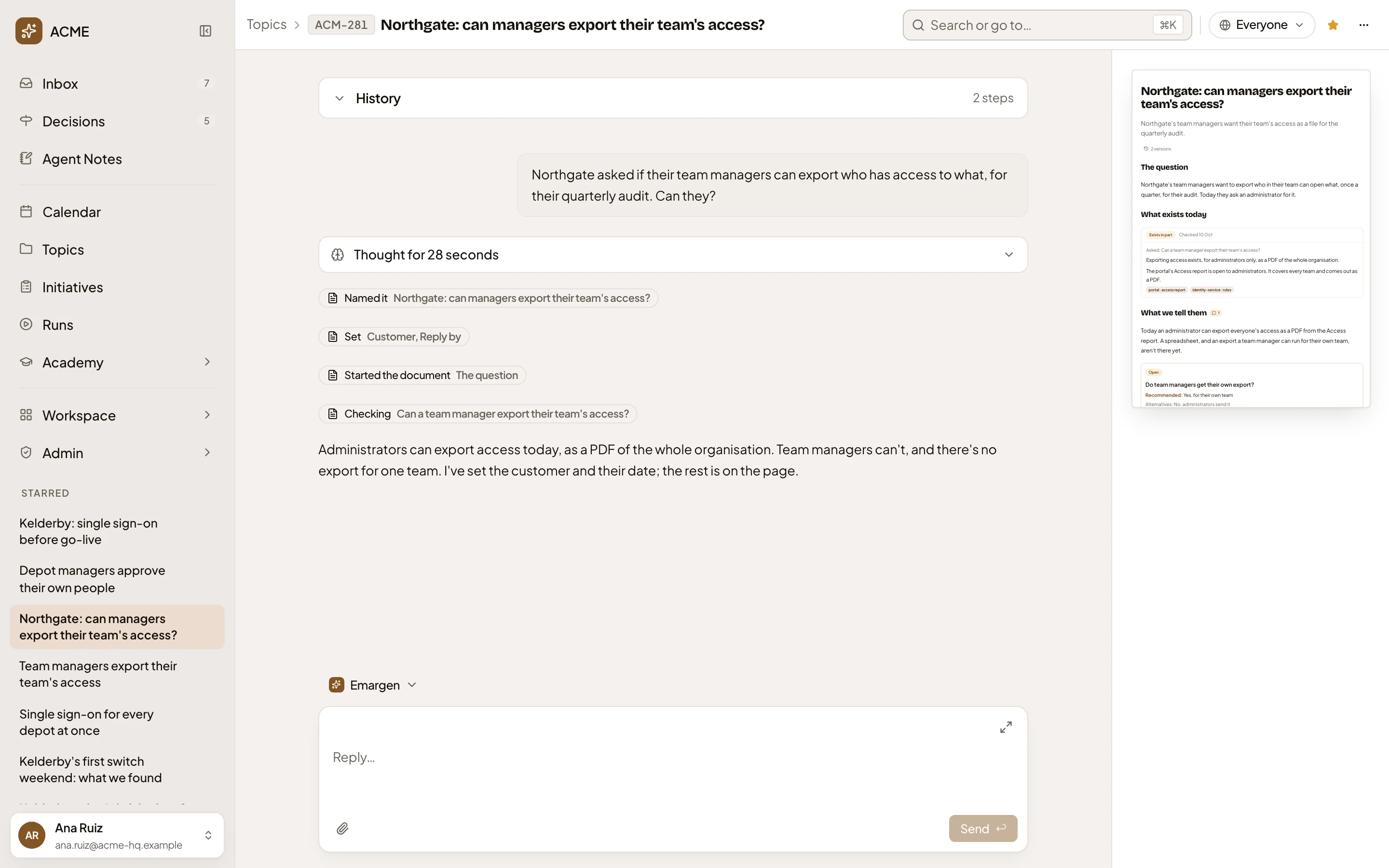
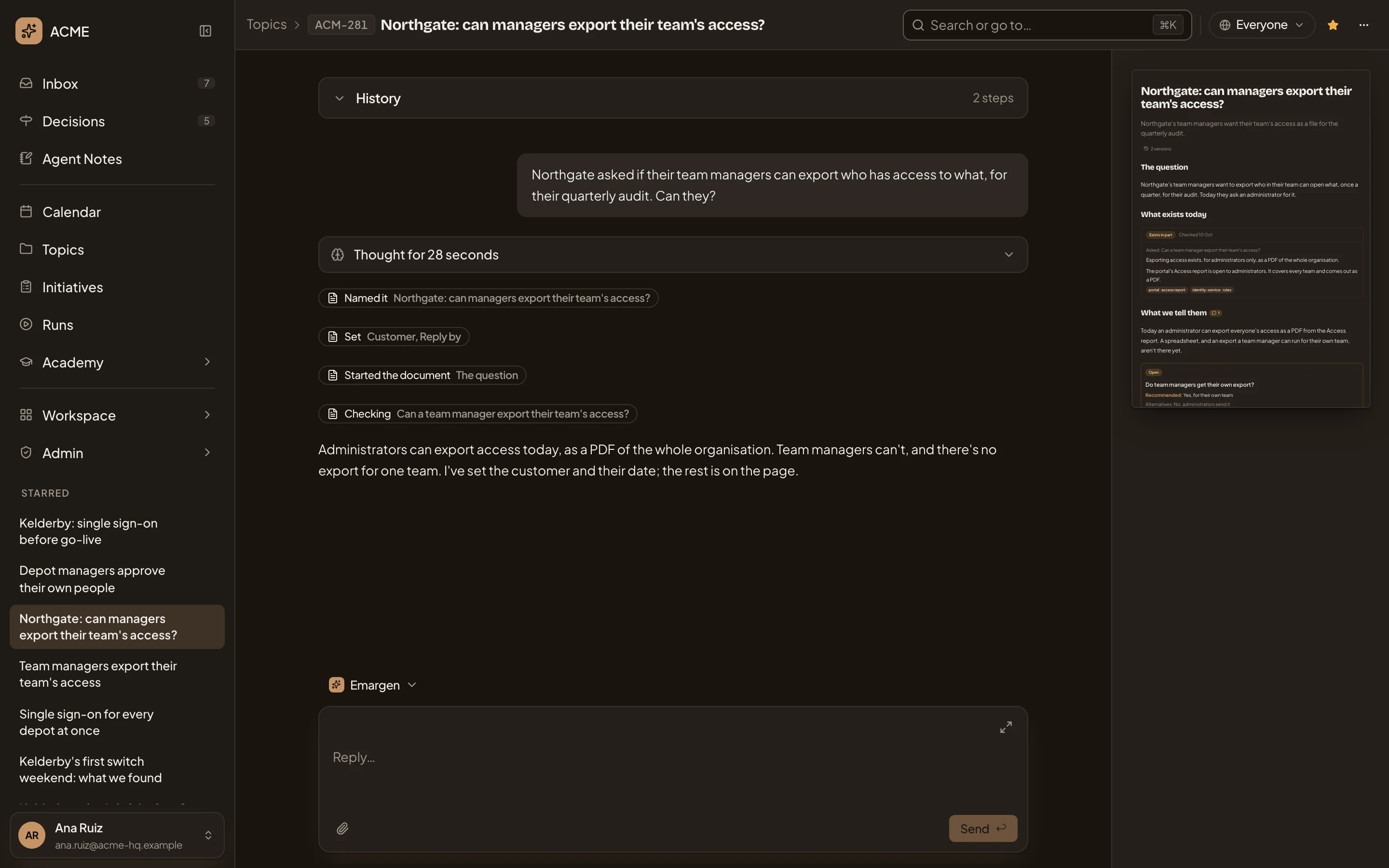
- Sharing, showing who sees the topic now.
-
Click it. Sharing opens, with everyone who sees the topic and what each of them can do.
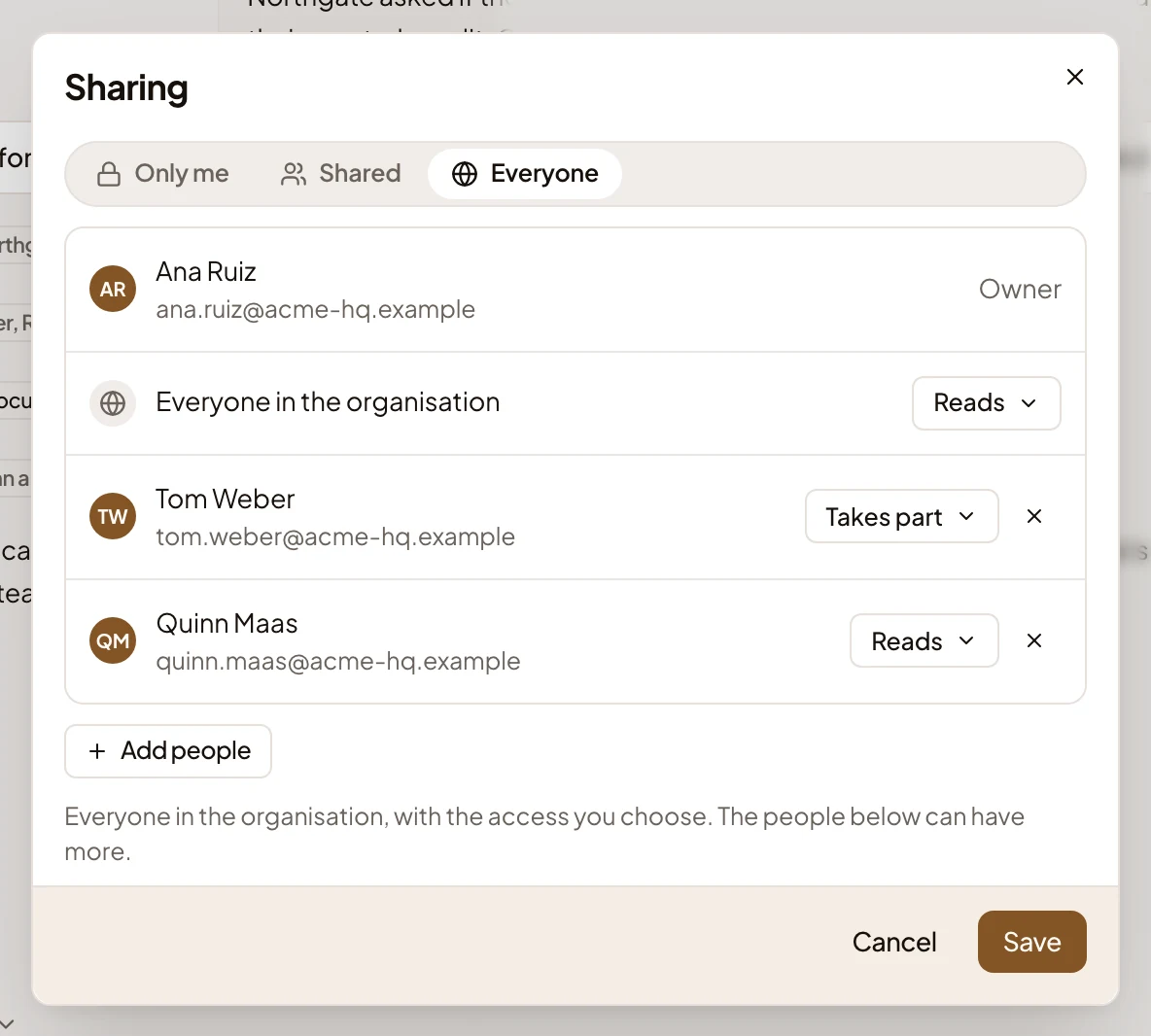
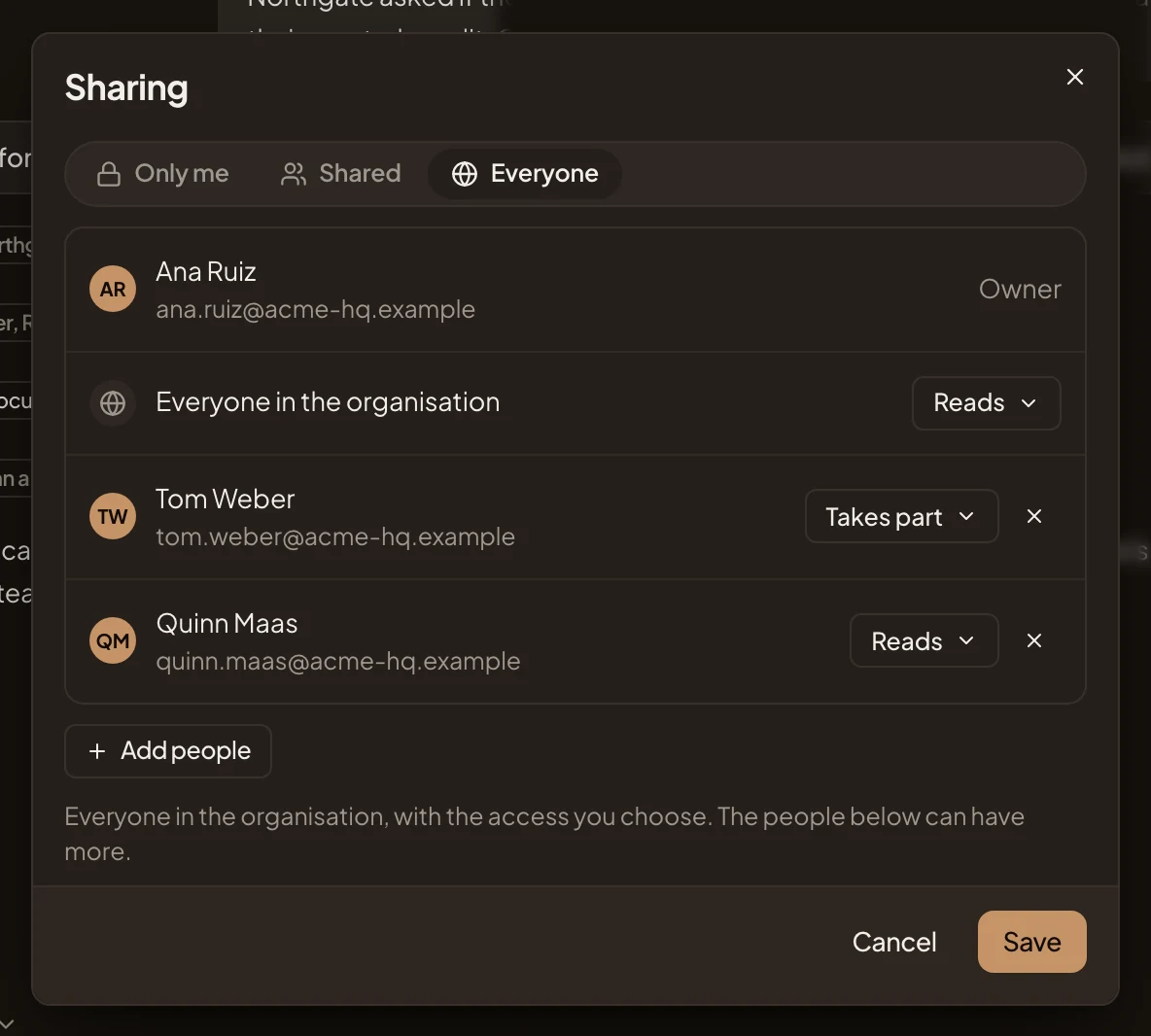
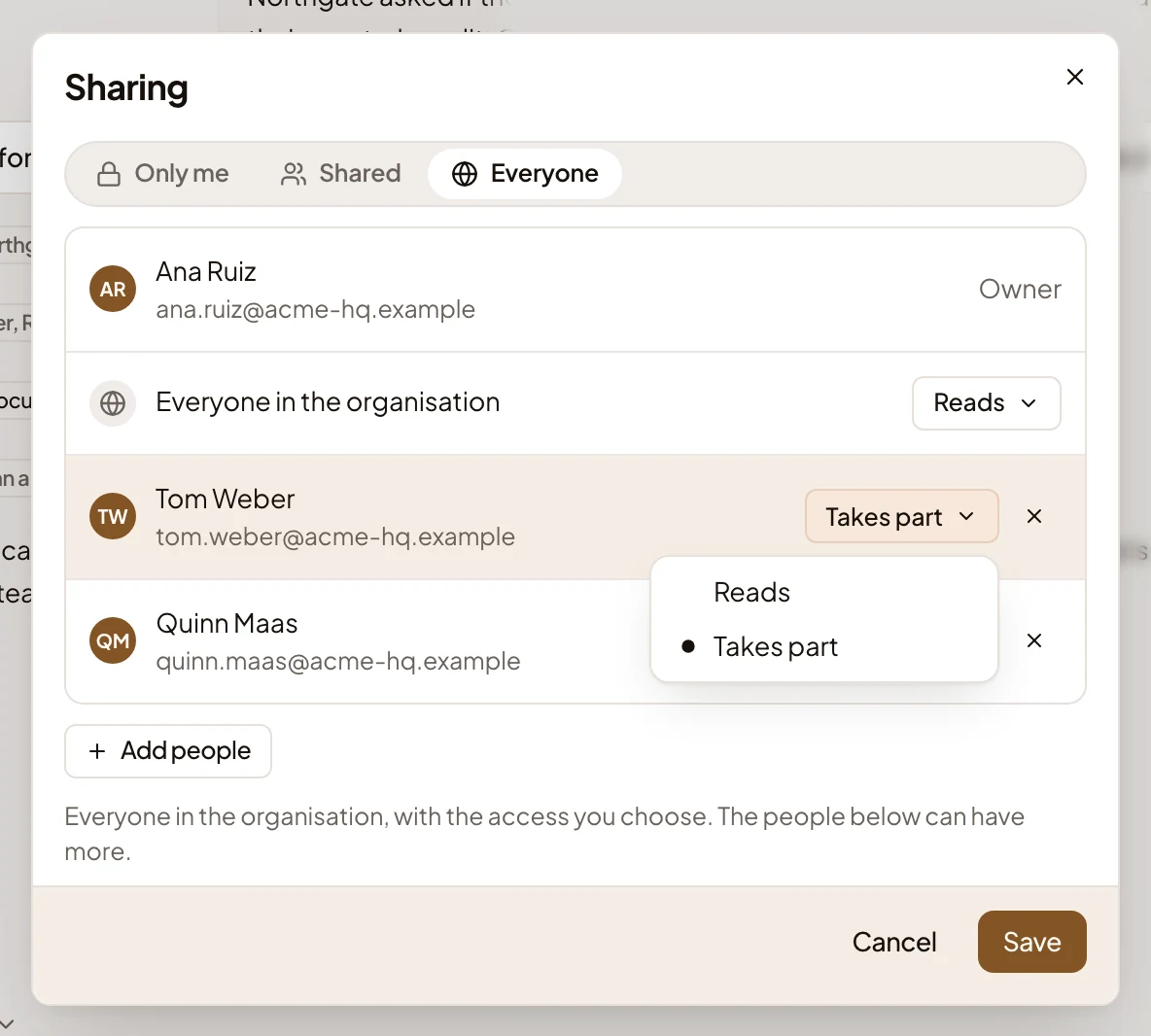
- Only me, Shared or Everyone.
- Access for everyone: what everyone in the organisation can do, when the choice is Everyone.
- Access for Tom Weber: what one person can do.
- ×, to take that person off the list.
- Add people.
- Save. Nothing changes until you press it.
-
Choose who sees it.
- Only me: only you. If the topic was shared, the dialog says how many people will stop seeing it. If the topic is the record of a flow’s run, the people the run names can still read it.
- Shared: only the people you list.
- Everyone: the whole organisation. The people you list can do more.
Add people only shows with Shared or Everyone. The pictures stay on Everyone.
-
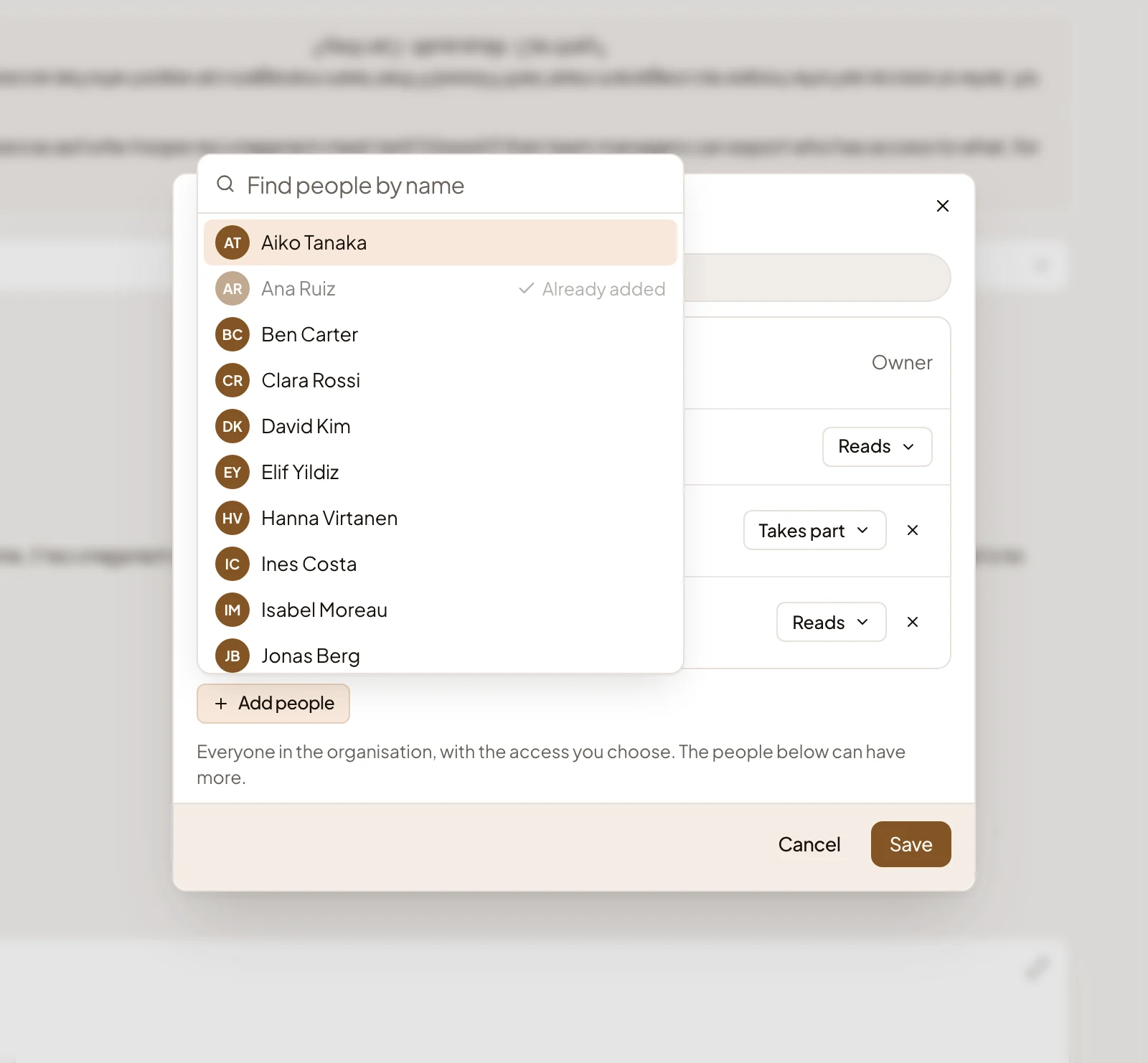
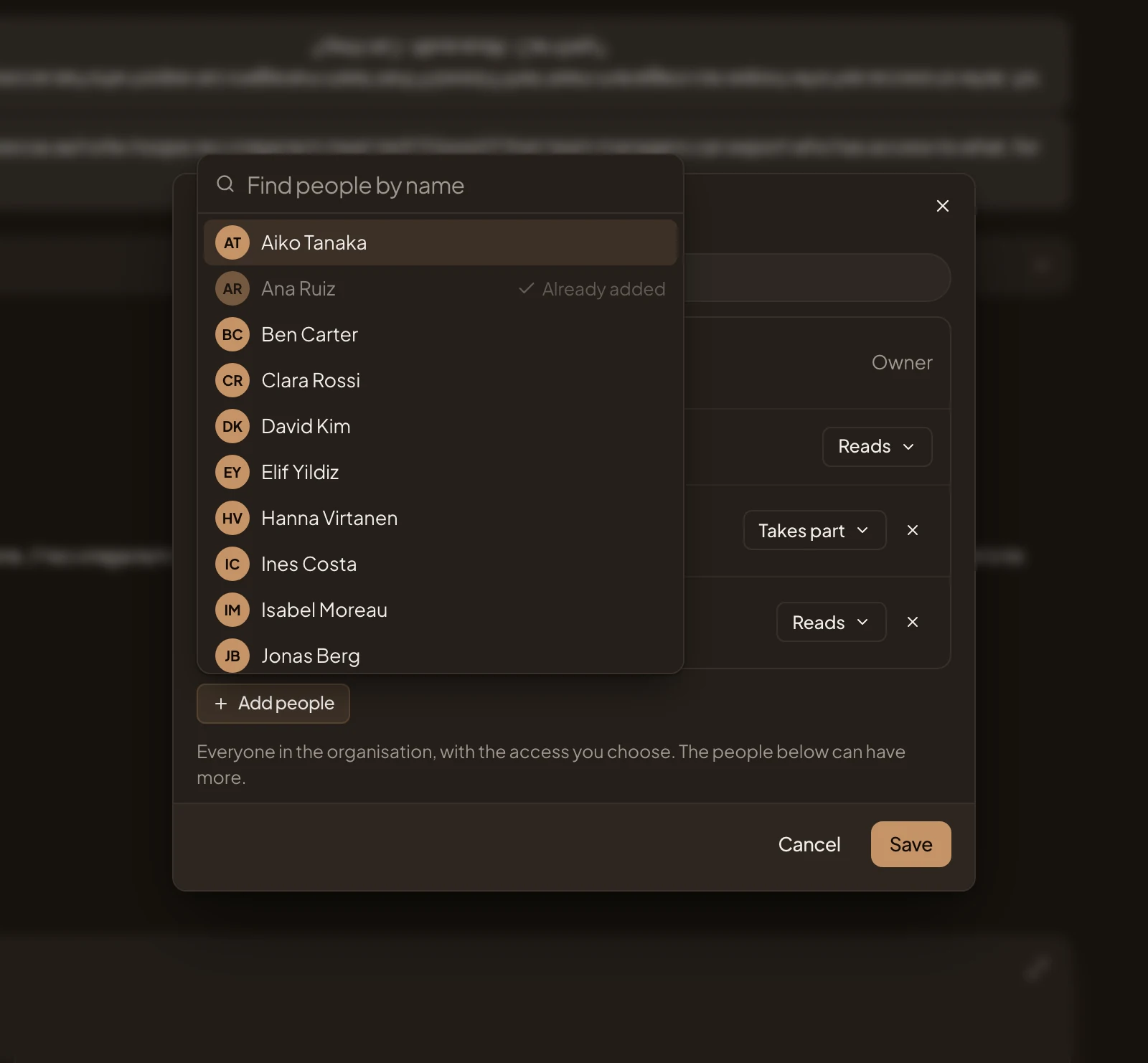
Click Add people. The organisation’s people are listed from A to Z, with a box to find someone by name. People already on the topic are greyed out and say “Already added”.
-
Click the person. They join the list as Reads, and the people list closes. To add someone else, click Add people again. Added the wrong person? Click × beside their name.
-
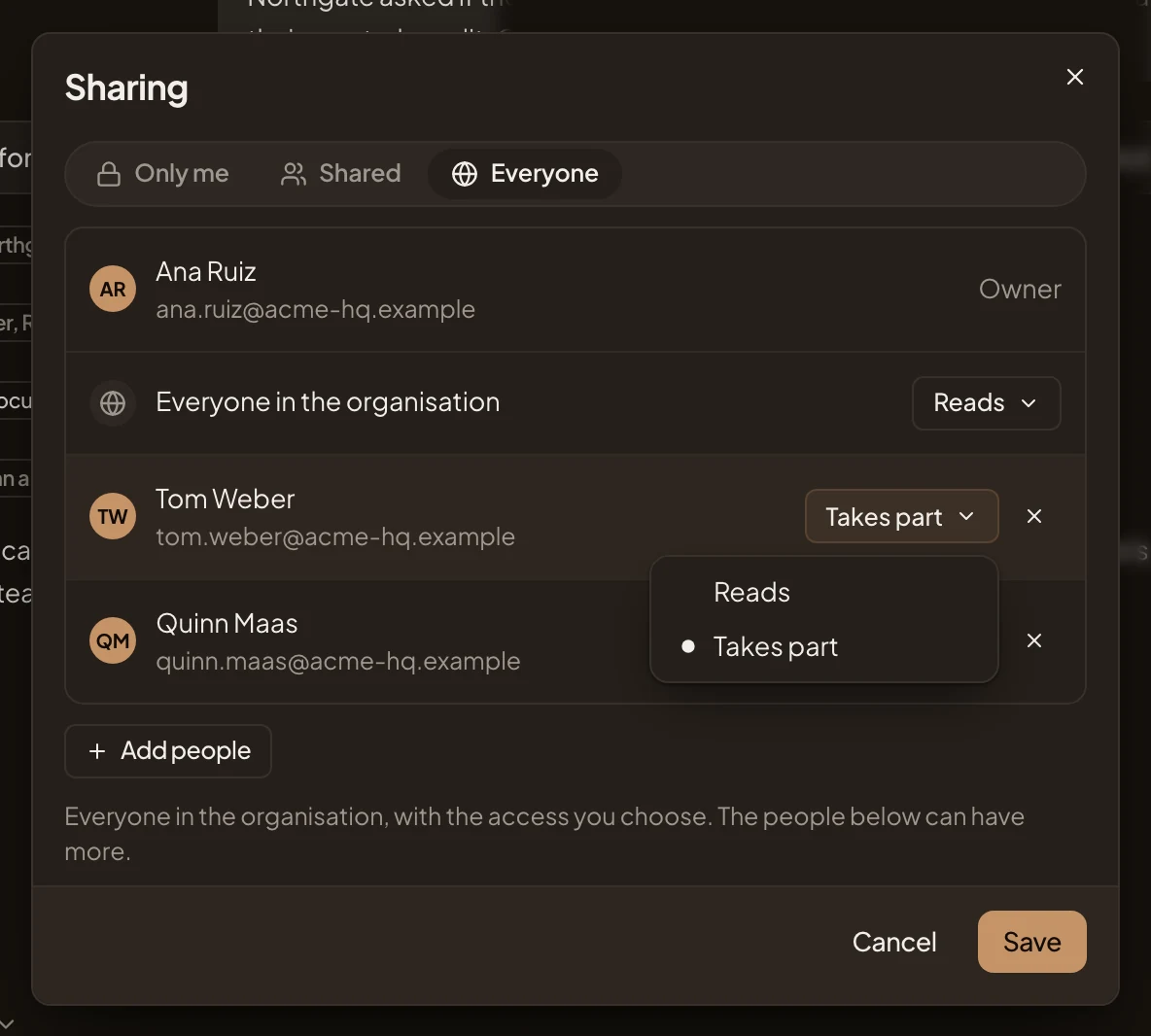
Beside their name, click what they can do, and choose Takes part or Reads. The picture shows the choice open beside someone who already takes part.
-
Click Save. The dialog closes without a message. The choice stays as it was. Adding a person doesn’t change the choice. Open Sharing again to check the person is listed as Takes part.
What you get
Section titled “What you get”- The person you added can open the topic, and read it or take part as you chose.
- The topic shows up in their topics list under Shared with you, until it’s on one of the lists they see. Emargen doesn’t send them a message.
- With Everyone, anyone in the organisation can open the topic. It shows up only in the topics lists of the people you name. Anyone else finds it with search, or a link you send them (Copy link in the topic’s ⋯ menu).
- Your chat stays yours. Everyone on the topic has their own chat with the agent, and nobody reads anyone else’s.
- To take someone off the list, open Sharing, click × beside their name, and Save. If the topic is shared with Everyone, they can still read it.