

AdminHow to
Make a role
Make a role when someone’s job needs more than working on their own topics and what’s shared with them. A product manager approves initiatives, say, or a support lead brings colleagues in. A role is a name and the permissions it holds. People and roles explains the idea behind it.
Before you start
Section titled “Before you start”- Who can
- You need a role that can manage roles. Administrators have it.
- You need
- Know which permissions the job needs.
- The pictures
- The pictures show a Security role for Mira Holm, ACME’s security and compliance lead.
Your security and compliance lead should sign off the initiatives they don’t own, and keep the Landscape’s systems right. You make a role called Security for them.
-
Click Admin in the menu, then People under it, then the Roles & permissions tab at the top of the page. Click New role.
Open Roles & permissions (opens Emargen in a new tab)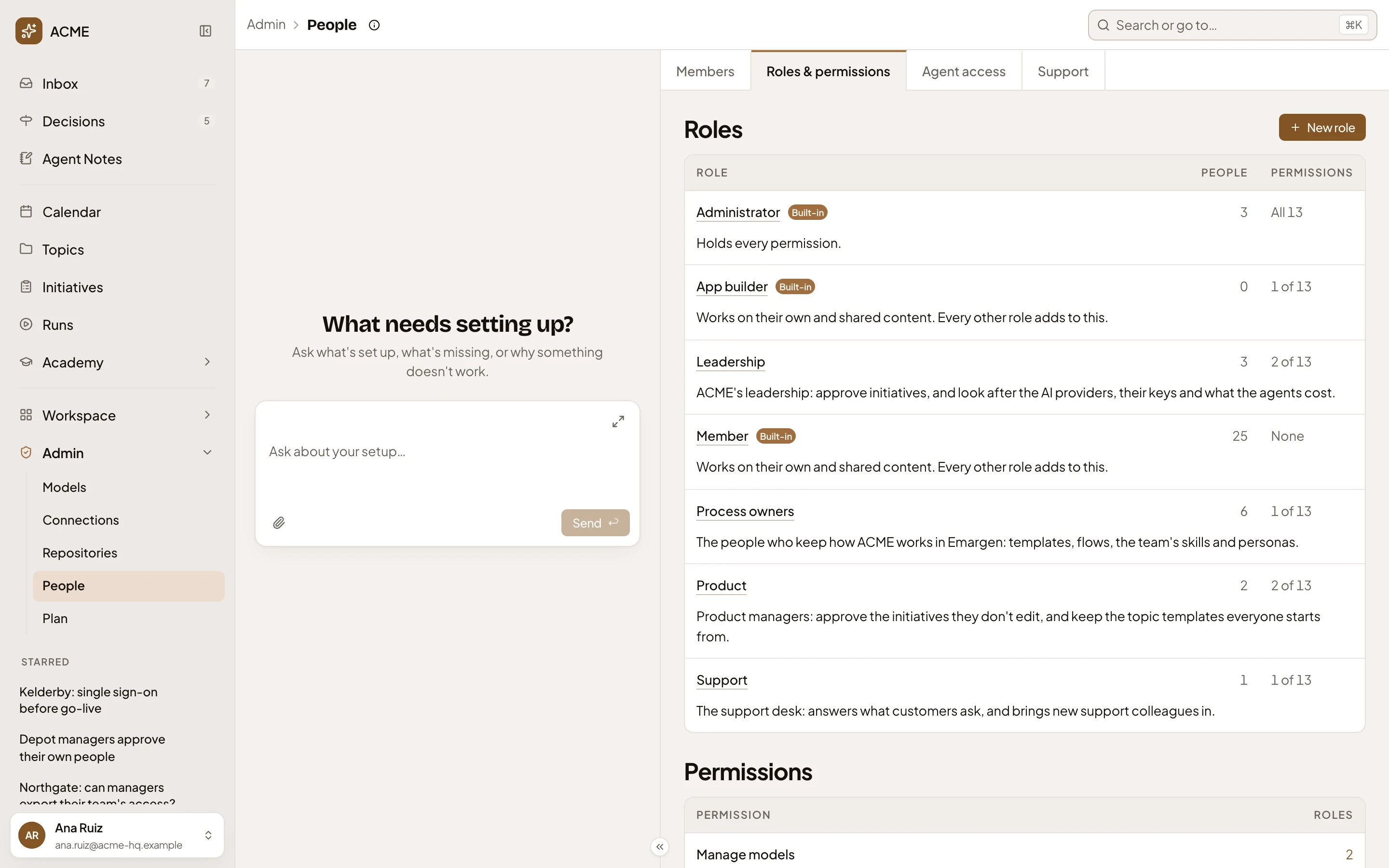
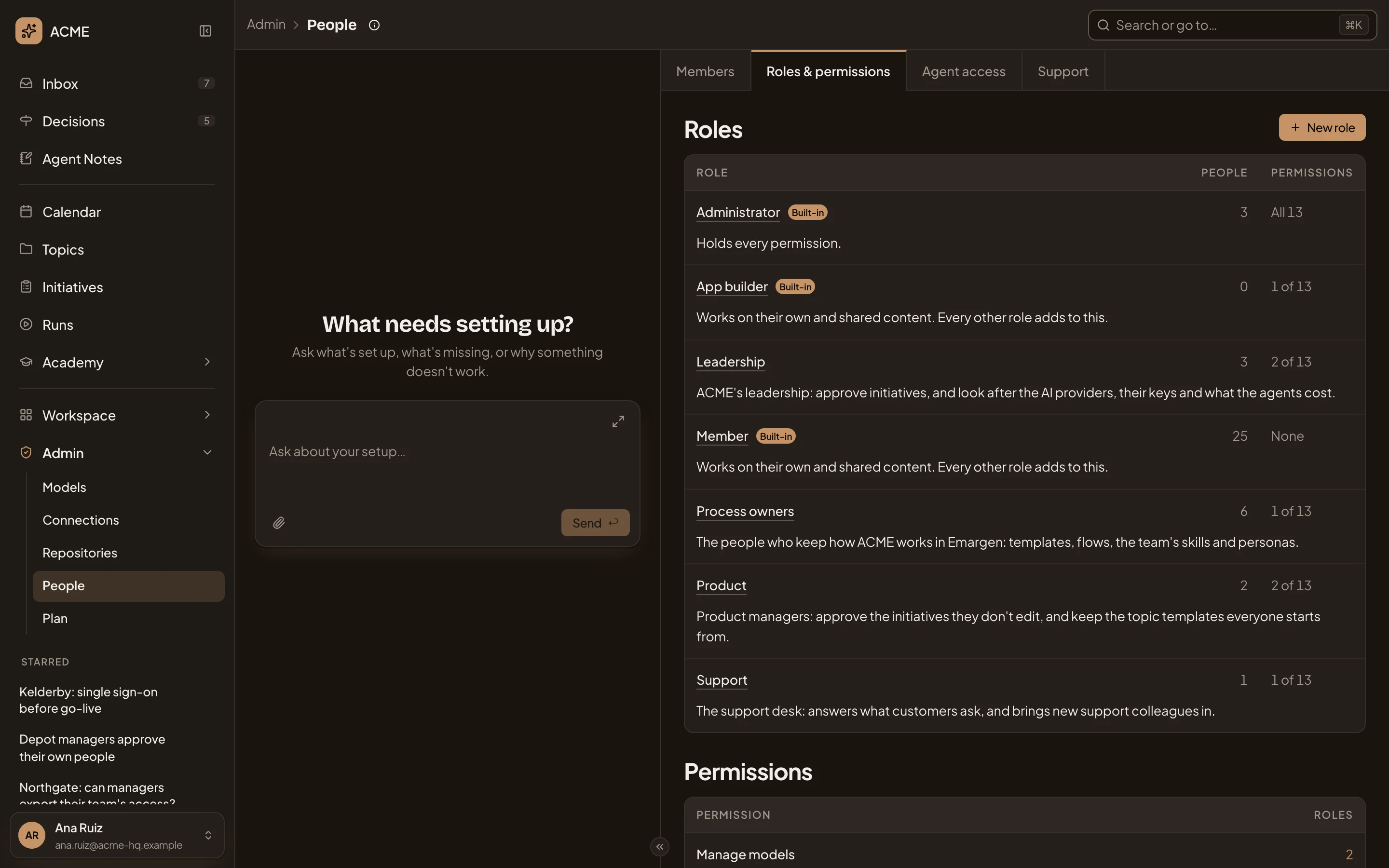
- Roles & permissions.
- New role.
-
A new role’s page opens. In Name, type what the job is: Security.
-
In Description, say what the role is for. It’s optional, but people read it under the role’s name in the lists.
-
Under Permissions, tick what the job needs: here Approve landscape changes and Approve initiatives. Each says under its name what it allows.
-
Click Add people. A list of the organisation’s people opens, with a box to find someone by name. Type part of their name to narrow it.
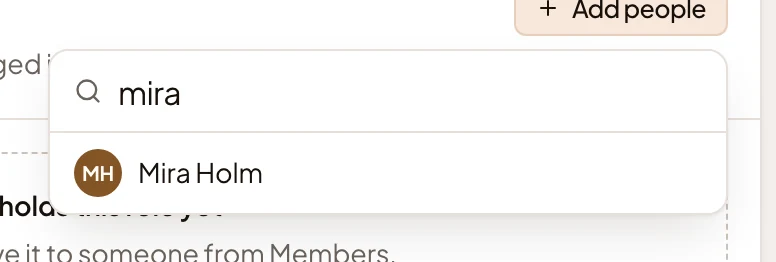
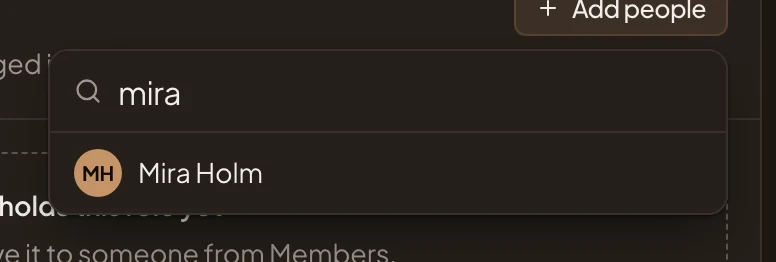
-
Click your security and compliance lead’s name. They join the table, marked Adding. Add anyone else who does the job the same way.
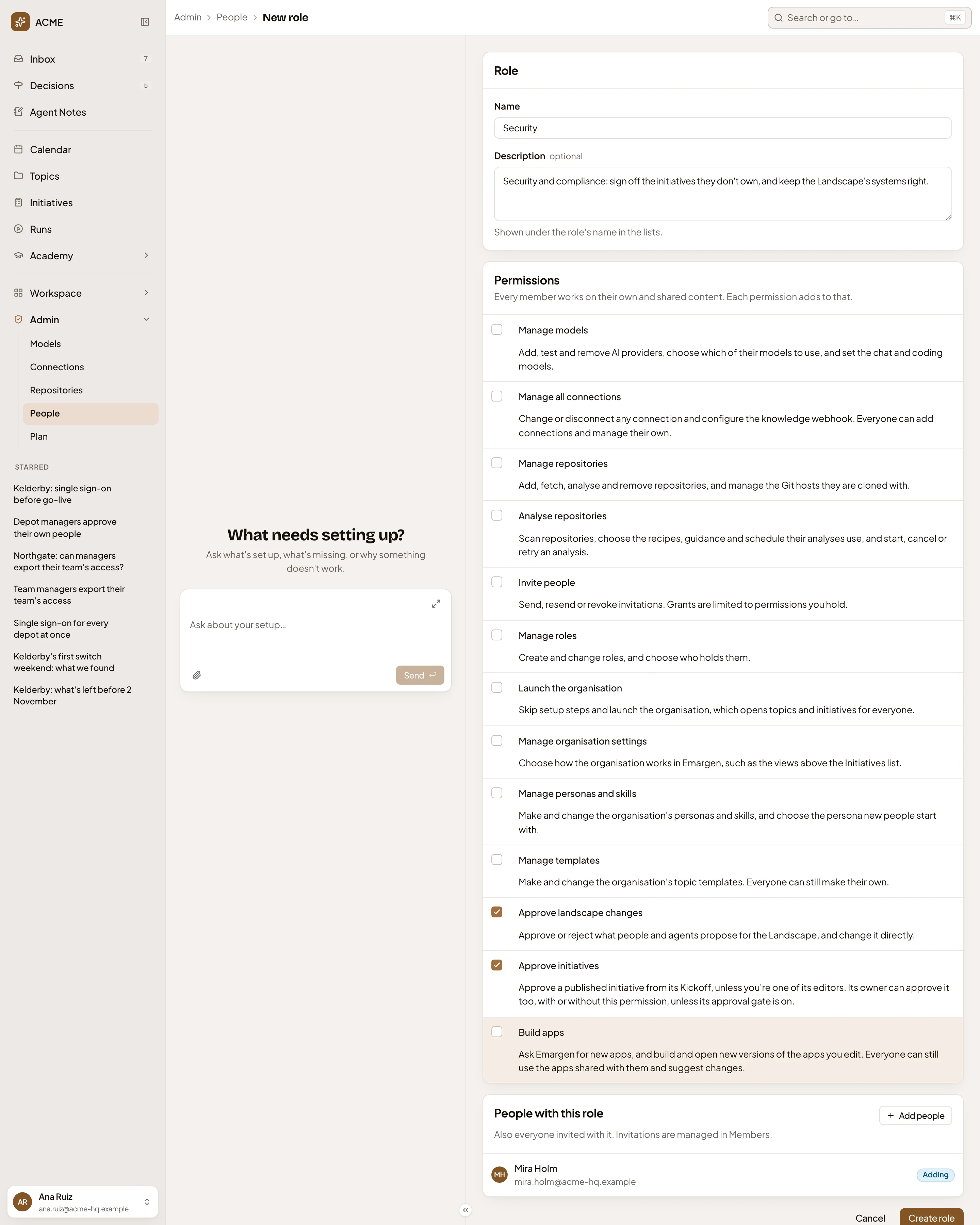
- Name.
- Description.
- Approve landscape changes, ticked.
- Approve initiatives, ticked.
- Mira Holm, Adding.
- Create role.
-
Click Create role. A message at the bottom of the screen says “Role created” for a few seconds. Roles & permissions opens, and lists Security with 1 person and its 2 permissions.
What you get
Section titled “What you get”- Mira holds Security beside Member. They can approve or reject what people and agents propose for the Landscape, and change it directly. They can approve a published initiative from its Kickoff when they see it and don’t edit it.
- Published initiatives waiting for approval also show in their Decisions, when they can see them and don’t edit them.
- Anyone you add to Security later gets the same permissions. Change the role’s permissions, and everyone who holds it gets the change.
Give a role to one more person
Section titled “Give a role to one more person”In Members, click the person’s row. Don’t click their name, which opens their page. Click Roles under the row, tick the role and click Save. Or open the role’s page, click Add people, and Save.
If your organisation signs in through your company’s single sign-on, you can give the role to everyone with one of the company’s own roles. On Roles & permissions, under From single sign-on, select the company role. Click Choose roles, tick yours and click Save. They get it at every sign-in.