

Getting aroundPage by page
Your profile
Your profile is how other people see you in Emargen, and how you sign in. Its first page, Profile, holds your photo, your name and your email.
Getting there
Section titled “Getting there”Click your name at the bottom of the menu to open it.
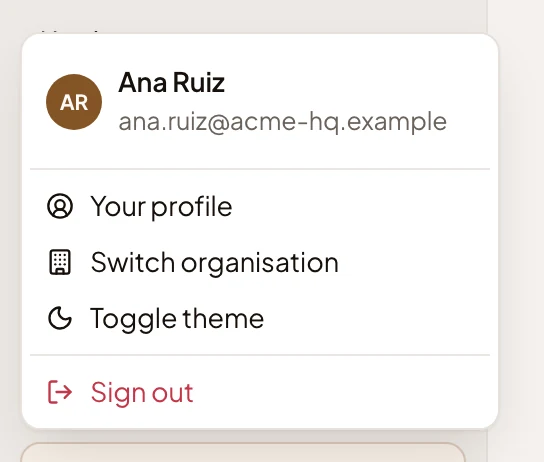
- Your profile. Opens the page you’re on.
- Switch organisation. Moves you to another organisation you belong to.
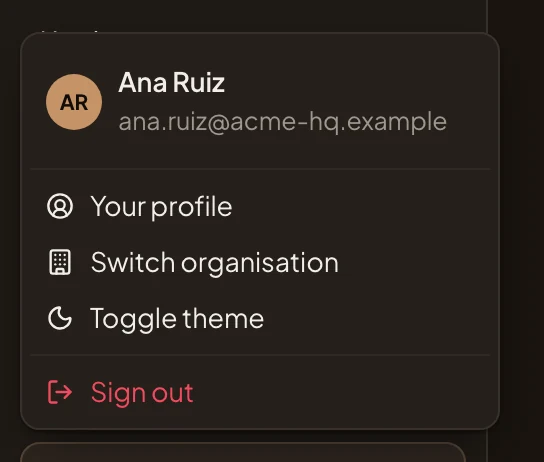
- Toggle theme. Switches between light and dark. Preferences can also follow your computer’s setting.
- Sign out. Ends your session in this browser.
The page
Section titled “The page”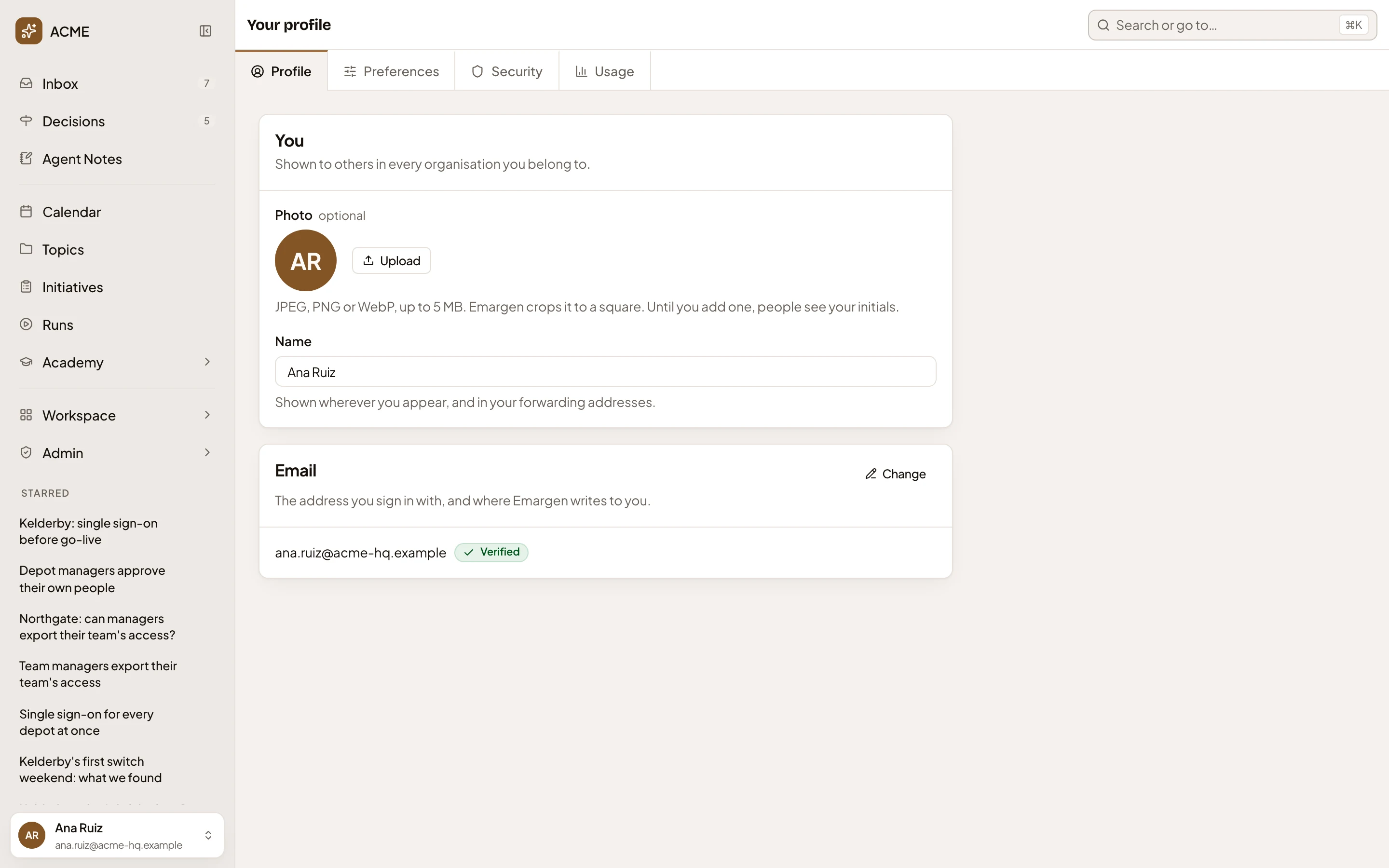
- Profile is this page. Preferences sets how Emargen works for you, Security holds your password and your agents, and Usage shows your month of AI use.
- Photo. Until you add one, people see your initials.
- Upload. A JPEG, PNG or WebP picture, up to 5 MB. Emargen crops it to a square and saves it at once. Once you have one, Remove takes it away.
- Name. How you appear in Emargen. Your forwarding addresses use it too, one for each organisation. It saves as you type.
- Change. Moves your account to another email address (see Changing your email).
- Verified. Your address is confirmed.
Your photo and name are the same in every organisation you belong to. They also show on your page, the one your colleagues see.
Changing your email
Section titled “Changing your email”Your email is the address you sign in with, and where Emargen writes to you. Change opens Change your email.
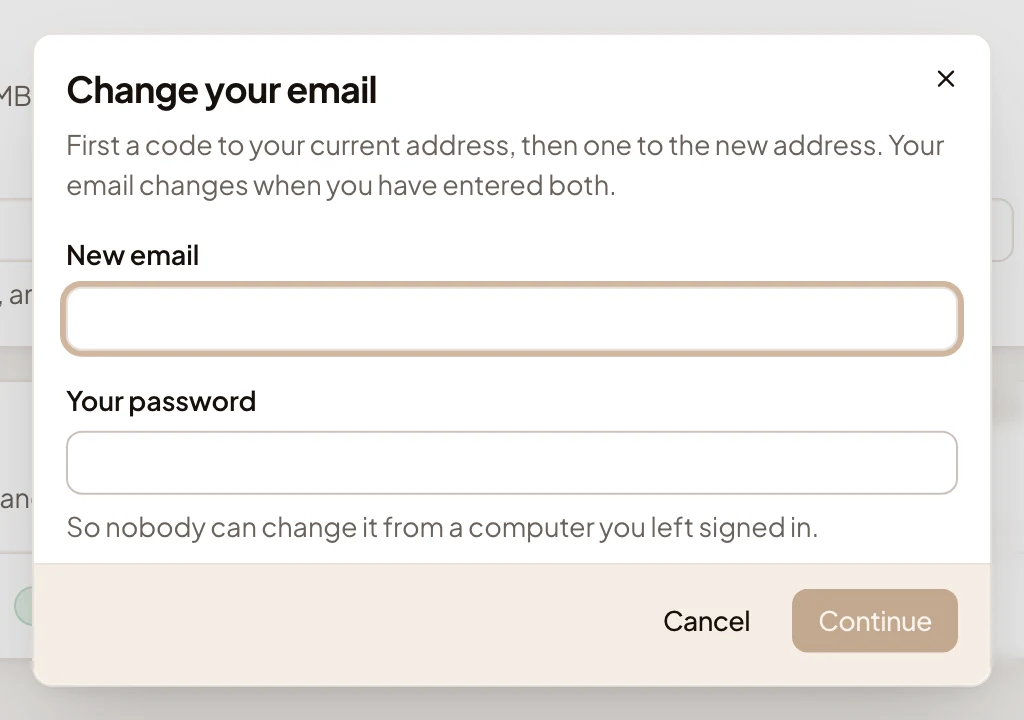
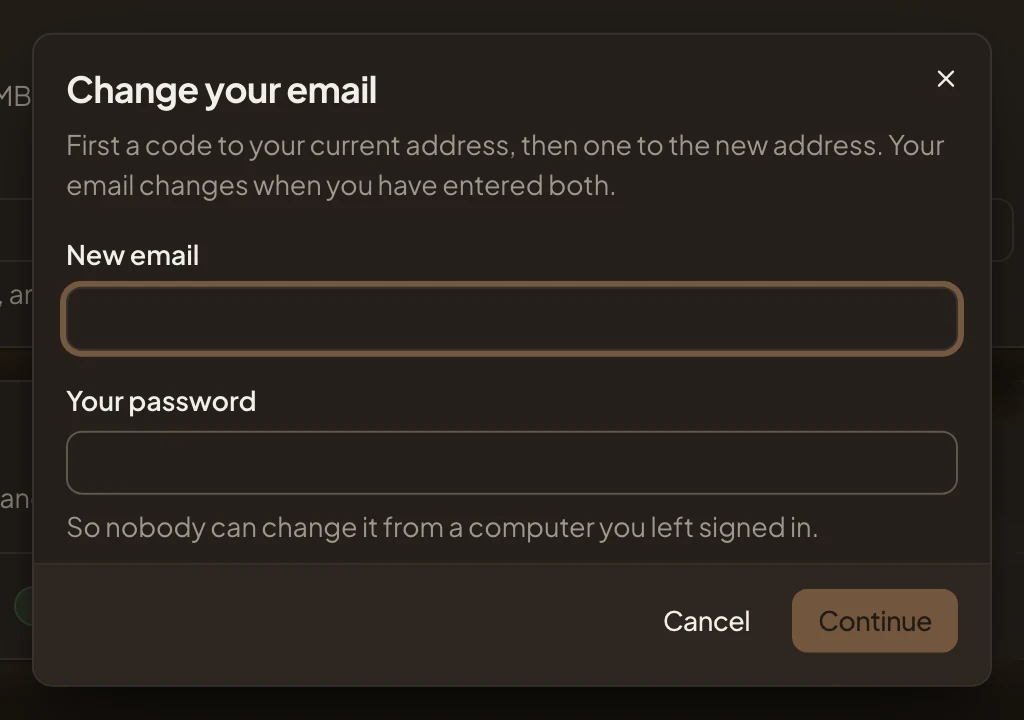
- New email. The address you’re moving to.
- Your password. So nobody can change it from a computer you left signed in.
- Continue. Checks your password, then sends a 6-digit code to your current address.
Then:
- Enter the code from your current address, and Continue. Emargen sends a second code to the new address.
- Enter that one, and Change email. The page says “Email changed”, and you sign in with the new address from then on.
Each code works for a few minutes, and the dialog says how many. “Send a new one” sends another after a short wait. Closing the dialog partway drops the change.
With single sign-on
Section titled “With single sign-on”If your organisation signs in through your company’s single sign-on, your name and email come from there and are set again each time you sign in. They show without a box or Change. Ask whoever runs your company’s sign-in to change them. Your photo is still yours to change. Change doesn’t show if you have no password in Emargen.
Access
Section titled “Access”Everyone, for their own profile. Other people see your name and photo wherever you appear, and never this page.