

Getting aroundPage by page
A person's page
A person’s page shows who a colleague is in Emargen, what time it is where they are, and what’s open between the two of you. Open it from Admin › People › Members by clicking their name.
Open People (opens Emargen in a new tab)Ana opens the page of Tom, a sales engineer she works with.
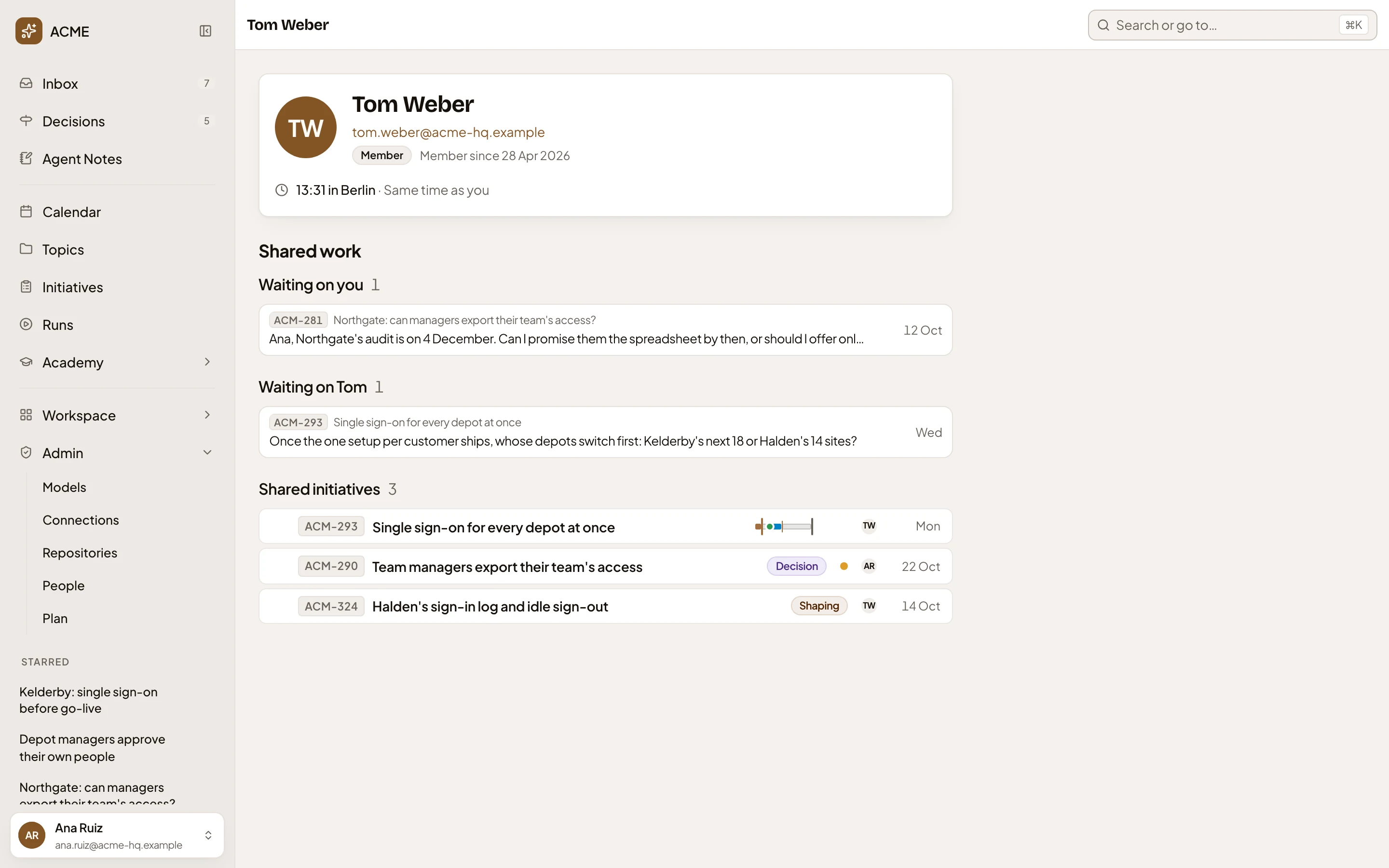
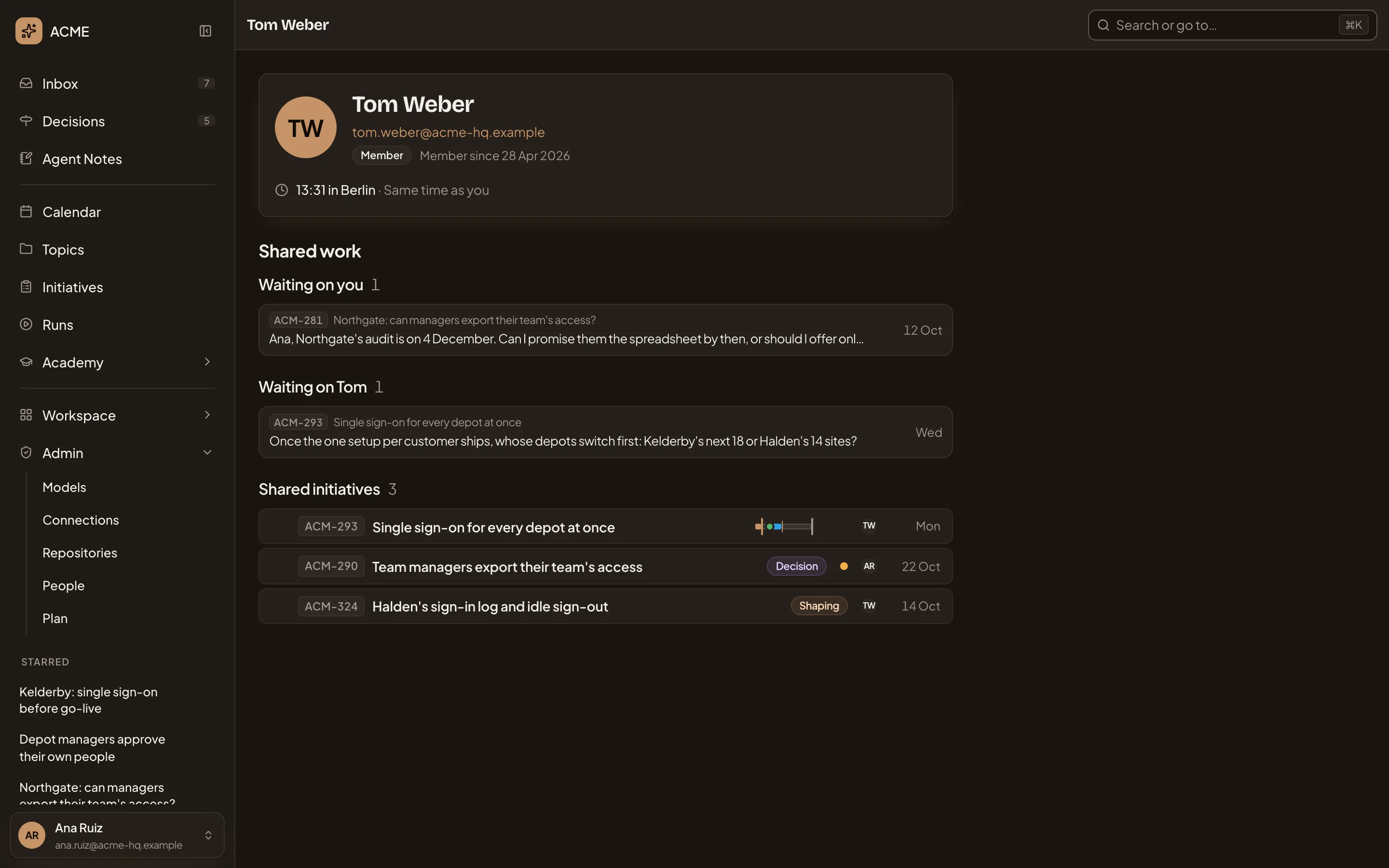
- Their card. Their photo, or their initials until they add one, and their name.
- Their email. Click it to write to them.
- Their roles in your organisation, and when they joined it.
- Their local time, where they are, and the time difference from you.
- Waiting on you. What waits on you from them, like the Kickoff of their initiative or a question they asked you. Click a row to open the item.
- Waiting on Tom. What waits on them from you, here a question you asked them.
- Shared initiatives. The ones still going that you both own or are named on, the most recently active first. You see up to ten, with the total.
Shared work
Section titled “Shared work”Shared work holds only what’s open, and only on what you can see. A group appears only when something is in it. Two more groups show blocked work: their work blocking yours, and yours blocking theirs. Each blocked task shows its key, its title and its initiative.
When nothing is open, it says “Nothing is open between you and” their first name.
Your own page
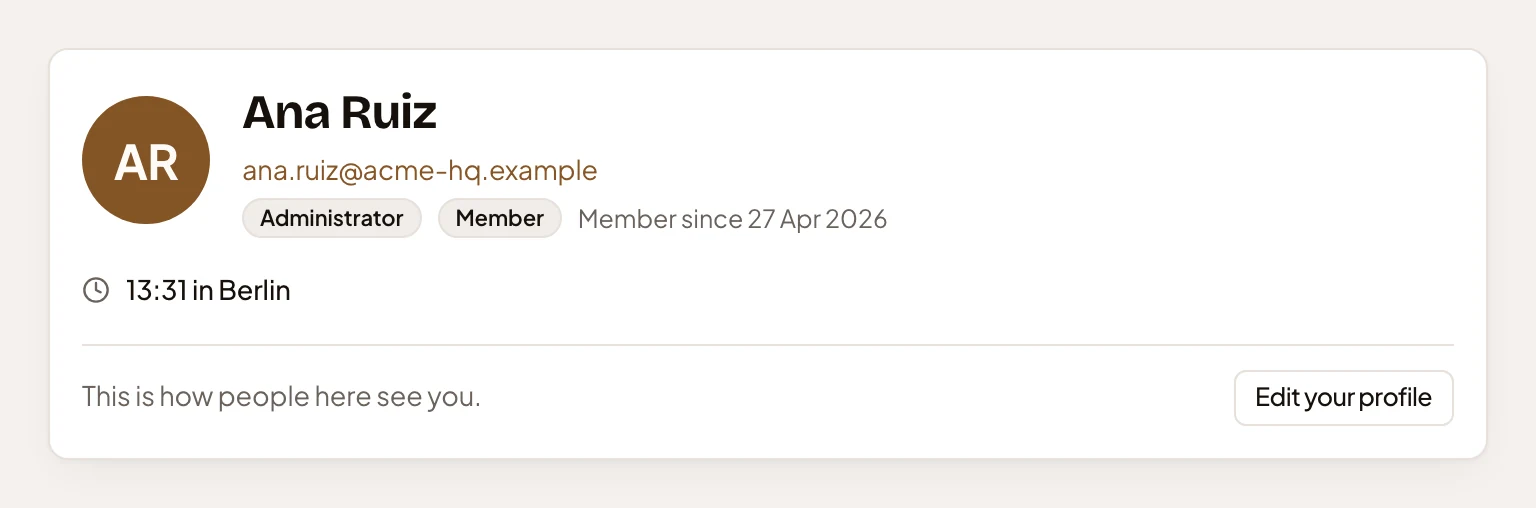
Section titled “Your own page”Your own page shows your card as others see it, with “This is how people here see you.” and Edit your profile, which opens Your profile. It has no Shared work.
- Until someone has used Emargen, their card says “Their local time shows once they have used Emargen.”
- An address that names nobody in your organisation says “This person isn’t in this organisation.”
Access
Section titled “Access”Anyone in the organisation can open a member’s page from its address. You can open the Members list if your role lets you manage roles or invite people.