

AdminHow to
See what AI costs
Do this when your provider’s bill arrives and you want to know what it went on. Or do it after you move routine work to a cheaper model, to see if it paid off. The record of AI use explains the idea behind it.
Before you start
Section titled “Before you start”- Who can
- You need a role that may manage models. Administrators have it. Anyone else can see their own month in their profile instead: see Your usage.
- The pictures
- The pictures show ACME, the company these docs use, on 30 October 2026, as its administrator sees it. They show October so far, then what the sales engineer’s work came to.
-
Click Admin in the menu. It opens on Models, where This month shows the month so far. Click Open usage.
Open Models (opens Emargen in a new tab)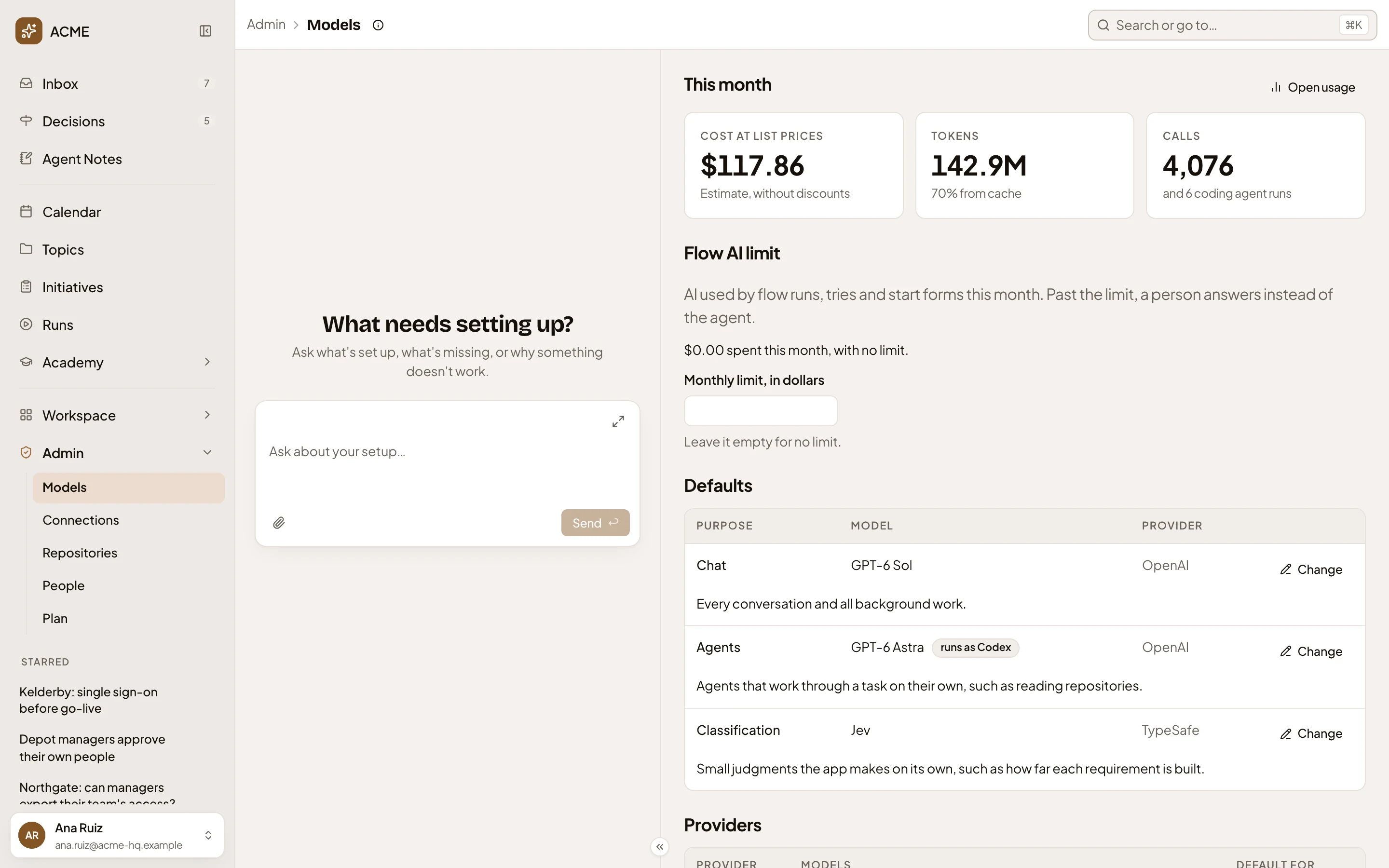
- This month.
- Open usage.
-
Usage opens on this month. Read the three figures at the top: Cost at list prices, Tokens and Calls. The cost is an indication, since discounts aren’t applied. Calls also shows how many coding agent runs there were. When some calls ran on models with no price, a line under the figures says how many.
-
See where the cost went. By activity splits the month by kind of work, such as Chats, Coding agents and Background writing. You see which models it ran on in By model. Under them, By person and By initiative list the five that cost most. The line under By person says what background work wasn’t tied to anyone, and the line under By initiative what wasn’t tied to an initiative. In the picture, about half of ACME’s October went on topics, the Inbox and settings.
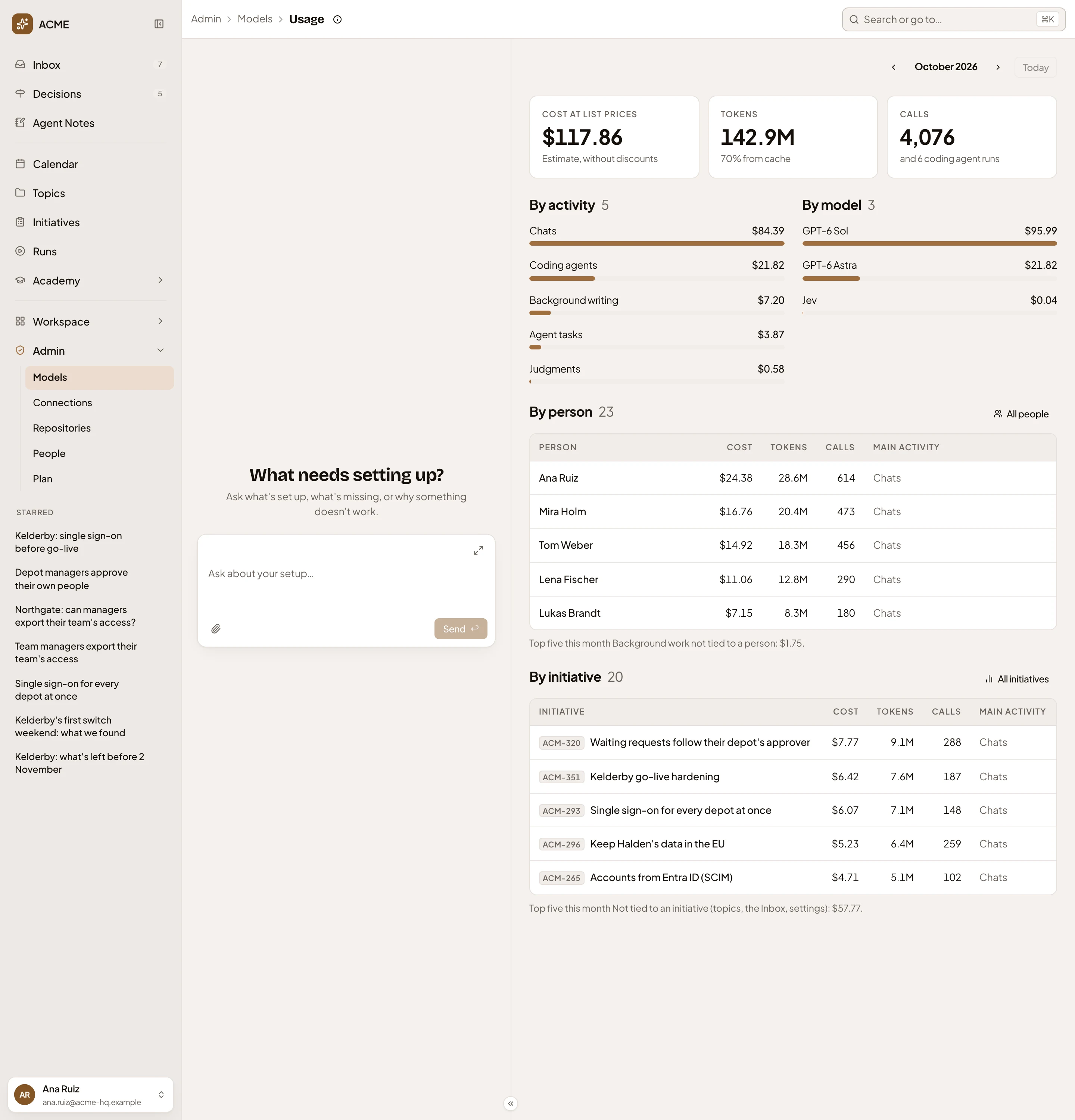
- Previous moves back a month.
- By activity.
- By model.
- All people.
- All initiatives.
- The cost with no initiative.
-
To see another month, click Previous or Next above the figures. Today brings you back to this month.
-
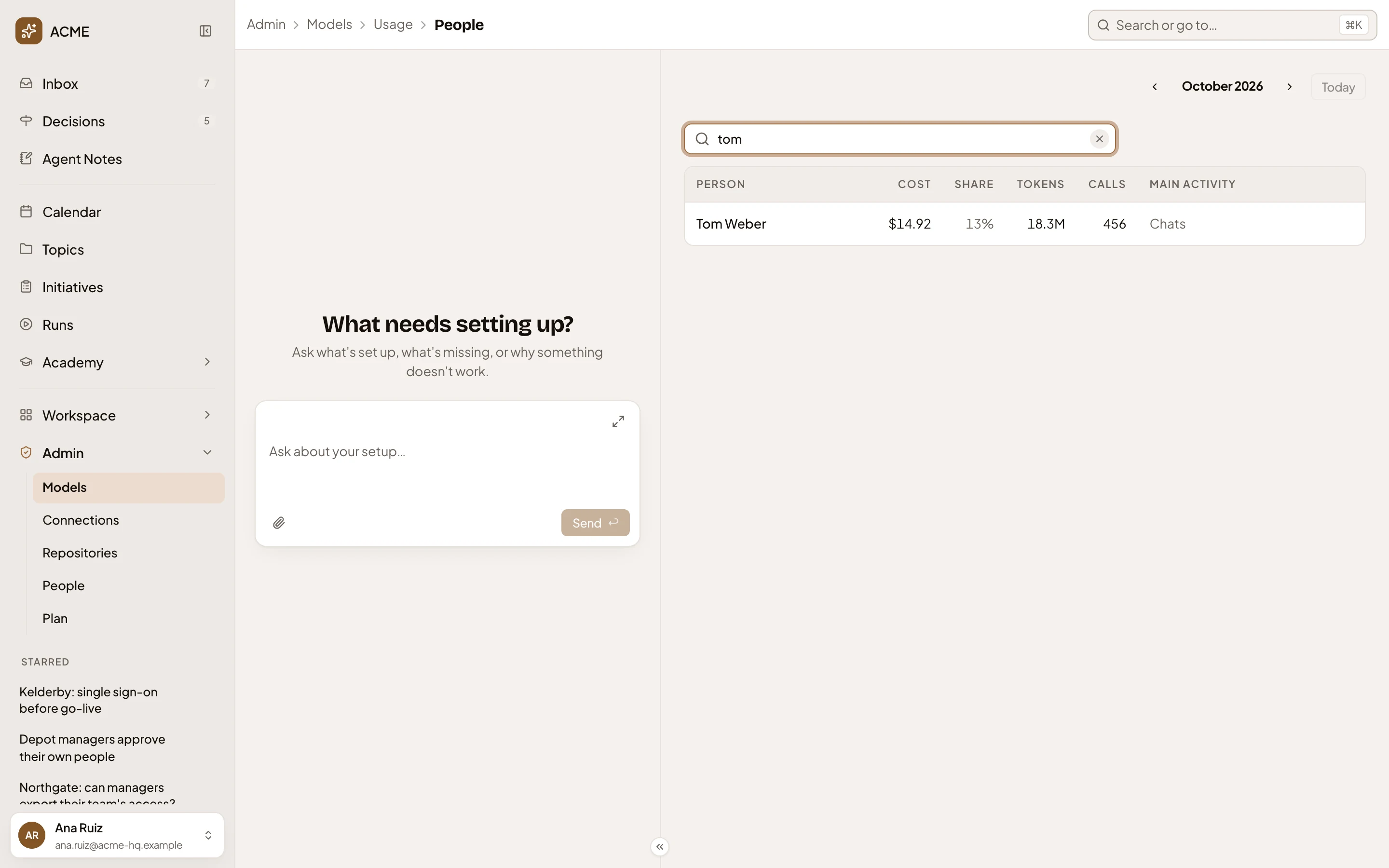
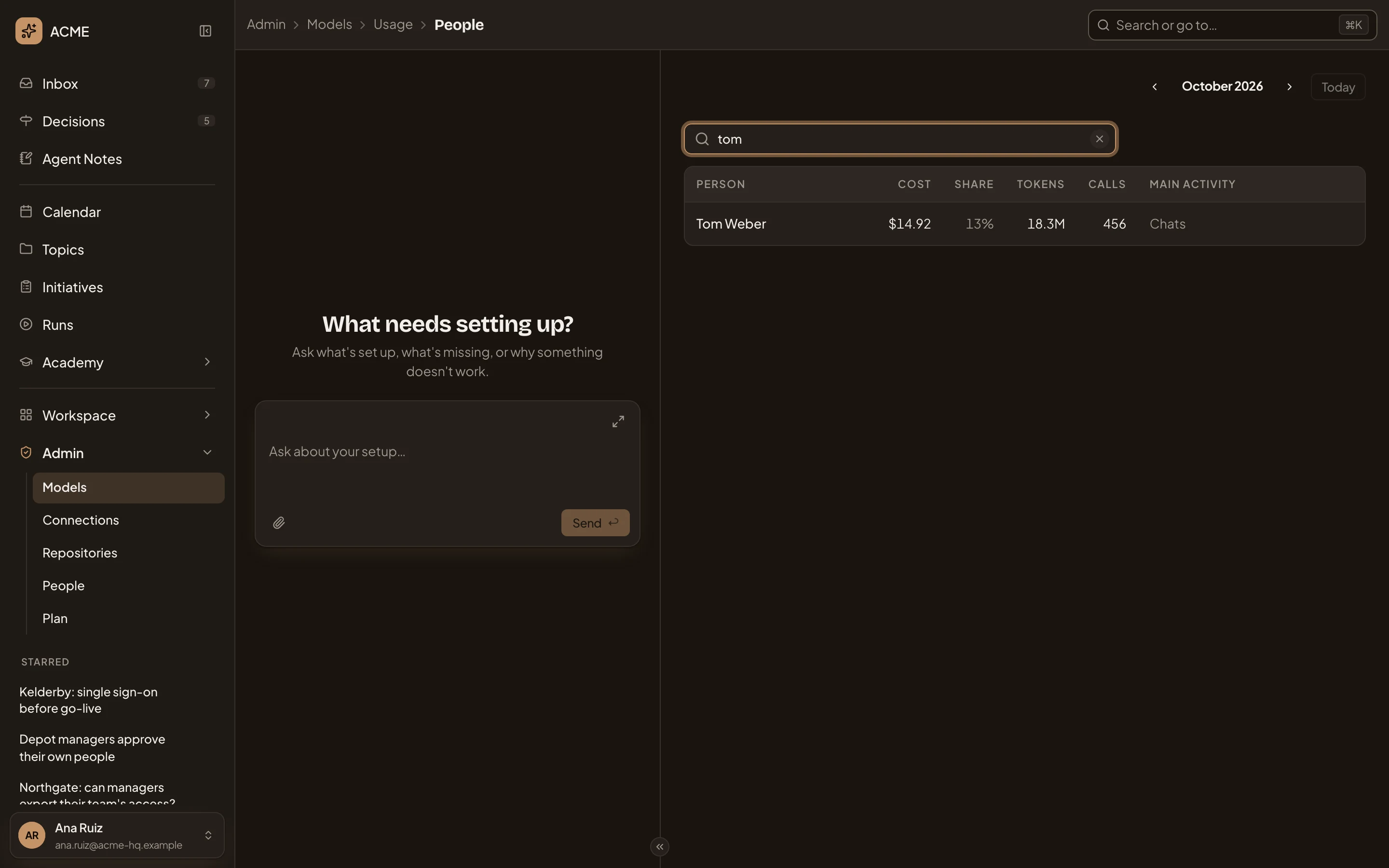
Click All people. The page lists everyone who used the organisation’s models in the month, with their share of the cost. Type a name into Search people to find someone. In the picture, tom.
- Search people.
- Click a name to open that person’s month. In the picture, Tom Weber.
-
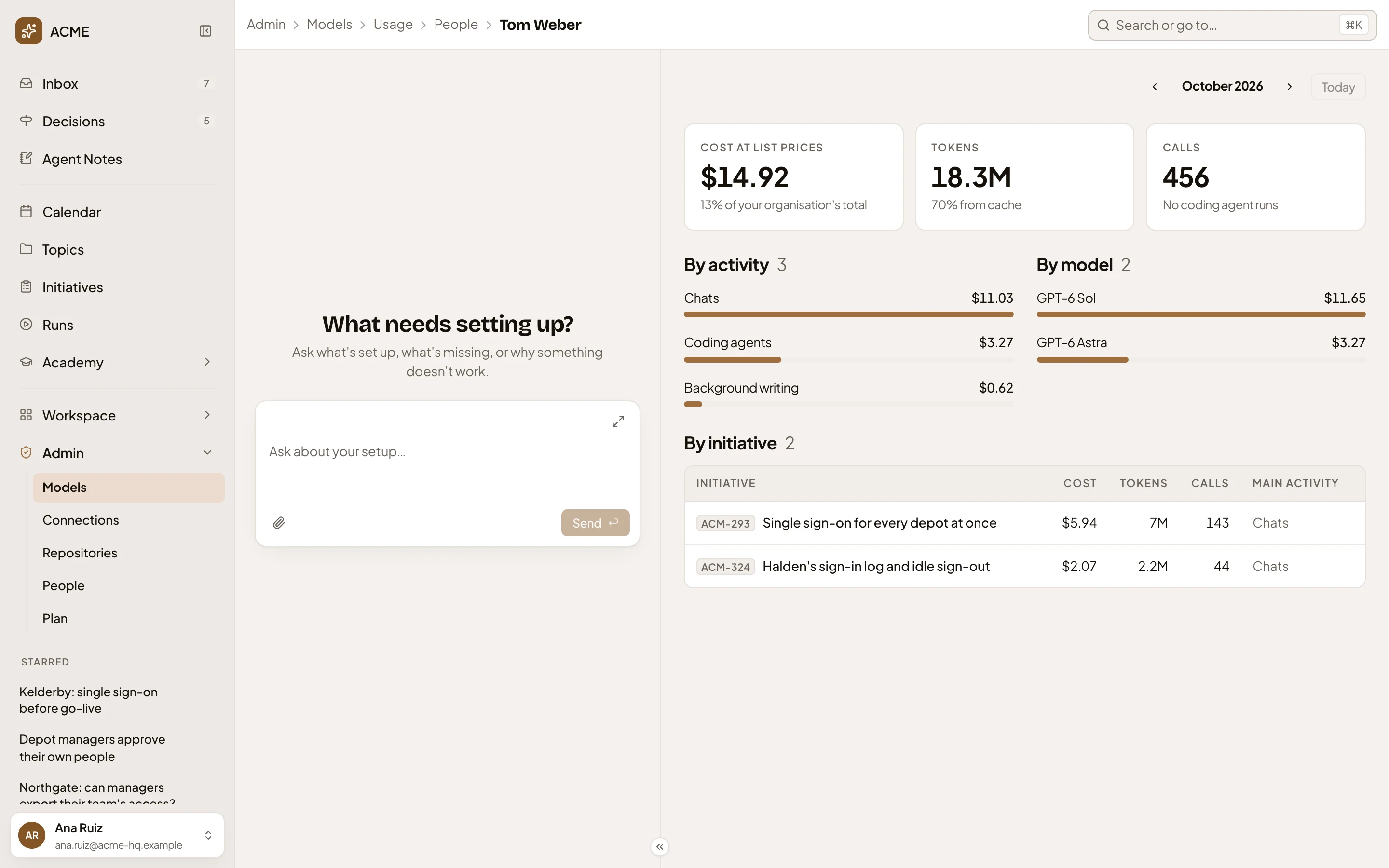
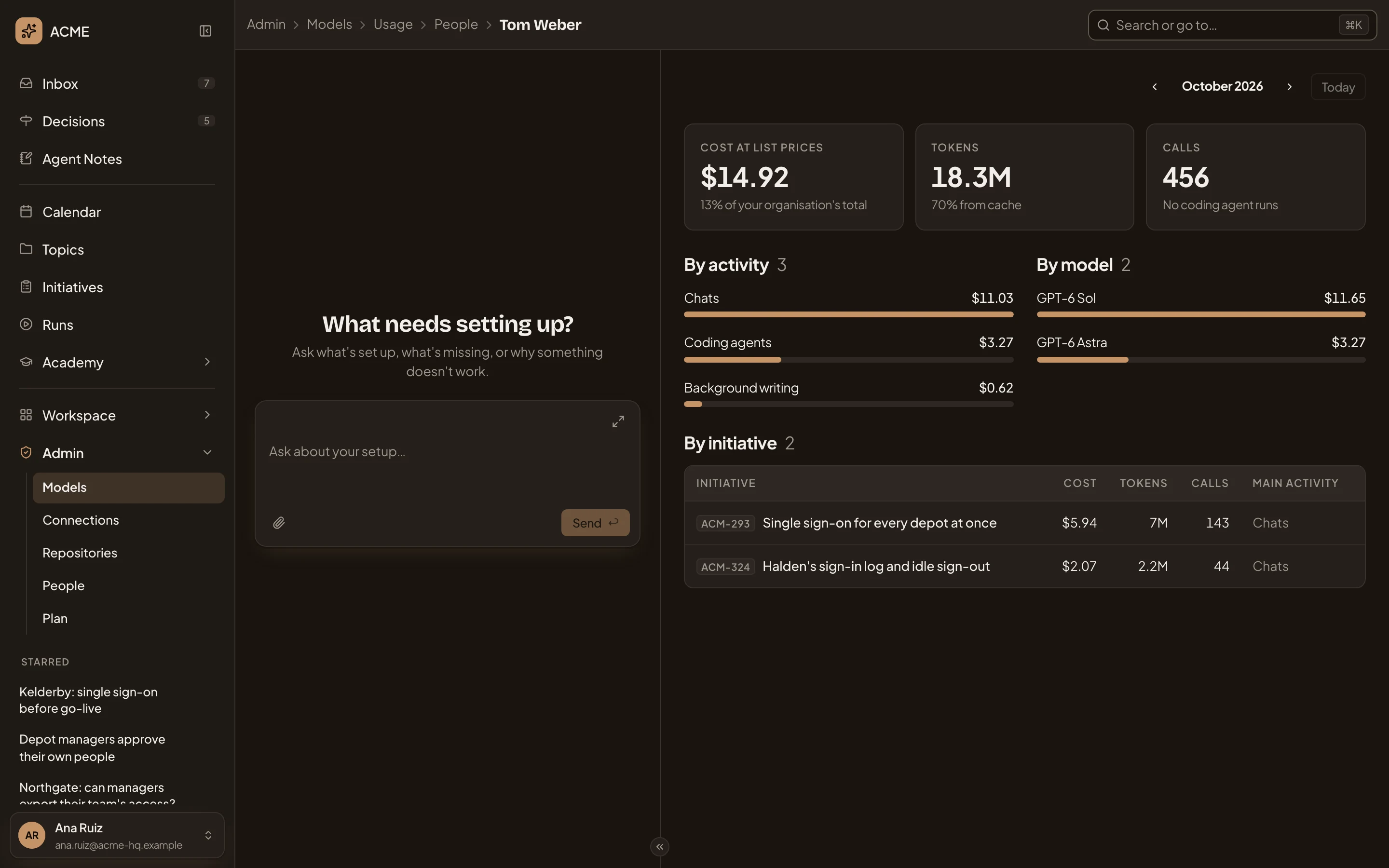
Click the person’s name. You see their figures and their share of your organisation’s total, and their use by initiative. In the picture, Tom Weber’s October is mostly chats, and ACM-293 is the initiative most of his use was for.
- By activity, for this person alone.
- By initiative lists the initiatives his use was for. Click one to open that initiative’s month.
-
To go back, click Usage at the top of the page. All initiatives lists the initiatives with model use that month, as All people lists people. Open one to see who used the models for it.
-
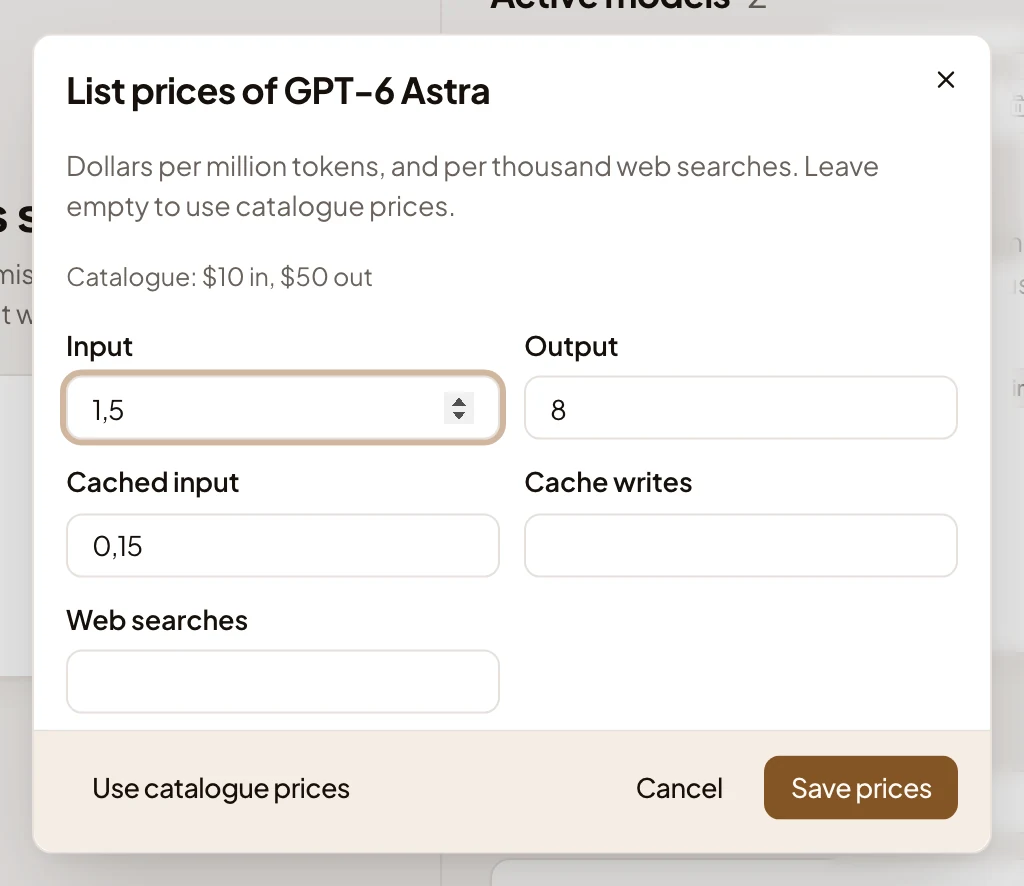
If a model’s cost looks wrong, give it your own prices. Your organisation may pay a different price, or the model may have none. On Models, click the provider’s name, then Prices on the model, under Active models.
Fill in Input and Output, in dollars per million tokens, and the others if you know them. Then click Save prices. It stays greyed out until both Input and Output have a number. In the picture, GPT-6 Astra already has prices of ACME’s own.
- Input.
- Output.
- Save prices.
- Once a model has prices of yours, Use catalogue prices. shows. Click it to drop them, and the model follows the catalogue again.
What you get
Section titled “What you get”- What the month cost and what it went on, by activity, model, person and initiative.
- New calls are counted at the prices you saved. Calls already recorded keep the prices they were charged at, so a month’s cost doesn’t change after the fact.
- Send the month’s link to a colleague who can see Usage. They open the same month.