

DecisionsHow to
See what was decided
Look on the Decision Map when you need to know what was decided and why. Before a customer call, when a requirement surprises you, or when you join a project. The Decision Map explains the idea.
Before you start
Section titled “Before you start”- Who can
- Everyone has the map. It shows the decisions taken in the topics, initiatives and Landscape you can open.
- The pictures
- The pictures show the map at ACME, the company in the docs’ pictures, as its administrator sees it. They follow the initiative ACM-290, for team managers who export their team’s access.
- You need
- For the agent’s parts, a chat model set up for your organisation. Without one, the map, its counts and each decision’s trail still work.
-
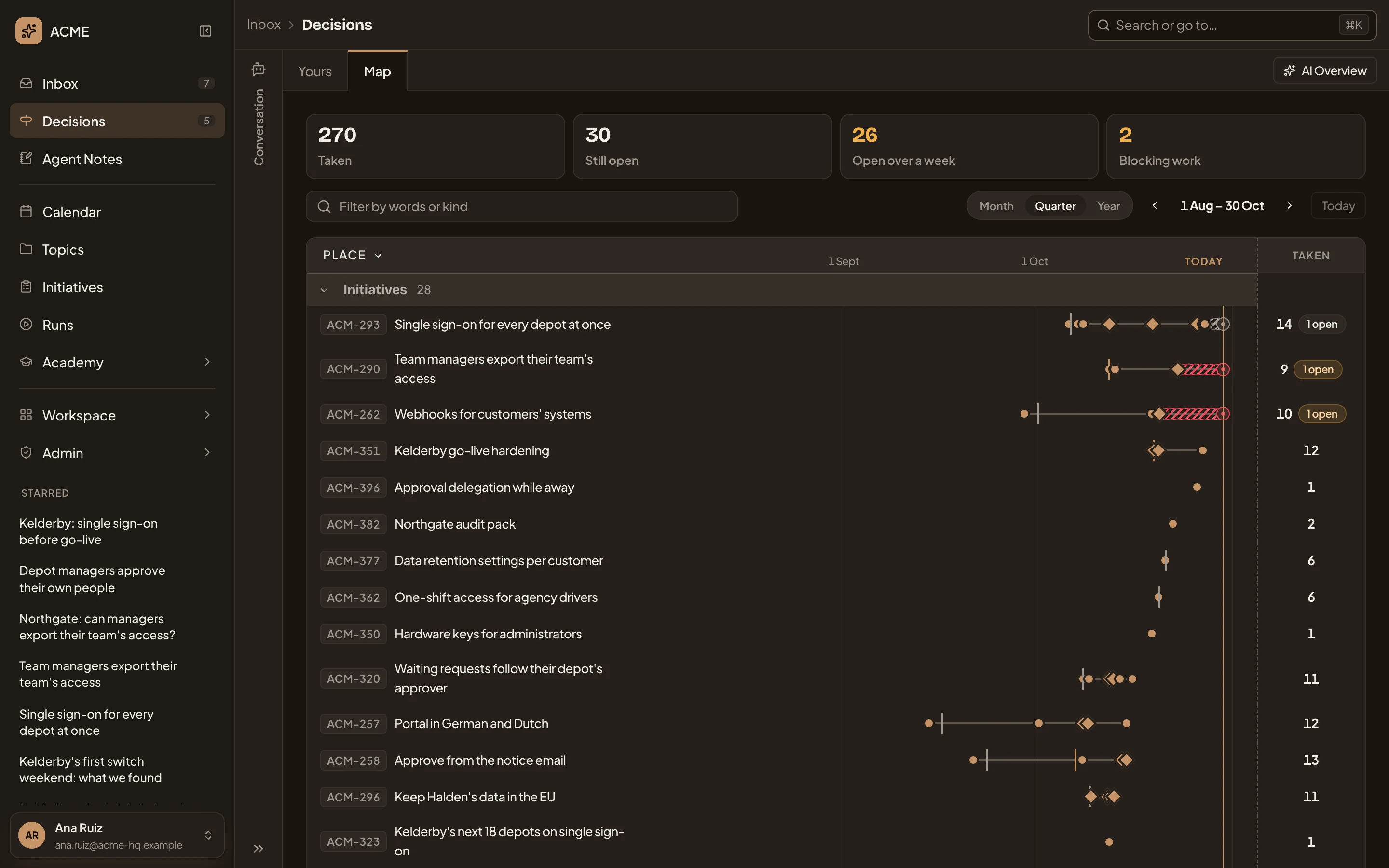
Click Decisions in the menu, then Map at the top. The map opens on the quarter that ends today, so your dates differ from the pictures’ 1 Aug – 30 Oct. There’s a lane for each place, a mark for each decision on its day, and a ring on today for what’s still open.
Open the Decision Map (opens Emargen in a new tab)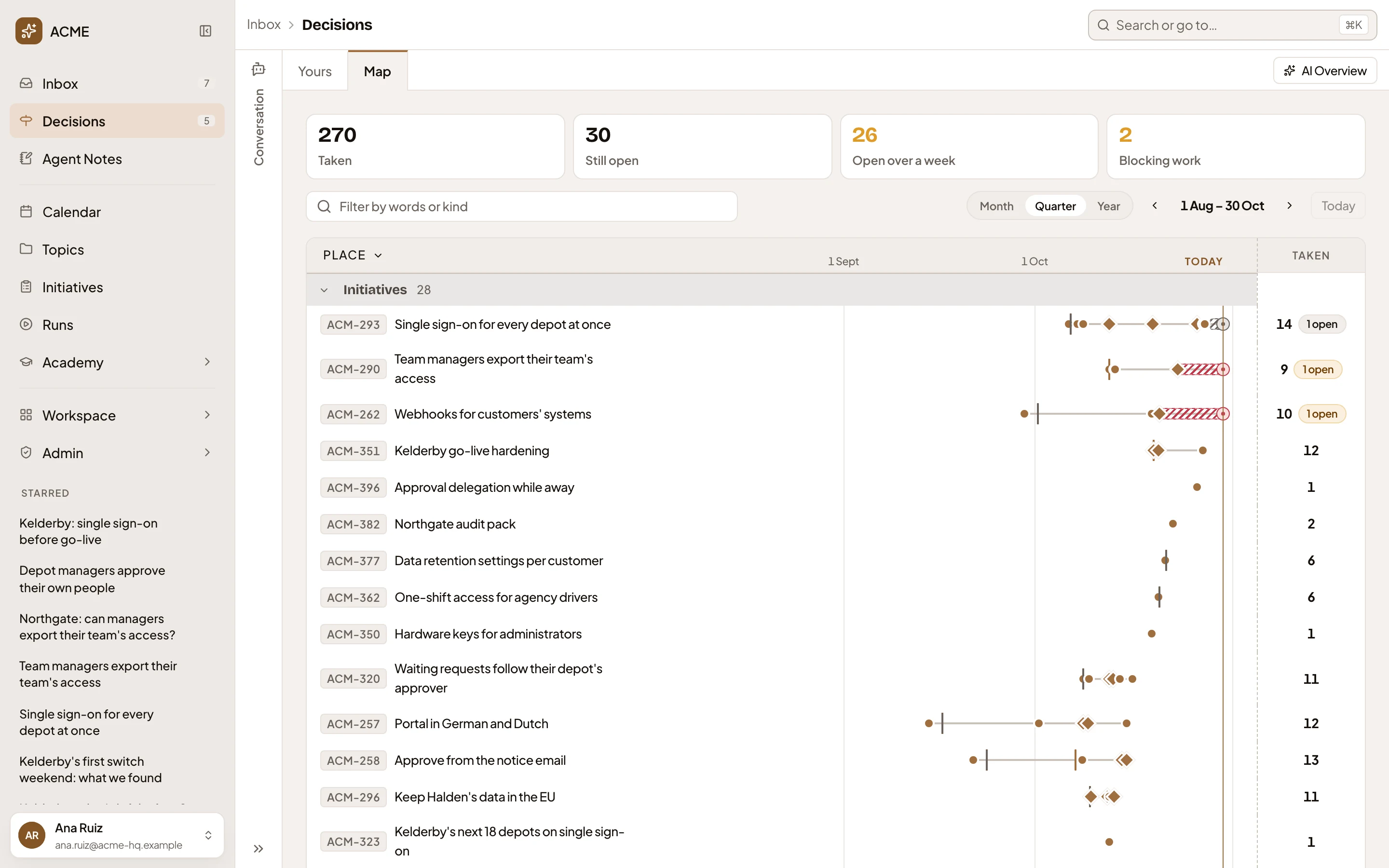
- Map, beside Yours.
- AI Overview, the agent’s reading of what the map shows (step 6).
- The filter box: words, a kind of decision, or Involving me.
- Month, Quarter or Year, with the arrows to go back or forward.
- A place’s name. It opens the place’s page.
- A mark: one decision. Point at it to read it. Click it to open its page.
-
To narrow the map, type a word in the filter box, or click it and pick Kind to keep one kind of decision. To look further back, choose Year, or press the arrow left of the dates. For the example, leave it as it is.
-
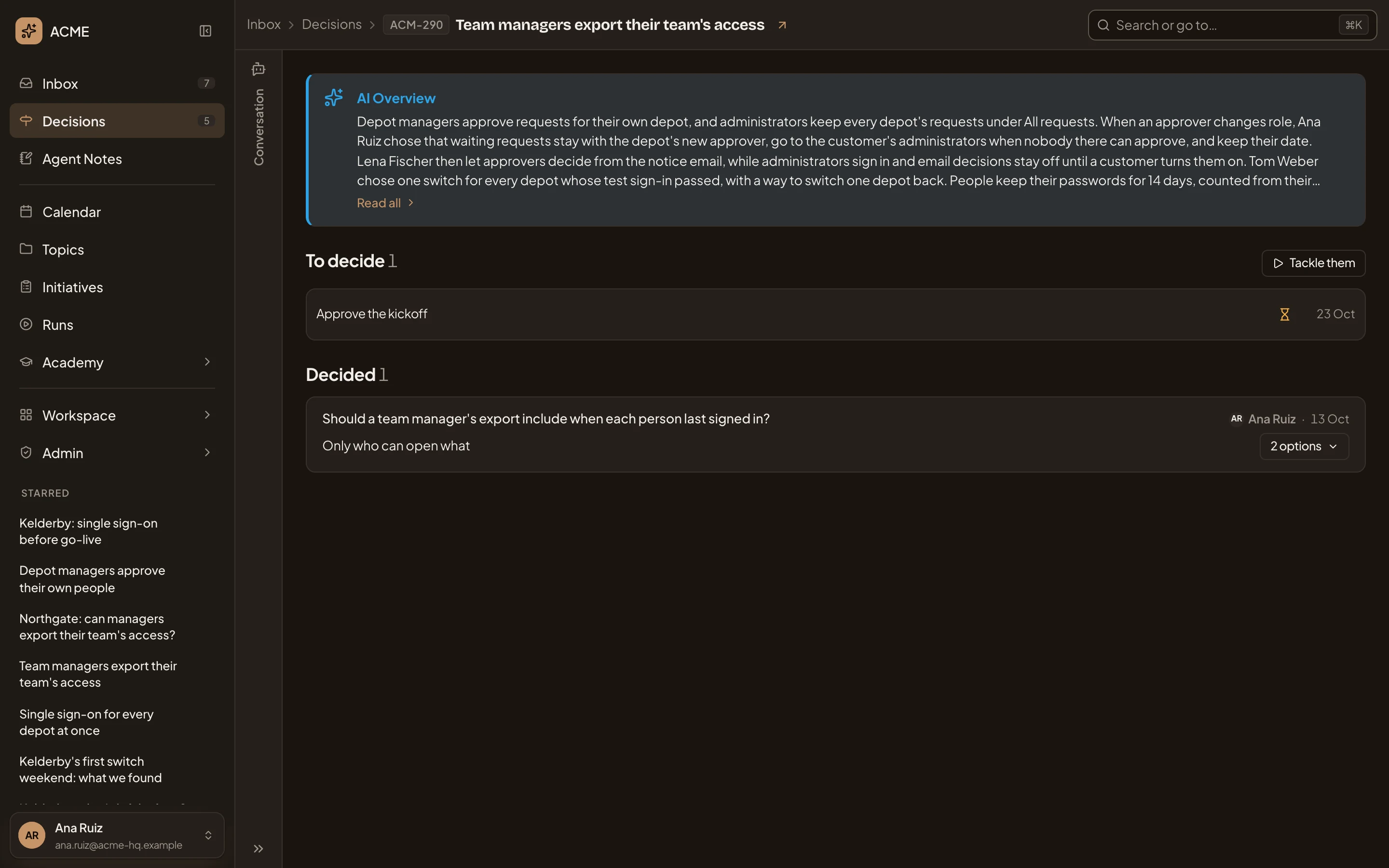
Click the name of the place you want to look into. In the pictures, it’s the initiative for team managers’ exports. Its page in Decisions opens, with the agent’s few lines at the top, then what’s still to decide and what was decided.
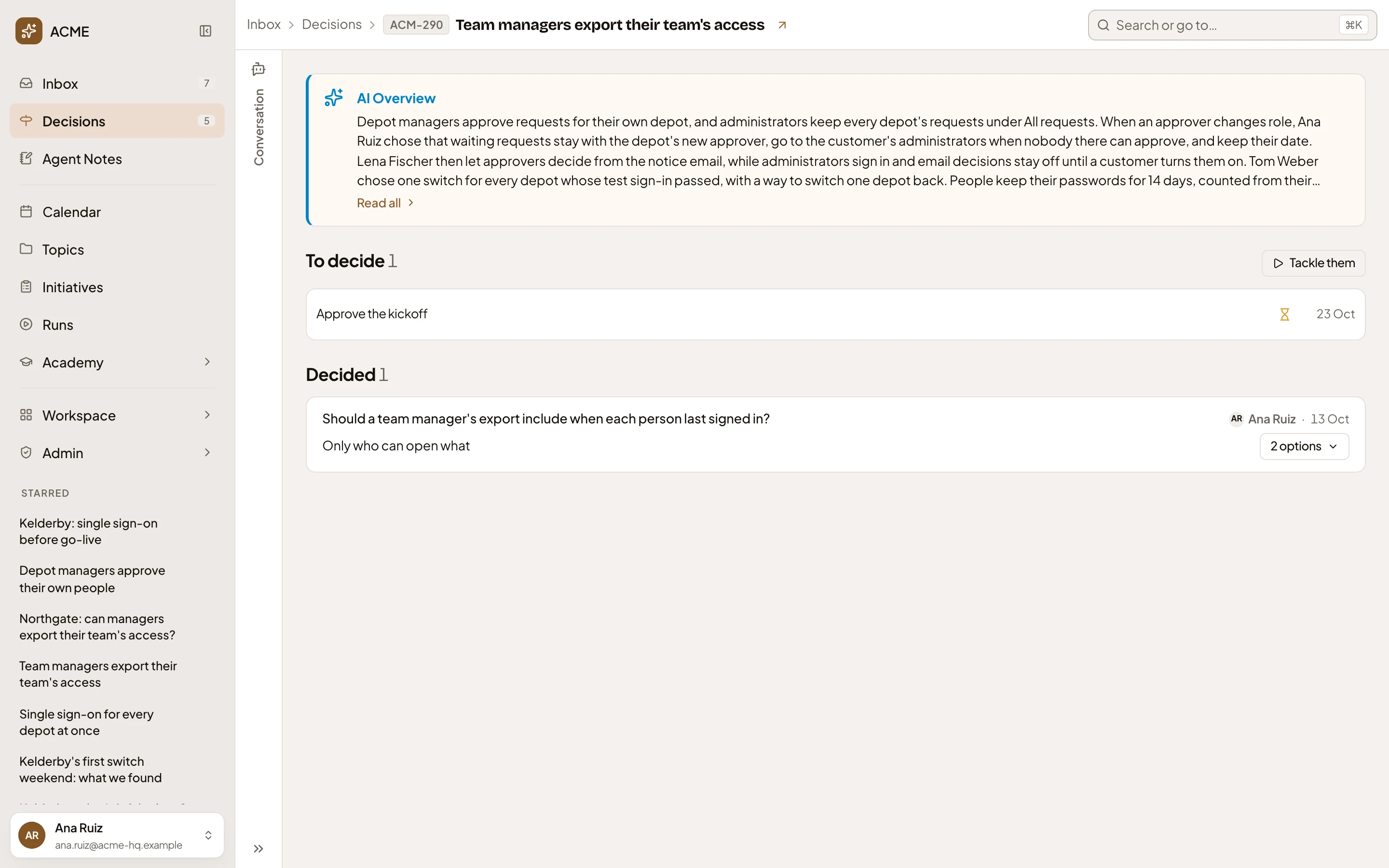
- AI Overview: the agent’s reading of this place, in a few lines. Read all opens it whole.
- To decide: what’s still open there.
- A decision: the question, who decided and when, and the answer under it.
- The options it had. Click to see them, and the one picked.
Decided lists questions answered, choices in topics and change requests. The initiative’s own steps, such as its kickoff or a requirement’s level, stay on the map.
-
Click a decision under Decided. Its own page opens. You see where the decision was taken and how it got there, ringed among the other decisions from that place.
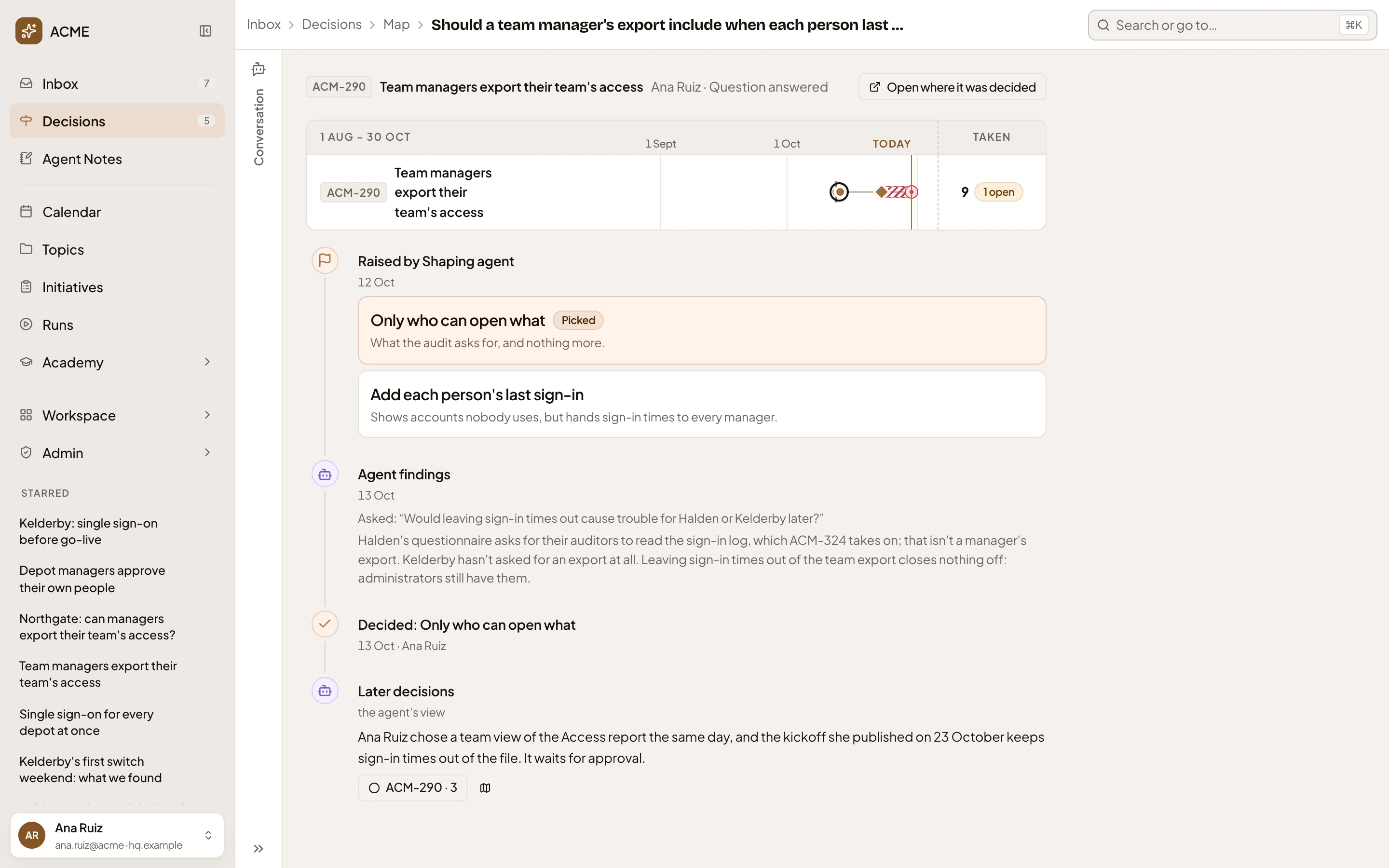
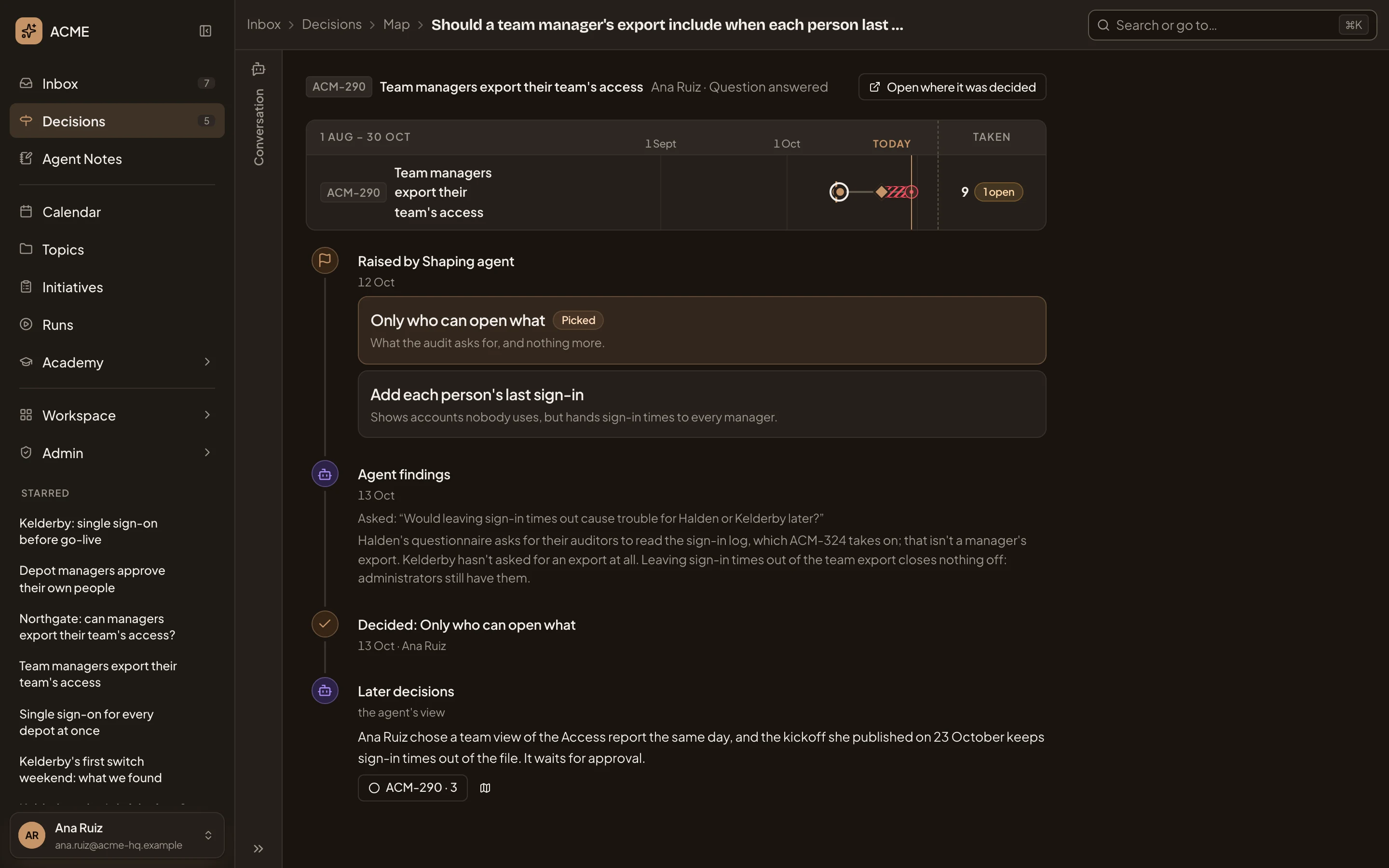
- Open where it was decided: the initiative or topic where it was decided.
- The options it was raised with, each with what it meant, and the one picked.
- Agent findings: what someone asked the agent before deciding, and what it found.
- What was chosen, when, and by whom. A reason left with it shows under it.
- Later decisions: later decisions that lean on it, as the agent reads them. Each opens its own page.
When the agent reads a later decision as replacing this one, Confirm it replaces this shows under it. Confirming records it for everyone, and the history names the decision that replaced it.
-
Click Map in the path at the top to go back to the map.
-
Click AI Overview at the top right. It opens on Story, the agent’s reading of what the map shows, with buttons for the decisions it cites. Under Threads, you can follow a subject across places. Both stay until the decisions change. Yours will read differently from the picture. When they’ve changed, you see the last reading while the agent writes the new one.
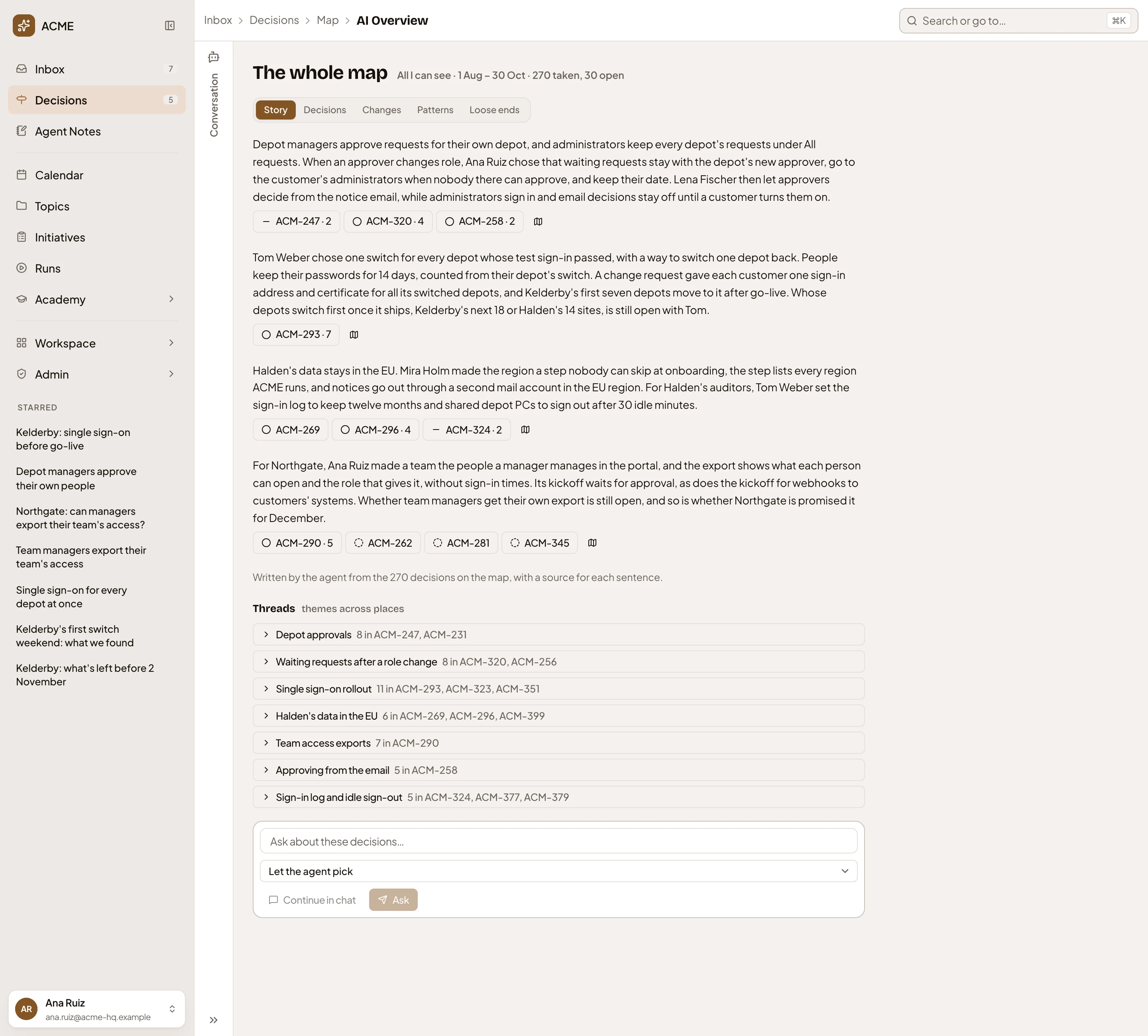
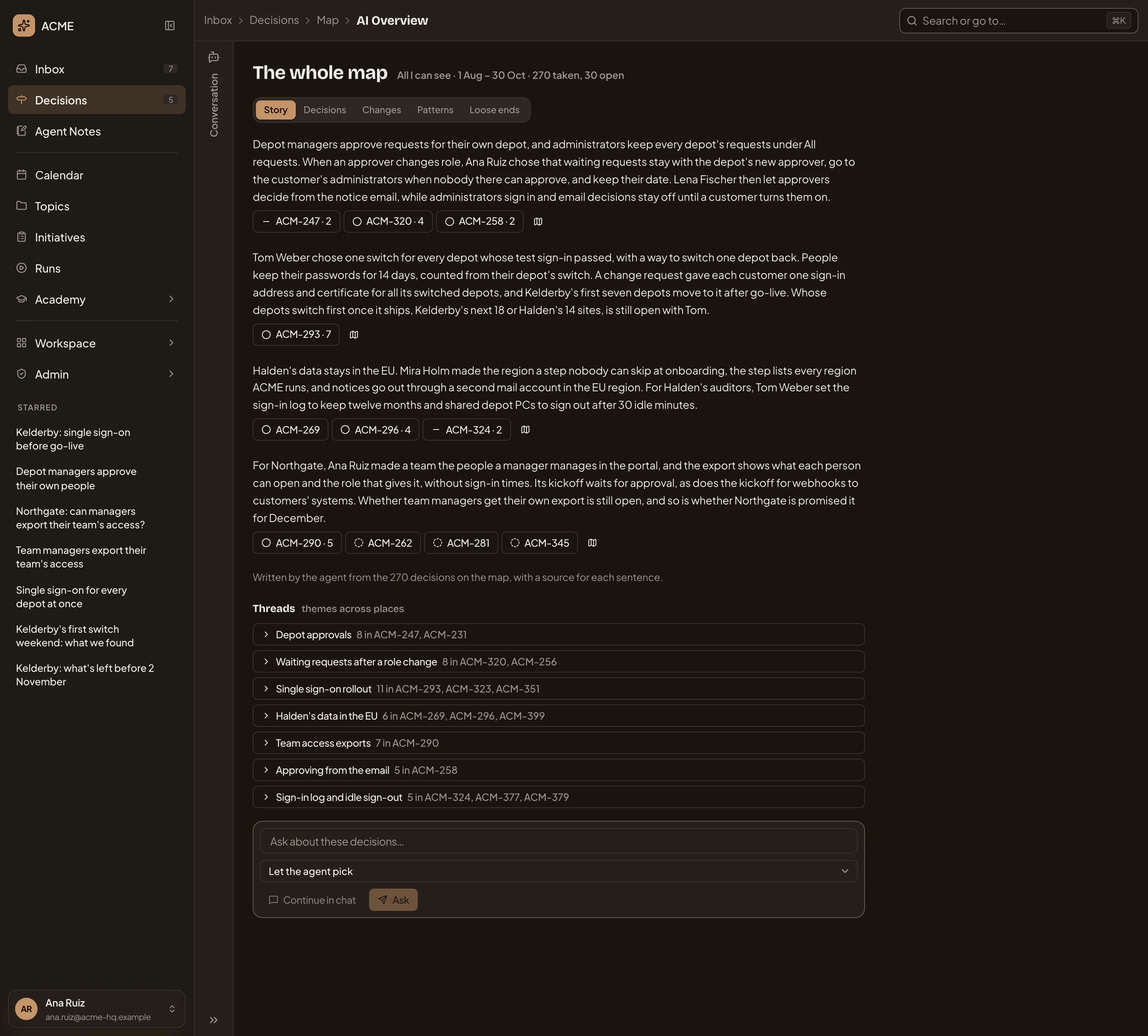
- What the reading covers, with the days and how many decisions were taken and are open.
- The views.
- The decisions a paragraph cites. A button for several in one place lists them.
- Show on the map: the map with only what the paragraph cites.
- A thread. Click it to list its decisions.
- The box to ask your own question.
-
Click Loose ends. It lists what’s still open and whose turn it is. Under Possible conflicts, the agent flags decisions that pull against each other or leave gaps.
The other views are counted from the decisions, without the agent. AI Overview has each of them.
-
To ask something the views don’t answer, type it in Ask about these decisions…. Under it, pick an Answer format, or leave Let the agent pick. Click Ask. The answer cites its decisions like the story does. Save as a view keeps it, to come back to or share. Continue in chat hands the question to the chat beside the page instead.
What you get
Section titled “What you get”- A decision’s answer and how it got there, with a link back to where it was made.
- The agent’s story of what was decided, every sentence citing its decisions.
- Your own questions, kept as views to come back to or share.