

AgentsPage by page
Templates
This page lists every template you can start a topic from. Open it from Templates under Workspace in the menu, or from Manage templates in a topic’s ⋯ menu.
Open Templates (opens Emargen in a new tab)In the picture, Emargen’s five templates and the organisation’s own.
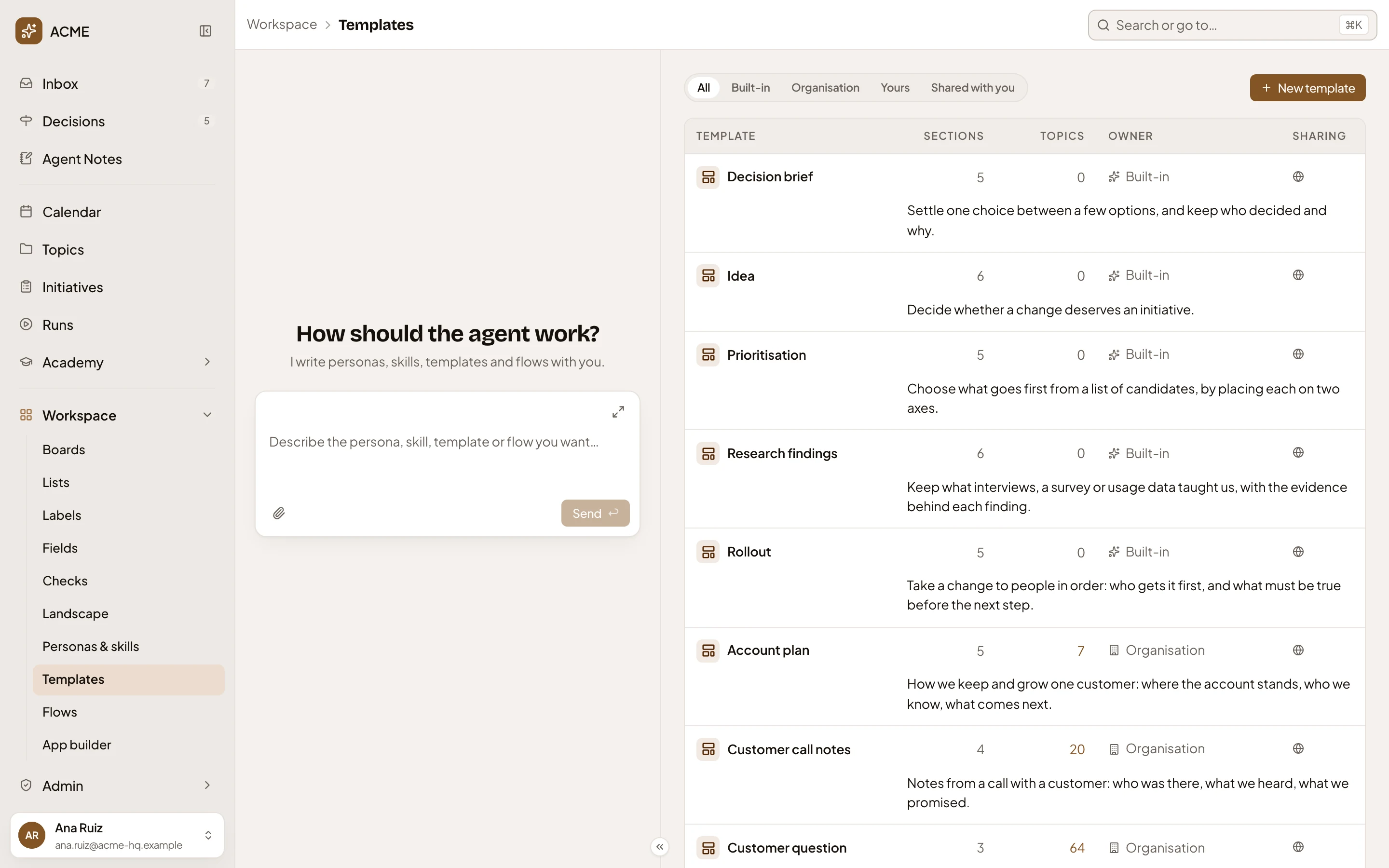
- Workspace, then Templates. Where you are.
- Show. Narrows the list to All, Built-in, Organisation, Yours or Shared with you. Built-in templates are Emargen’s own.
- New template. Opens a new template’s page.
- A template’s name. Click it to open the template you’ll follow.
- Sections. How many sections a topic that follows it starts with.
- Topics. How many topics follow it now.
- Owner. Built-in, Organisation, You, or the colleague who shares it with you.
- 64 topics follow Customer question: show them. A count above zero opens the topics list, showing only the topics that follow this template.
Under each template, a line says when to use it. New topic shows the same line. The last column, Sharing, has a globe for everyone, two people for some people, or a lock for only its owner. The personas agent’s chat sits on the left. Ask it for a new template, or to change one (see The personas agent).
A selected template
Section titled “A selected template”Click a template’s row, anywhere but its name or its count of topics, to select it. In the picture, Customer question is selected.


- Edit. Opens the template to change it. A template you can only use shows Open instead.
- Duplicate. Makes your own copy and opens it. Copy a built-in template to give it fields, or to change its sections.
- Delete. Deletes the template once you confirm. Topics that follow it keep their sections and stop following it.
With nothing to list, Show gives “No template matches”. All always holds Emargen’s own templates.
Access
Section titled “Access”Everyone in the organisation. People who can manage templates make and change the organisation’s templates. Everyone can make and share their own. Emargen’s templates change only with its releases. See Edit a template.