

DecisionsHow to
Go through your decisions
Go through your decisions when the number beside Decisions in the menu grows. Decisions explains the idea.
Before you start
Section titled “Before you start”- Who can
- Everyone has Decisions. It holds what’s your turn, such as an open decision in a topic you own or that names you, a question put to you, or a kickoff you may approve.
- The pictures
- The pictures show the list of ACME’s administrator. Five things wait on her. They follow two of them, an open decision on the customer topic ACM-281 and the kickoff of the initiative ACM-290.
-
Click Decisions in the menu. The number beside it counts what’s yours to move now: 5 in the pictures.
Open Decisions (opens Emargen in a new tab)The list is grouped by where each item lives. A group that holds work up, or has something due this week, starts open. The other groups stay folded, showing their name and how many they hold.
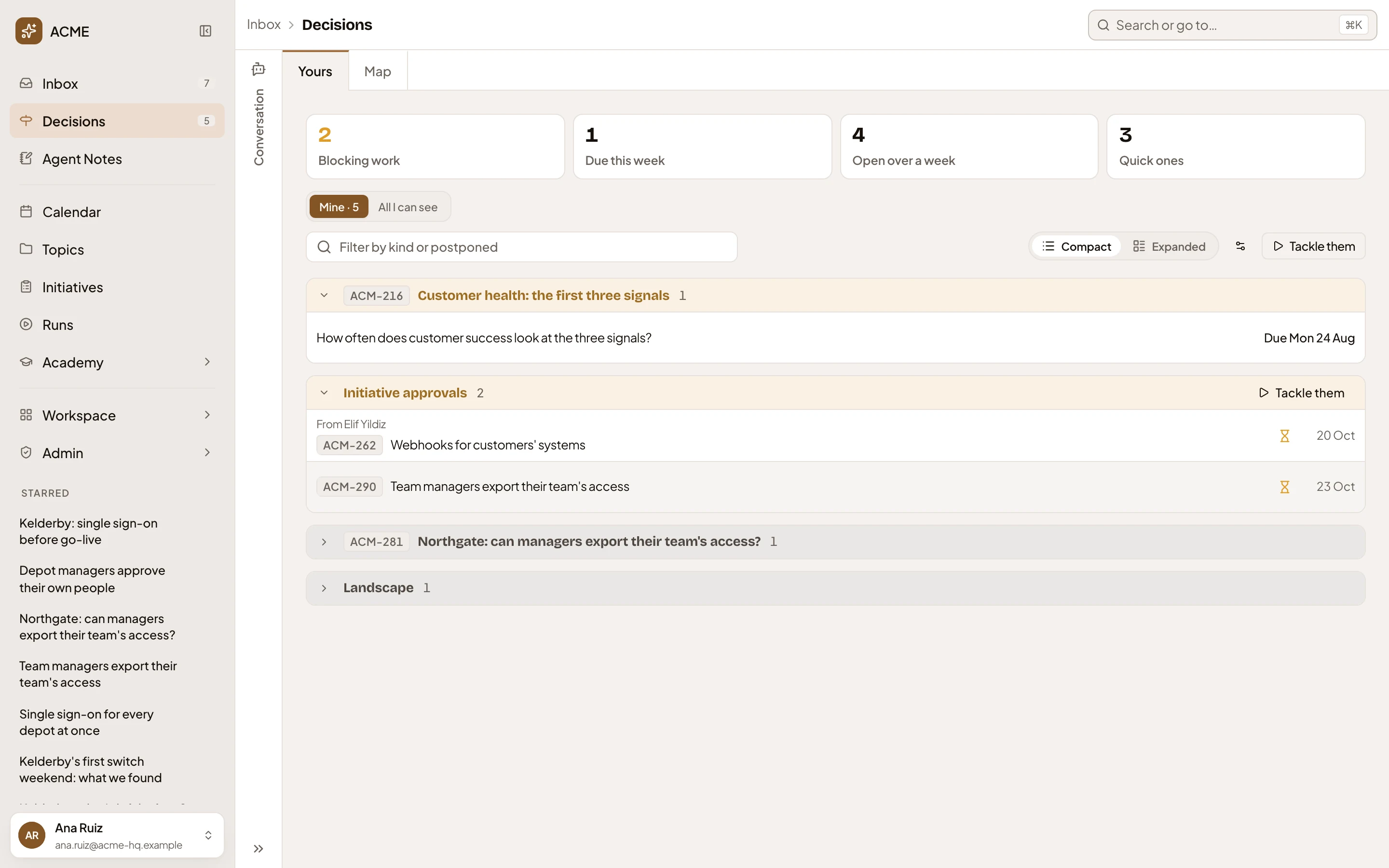
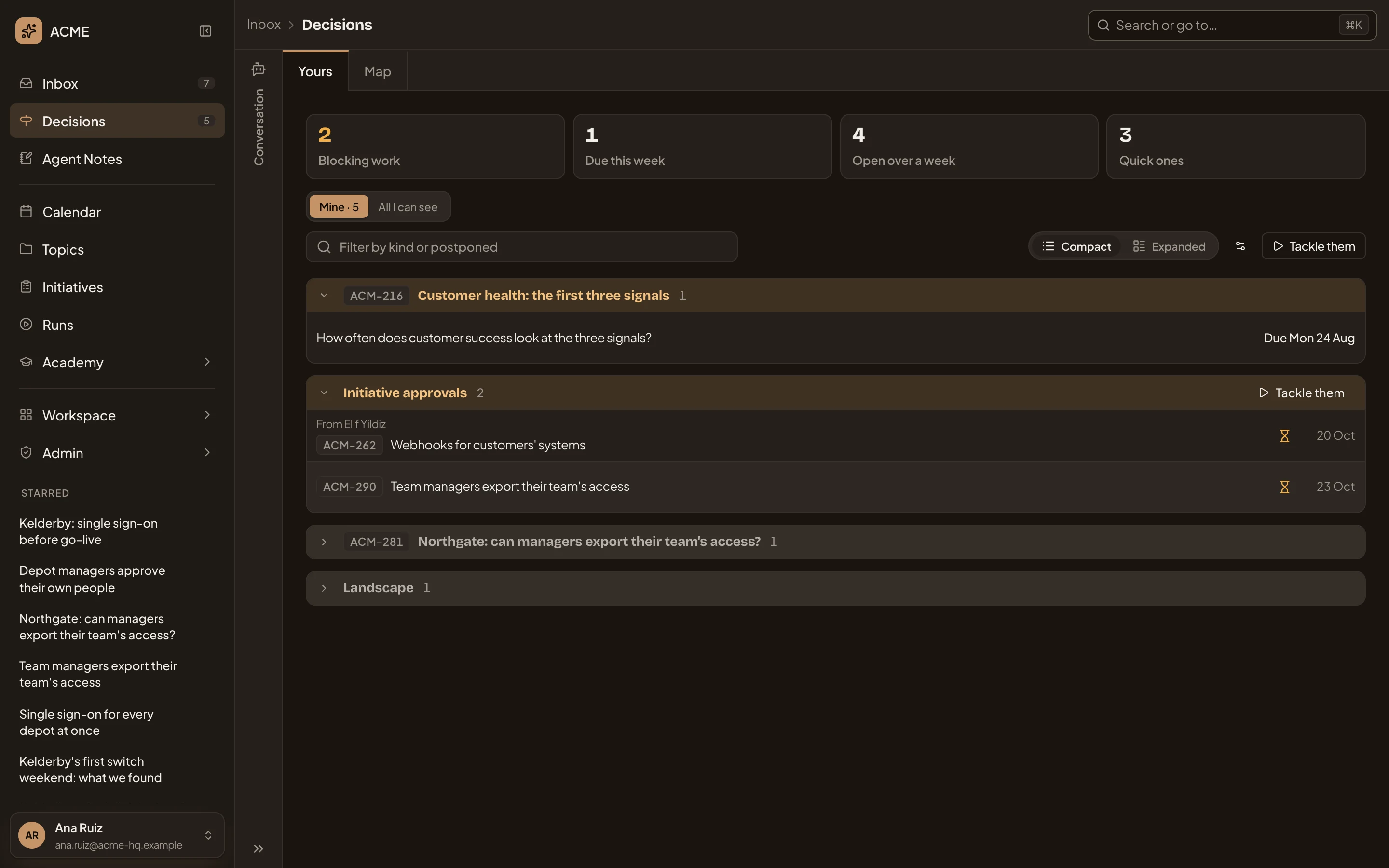
- Decisions, with how many are yours.
- The figures. Click one to see only what it counts, such as Quick ones, the small calls one press decides.
- Tackle them takes your items one at a time.
- An open group: every kickoff waiting for approval, under Initiative approvals.
- The arrow that opens a folded group. Here it’s the customer topic ACM-281.
-
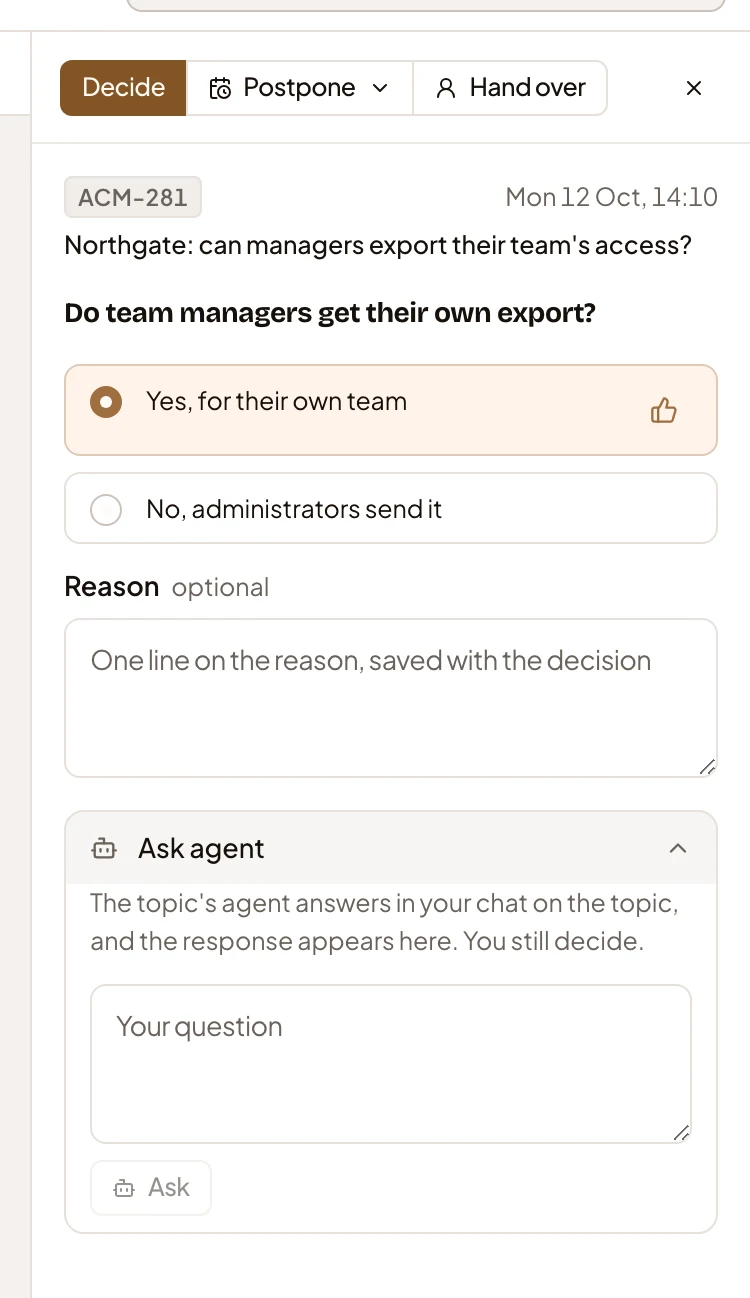
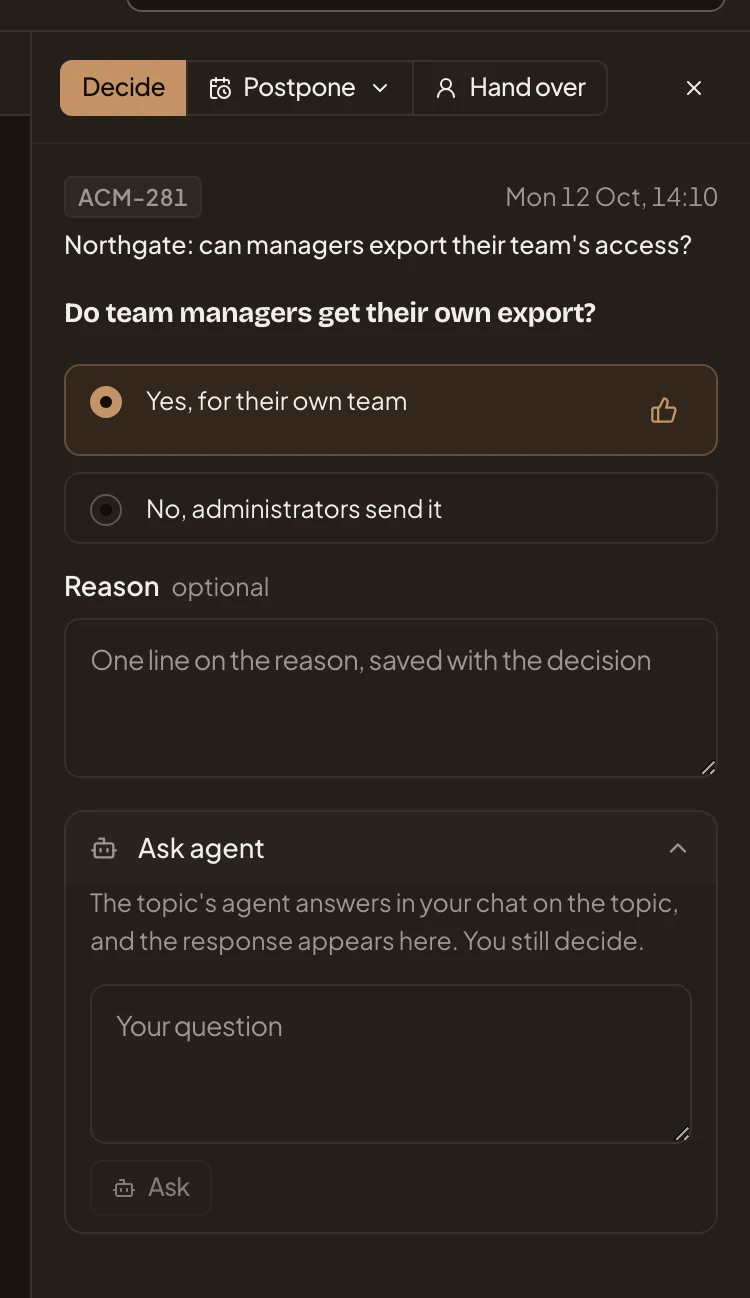
Click the arrow beside a folded group, then click an item in it. In the pictures, it’s the open decision on ACM-281: do team managers get their own export? Its card opens on the right.
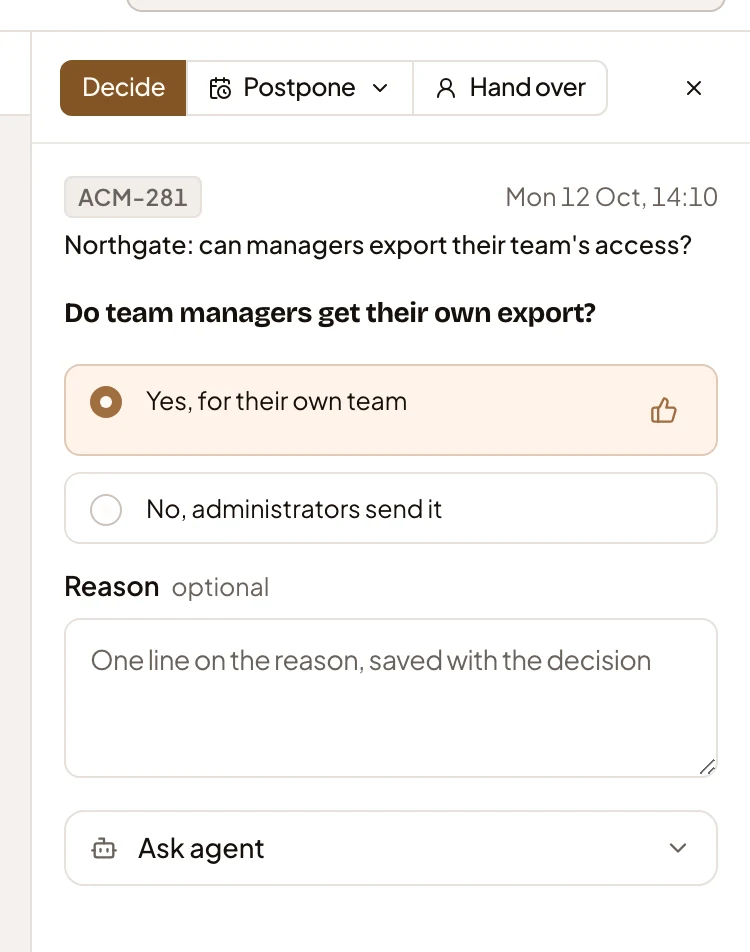
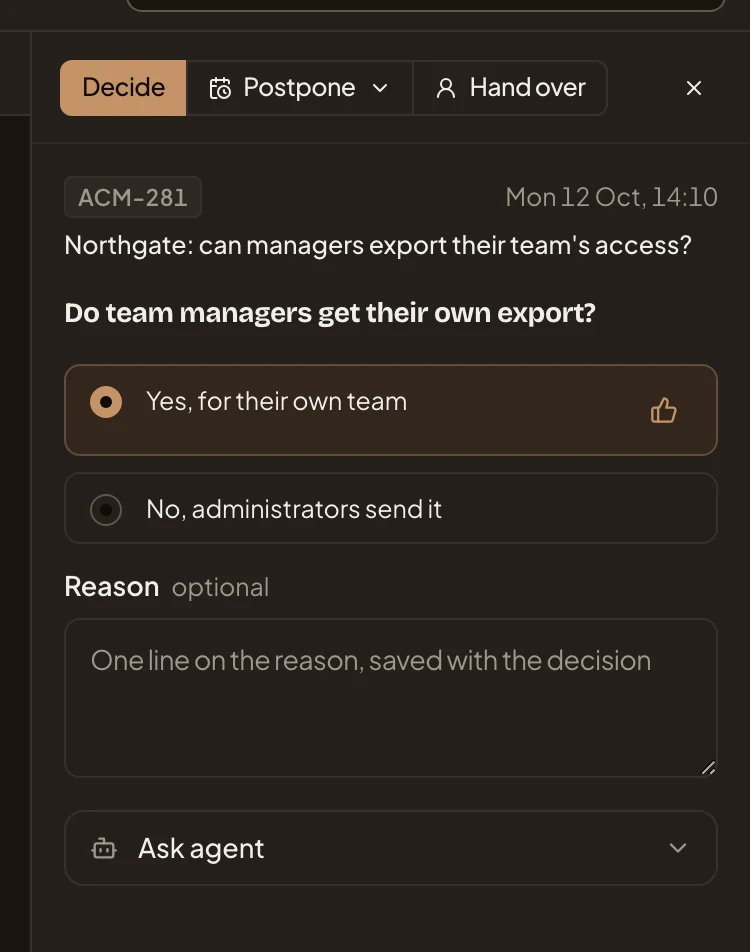
- The buttons at the top. Here, Decide decides the item.
- Where it lives. The title opens it there, at the decision.
- The thumbs-up on the option the agent recommends. When the agent gave a reason, press it to read why.
- Reason, a line kept with the decision. You can leave it empty.
- Ask agent has the agent find something out first.
-
Pick an option. The one the agent recommends is picked to start with.
-
Click Decide at the top of the card. The item leaves the list, and the next one’s card opens. A message at the bottom of the screen says what you did, like “Decided: Yes, for their own team”, with Undo for five seconds. Then it’s sent, as if you had decided on the topic.
A coding agent’s question, or a question with no options, comes with a Suggested answer that the agent drafted from what the initiative or topic says. Use this puts it in the box for you to change, and Send answer sends it.
-
When you need to know more before you decide, click Ask agent under the card. Type what would help you decide under Your question, then click Ask.
- Ask agent. Once you’ve asked, it says how many times, and lists what you asked.
- Your question. What would help you decide.
- Ask sends it to the agent.
The agent works on it in the background, in your own chat of the topic or initiative. The item leaves Mine while it does. Choose Postponed in Filter Decisions to see it there, marked Waiting for the agent. When the agent is done, the item comes back with a robot and “Agent response” beside its day.
-
Click a response under Ask agent to read it. Its page has your question and the agent’s findings, with their sources. Then it says which way the agent would go. The decision is at the bottom, so you can decide it there.
-
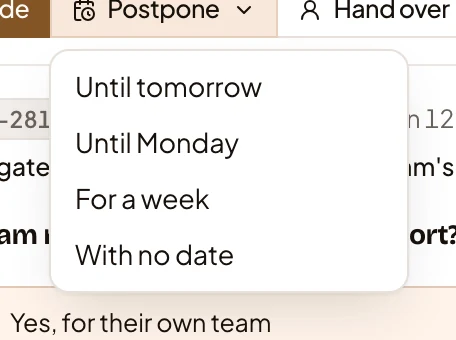
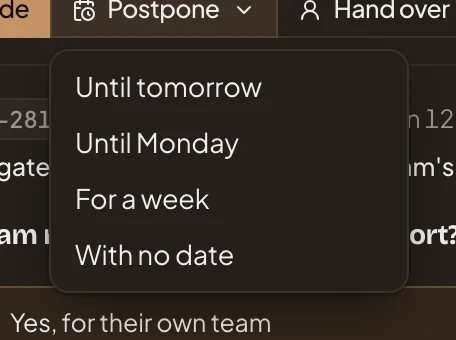
For something that can wait, click Postpone at the top of its card. Pick Until tomorrow, Until Monday, For a week or With no date. It leaves the list until then. To bring one back early, choose Postponed in Filter Decisions, open it, and choose Bring back now under Postpone.
To make it someone else’s turn instead, click Hand over and pick a colleague. It’s on open decisions, questions, coding agents’ questions and requirement levels.
-
To decide the rest in one sitting, click Tackle them above the list. A box opens on the first of yours, most pressing first, with how far along you are. Decide it, and the next comes. A group holding more than one of yours has its own Tackle them.
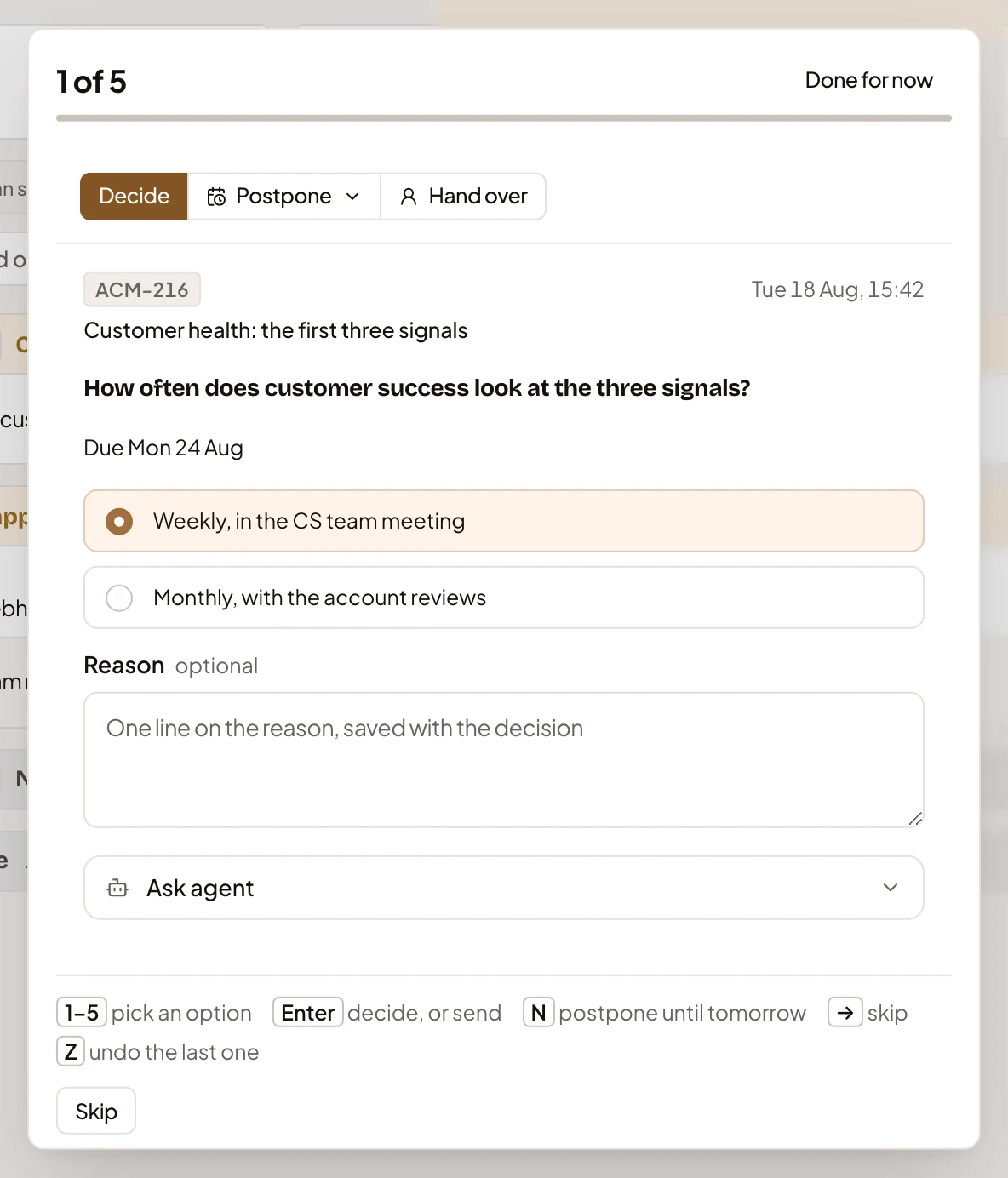
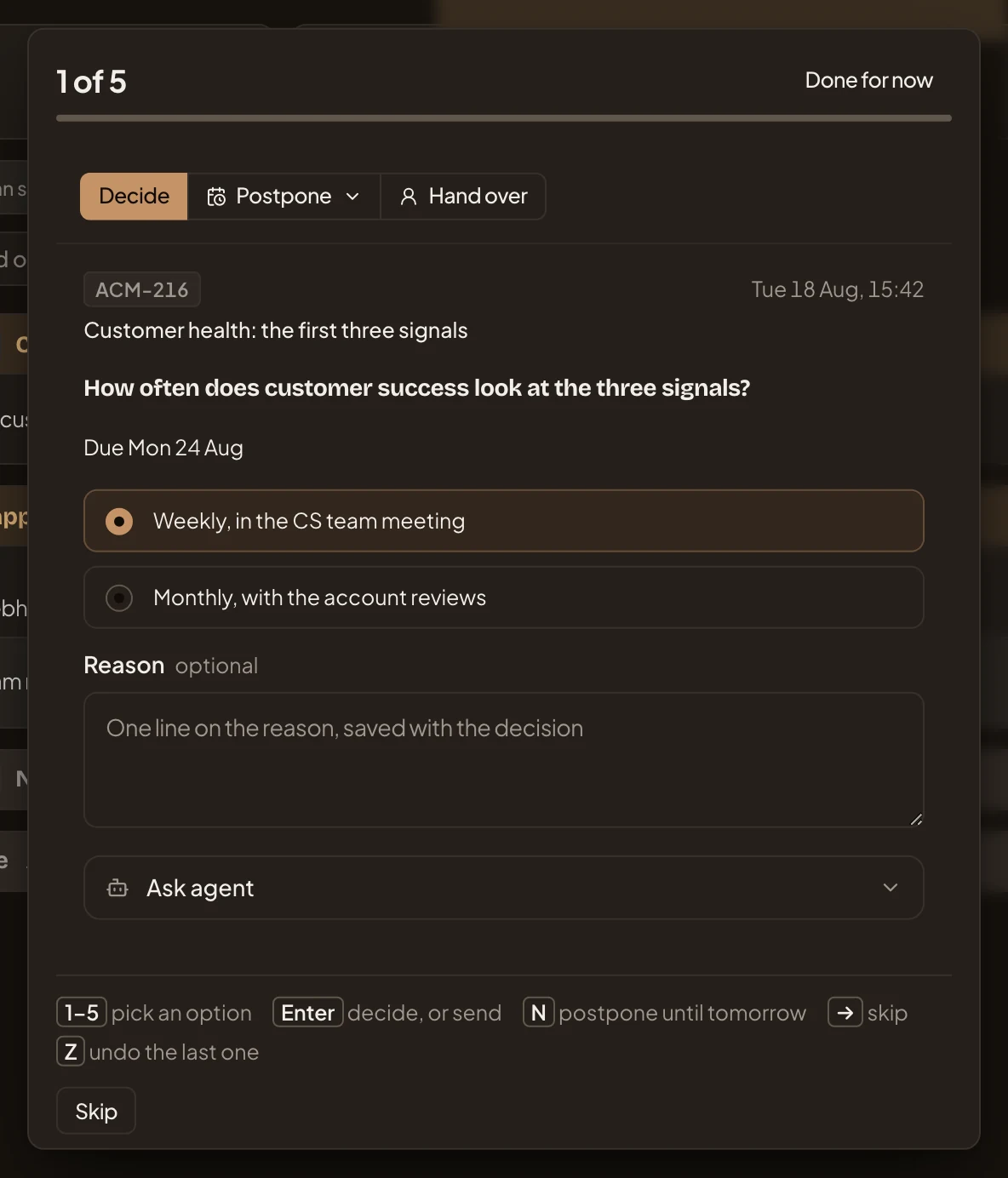
- How far along you are.
- The buttons that decide the item, here Decide.
- Press 1 to 5 to pick an option, Enter to decide or send, N to postpone until tomorrow, → to skip, and Z to undo the last one.
- Skip leaves this one for later.
- Done for now closes the box.
When nothing is left, the box says “Nothing left to tackle.”, with how many you decided and skipped.
Approving a kickoff
Section titled “Approving a kickoff”A published initiative waits for approval before delivery can start. Its kickoff sits under Initiative approvals in the Decisions of everyone who may approve it, so it can be in more than one list at once.
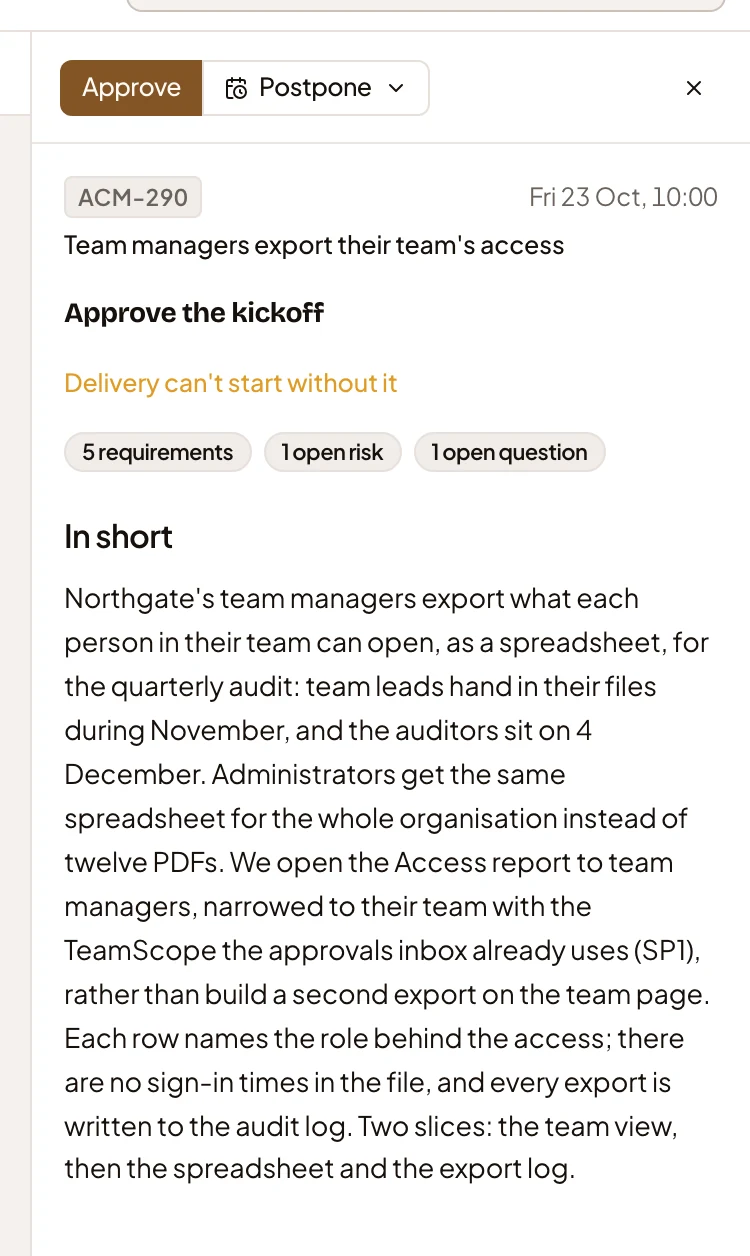
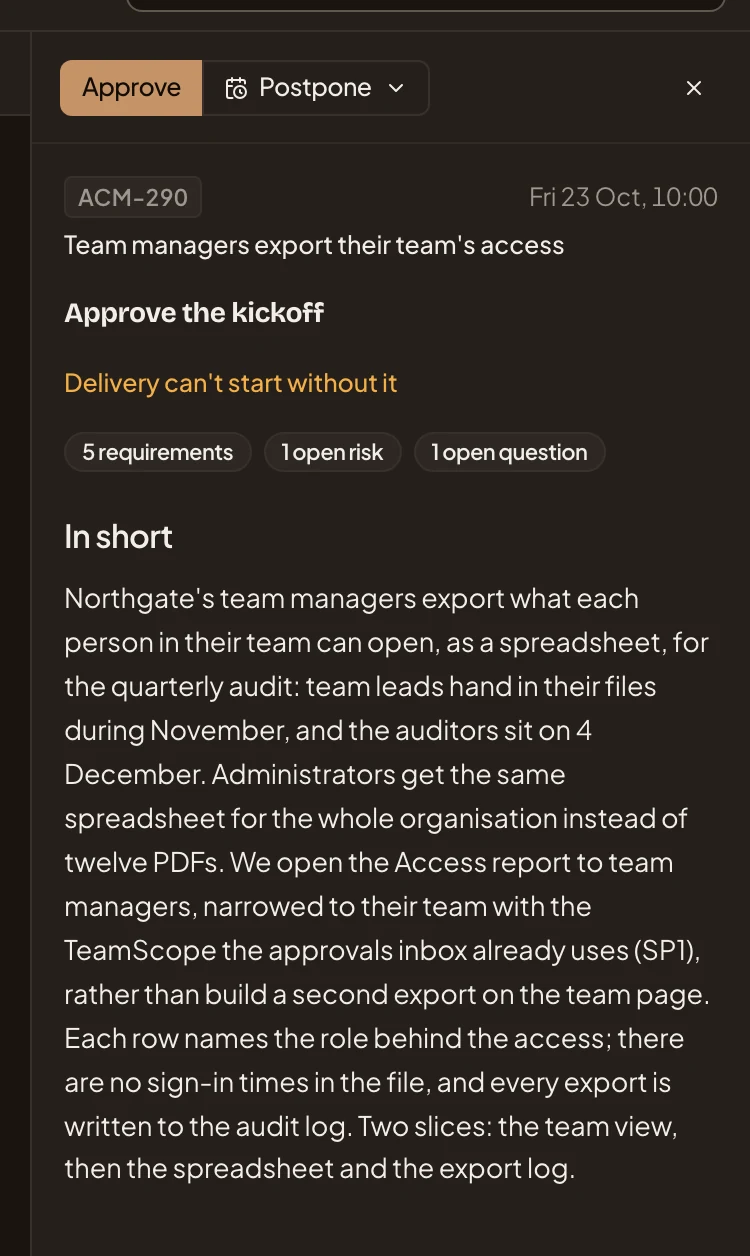
- Approve, which lets delivery start.
- The initiative’s title, which opens its kickoff to read first.
- What the kickoff holds, and the plan in short.
When you press Approve, the item leaves the list, and “Approved” shows with Undo for five seconds. Then the initiative is approved, and its delivery can start. The Kickoff says more.
What you get
Section titled “What you get”- Your choices and answers stay on the topic or initiative. An initiative you approved can start delivery.
- The number beside Decisions goes down as you decide each item.
- Postponed items come back on their day. An item you asked the agent about comes back with the agent’s response.