

Start here
Setting up an organisation
A new organisation starts closed. Until you launch it, nobody in it can start a topic or an initiative, and the first people to arrive find the setup instead of an empty app. You tell it which AI it runs on, and where your knowledge and code live.
The admin agent sits beside the setup from the first minute, on Emargen’s own model, before you’ve added one of yours. Ask it anything, or have it do a step with you.
Four things your people work from
Section titled “Four things your people work from”Models are the AI your organisation’s work runs on, from your own providers. Your accounts pay for your team’s work, and Admin shows what it cost. The setup asks for two. One answers in the chats and does the agents’ writing, like a topic an agent task writes each Monday. The other works on your code. Set them up in Models.
Your team already keeps what it knows in Connections, like the Jira where support’s tickets live. Connect one, and when someone asks why a customer’s requests vanished, the agent reads those tickets. The agent reads with that account’s access, so connect one that sees only what the whole organisation may read. See Connections and knowledge.
Your code lives in Repositories. With them, the agent checks what exists today against the code itself. A wiki page only says what was meant. A customer asks whether their team managers can export their access. The agent finds that today only administrators can, and customer success can say so the same day. See Repositories and analyses.
People at this stage are the few with the accounts. They have your AI provider’s account, an account on your tools, and access to your code. Everyone else can wait for the launch.
Where your knowledge lives decides what you need, and the Connections step asks you that first.
Before you start
Section titled “Before you start”- Whoever creates the organisation is its administrator and can do every step. You can invite people to help.
- A key for your AI provider, or the name of whoever has it.
- For a tool like Jira or Confluence, an account that can read what the whole organisation may read, and its token.
- For your code, access to it, like a GitHub organisation.
The steps
Section titled “The steps”Until the launch, the setup is the whole of Emargen. Its steps run across the top, with the admin agent beside them. Each step is the Admin page of the same name, with a line on top that says what the step needs. A step is done when what it needs is there, not when you tick it. When the agent does a step with you, it opens the step beside the chat, and it asks before anything that can’t be undone.
Open the setup’s Welcome (opens Emargen in a new tab)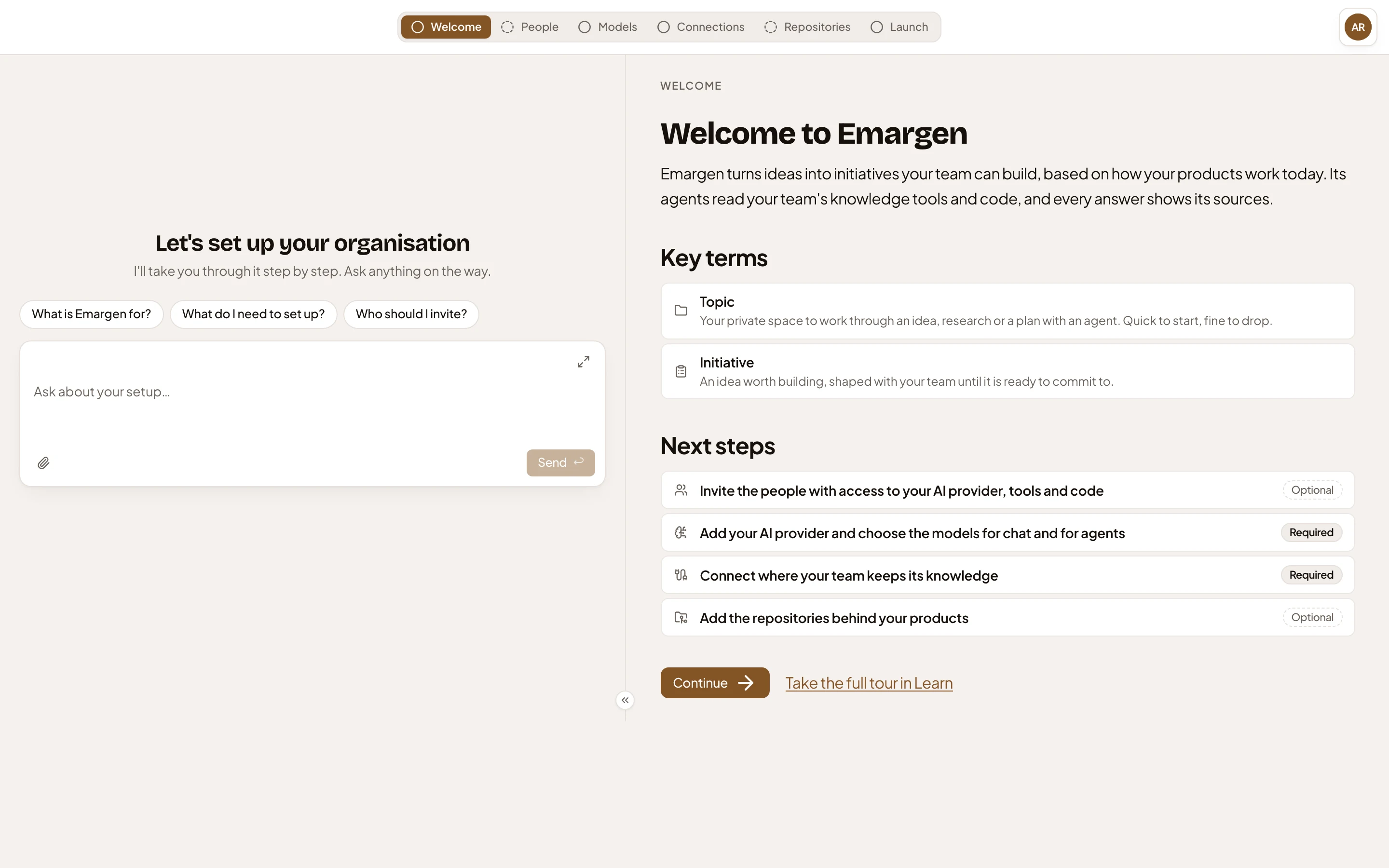
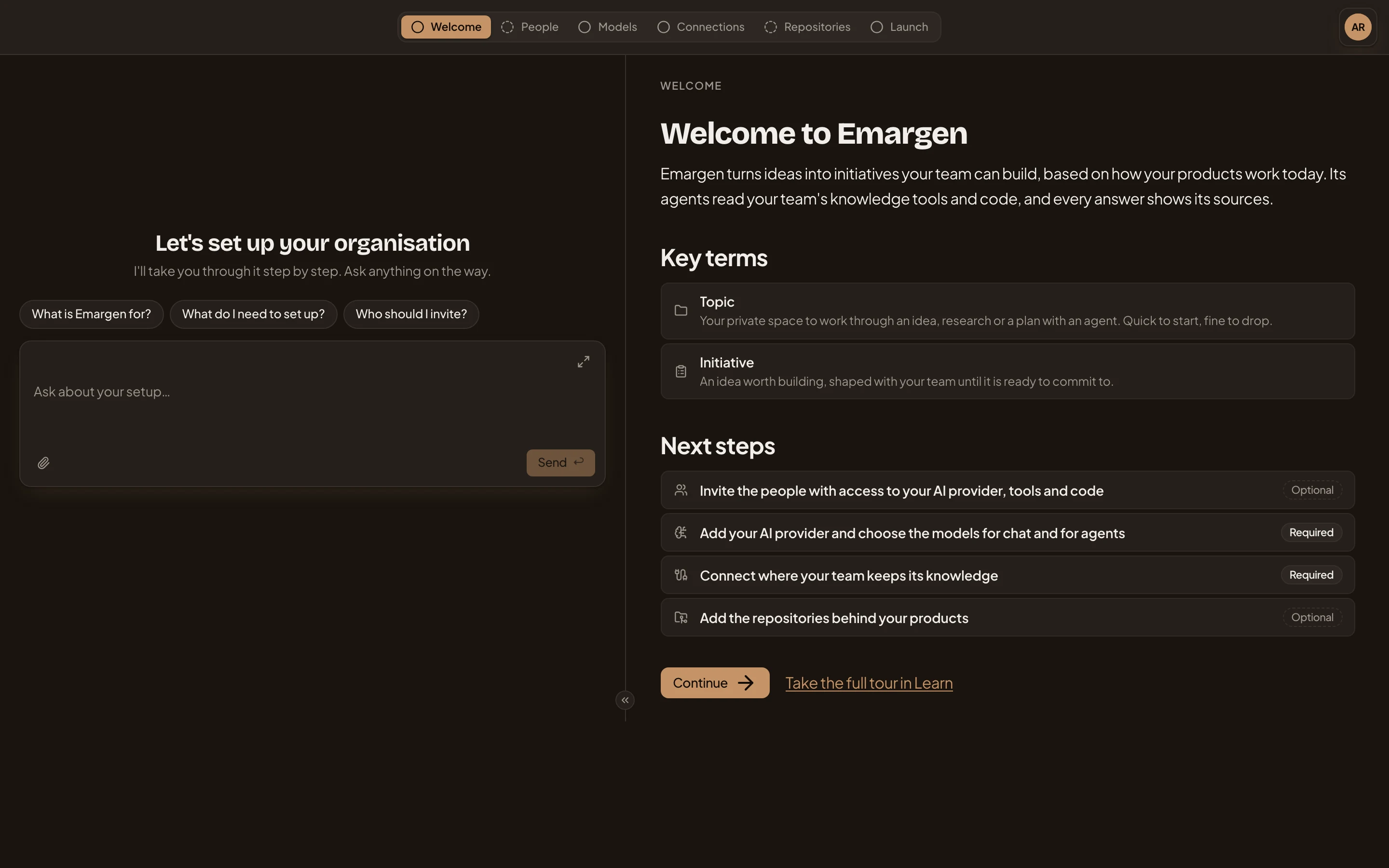
- The setup’s steps, across the top.
- The admin agent’s chat, with three questions to start with.
- Next steps: the steps, each marked Required or Optional.
- Continue, to the next step.
-
Create the organisation. On Emargen’s sign-in page, make an account with your work email, confirm it, and sign in. With no organisation yet, Emargen asks you to name one. If your company signs in with single sign-on, see Single sign-on.
-
People, optional. Invite the people who hold the keys, with a role that may manage the steps they help with. They see the same steps when they join.
-
Models, required. Add your AI provider with its key, then choose the model for chat and the model for agents. See Set up the models.
-
Connections, required. It opens on Your team’s knowledge. Your answer decides what the rest of the setup needs.
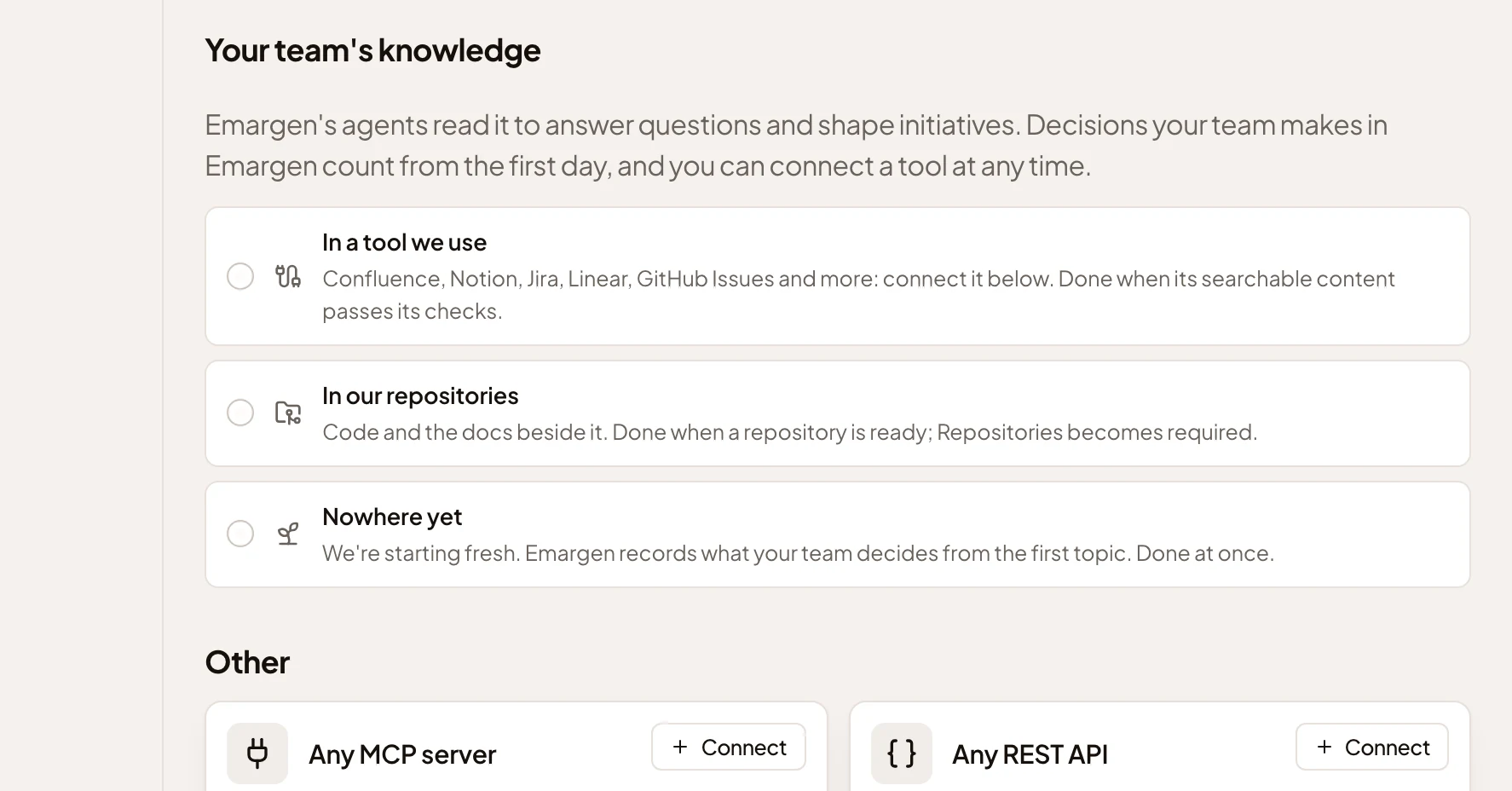
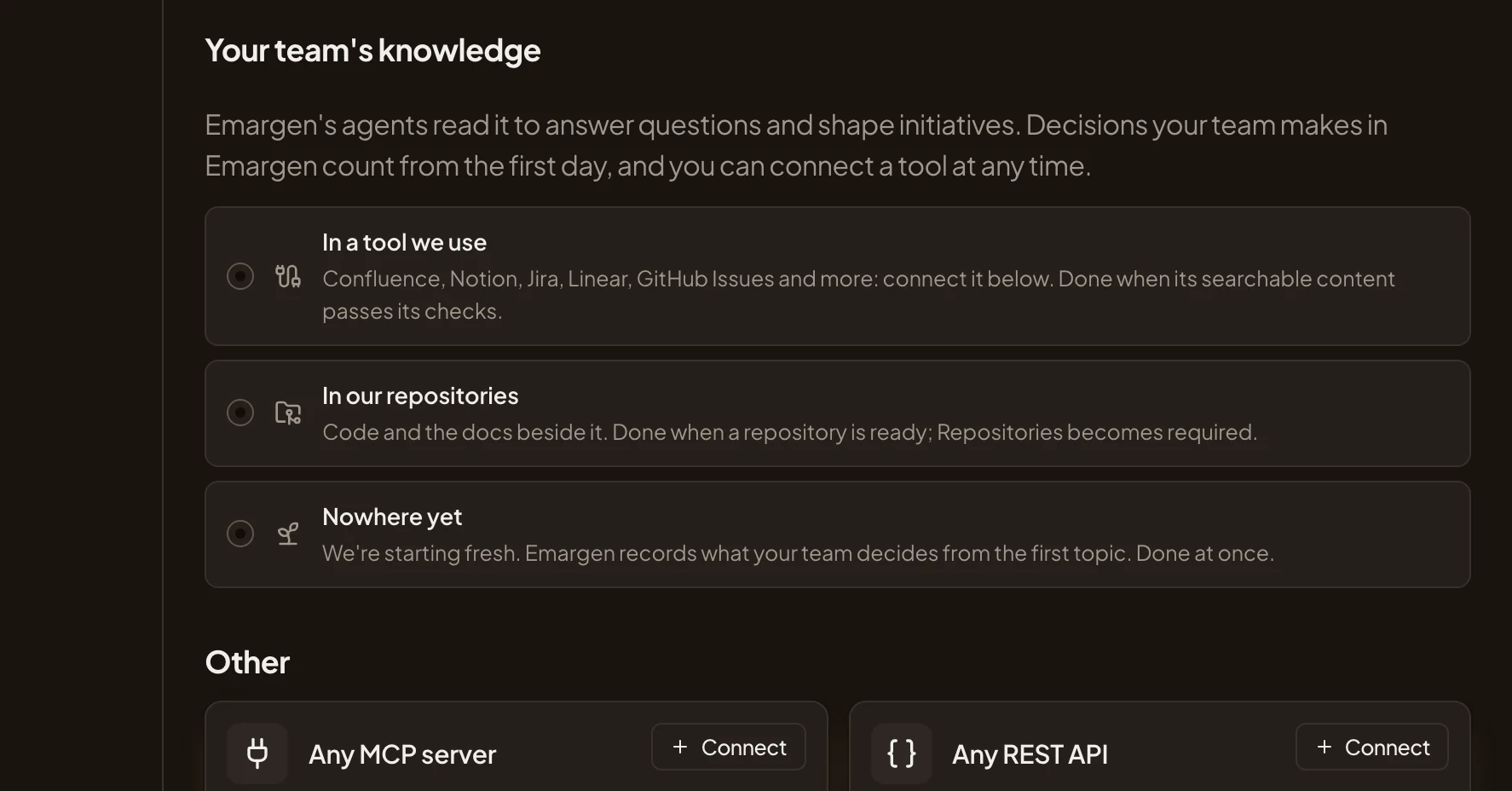
Your answer decides which step comes next. - In a tool we use: a tool like Jira or Confluence, connected on this page.
- In our repositories: your code, which makes Repositories a required step.
- Nowhere yet: you start fresh.
Pick In a tool we use and connect it on the same page. The step is done when one connection has searchable content that passed its checks (Connect Jira or Confluence). Pick In our repositories, and the step is done when a repository is ready. Repositories then stops being optional. Nowhere yet is done at once.
-
Repositories, optional unless your knowledge lives there. Add the repositories behind your main products. Each is analysed on the model you chose for agents. See Add a repository.
-
Launch. It opens once Models and Connections are done and Repositories is added or skipped. Until then, it shows which step is still open.
Open Launch (opens Emargen in a new tab)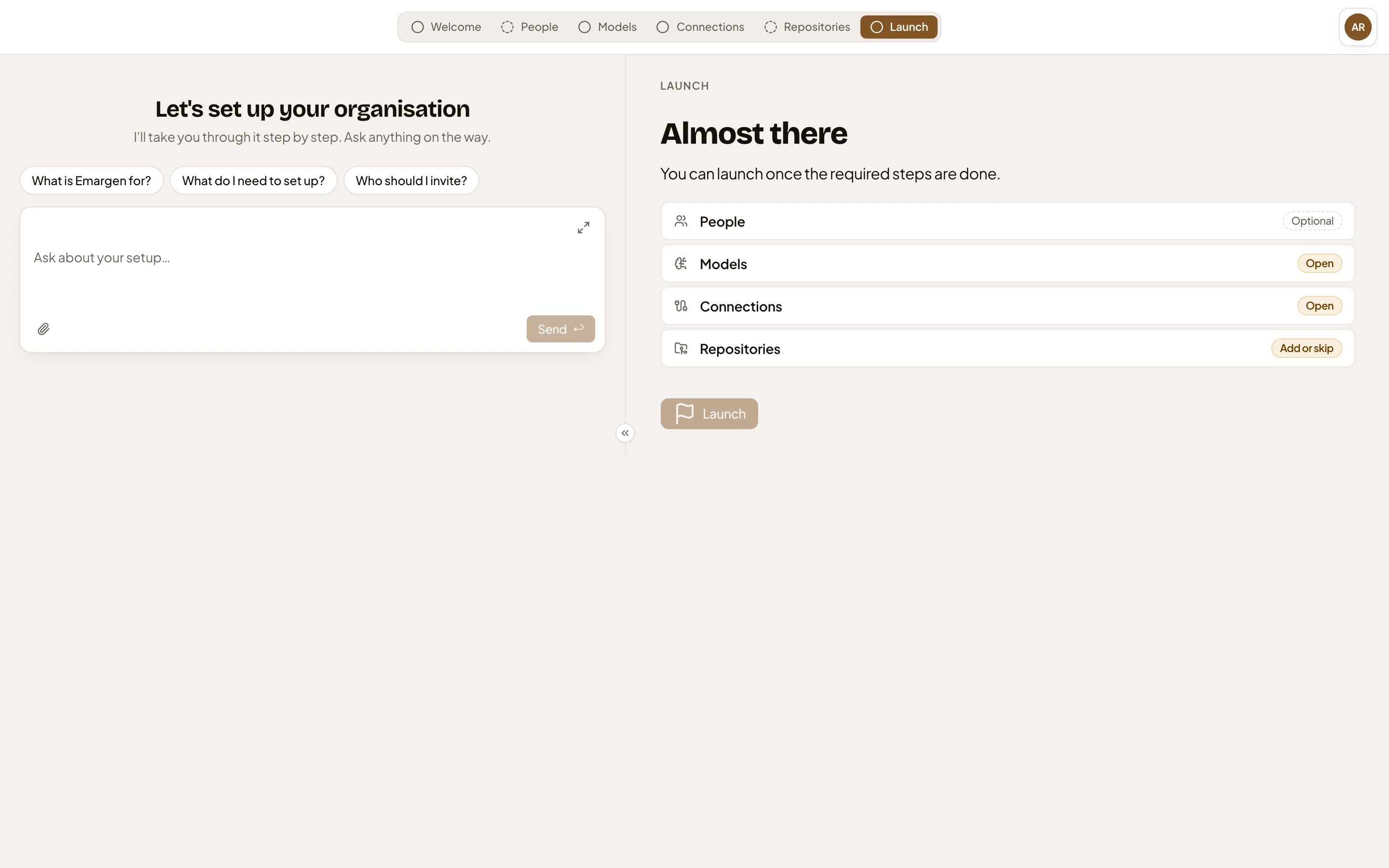
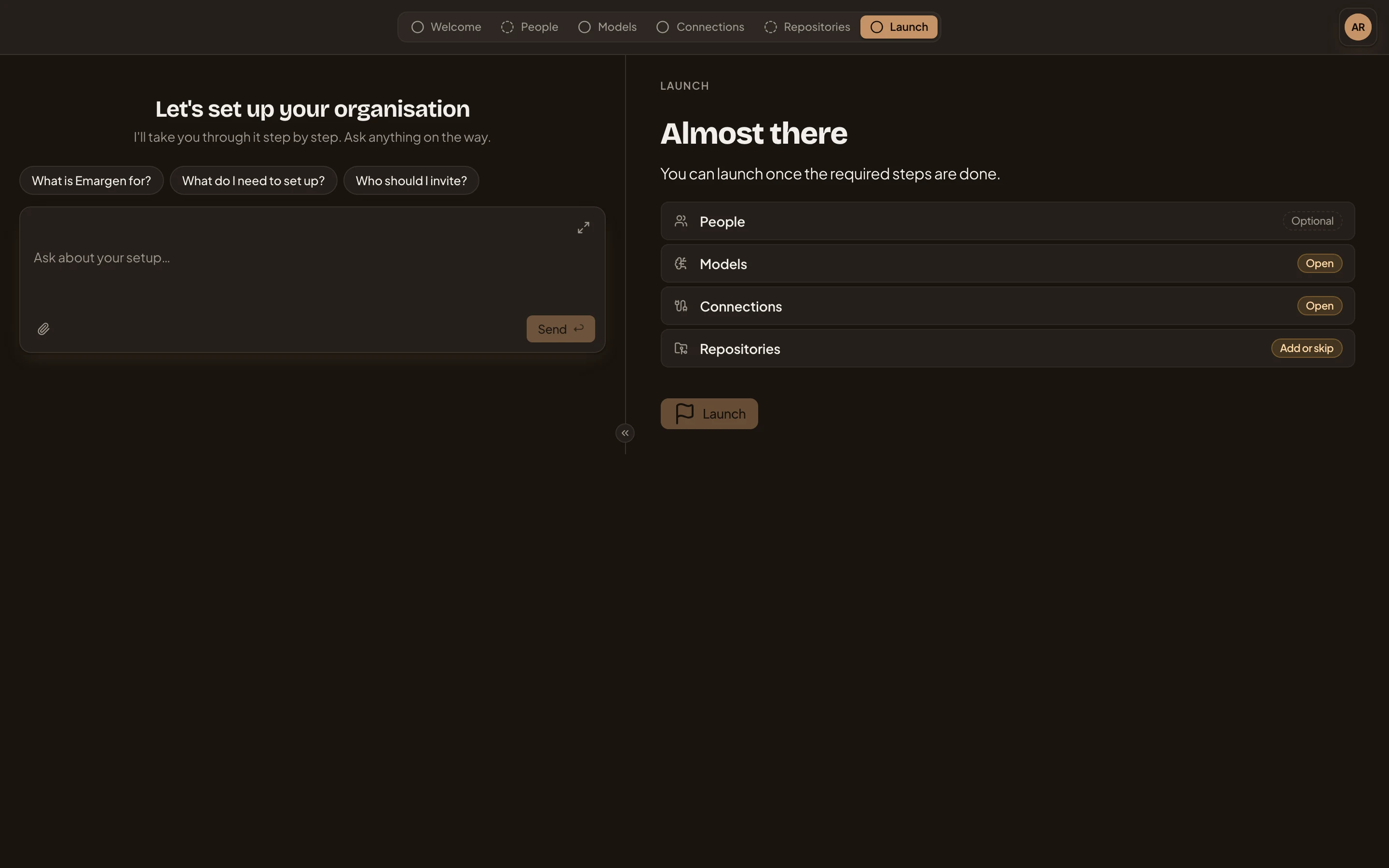
Launch waits until the required steps are done. - Open: a required step that isn’t done yet.
- Add or skip: Repositories waits for one or the other.
- Launch, greyed out until then.
Click Launch and confirm. Everyone in the organisation can then start topics and initiatives. A launch can’t be undone. Administrators launch it.
Setup › Welcome and Setup › Launch name every part of these screens.
After the launch
Section titled “After the launch”You land on your Inbox with the full menu, and the setup’s steps are Admin’s pages from then on.
- The rest of your people join, with roles for what each may do. Invite them. Each starts with their first hour. With single sign-on, your company’s own roles can give people Emargen roles each time they sign in.
- Give the Workspace your organisation’s words. The agents read its Landscape for the names of your systems, roles and terms.
- Decide what people’s own agents may do, like Claude Code on an engineer’s laptop.
- Watch what AI costs, and know your plan’s limits. Admin › Plan shows how many agent runs and chat turns can go at once, and how many are going now.