

WorkspacePage by page
Lists
This page has the workspace lists you can see. Open it from Lists under Workspace in the menu.
Open Lists (opens Emargen in a new tab)In the picture, ACME’s lists as an administrator sees them. Three come with Emargen, plus her own This week and the lists colleagues share.
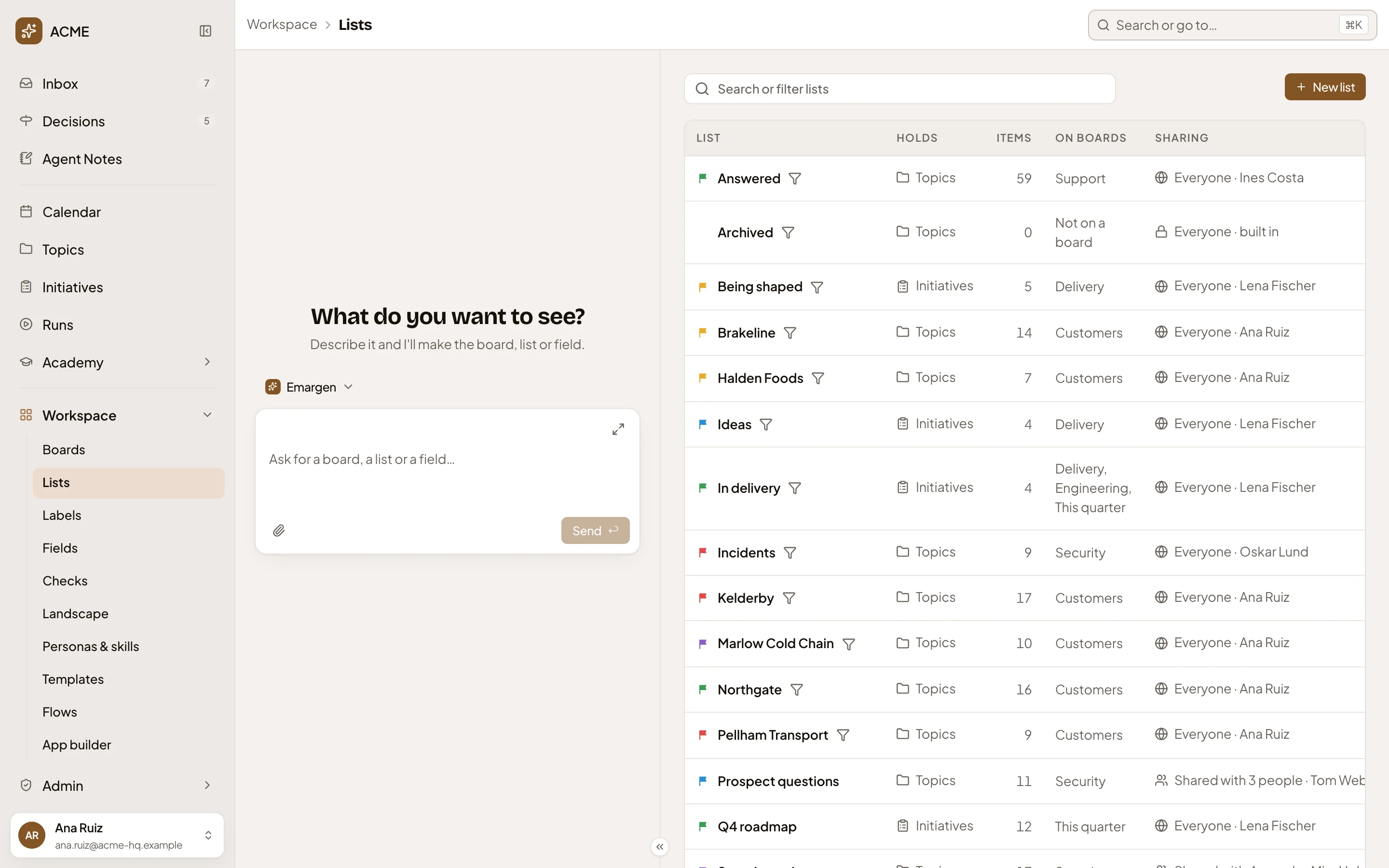
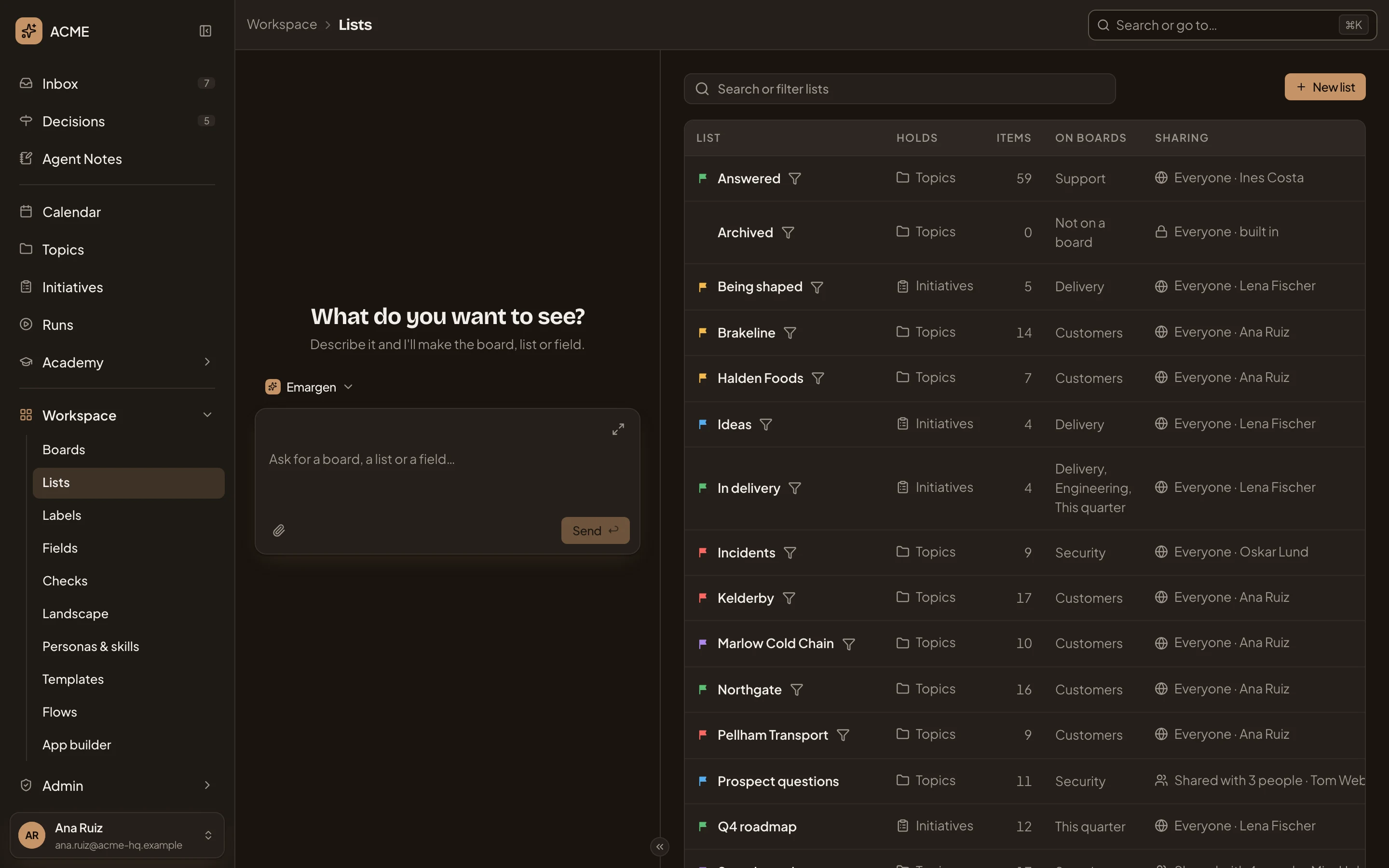
- Search or filter lists. Type part of a list’s name, or pick a filter (see Filters).
- New list. Opens a new list’s page (see A list).
- Support questions. A list’s name, with its colour before it. Click the name, or anywhere on its row, to open the list’s page.
- Automatic, from a filter. The mark of a list that fills itself from its conditions, such as Archived or Waiting on customers. A list without it is kept by hand.
- Holds. Topics or Initiatives. A list holds one or the other.
- Items. How many it holds that you can see. Triage holds 36 topics for the person in the picture and 14 for a colleague in sales, since each person sees their own.
- On boards. The boards that show the list, or Not on a board.
- Sharing. Only me for a list of your own, Everyone · Ines Costa for one Ines shares with everyone, and Everyone · built in for Emargen’s.
The lists that come with Emargen fill themselves, and nobody changes them. Each shows you what’s yours in it.
- Triage: “mine and on no list”, your own topics that are on no workspace list kept by hand.
- Shared with you: “not mine and on no list”, the topics shared with you by name that are on no workspace list kept by hand.
- Archived: topics that are archived.
A board’s own lists aren’t here. The board keeps them, and they show on its page. Lists have no order on this page, since each board puts its lists in its own order.
Filters
Section titled “Filters”Click the search box to see its filters.
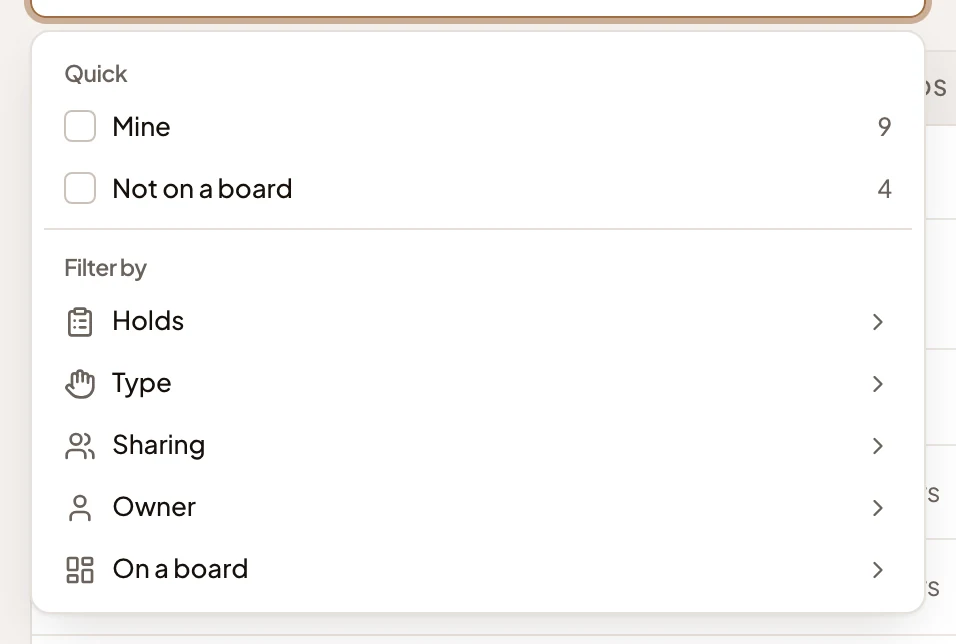
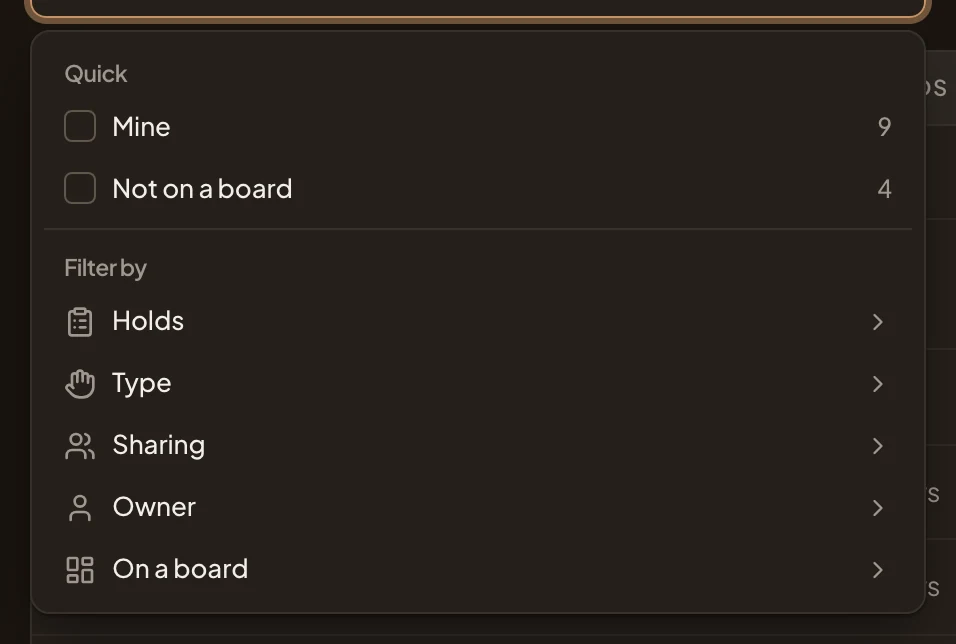
- Mine. Only the lists you made, with how many.
- Not on a board. Lists no board shows yet.
- Holds: topics or initiatives. Type: kept by hand or filling itself. Sharing: who can open it. Owner: who made it. On a board: the board.
When nothing matches, the page says “No list matches.”
With no lists of your own, the built-in ones still show. A workspace with none at all says “No lists yet” and “Lists group initiatives and topics on boards. Use New list to make the first one.”
Access
Section titled “Access”Anyone can open Lists. Each person sees their own lists, the ones shared with them by name or with everyone, and the built-in three. So two colleagues’ pages differ. In the picture, This week shows only for its owner. You can make one too.