

InitiativesHow to
Shape an initiative
Shape an initiative when you know what needs to change and want it worked out before anyone builds it. You talk. The agent reads your organisation’s tickets, documents and code, asks what it can’t find, and writes each part of the initiative.
Before you start
Section titled “Before you start”- Who can
- You own the initiative, or it’s shared with you to edit. People who read it or take part follow along and comment, but their chat with the agent changes nothing in it.
- You need
- An initiative to shape, or the problem for a new one. Start an initiative from a topic walks through New initiative.
- The agent reads
- What your organisation connected to Emargen, and its repositories. The agent drafts from the sources and checks the brief against the code. Work that runs on its own also needs an agent model. Until one is set, a banner says “No agent model is set”, and that work waits.
- The pictures
- Two initiatives at ACME, the company in the docs’ pictures, as their owner in customer success sees them. ACM-290 shows the questions, the brief and a requirement’s level, and ACM-362 the approaches still to choose from and an empty section. A step already done shows its result, not its button.
-
Open New initiative and tell the agent the problem in the message box. Say who has it, how it shows and what it costs. Under the message box, pick the topics or the items from your connected tools it comes from, and press Send. To go on with an initiative you’re already shaping, open it from the initiatives list instead.
Open New initiative (opens Emargen in a new tab) -
Watch the chat while the agent reads. It looks at tickets, documents and pages from your connected tools, at earlier initiatives and topics, and at the code. If an earlier initiative already covers the problem, the agent asks whether this is the same work. Then it writes a first draft on Background and asks about what the draft leaves open.
Once something is written, every section of the initiative shows on the right, the empty ones too. An empty section says how it comes together. Only Spikes has a button there, New spike.
-
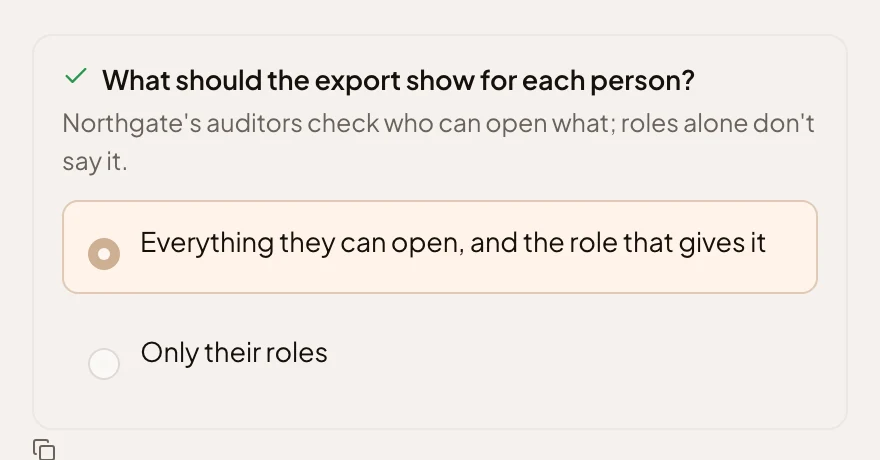
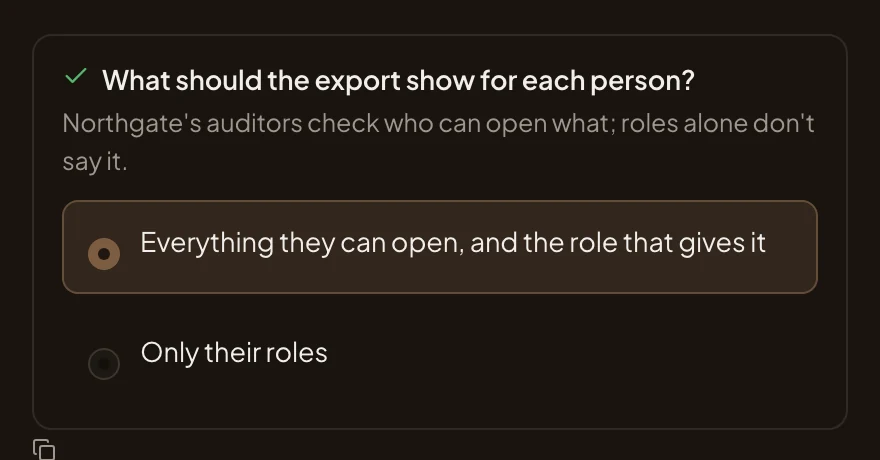
Answer its questions, one at a time. Pick an option and press Answer, or write your own answer. Explain has the agent talk the question through first. The agent keeps each answer in the brief as something you decided, then asks the next.
-
When the agent says it has enough, open Background. At the top of the Brief, a box says it’s ready to write the brief. Press Write the brief. The agent reads your code to check each claim in the draft, then writes the brief. It takes a few minutes, and you can keep working. Stop ends it.
When it’s done, the Brief is in sections, with what the agent couldn’t verify at the end. Read that part before you go on. The agent can also draw two maps under it. One shows what changes in your systems. The other is the business case, whose numbers you can change to try another case.
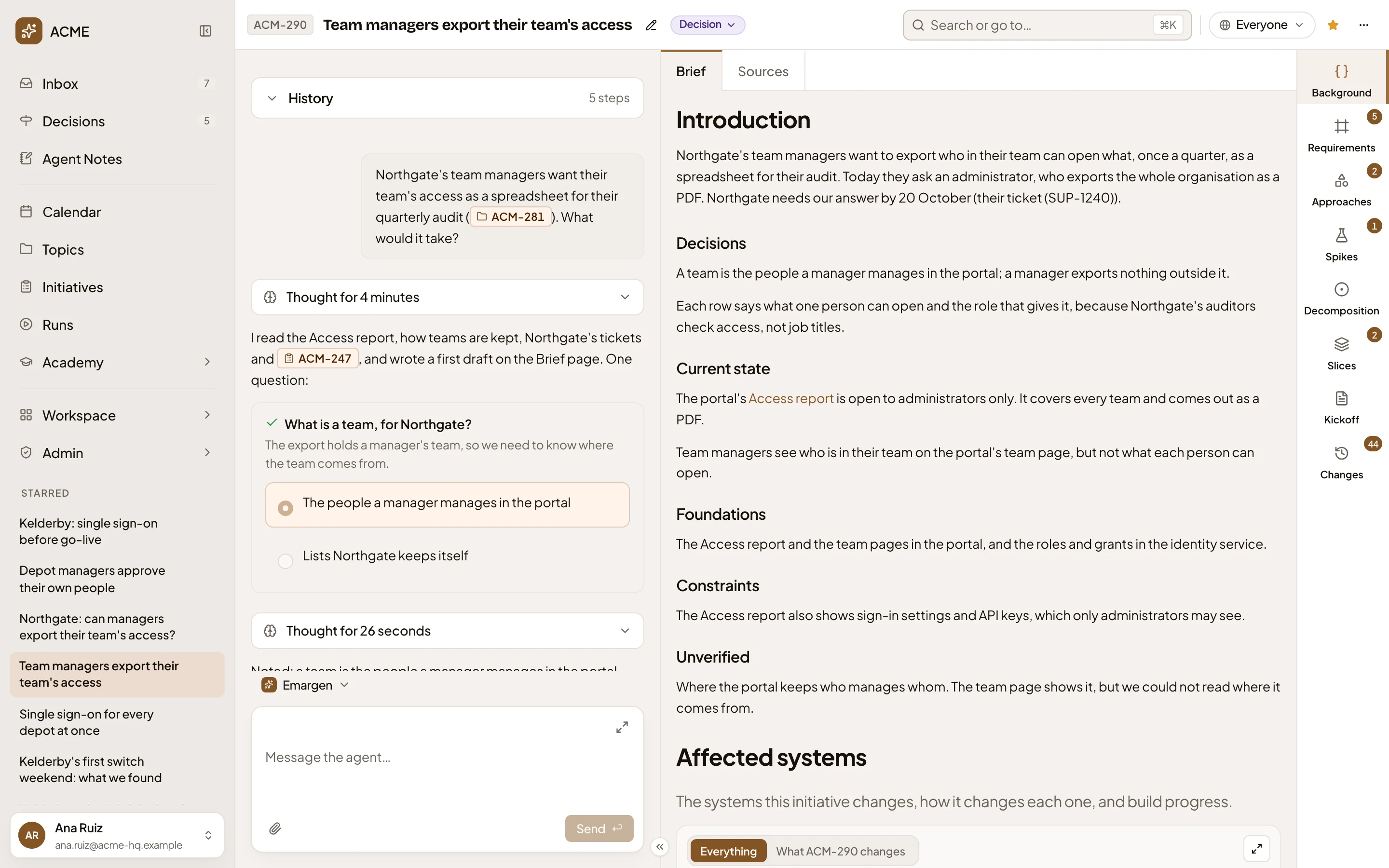
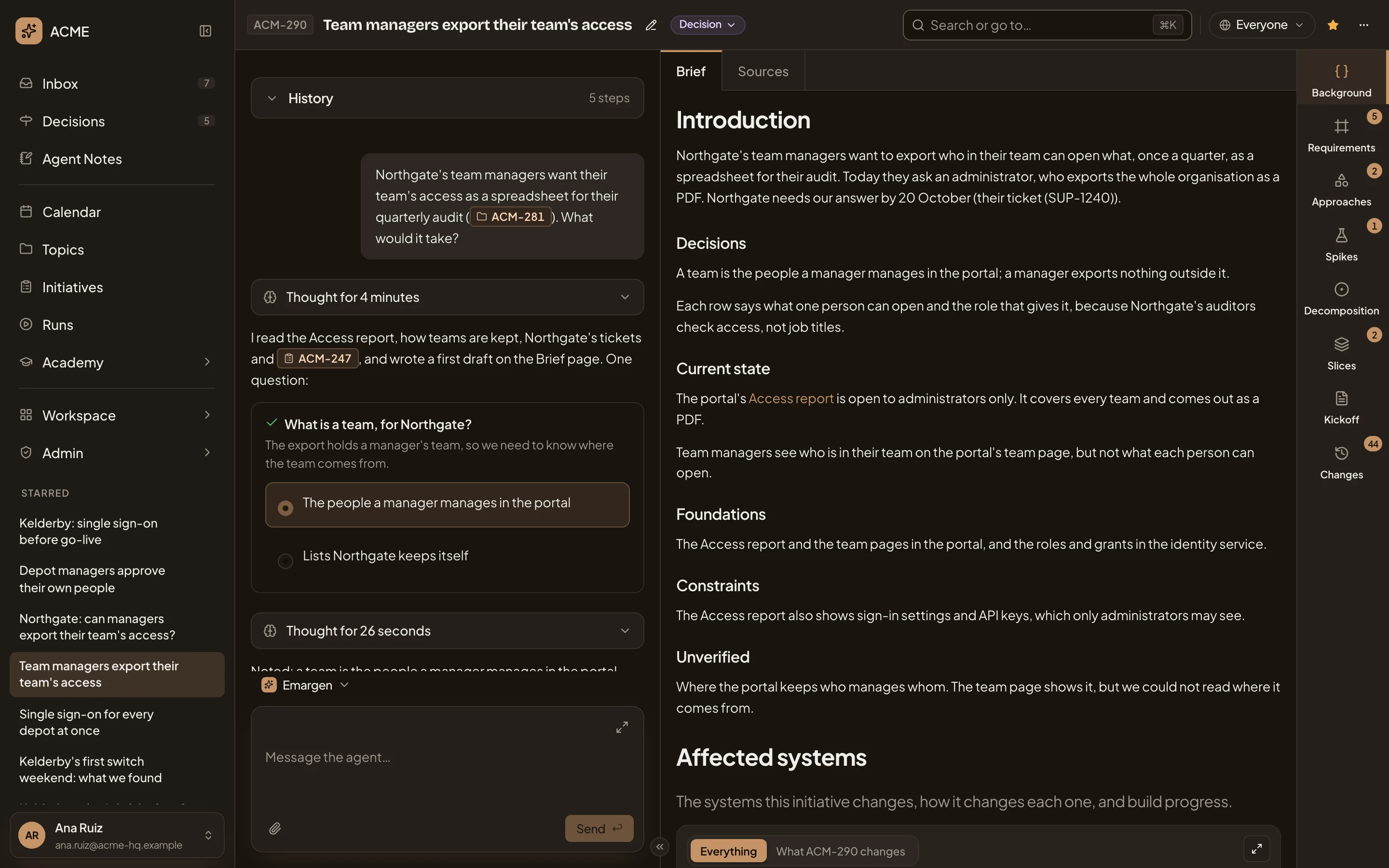
-
At the top of the verified brief, press Start the requirements. The agent writes the rationale and the requirements on Requirements, one of them the core goal.
Then it suggests a level for each of the others, in a card at the end of the chat, one requirement at a time. You take its suggestion, pick another level, or skip that requirement for now.
-
Set each requirement’s level, on the cards in the chat or on Requirements. There, click a requirement’s level and pick Must have, Nice to have or Out. A level you set there closes that requirement’s card.
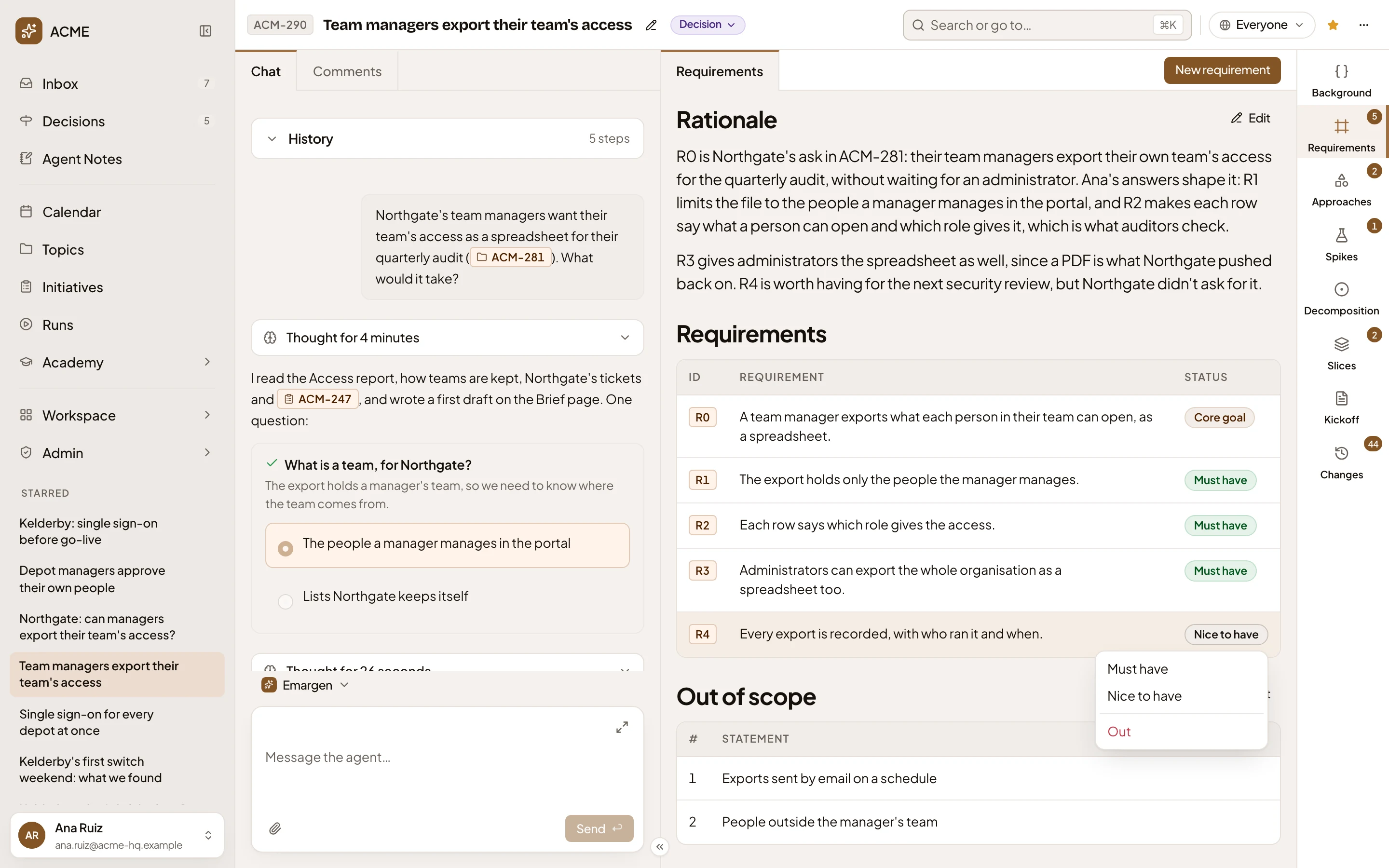
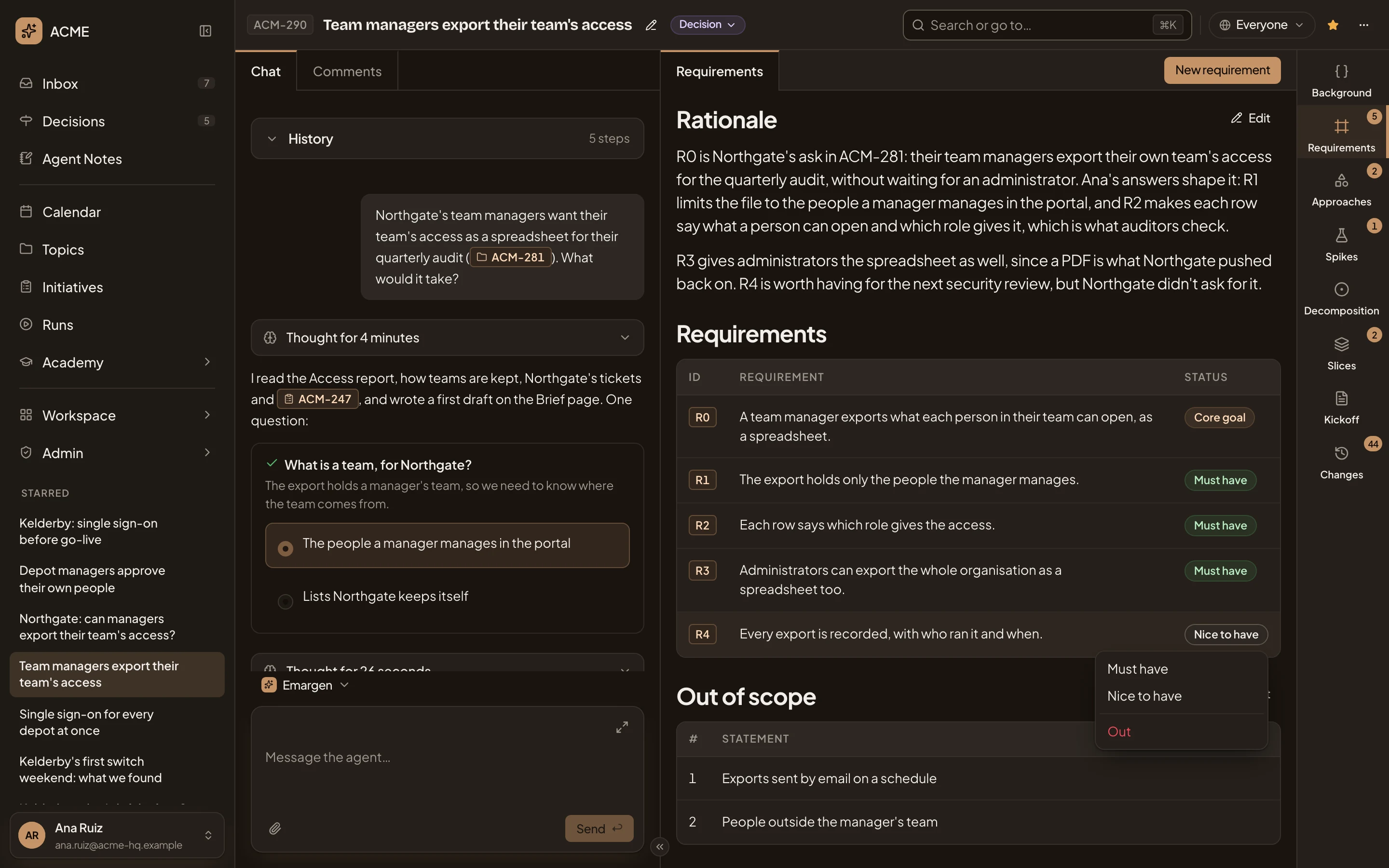
- Nice to have. The requirement’s current level.
- The levels to pick from.
To change a requirement’s wording or add one, use the buttons on Requirements. You say what you want, and the agent writes it.
-
Ask the agent, “What are the ways to build it?” It writes two or more approaches on Approaches, each in parts, with what it rests on and what could go wrong. When an approach rests on something nobody knows yet, it opens a spike to find out.
-
Ask it to check them against the requirements, such as “How do they fit so far?”. The fit check fills in under the approaches. It opens as a map, with one requirement in the middle and each approach around it, lit where its parts meet that requirement. Click another requirement in the strip at the top to put it in the middle. Grid shows every verdict at once.
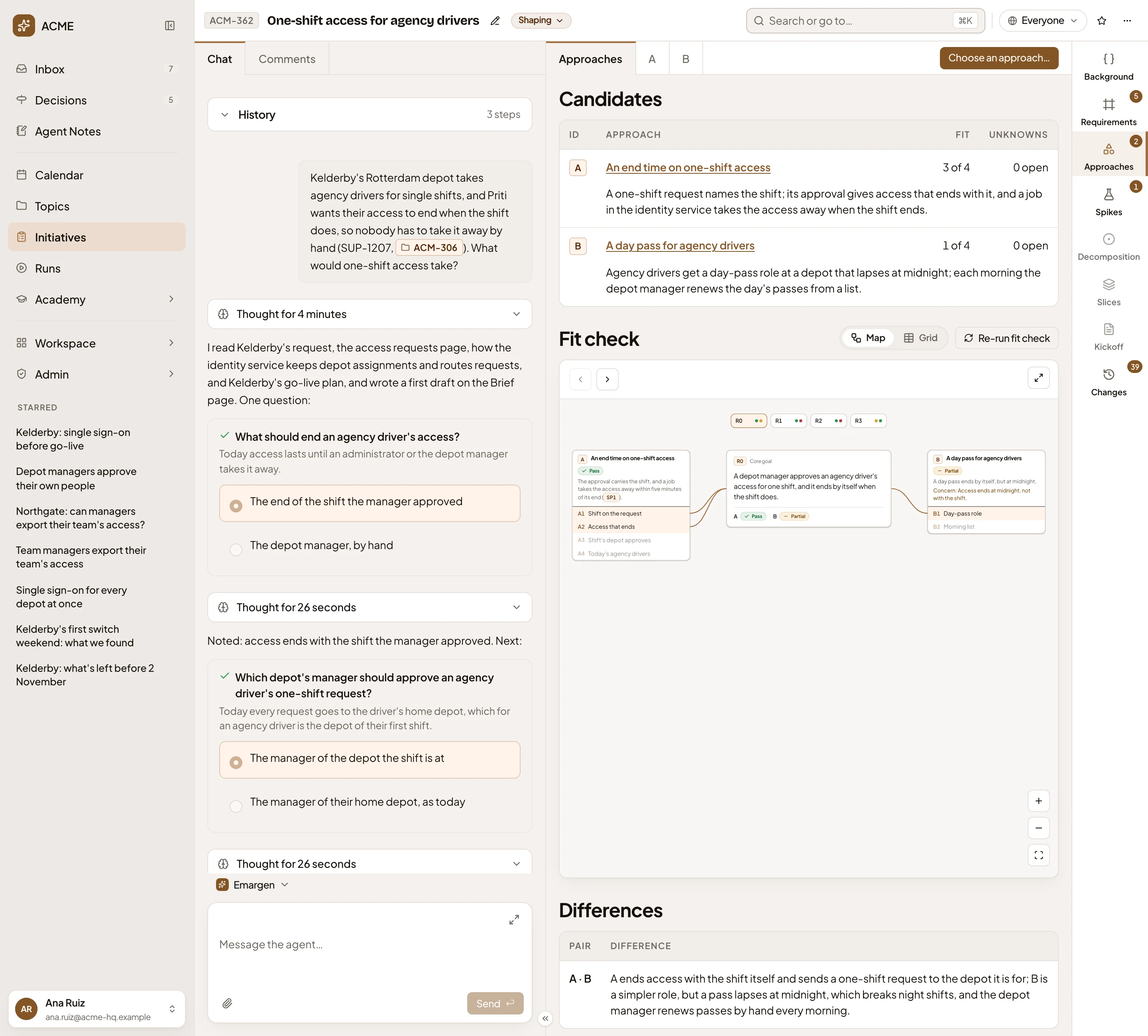
- Choose an approach… Where you pick one, in step 10.
- The candidates, with how much each fits and what’s still unknown on it.
- Map or Grid.
- The requirement in the middle, and each approach’s verdict on it.
An approach’s fit counts the requirements it passes out of those it was checked against. In the picture, A passes 3 of 4 and B passes 1 of 4. A pair nobody has checked yet doesn’t count against the approach.
-
Find out what the approaches rest on. Open Spikes on the right, open a spike, and press Answer on each of its questions. The agent looks in your knowledge, Emargen, the code and the web, and answers with its sources. Run a spike has the steps. Once a spike is answered, the agent checks again the verdicts that waited on it.
-
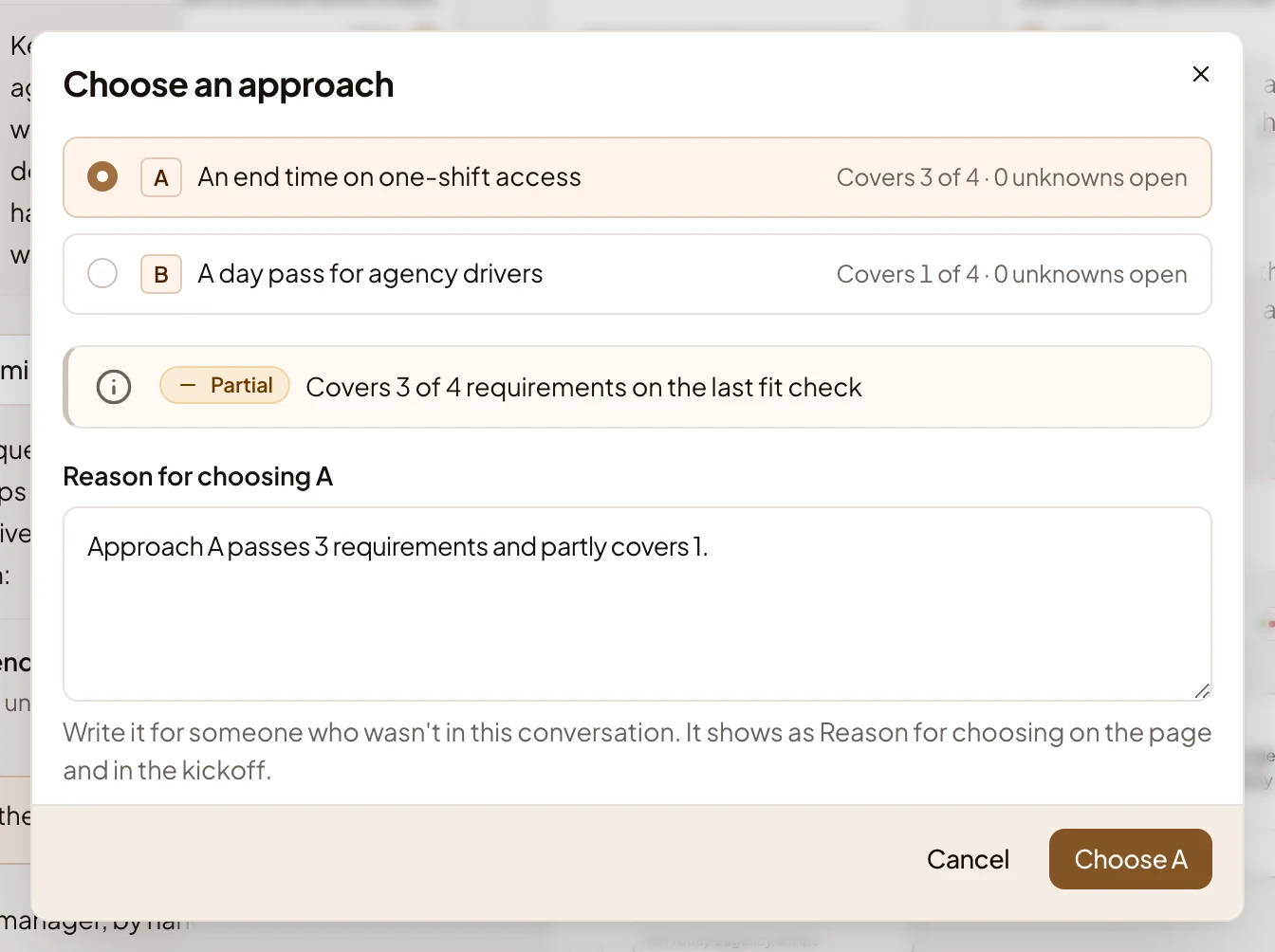
Choose an approach. Click Choose an approach… and pick one. Reason for choosing A starts with a line from the fit check. Replace it with why you chose it, for someone who wasn’t in your chat. It shows on the approach’s page and in the Kickoff. Then press Choose A, or the letter you picked. The approach is marked Chosen, and the button becomes Change approach.
-
Wait for the agent to work out what the approach changes in your code. It starts on its own once you choose. The chat shows how long the analysis has run, and Decomposition says it’s pending. It takes several minutes, and fills the Decomposition when it lands.
To have it look again, press Refine on Decomposition, say in a note what it should look at, and send it.
-
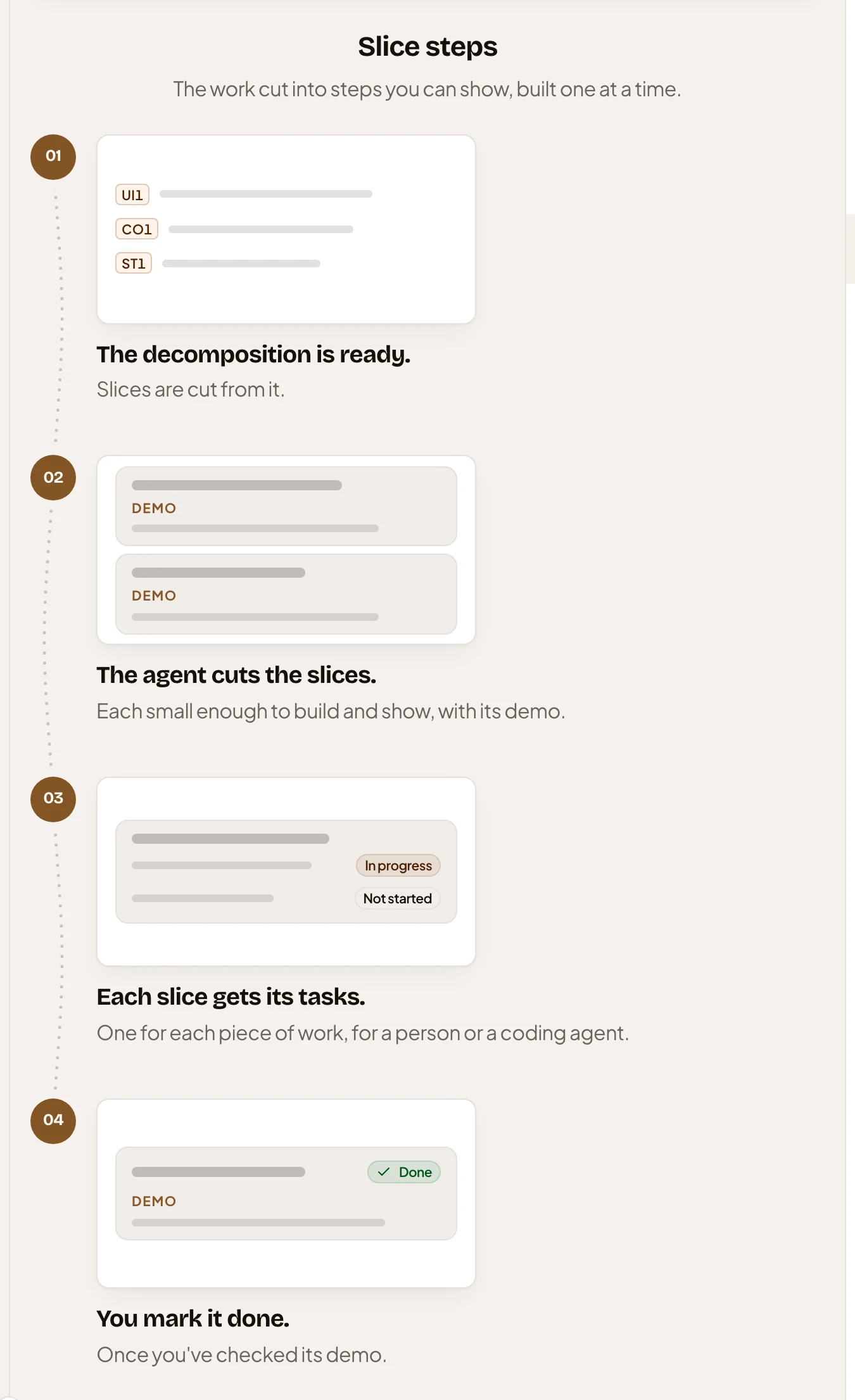
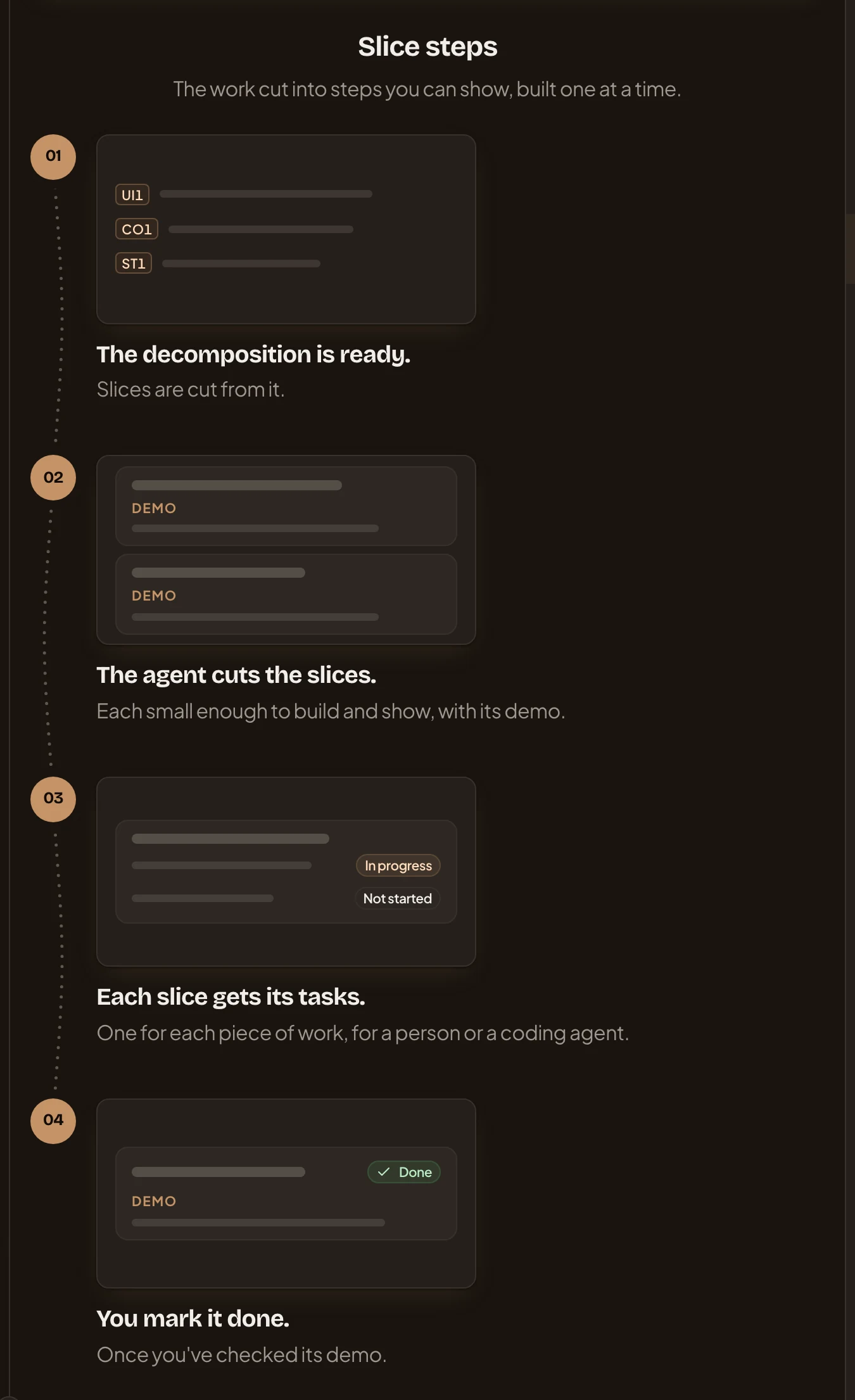
Once the decomposition is there, ask the agent to cut the work into slices, such as “Slice it.”. It writes them on Slices: pieces to build one after another, each with what it shows when it works.
Work that doesn’t finish
Section titled “Work that doesn’t finish”The agent answers most things in the chat. Some of its work runs on its own for minutes, such as writing the brief, looking into a spike’s question or working out the decomposition. While it runs, a box in the chat says what it’s doing. Either kind can fail, most often when the agent can’t reach your repositories or its model.
- A chat answer that doesn’t finish leaves one line in its place. It says what happened and what to do, such as “The connection dropped. The partial answer is below.”, with Send again beside it when sending again would help. Details holds a reference to pass on. Whatever the agent saved before it stopped stays.
- Work that runs on its own says in the chat that it didn’t finish, such as “The code check didn’t finish.” or “The decomposition analysis didn’t finish.”. Start it again from where you started it. Press Write the brief, the question’s Answer, or Try again under the decomposition’s message.
If it keeps failing, ask whoever looks after your organisation’s repositories and models.
What you get
Section titled “What you get”- An initiative with a verified brief, decided requirements and a chosen approach, with your reason.
- Its decomposition and its slices: the plan the build follows.
- The Kickoff, which says what Publish still waits for.
- Every change you and the agent made, on Changes. Everyone who sees the initiative reads it.
You don’t have to follow this order. The agent works from what you ask, and you can go back to any section.