

AdminPage by page
A role
On a role’s page you change its name, its permissions and who holds it. Click a role’s name on Roles & permissions to open it. New role opens an empty role page.
Open Roles & permissions (opens Emargen in a new tab)Support is the role ACME made for its support desk. It holds Invite people, so the support lead brings new colleagues in.
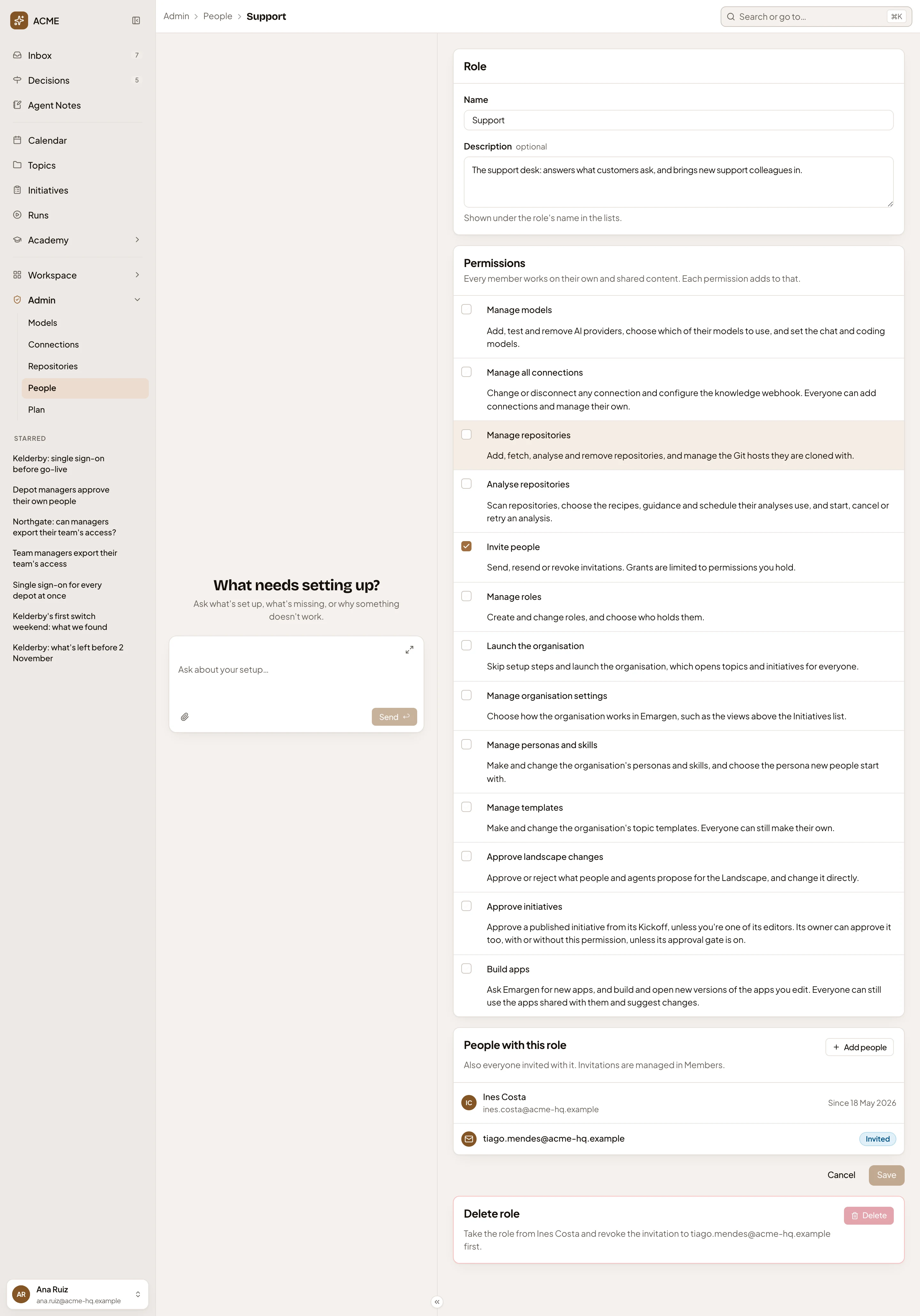
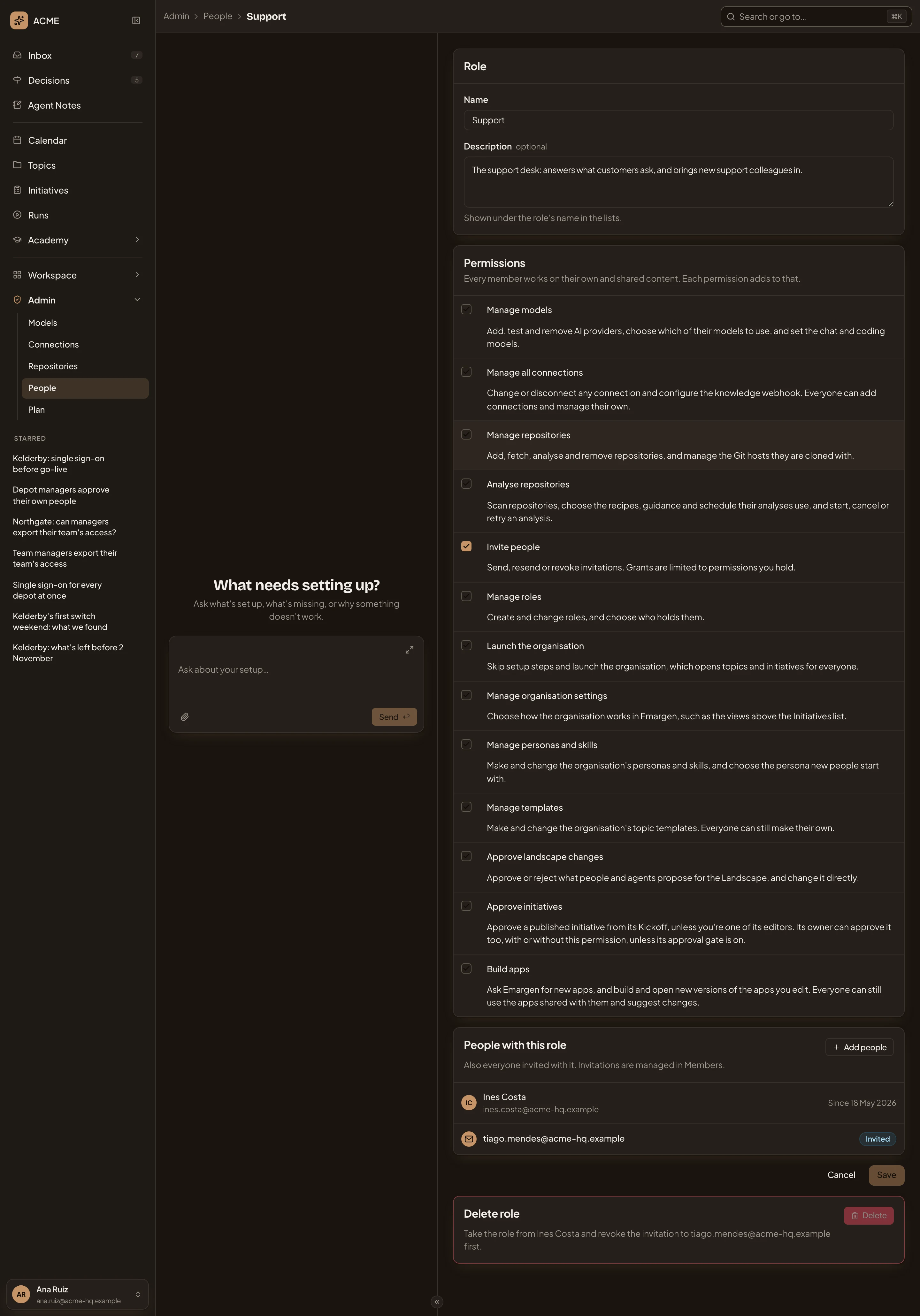
- Name. What the role is called.
- Description. What it’s for, shown under its name in the lists.
- Permissions. Tick a permission to give it to the role, untick to take it away.
- A permission the role holds.
- Add people. Gives the role to someone in the organisation.
- Someone who holds it, and since when.
- An invitation that offers it. Invitations are managed on Members.
- Save. Keeps everything you changed, the people too. Then you see “Role saved”, and you’re back at the list.
- Delete role. Tells you what to take away while Delete is greyed out.
Everyone who holds the role gets your change when you save. Two roles can’t share a name: “A role with this name already exists in this organisation.”
People with the role
Section titled “People with the role”Use Add people to pick from the organisation’s people, or find someone by name. People who already hold the role say “Has this role”. A person you add is marked Adding until you save.
Click someone who holds the role to select them.
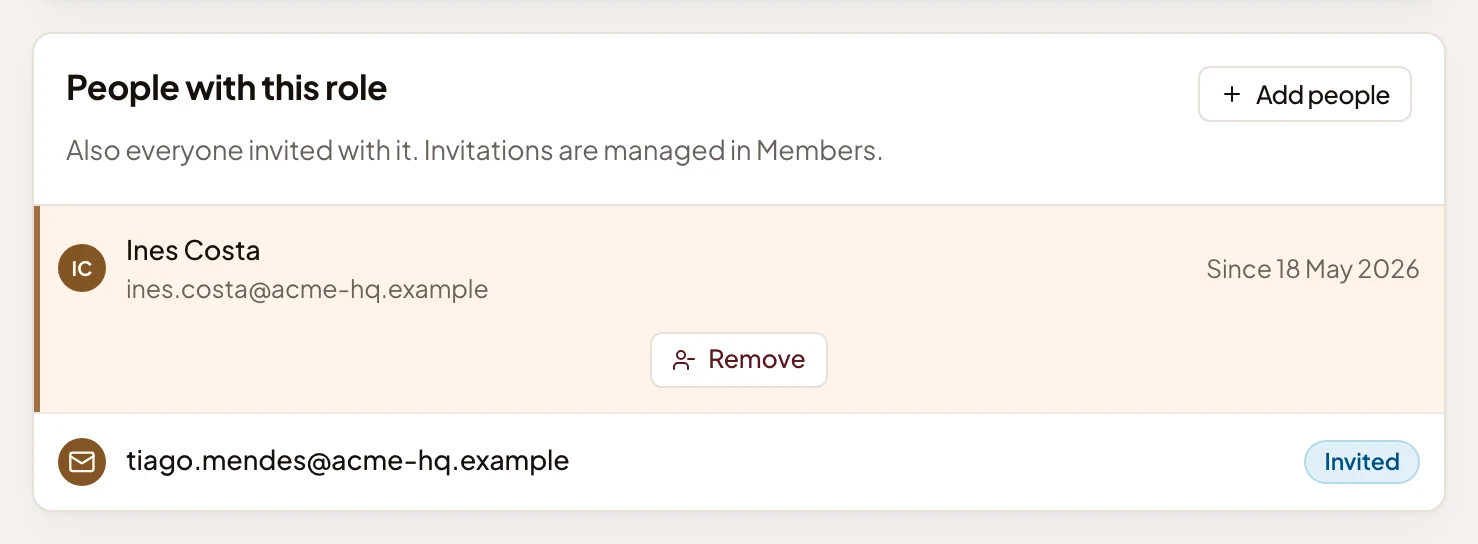
- Remove. Marks them Removing until you save. Keep, in its place, undoes it.
You can’t save a role that would leave nobody able to manage roles: “Someone must stay an admin. Make another person an admin first.”
When your company’s single sign-on gives the role, you’ll see the company roles and who holds it from sign-in. Remove takes away only a role given by hand. The rest follow the company role, on Roles & permissions.
Delete
Section titled “Delete”You can only delete a role nobody holds, that no invitation offers and no company role gives. Until then, Delete says what to take away first. After that, you confirm, and the role and its permissions go. The page says “Role deleted”.
A built-in role
Section titled “A built-in role”Administrator and Member come with every organisation. You can change who holds them. Their name and permissions are greyed out, and there’s no Delete. Administrator holds every permission. Member holds none, and its page lists everyone.
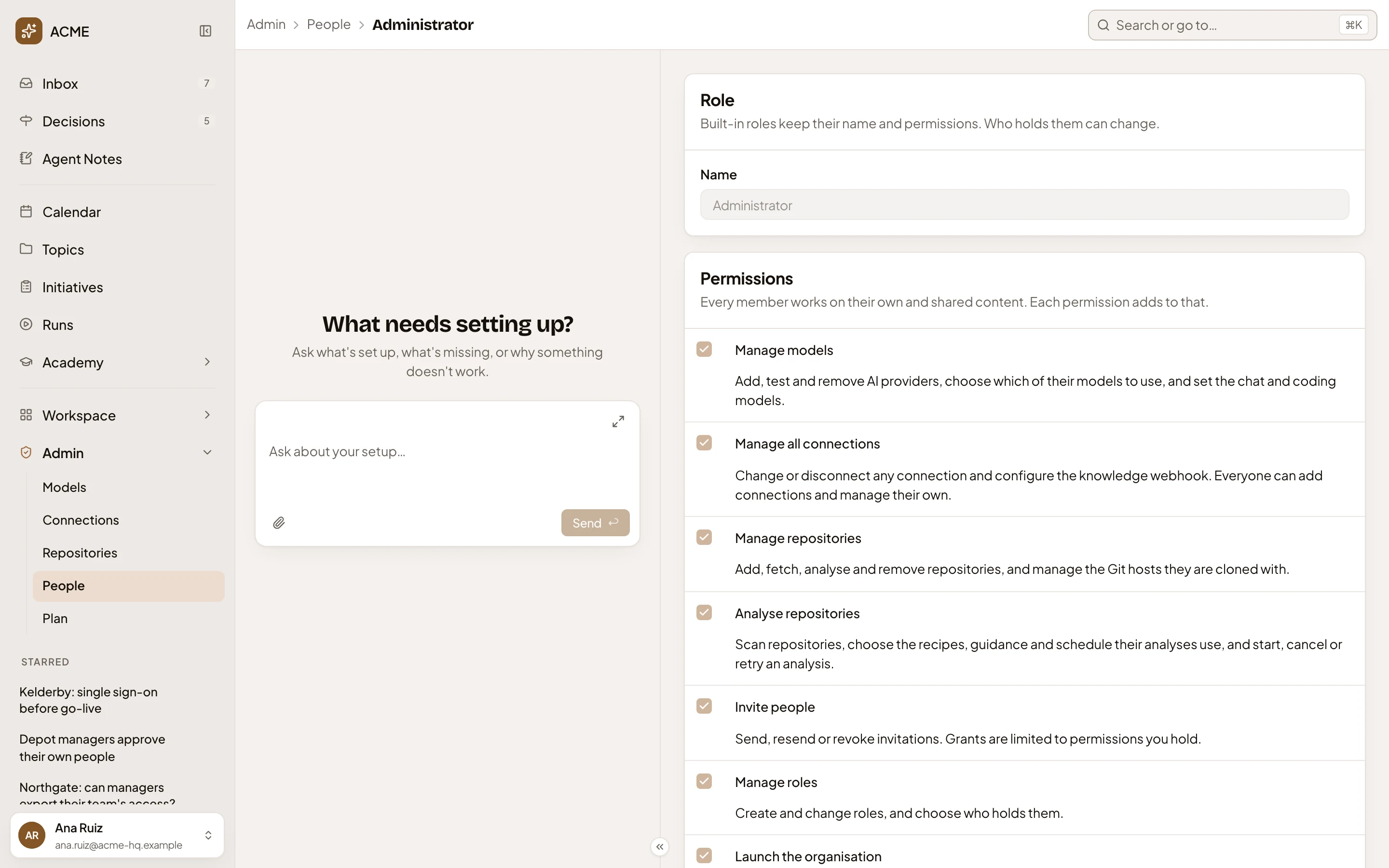
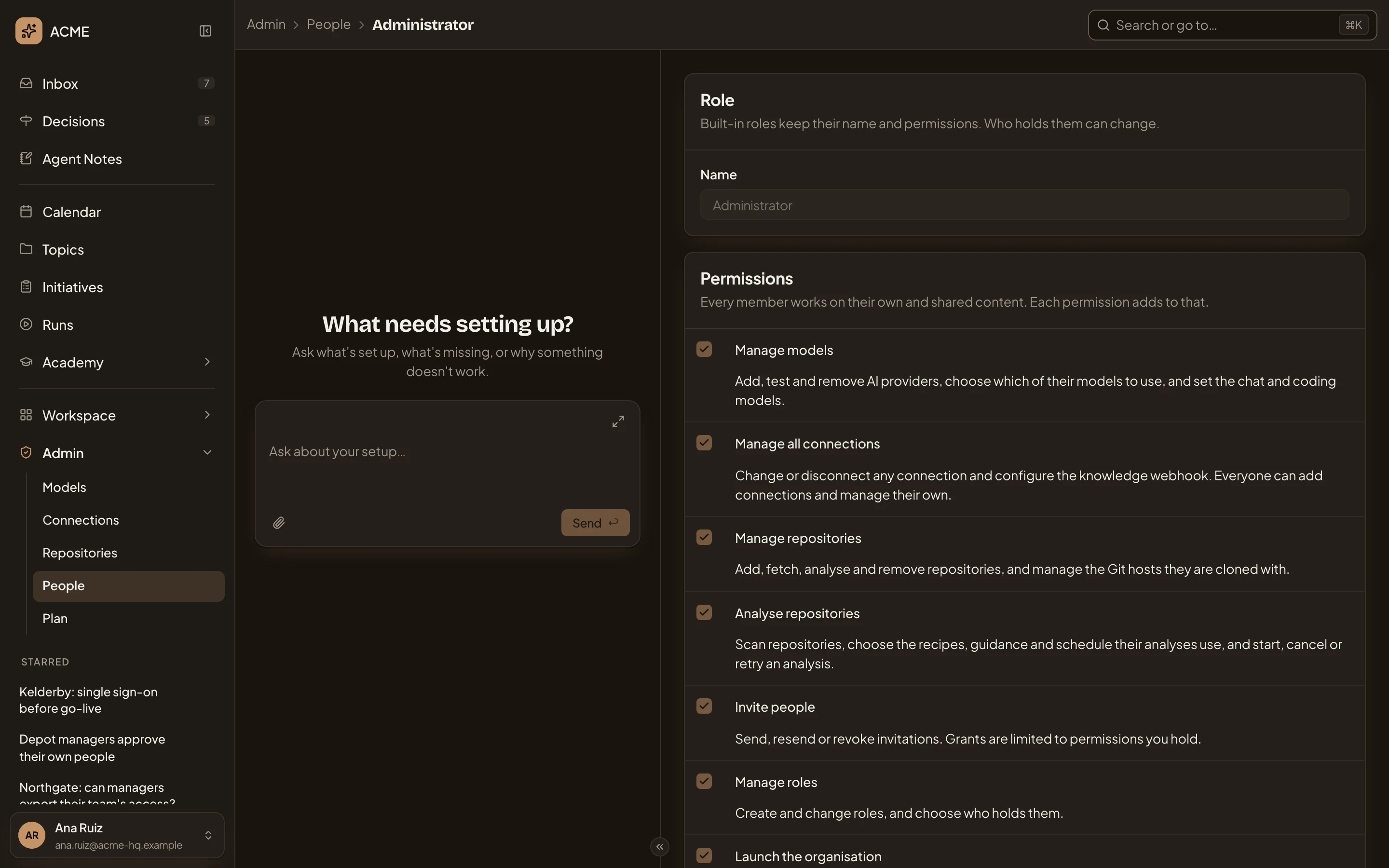
New role
Section titled “New role”New role opens the same page, empty, with Create role in place of Save and nothing to delete.
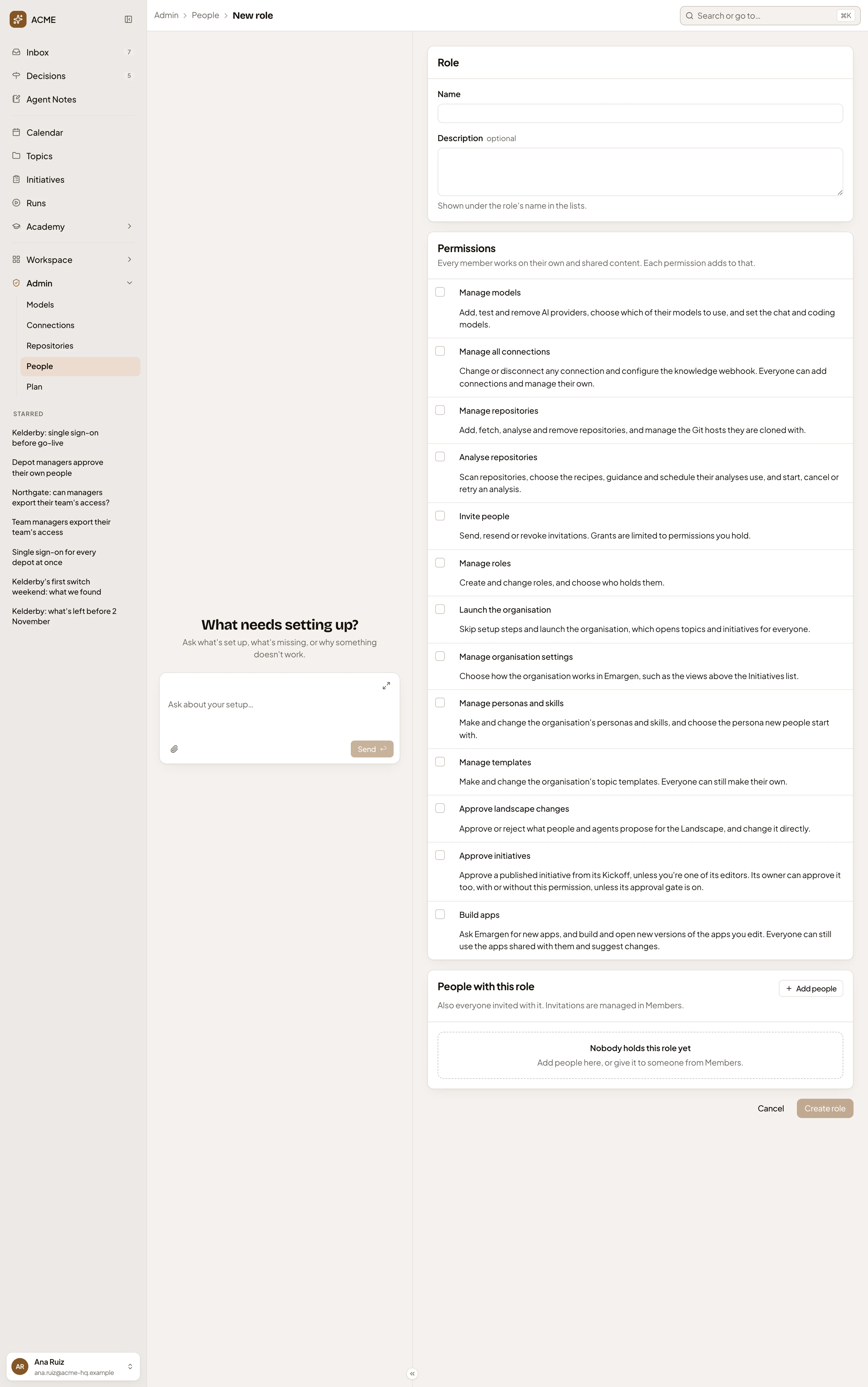
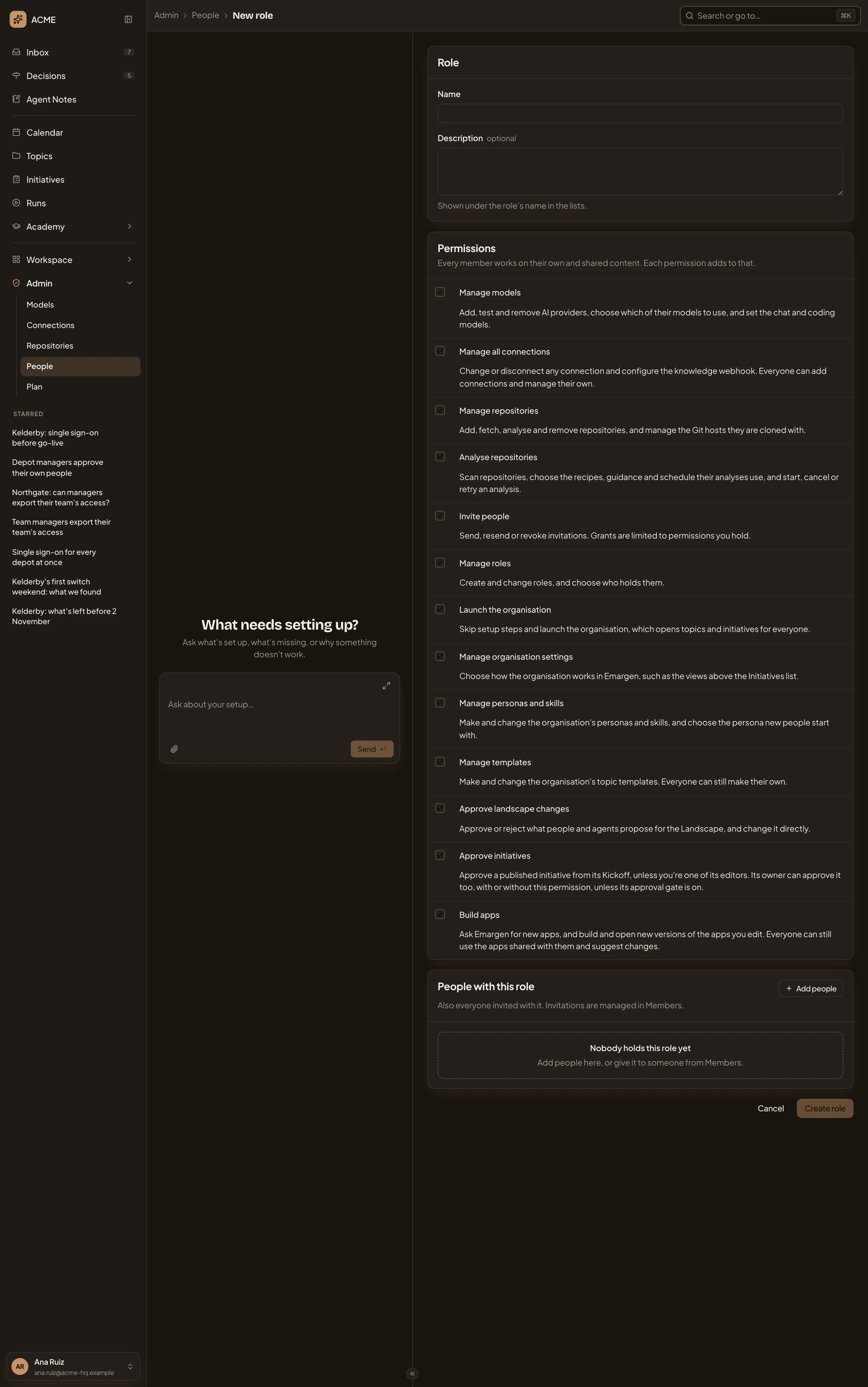
- Name. Needed before you can create it.
- Create role. Makes the role with its permissions and people, and says “Role created”.
See Make a role.
Access
Section titled “Access”People who may manage roles. See Roles and permissions.