

Getting aroundPage by page
The checklist
When you ask an agent for a job that takes several changes, like a new field and a template that carries it, it writes the steps down as a checklist. Once you start it, the checklist sits in the right rail of every page you open, until it ends and you close it. It has no page of its own.
A single change doesn’t need a checklist. You press its card in the chat, and the change is made with one press. The rail opens only when the step needs a key or a word typed to confirm it.
A product manager asked the agent on the Templates page to make a Team field and put it on the Customer question template, so the customers board shows who answers each question. In the pictures, the field is made, and the checklist waits on its second step.
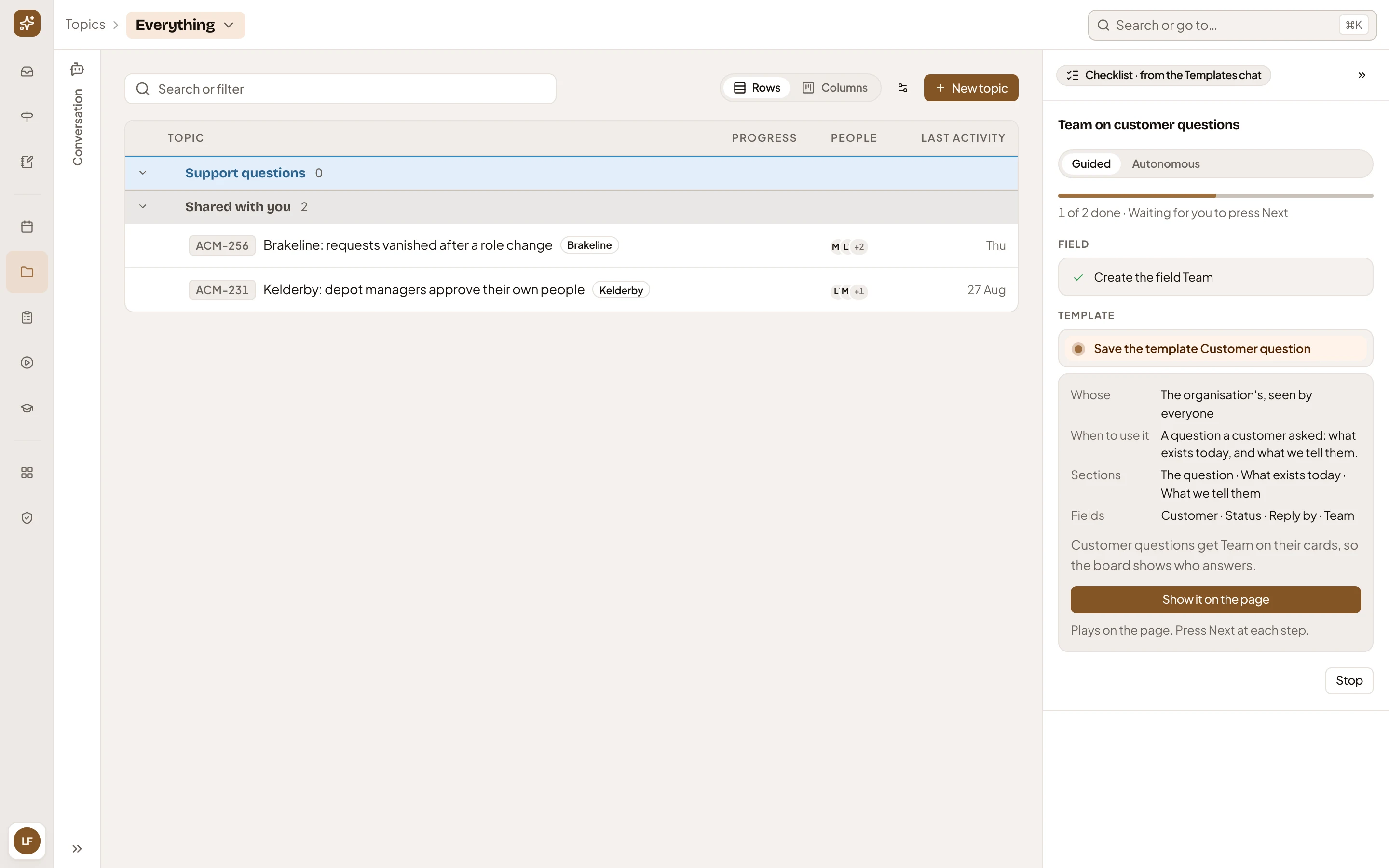
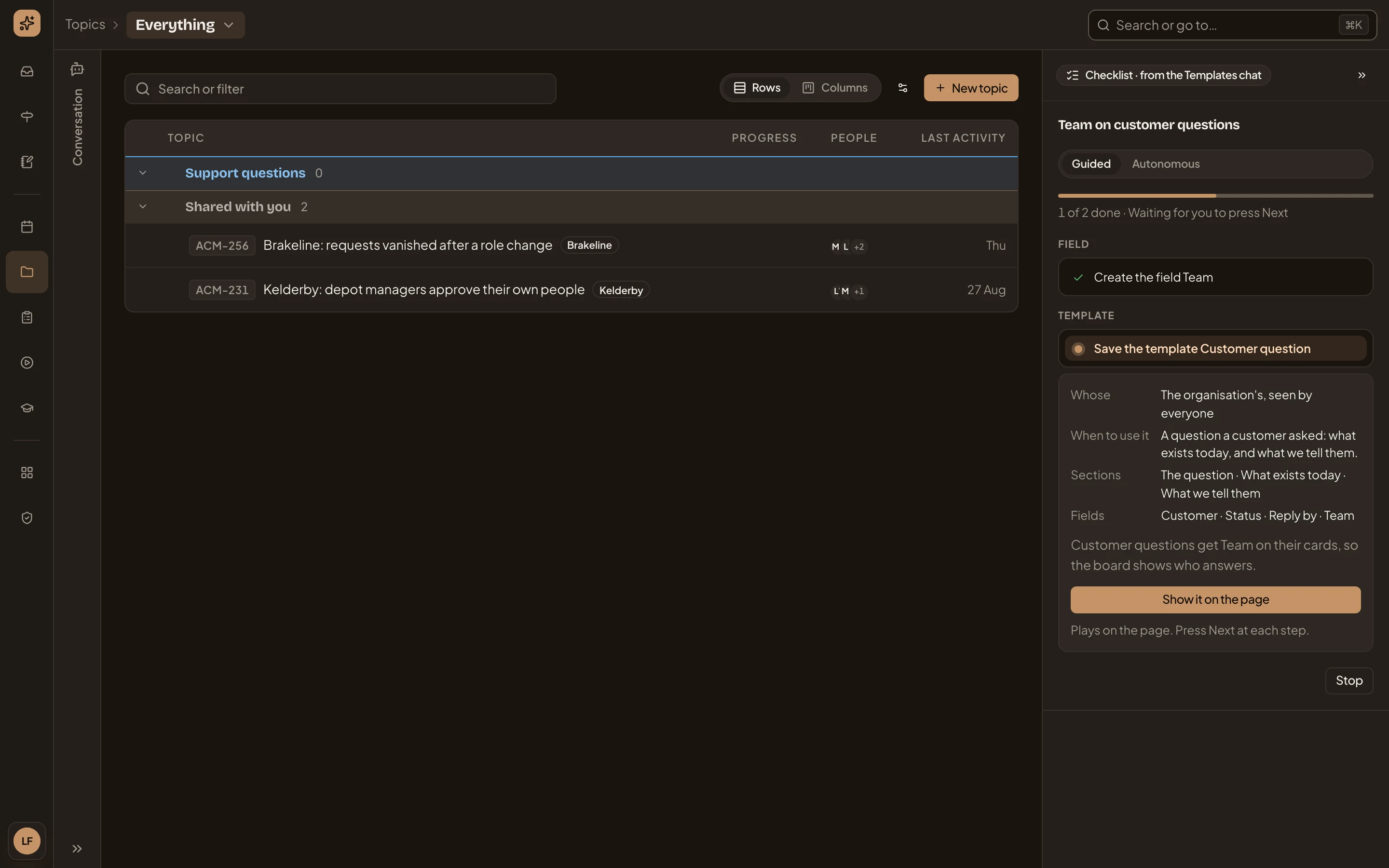
- The checklist.
The checklist, part by part
Section titled “The checklist, part by part”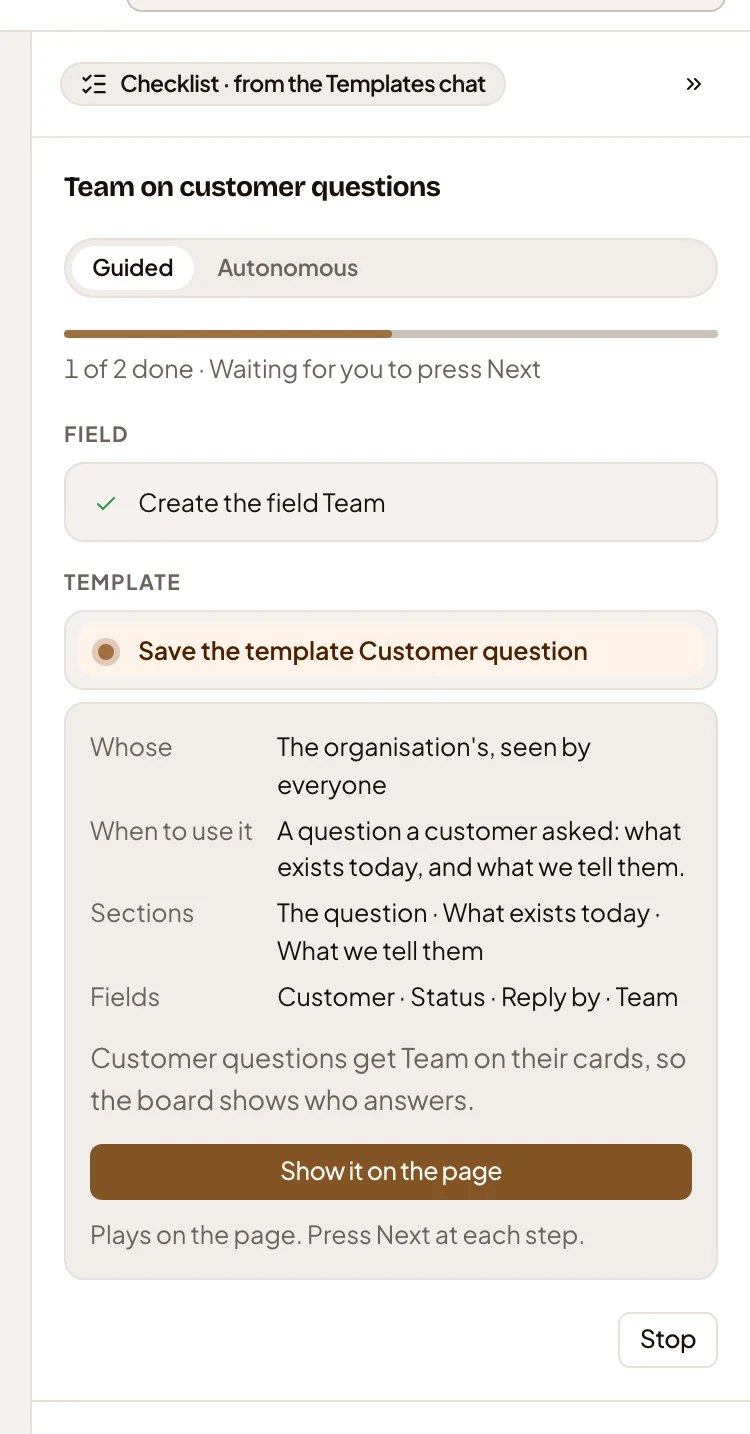
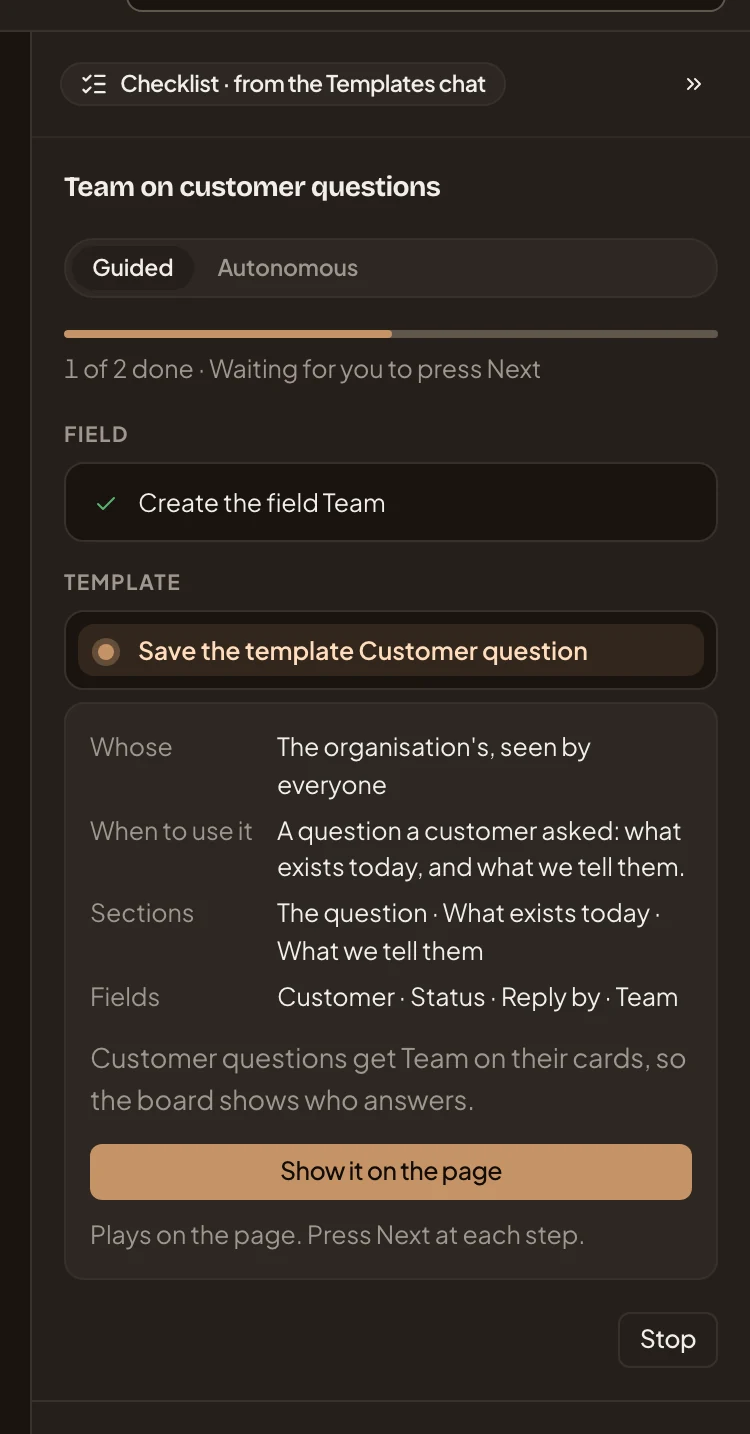
- Checklist · from the Templates chat. The chat it came from. The agent beside whichever page you’re on can read and change it.
- Collapse the checklist. Collapses the rail to a strip (see Collapsed). ⌘. does the same.
- Team on customer questions. What the job makes.
- Mode. Guided waits for your Next at every step, so you can read why. In Autonomous, the agent runs the steps. It waits for you to confirm a deletion, make a choice, give a key or send something out of Emargen, and it stops if a step fails. You can switch while it runs.
- 1 of 2 done. How far it has got, and where it stands, like Running, Waiting for you to press Next, Running on its own, Stopped, Failed or Done.
- Field. The steps, grouped by what they make. A step that’s done has a tick. A group whose steps are all done folds into one line, like “Fields · 5 made”.
- Template. The group the checklist is on. Its open step shows what it will change, line by line, and the agent’s reason.
- Show it on the page. For a step that fills a page, like saving a template. It opens that page and plays the change there, part by part (see On its page). A step that only needs your go-ahead has Next here instead, or its own word, like Delete, for something only you may do.
- Stop. Stops the checklist where it is. What’s done stays done. A stopped checklist offers Continue, from the first step not done, or End.
The agent can also wait for something, like a repository’s analysis. It shows a spinner with what it waits for. It continues on its own, so you can close the tab. A step that sends something out of Emargen, like an invitation, shows exactly what goes, and waits for you to send it.
When a step is refused, the checklist stops there and says why. To change it, tell the agent beside the page which step was refused. It offers a changed checklist as a card in the chat. The rail then shows “The agent changed this checklist” with Start the change, which carries on from the first step not done.
Once every step is done, the checklist lists what it made, each linking to its page. Close takes the checklist out of the rail.
Collapsed
Section titled “Collapsed”Collapsed, the checklist is a strip at the right edge, with a ring that fills as steps finish, the count, and the title.
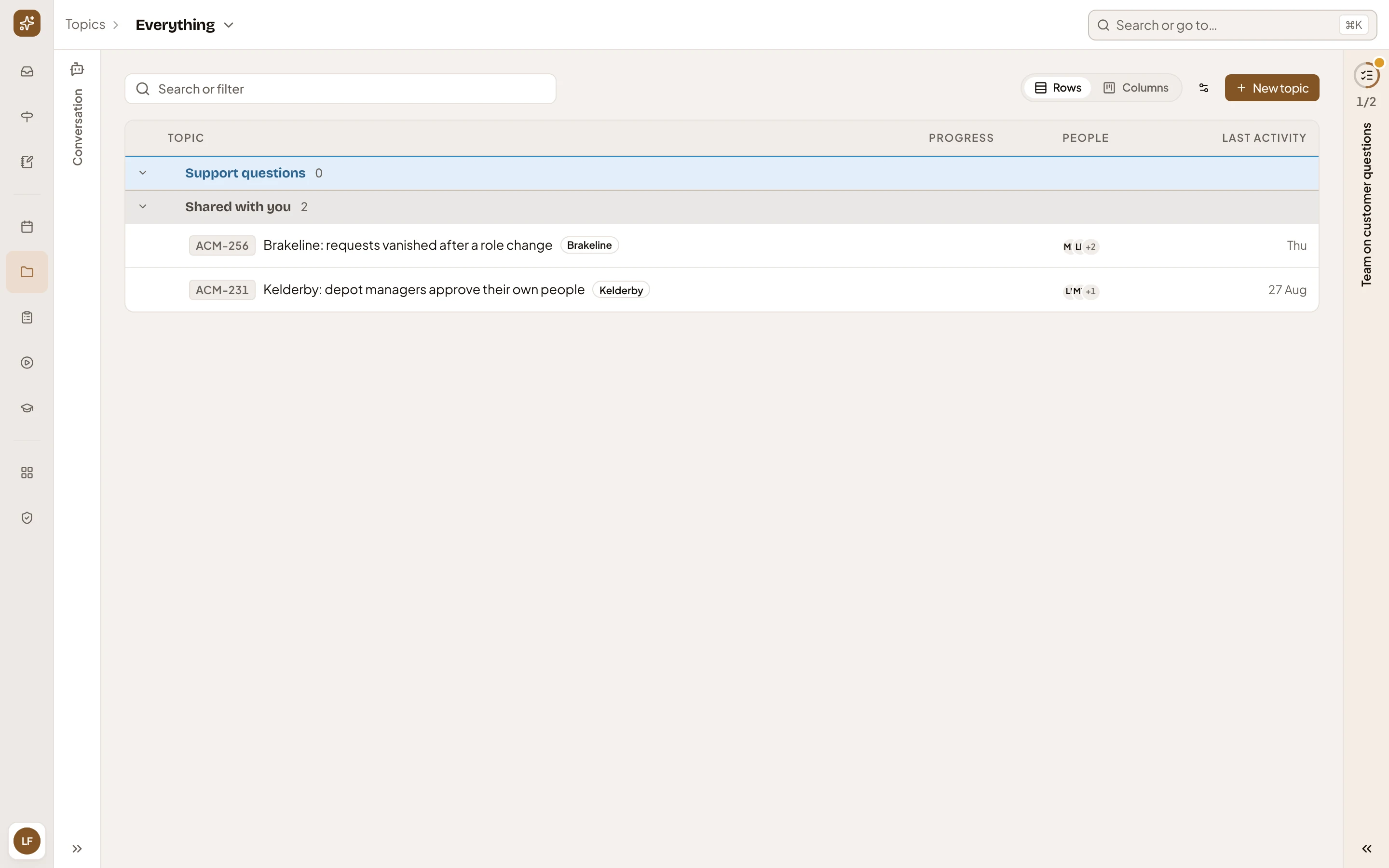
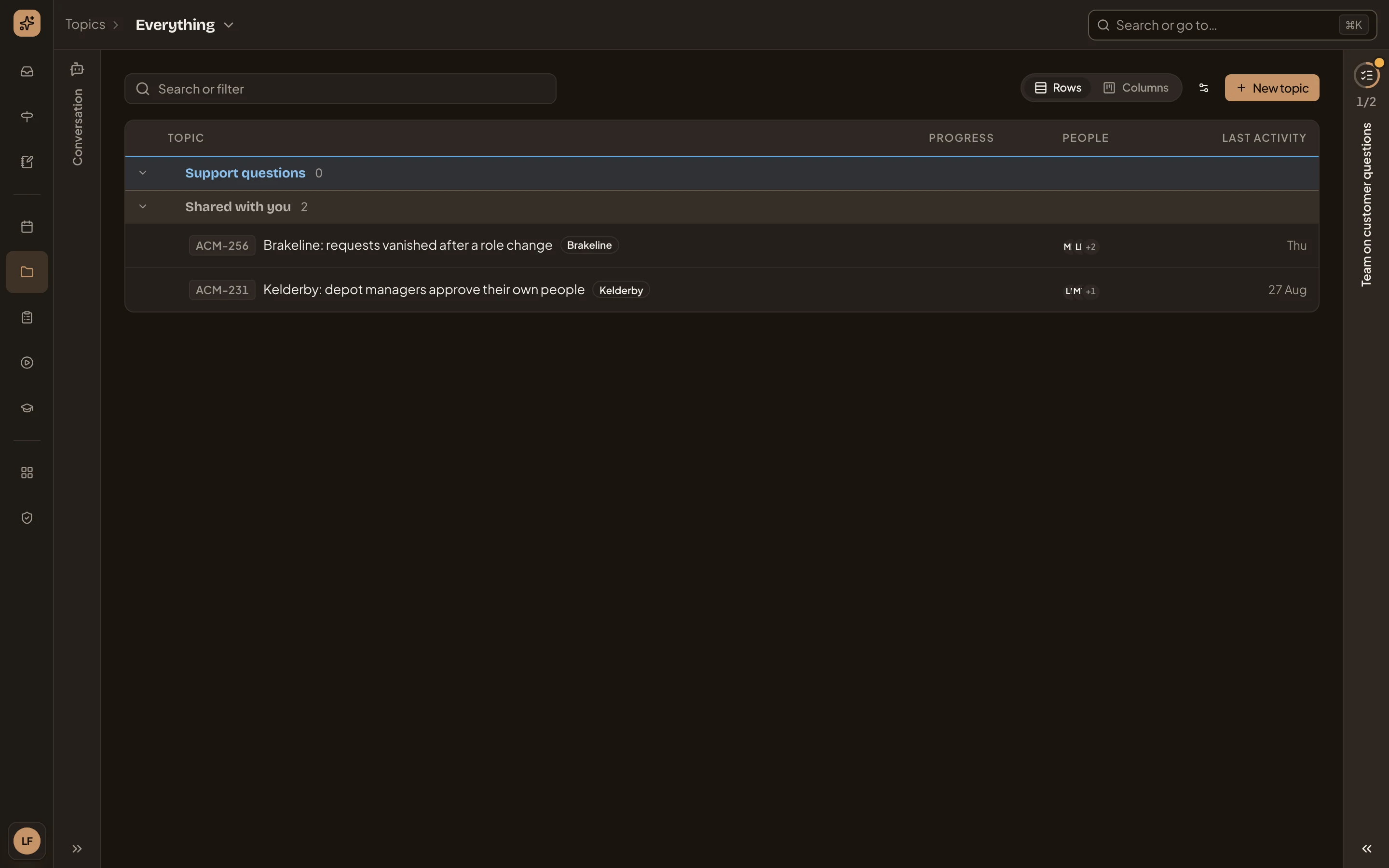
- The collapsed checklist. Its dot says where it stands. It’s blue while a step runs, amber while it waits on you, red when a step failed, and a tick once it’s done. Click it to open the checklist again.
A collapsed checklist opens by itself when a step waits for your Next, or when one fails.
On its page
Section titled “On its page”Show it on the page opens the page the step fills and plays the agent’s change there. You press Next at each part, with the agent’s reason beside it. The last Next makes the change. Here the step opens the Customer question template, with Team among its fields.
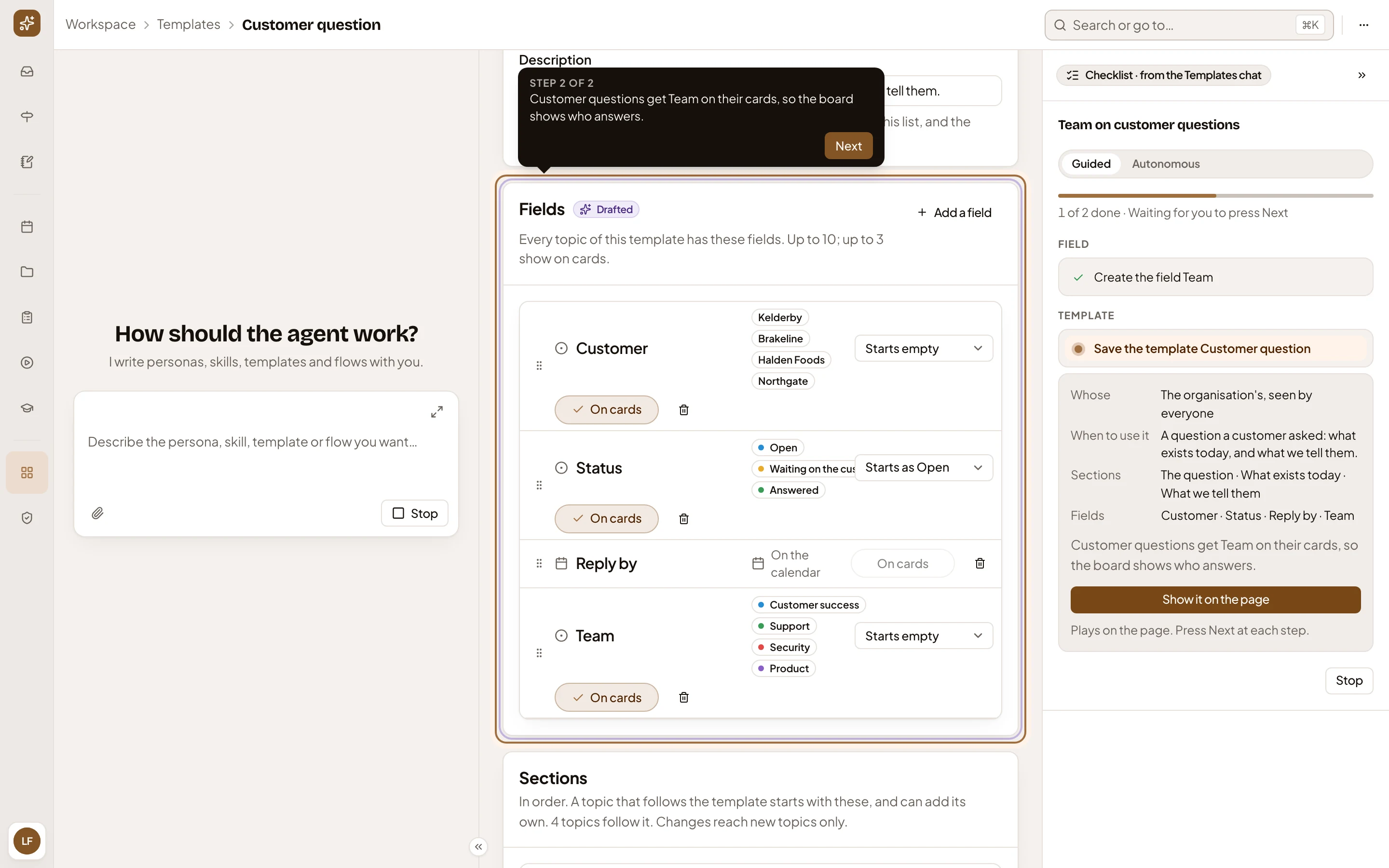
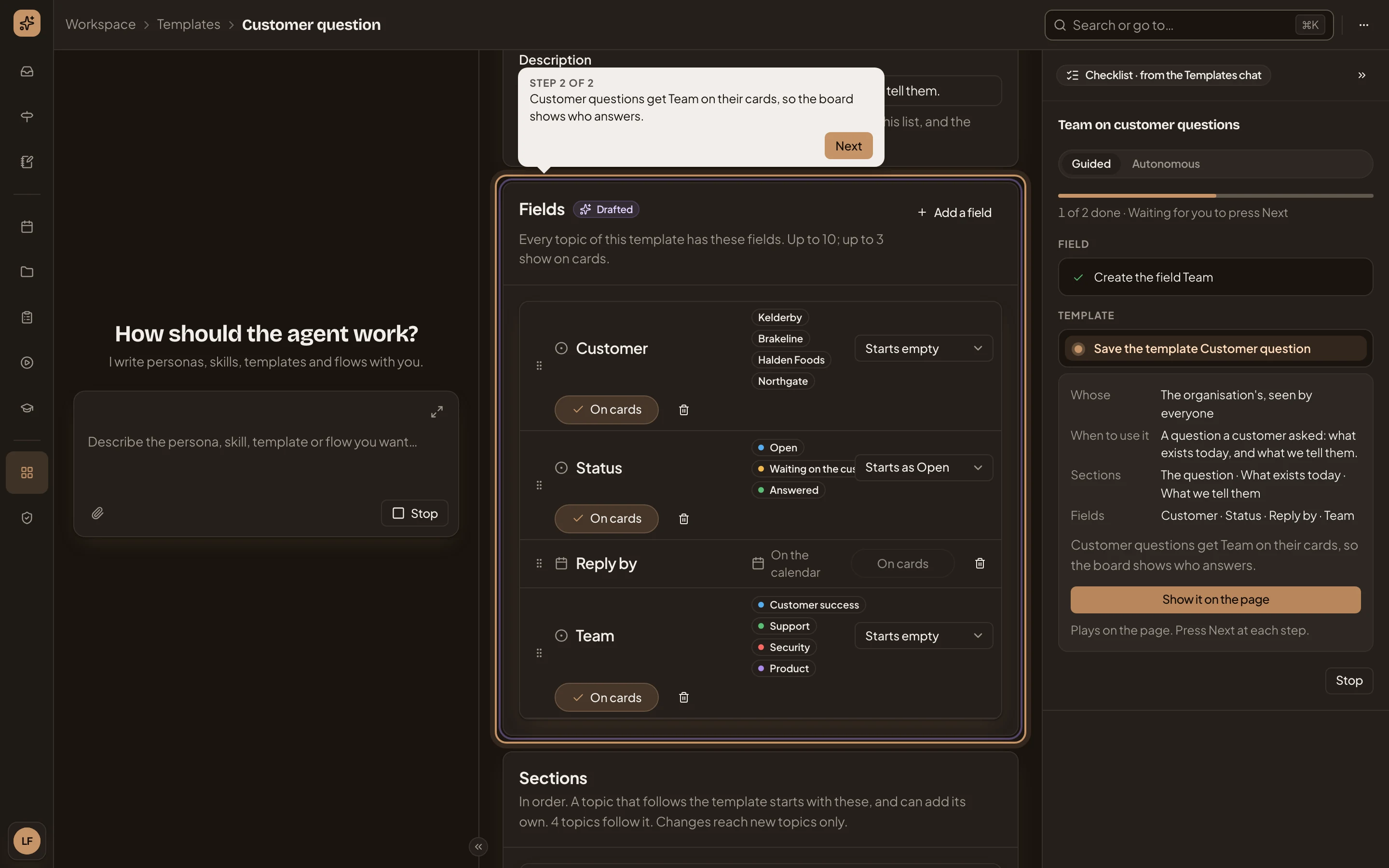
- Customer question. The page the step plays on.
- Drafted. A part the agent filled in, ringed while it waits for you.
- Where it is and why: “Step 2 of 2”, and the agent’s reason.
- Next. Takes the next part. Enter does the same, even in a one-line field, but not in a longer text box or on a button. On the last part, it saves.
After the last Next, Emargen opens what the step made. Typing outside the chat while the change plays ends it, and so does Stop in the chat’s message box. The step isn’t taken then. To play it again, reload the page and press Show it on the page.
Show it on the page waits while the page is busy, like the chat beside it still answering. If you’re in the tab when the checklist reaches a step, the change plays by itself. If the step was already waiting when you opened Emargen, like the one in the pictures, press Show it on the page. In Autonomous, steps don’t play on their pages. They’re taken one after the other.
In Decisions
Section titled “In Decisions”While a checklist waits on you, its step also shows in Decisions, under the checklist’s own name, with Open the checklist and Postpone. So it doesn’t wait unseen.
On a phone
Section titled “On a phone”On a phone, the checklist is a bar at the foot of the page.
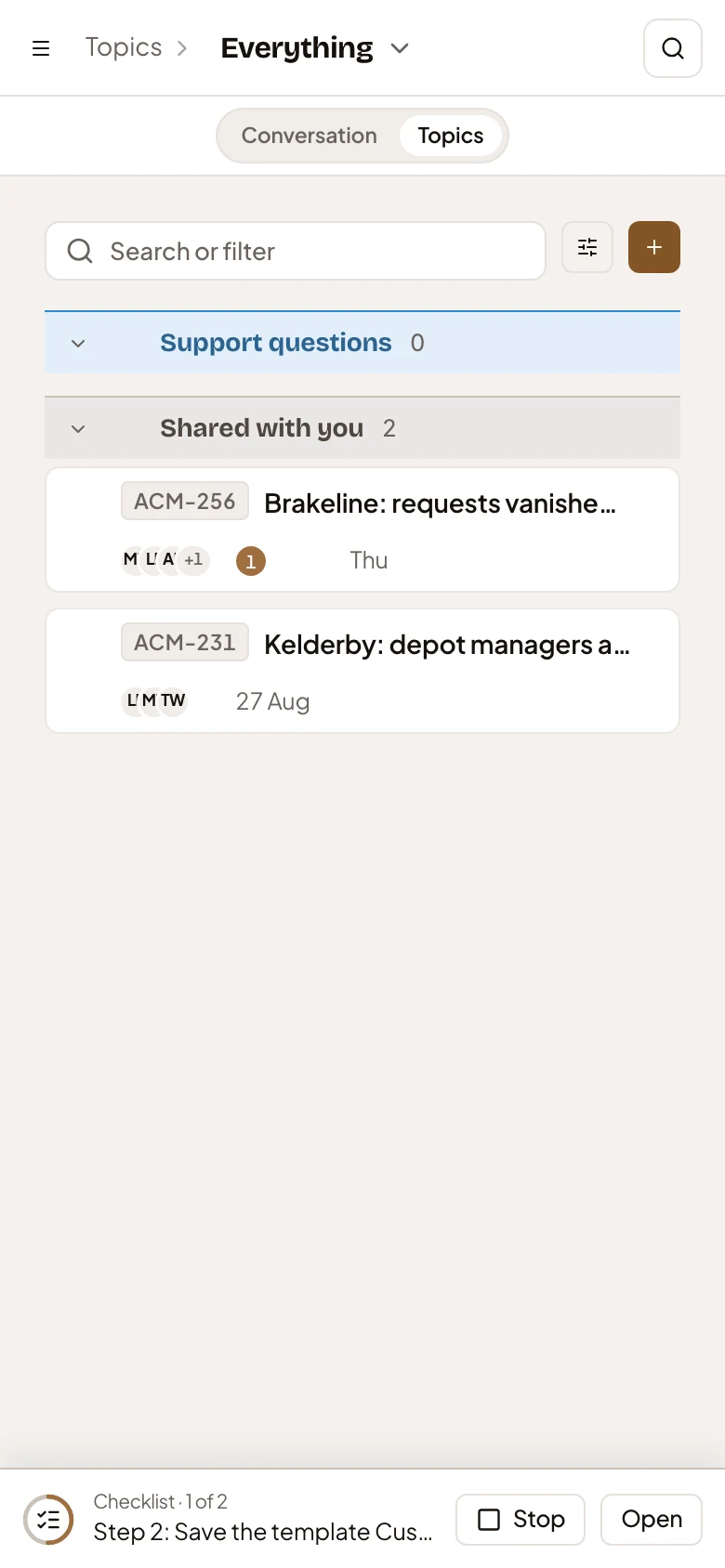
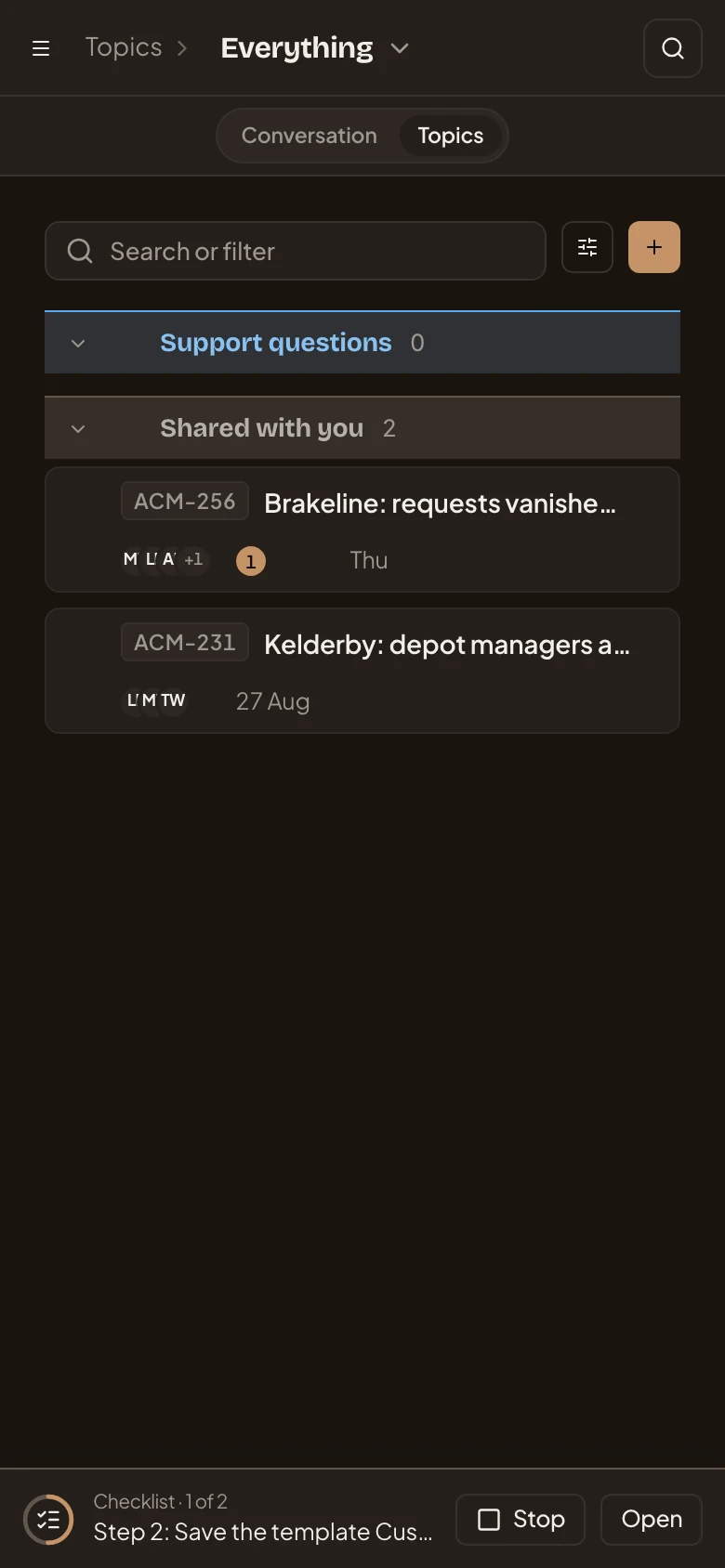
- The bar shows how far it has got and the step it’s on. Tap it to open every step in a sheet.
- Stop. Ends the checklist where it is.
- Open. Opens the steps, for a step that asks more than Next. A step that only needs your go-ahead has Next here instead.
Access
Section titled “Access”Only you see your checklist. It runs as you, and can only make the changes you’re allowed to make. You have one at a time. A second one you start waits until the first ends or you stop it. See Let the agent do a job of several steps.