

CalendarHow to
Plan your week
Open the Calendar to see what’s due this week and what the agent will run. You can also catch up on a day you missed.
Before you start
Section titled “Before you start”- Who can
- Everyone in the organisation has a Calendar. It shows only the topics and initiatives you can open, and the agent tasks you can see.
- The pictures
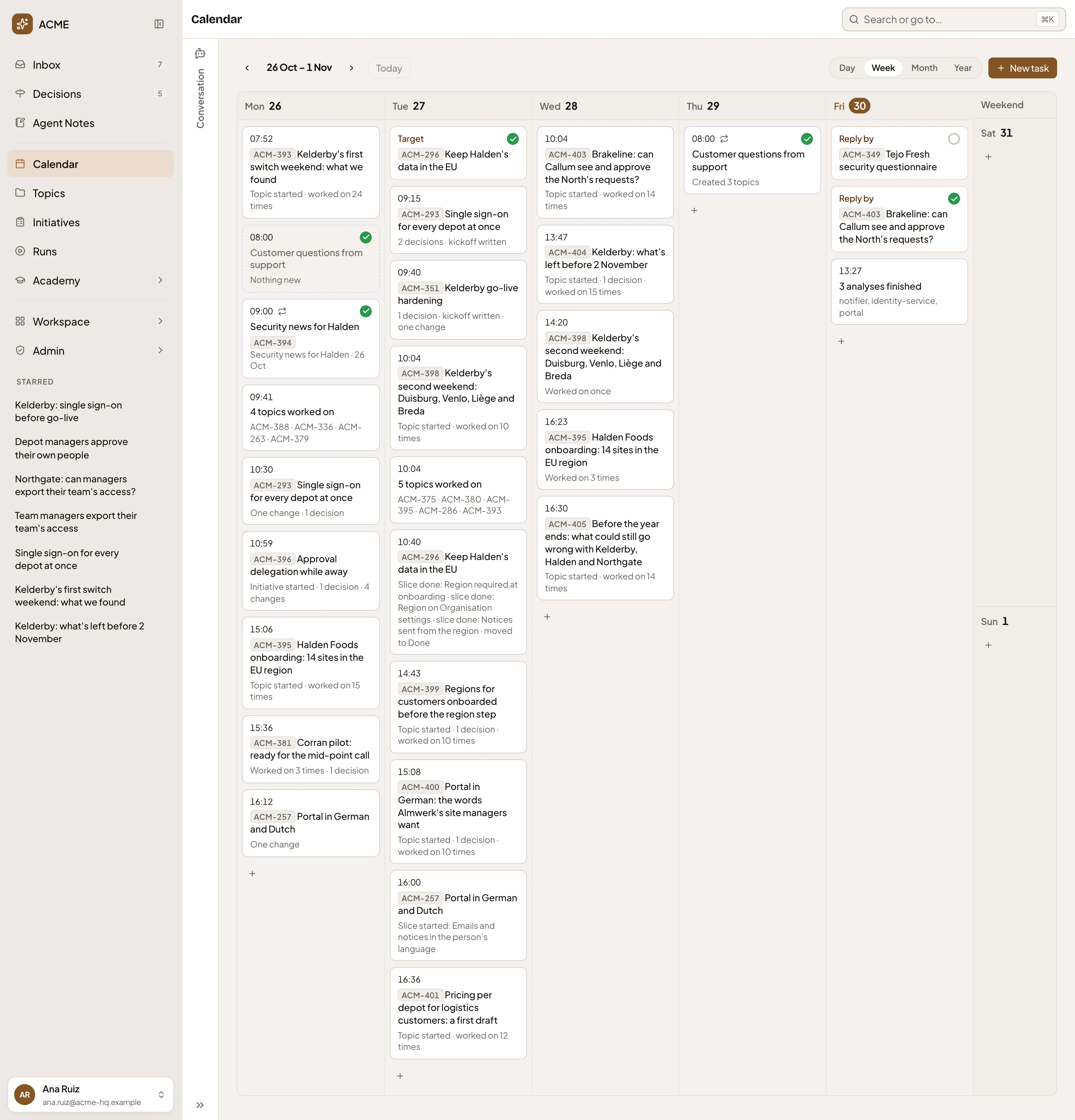
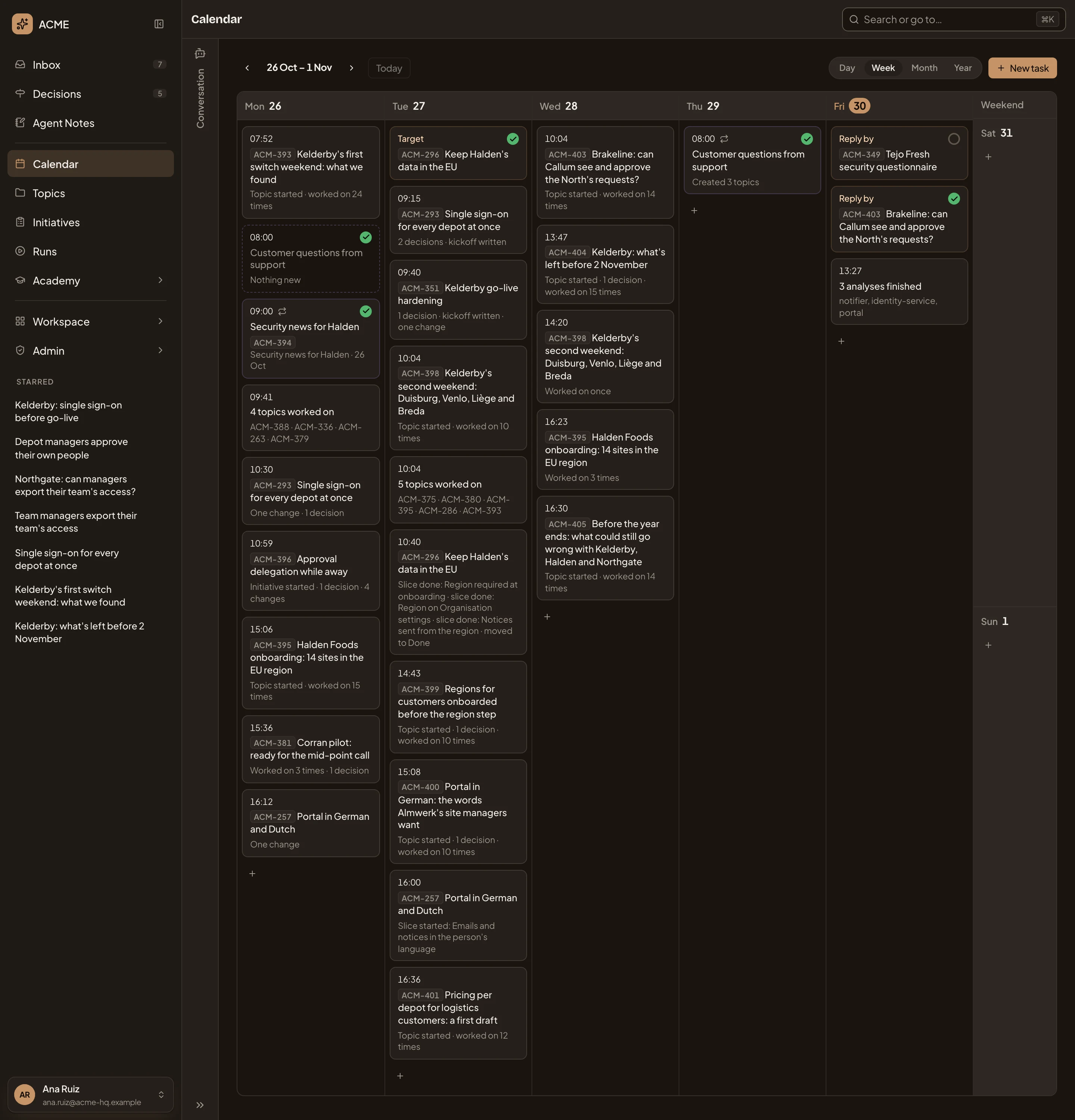
- The pictures show the Calendar of ACME’s customer success lead on Friday 30 October. Yours opens on your own week.
-
Click Calendar in the menu. On a computer it opens on the week you’re in. On a phone, it opens on today.
Open the Calendar (opens Emargen in a new tab) -
Read the week. Each day lists the agent tasks that ran or will run, with their time, what happened on your topics and initiatives, and what’s due. Saturday and Sunday share the last column.
- The previous week.
- The next week.
- Today: back to the week you’re in. It’s greyed out while you’re on it.
- Day, Week, Month and Year.
A past run shows a mark and what it made, or “Nothing new”. What happened to one topic or initiative that day shares one entry, like “Topic started · worked on 24 times”. Something due shows its label, such as Reply by or Target, and the key of its topic or initiative.
-
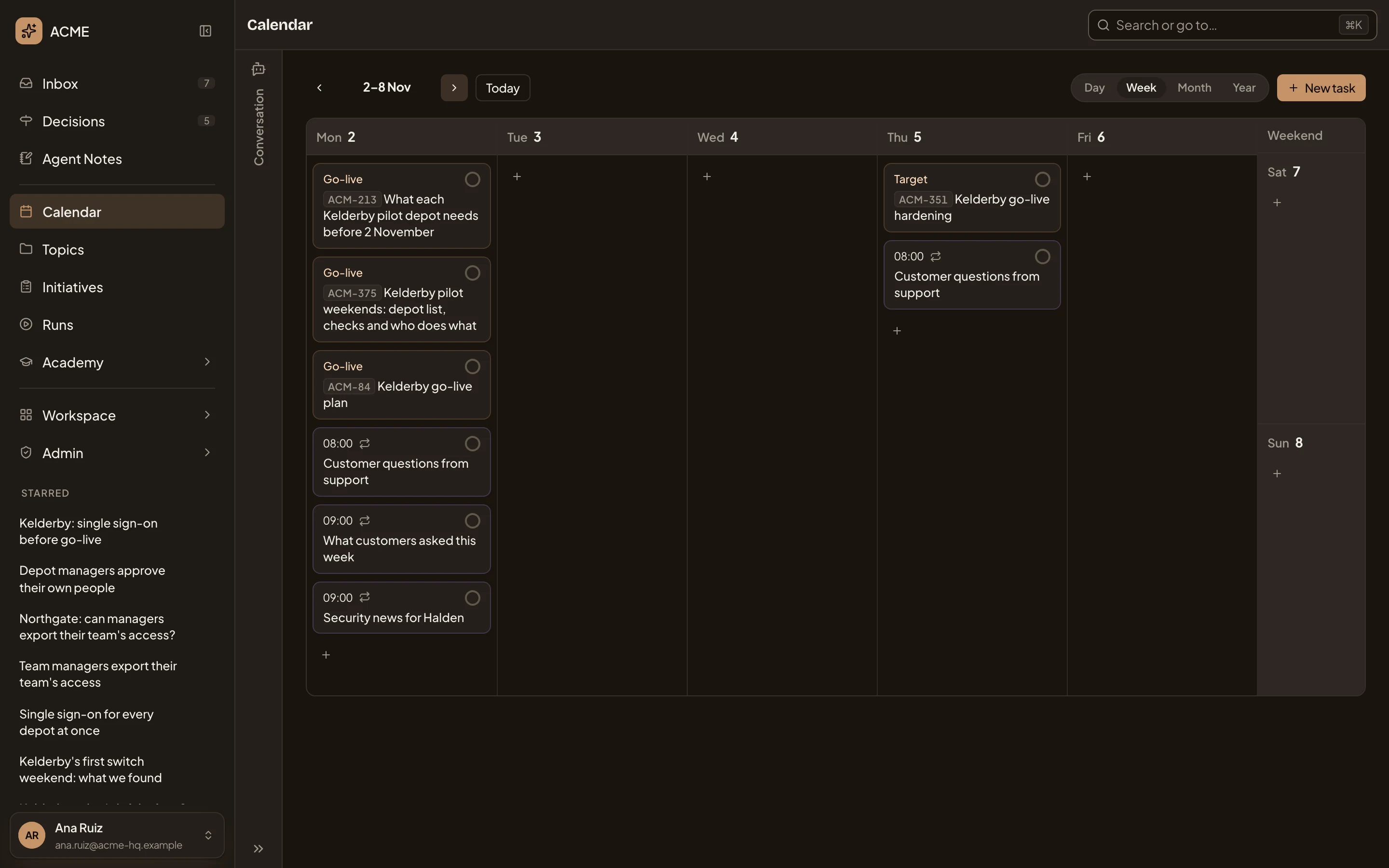
Click the arrow to the right of the dates to see next week. In the picture it holds three go-live dates and three tasks on Monday, and an initiative’s target and a task on Thursday.
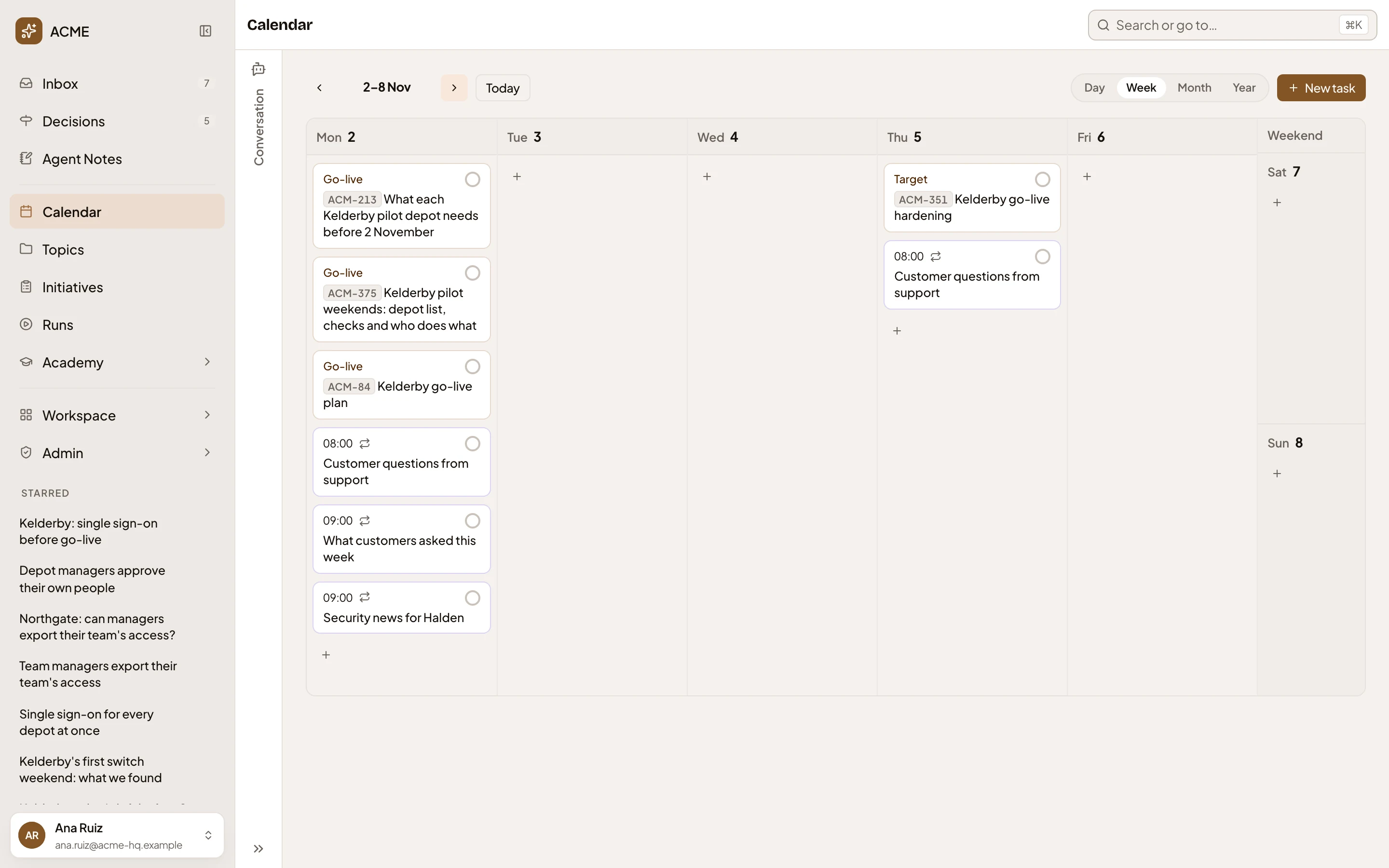
- A date on a topic, here its go-live.
- An agent task still to run. Click it to open the task’s page.
- An initiative’s target: ACM-351 is due on Thursday 5 November.
-
Click an entry to open what it’s about: a topic, an initiative, or a run’s topic. A run that made several topics, or an entry like “4 topics worked on”, opens a panel beside the week that lists them. Close the panel with × at its top right.
-
To see further ahead or further back, click Month. Each day has marks instead of names. The Legend under the month says what each mark is, like Past run, Target date or Late or failed run.
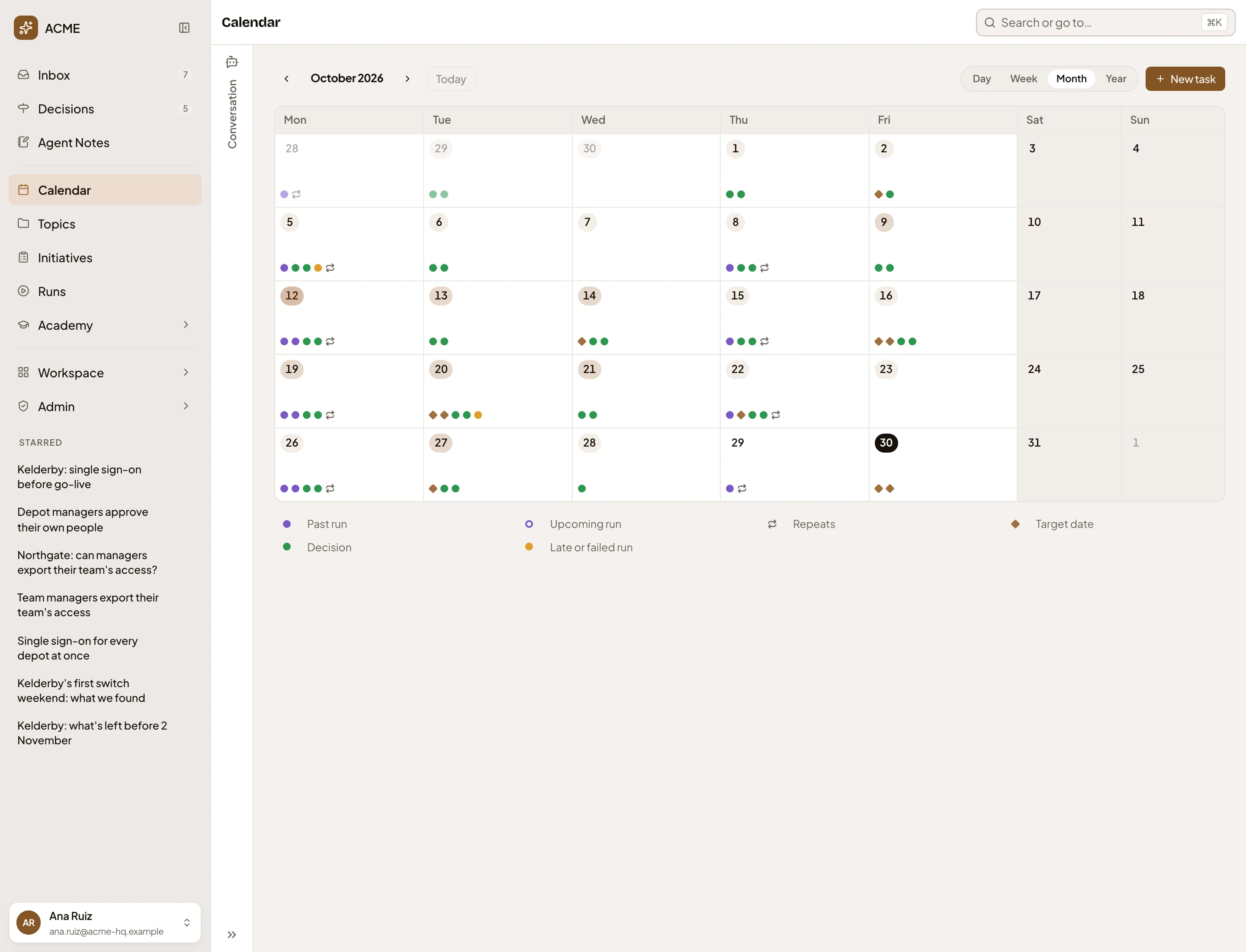
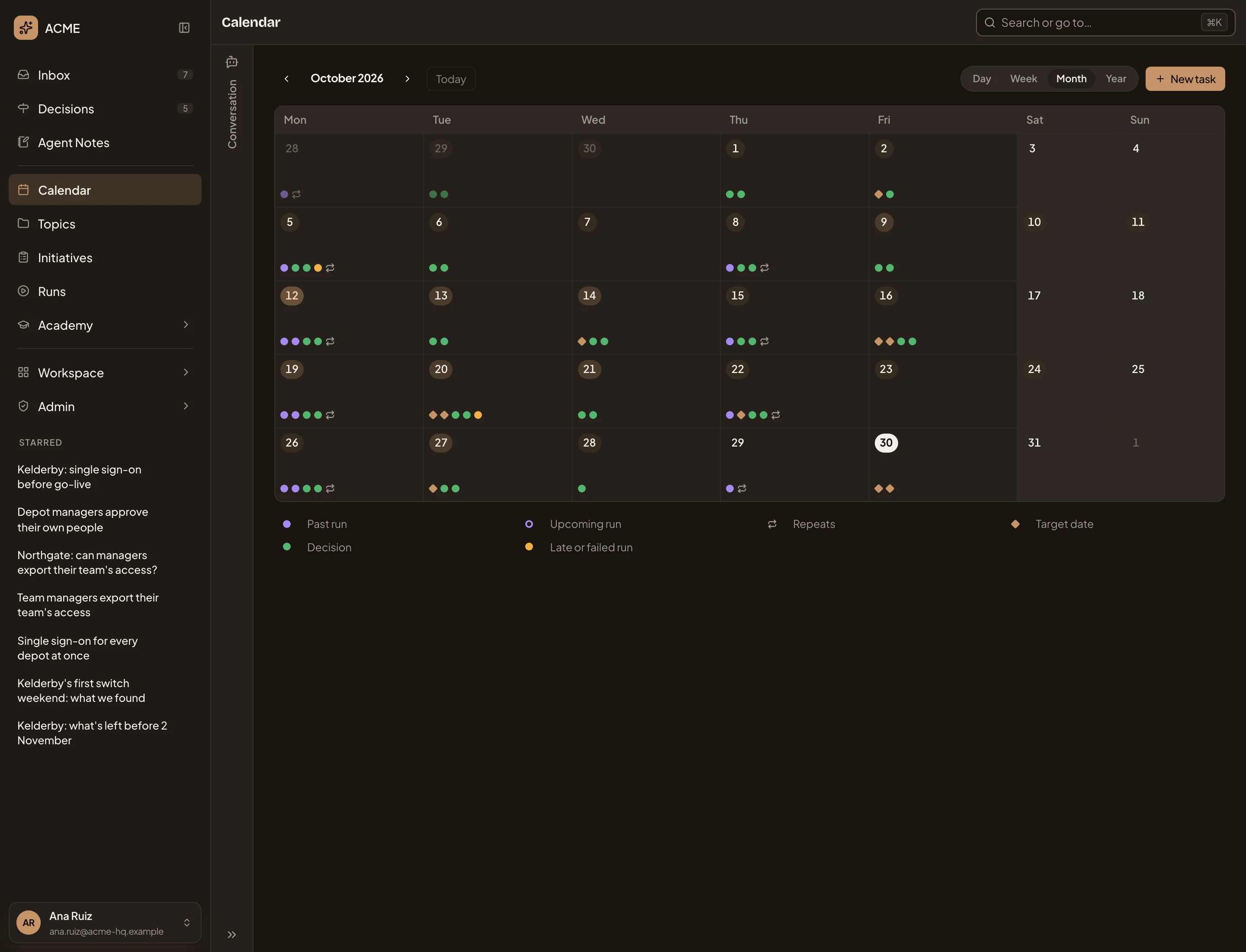
- A day with a run that failed.
- Today.
- Legend.
-
Click a day to see it on its own, hour by hour, as Day. It holds the tasks’ runs and the work on your topics and initiatives, like a topic started, a slice done or a decision taken. Use the arrows to go back a day. In the picture, Monday 26 October.
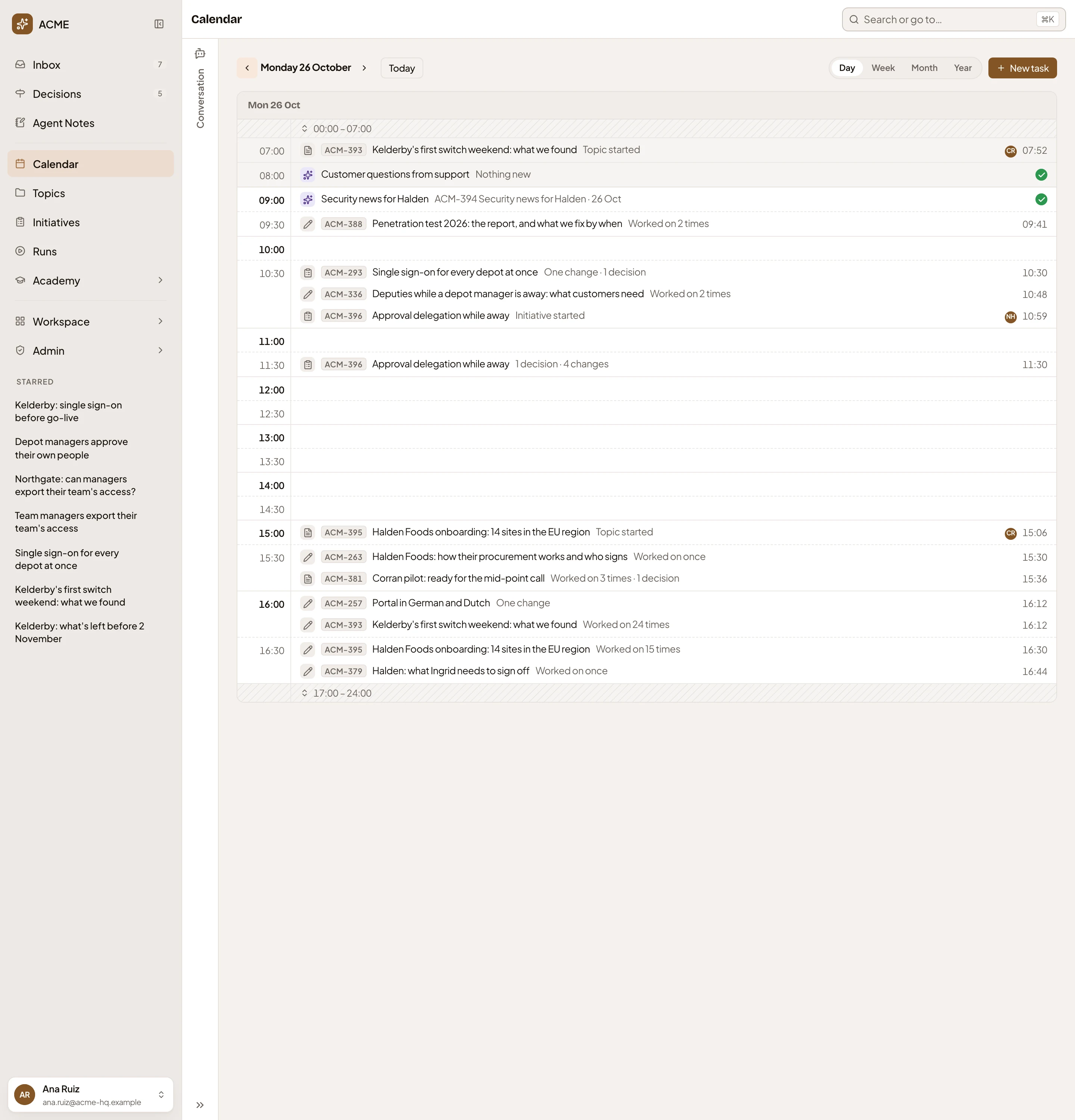
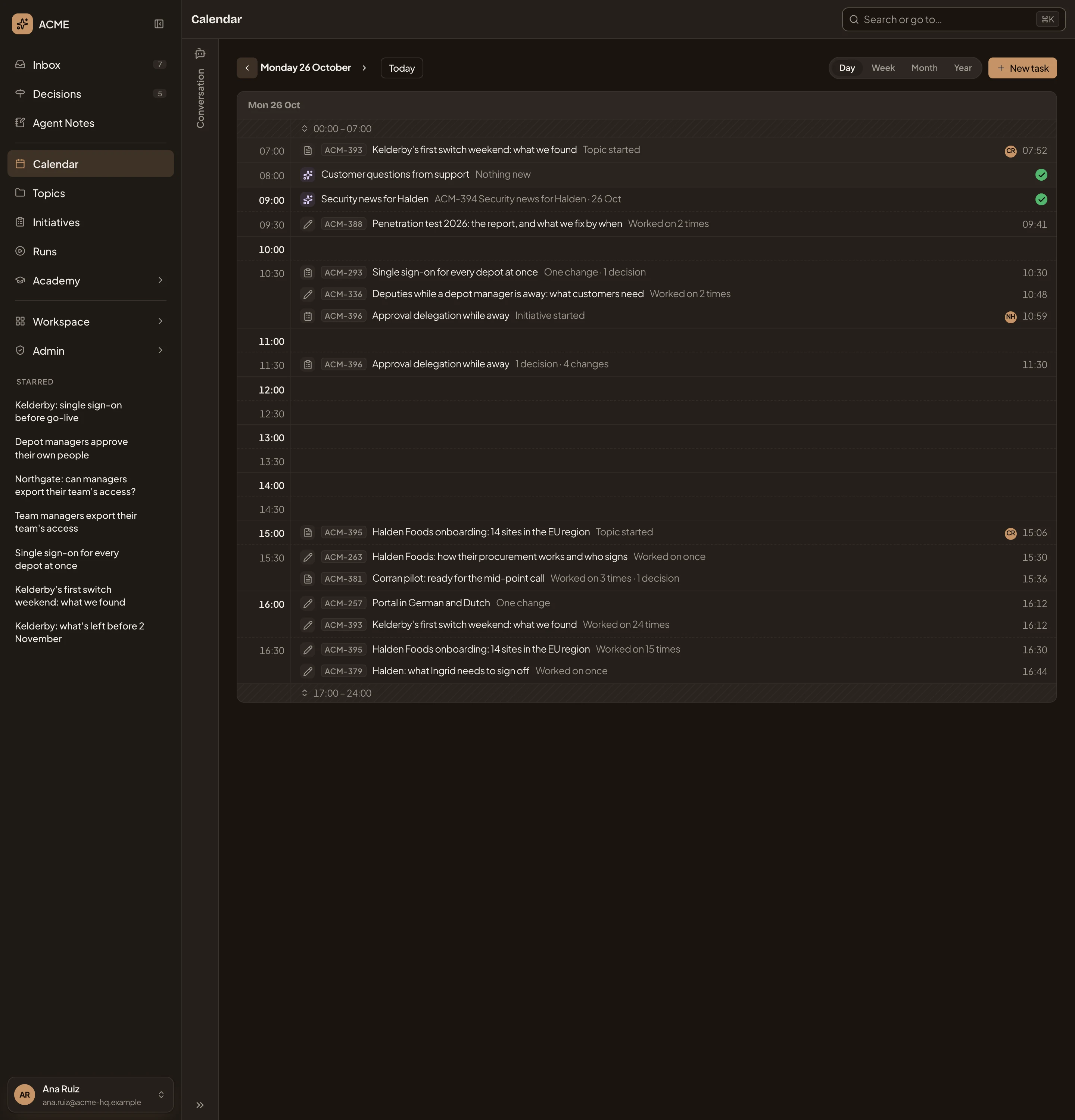
- The hours before the working day, folded. Click to show them.
- A run and the topic it made. Click the topic to open it.
- What happened to an initiative in that half hour: one change and a decision. Click it to open the initiative.
- The evening, folded.
The Day view shows the working day in half hours. An administrator sets its hours on the Workspace page. To go back to a week, click Week. It shows the week of the day you’re on, and Today brings back the week you’re in.
What you get
Section titled “What you get”- The week ahead in one view: what’s due, and which jobs the agent will run and when.
- What happened on a day you missed.
- You don’t put dates on the Calendar itself. Due dates are set on your topics and initiatives. To move one, change it where it lives, such as a topic’s Reply by field.