

Getting aroundHow to
Change how Emargen looks
Change how Emargen looks when the light theme is hard on your eyes in the evening, or when you’d like your own colour. Nobody else sees the change, and it follows you into every organisation you belong to.
Before you start
Section titled “Before you start”- Who can
- Anyone can change their own appearance.
- The pictures
- The pictures show Ana Ruiz’s menu and Preferences at ACME.
-
Click your name at the bottom of the menu, then Your profile.
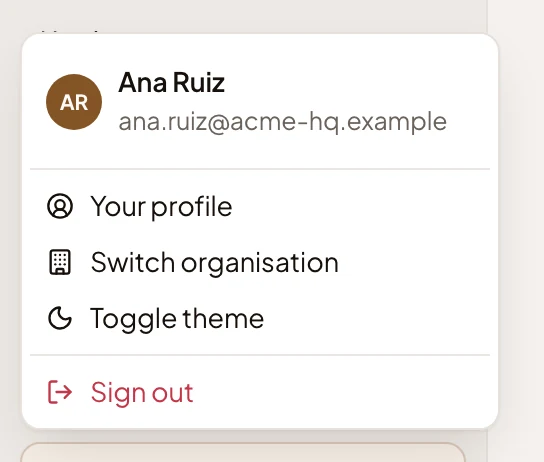
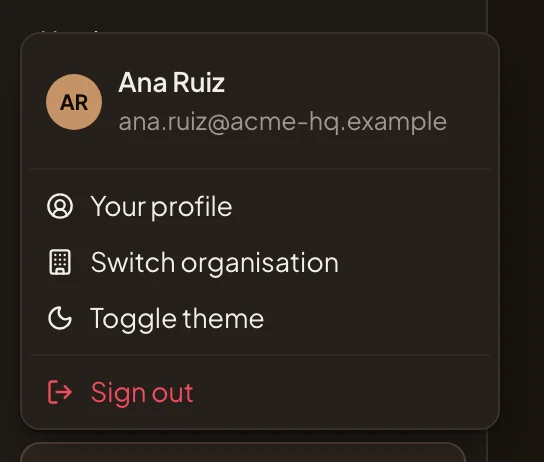
- Click Your profile.
- Click Toggle theme. to switch between light and dark at once, when that’s all you want.
-
Click the Preferences tab. Appearance is at the top.
Open Preferences (opens Emargen in a new tab)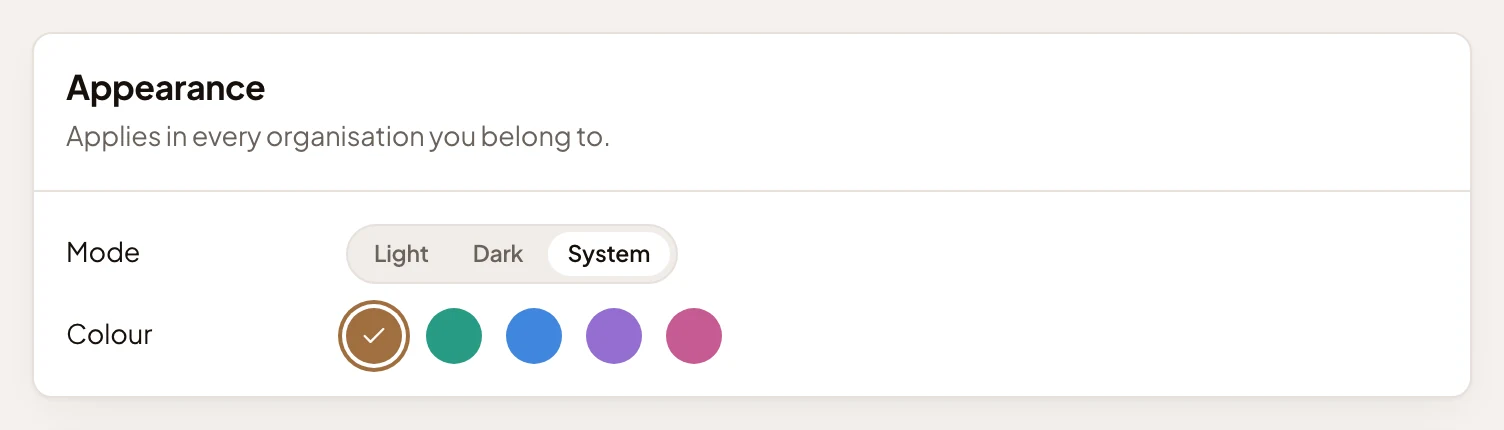
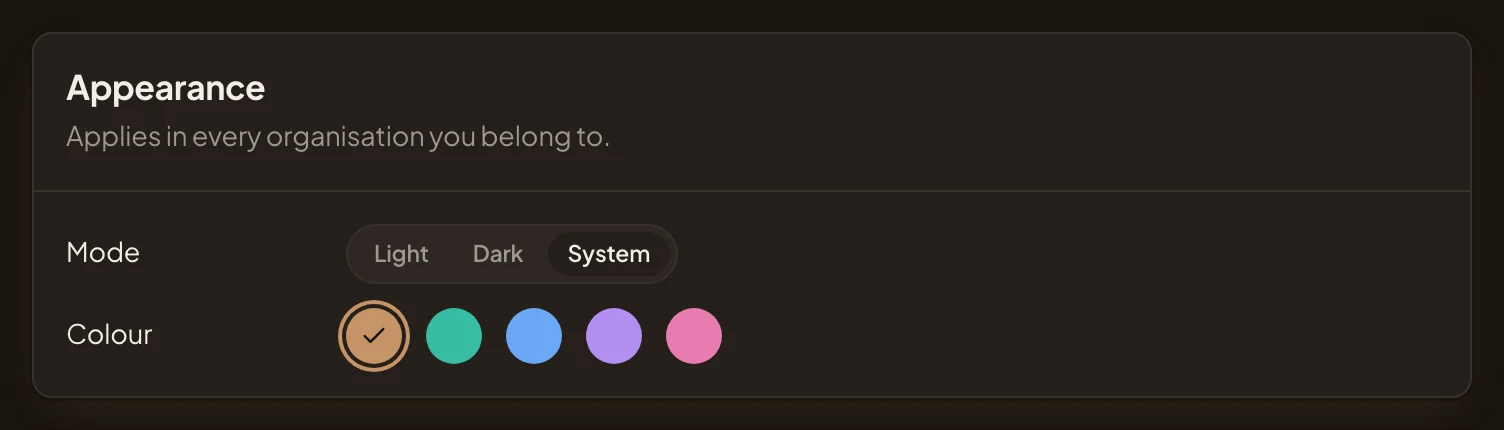
- Mode.
- Colour.
-
Under Mode, choose Light, Dark or System, which follows your computer’s setting.
-
Under Colour, click a swatch: Bronze, which you start with, Teal, Blue, Violet or Pink. Buttons, links and highlights take it at once.
There’s nothing to save. Each choice applies as you make it.
What you get
Section titled “What you get”- You’ll see your choice in every organisation you belong to.
- Nobody else sees a change. A colleague can work in dark violet while you keep light bronze.