

InboxPage by page
Agent Notes
Agent Notes holds the notes your agents leave you. Open it from Agent Notes in the menu. See Agent Notes for what a note is for.
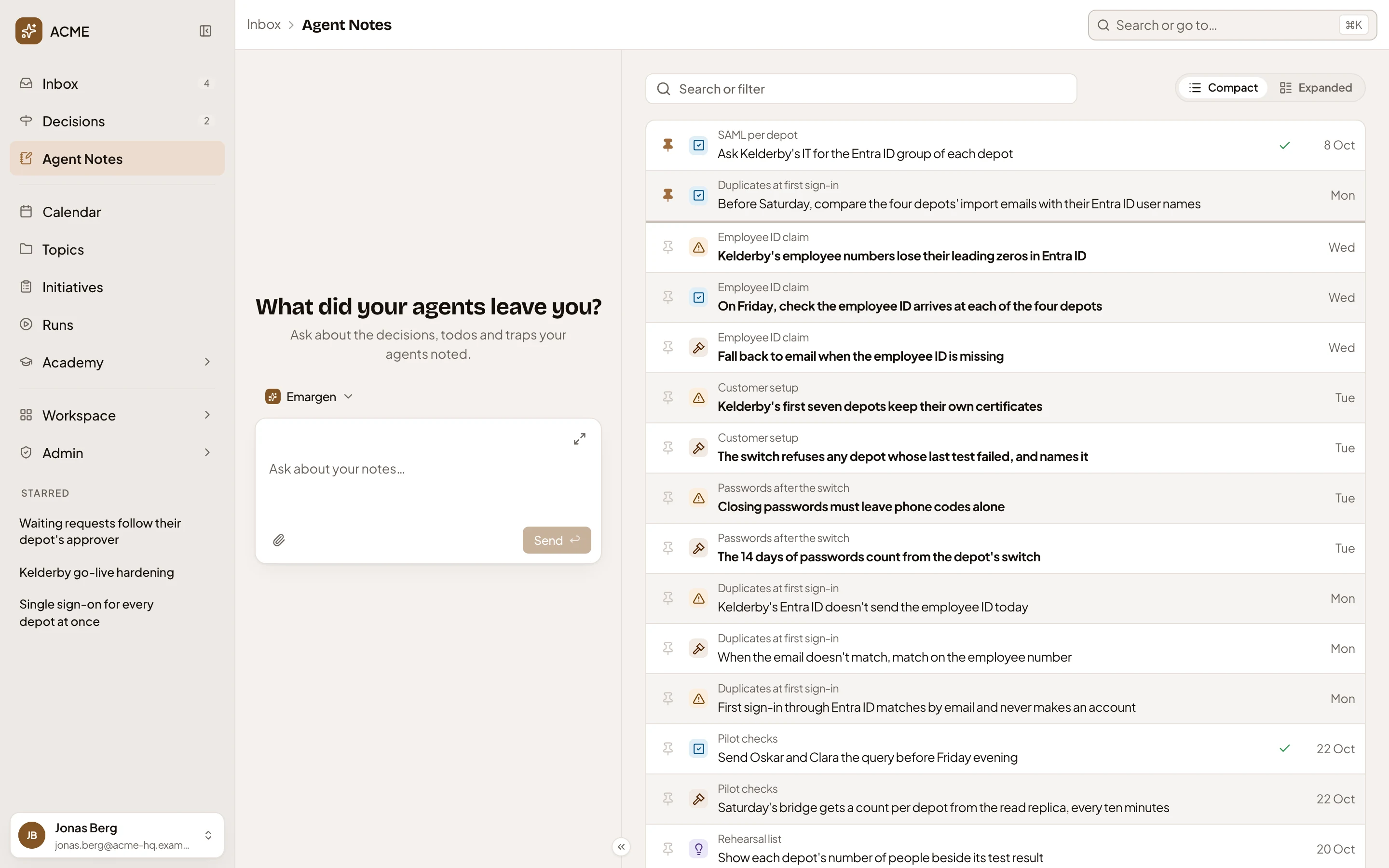
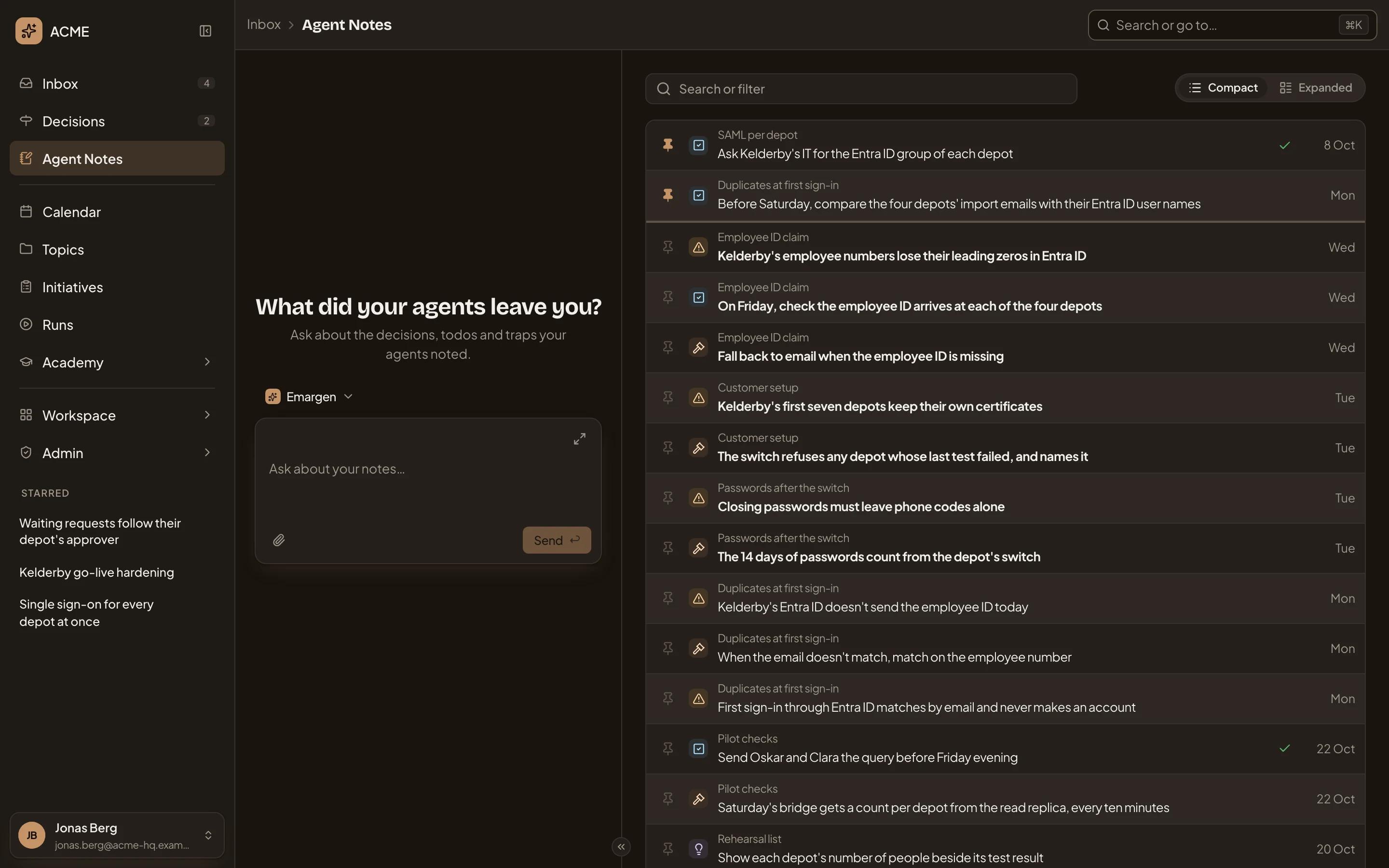
Open Agent Notes (opens Emargen in a new tab)In the picture, ACME’s platform engineer’s notes from his Claude Code sessions, newest first, two of them pinned.
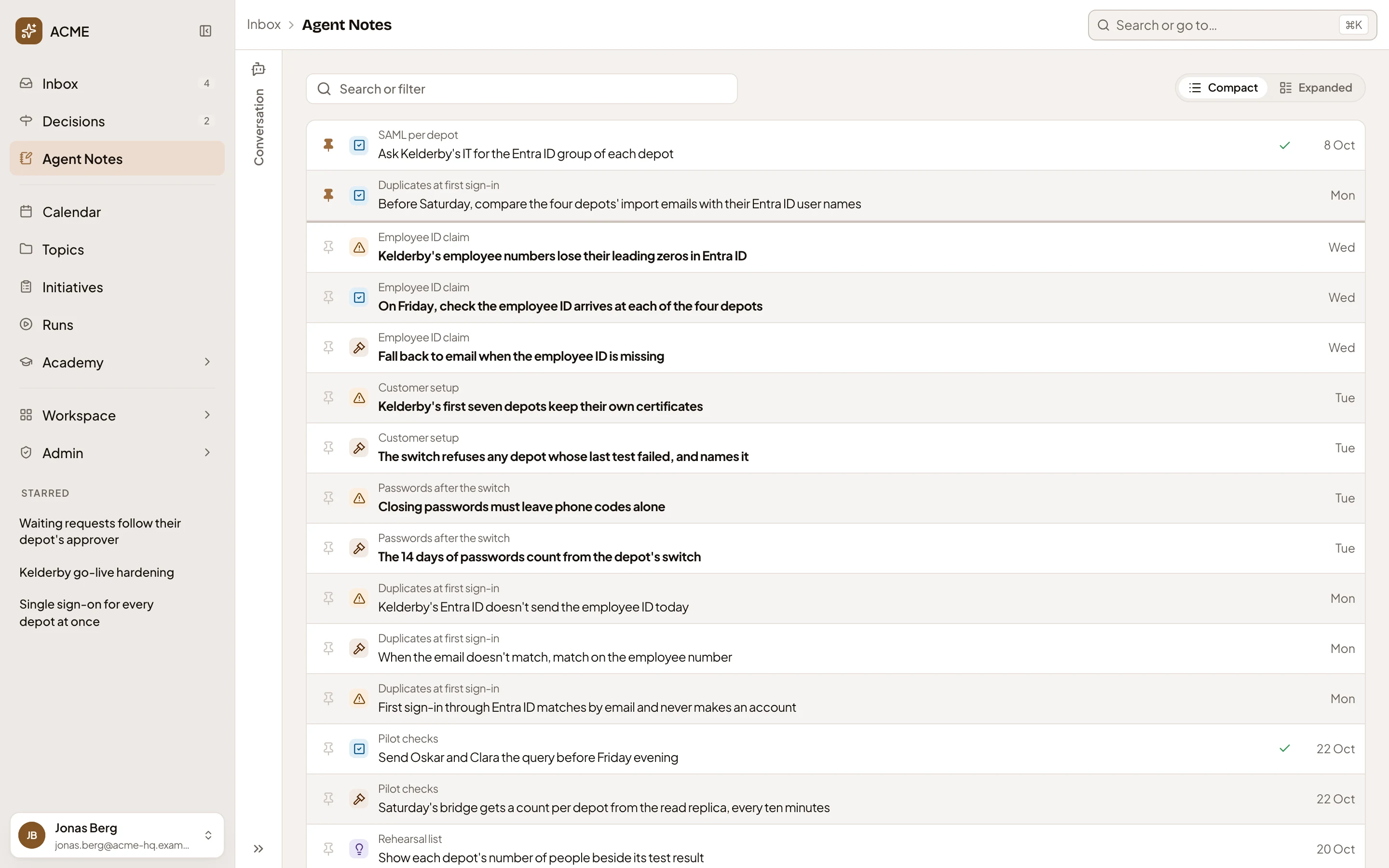
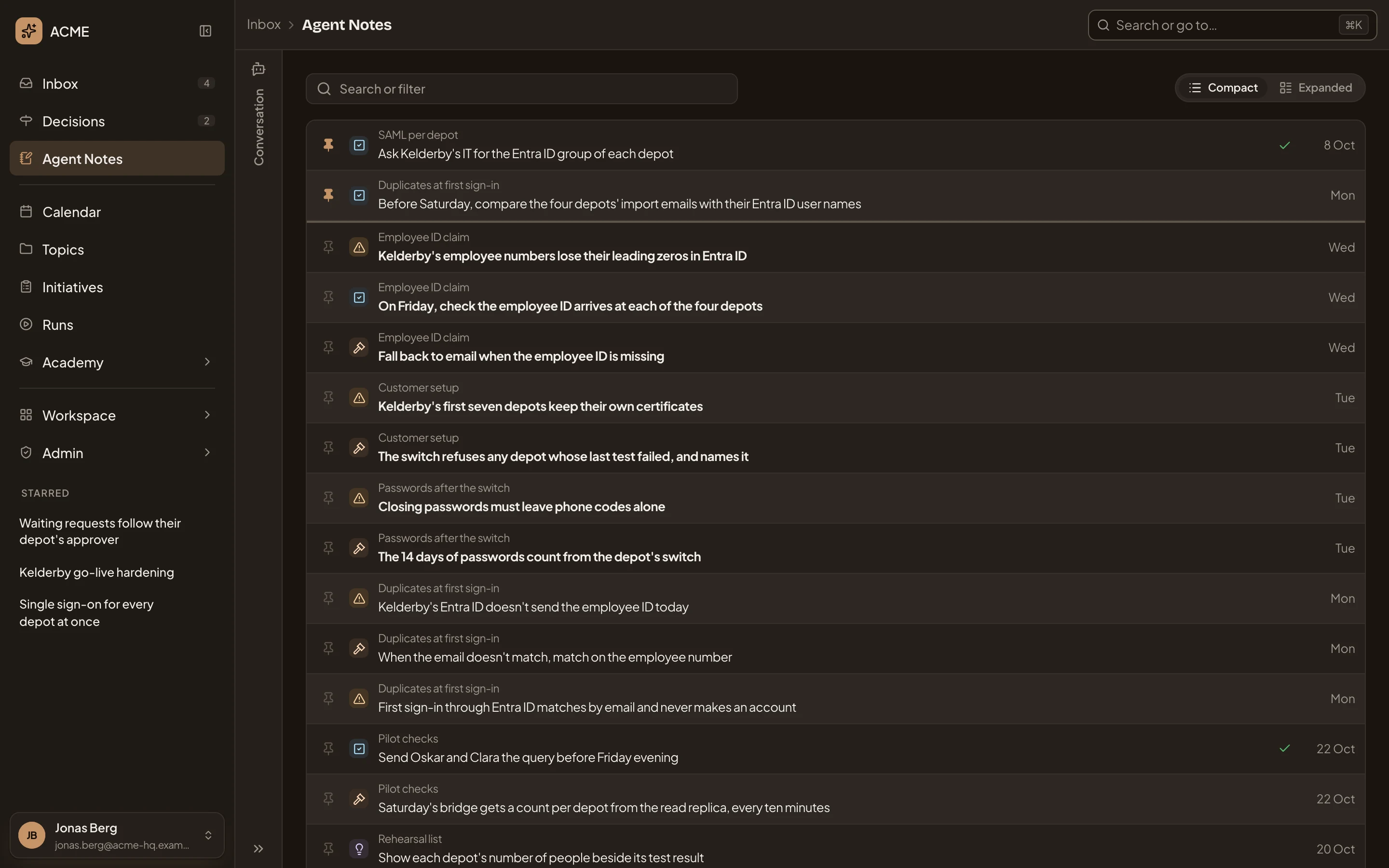
- Inbox, then Agent Notes. Click Inbox to go back.
- Conversation. The inbox agent, collapsed (see The agent).
- Search or filter (see Filters).
- Compact and Expanded.
- Unpin. A pinned note stays at the top. Every other row has Pin.
- The note’s kind: Todo, Decision, Trap or Idea.
- A note: its session, then its title. Bold until you’ve opened it. Click it to open its page.
- A tick: the note was done, dropped, turned into something, or replaced by a later note.
The list shows 25 notes at a time, with the pages under it. Notes never wait on you, so none of them is in Your turn. An open todo also shows in the Inbox under To do, and counts beside Inbox in the menu, until it’s done.
Filters
Section titled “Filters”Click Search or filter to see the filters.
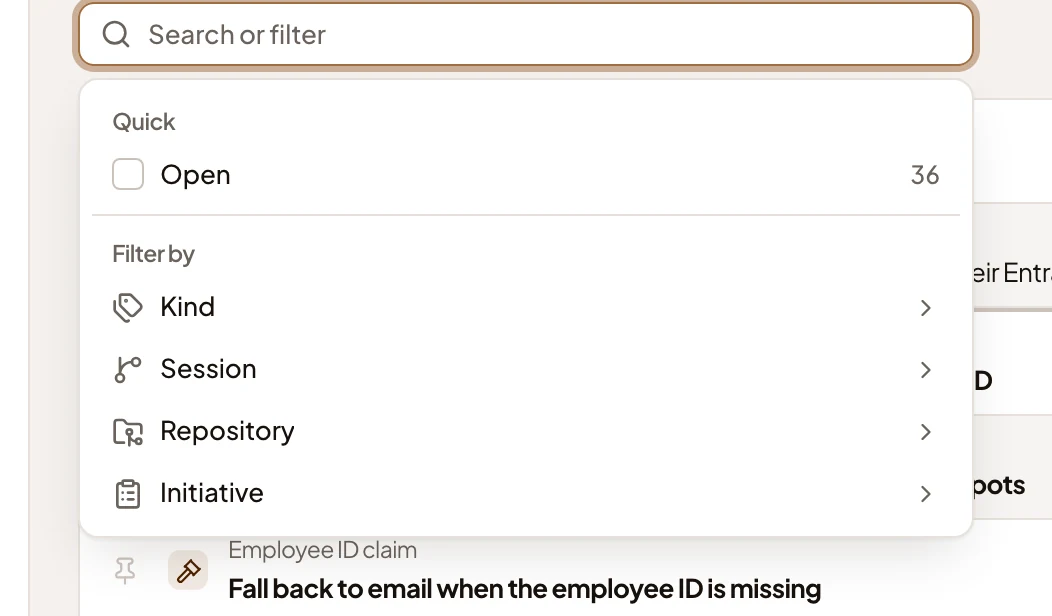
- Open. Notes nobody has dealt with yet, and how many.
- Kind.
- Session. The sessions your notes came from, newest first.
- Repository.
- Initiative. The initiatives or topics your notes are about.
A session is what the agent was working on, in its own words, in one repository. Clicking a note’s session on its page narrows the list to it too. With one session chosen, each row names its initiative instead.
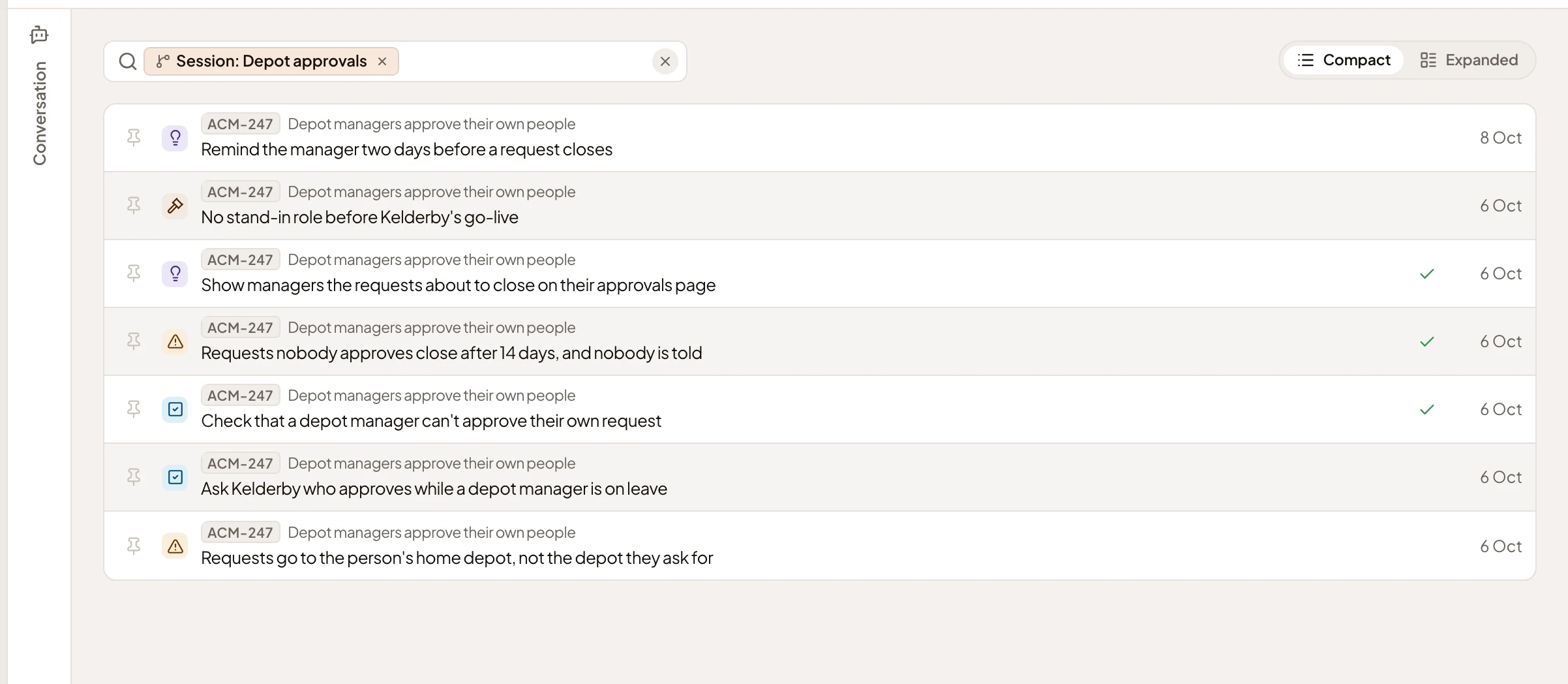
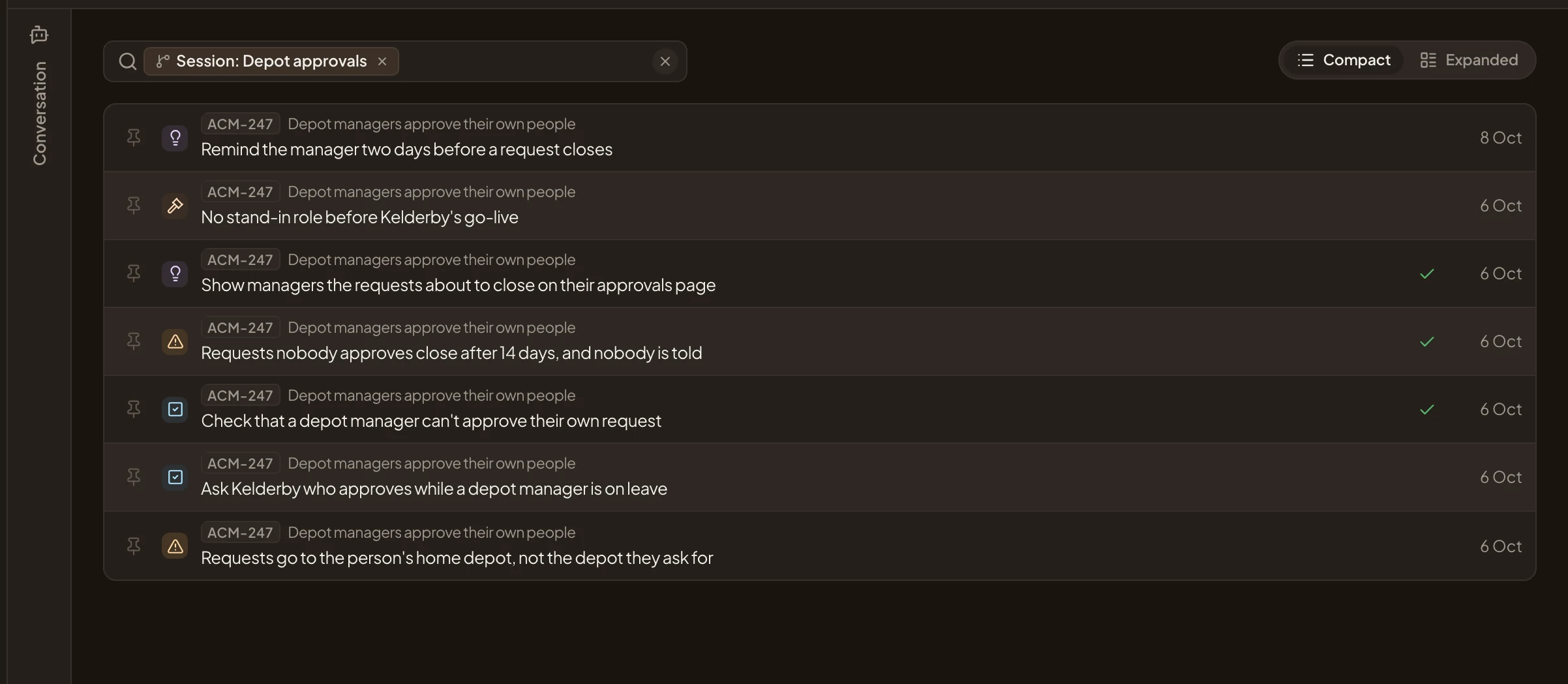
- The filter, as a chip, Session: Depot approvals. Click the chip to change the filter.
- The ×, which takes the filter off.
- A note, now with its initiative above its title.
Type words in the box and press Enter to search your notes’ titles, text, labels, sessions and repositories. See Find anything.
Expanded
Section titled “Expanded”Expanded shows each note with its first lines, under the day it came, pinned notes first.
Open Agent Notes, expanded (opens Emargen in a new tab)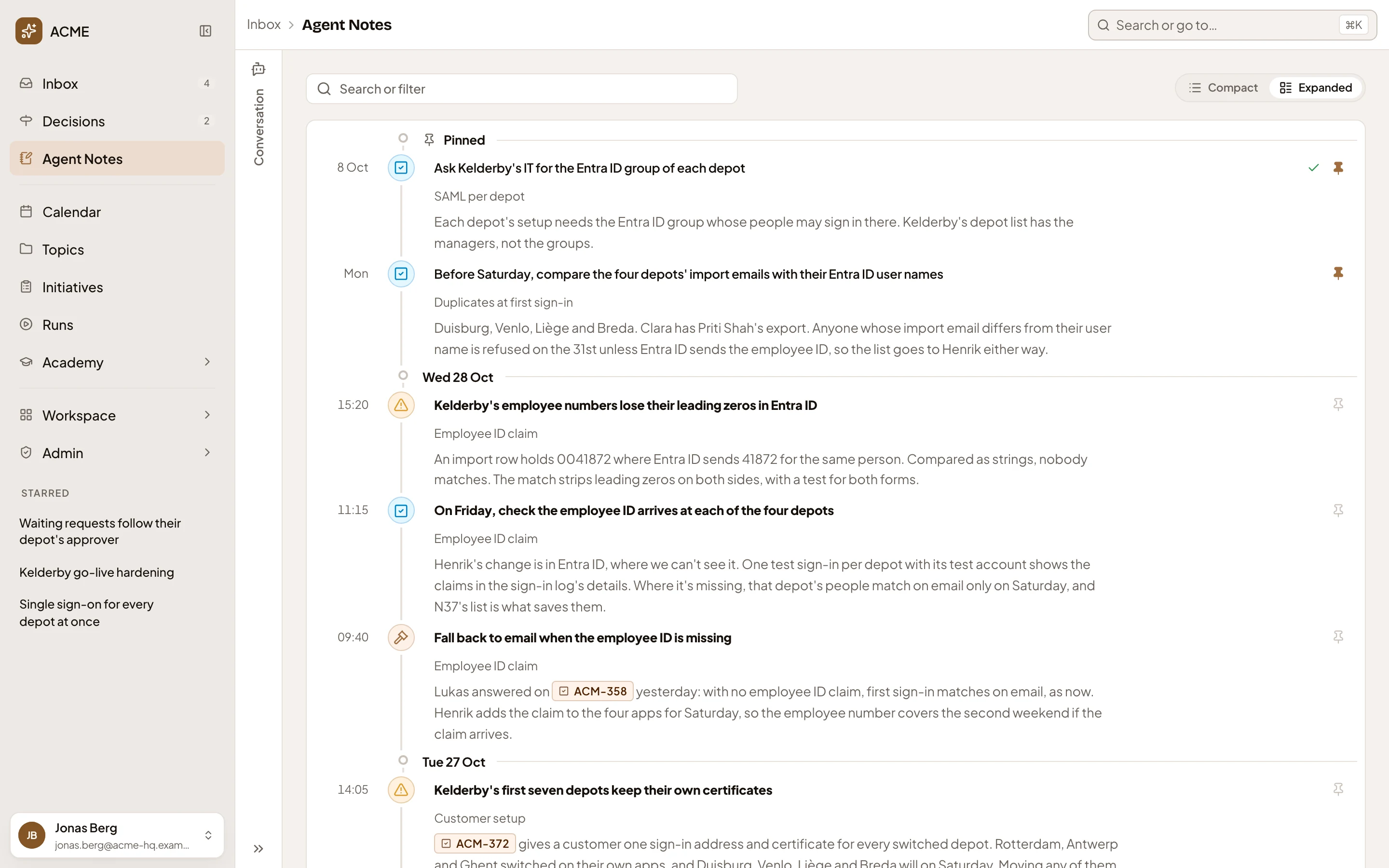
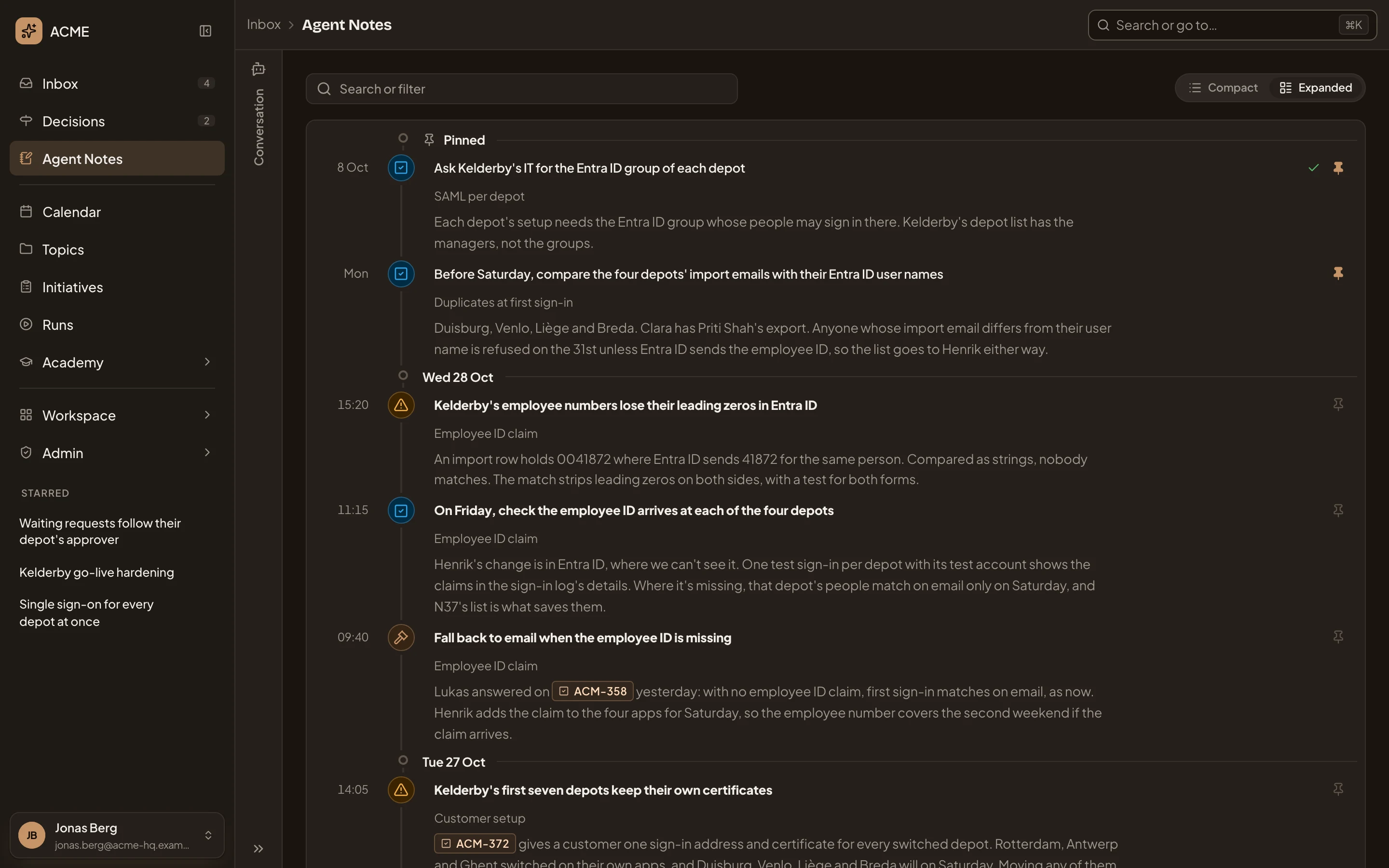
- Pinned.
- A note’s title. Click it to open the note’s page.
- Its session.
- Its first lines. A note found by words shows the passage around them instead.
- A key in a note links to the topic or initiative it names.
The agent
Section titled “The agent”Conversation opens the inbox agent, which reads your notes with you. Ask which traps came up in one repository, or what’s still open about a customer. Its answers link to the notes they come from. It can narrow the list to the notes it names, or set the filters for you.
- The agent’s greeting, before you’ve asked anything.
- Ask the inbox agent.
Ask it to gather several notes into one topic, initiative or change request, and it opens Turn into with them. The list has no tick boxes of its own.
Notes from other agents
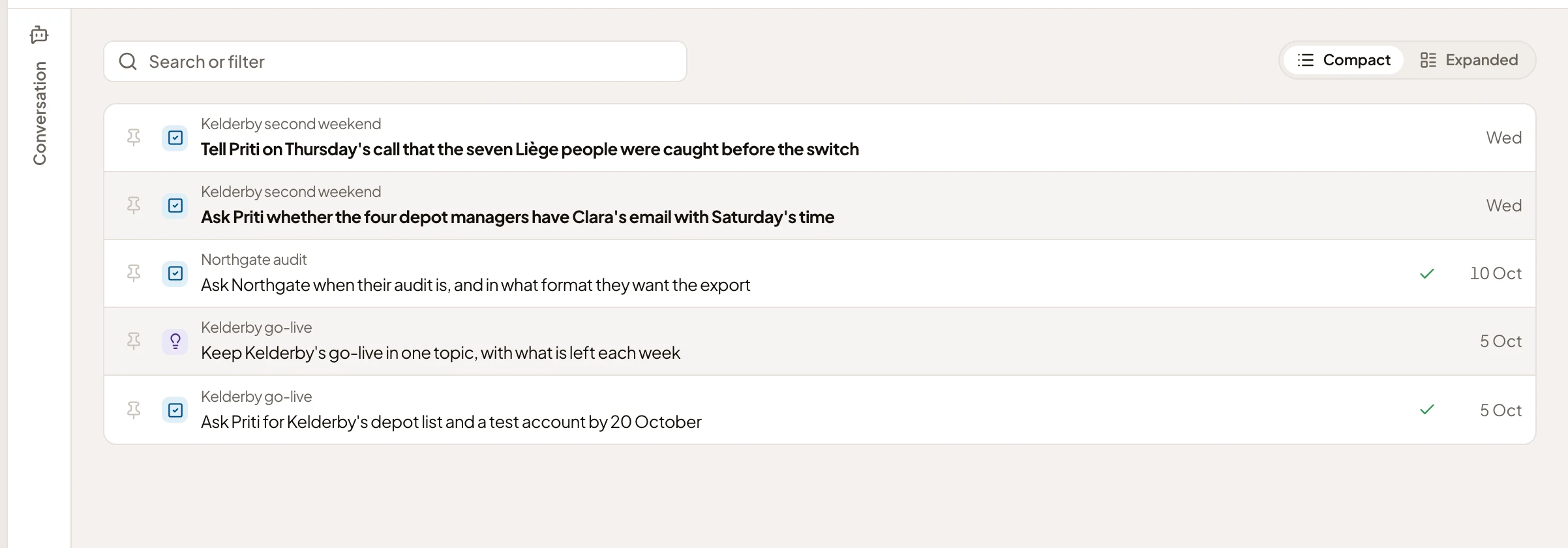
Section titled “Notes from other agents”Notes also come from agents that don’t write code. Someone in customer success asks the agent beside a page, or Claude, to note a few things while they prepare a customer’s go-live. Those notes name a session but no repository. In the picture, ACME’s customer success lead’s five notes.
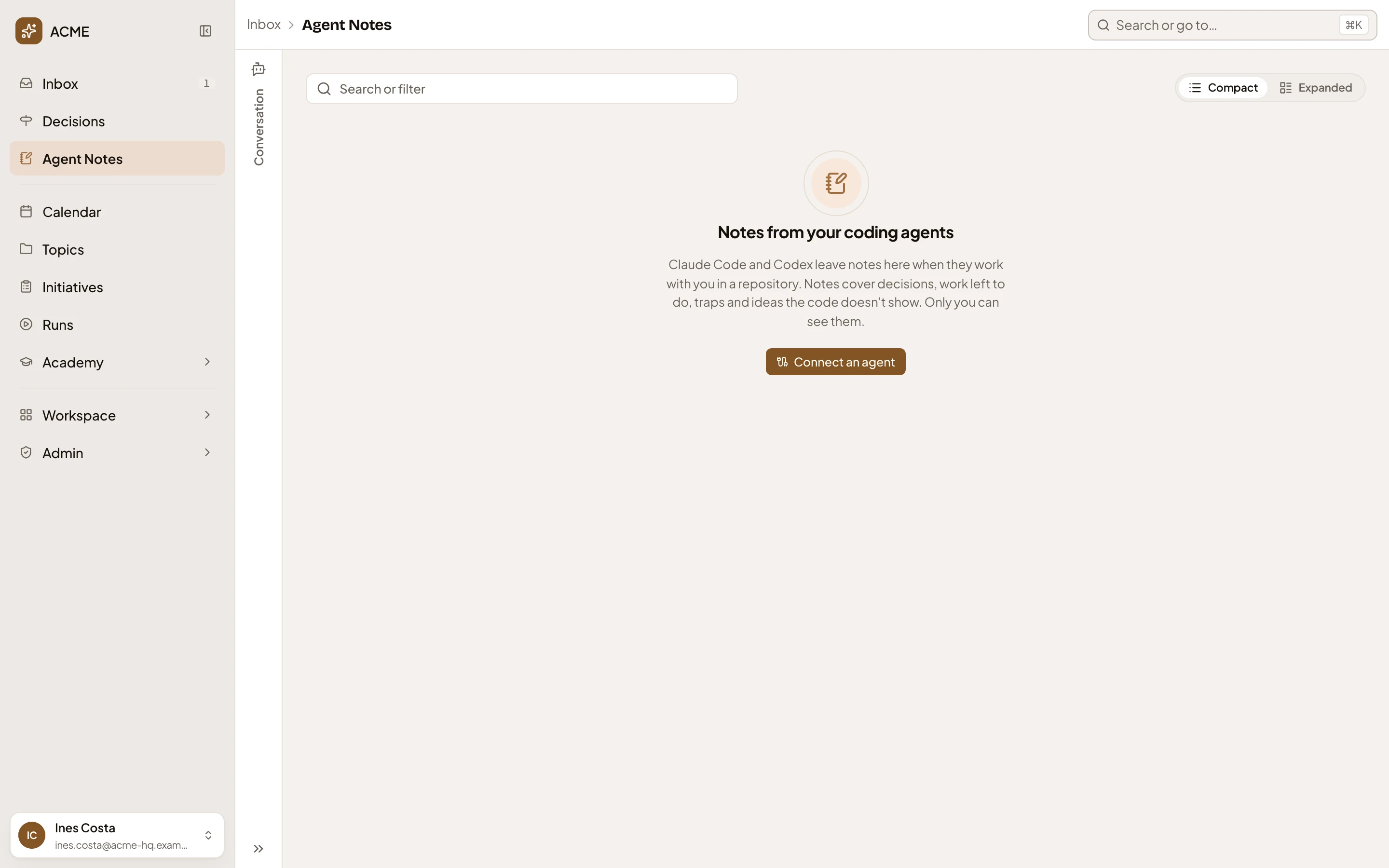
Before any agent has written you a note, you’ll see what will arrive, with Connect an agent. It opens Security in your profile and starts a personal access token, which your coding agent uses to reach Emargen as you. See Connect your own agent.
Access
Section titled “Access”Your notes are yours alone. Nobody else sees them, administrators included. What you make of one with Turn into… is shared the way any topic, initiative or change request is. You choose how many notes a coding agent may leave you in a session under “Notes per coding session” in your preferences.