

AdminPage by page
Agent access
Agent access sets the most any agent may do in your organisation, and shows who has one working as them. These are agents your people connect themselves, like Claude Code with a token or Claude signed in from its own app. Agent access explains it. Open the Agent access tab of People, under Admin in the menu.
Open Agent access (opens Emargen in a new tab)ACME lets agents use every tool. Its administrator has Claude signed in, and an engineer has Claude Code working with a token.
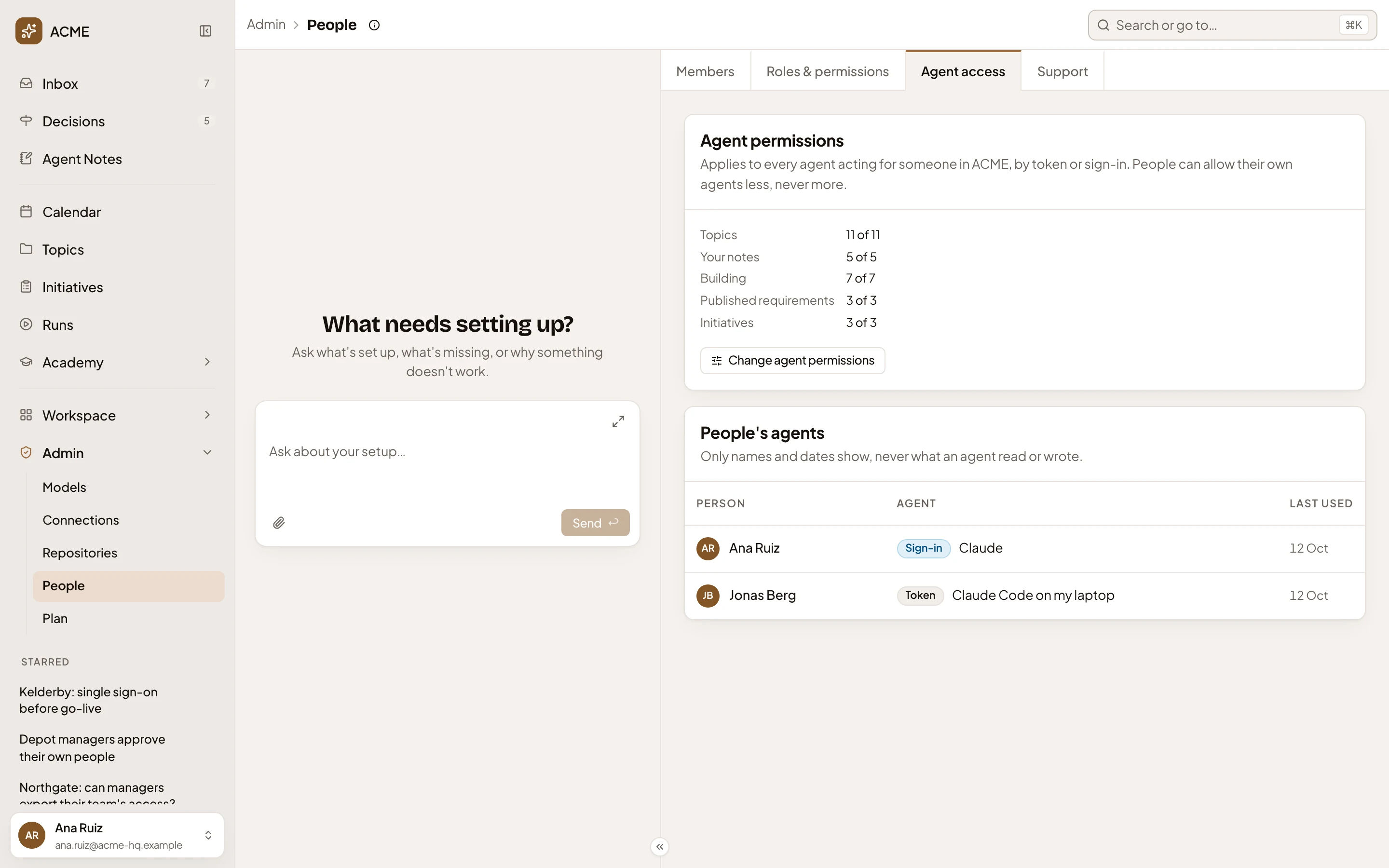
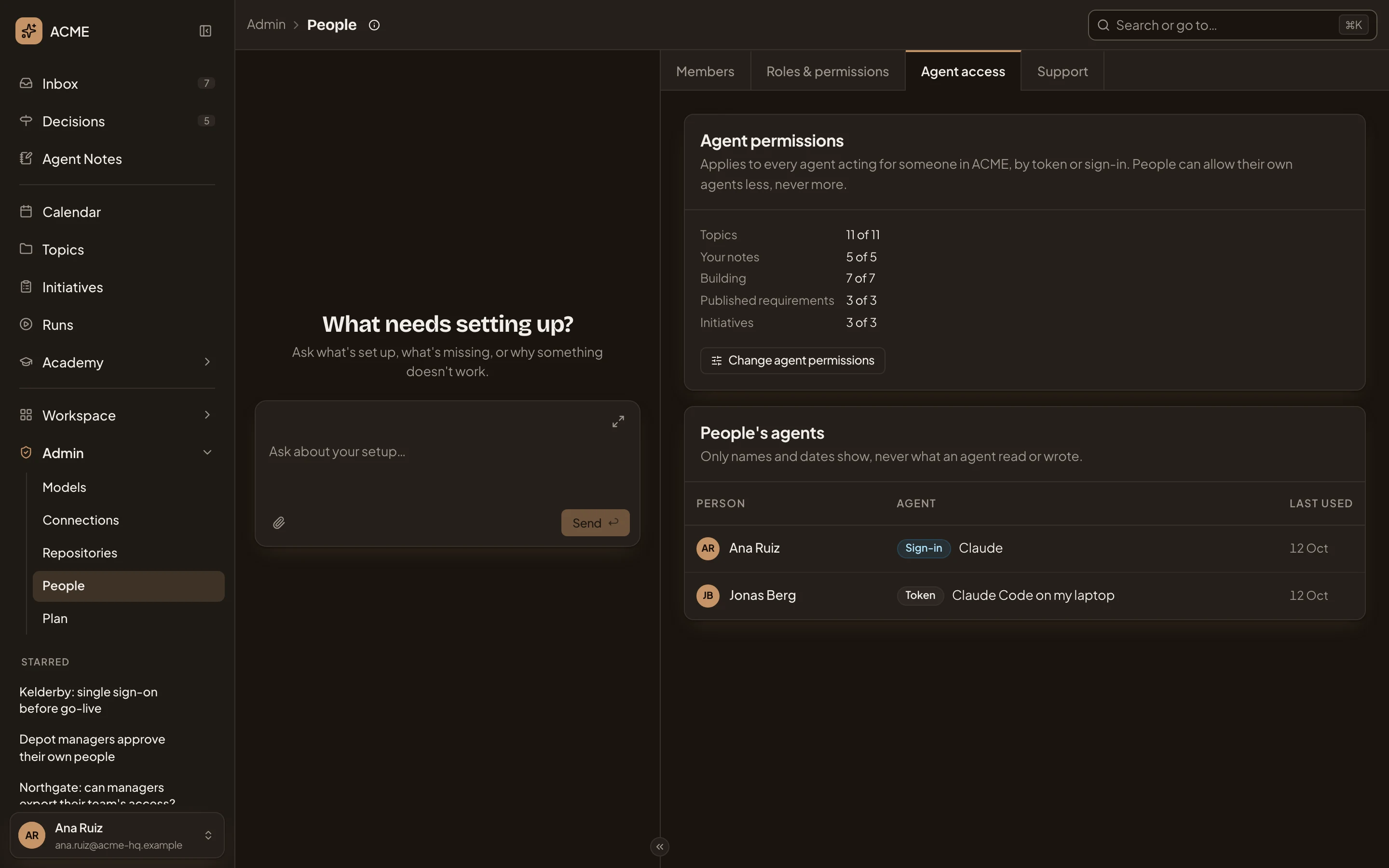
- Agent permissions. The most any agent may do, token or sign-in. Each person can allow their own agents less, never more.
- An area of Emargen’s tools, and how many of them agents may use.
- Change agent permissions. Opens the list of tools.
- People’s agents. Every agent working as one of your people. Only names and dates show, never what an agent read or wrote.
- An assistant that signed in: Sign-in, and its name.
- An agent with a token: Token, and the name its person gave it.
- Last used. When it last did something here, or Never.
The tools are grouped under Topics, Your notes, Building, Published requirements and Initiatives. The tools describes each one.
Choosing the tools
Section titled “Choosing the tools”Change agent permissions opens Agent permissions, which applies to every token and assistant at once. Its switch, Agents may use every tool, including new ones, starts on. Turn it off to choose tool by tool. Each tool shows under its area, with its name for agents and Reads or Changes. Untick what agents may not use, and Save.
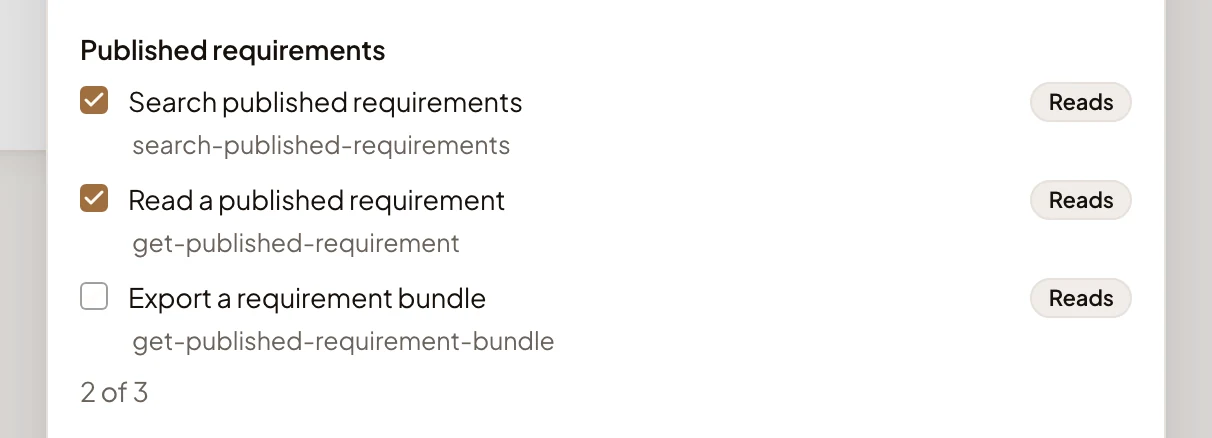
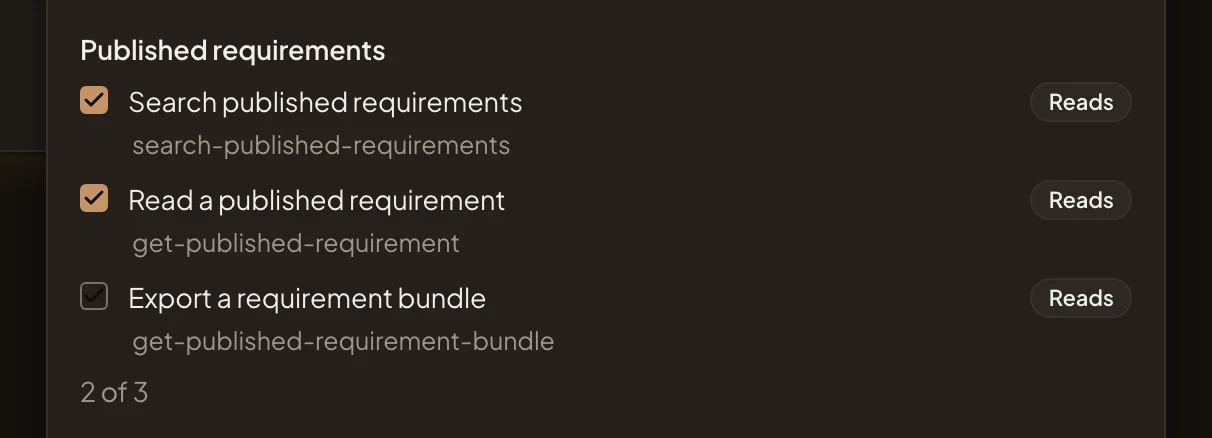
- A tool agents may use.
- Its name for agents, and Reads: it only reads.
- A tool no agent may use here.
Untick a tool, and every agent loses it at its next call, even one whose person allowed it. People see it greyed out on their own Security page. With the switch off, a tool Emargen adds later stays off until you tick it. Four tools under Topics show a raw label instead of their own name.
See Decide what agents may do.
Revoking someone’s agent
Section titled “Revoking someone’s agent”Click an agent in People’s agents to select it.
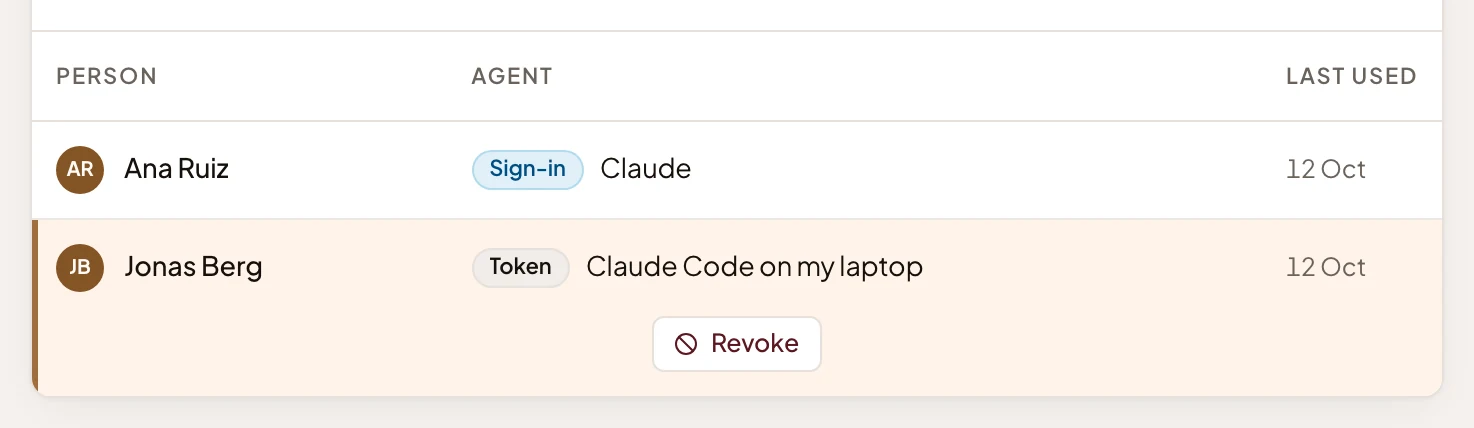
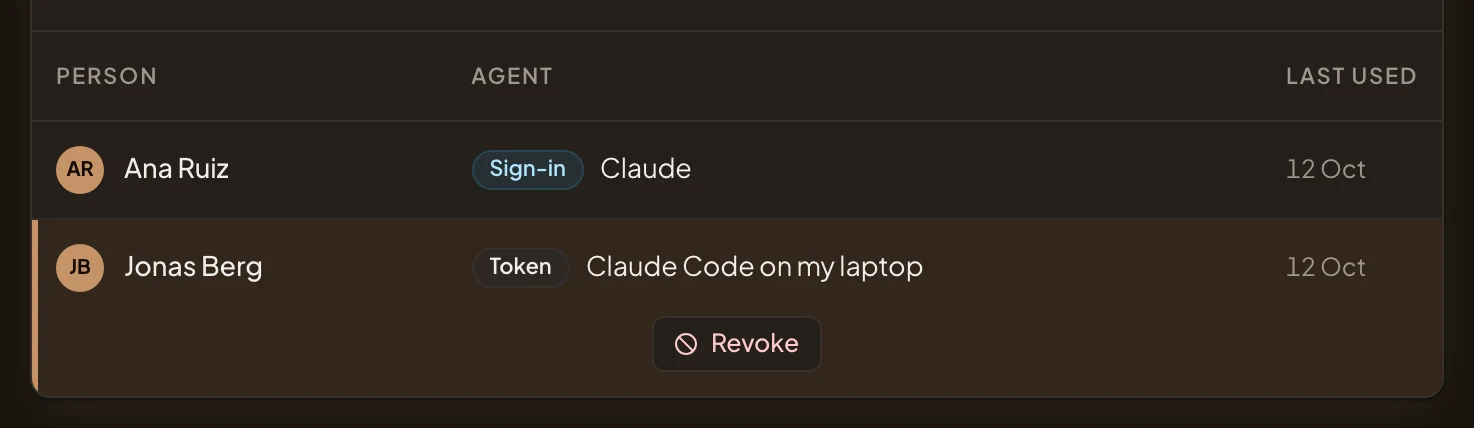
- Revoke. Asks first, naming whose agent it is, then stops it at once.
The agent leaves the list. Its person can make a new token or connect again. Emargen doesn’t tell them, so let them know why.
Before anyone connects an agent, People’s agents says “Nobody has an agent working as them yet.”
Access
Section titled “Access”People who may manage roles see the tab. You also need the permission Manage organisation settings to open it. Administrators have both. Without the second, it says “Only people who manage the organisation’s settings see this.”. What agents may do covers the rest.