

AdminPage by page
Setup: Launch
Launch is the last step of a new organisation’s setup. It shows where each step stands, and opens the organisation for everyone once the required ones are done. Open it with Launch in the steps along the top.
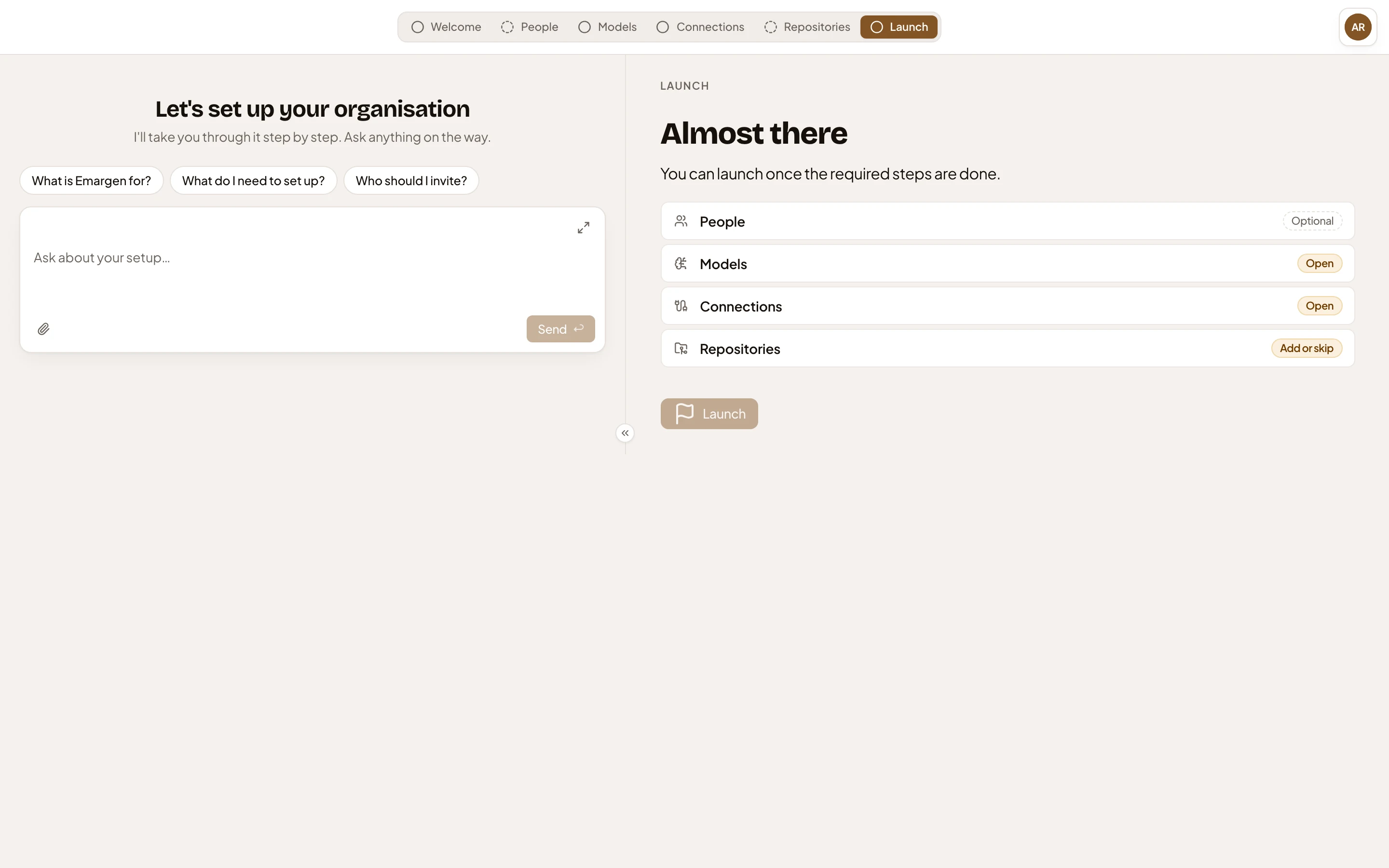
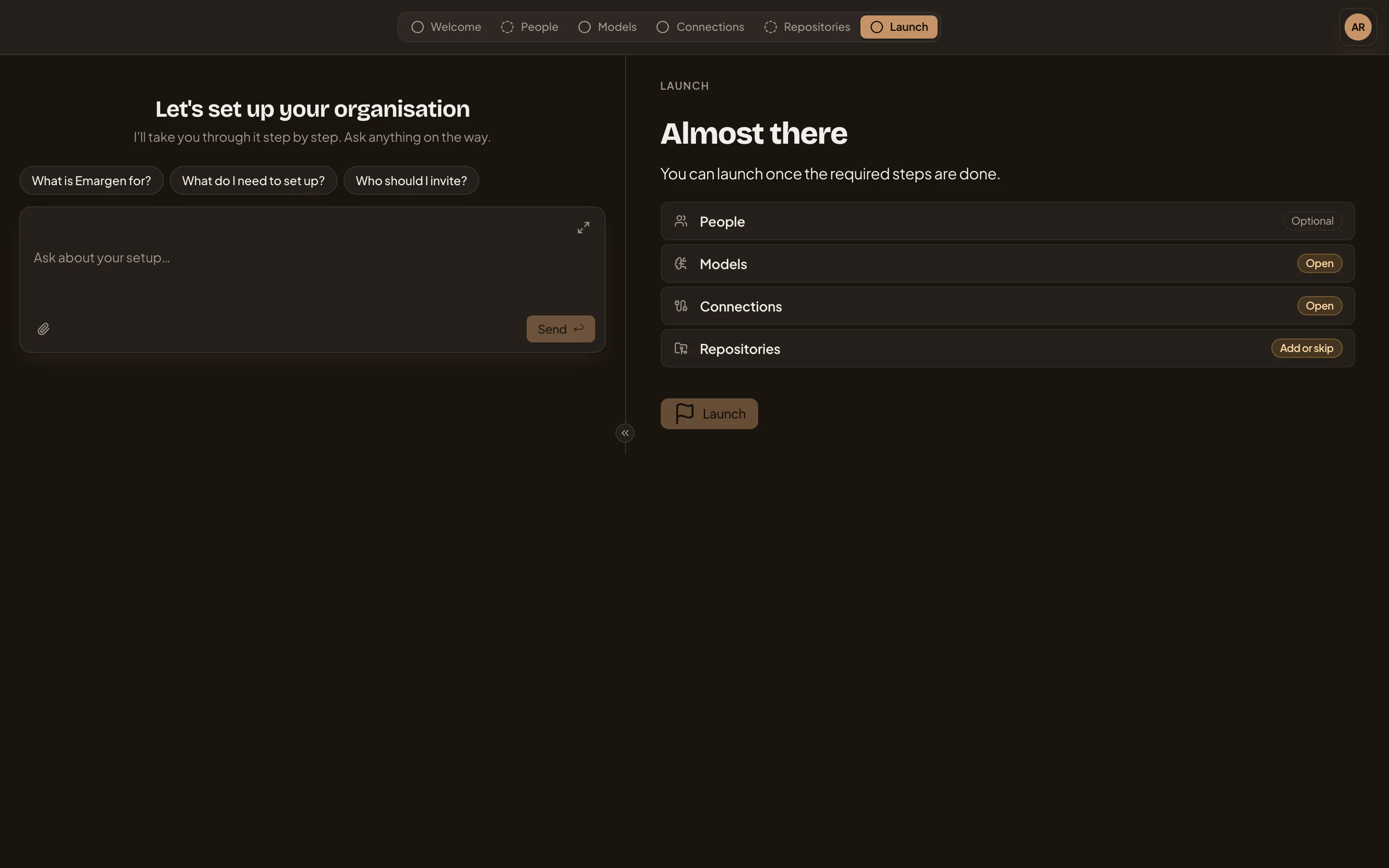
Open Launch (opens Emargen in a new tab)The picture shows ACME on its first day: nothing is done yet, so Launch is greyed out.
- Launch, in the steps along the top.
- Almost there. Once every required step is done, it says “Ready to launch” and warns you the launch can’t be undone.
- People, marked Optional. Never needed to launch. It says Done once someone besides you is in or invited.
- Models, marked Open, still to do. Done once the organisation has a chat default and an agents default.
- Repositories, marked Add or skip. Done when one is added, or Skipped.
- Launch. Greyed out until Models, Connections and Repositories are done.
Click a row to open that step.
Click Launch, then confirm. Everyone in the organisation can then start topics and initiatives. A launch can’t be undone. Once you confirm, Emargen opens on the Inbox with the full menu, and Admin opens on Models from then on. You can also ask the agent to launch. It puts a card in the chat, and nothing happens until you press it.
The steps in between
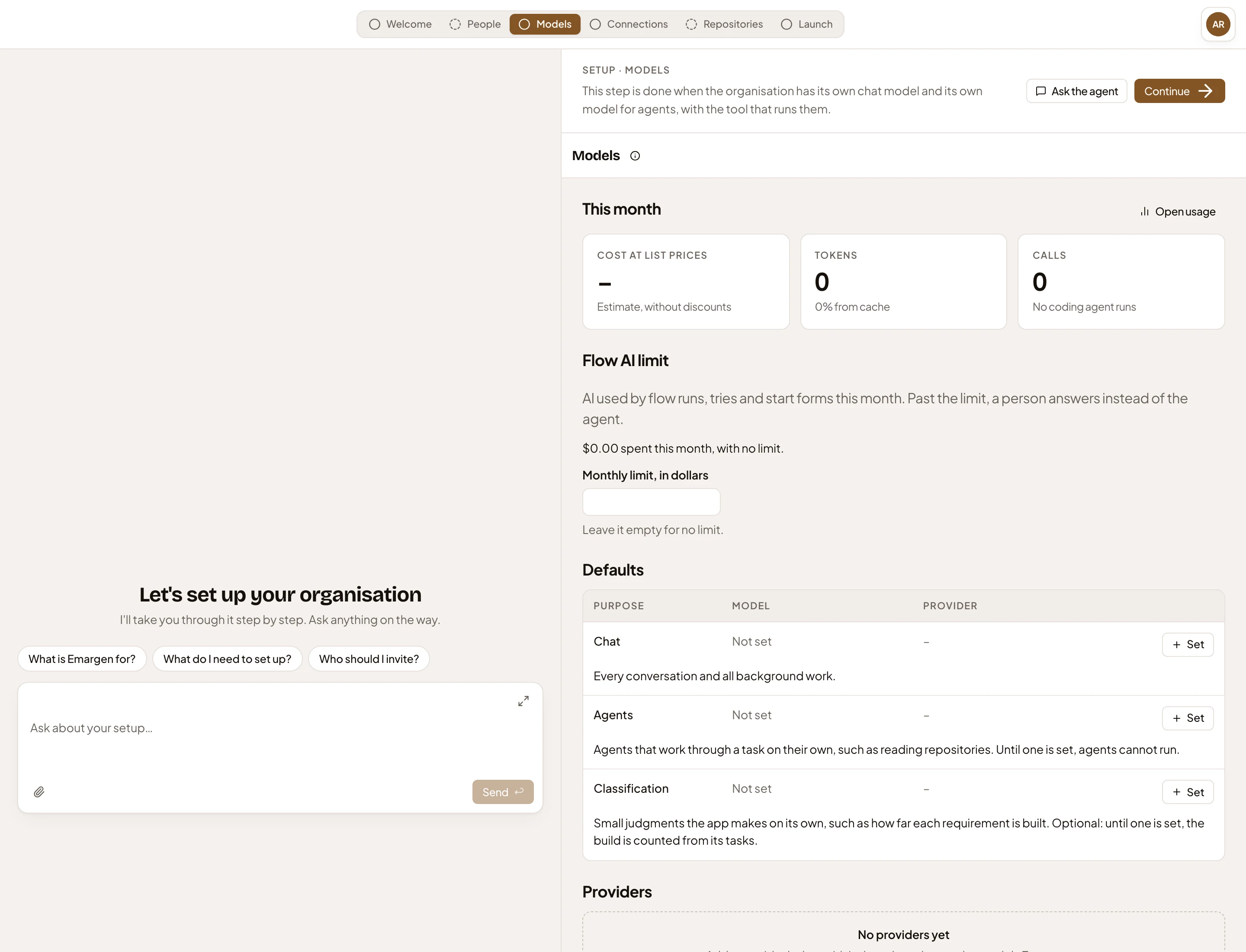
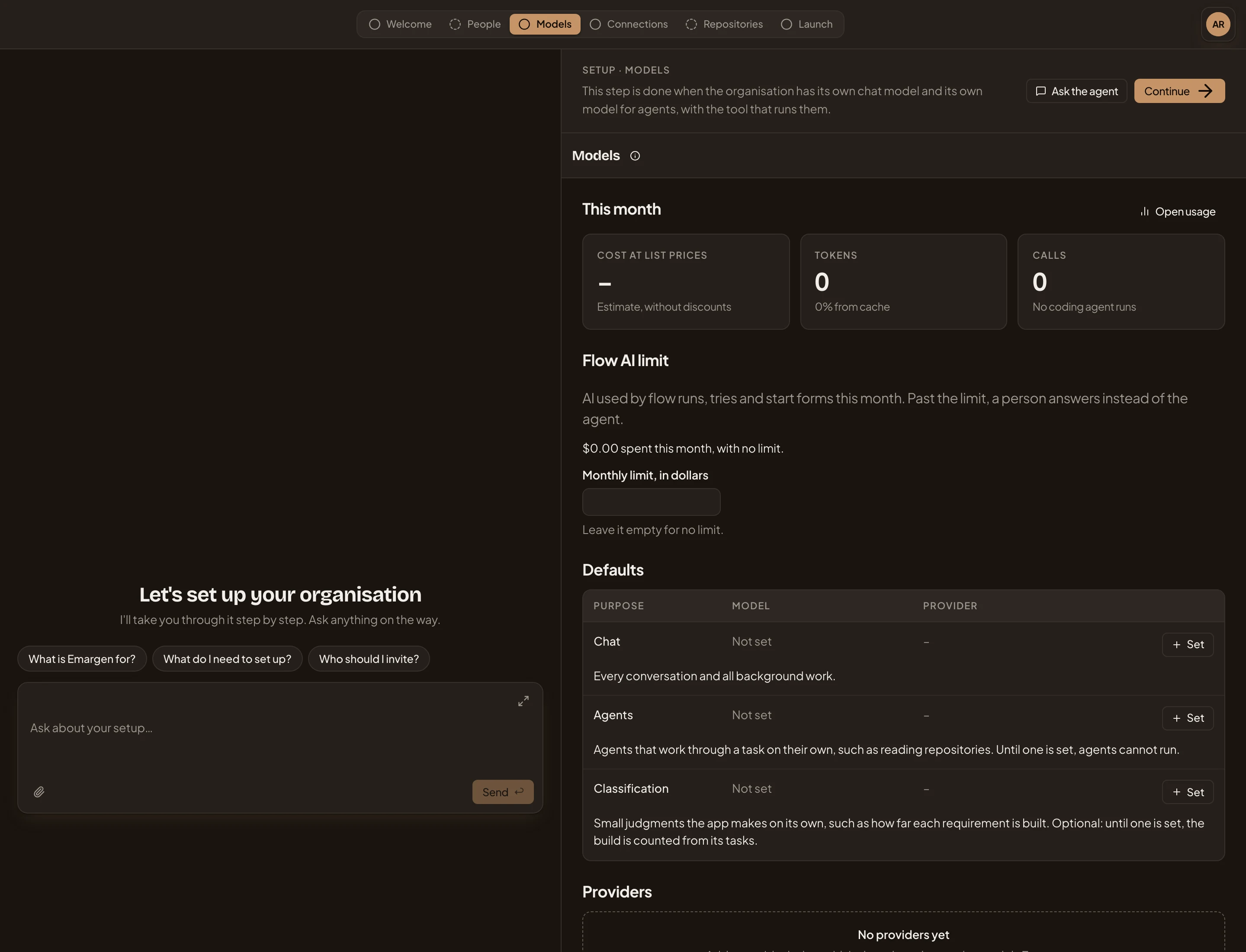
Section titled “The steps in between”People, Models, Connections and Repositories are Admin’s own pages, with a bar on top that says what the step needs. The picture shows the Models step on ACME’s first day, before any provider is added.
- Models in the steps along the top.
- Setup · Models, and what the step needs.
- Ask the agent. You work through the step with the agent, in the chat.
- Continue. Moves to the next step, done or not.
- The same page in Admin, after the launch.
What each step needs:
- People is optional. Invite whoever holds your AI provider’s key, admin rights on your tools and access to your code. Give them a role that may do those steps.
- Models: the organisation’s own chat model and its own model for agents, with the tool that runs them.
- Connections: one connection with searchable content that passed its checks. Or your team’s knowledge lives in a repository that’s ready, or nowhere yet.
- Repositories (optional): the repositories behind your main products, or skip the step. If your team’s knowledge lives in your repositories, add at least one.
Access
Section titled “Access”Everyone who joins before the launch can open Launch and see where the steps stand. Only people whose role may launch the organisation get the Launch button. That’s administrators, unless your organisation gives it to another role. See roles and permissions.
After the launch, you land on the Inbox.