

AdminHow to
Add a repository
Add a repository when people keep asking what a piece of your software does. A customer asks who may approve whom, or a product manager asks how an export works today. Once the repository is analysed, the agent checks its answers against the code. Repositories and analyses explains the idea behind it.
Before you start
Section titled “Before you start”- You need the permission to manage repositories to add one, and the permission to analyse repositories to start its analysis. Administrators have both.
- A way in to the code. A GitHub or GitLab host with a token lets you pick repositories from a list. A Git host says what it needs. Without one, you add a private repository with a deploy key, or a public one by its address.
- The analysis runs on your organisation’s agent model. Until one is set, a banner on Repositories says “No agent model is set”. The repository is still scanned when you add it, but its analysis waits.
- The pictures add a fourth repository to ACME’s three, the sign-in kiosk at its depot gates, with a deploy key, as ACME added the others. Then the agent can answer a customer’s questions about signing in at the gate.
-
Open Admin in the menu (it opens on Models), click Repositories under it, then New repository.
Open New repository (opens Emargen in a new tab)
-
Under Access, choose how Emargen reaches the code.
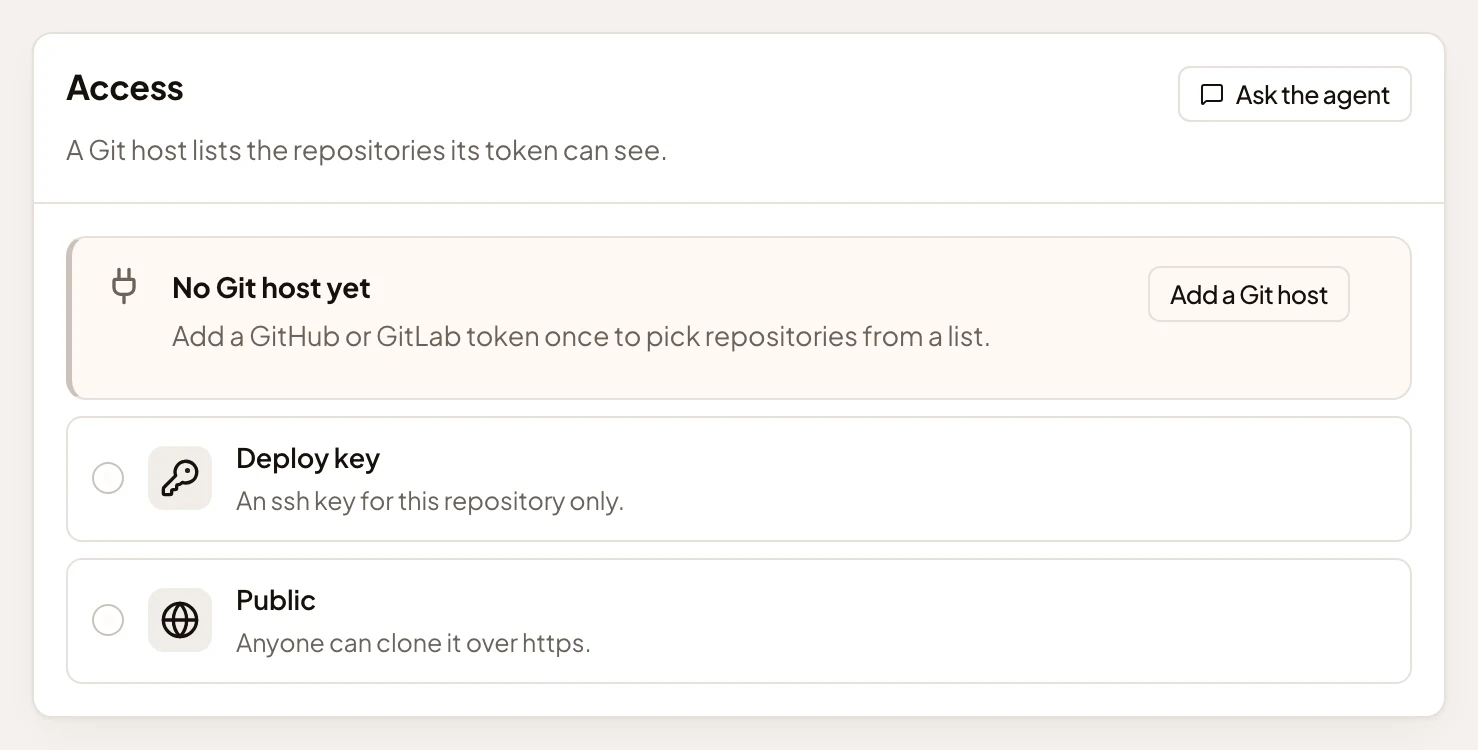
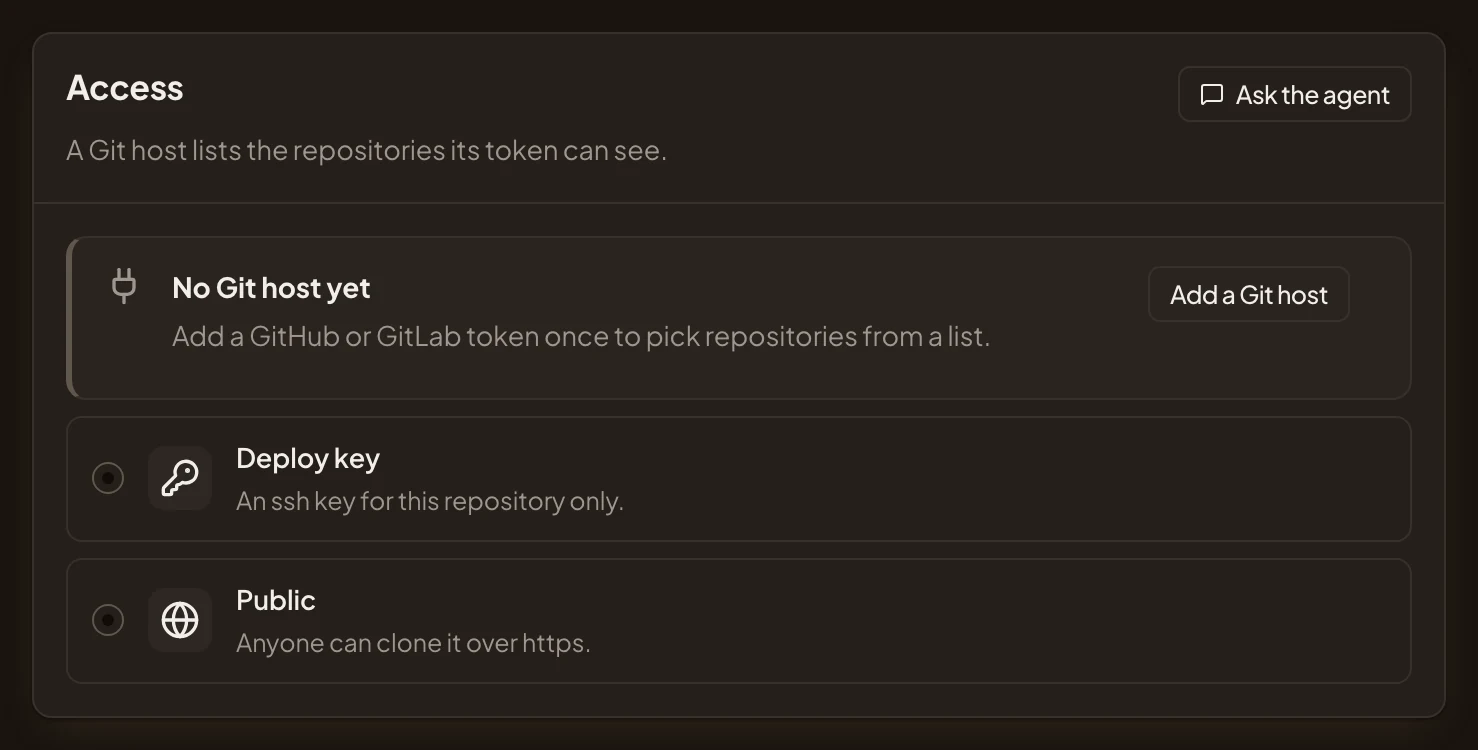
- Add a Git host, to pick repositories from a list.
- Deploy key, for one private repository.
- Public, for a repository anyone can clone.
With a Git host, pick it under Access. When there’s only one, it’s picked for you. The list under Repository shows what its token can see, most recently active first. Tick a repository, and its details fill in from the host. Repositories your organisation has already are marked Added. Keep one repository ticked, then go on at step 4.
If the list doesn’t load, the page says why, with the fields to type an address under it.
- The message says the token can’t list repositories, or the host has had too many requests for now. The token can still copy the repository. Type its address in Address, as the host shows it, and go on at step 4.
- A line says the host refused its token. You can’t copy the repository with that token either, so don’t type the address. On Repositories, click the host’s row under Git hosts, click Edit, pick Replace it and paste a new token. Then open New repository again, and the list comes.
-
For a deploy key, pick Deploy key. Paste the private half of the key into Private key, and the repository’s address into Address.
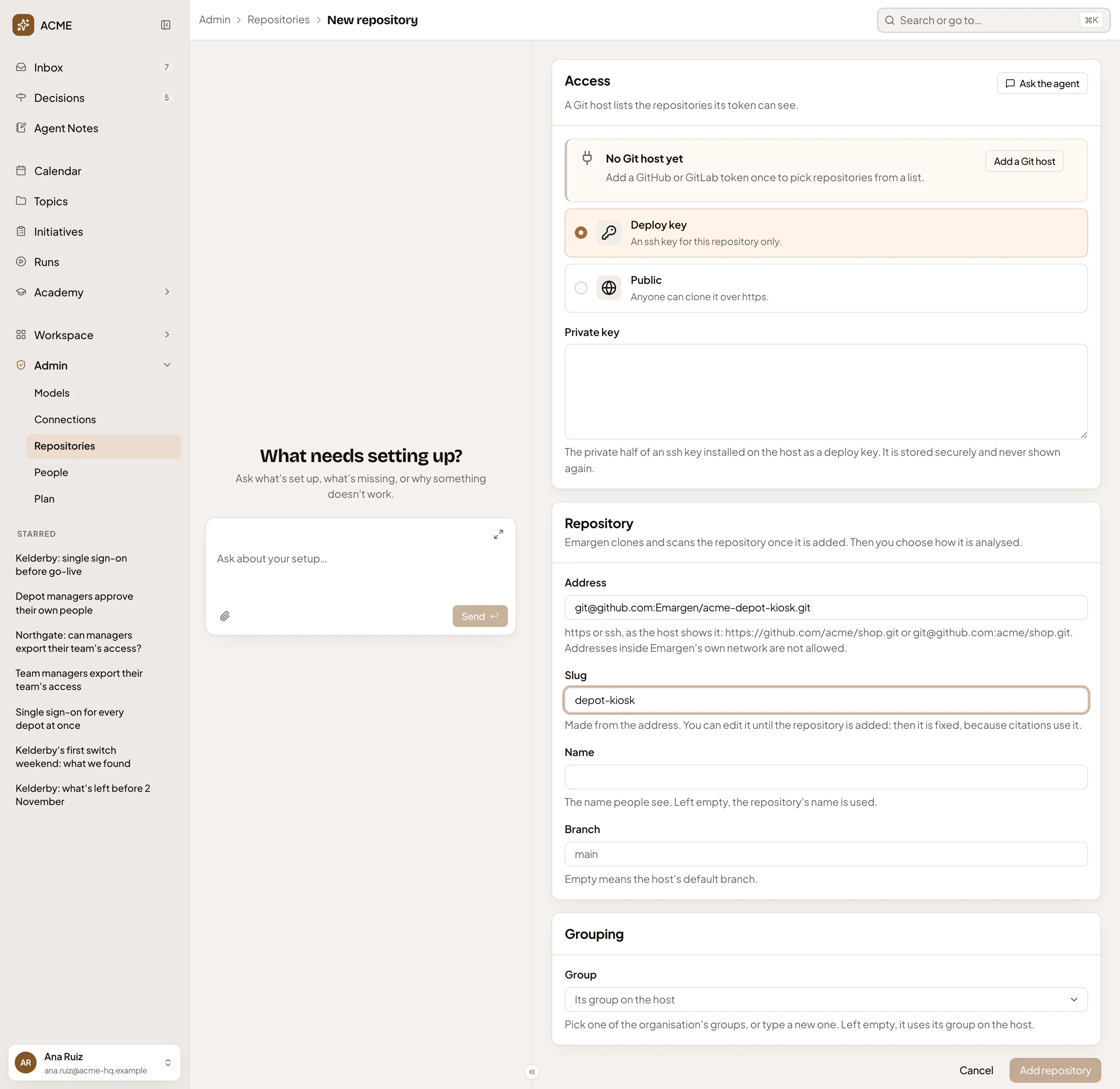
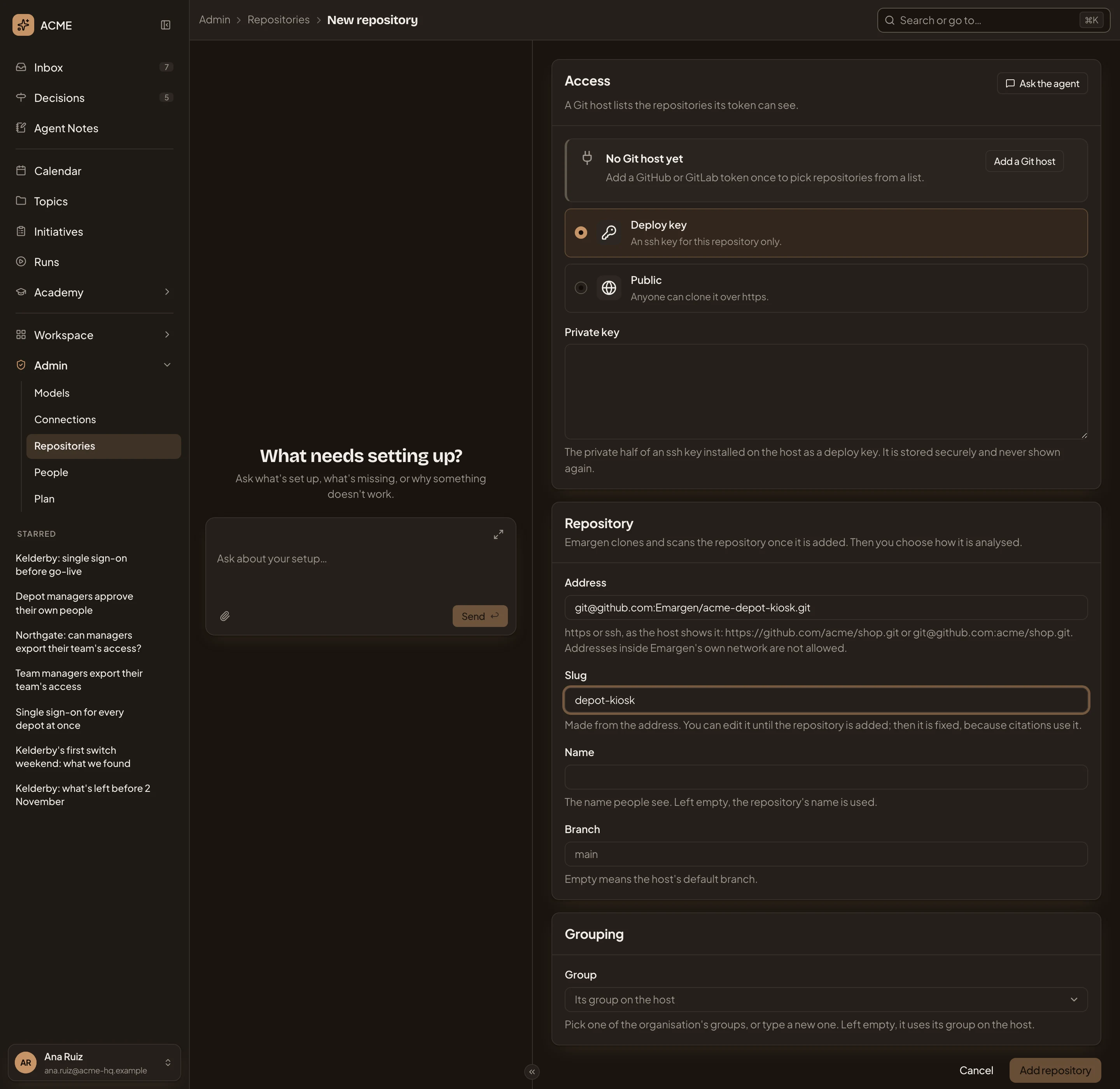
- Private key: the private half of an ssh key installed on the host as a deploy key. It’s stored and never shown again.
- Address: https or ssh, as the host shows it.
- Slug: made from the address. It’s fixed once the repository is added.
- Name and Branch: left empty, the repository’s own name and the host’s default branch.
- Group: where the repositories list puts it. Leave it empty to use its group on the host.
- Add repository, which opens once the key and the address are in.
For a public repository, pick Public and type its address. There’s no key.
-
Click Add repository. The repository’s page opens. Emargen copies it, then scans it on its own: the status moves from Cloning to Scanning to Scanned.
If the copy fails, the status turns to Clone failed. A notice, “The clone failed”, gives Git’s own message, like “could not read Username for https://github.com” when Git couldn’t sign in. Repositories lists it as Clone failed, and a red count shows beside Repositories in the menu. Fix the way in, then click Try again in the notice.
- If the Git host’s token was refused, give the host a new token, as in step 2.
- If the key was refused, or the repository needs another way in, click Edit on its page. Change Access, paste the right Private key, or pick Public for a public repository. Then click Save.
-
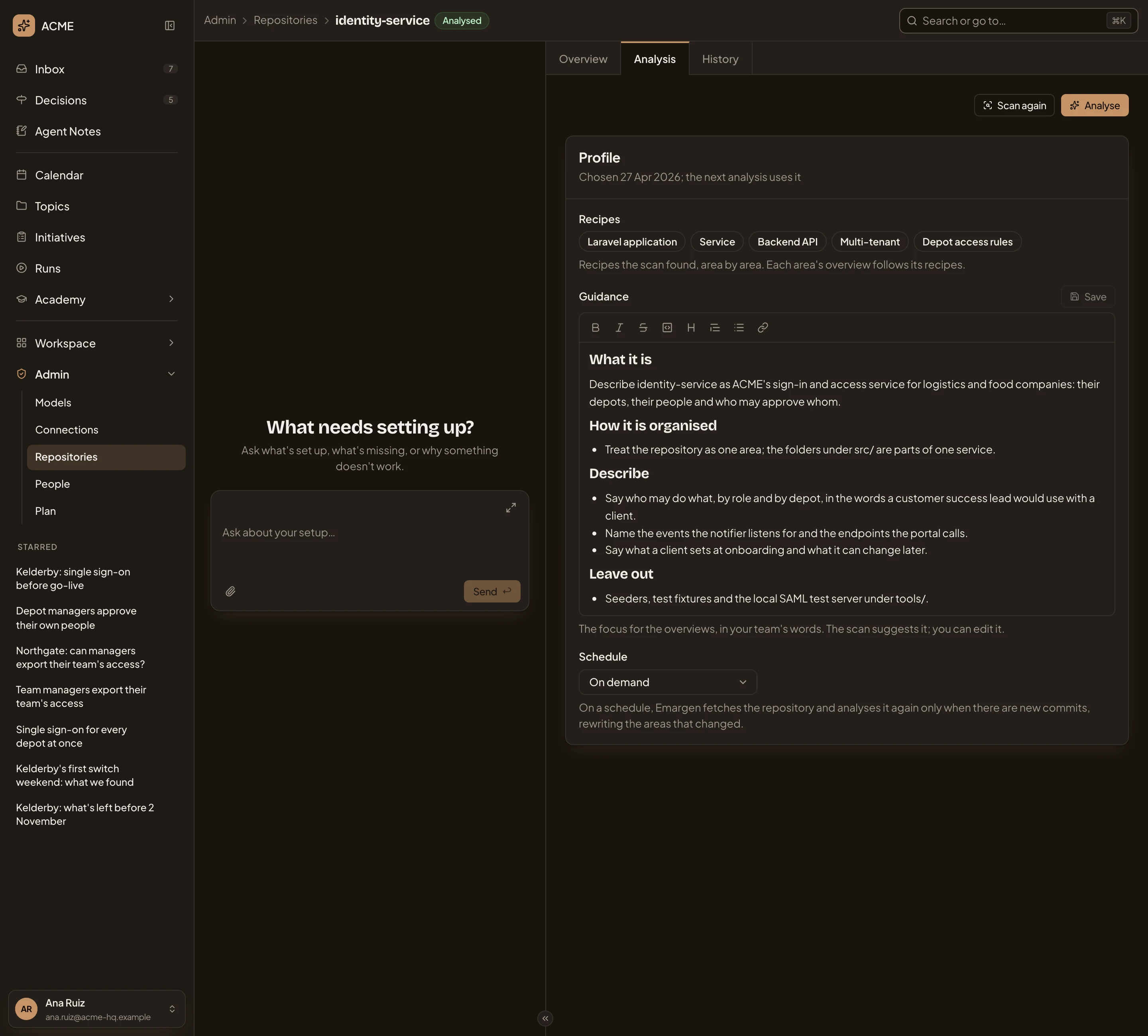
When the status says Scanned, look at what the scan proposes under the repository’s facts. It shows the Recipes it recognised, a Guidance for the analysis, and a Schedule. Until its first analysis, a repository’s page has no tabs. The picture shows the same part on identity-service’s Analysis tab.
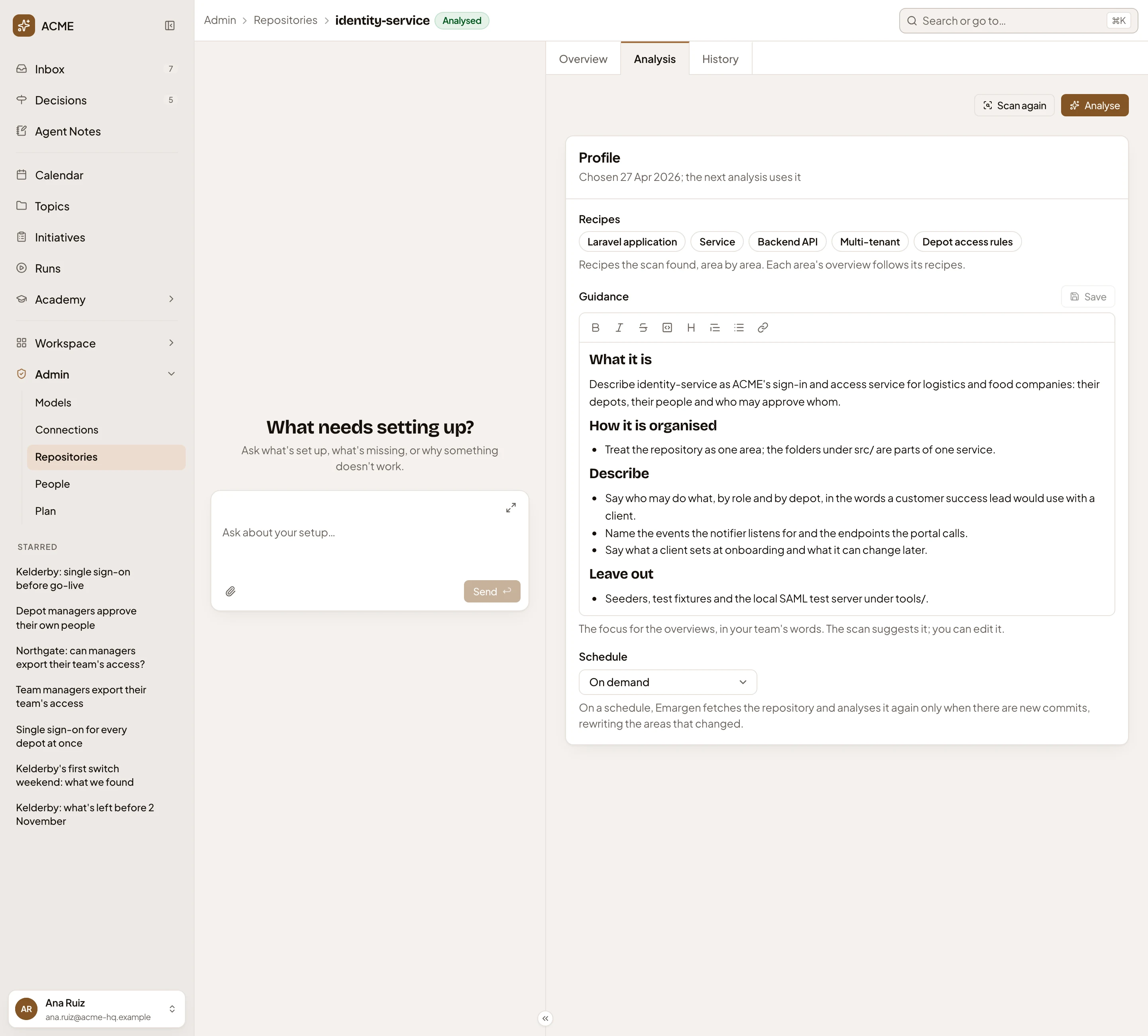
- Recipes: what the scan recognised. Click one to read why it applied it.
- Guidance: what the overviews should focus on. Change it in your team’s words, such as “Say what a driver can do at the gate when the network is down.”
- Schedule: On demand, or Daily, Weekly or Monthly, to keep it up to date as the code changes.
- Analyse.
-
Click Analyse. The page shows the analysis being written, area by area. When every agent your plan allows at once is busy, an area shows “Waiting for a free agent” until its turn. You can leave the page. The analysis goes on, and Repositories shows how far it got.
What you get
Section titled “What you get”- The repository is Analysed, with an overview of each area. Each explains what the area does, its business rules, and where to start in the code. See Read a repository’s analysis.
- The agent reads the repository when someone asks it what the code does, in a topic or while shaping an initiative, and it cites the files.
- On a schedule, Emargen fetches the repository and rewrites the areas whose code has changed.