

Getting aroundPage by page
Connect an assistant
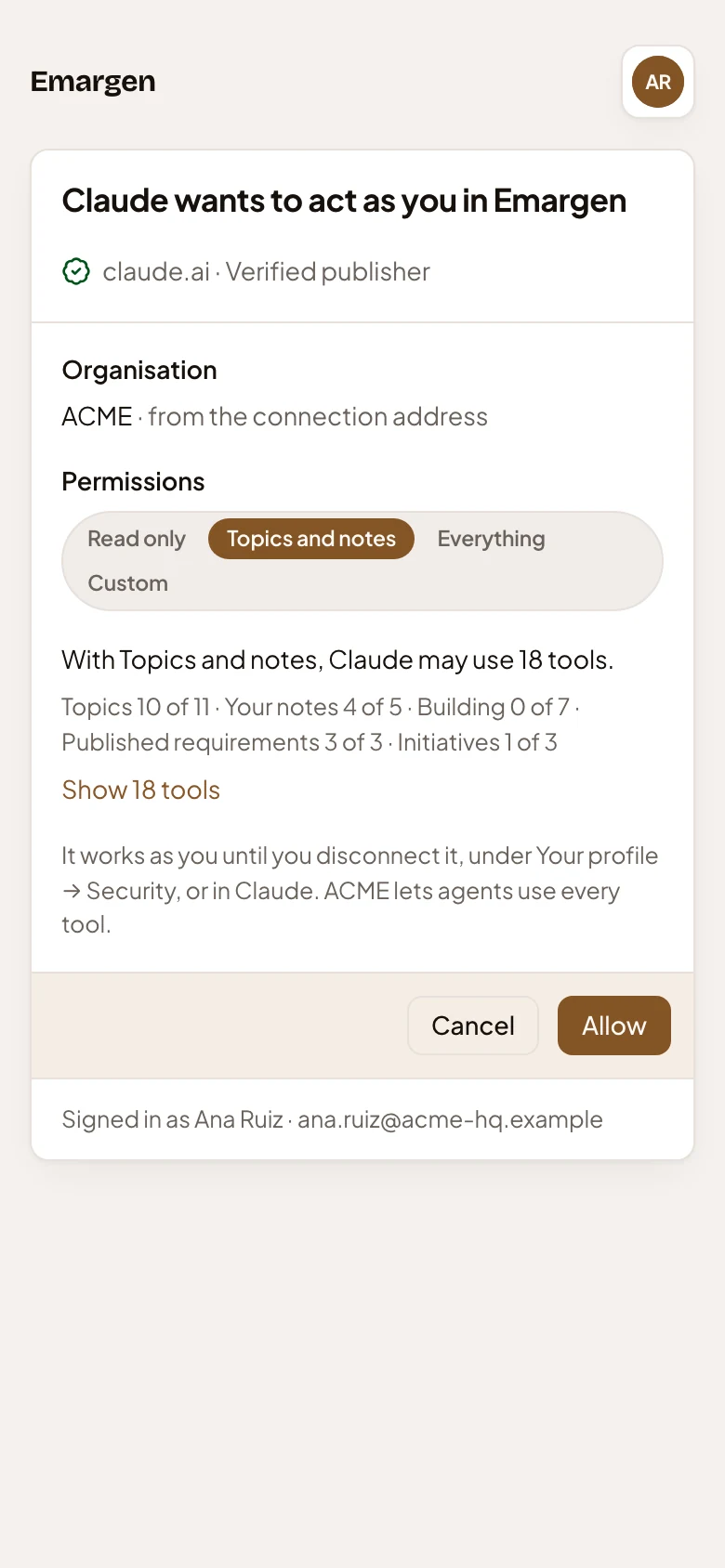
This page opens when an assistant, like Claude on claude.ai or ChatGPT, asks to work in Emargen as you. You never open it from the menu. You add Emargen’s address to the assistant and press its Connect button, and the assistant sends your browser here. You say what it may do, and either answer takes you back to the assistant.
The steps for Claude and ChatGPT are on your profile’s Security page, under Connect an agent. Claude Code and Codex connect with a token instead (Connect Claude Code or Codex).
Someone in customer success has added their organisation’s address to Claude as a custom connector and pressed Connect.
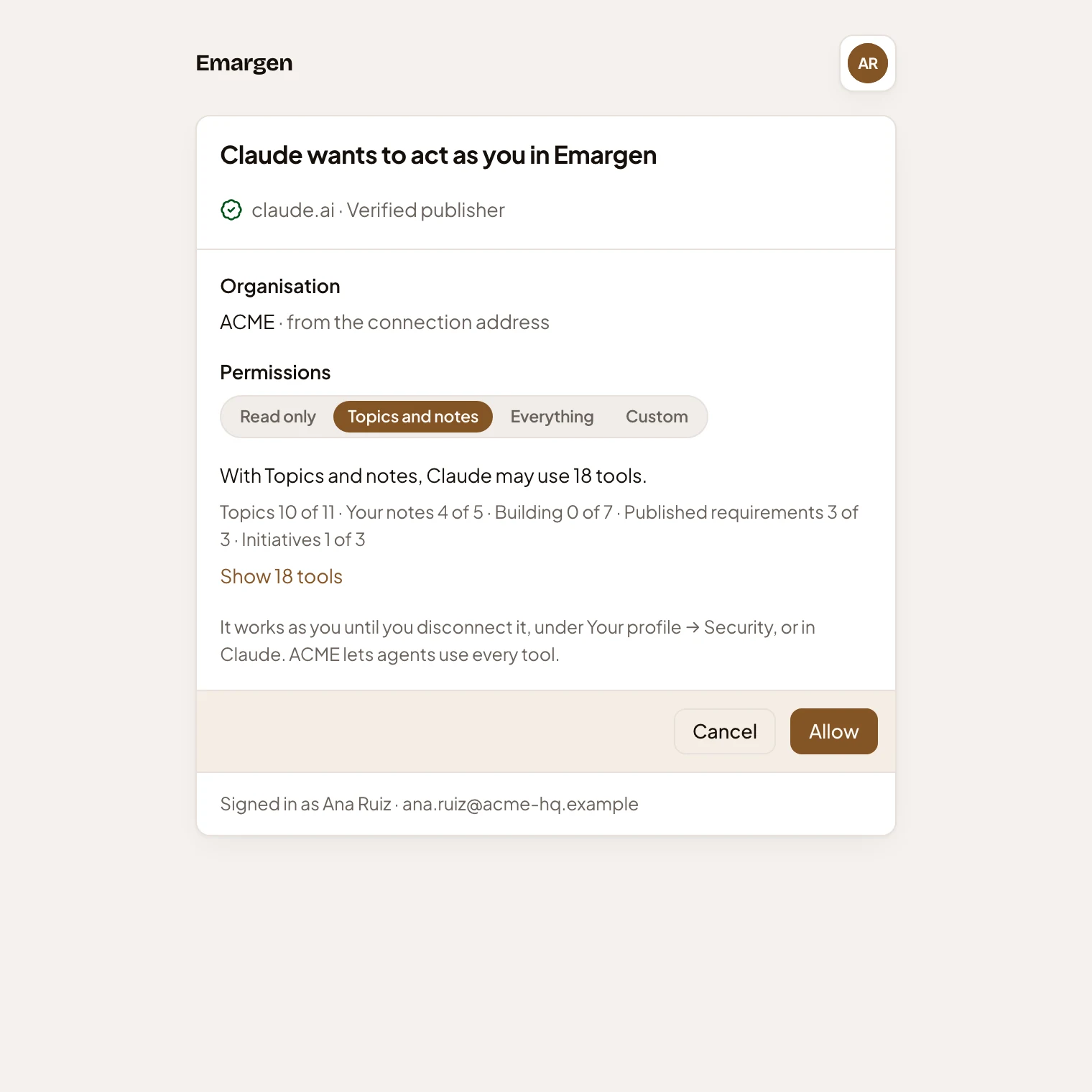
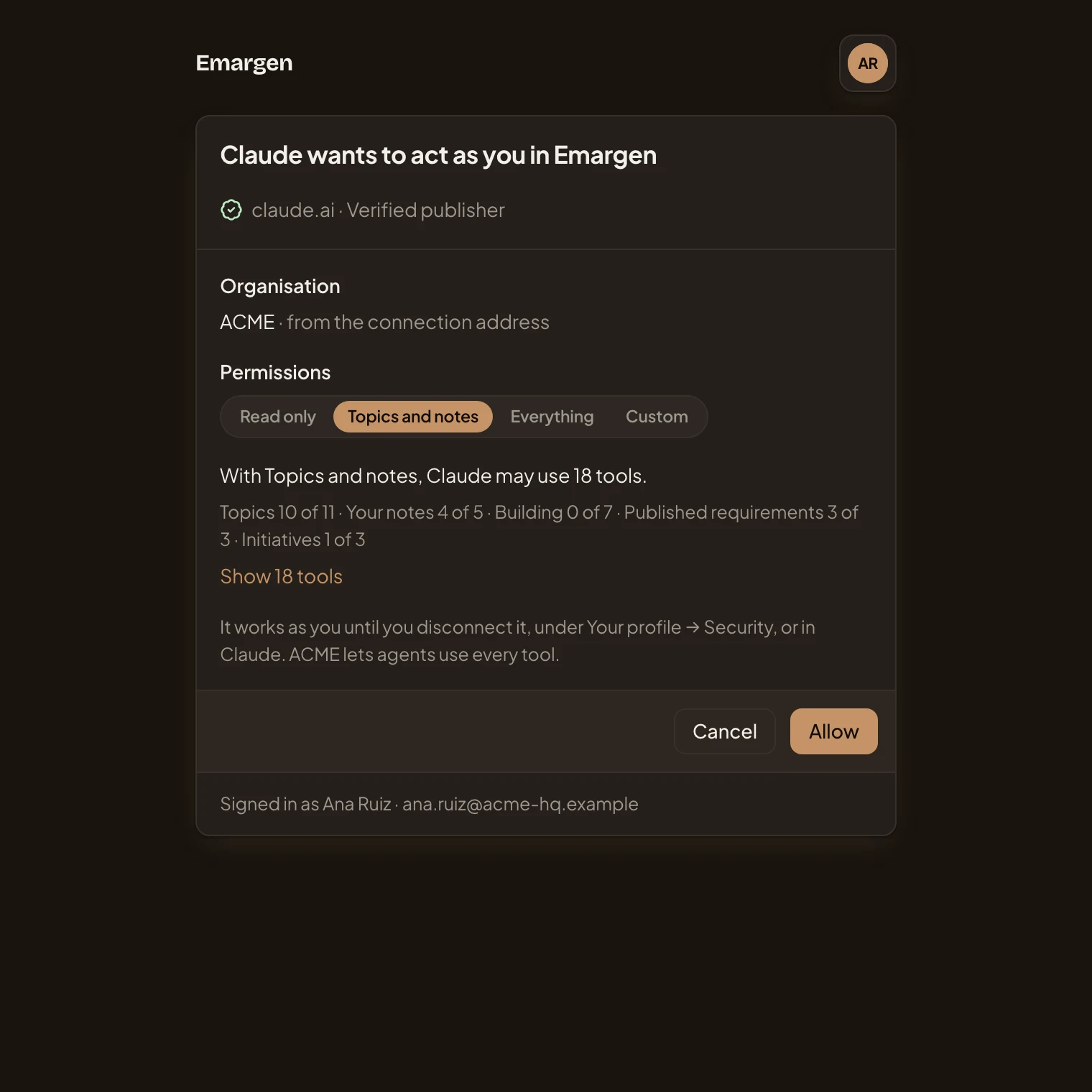
- Who is asking: the assistant, by the name it gave.
- Where it’s published. “Verified publisher” means Emargen read the assistant’s own description from its address, here claude.ai, and the name matches it. Otherwise it says “Unverified publisher”. Allow only an assistant you set up yourself.
- Organisation. The organisation named in the address you gave the assistant. It doesn’t depend on which organisation you have open.
- Permissions. Read only, Topics and notes, Everything, or Custom to pick the tools one by one (see The four choices). An assistant starts on Topics and notes.
- How many tools your choice gives the assistant.
- How many of each area’s tools that is.
- Show 18 tools. Lists every tool, with the ones your choice gives ticked (see The tools).
- How it stops. The assistant works as you until you disconnect it, under Your profile → Security, or in the assistant. If your organisation limits the tools agents may use, the line says how many are allowed, and the others stay off.
- Cancel. Says no. Emargen sends you back to the assistant, which is told it may not connect.
- Allow. Lets the assistant work as you with what you chose, and sends you back to it. It’s greyed out while Custom has no tool ticked.
- Who you’re signed in as.
- Your initials. Opens your menu (see Your menu).
The four choices
Section titled “The four choices”The tools come in five areas: Topics, Your notes, Building, Published requirements and Initiatives.
- Read only gives every tool that only reads, so the assistant can find and read but changes nothing.
- Topics and notes gives the topic and note tools, apart from importing a page as a topic and closing a todo. It also reads published requirements and initiatives. It can’t touch an initiative’s slices, or start or message an initiative.
- Everything gives every tool. The assistant can build an initiative’s slices, or start an initiative that Emargen then shapes on its own.
- Custom gives the tools you tick, one by one.
Read only, Topics and notes and Everything gain new tools of their kind, and the assistant gets them too. A custom choice never gains a tool by itself. Ticking or unticking any tool turns the choice into Custom. Each tool is described in The tools.
The tools
Section titled “The tools”Show 18 tools opens the list, area by area. Its number is how many your choice gives. The list shows what Topics and notes gives Claude.
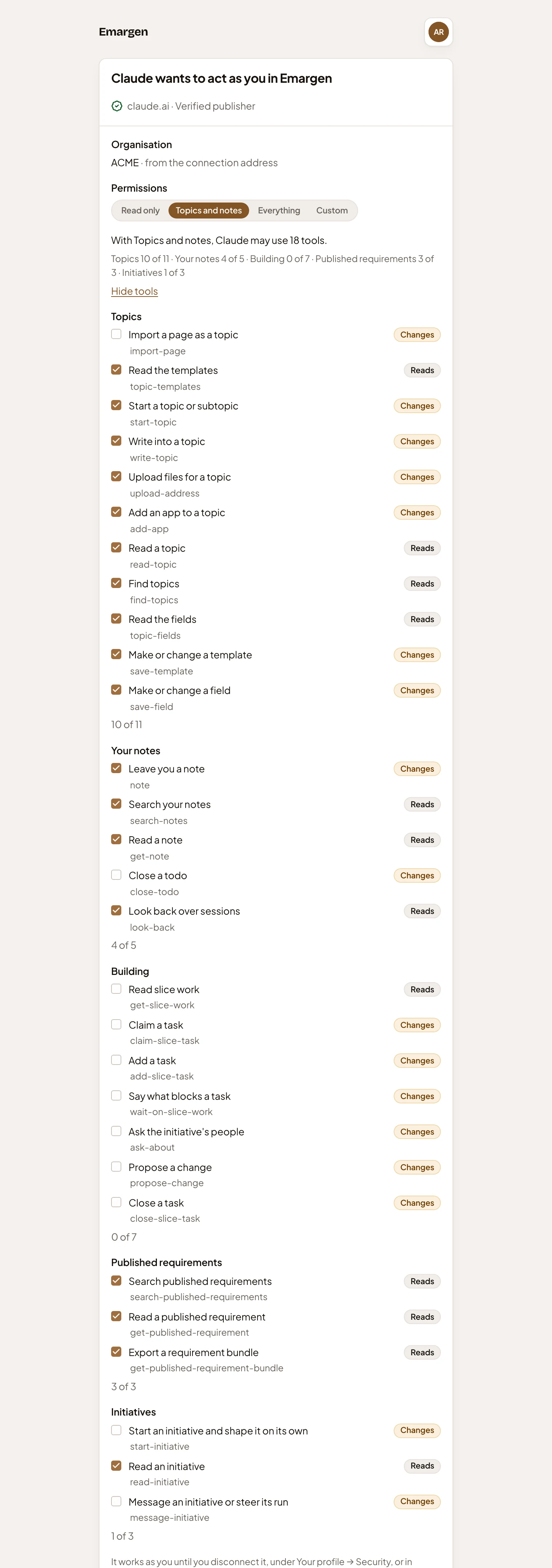
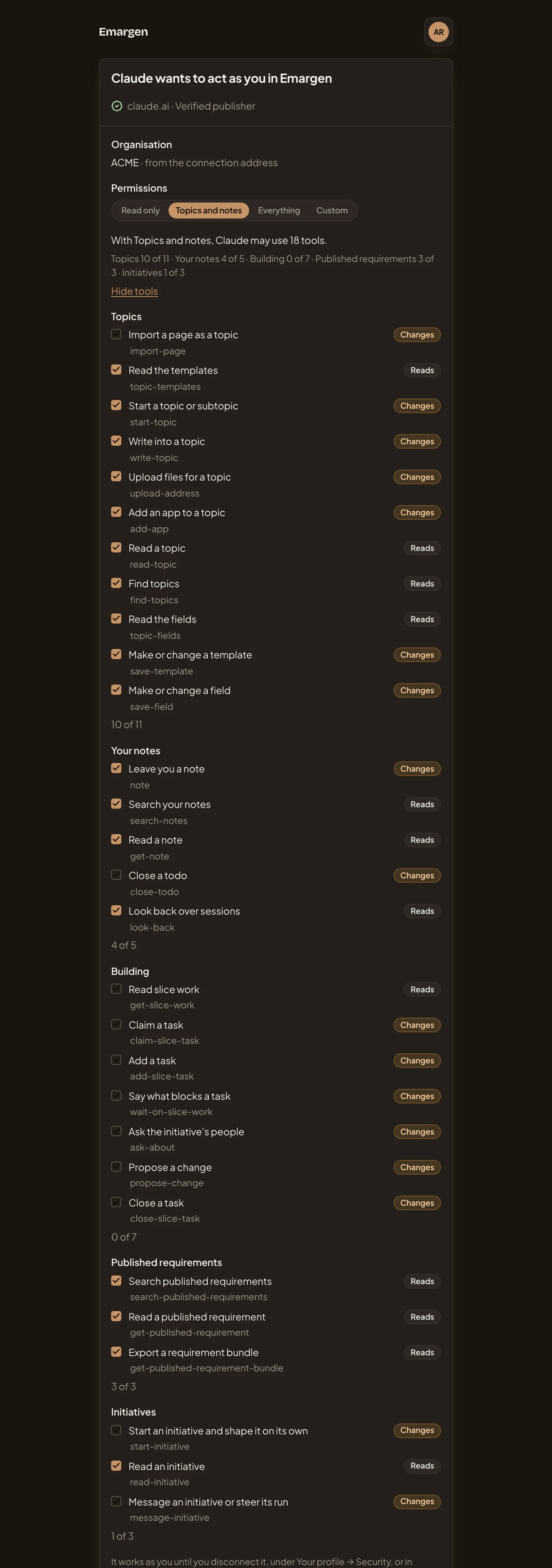
- Hide tools. Folds the list again.
- Topics. One area’s tools.
- A tool, ticked when your choice gives it. Tick or untick it to pick your own tools.
- Changes: the tool changes something in Emargen, like writing a topic.
- The tool’s own name, which the assistant shows when it uses it.
- Reads: the tool only reads.
- How many of the area’s tools your choice gives.
- Building. The tools a coding agent uses to build an initiative’s slices. Topics and notes gives none of them.
With Custom, the list is open from the start. A tool your organisation doesn’t let agents use stays unticked and greyed out, with “doesn’t let agents use this” beside its name.
Your menu
Section titled “Your menu”Your initials, at the top right, open your menu. The page sits outside the app’s menu, so this is where you change who you’re signed in as.
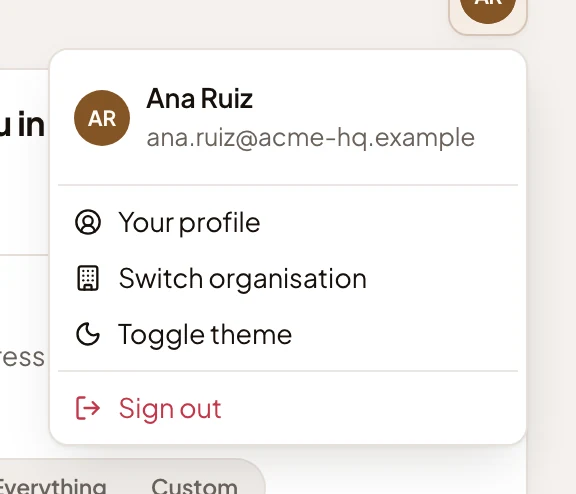
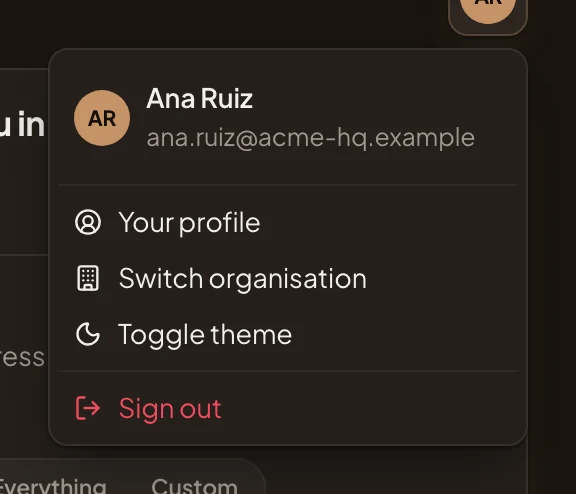
- Your profile. Opens your profile.
- Switch organisation. Signs you in to another of your organisations. Use it when the page asks you to sign in with an organisation’s single sign-on.
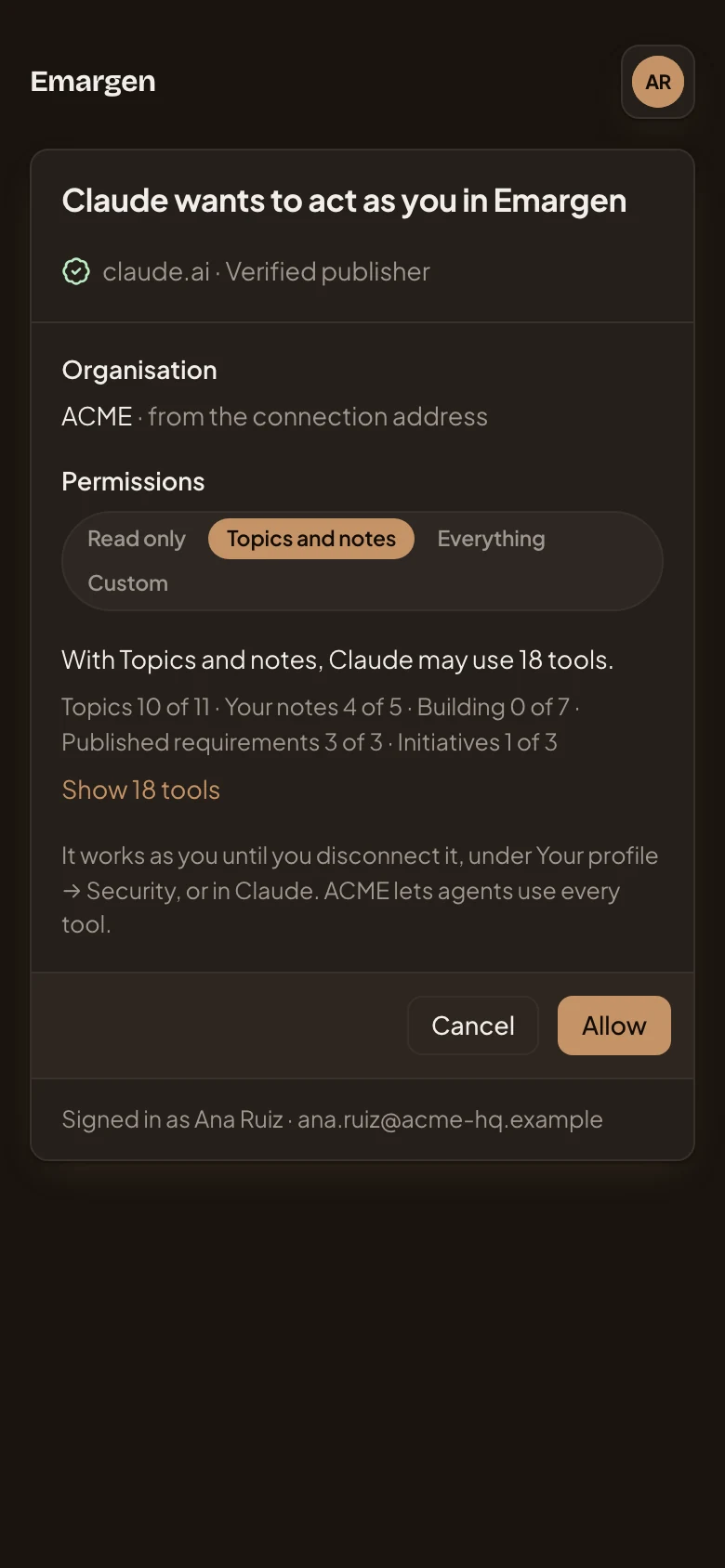
- Toggle theme. Light or dark.
- Sign out.
Expired or refused requests
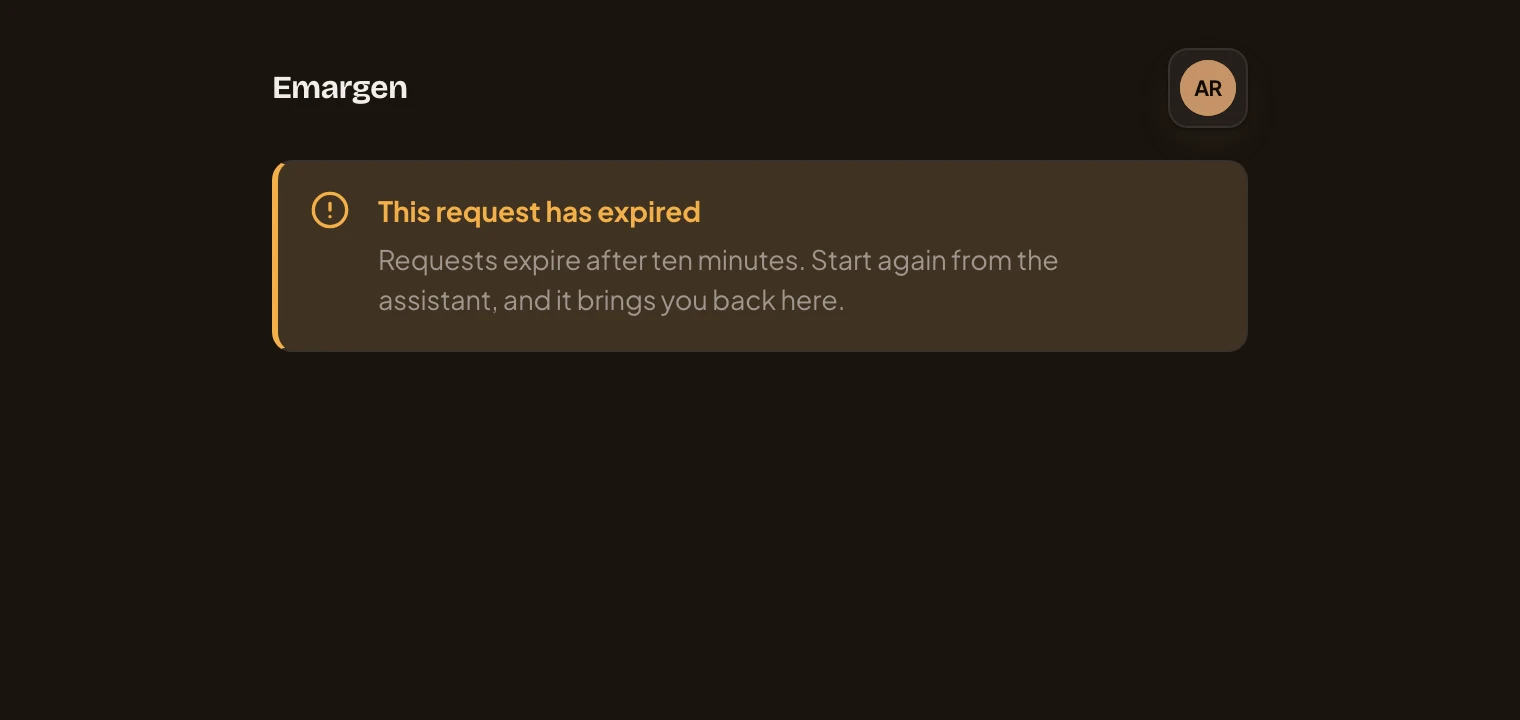
Section titled “Expired or refused requests”A request lasts ten minutes. Open the page after that and the request has expired. Open it without a request and there’s nothing to press. Start again from the assistant.
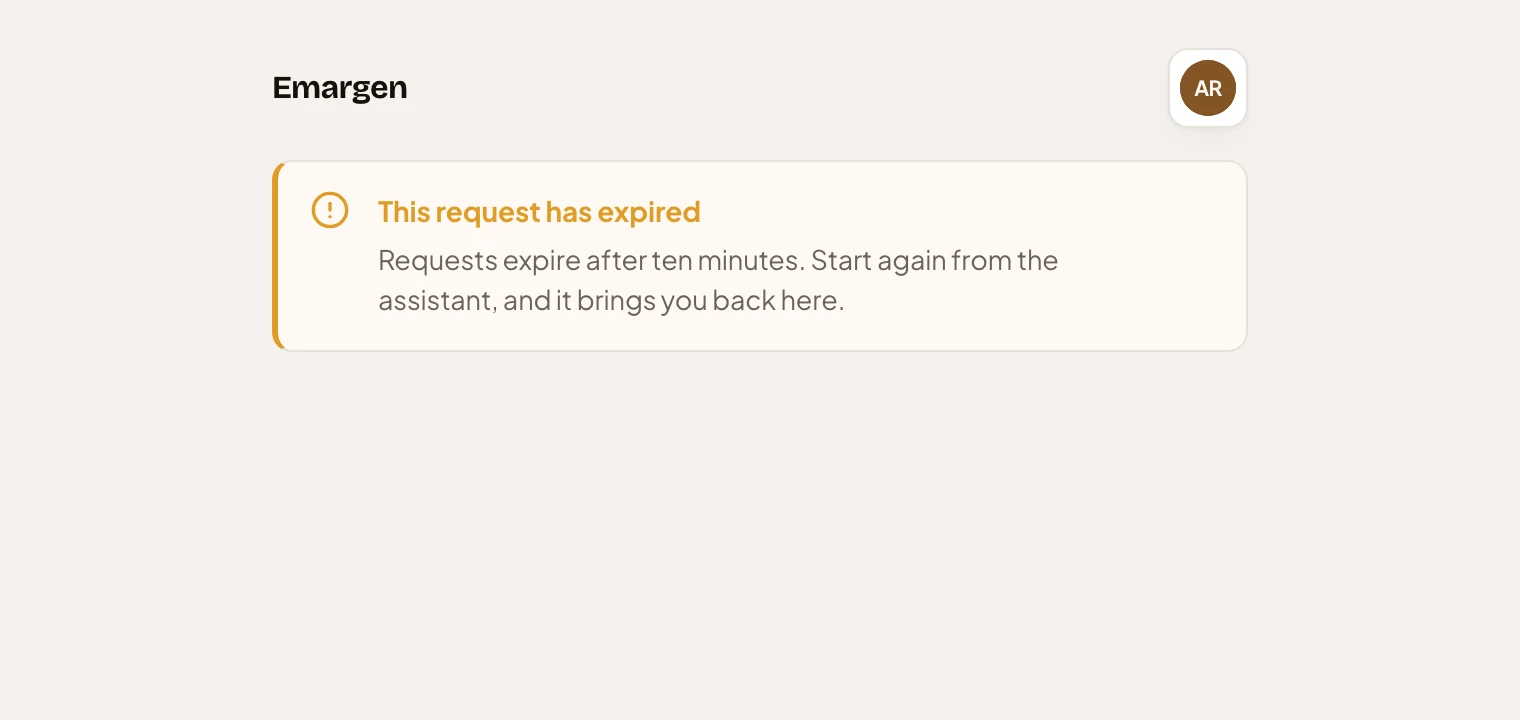
The card can also say why you can’t allow the assistant. Then there’s no Permissions and no Allow, only Cancel.
- “Emargen doesn’t know this organisation”: the address names no organisation. Copy it again from Your profile → Security, where it ends with the organisation’s code.
- “You’re not in” the organisation: only its people can connect an assistant to it.
- The organisation “uses single sign-on”: you signed in another way. Open your menu, choose Switch organisation, and sign in to that organisation with its single sign-on. You come back here, as long as the ten minutes haven’t run out.
If you aren’t signed in at all when the assistant sends you here, you sign in first, and the page opens again.
After Allow
Section titled “After Allow”You’re back in the assistant, which can now use Emargen’s tools as you, in that organisation only. What it writes is yours. A topic’s version says it was made with Claude, and a note says Claude wrote it.
The assistant then shows on your Security page under Connected assistants. The row holds what it may use, when it was last used, and how often it called each tool in the last 30 days. Click its row there to change what it may do, or to disconnect it at once. Under Admin › People › Agent access, administrators see that you’ve connected an assistant and when it was last used. They see nothing else, and never your notes.
If the same assistant is also connected to another of your organisations, it asks you to confirm this one before it makes anything new in a session. Once it has written a topic or a note here, the session stays here. When it works on something already in this organisation, like one of its topics, it doesn’t ask.
On a phone
Section titled “On a phone”The page is the same card, one column wide.
Access
Section titled “Access”Anyone an assistant sends here. You can allow an assistant only in an organisation you belong to, and only up to what that organisation lets agents use. See Agent access and What agents may do.