

AdminPage by page
Support
On Support, you decide if Emargen’s own support team may come into your organisation, and you see everything they did here. They can’t come in until you let them. Open the Support tab of People, under Admin in the menu.
Open Support (opens Emargen in a new tab)Support access is off at ACME. The administrator let support in for a day at the end of September, then turned it off the next morning.
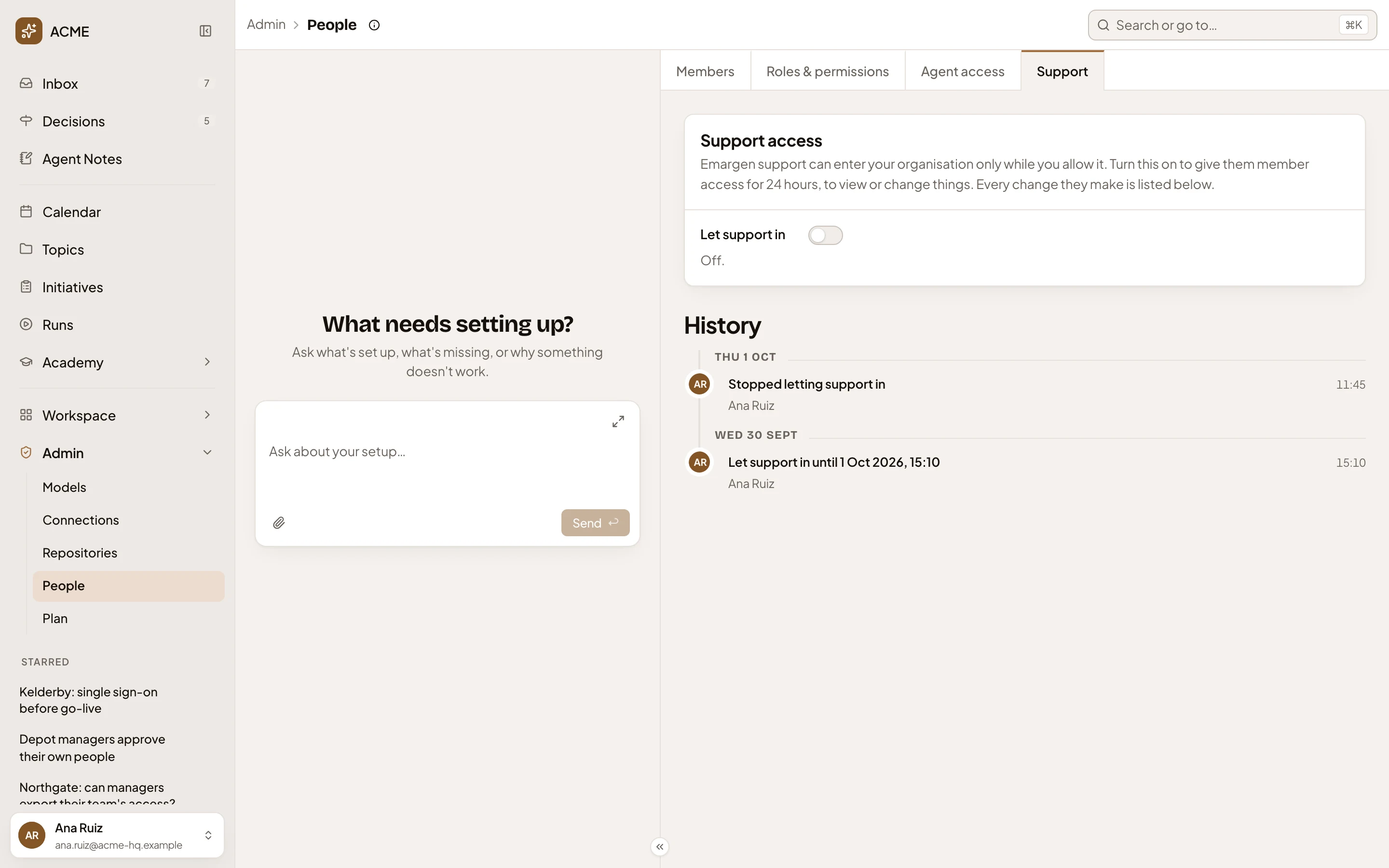
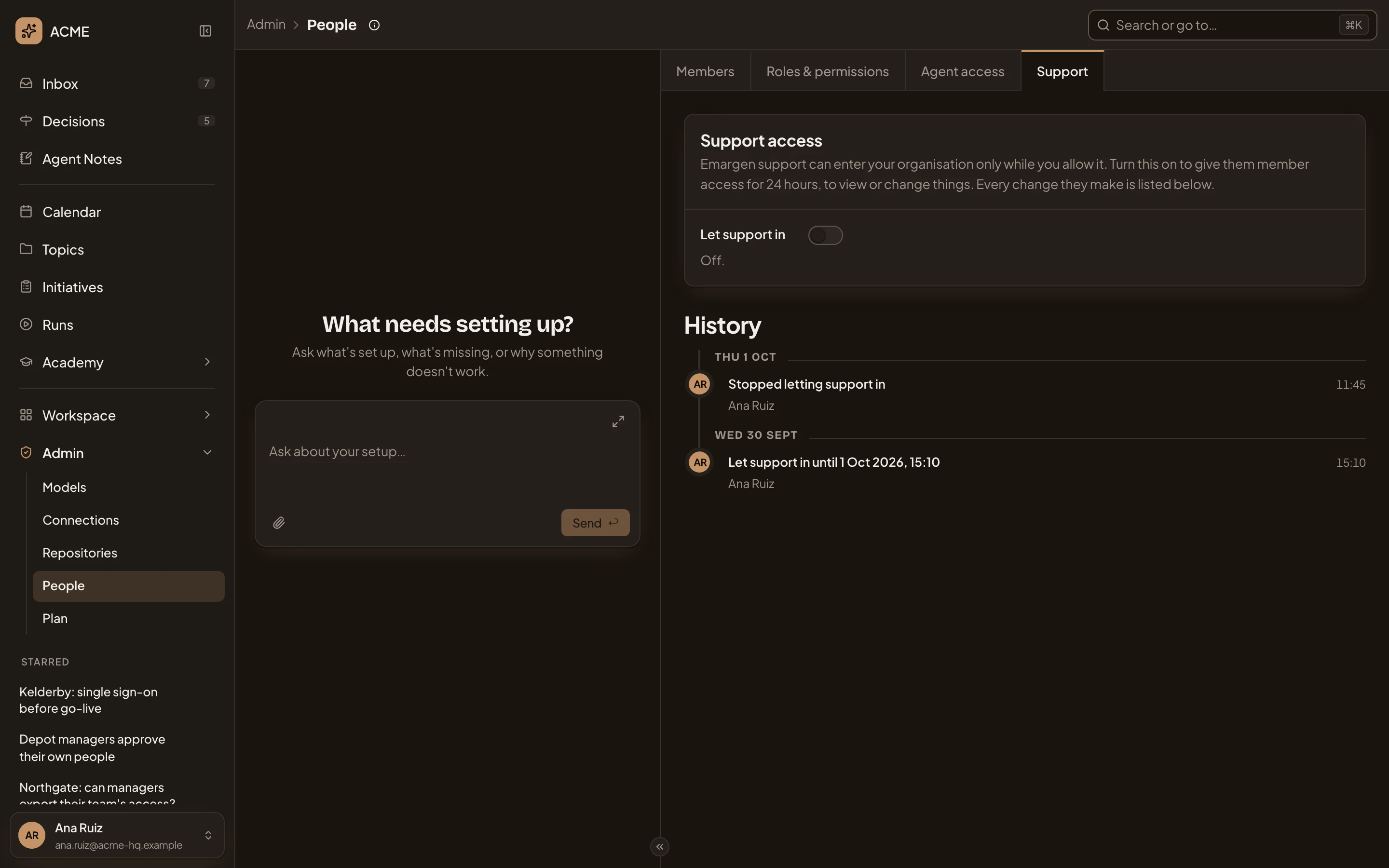
- Support access. What support may do once you let them in. They come in with a member’s access, to view or change things.
- Let support in. Turned on, they can enter for the next 24 hours.
- Under the switch, you see Off, or when access ends and who turned it on.
- History. Everything that happened with support here, by day, newest first.
Letting support in
Section titled “Letting support in”Turn on Let support in when Emargen support is helping you and needs to see what your people see. The line under the switch then says when access ends, 24 hours from now, and who turned it on. After that, access goes off by itself. To stop sooner, turn the switch off and confirm. Any session running then ends. See Let support in.
While it’s on, someone from support may start a session as one of your people, read-only or able to change things. They can’t touch sign-in details, invitations, roles, support access, agent work or your AI providers.
While a session runs, a line above History says who is in, who they’re acting as, and when the session ends. Ending the session stops support straight away.
History
Section titled “History”History lists access changes and support sessions, with who support acted as and how long it ran. It names anyone here who ended a session. A session shows if support could change things and the reason support gave. A session that changed things lists each change behind a count.
When History has no entries, it says “Emargen support hasn’t done anything here yet”.
Access
Section titled “Access”Administrators manage roles, unless your organisation gives the permission Manage roles to another role.