

WorkspacePage by page
A field
A field’s own page is where you name the field, say what it means, and give a choice field its values. Open it by clicking a field on Fields. New field there, or New field… on a template’s page, opens it empty.
Open Fields (opens Emargen in a new tab)ACME’s Status field says where the answer to a customer’s question stands.
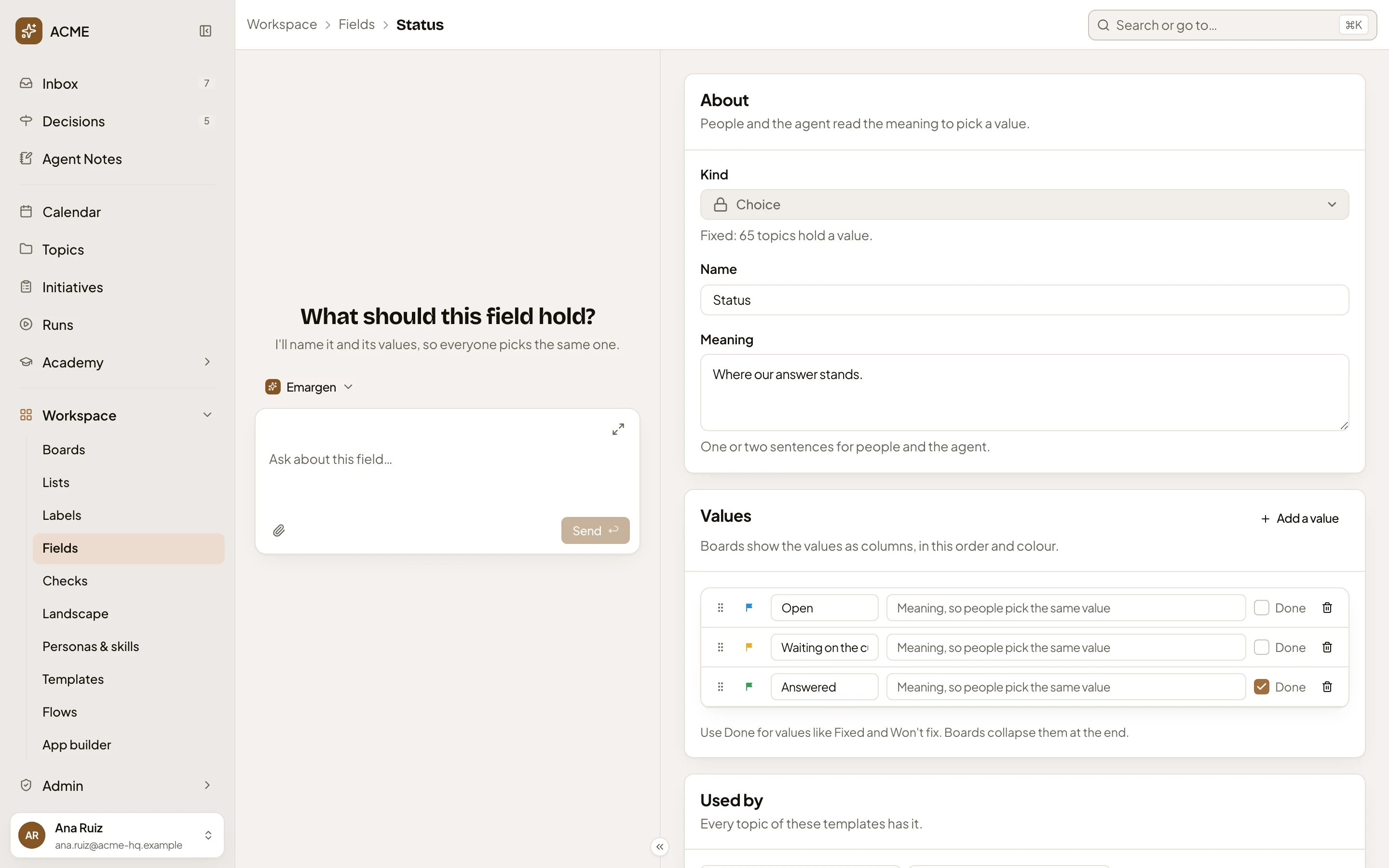
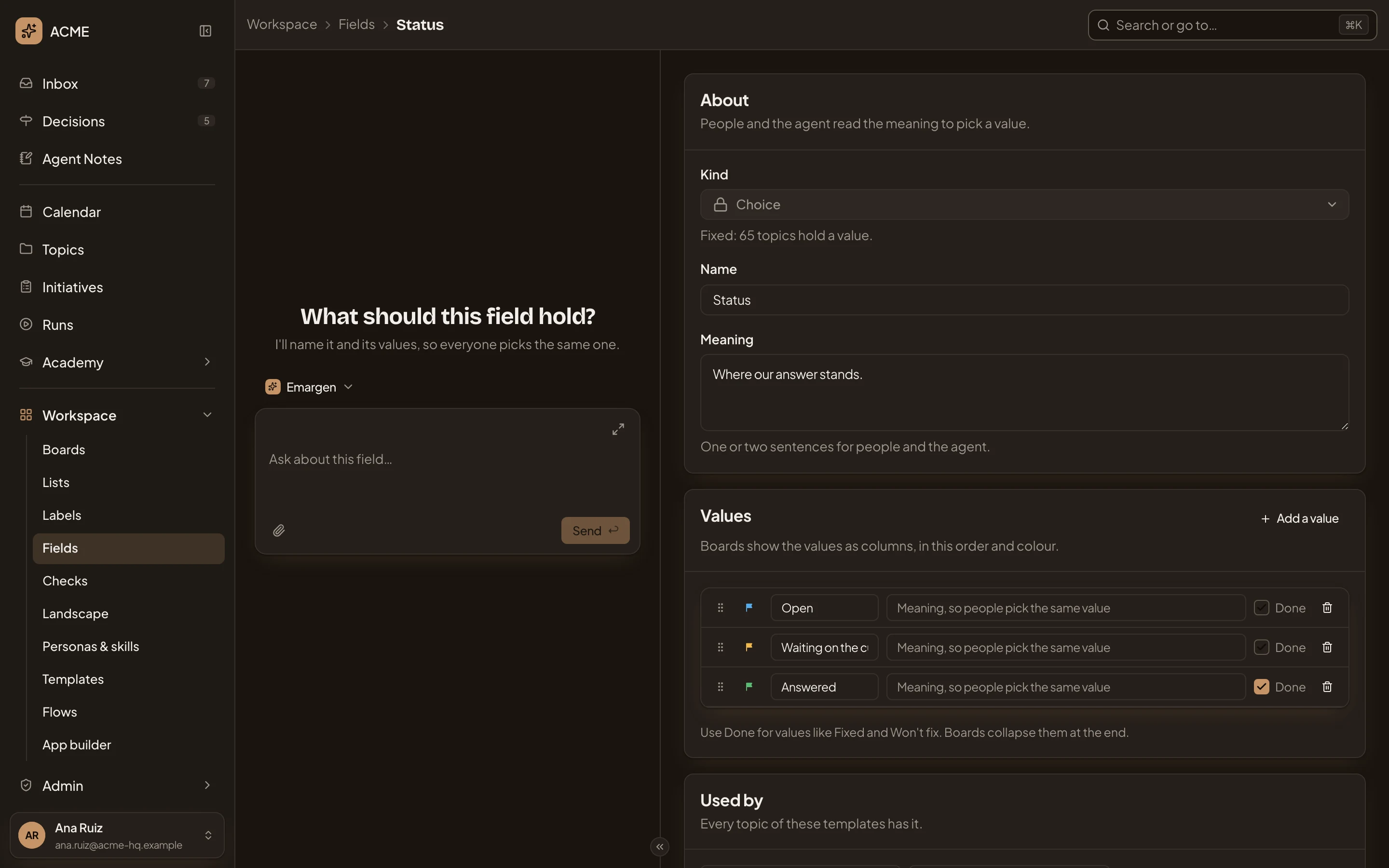
- Kind. What the field holds (see A new field). Once a topic holds a value, the kind is fixed, and the line under it says how many topics hold one.
- Name. The field’s name, as topics, cards and boards show it.
- Meaning. A sentence or two. People read it at the top of the field’s menu on a topic, and the agent reads it to pick a value.
- Add a value. Adds one at the end.
- Move. Drag a value up or down. Boards show the values as columns in this order.
- Colour of Open: Blue. The value’s colour, on topics and on boards. Click it to pick another.
- Value 1. The value’s name.
- Meaning of Open. What the value means, so people and the agent pick the same one. You can leave it empty.
- Done. For values like Answered, Fixed or Won’t fix. Boards fold them at the end.
- Remove Open. Takes the value away (see Removing a value).
Changes wait for Save at the foot of the page.
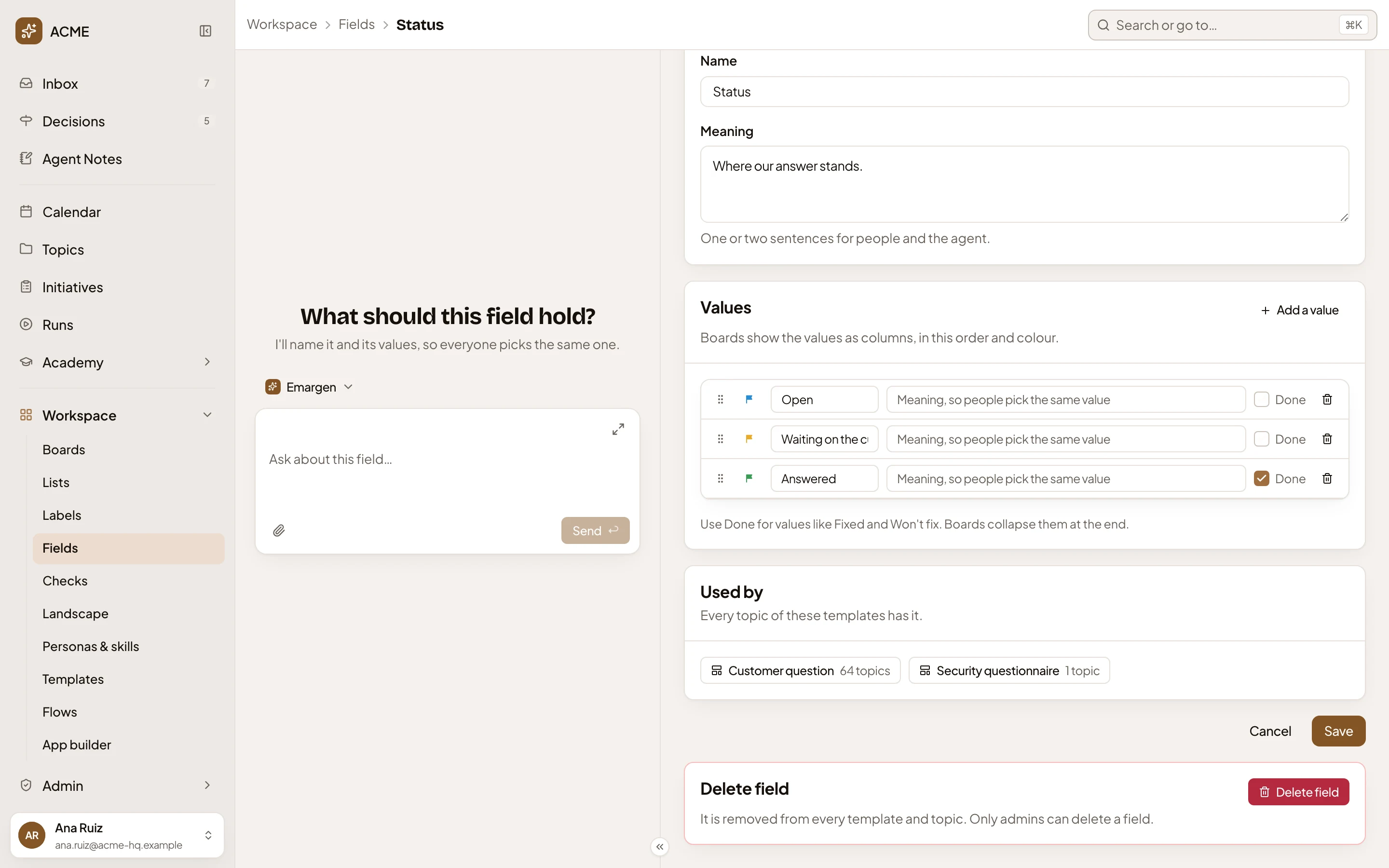
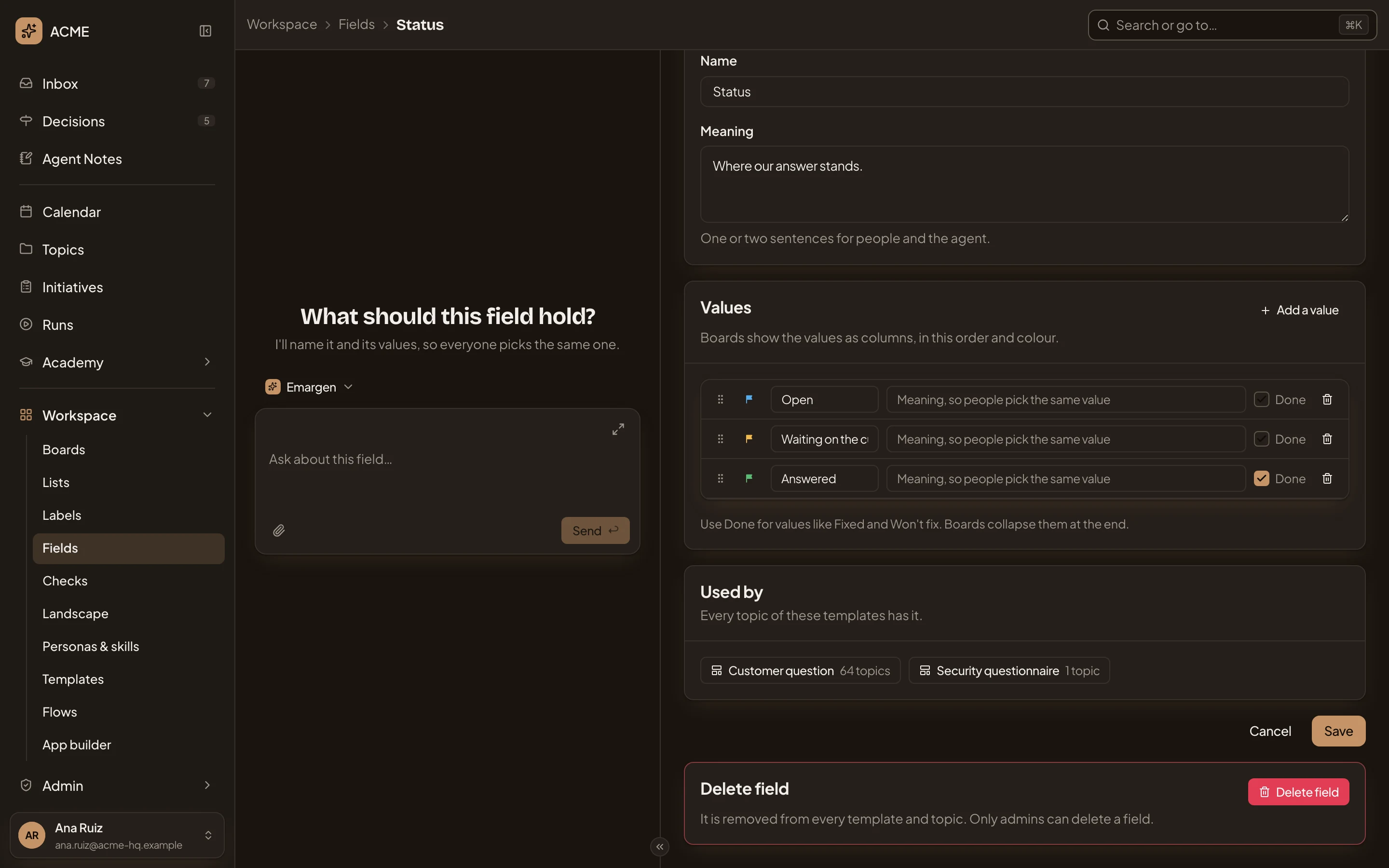
- Used by. The templates whose topics carry the field, with how many topics each. Click one to open the template.
- Cancel. Leaves without saving.
- Save. Every topic that has it shows the change at once.
- Delete field. For administrators only (see Deleting a field).
A field no template uses yet says “No template uses it yet. Add it on a template’s page.”
Removing a value
Section titled “Removing a value”When no topic holds the value, it goes when you save. When topics hold it, the page asks where they move.
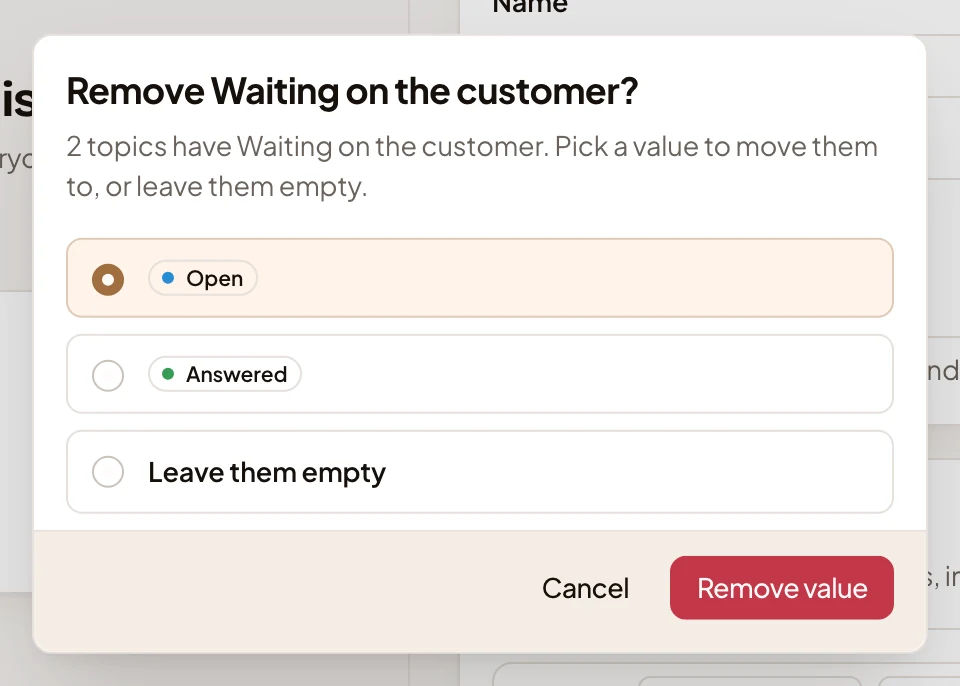
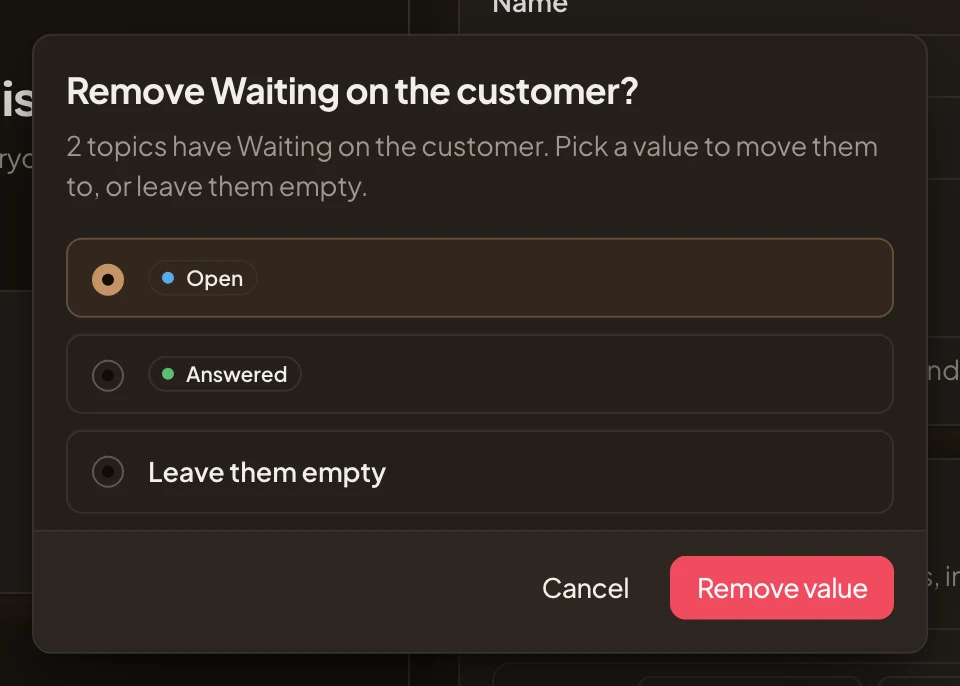
- Move them to. Another value for the topics that hold this one, or Leave them empty.
- Remove value. Takes the value away when you save, and moves the topics.
A date field
Section titled “A date field”A date field has no values. It has Show on the calendar instead, so each topic with a date shows on the calendar on that date.
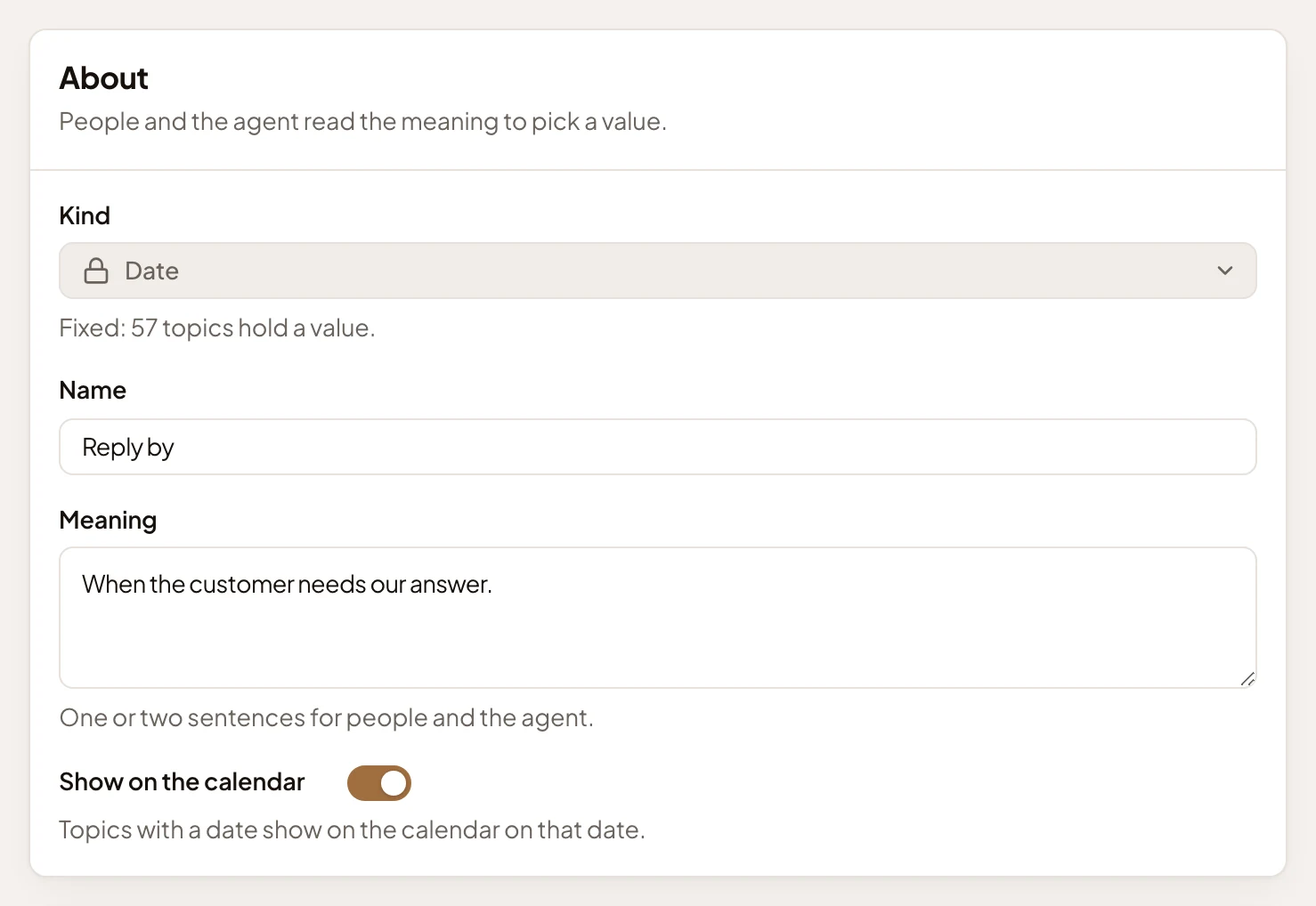
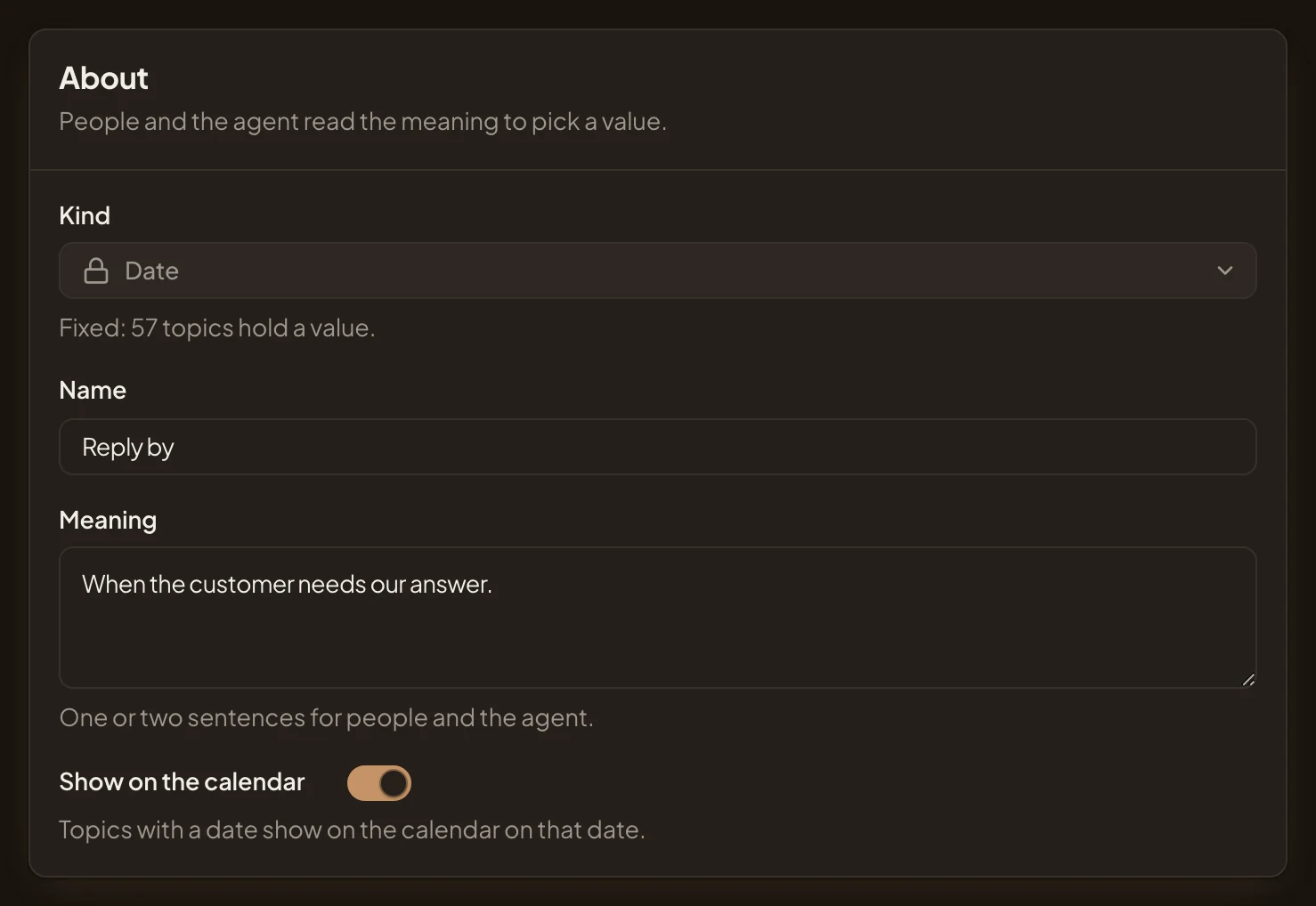
- Kind. Date, fixed.
- Show on the calendar. On, each topic’s date shows on the calendar.
A number field has a Unit instead, like points, customers or €.
Deleting a field
Section titled “Deleting a field”Delete field asks first, and says how many topics hold a value. Those values go, and the field goes from every template. The topics’ history stays as it was.
Someone who may only read it
Section titled “Someone who may only read it”Someone who didn’t make the field and isn’t an administrator reads the same page with everything greyed out, and no Save or Delete. A member at ACME opens Status:
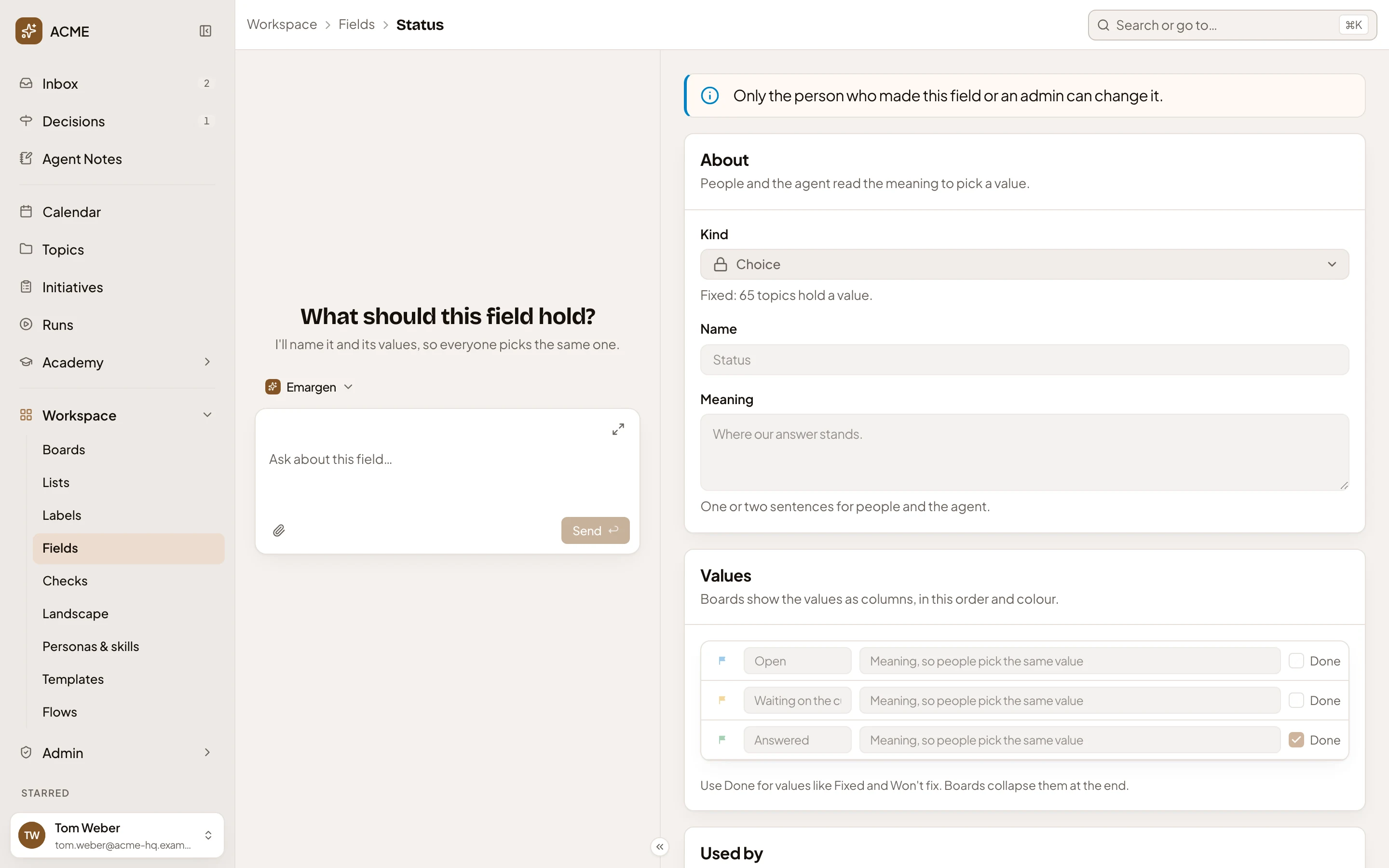
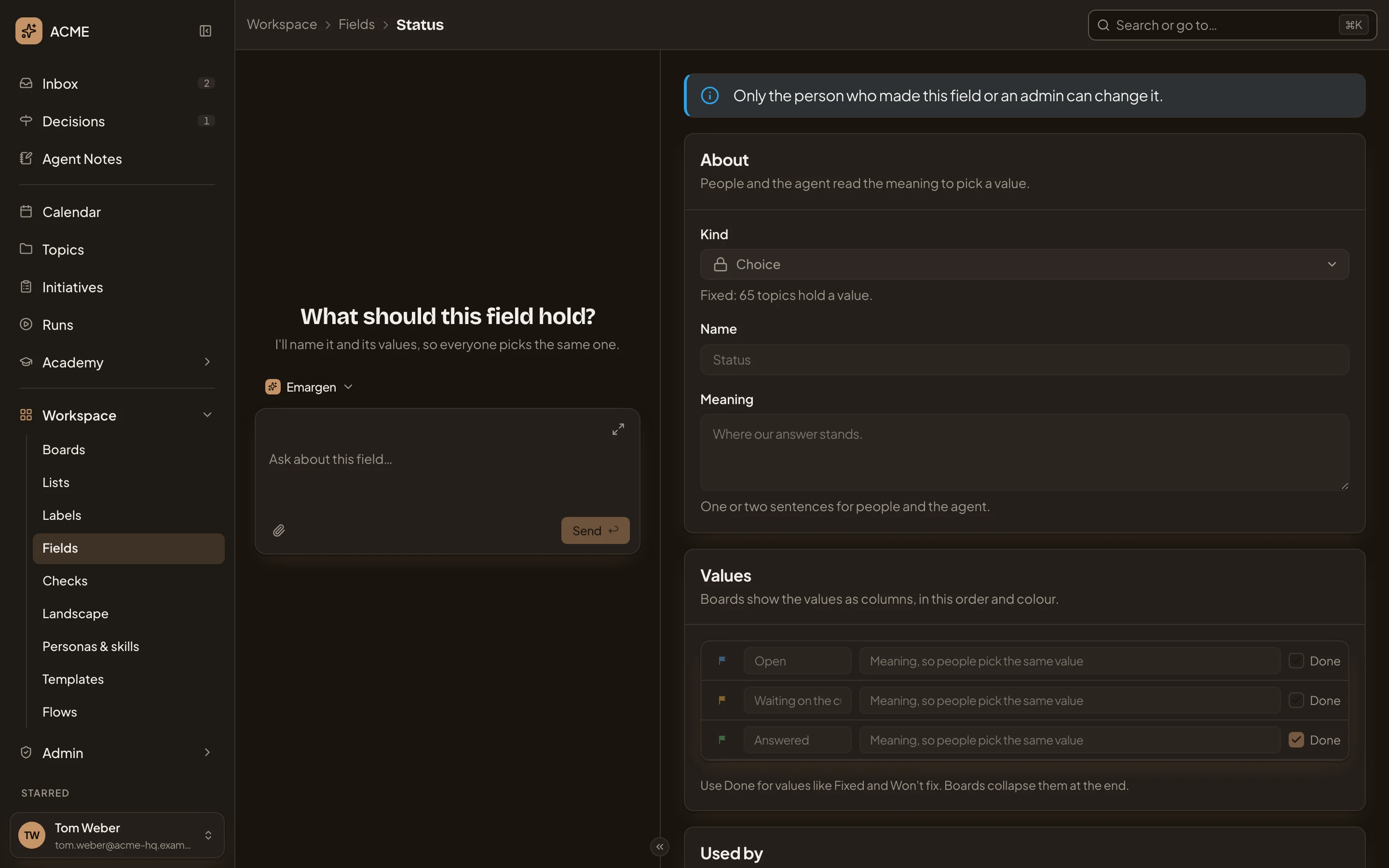
- “Only the person who made this field or an admin can change it.”
A new field
Section titled “A new field”New field opens the same page, empty, with Kind first, then Name and Meaning, then the values.
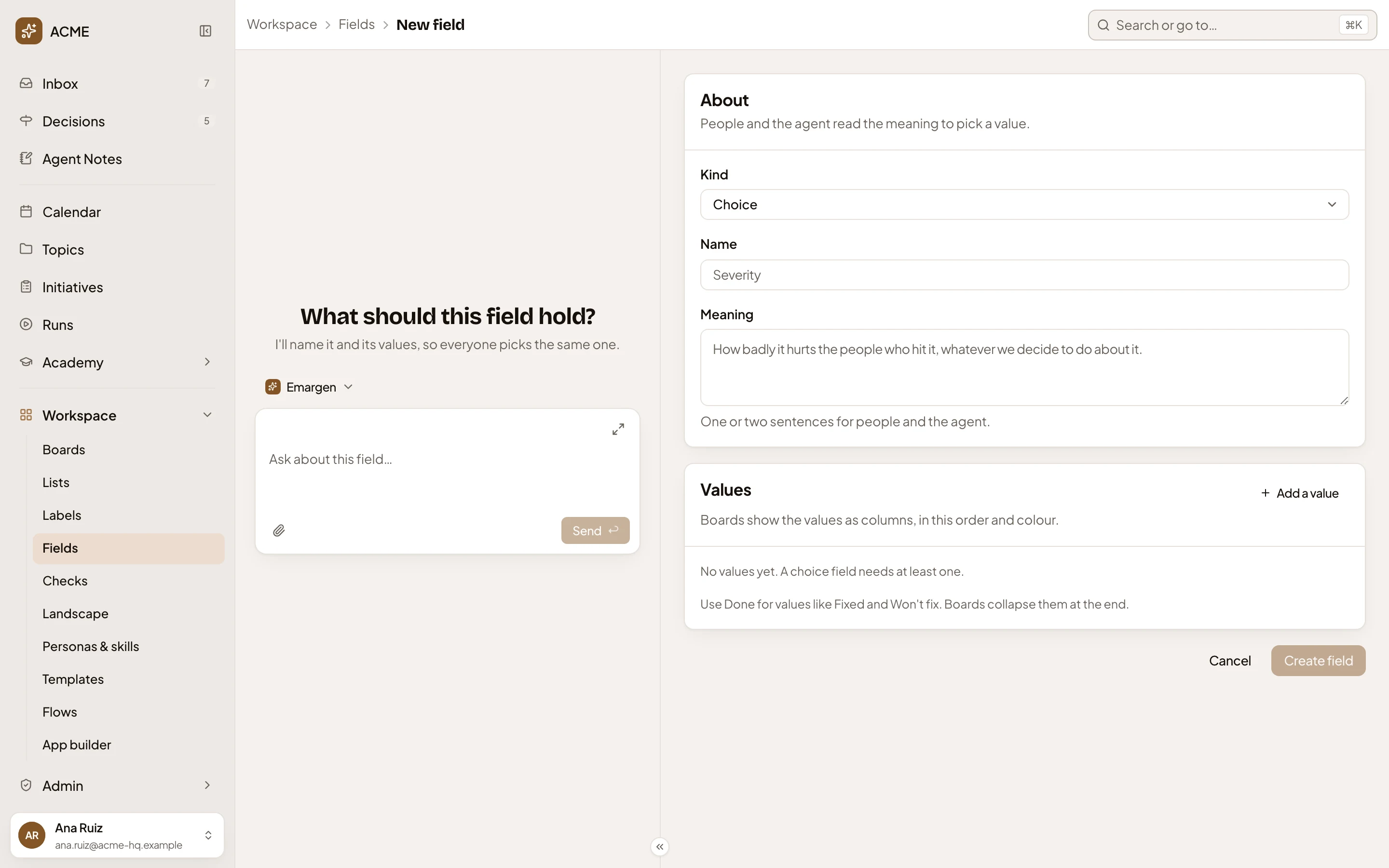
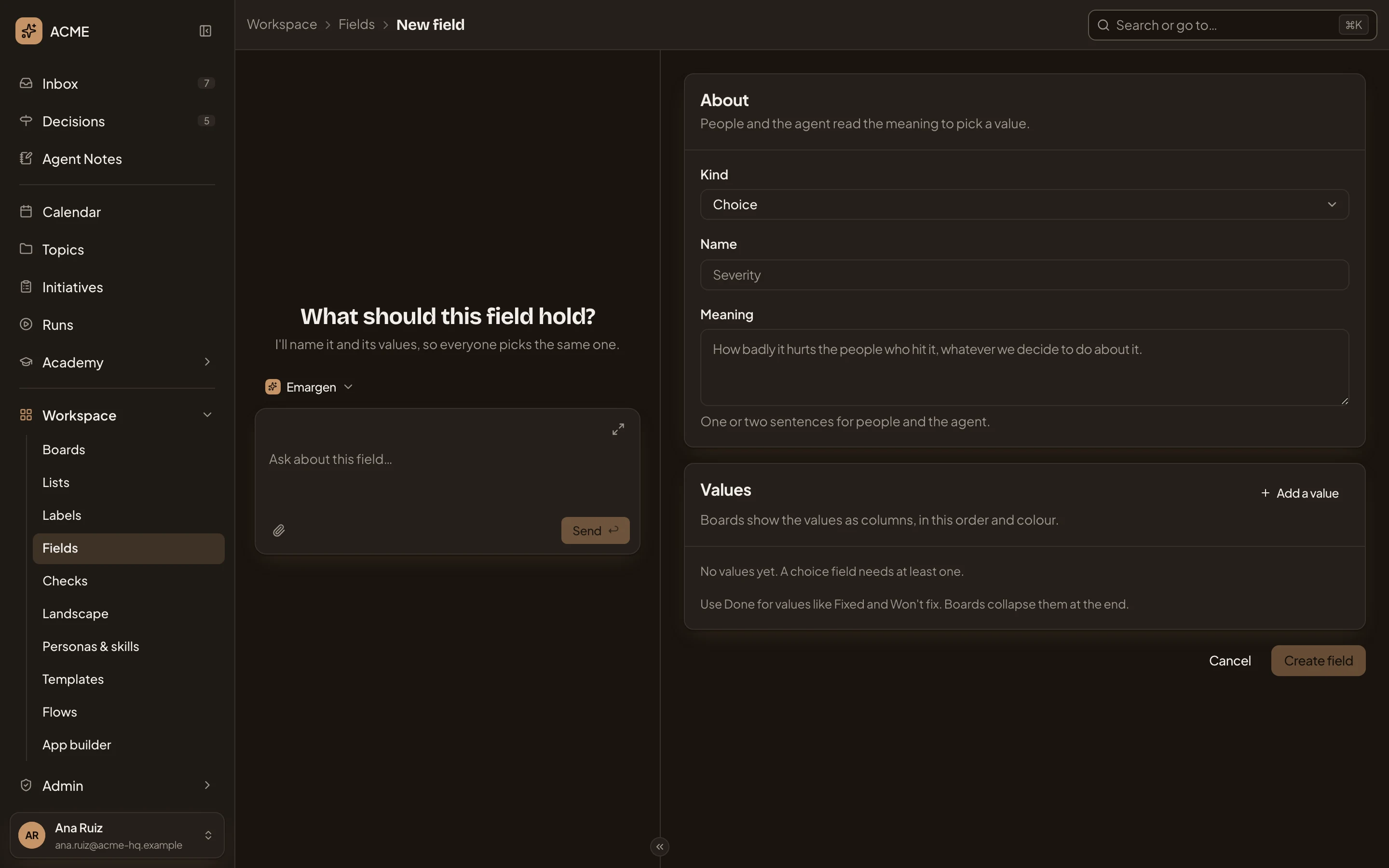
- Kind. Choice to start with. Click it to pick another.
- Name. Like Severity.
- Meaning. Required, since the agent picks values by it.
- Add a value. A choice field needs at least one.
- Create field. You can press it once the field has a name, a meaning and, for a choice field, a value.
A field can be one of seven kinds:
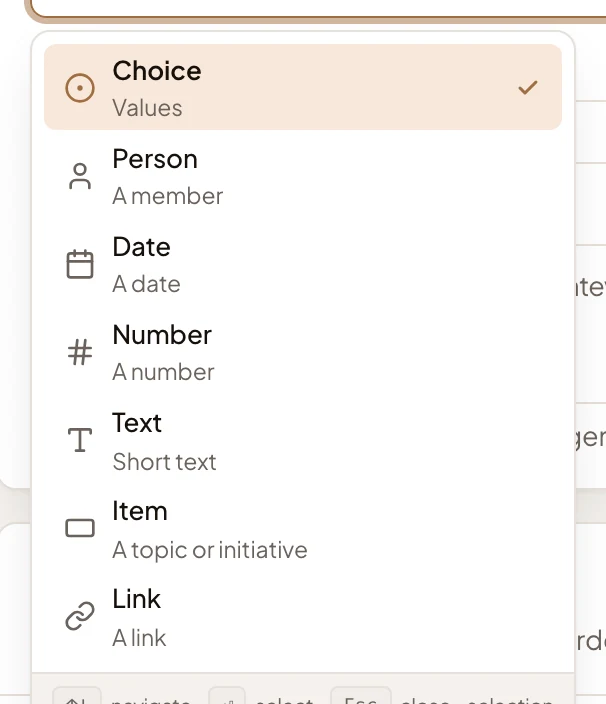
- Choice: one of the values you list, such as Status.
- Person: someone in the organisation.
- Date: a date, such as Reply by.
- Number: a number, with a unit if you like.
- Text: one short line.
- Item: a topic or an initiative, by its key.
- Link: a web address, with a short name if you like.
A field holds one value on each topic. When you press Create field, you go back to Fields, where the new row flashes. When you make it from a template’s page, you go back there with the field added. Ask the workspace agent instead, and it fills this page in for you. Nothing is made until you press Create field, or the button on the card the agent puts in the chat. See Add a field.
Access
Section titled “Access”Anyone in the organisation makes a field. You can change it if you made it, or if your role lets you manage the organisation’s settings, as an administrator can. Only administrators delete it. Everyone else reads the page.