

TopicsHow to
Start a topic from a template
Use a template for work your team does often, like choosing between a few options, or what customer interviews taught you. The topic starts with the template’s sections in order, so the team doesn’t forget what it always needs.
Before you start
Section titled “Before you start”- Who can
- Anyone in the organisation can start a topic from a template.
- Templates
- Every organisation has Emargen’s own templates, such as Decision brief, Idea, Prioritisation and Research findings. Your organisation can add its own templates, and you can add your own.
- The pictures
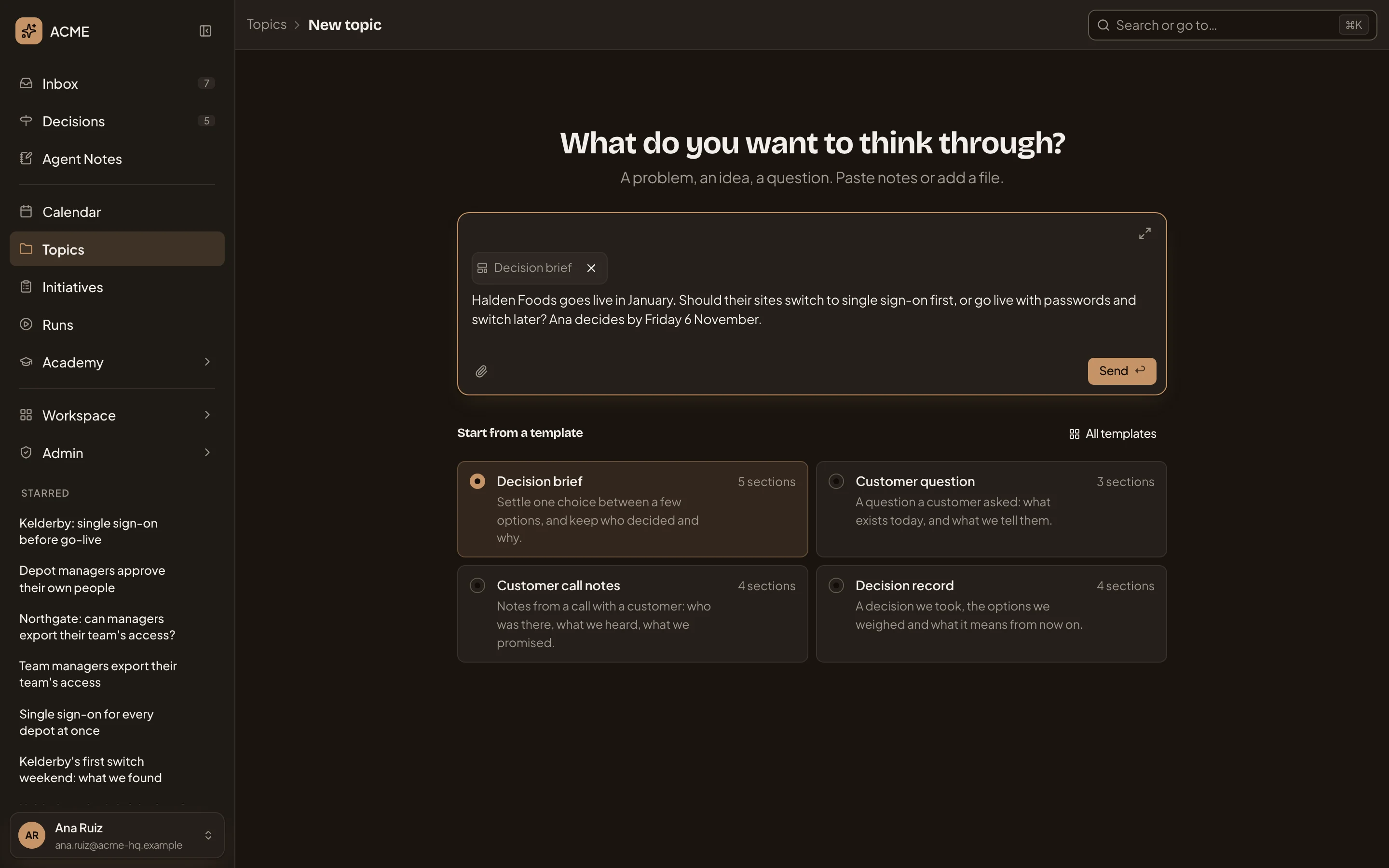
- New topic at ACME: a topic starts as a Decision brief, on whether to switch a customer’s sites to single sign-on before their go-live.
-
Open New topic. Under the message box, Start from a template shows the four templates your organisation uses most, each listing when to use it and how many sections it has. If the one you want is there, click it and go to step 4.
Open New topic (opens Emargen in a new tab)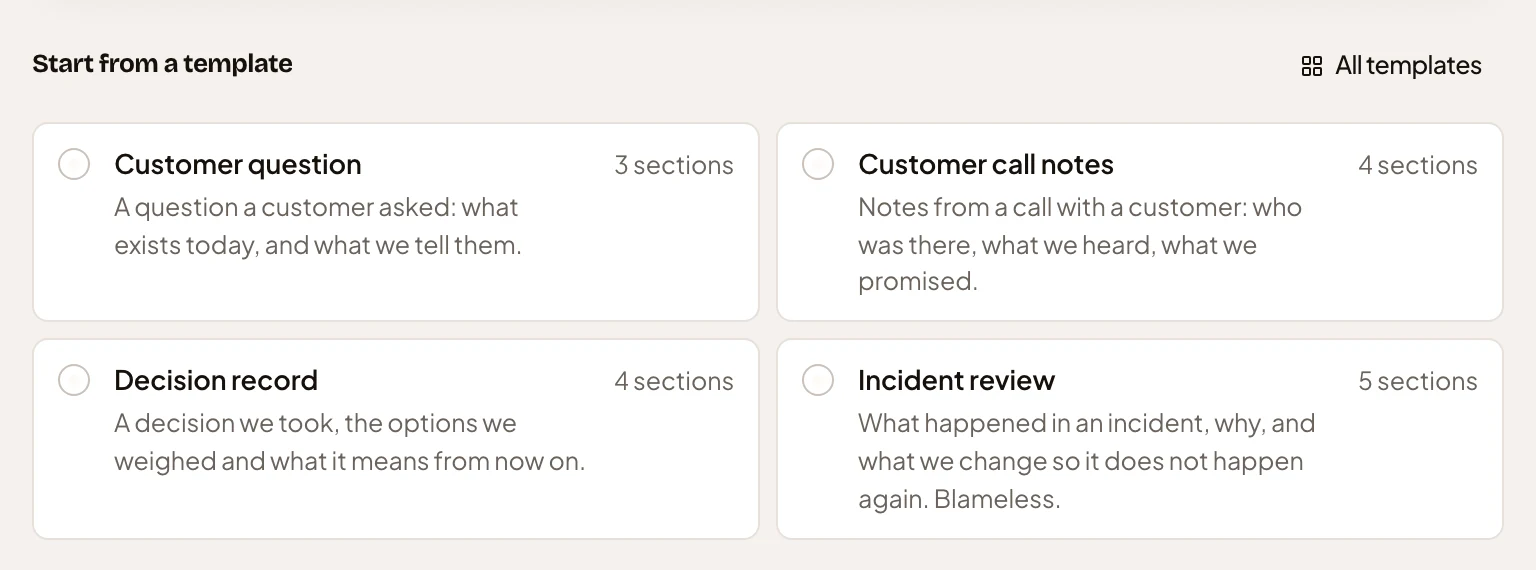
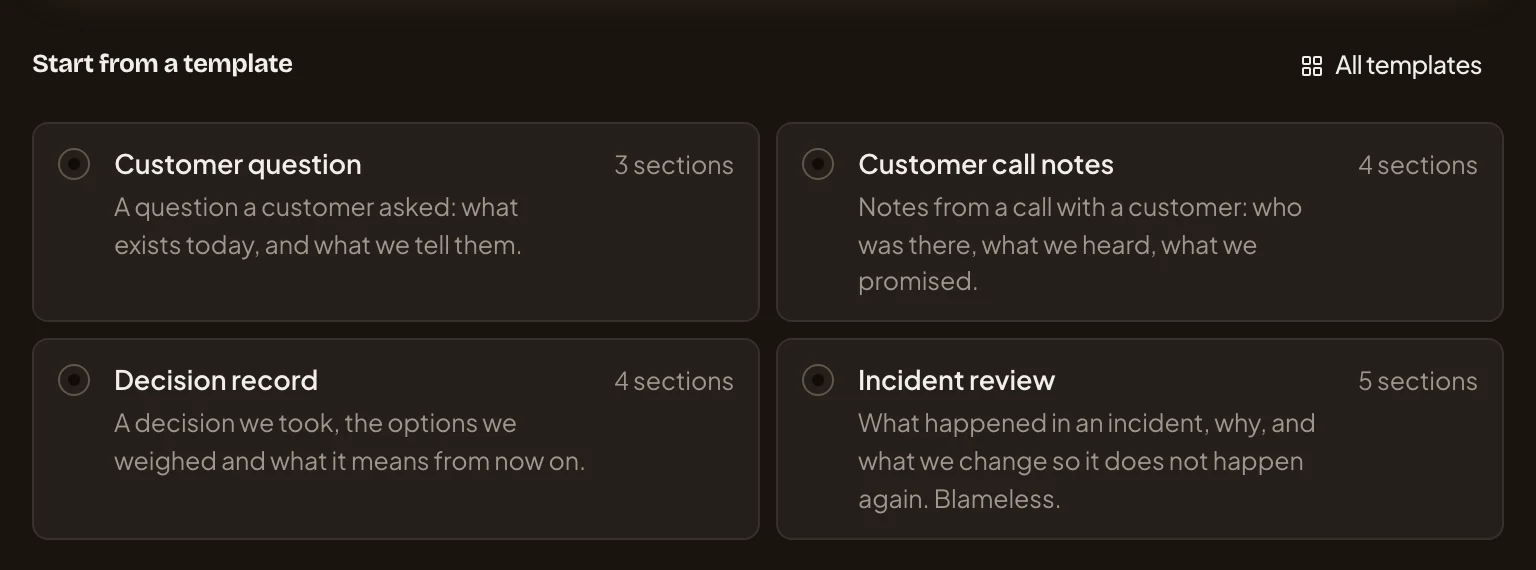
- A template: its name, when to use it, and how many sections it starts the topic with.
- All templates: every template you can use.
-
Click All templates. Choose a template opens over the page, with every template you can use. The ones your organisation uses most come first, and each lists its sections.
-
Type a word in Find a template, such as “decision”, then click the template’s row. For a choice between a few options, click Decision brief. The dialog closes.
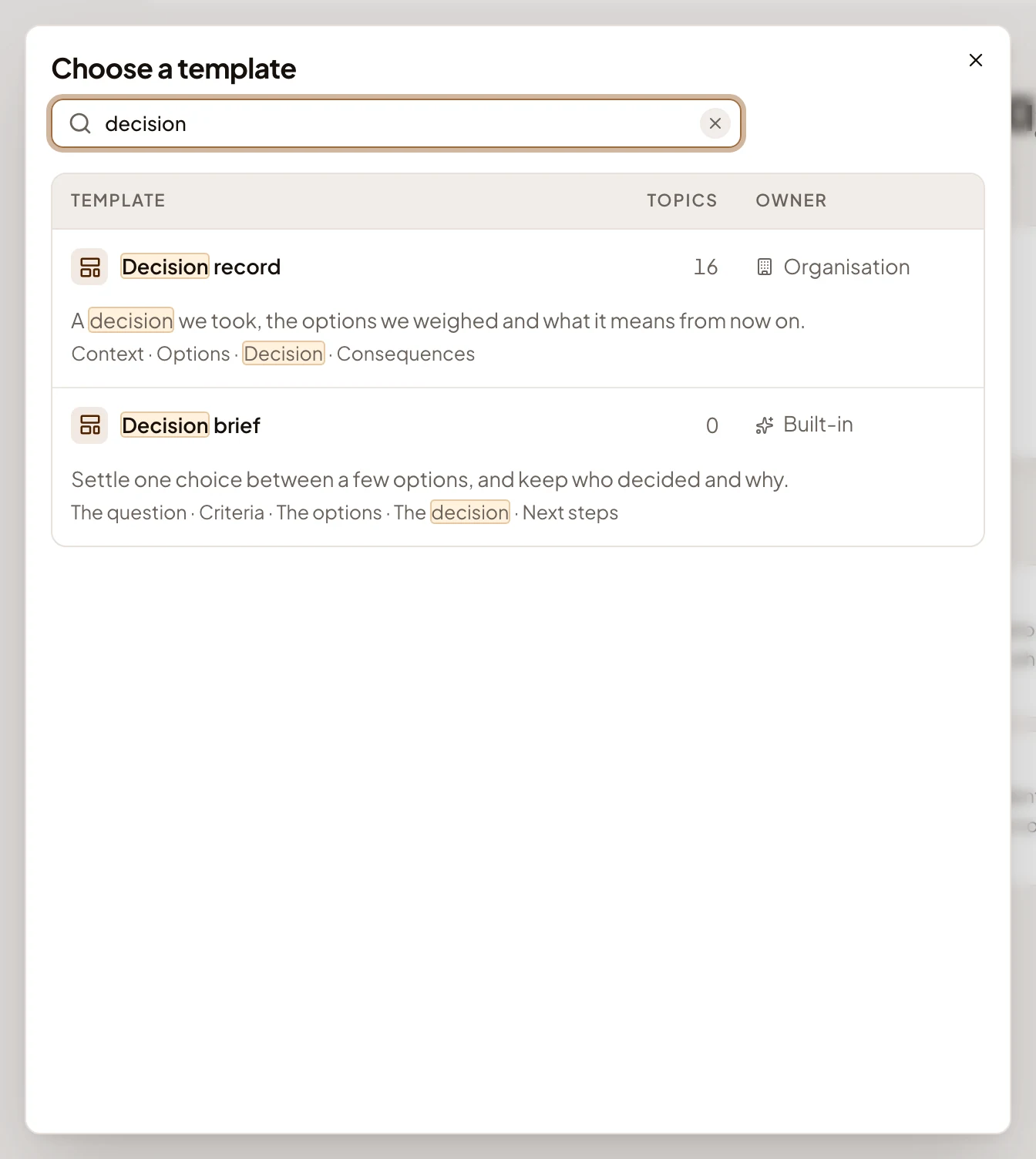
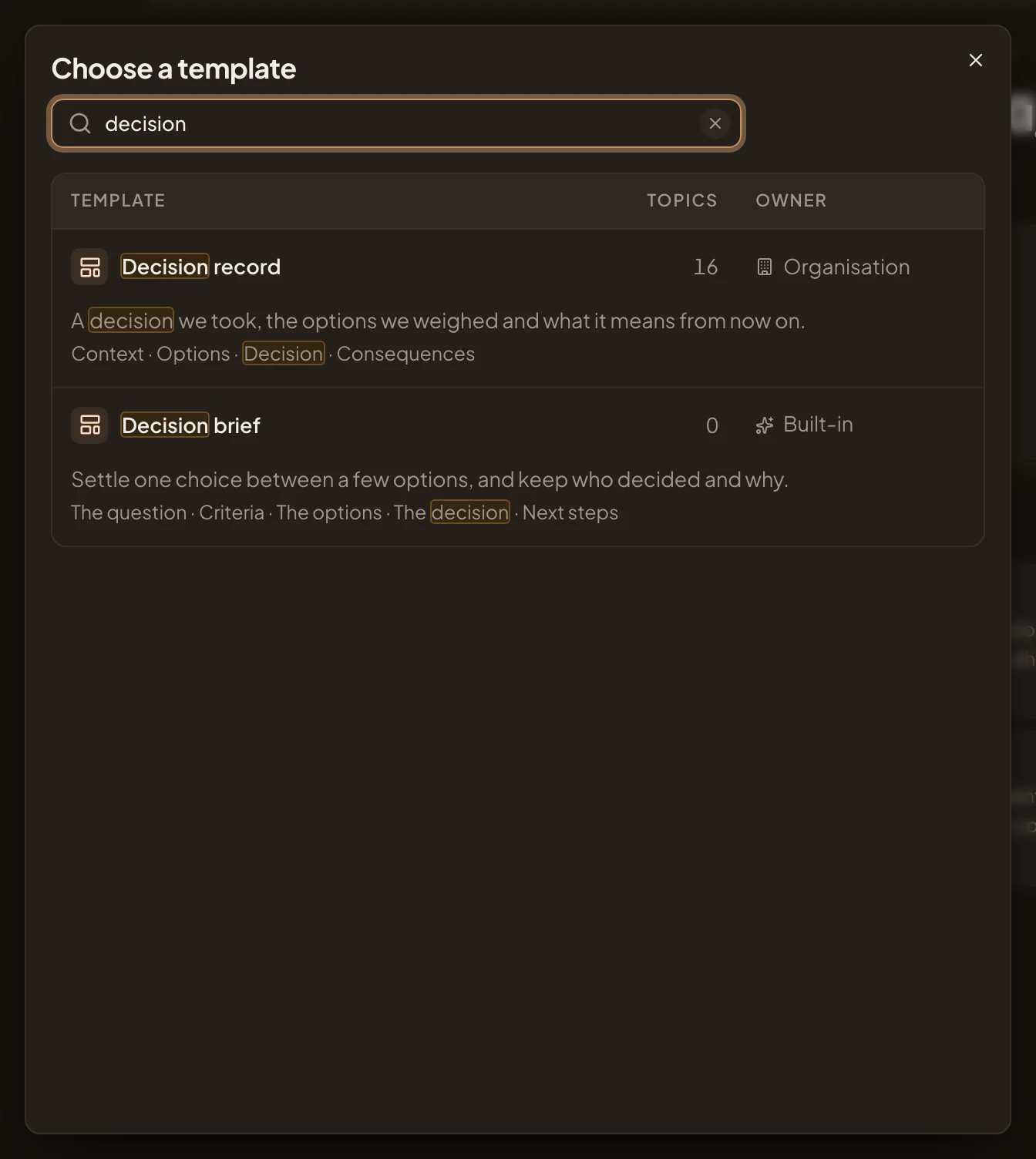
- Find a template. The words narrow the list by a template’s name, when to use it, or its sections. What matched is marked.
- Decision brief, one of Emargen’s own templates.
-
The template’s name appears in the message box. Click × beside it to start without a template. Type what the topic is about: the choice, who decides, and by when. For example: “A customer goes live in January. Should their sites switch to single sign-on first, or go live with passwords and switch later? The customer success lead decides by Friday 6 November.”
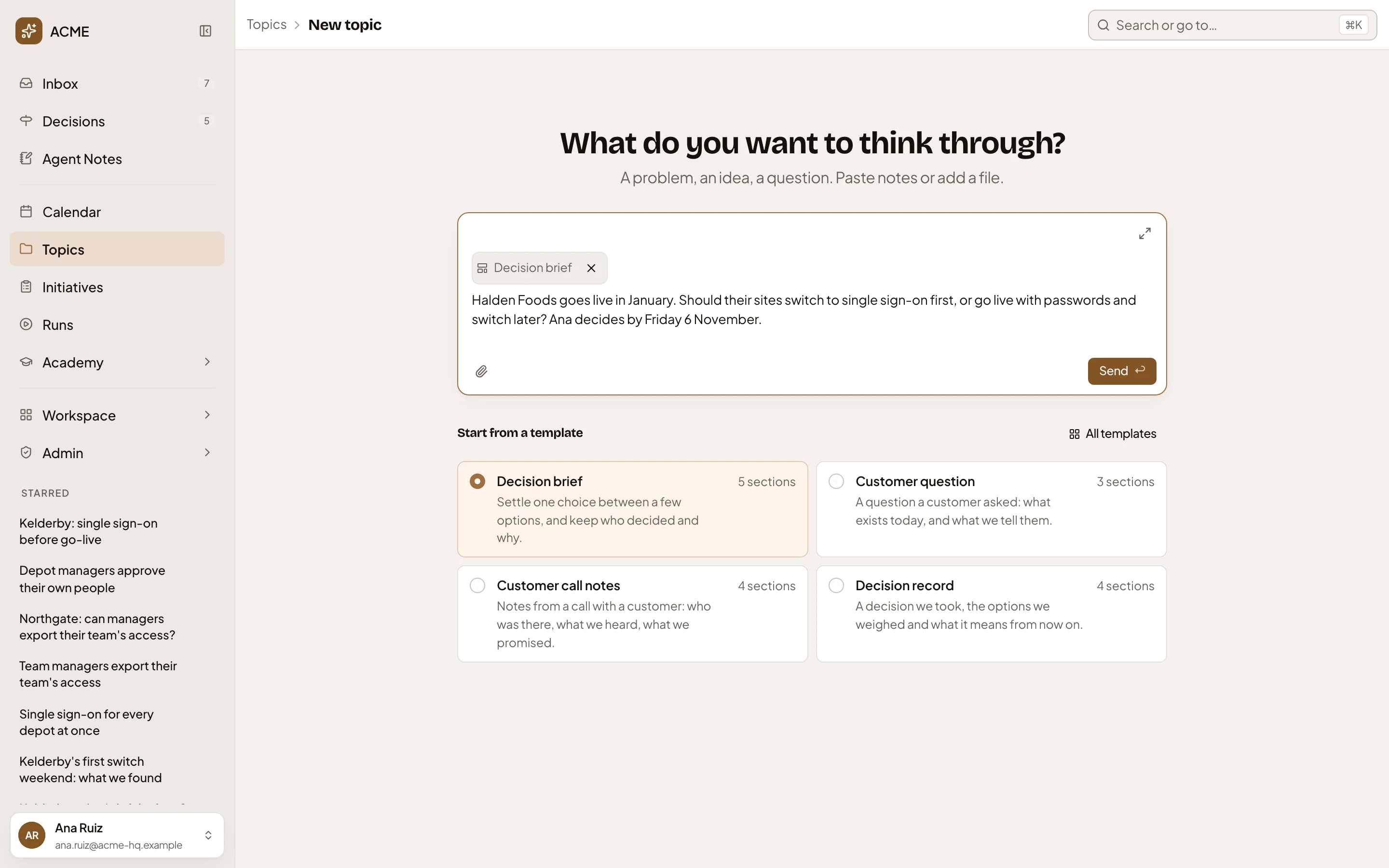
- The template you picked. Click its name to choose another.
- ×, to start without it.
- The message box, where you say what the topic is about.
- Decision brief, which wasn’t among the four, now takes the first card.
-
Click Send. The topic opens with your message in the chat. The agent names the topic and writes what it can of the template’s sections. The agent’s reply shows a line for each thing it did, such as “Named it”, “Started the document” or “Checking”.
If the agent can’t finish, it says why in one line. What it did before it stopped stays on the topic. Press “Send again” to send it once more. Start a topic says more about it.
-
Click the small document on the right of the chat to open it. Click the template’s name above the title to open the template. The sections follow in the template’s order. For a decision brief, they’re The question, Criteria, The options, The decision and Next steps. A section nobody has written yet shows the template’s hint in grey. Under The decision, the agent leaves the choice open, with the option it recommends, for the person who decides: see Decide an open question.
Emargen’s own templates have no fields. A template your organisation makes can add some, such as the customer or the day an answer is due. They show under the topic’s sentence, and you change one by clicking its value (see Changing a field).
You can also start without a template and ask the agent to use one. It offers the template on a card in the chat, with “Cancel” and a button named after the template, such as “Apply Decision brief”. Nothing changes until you press that button.
What you get
Section titled “What you get”- A topic that starts with the template’s sections, in order. The agent writes them as you talk, and can add sections the work turns out to need.
- Versions that show how the topic changed as you worked (see what changed on a topic).