

WorkspaceHow to
Make a board
Make a board when you keep looking for the same set of topics or initiatives. Someone in security might want every incident in one place. A product manager might want the initiatives in delivery.
Before you start
Section titled “Before you start”- Anyone in the organisation can make a board, and it’s yours.
- Decide what it holds, topics or initiatives. Decide too if it shows whatever matches some conditions (Automatic) or lists you keep (Manual). Neither can change later.
- For a board of everything with a label, as here, you need a label some of your topics carry.
- The pictures show ACME’s security and compliance lead making a board of every topic labelled Incident.
-
In the menu, click Boards under Workspace, then New board. If Workspace is folded, click its arrow to open it.
Open Boards (opens Emargen in a new tab)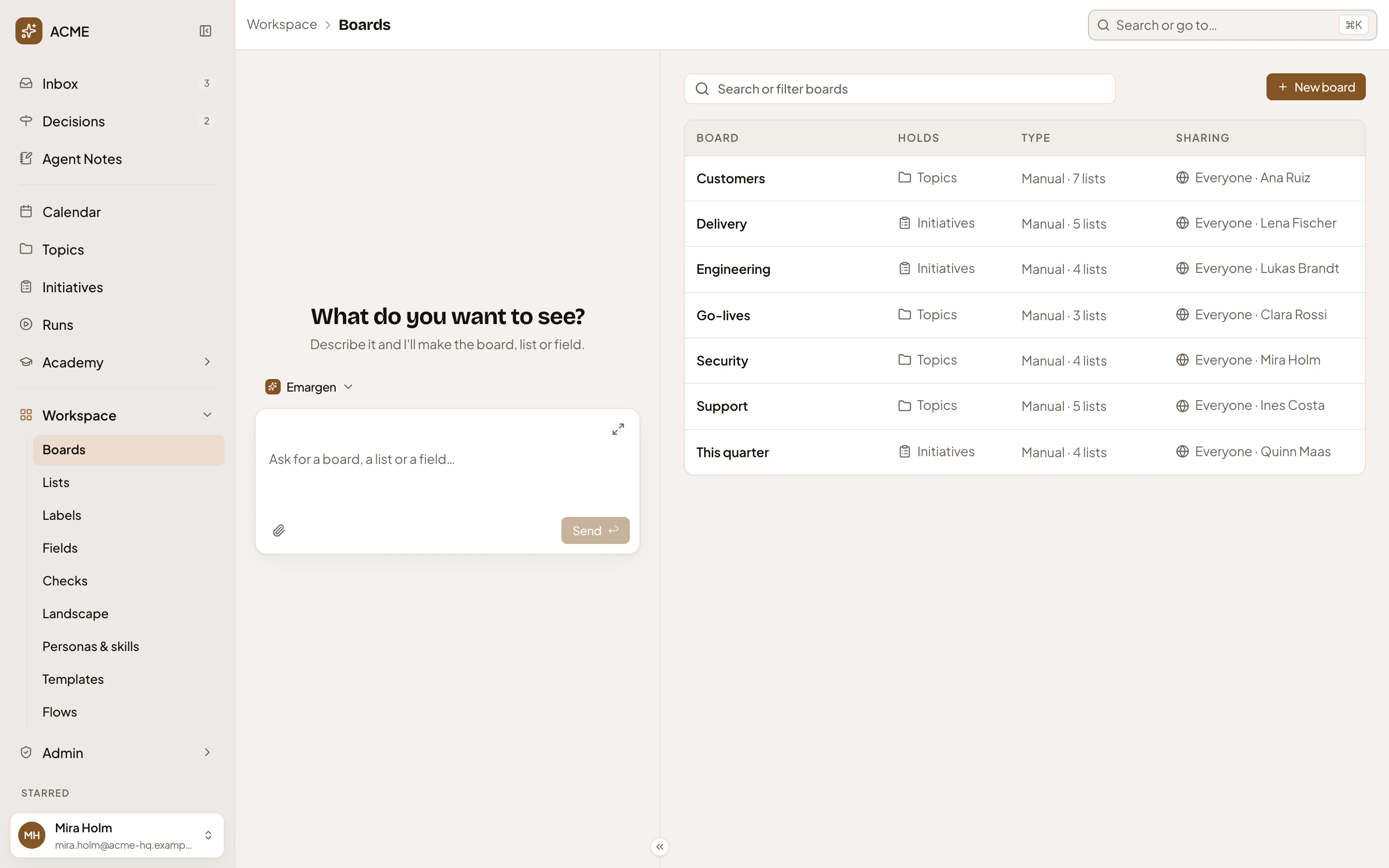
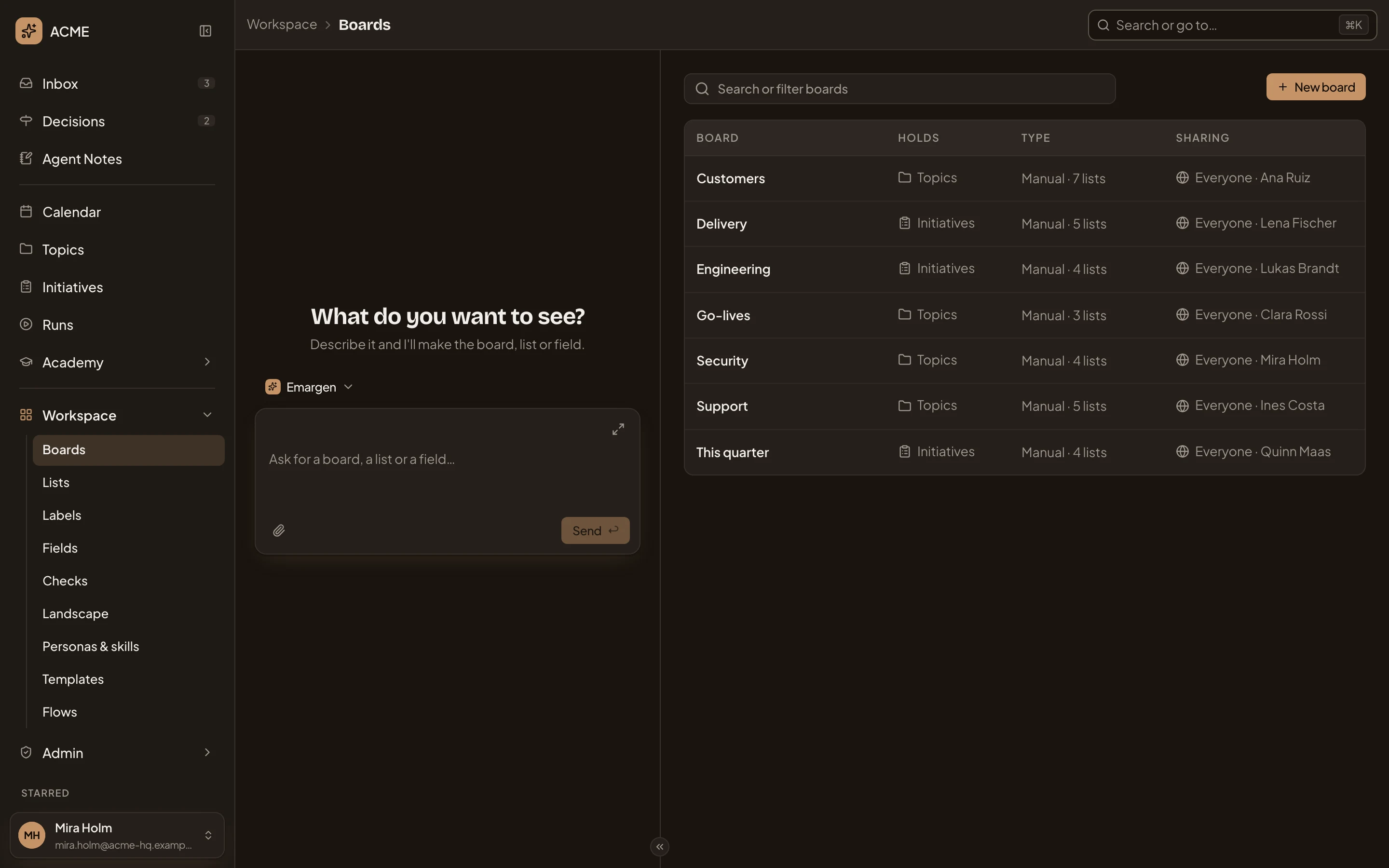
- New board.
-
In Name, type what the board shows: Incidents in the pictures.
-
Under Holds, click Topics. Leave Type on Automatic.
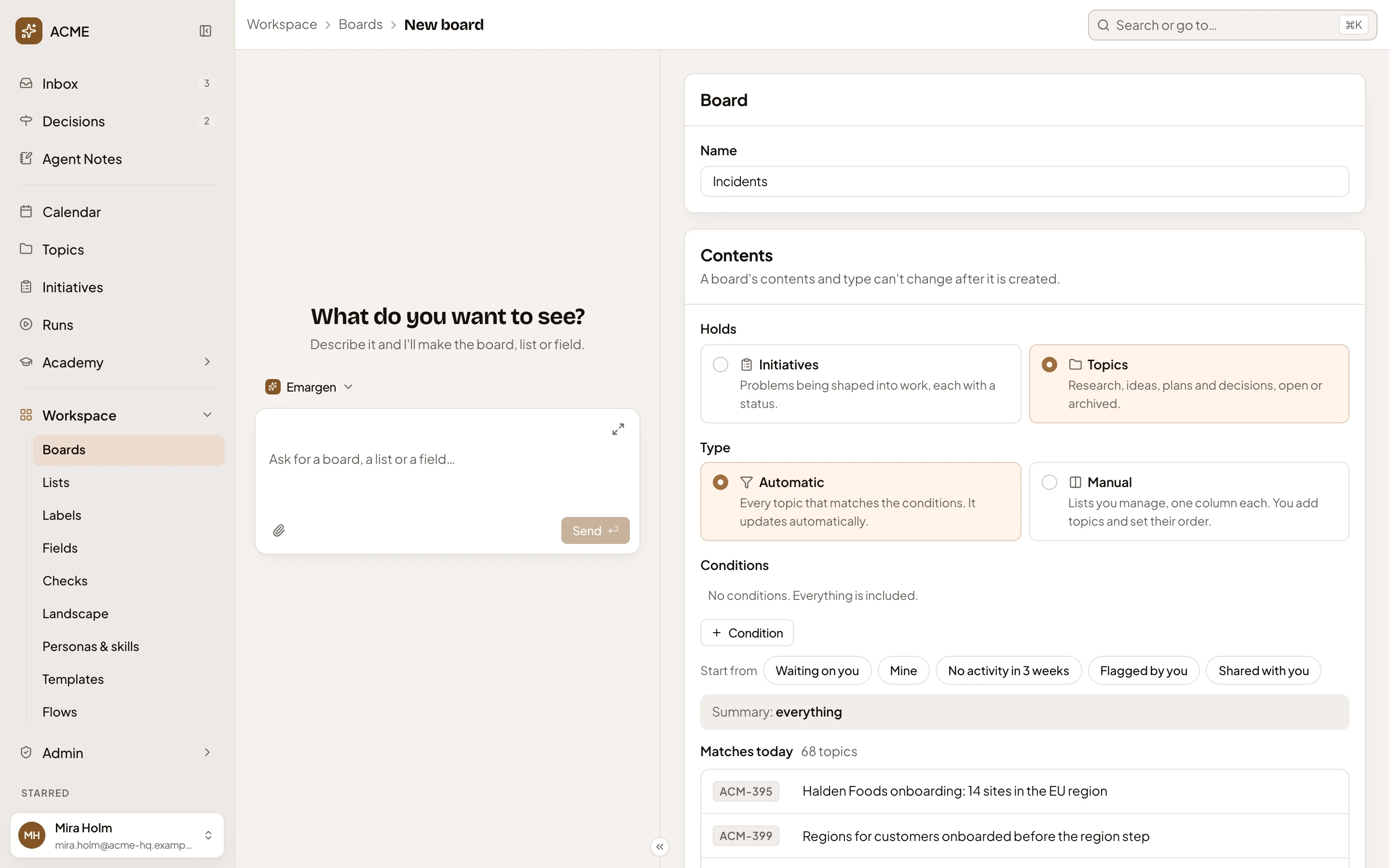
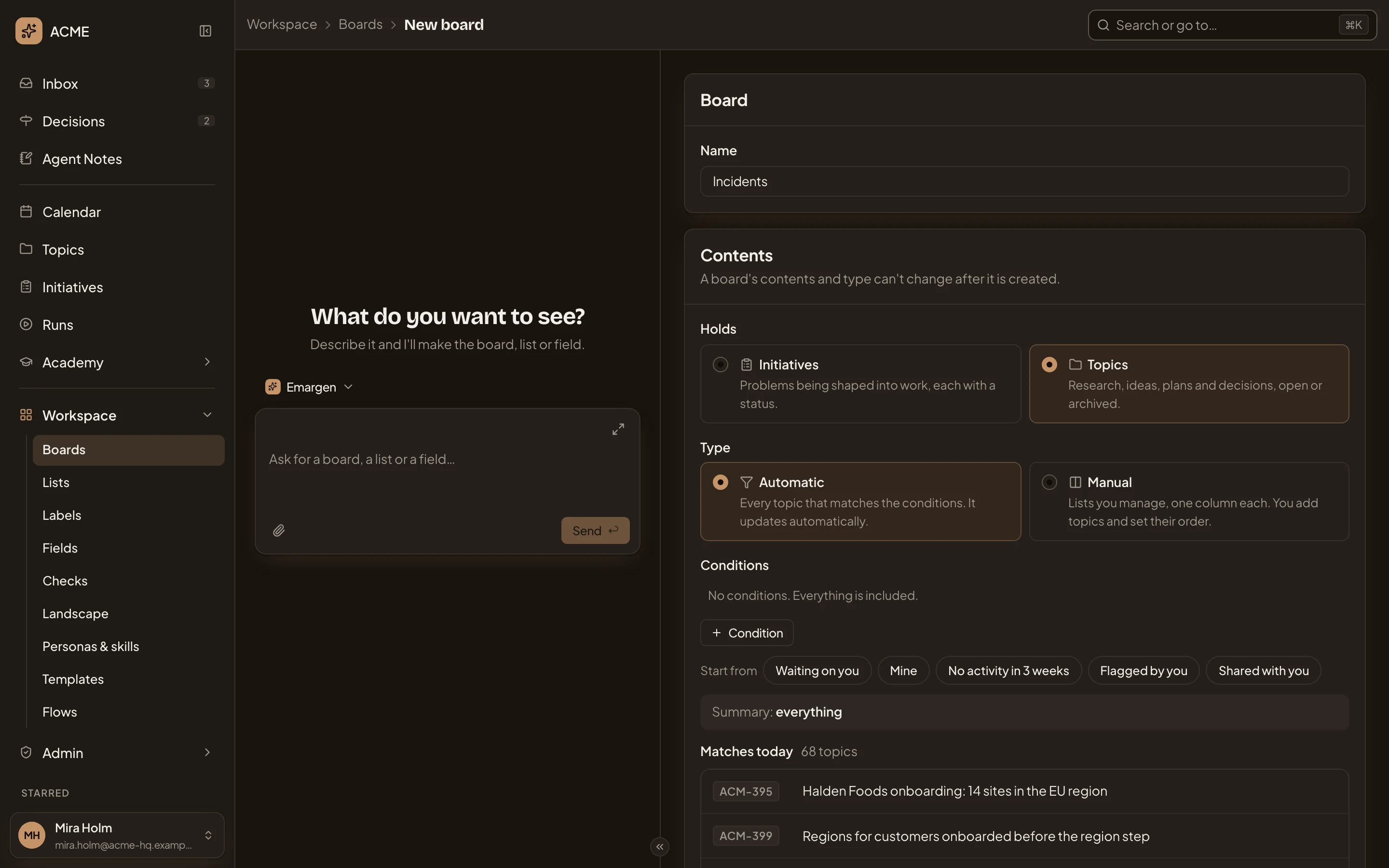
- Name.
- Holds: Topics.
- Type: Automatic, so the board keeps itself up to date.
- Condition.
With no conditions yet, Summary says “everything”. Matches today says how many topics you can see, and lists the first of them.
-
Click Condition to add a row. It starts as State is open. Click Field, which reads State, and pick Label. The menu stays open, so press Escape to close it. Click Value, which reads Choose…, to open your organisation’s labels.
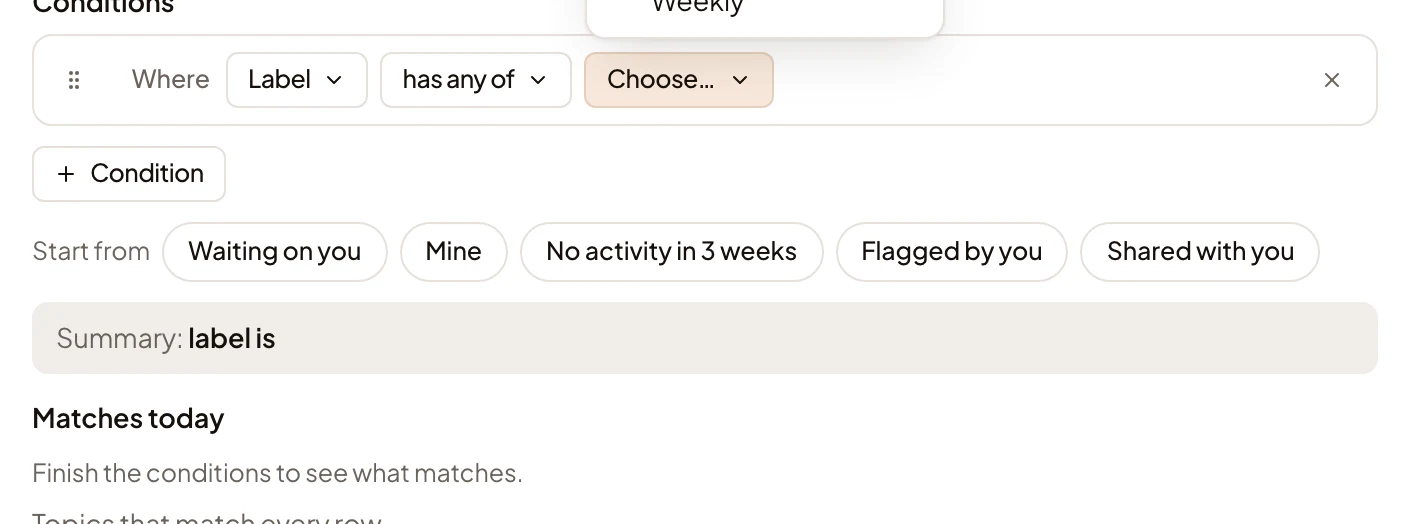
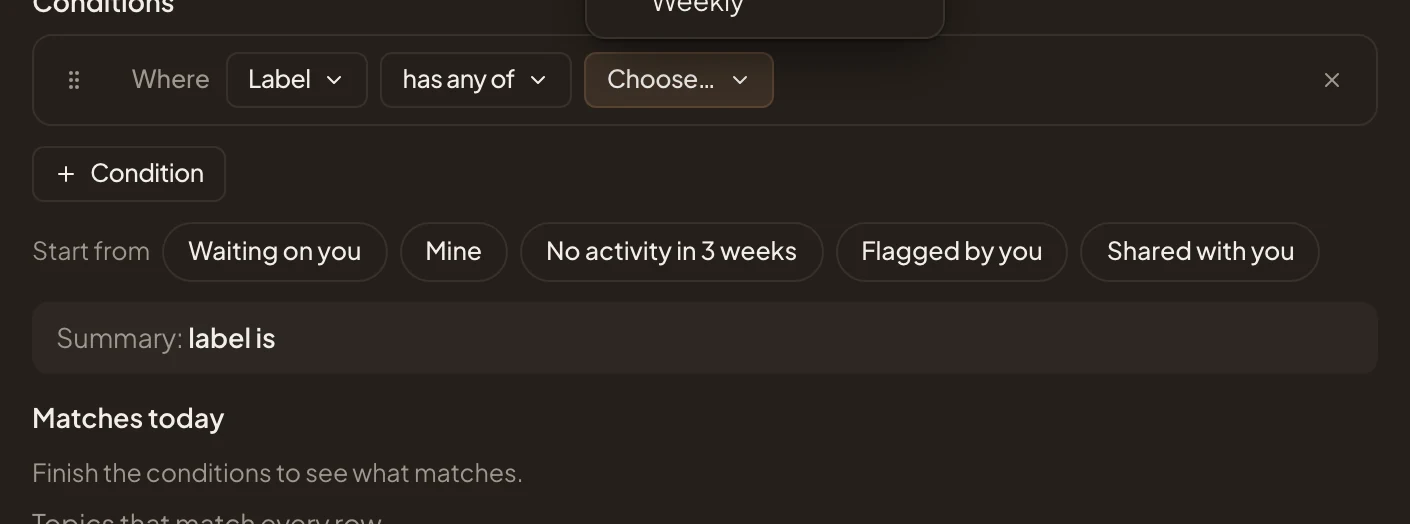
- Field: Label.
- The labels. Tick one or more: several mean any of them.
-
Tick your label (Incident in the pictures), then click away to close the list. Under the row, Summary says the condition in words, and Matches today shows what the board will hold. Until a row is finished, it says “This row needs a value to compare with.”, and Create board stays greyed.
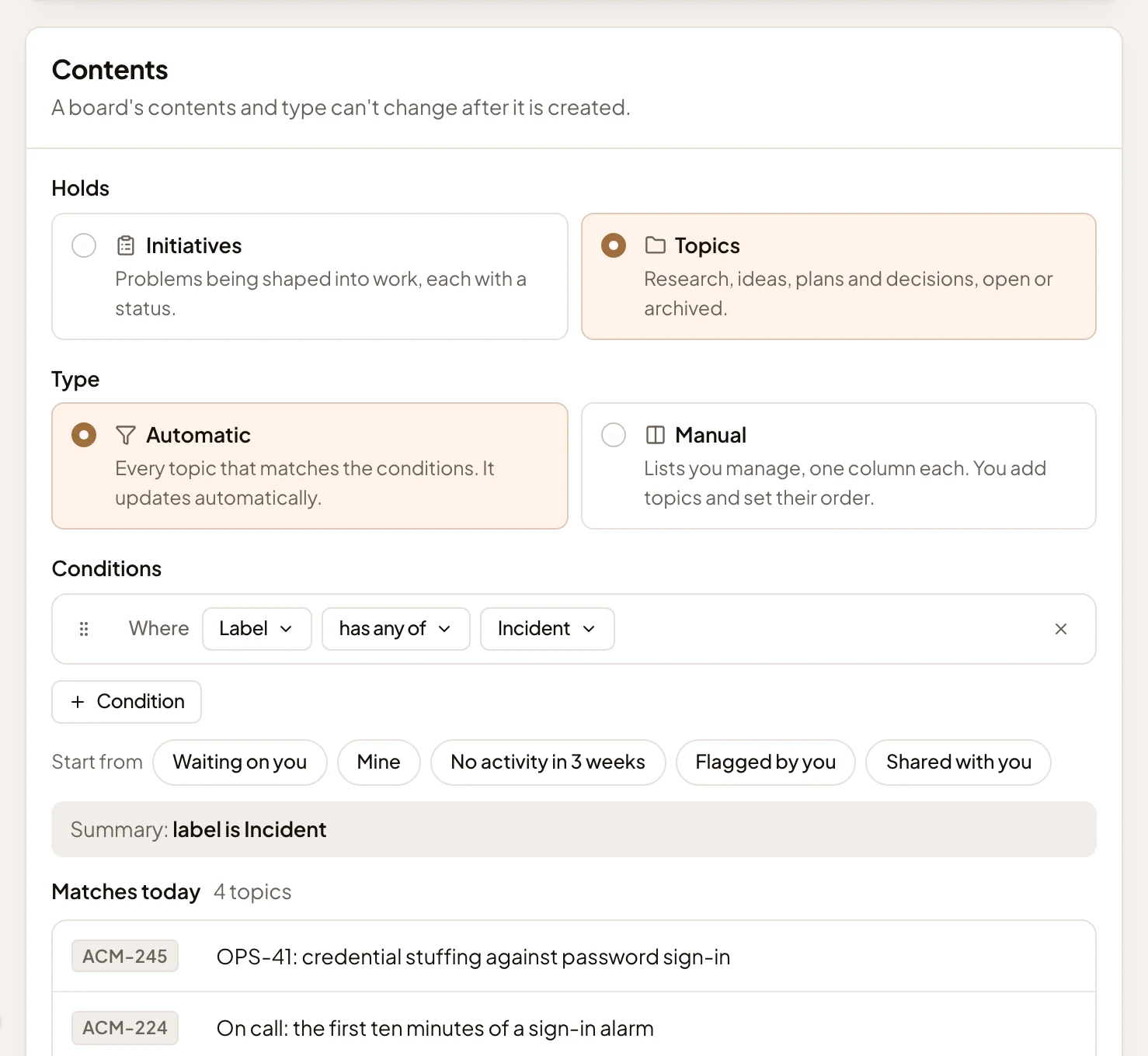
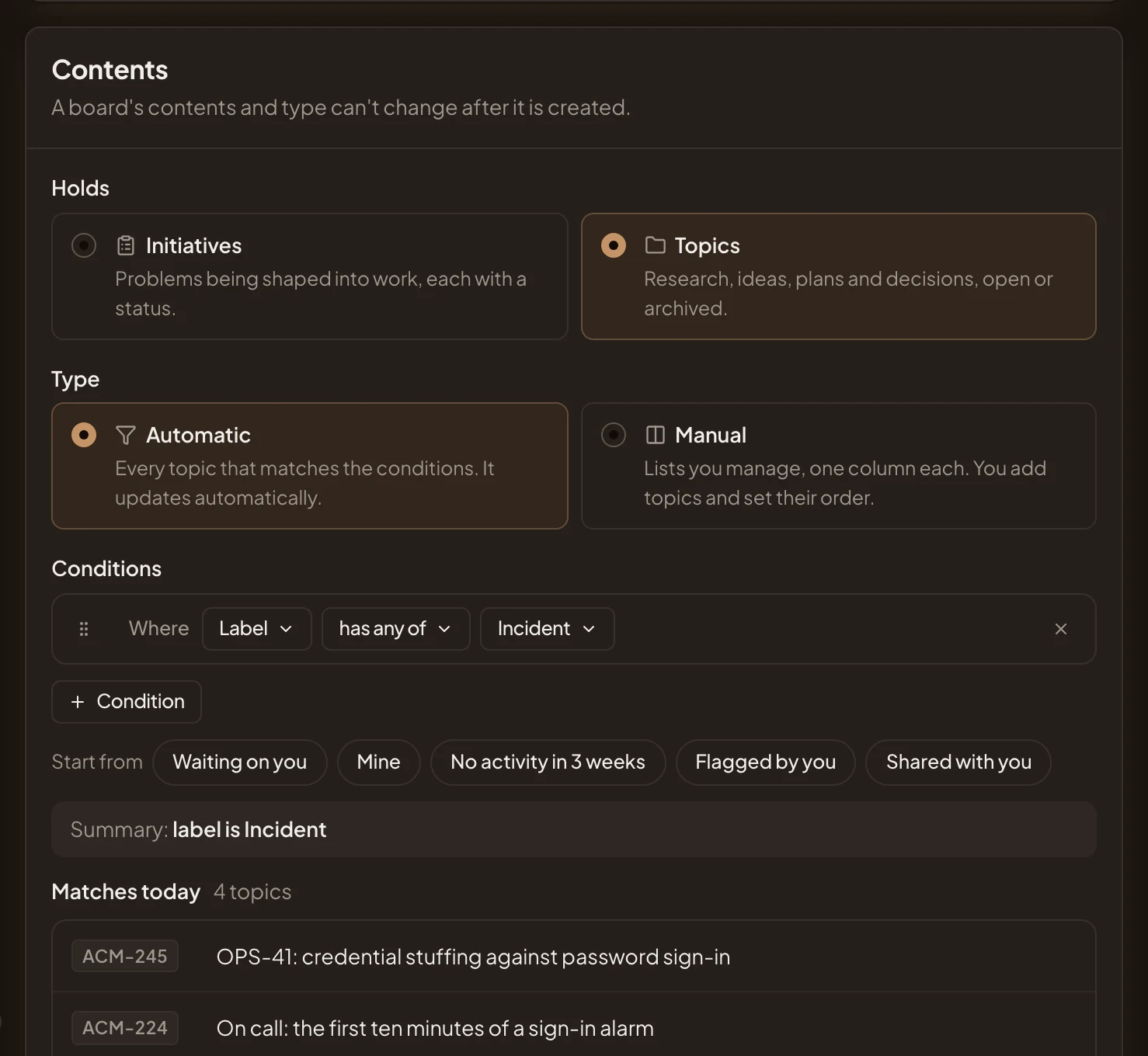
- Summary: “label is Incident”.
- Matches today: the Incident topics you can see.
To narrow it further, click Condition again. Every row must match. Start from offers ready-made conditions, like Mine or No activity in 3 weeks. To remove a row, click the × at its end.
-
Under Sharing, click Everyone, so your colleagues can open the board too. Everyone in the organisation Views it to start with. To let them change it, click Access for everyone and pick Edits. To share it with some people only, pick Shared, then Add people.
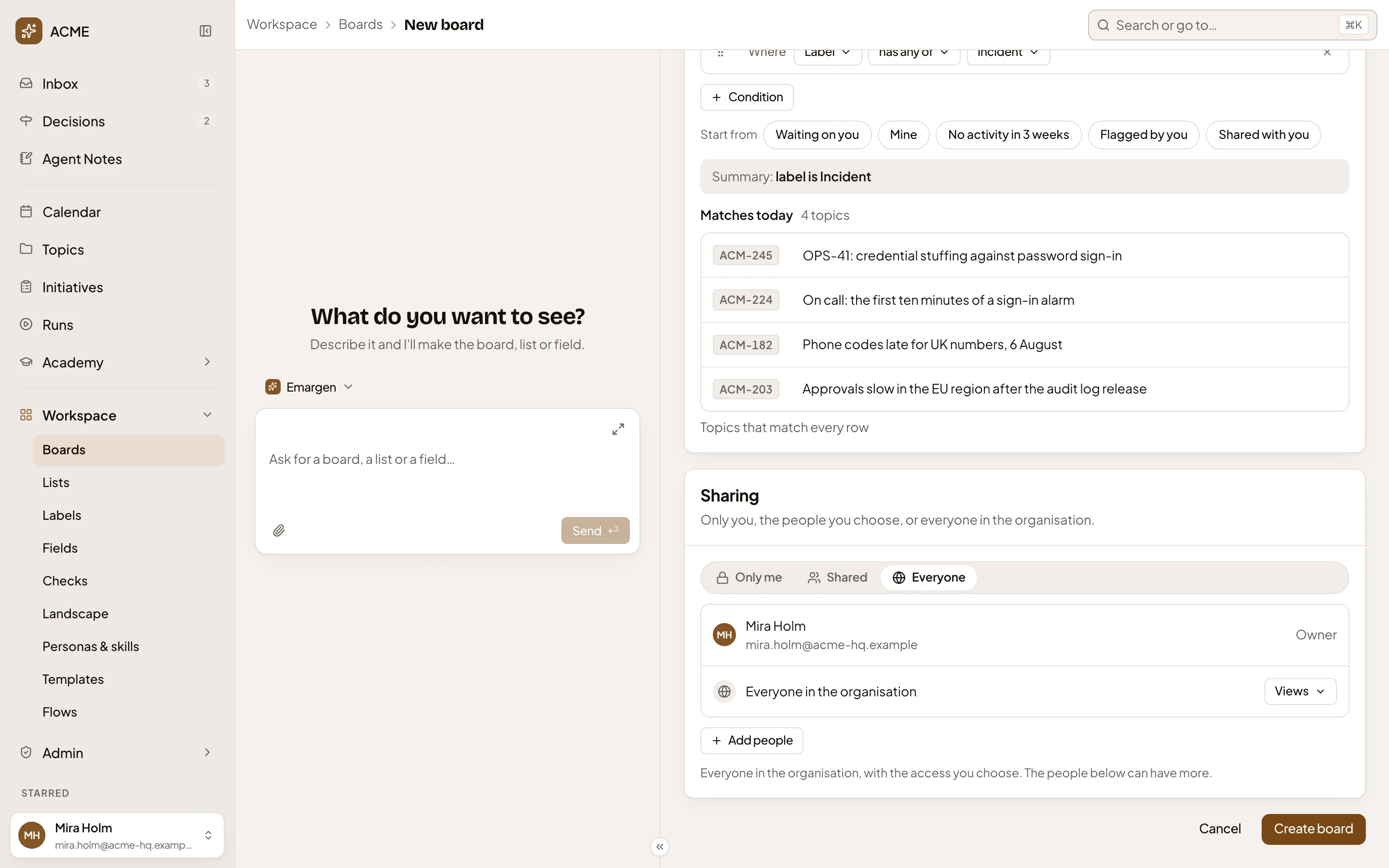
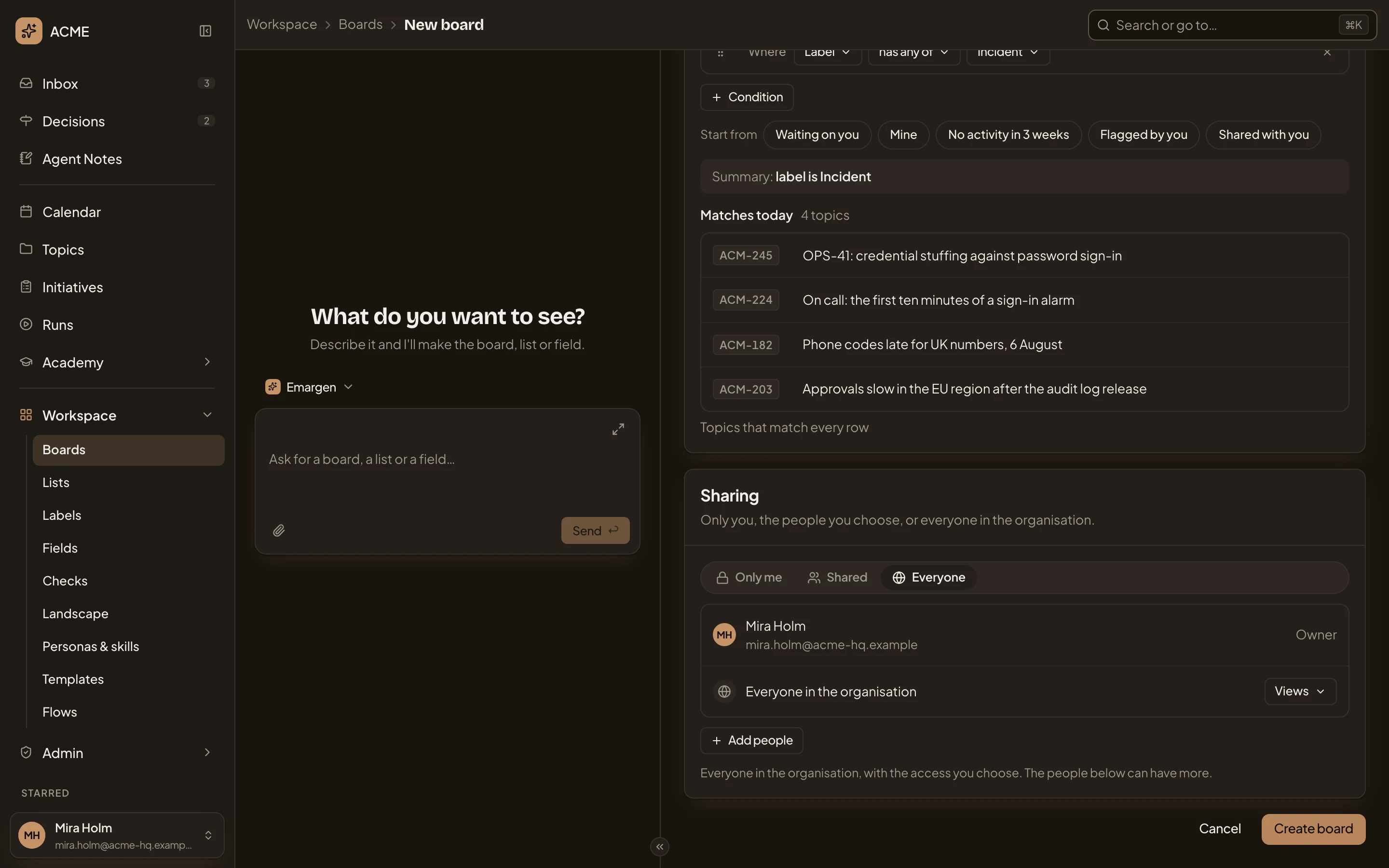
- Sharing: Only me, Shared or Everyone.
- Create board.
-
Click Create board. The board opens on the topics list, showing the topics that match.
What you get
Section titled “What you get”- A board named for your label on the topics list. It changes as topics gain or lose the label, and each person sees only the topics they can open.
- Everyone in your organisation finds it in the board switcher on the topics list and on Boards.
- Each person lays the board out their own way. Pick Rows or Columns, and group it with View options, by Status say. See the topics list.
- To change it later, open it from Boards. Changes on its page save as you make them (see A board).
A board of lists instead
Section titled “A board of lists instead”For a board of lists you keep, pick Manual in step 3. A Lists section replaces the conditions. Click List, then type a name and press Enter for a list of the board’s own, or pick a list from the workspace. A support lead’s board might show workspace lists, like the questions coming in and the cases waiting on the customer, and one of its own for engineering. See A board.
Ask the agent instead
Section titled “Ask the agent instead”The workspace agent beside the page can do all of this. Ask it for “a board of every topic labelled Incident, for everyone”. It fills in the New board page step by step, and nothing is made until you press Create board, or the button on the card it puts in the chat.