

AgentsPage by page
A flow's page
A flow’s page is where you read, change and run one flow. Open it by clicking a flow’s name on the Flows page. It has two pages of its own. Overview is the flow as people pick and run it, and Flow is where its stages and steps are changed. The same page, empty, is New flow.
The personas agent beside the page writes most of a flow. Describe how the work goes, or point it at the page where your team already wrote it down. A flow saves a version after each change. The changes you make in one sitting are one version.
Overview
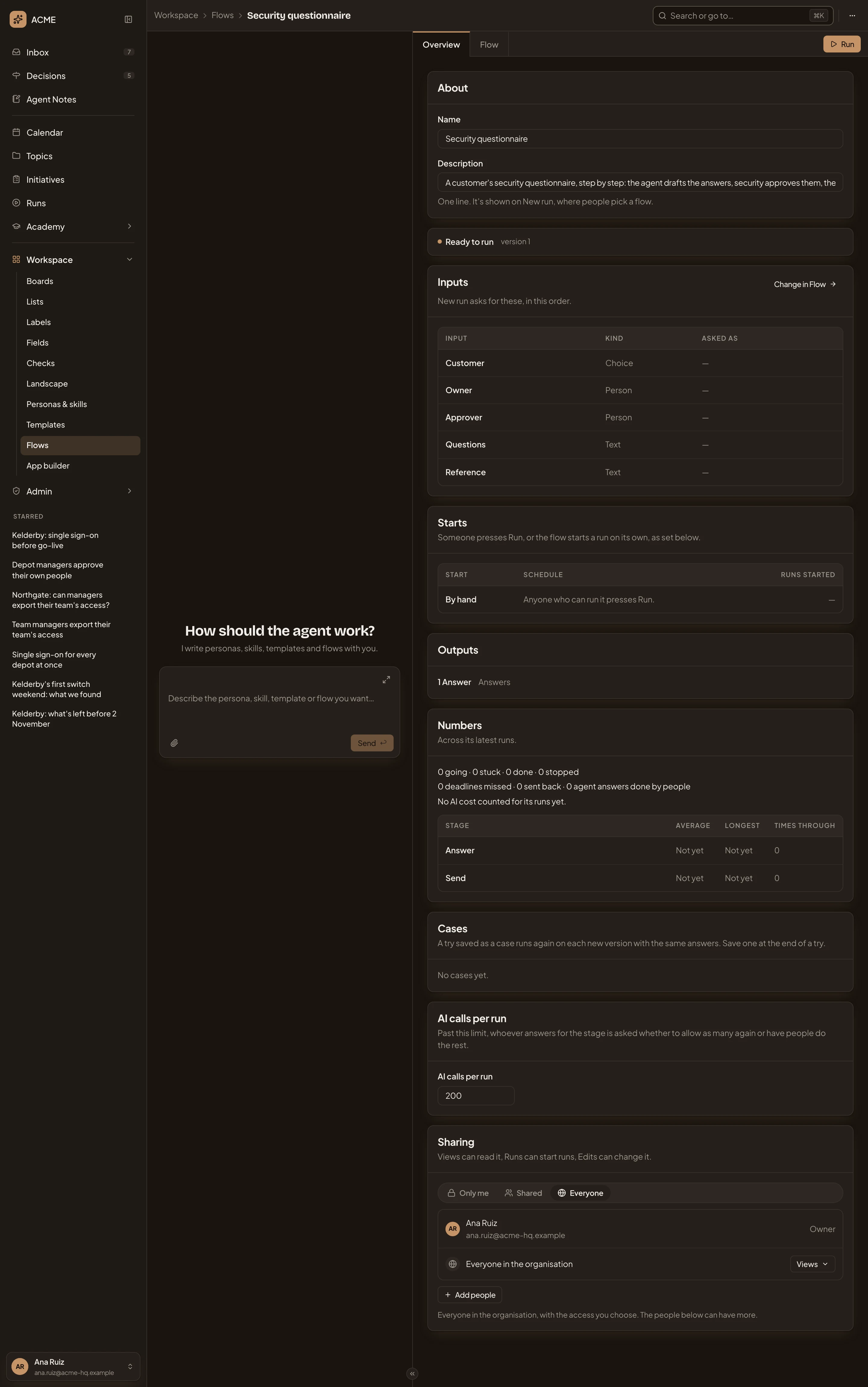
Section titled “Overview”In the picture, Security questionnaire, a flow for a customer’s security questionnaire. The agent drafts the answers, security approves them, and the owner sends them.
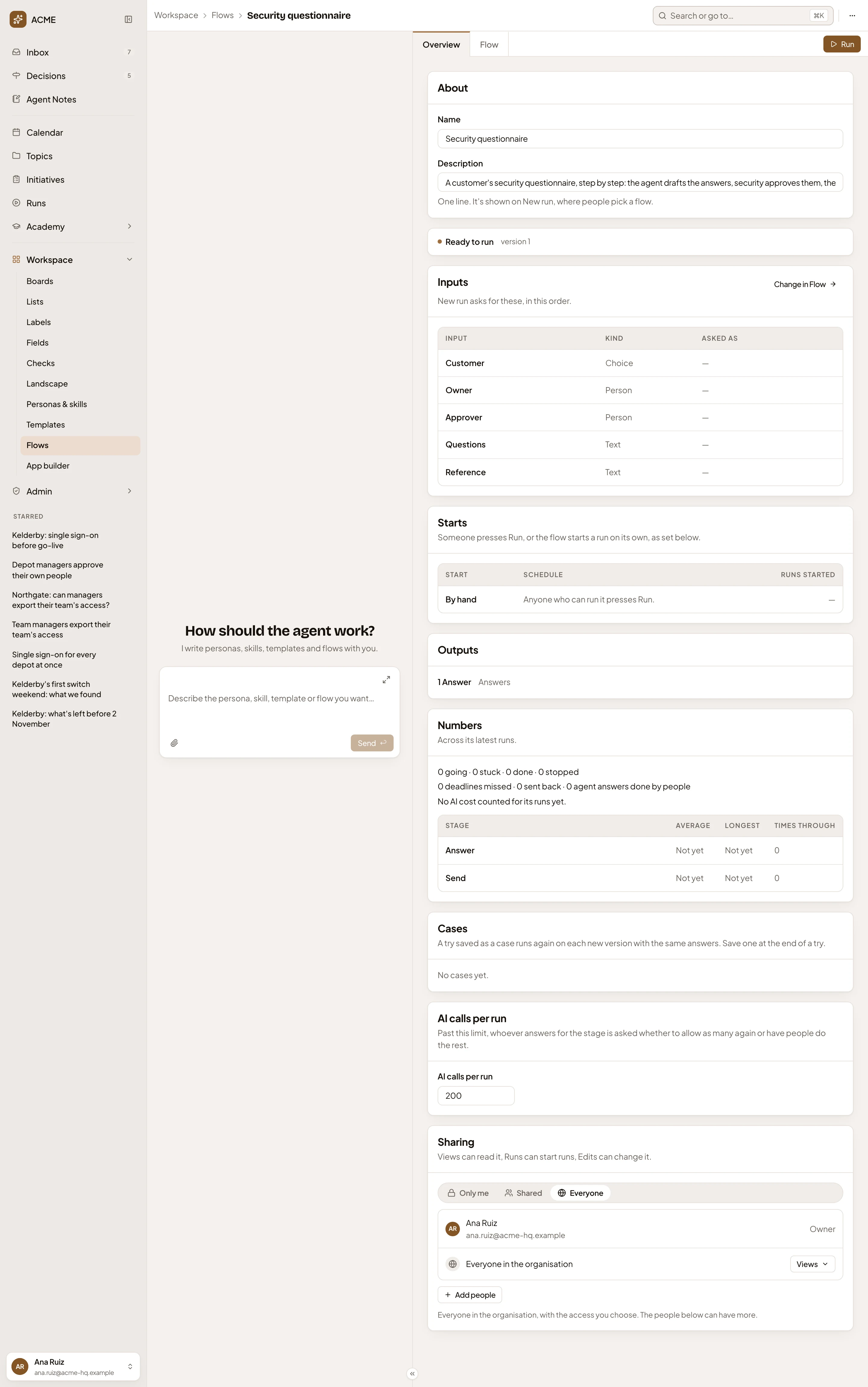
- Where you are: Workspace, Flows, then the flow’s name.
- More actions for Security questionnaire. The ⋯ menu, with Copy link, and Duplicate, which makes a copy of your own and opens it.
- Overview and Flow. The flow’s two pages.
- Run. Opens New run with this flow picked. Only for people who may run it, once it’s ready to run.
- About. Its Name, and its Description: one line, shown on New run where people pick a flow.
- Ready to run. Emargen can read every line. Beside it is the version the flow is on. When Emargen can’t read a flow, it shows how many lines to fix, and Fix in Flow takes you to them.
- Inputs. What New run asks for, in this order, with each one’s Kind. Change in Flow opens them on the Flow page.
- Starts. By hand, when someone presses Run, and any runs the flow starts on its own. Those start on a schedule, or when something it reads in a connected tool changes. Each says when it last checked or next starts, and how many runs it started.
- Outputs. What its runs make, by the stage that makes them.
- Numbers. How its latest runs went. It counts runs going, stuck, done and stopped, and each stage’s time. It also counts missed deadlines and work sent back.
- Cases. Tries you saved as cases. Emargen runs each again on every new version, with the same answers, and shows if it matched.
- AI calls per run. Past this limit, whoever answers for the stage is asked to allow as many again, or to have people do the rest.
- Sharing. Who may use the flow (below).
Once there are any, Overview also lists the flow’s runs, the connection tools its steps call and its versions. You can move a run on an older version to the newest one, and give a reason. Each moved run’s history says who moved it and why.
Flow: the map
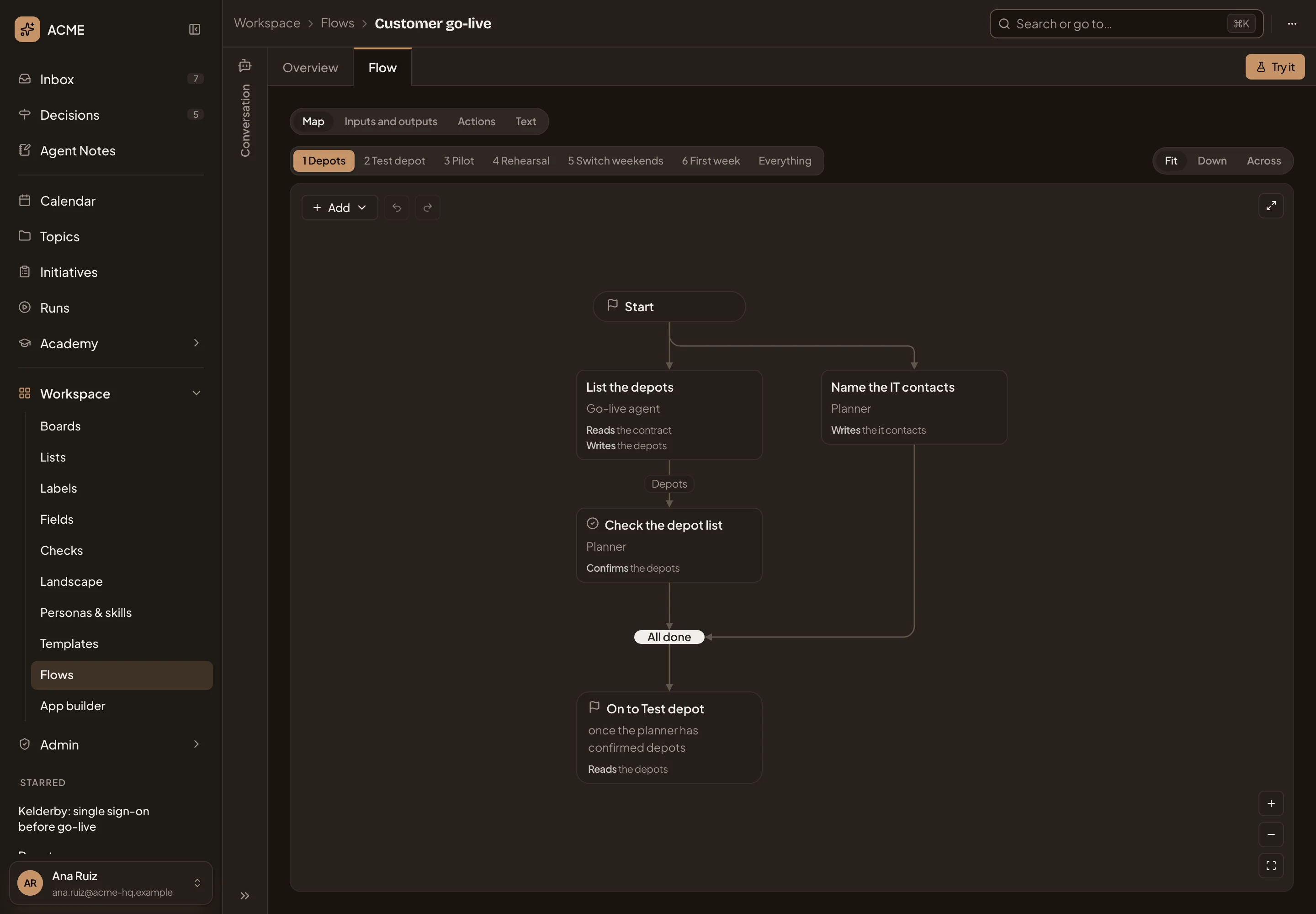
Section titled “Flow: the map”Flow shows the flow as a map, across the whole pane, with the agent’s chat folded at its edge as Conversation. In the picture, the first stage of Customer go-live, a flow with six stages.
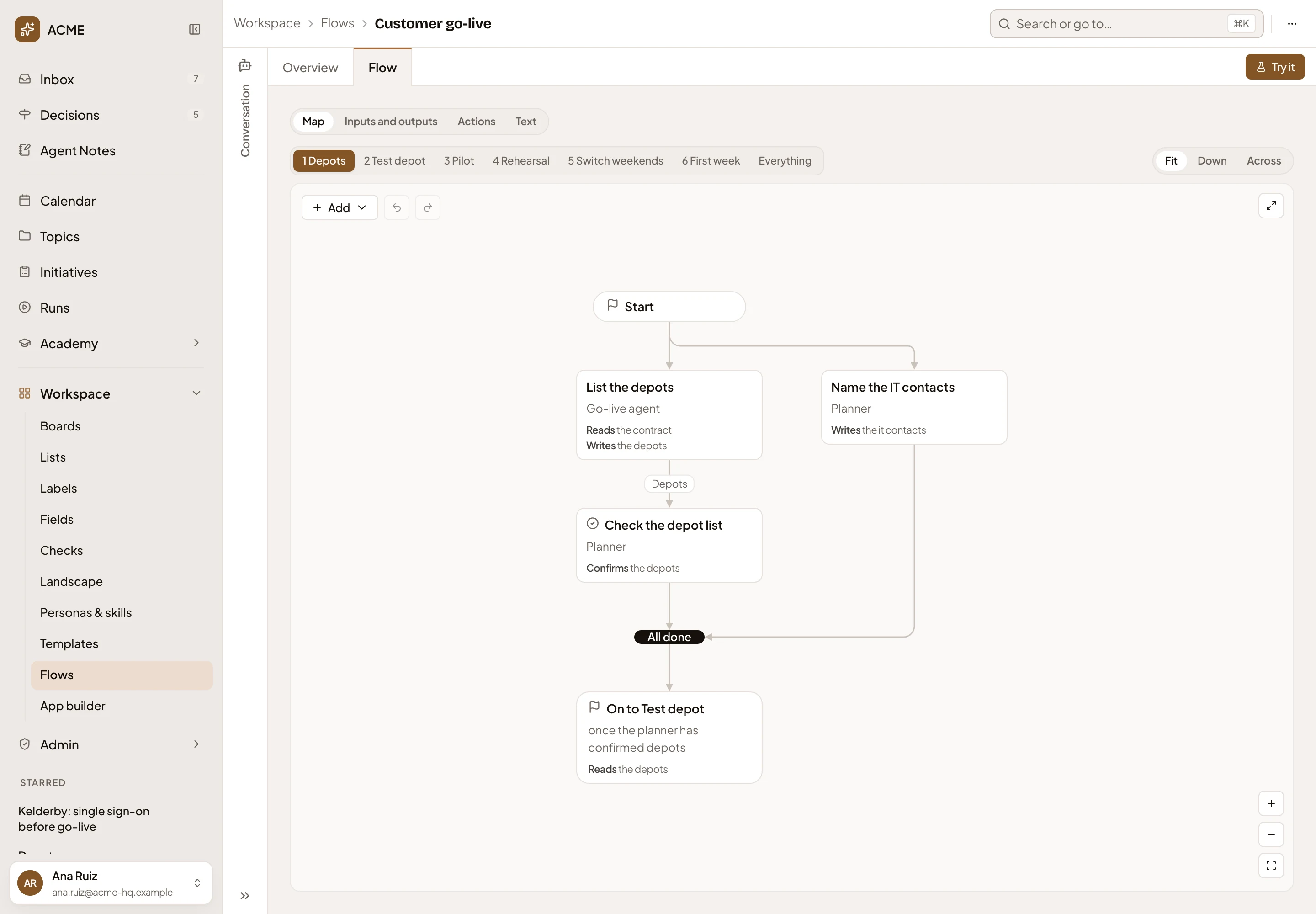
- Try it. Runs the flow on sample inputs (below). Only for people who may change it, once no line is left to fix.
- Show the flow as. Map, Inputs and outputs, Actions or Text.
- Stages. One stage at a time, or Everything.
- Map layout. Fit, Down or Across.
- A step’s name, who does it, what it reads, what it writes. Click it to open it in the panel.
- All done. Where two ways that run at the same time meet. The next step waits for both.
- How the work leaves the stage, here once the planner has confirmed the depots.
- Add. A step or a shape (below).
- Undo and Redo, for the changes of this sitting.
- Open the map. The map in full screen.
Drag or scroll to move around the map, and pinch or use the zoom buttons. A diamond marks a decision before a step that runs only if something is true. Yes leads to the step, and No goes past it.
A step, picked
Section titled “A step, picked”Clicking a step opens it in the panel on the right, as a form. The form writes the flow’s text, which stays its source.


- In and Out. What the step reads and makes. Press a value to follow it across the map.
- Done by. One of the roles the flow names, such as its owner, or the stage’s agent.
- Does. Such as Drafts, Confirms, Decides or Publishes with a tool.
- Only if. A condition for the step. Leave it empty when the step always runs. Below it are its Deadline, who to tell when it’s missed, what it Waits for, and its Prompt: everything whoever does the step should know.
- It writes. The sentence the form will write into the flow.
- Apply. Writes it.
- Edit in text, Duplicate, and under More, moving the step to another stage or deleting it.
Stages, decisions and the ways out of a stage open in the panel the same way.
Add asks what to add first.
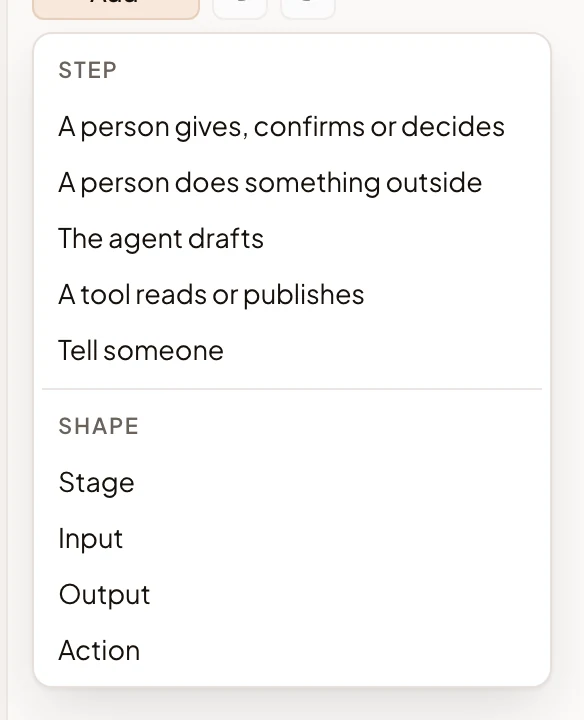
A step can be a person’s, the agent’s, a connection tool’s, or a notice. A shape is a stage, an input, an output or an action.
Inputs and outputs
Section titled “Inputs and outputs”Inputs and outputs lists what a run needs to start and what it makes.
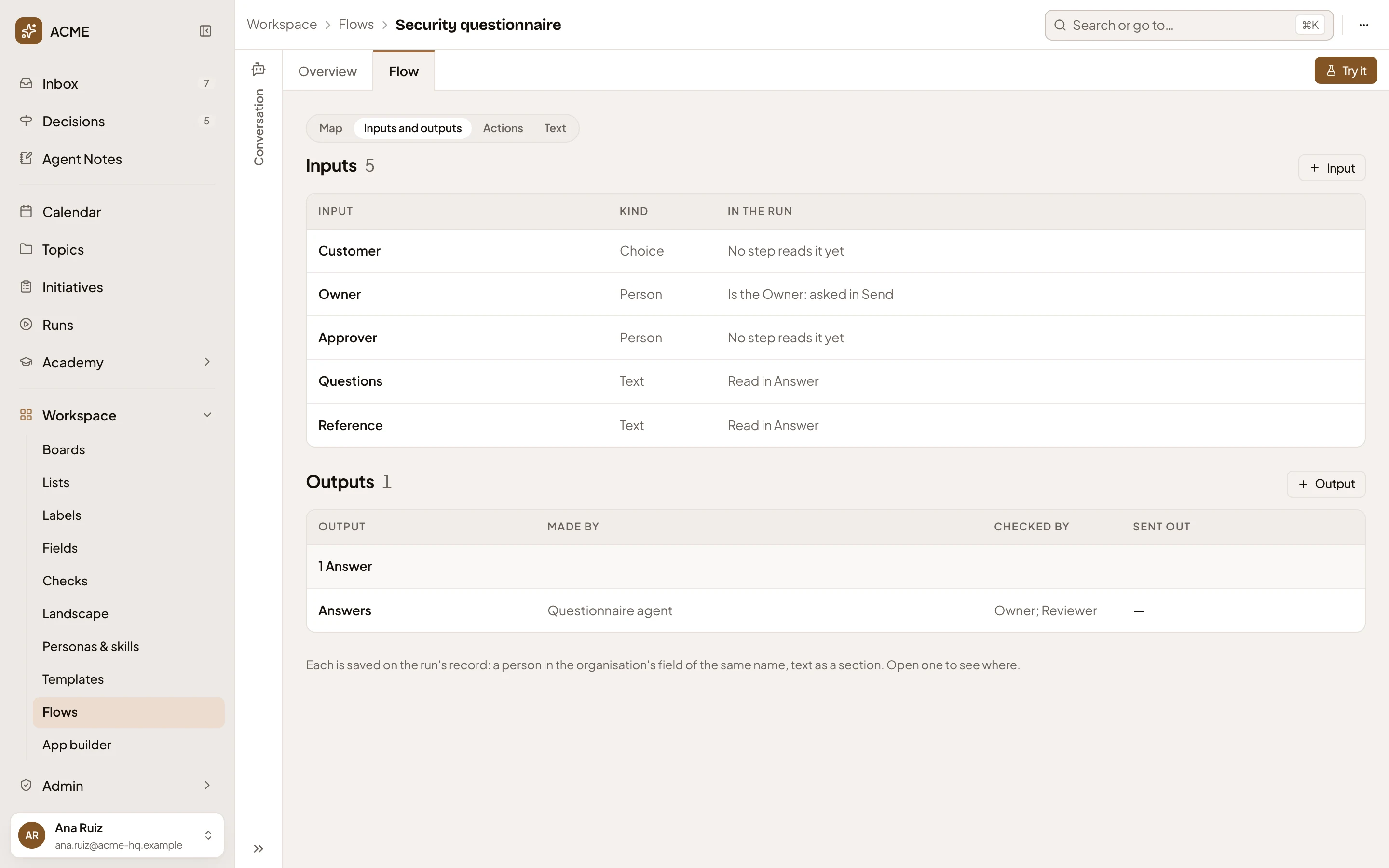
- Input. Adds an input.
- The inputs, with each one’s Kind. In the run shows what happens to it, such as the role a person takes or the stage that reads it.
- Output. Adds an output.
- The outputs, by the stage that makes them. Each says who makes it and who checks it, and if it’s sent out.
On the run’s record, a person goes in the organisation’s field of the same name, and text goes in a section.
Click a row to open it on a page of its own, with its name, kind and rules, how New run asks for it, and its way through the flow.
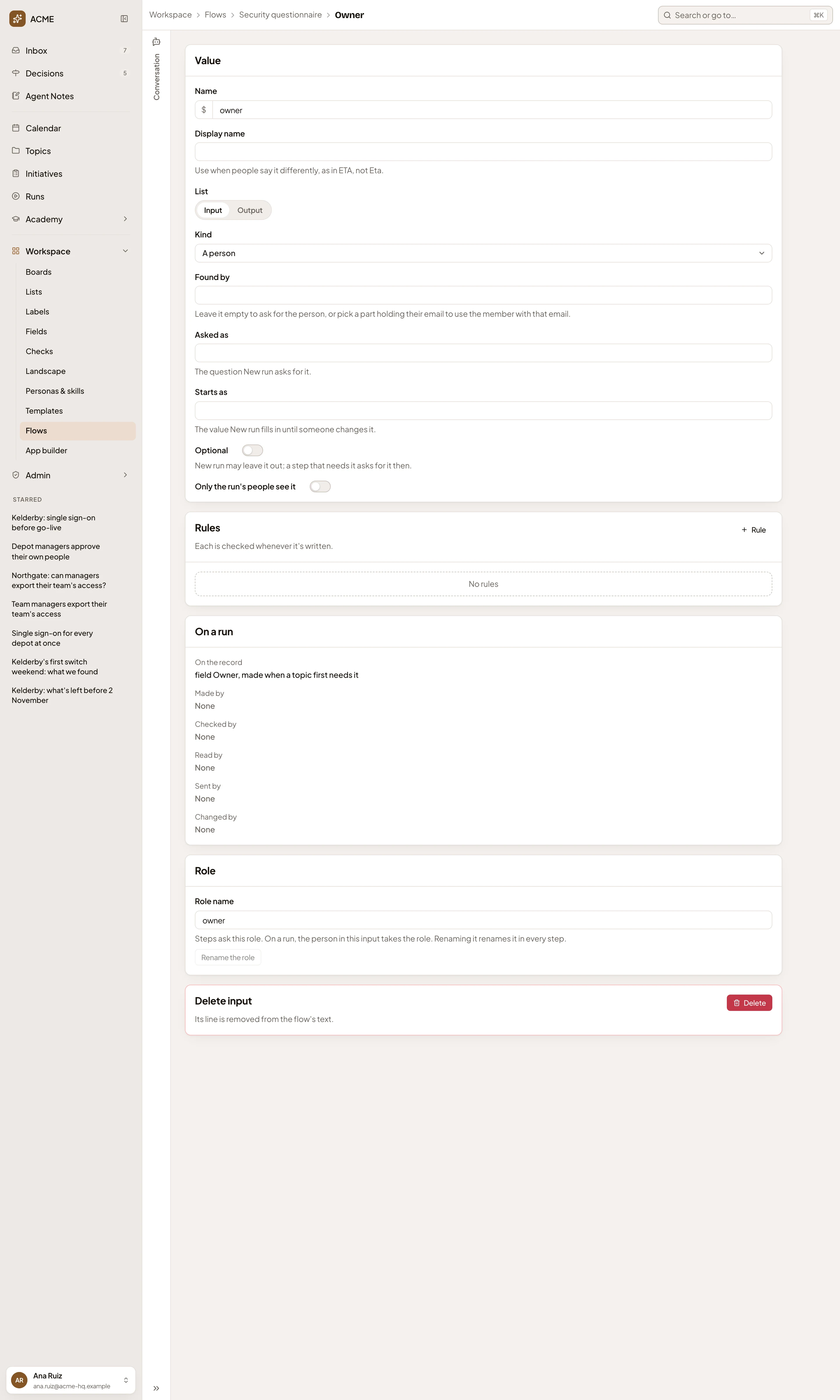
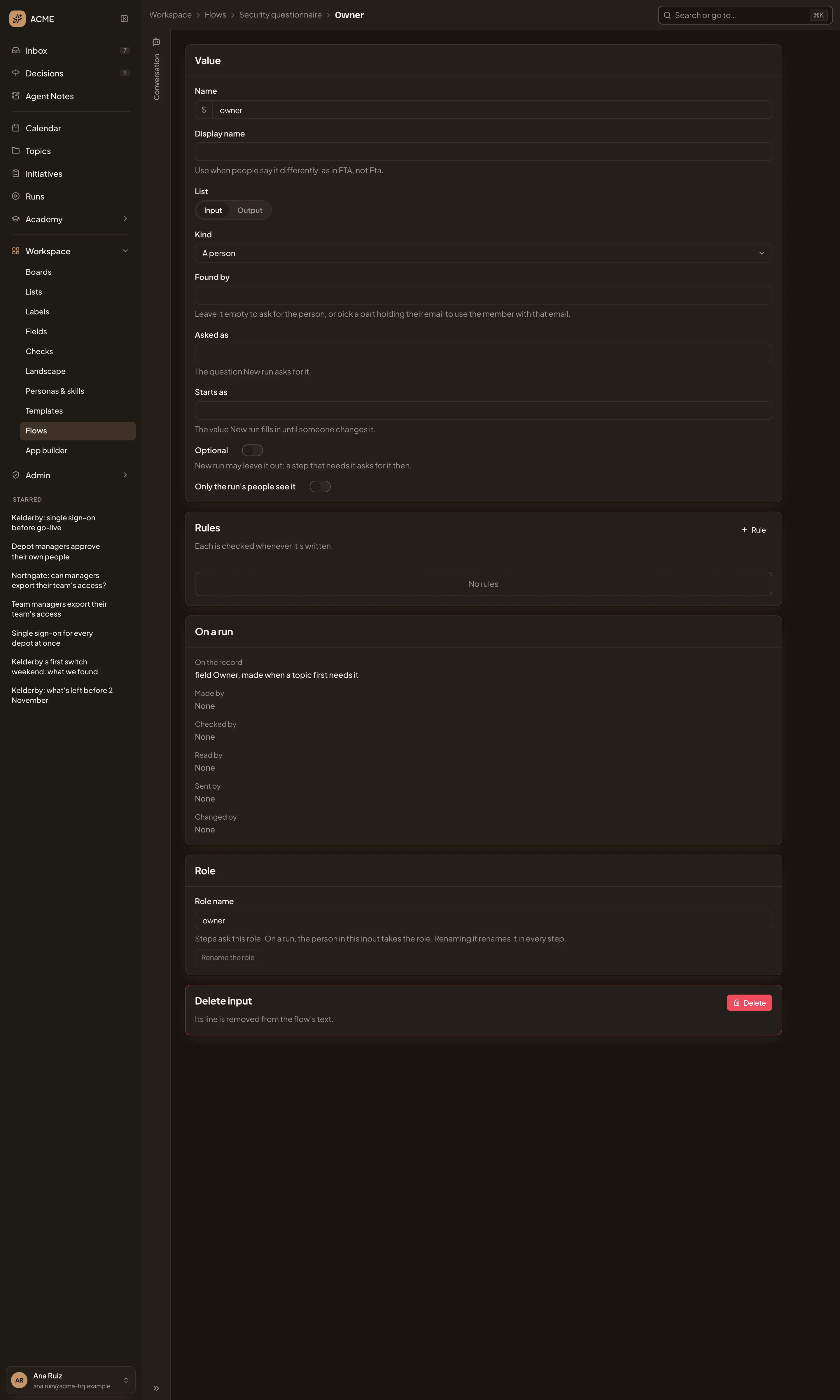
- Value. Its name in the text, a display name, which list it’s on and its kind. For an input, Asked as and Starts as set how New run asks for it. Optional lets a run start without it. Only the run’s people see it keeps it off the record.
- Rules. Each is checked whenever the value is written.
- On a run. Where it lands on the record, and which steps make, check, read, send or change it.
- Role. For a person: the role steps ask. Renaming it renames it in every step.
- Delete input. Removes its line from the text, once no step uses it.
Actions
Section titled “Actions”Actions holds work two or more steps share, each with its inputs, prompt and rules, as a form or as its text. A flow with none shows “No actions yet”. Action adds one.
Text shows the flow as it’s written, in plain sentences, with headings for its stages.
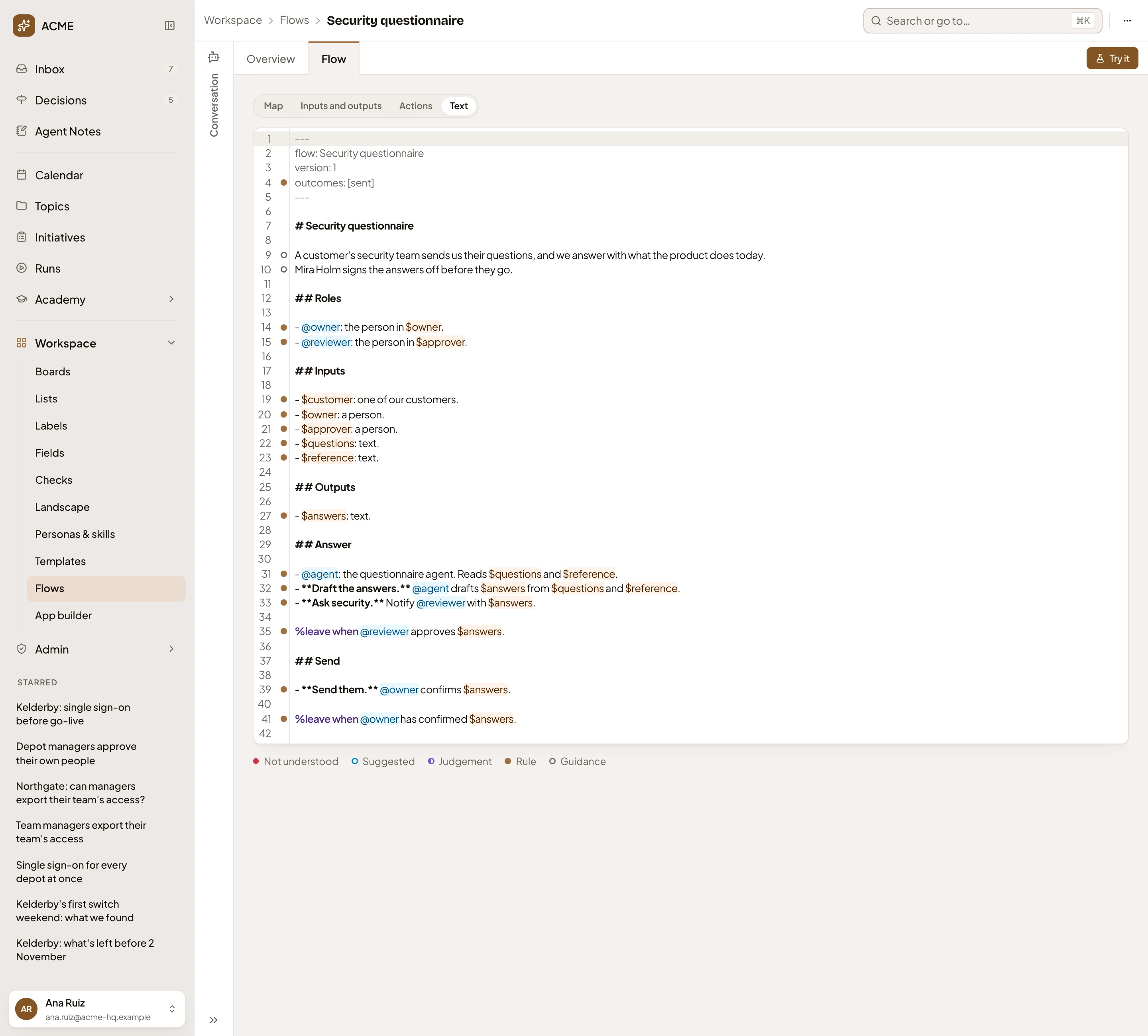
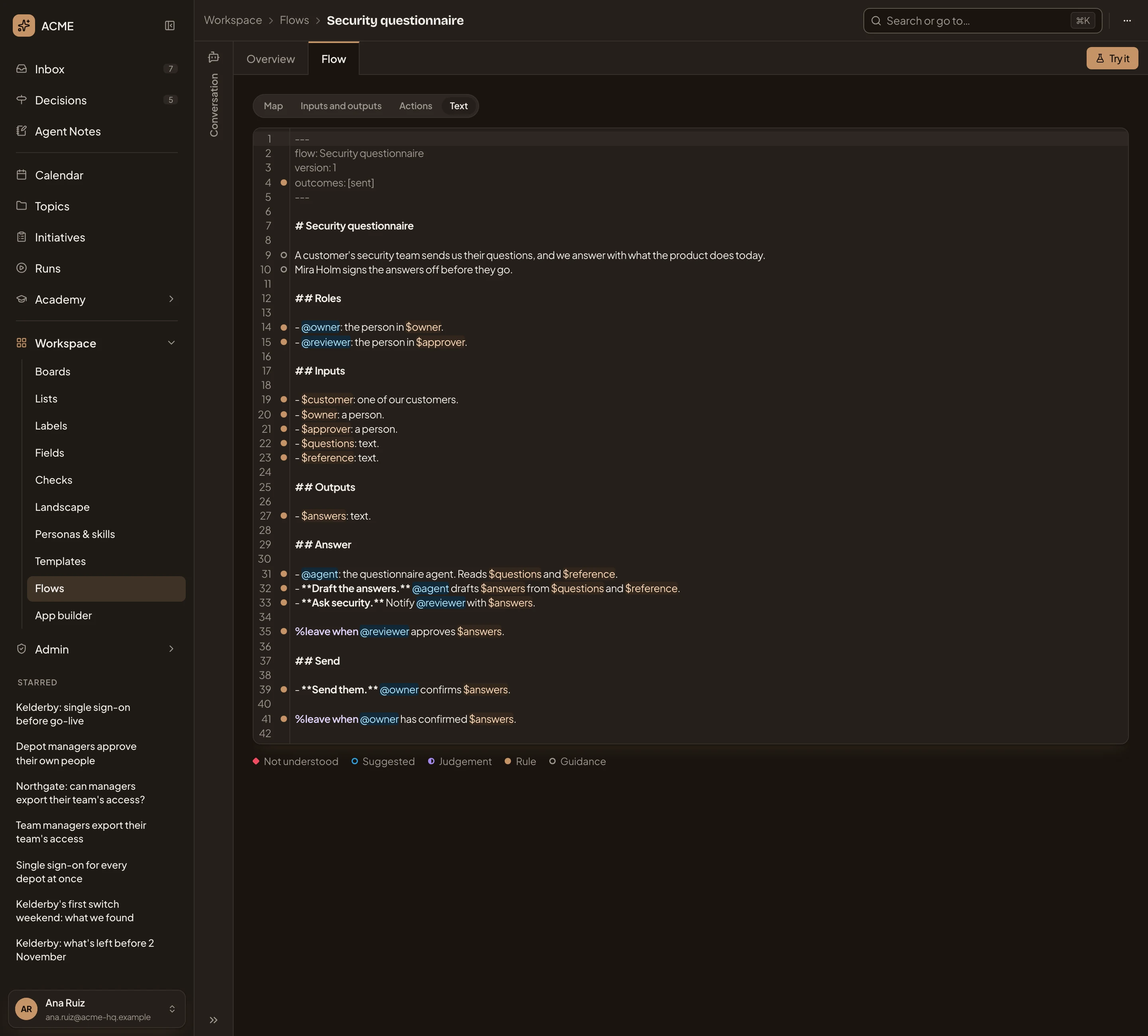
- The flow’s text. Each line is marked in the margin by how Emargen read it. For a line it can’t read yet, Emargen suggests wording it would read.
- The margin’s marks. A Rule is applied exactly as written. A Judgement is the agent’s to decide, with why, and a person can overrule it. Guidance is for agents to read, and nothing checks it. Not understood marks a line Emargen can’t read yet, and Suggested a suggestion.
Try it
Section titled “Try it”Try it runs the last saved flow with sample inputs.
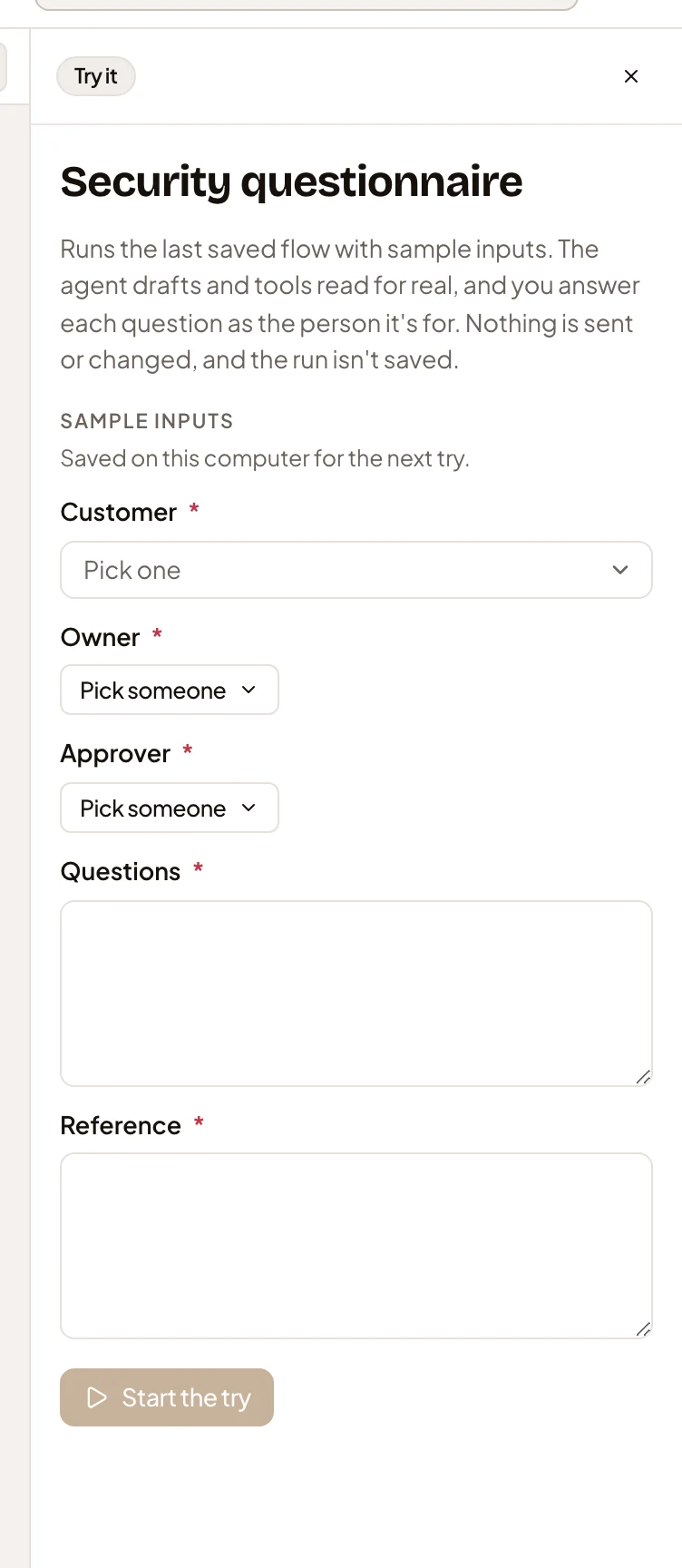
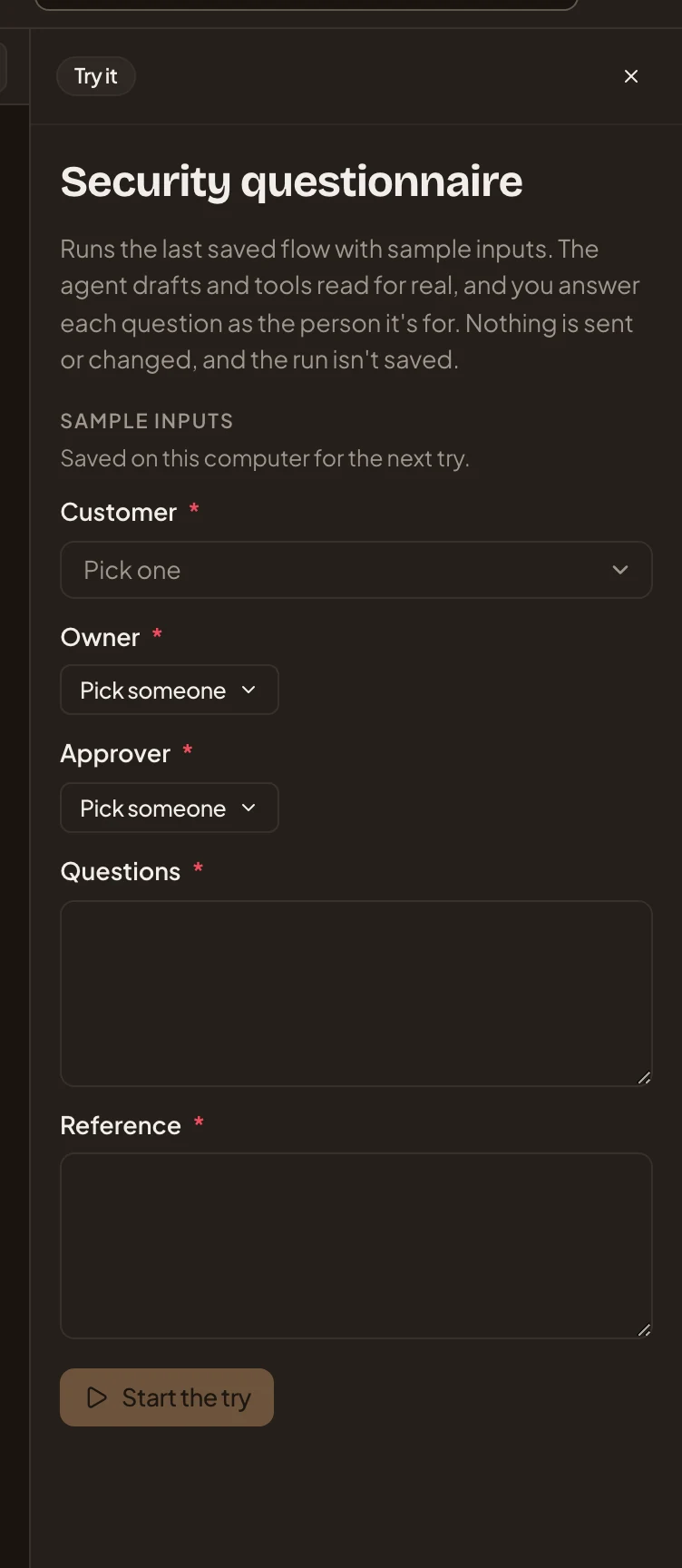
- Sample inputs. Kept on your computer for the next try.
- Start the try. The agent drafts and tools read for real, and you answer each question as the person it’s for. Nothing is sent or changed, and the try isn’t saved as a run.
At the end, Save as a case keeps the try under a name, so it runs again on every new version.
Sharing
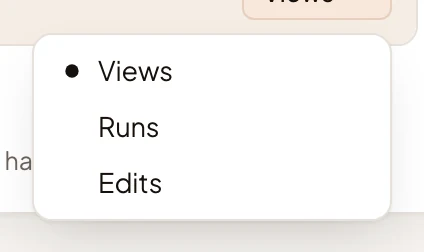
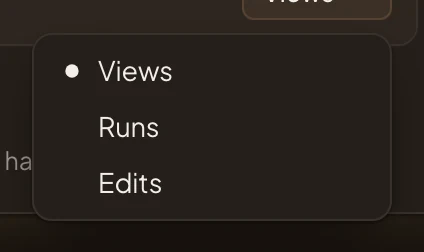
Section titled “Sharing”Sharing says who sees the flow, and what each may do. With Views you read it, with Runs you start runs of it, and with Edits you change it.
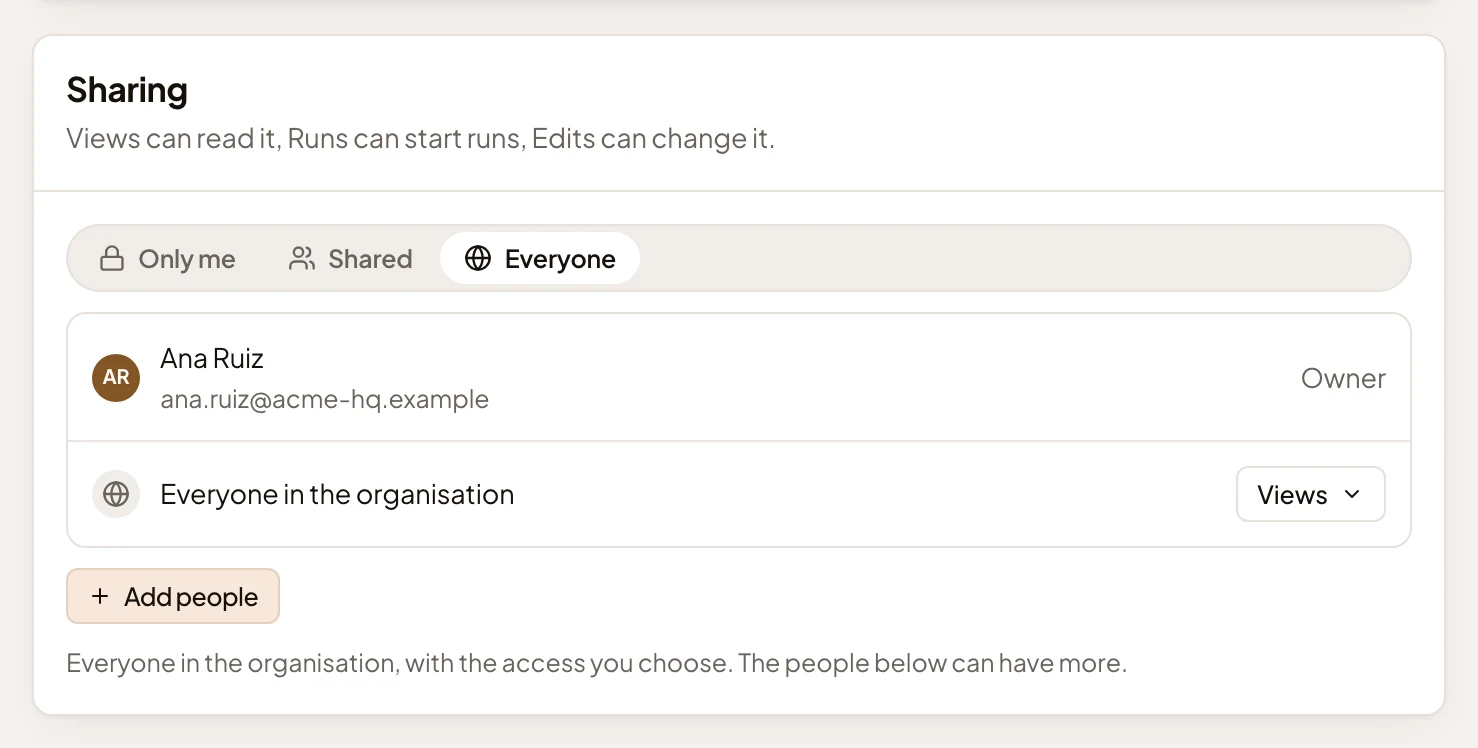
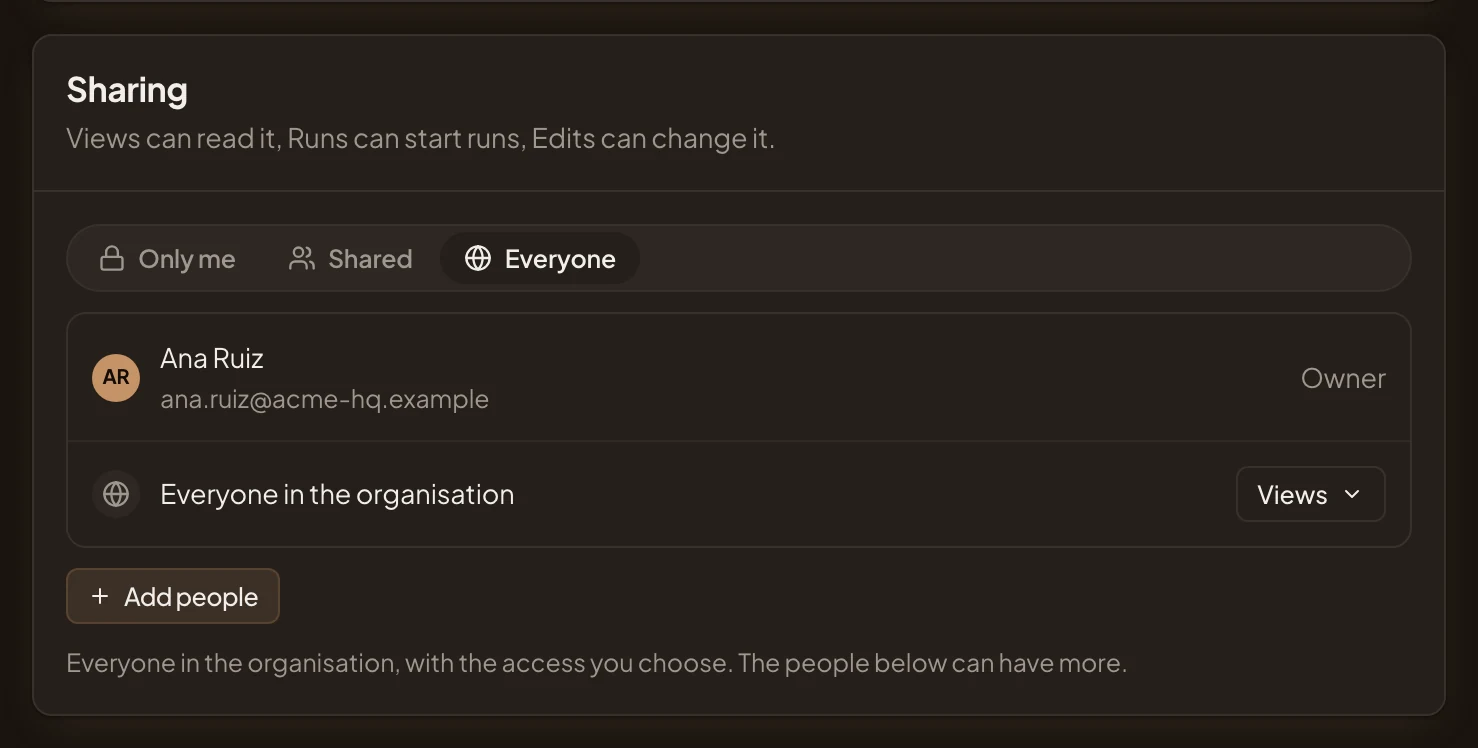
- Only me, Shared or Everyone.
- Access for everyone. Here it’s Views, so everyone in the organisation can read the flow, and only the people who look after it can run it.
- Add people. Give one person more, like Runs or Edits.
Your change saves as soon as you make it. Clicking someone’s access opens the three choices.
A flow you can only read
Section titled “A flow you can only read”Someone without Edits sees the page with a line at the top, and its fields greyed out. They have no Run unless they have Runs, and Flow has no Add or Try it. In the picture, a colleague without Edits sees Security questionnaire that way.
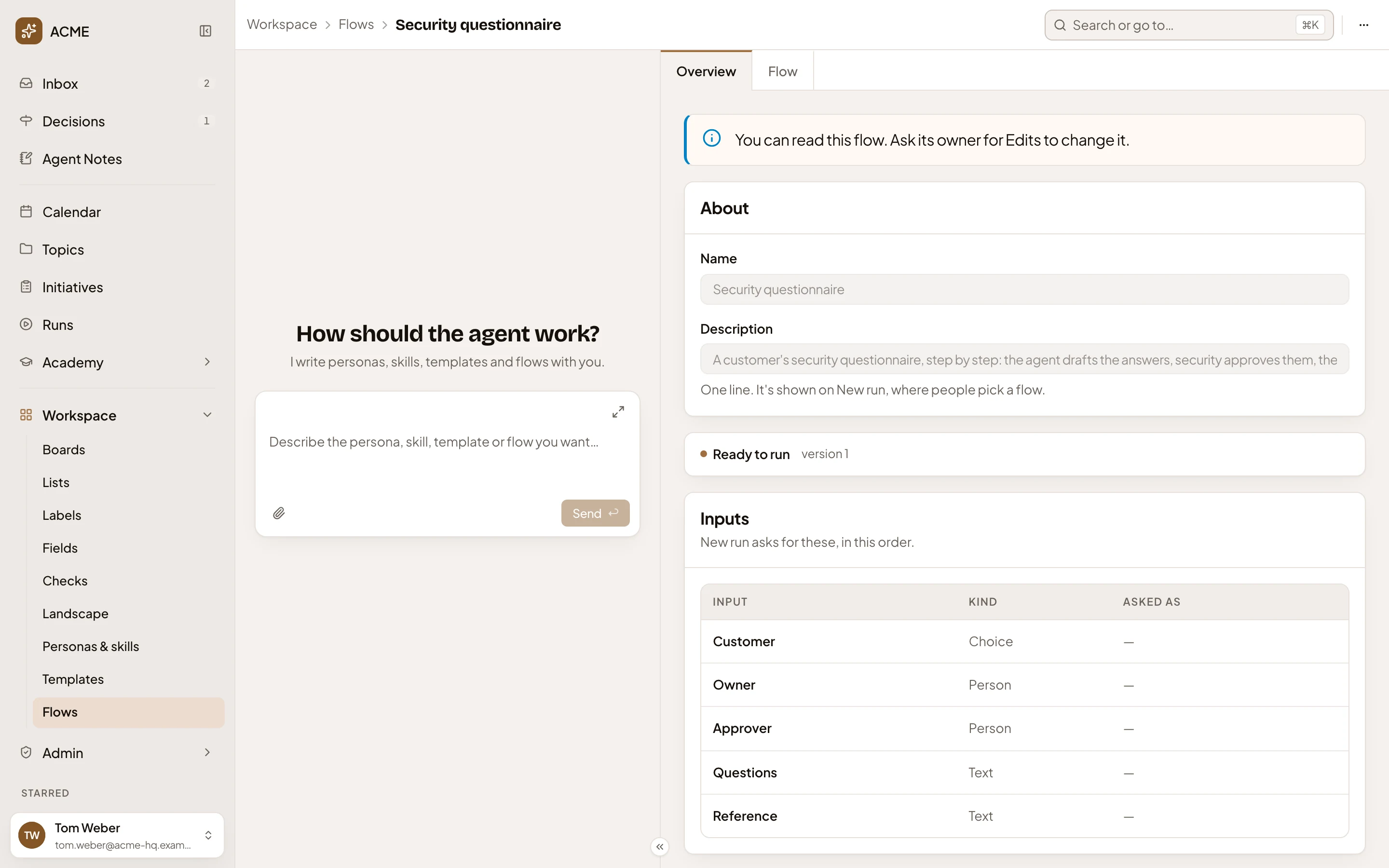
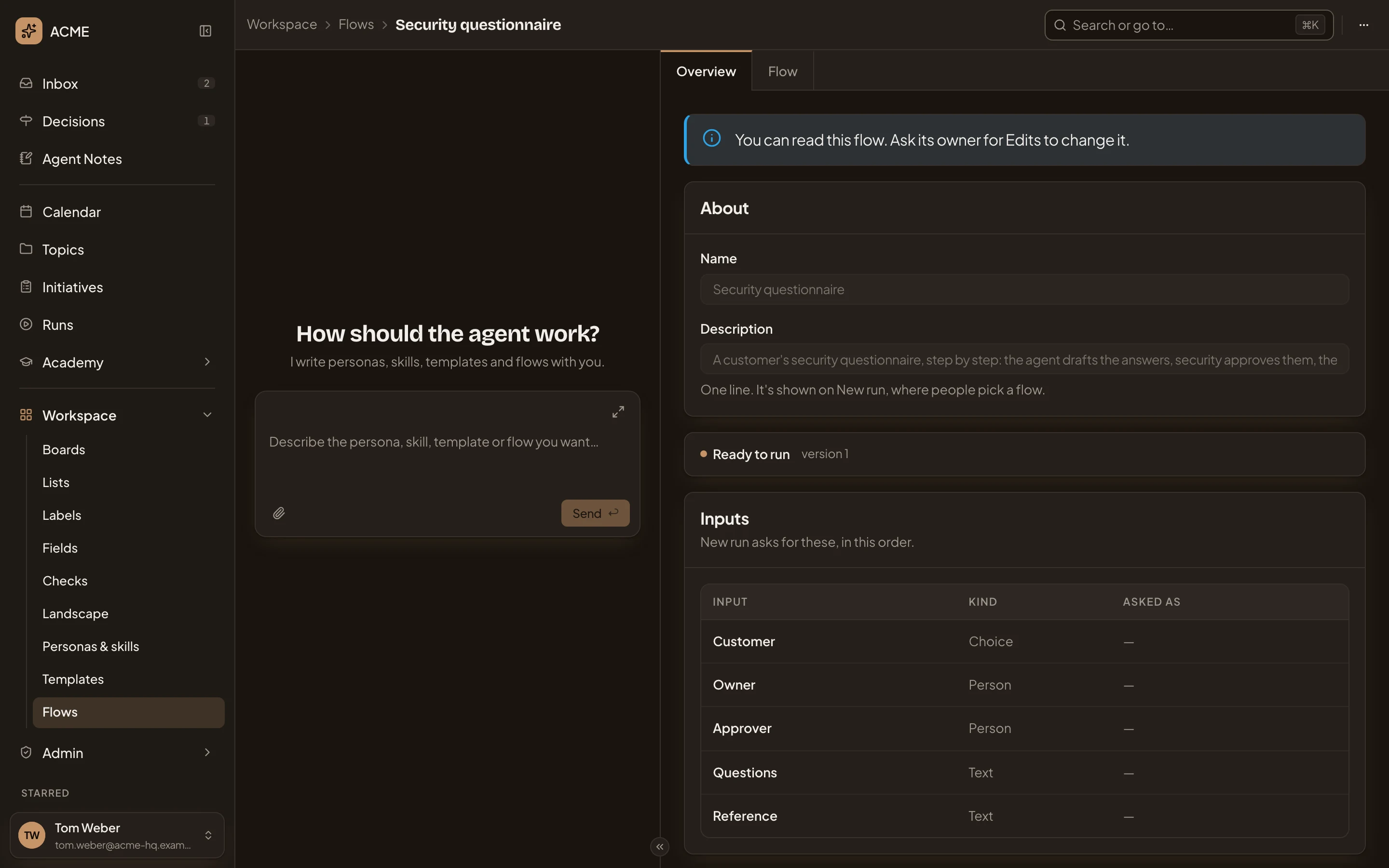
- “You can read this flow. Ask its owner for Edits to change it.”
New flow
Section titled “New flow”New flow on the Flows page opens an empty page, which becomes a new flow once it has a name or text.
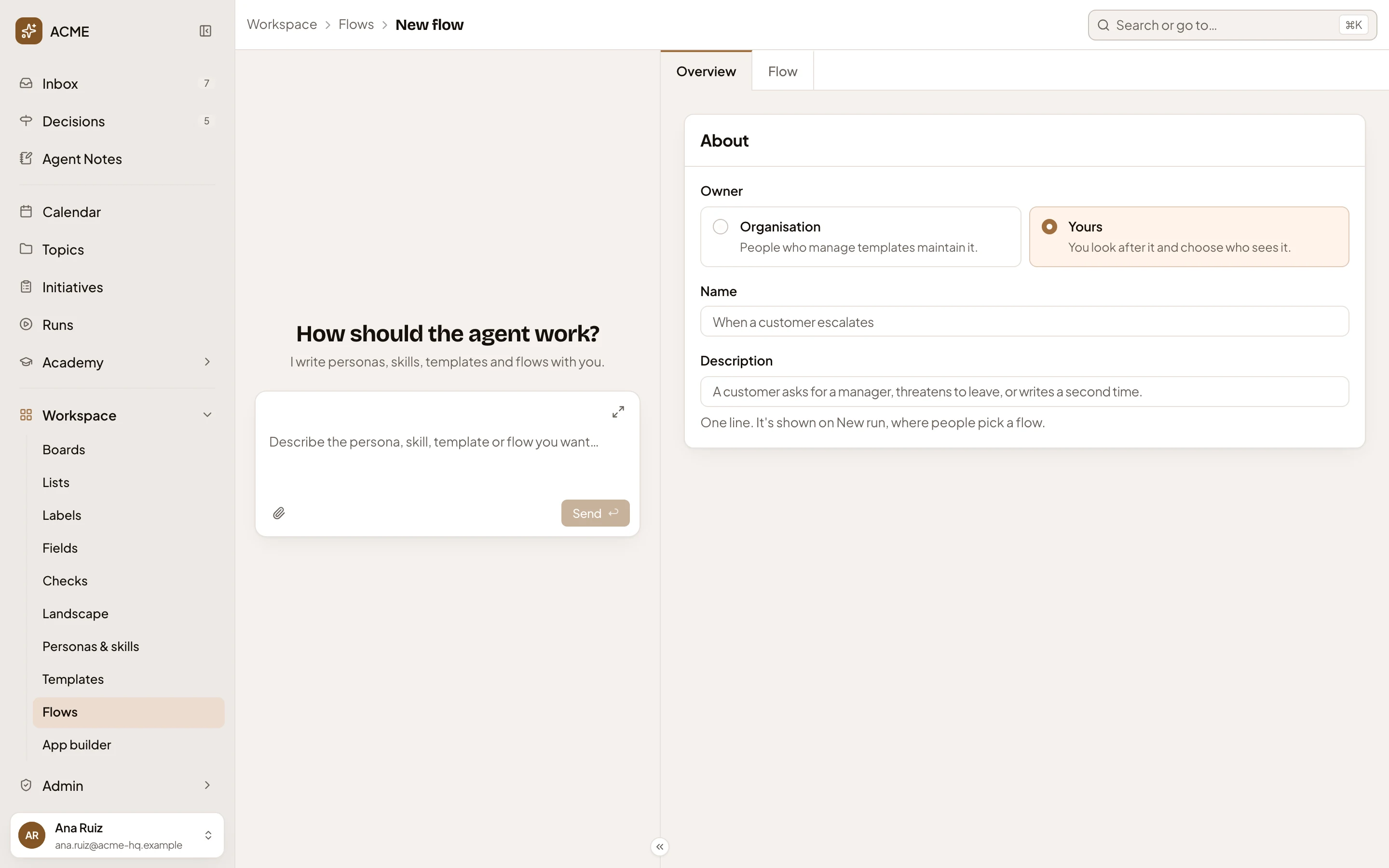
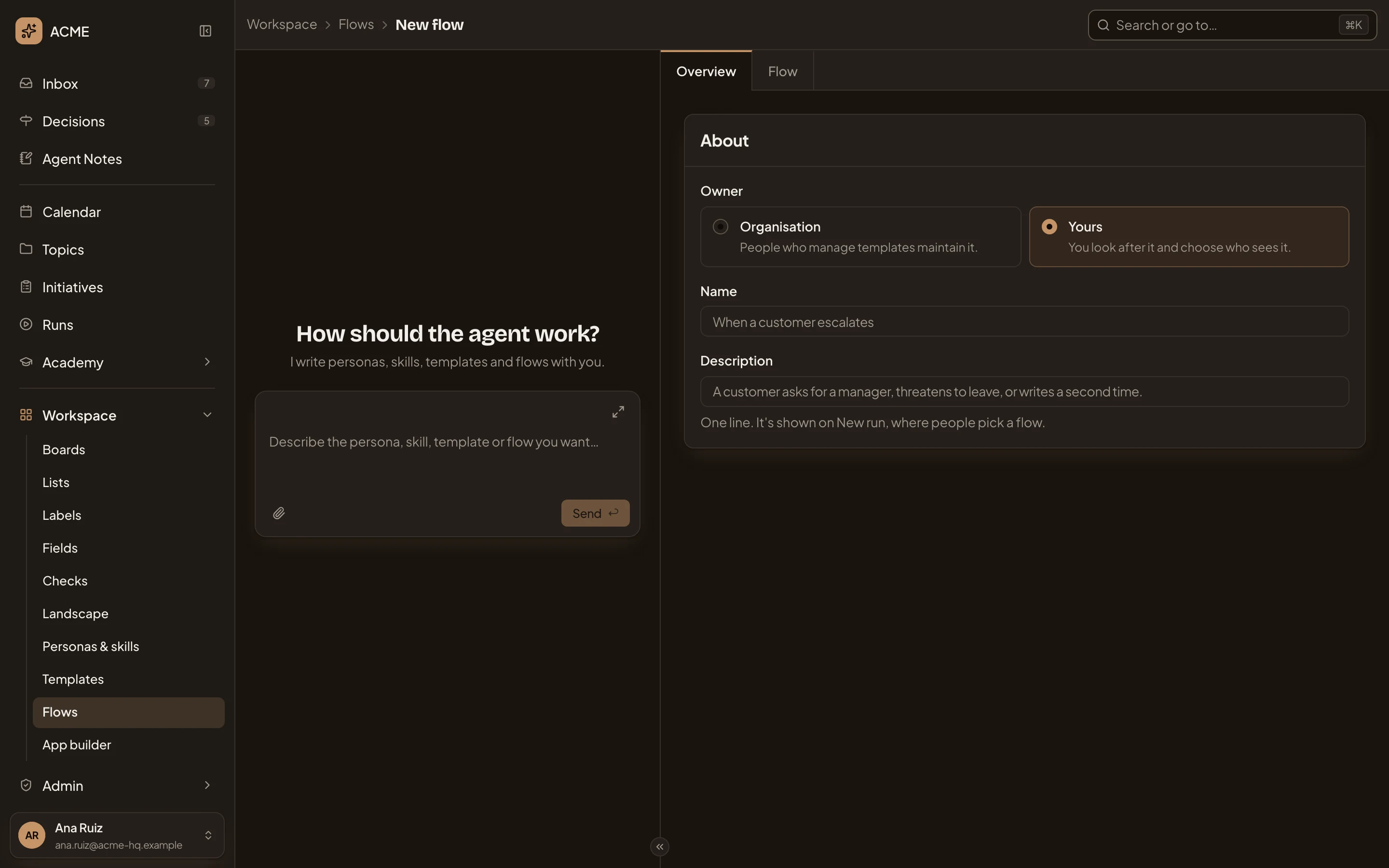
- Overview and Flow. A new flow starts on Overview.
- Owner. People who manage templates look after an Organisation flow. You look after Yours, and choose who sees it. Only people who manage templates see this choice.
- Name.
- Description. One line, shown on New run.
Access
Section titled “Access”Anyone who sees a flow can open its page. People whose role lets them manage templates change the organisation’s flows. You and the people you give Edits change your own.